Cheque payment कैसे record करें Inkwelly में
यह गाइड स्कूल काउंटर पर cheque स्वीकार करने वाले cashier और fee clerk के लिए है — Tier-2 और Tier-3 भारतीय स्कूलों में cheque आज भी सबसे आम offline fee instrument है। अंत में Inkwelly में cheque number, bank और date के साथ cheque file पर होगा, invoice भुगतान के अनुसार update होगा, और cheque pipeline में deposit-clearing-bounce lifecycle के लिए तैयार दिखाई देगा।
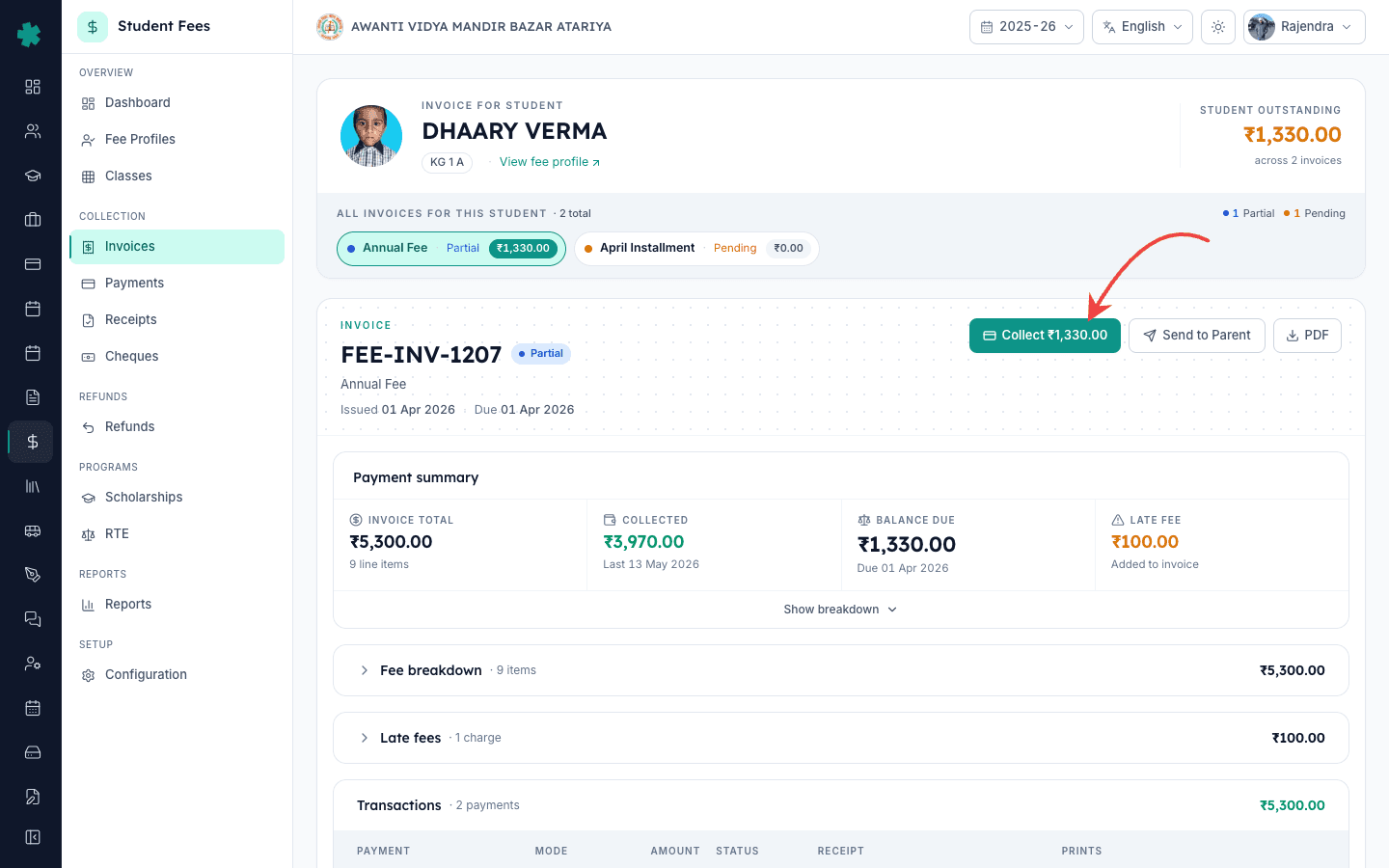
Inkwelly में cheque payment record करने के लिए: छात्र का invoice खोलें, Collect पर क्लिक करें, Cheque mode chip चुनें, राशि भरें, फिर खुलने वाले Cheque card में cheque number, cheque date और bank का नाम भरें और Collect button दबाएँ। Inkwelly invoice के विरुद्ध payment सेव कर देता है और cheque को pipeline में Received status पर रख देता है, जहाँ से अगले कुछ कार्य दिवसों में deposit, clearing और bounce — पूरा lifecycle चलता है।
Tier-2 और Tier-3 भारतीय स्कूलों में cheque आज भी कुल फीस संग्रह के 30 से 40 प्रतिशत हिस्से के लिए ज़िम्मेदार है — UPI के शहरी बाज़ार पर हावी होने के बाद भी — क्योंकि अभिभावक post-dated cheque की भविष्यवाणी पसंद करते हैं और स्कूल ऑफिस paper audit trail पसंद करता है। हर स्कूल cheque पूरी तरह Negotiable Instruments Act, 1881 के अधीन है, और Section 138 के अनुसार बाउंस हुआ फीस cheque एक दंडनीय अपराध है जिसकी शिकायत दर्ज करने के लिए छह महीने की कार्यकारी अवधि होती है। Inkwelly cheque को first-class object मानता है — payment पर एक free-text note नहीं — इसलिए जिस क्षण अभिभावक काउंटर पर cheque सौंपता है, ऑफिस head उसे cheque pipeline में cheque number, bank, drawer name और status के साथ देख सकता है। एक 1,200 छात्रों वाला स्कूल हर सत्र में लगभग 250 से 400 cheque अपने Student Fee module के विरुद्ध clear करता है।
1. छात्र का invoice खोलें और Collect दबाएँ
Inkwelly → Student Fee → Invoices खोलें और invoice number, admission number या छात्र के नाम से search करें। Invoice row पर click करके detail page खोलें। ऊपर दाईं ओर तीन button होते हैं: Collect (बकाया राशि सहित), Send to Parent और PDF। Collect दबाएँ — Collect Payment dialog खुल जाता है। Dialog cashier counter layout में खुलता है — सबसे ऊपर बड़ी राशि, उसके नीचे mode pills, और सबसे नीचे एक sticky Collect button।
2. Cheque mode chip चुनें
Collect Payment dialog में राशि के नीचे payment mode pills की एक पंक्ति दिखती है: Cash, UPI, Card, Cheque, Bank, Net Banking, DD, Wallet और Gateway। Cheque pill पर click करें — इसका icon एक document जैसा है। Inkwelly उस pill को brand colour में highlight कर देता है, date और note triggers के नीचे एक dedicated Cheque card खोलता है, और सबसे नीचे का Collect button बदलकर Collect ₹1,330 · Cheque दिखाता है। राशि default में पूरी बकाया राशि भरी रहती है; partial settlement के लिए Full, ½, ¼ या Clear chips काम में लीजिए।
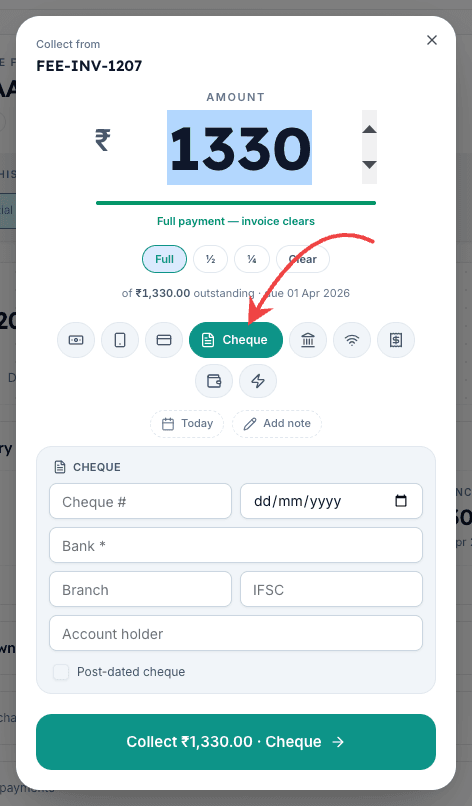
3. Cheque number और cheque date भरें
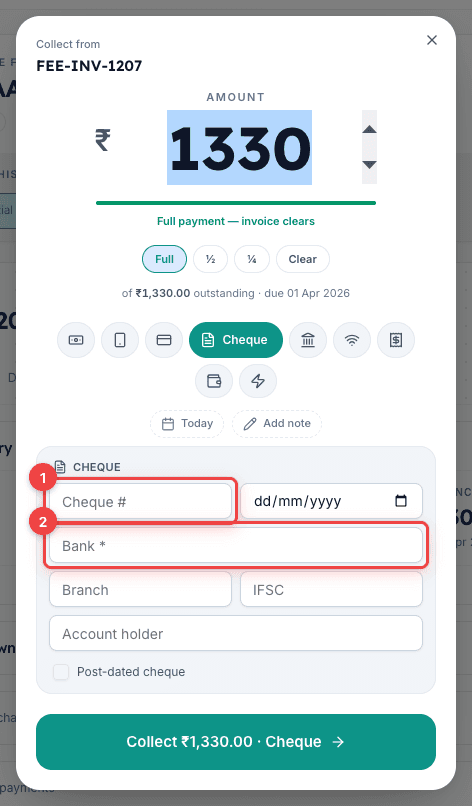
Cheque card में दो column के grid में छह fields होते हैं। Cheque # field में cheque का छह अंकीय number type कीजिए — Inkwelly स्कूल के अंदर cheque-number-plus-bank का unique combination लागू करता है, इसलिए उसी series की अगली cheque book से गलती से दोहरा entry blocked हो जाएगा। Cheque date picker से cheque पर लिखी हुई date चुनें — यह cheque की date है, आज की counter date नहीं। Counter date dialog के ऊपर Today / paymentDate chip में अलग से बनी रहती है। दोनों dates का अलग होना सामान्य post-dated cheque pattern है।
4. Bank और optional drawer fields भरें
Bank field में bank का नाम type कीजिए — जैसे ICICI Bank, HDFC Bank, State Bank of India या कोई क्षेत्रीय bank। Inkwelly free text स्वीकार करता है इसलिए cooperative bank और स्थानीय Gramin bank भी उसी तरह काम करते हैं। Bank के नीचे चार optional fields होते हैं: Branch, IFSC, Account holder और एक Post-dated cheque checkbox। यदि cheque तीसरे व्यक्ति का है (जैसे parent का employer या रिश्तेदार) तो IFSC और Account holder ज़रूर भरें — cheque के बाद में clear या bounce होने पर audit trail के लिए drawer का नाम काम आएगा। यदि cheque की date भविष्य की है तो Post-dated cheque checkbox tick कीजिए, और Inkwelly deposit reminder के लिए एक PDC due date field दिखा देगा।
5. Payment सेव करें और cheque entry की पुष्टि करें
राशि, mode chip और cheque card एक बार और जाँचें, फिर dialog के सबसे नीचे हरा Collect ₹<amount> · Cheque button दबाएँ। Inkwelly invoice के विरुद्ध payment row लिखता है, invoice को Partially Paid या Paid mark करता है — यह इस पर निर्भर है कि cheque बकाया पूरी तरह कवर करता है या नहीं — और पीछे cheque object को Received status पर बना देता है। एक success toast entry की पुष्टि करता है। Invoice detail page refresh होता है और नया payment Cheque mode pill के साथ Payments section में दिखाई देता है।
6. Cheque pipeline में cheque देखें
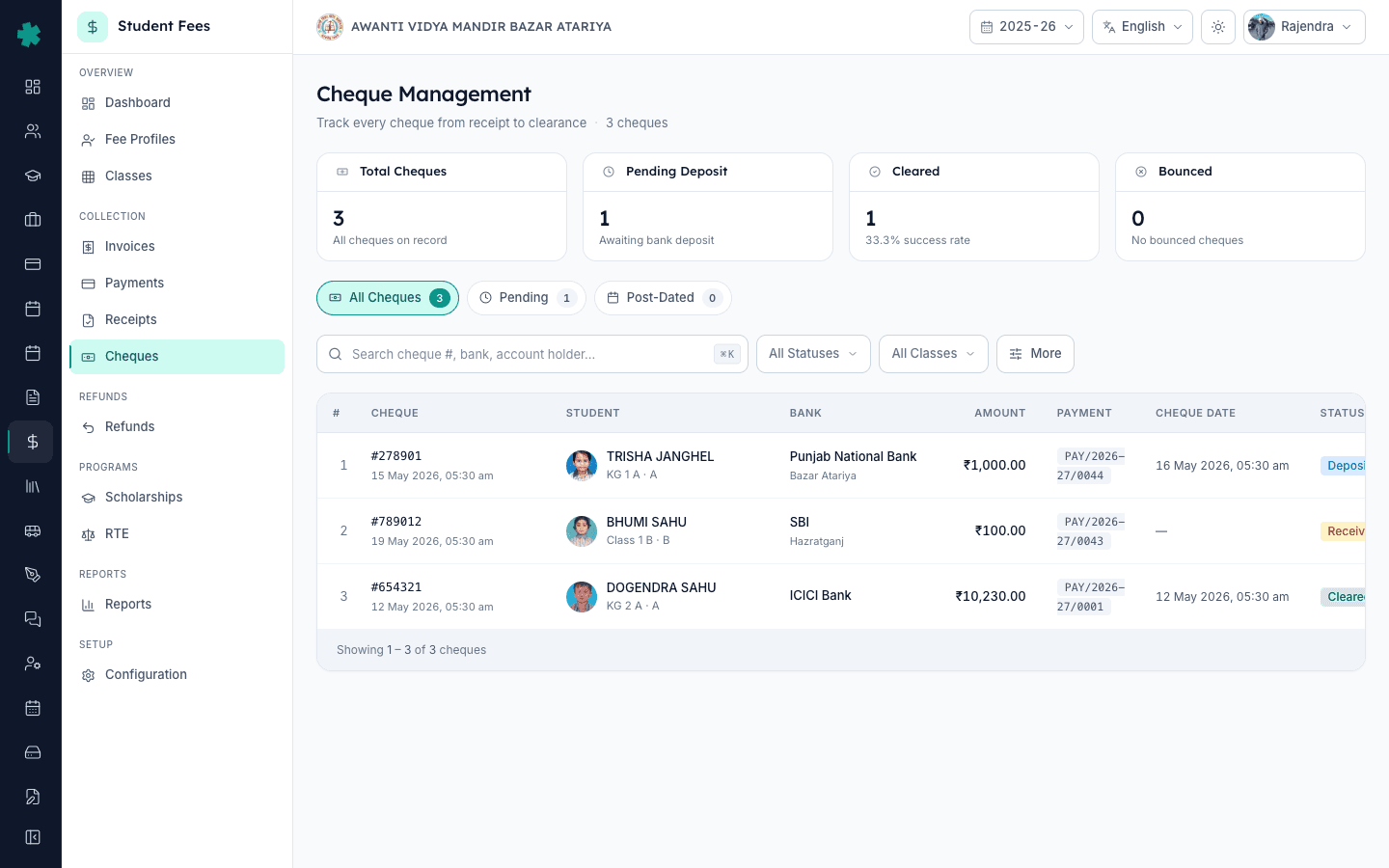
Left sidebar में COLLECTION section से Inkwelly → Student Fee → Cheques खोलें। Cheques page पर चार KPI tiles दिखते हैं — Total Cheques, Pending Deposit, Cleared और Bounced — और तीन tabs: All Cheques, Pending और Post-Dated। नया cheque Pending tab पर Received status pill, cheque number, bank, drawer name और राशि के साथ दिखाई देगा। इसी row से deposit, clear और bounce actions kebab menu या detail page से चलते हैं — यह तीनों इस cluster के sibling LEARNs में अलग से बताए गए हैं।

Cheque file पर आ जाने के बाद अगले कदम lifecycle के अनुसार चलते हैं। ऑफिस head bank में cheque deposit कर के Inkwelly पर वापस आता है और deposit action चलाता है — एक अलग sibling LEARN इसकी पूरी प्रक्रिया बताती है। Clearing day के बाद वही cheque या तो Cleared mark किया जाता है (पैसा real है, fee बंद) या Bounced (payment reverse होता है, invoice फिर outstanding हो जाता है, और bounce-charge raise किया जा सकता है)। Post-dated cheque के लिए ऑफिस एक deposit reminder set करता है ताकि cheque drawer में न खो जाए। तीनों स्थितियों में अभिभावक को वही cheque receipt पर और parent app पर दिखाई देता है।
Inkwelly Student Fees को काम करते हुए देखें
अक्सर पूछे गए सवाल
6 सवालInkwelly में cheque payment कैसे record करें?
Student Fee → Invoices खोलें, invoice पर click करें। ऊपर दाईं ओर Collect दबाएँ। Collect Payment dialog में Cheque mode chip चुनें — cheque card खुल जाएगा। Cheque number, cheque date और bank का नाम भरें, नीचे के हरे Collect button पर click करें। Cheque save हो जाएगा और Cheques page के Pending tab पर Received status में दिखेगा।
Cheque kaise record kare Inkwelly me?
Student Fee → Invoices kholiye, invoice par click kijiye. Top-right ke Collect button par click kijiye. Collect Payment dialog me Cheque mode pill par click kijiye — cheque card khul jayega. Cheque number, cheque date aur bank ka naam bhariye, neeche ke green Collect button par click kijiye. Cheque save ho jayega aur Cheques page ke Pending tab par Received status me dikhega.
Cheque save करने के बाद Inkwelly में आगे क्या होता है?
Inkwelly invoice के विरुद्ध एक payment row लिखता है, cheque राशि के अनुसार invoice को Partially Paid या Paid mark करता है, और cheque pipeline में cheque object Received status पर बना देता है। Student Fee → Cheques page से ऑफिस cheque को deposited, फिर bank की पुष्टि के बाद cleared, या वापस आने पर bounced mark कर सकता है।
क्या स्कूल फीस invoice पर post-dated cheque रिकॉर्ड कर सकते हैं?
हाँ। Collect Payment dialog के Cheque card में optional drawer fields के नीचे Post-dated cheque checkbox tick कीजिए। Inkwelly एक PDC due date field खोल देता है। वह date set करें जिस दिन cheque deposit करना है, और payment save करें। Cheque Student Fee → Cheques के Post-Dated tab पर दिखेगा और PDC due date पर ऑफिस को deposit reminder मिलेगा।
Cheque bounce ho gaya to kya kare?
Cheques page kholiye, woh cheque dhoondhiye, kebab menu se Bounce action par click kijiye. Inkwelly payment reverse karega, invoice ko phir se outstanding karega aur cheque ke status ko Bounced kar dega. Iske baad bounce charge raise karna ya Redeposit karna — dono option Cheque detail page par milte hain. Negotiable Instruments Act ke Section 138 ke liye saari history audit trail me reti hai.
क्या Inkwelly स्कूल के लिए डुप्लिकेट cheque number रोकता है?
हाँ। Inkwelly स्कूल के अंदर cheque number और bank name का unique combination लागू करता है, इसलिए उसी cheque book की अगली series से गलती से दोहरा entry save पर ही रुक जाता है। यह डुप्लिकेट guard सत्रों और छात्रों — दोनों के बीच काम करता है, और दो cashier द्वारा एक ही physical cheque को दो अलग invoice पर डालने वाली सामान्य गलती पकड़ लेता है।
आपको ये भी पसंद आ सकता है
3 लेखस्रोत व संदर्भ
- Negotiable Instruments Act, 1881 — Section 138 (Dishonour of cheque) · देखा गया 19 May 2026
Section 138 के अनुसार ऋण या देयता के लिए बाउंस हुआ cheque एक दंडनीय अपराध है जिसकी शिकायत दर्ज करने के लिए छह महीने की कार्यकारी अवधि होती है — यही कारण है कि Inkwelly हर cheque event को end-to-end audit trail में रखता है।
- Reserve Bank of India — Master Circular on Customer Service in Banks (Cheque Collection Policy) · देखा गया 19 May 2026
RBI हर bank को local, outstation और CTS clearing windows के नामकरण के साथ Cheque Collection Policy प्रकाशित करने के लिए कहता है — यही windows Inkwelly का cheque lifecycle (Received → Deposited → Cleared / Bounced) track करता है।
- CBSE Affiliation Bye-Laws, 2018 — Chapter VII (Fee Structure and Receipts) · देखा गया 19 May 2026
CBSE-affiliated स्कूलों को cheque सहित हर fee instrument के विरुद्ध numbered receipt जारी करनी होती है और प्रमाण रखने होते हैं — यही आधार है जिस पर Inkwelly cheque object को receipt और audit trail के साथ संग्रहीत करता है।
Inkwelly आपके स्कूल पर — खुद देखें
30 मिनट का डेमो। आपके मौजूदा ERP को आपके साथ खोलकर, कॉल पर ही आपका डेटा Inkwelly में लोड करते हैं। कॉल ख़त्म होते-होते एक तय तारीख़ का गो-लाइव प्लान आपके हाथ में।