छात्र को स्कॉलरशिप कैसे दें और स्वीकृत करें Inkwelly में
यह गाइड उन फीस ऑफिस क्लर्क, अकाउंटेंट और प्रिंसिपल के लिए है जो सत्र भर स्कॉलरशिप चक्र चलाते हैं — समिति की सिफारिश, अवॉर्ड पत्र और छात्र के फीस profile पर असली असर। अंत में आपके पास Inkwelly में एक छात्र को स्कॉलरशिप दी हुई, स्वीकृत और Net Payable से कटी हुई दिखाई देगी।
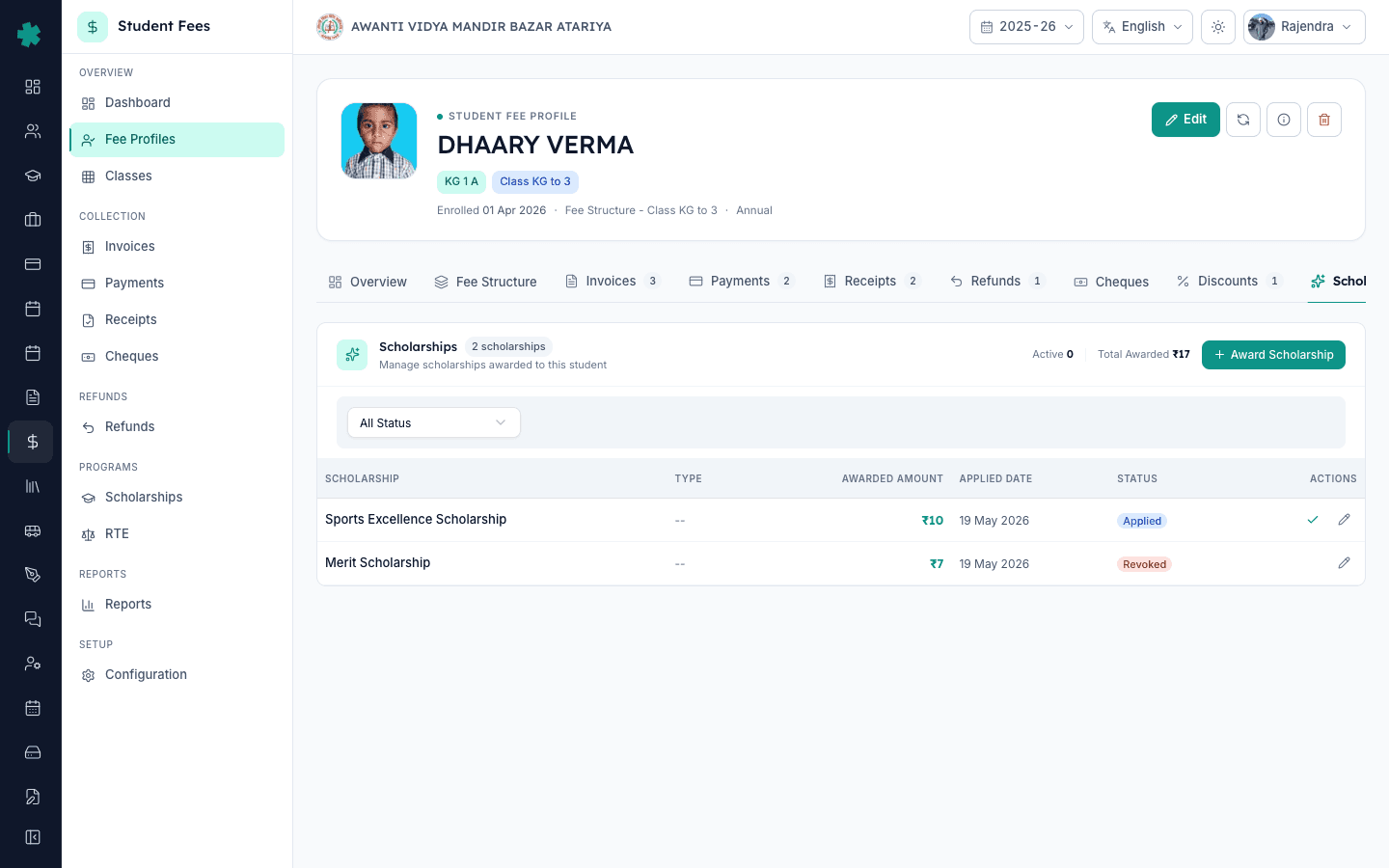
Inkwelly में छात्र को स्कॉलरशिप देने के लिए: छात्र का फीस profile खोलें, Scholarships टैब पर जाएँ, Award Scholarship बटन दबाएँ, सूची से स्कॉलरशिप चुनें (जैसे Merit Scholarship), सिस्टम को राशि गणना करने दें (जैसे Net Payable का 7 प्रतिशत), टिप्पणी जोड़ें और सेव करें। स्कॉलरशिप Applied स्थिति में जाती है, फिर एक समीक्षक हरे टिक से इसे स्वीकृत करता है। स्वीकृत स्कॉलरशिप अगली पुनर्गणना पर Net Payable से कट जाती है।
भारतीय स्कूल में स्कॉलरशिप का चक्र वार्षिक होता है: सत्र की शुरुआत (अप्रैल) में नामांकन खुलते हैं, मेरिट समिति या ट्रस्ट प्रकाशित मानदंडों के विरुद्ध आवेदनों की समीक्षा करता है, अवॉर्ड पत्र परिवार को भेजा जाता है और कार्यालय बच्चे के फीस profile पर अवॉर्ड दर्ज करता है। CBSE से सम्बद्ध स्कूल हर साल लगभग 3 से 8 प्रतिशत छात्रों को Single Girl Child Scholarship और मेरिट अवॉर्ड के अंतर्गत स्कॉलरशिप देते हैं (CBSE 2024 affiliation bye-laws)। 1,200 छात्रों वाला स्कूल हर सत्र में 36 से 96 अवॉर्ड दर्ज करता है — और हर एक सही invoice पर दिखना चाहिए। Inkwelly पूरे चक्र को एक Scholarships टैब पर रखता है — चुनें, गणना, स्वीकृति, निरस्तीकरण — ताकि साल के अंत में breakdown ट्रस्ट के बही-खाते से मेल खाए।
1. छात्र का फीस profile खोलें
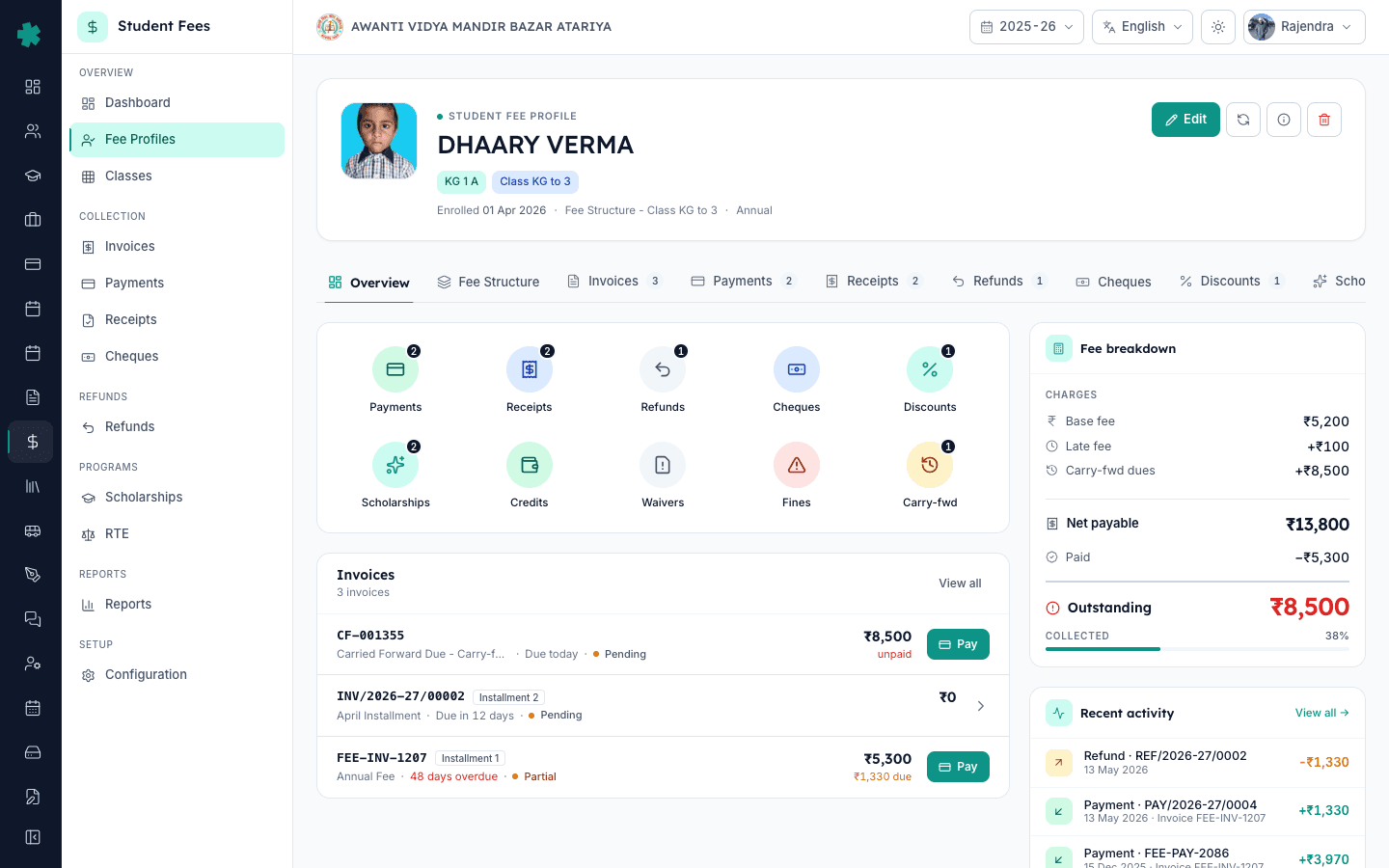
Inkwelly → Student Fee → Fee Profiles खोलें। प्रवेश संख्या, रोल नंबर या नाम से खोजें। पंक्ति पर क्लिक करके profile खोलें। डिटेल पेज के शीर्ष पर Overview, Fee Structure, Invoices, Payments, Receipts, Refunds, Cheques, Discounts और Scholarships टैब दिखाई देते हैं। दाईं ओर का कॉलम पहले से ही Base fee, Late fee, Net payable, Paid और Outstanding दिखाता है, ताकि अवॉर्ड देने से पहले वर्तमान देयता आपके सामने हो।
2. Scholarships टैब पर क्लिक करें
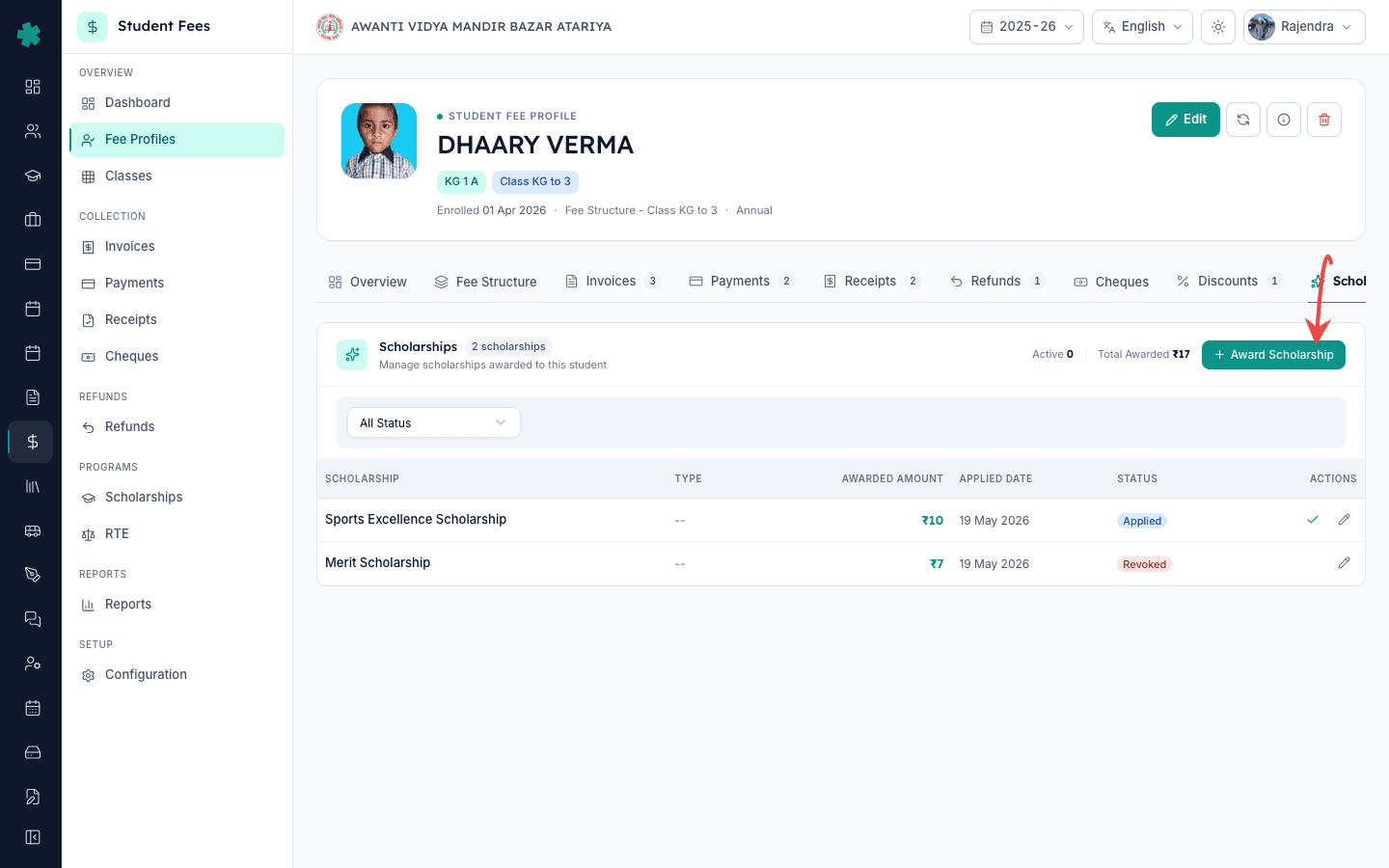
profile के ऊपर टैब की पंक्ति में Scholarships टैब पर क्लिक करें। Inkwelly इस छात्र को पहले दी गई हर स्कॉलरशिप की सूची स्थिति चिप्स के साथ दिखाता है — Applied, Under Review, Approved, Active, Suspended, Revoked। कार्ड हेडर पर सत्र की Active गणना और Total Awarded राशि दिखती है। कार्ड के ऊपर दाईं ओर नीला Award Scholarship बटन है।
3. Award Scholarship दबाएँ और स्कॉलरशिप चुनें
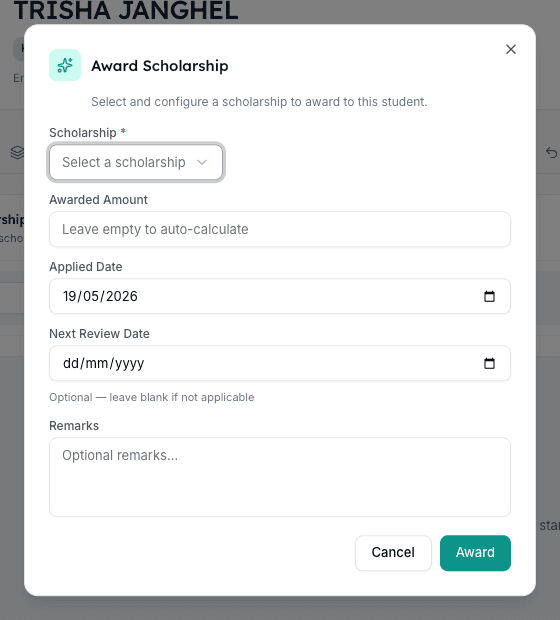
Award Scholarship पर क्लिक करें। डायलॉग खुलता है। Scholarship ड्रॉपडाउन से वह मास्टर चुनें जो आपकी समिति के निर्णय से मेल खाता हो — उदाहरण के लिए Merit Scholarship (सभी फीस हेड पर 7 प्रतिशत)। Inkwelly केवल सत्र के लिए सक्रिय स्कॉलरशिप ही सूचीबद्ध करता है। यदि आप कवरेज नियम से Inkwelly को राशि गणना करने देना चाहते हैं तो Awarded Amount खाली छोड़ दें, और यदि समिति ने कोई गैर-मानक राशि स्वीकृत की है तो उसे टाइप करें। Applied Date को अवॉर्ड पत्र की तारीख पर सेट करें; डिफ़ॉल्ट आज का दिन रहता है।
4. टिप्पणी जोड़कर अवॉर्ड सेव करें
Remarks फ़ील्ड में वह कारण भरें जो audit trail में दर्ज रहेगा — बोर्ड रैंक, मेरिट प्रतिशत, RTE धारा, दानदाता पत्र संख्या। यदि चाहें तो Next Review Date छह या बारह महीने आगे की रखें ताकि कार्यालय को पता रहे कि उपस्थिति या ग्रेड शर्तें कब पुनः जाँचनी हैं। Award दबाएँ। Inkwelly Applied स्थिति का रिकॉर्ड बना देता है और तालिका में पंक्ति दिखाता है — स्कॉलरशिप का नाम, प्रकार, गणना की हुई राशि (उदाहरण के लिए Net Payable ₹5,300 हो और कवरेज 7 प्रतिशत हो तो ₹371), Applied date और Applied चिप।
5. स्कॉलरशिप स्वीकृत करें
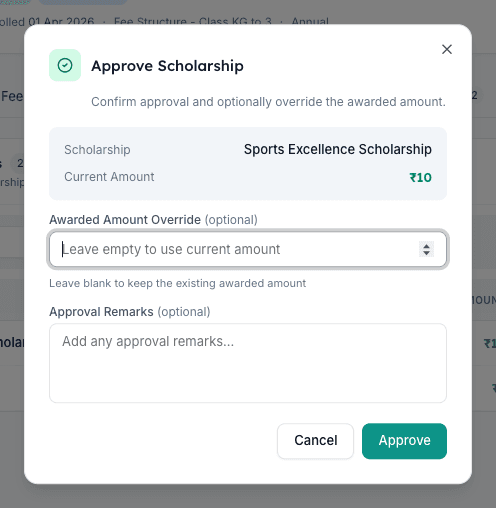
तालिका में पंक्ति खोजें। पंक्ति के दाईं ओर हरे टिक का बटन तब दिखता है जब स्थिति Applied या Under Review हो। टिक पर क्लिक करें। Approve Scholarship डायलॉग खुलता है जिसमें स्कॉलरशिप का नाम, वर्तमान गणना की हुई राशि और प्रकार चिप दिखती है। यदि चाहें तो राशि बदलें या प्रिंसिपल की स्वीकृति टिप्पणी पेस्ट करें, फिर Approve दबाएँ। Inkwelly स्थिति Approved कर देता है, स्वीकर्ता और timestamp दर्ज करता है, और राशि को फीस profile के स्कॉलरशिप कुल में जोड़ देता है। अगली पुनर्गणना पर दाईं ओर का breakdown Net Payable से स्कॉलरशिप कटी हुई दिखाएगा।
6. पुष्टि करें कि स्कॉलरशिप breakdown पर लागू हो गई
profile Overview पर लौटें। दाईं ओर के फीस breakdown कार्ड में अब deductions ब्लॉक के अंतर्गत स्कॉलरशिप की पंक्ति दिखती है, Net Payable अवॉर्ड राशि से घटा हुआ दिखता है और Overview पंक्ति की Scholarships टाइल इस छात्र के लिए सत्र का चालू कुल दिखाती है। अगला लंबित invoice खोलें — Collect डायलॉग और अभिभावक की receipt अपने आप घटी हुई राशि दिखाते हैं, और ट्रस्ट के बही-खाते में स्कॉलरशिप non-cash settlement के रूप में दर्ज हो जाती है। आगे चलकर निरस्त करना हो (पास आउट होना, पात्रता समाप्ति, दानदाता का पीछे हटना), तो उसी Scholarships टैब पर Approved पंक्ति के लाल revoke बटन पर क्लिक करें; Inkwelly कारण पूछता है और पूरे audit trail के साथ राशि साफ़-साफ़ पलट देता है।
अगला कदम — यदि स्कॉलरशिप के लिए फंड बाहर से आ रहा है तो स्कॉलरशिप दानदाता कैसे रजिस्टर करें देखें ताकि ट्रस्ट 80G receipt जारी कर सके। जिन परिवारों के लिए समिति की सिफारिश आवश्यक नहीं है उनके लिए सिबलिंग छूट के नियम और स्टाफ-वार्ड छूट के नियम सेट करें। यदि फीस हेड और वार्षिक स्ट्रक्चर अभी तक नहीं बने हैं तो वही पूर्व-आवश्यकता हैं — पहले फीस श्रेणियाँ और फीस हेड और मूल फीस स्ट्रक्चर गाइड पढ़ें।
Inkwelly Student Fees को काम करते हुए देखें
अक्सर पूछे गए सवाल
6 सवालएक भारतीय स्कूल RTE या बोर्ड नियमों को तोड़े बिना कितनी स्कॉलरशिप दे सकता है?
मेरिट, खेल या दानदाता-आधारित स्कॉलरशिप पर कोई ऊपरी सीमा नहीं है — स्कूल इन्हें प्रकाशित मानदंडों के विरुद्ध दर्ज करते रहते हैं। RTE Act 2009 के अंतर्गत CBSE से सम्बद्ध हर स्कूल को कक्षा 1 की प्रवेश सीटों में 25 प्रतिशत EWS और वंचित बच्चों के लिए आरक्षित करनी होती हैं और उनकी पूरी फीस माफ करनी होती है, जिसे Inkwelly स्कॉलरशिप मॉड्यूल के बजाय RTE मॉड्यूल से सँभालता है। NTSE, NMMS और Single Girl Child अवॉर्ड बोर्ड द्वारा प्रकाशित निश्चित राशि पर चलते हैं। ट्रस्ट-आधारित स्कॉलरशिप यदि प्रति बच्चा ₹1 लाख प्रति वर्ष से अधिक हो तो IT audit के लिए समिति की कार्यवाही ज़रूरी है।
क्या एक छात्र को Inkwelly में एक साथ एक से अधिक स्कॉलरशिप मिल सकती हैं?
हाँ। Inkwelly एक छात्र को एक साथ कई स्कॉलरशिप रखने देता है — उदाहरण के लिए 7 प्रतिशत की मेरिट स्कॉलरशिप और ₹5,000 की दानदाता-आधारित स्कॉलरशिप। हर अवॉर्ड Scholarships टैब पर अपनी स्थिति, तिथियों और audit trail के साथ अलग पंक्ति में रहता है। फीस breakdown में सभी की संयुक्त कटौती दिखती है और Net Payable स्वीकृत स्कॉलरशिप के योग के बराबर घट जाता है। वर्ष के अंत में ट्रस्ट के बही-खाते से योग को दानदाता या योजना के अनुसार अलग दिखाया जा सकता है।
Student ko scholarship kaise de Inkwelly me?
Student Fee → Fee Profiles kholiye, student ko search karke profile open kijiye. Top par Scholarships tab par jaiye. Right side ka Award Scholarship button dabaiye. Dialog me list se scholarship chuniye (jaise Merit Scholarship 7 percent), amount empty chhodiye taaki auto-calculate ho, remark me board rank ya merit percent likhiye, Award dabaiye. Phir row par green tick se Approve kar dijiye — fee breakdown me scholarship Net Payable se kat jayegi.
Scholarship revoke kaise kare bich session me?
Profile ke Scholarships tab par Approved row dhundhiye, dayein taraf laal Revoke button (X icon) dabaiye. Inkwelly reason maangega — graduation, eligibility loss, ya donor pullback. Reason fill karke confirm kijiye. Status Revoked ho jayega, scholarship amount profile se hat jayegi, aur agle recalculate me Net Payable wapas pure amount par aa jayegi. Pichhle invoice unchanged rehte hain — sirf aage ke billing par asar hota hai aur audit trail me revoke entry permanent rehti hai.
क्या Inkwelly स्कॉलरशिप की राशि अपने आप गणना करता है या मुझे टाइप करनी होती है?
दोनों। Inkwelly में हर स्कॉलरशिप मास्टर एक कवरेज नियम के साथ बनता है — जैसे सभी फीस हेड पर 7 प्रतिशत, या एक तय राशि, या किसी विशिष्ट फीस हेड पर प्रतिशत। जब आप Award डायलॉग में Awarded Amount फ़ील्ड खाली छोड़ देते हैं, Inkwelly कवरेज नियम को छात्र के Net Payable पर लागू करके पंक्ति में गणना की हुई राशि तुरंत दिखाता है। यदि समिति ने गैर-मानक राशि स्वीकृत की है तो उसे फ़ील्ड में टाइप करें और Inkwelly उस override को उपयोग करेगा। Approve डायलॉग में भी प्रिंसिपल के लिए override फ़ील्ड उपलब्ध है।
क्या अभिभावक को receipt और WhatsApp invoice पर स्कॉलरशिप दिखेगी?
हाँ। छात्र के लिए बाद में बनने वाले invoice के deductions ब्लॉक में स्कॉलरशिप की पंक्ति शामिल होती है। काउंटर पर छपी PDF receipt और अभिभावक को भेजी जाने वाली WhatsApp invoice — दोनों में मूल कुल राशि, स्कॉलरशिप पंक्ति और घटा हुआ Net Payable दिखता है, ताकि परिवार को स्पष्ट दिखे कि स्कूल या दानदाता ने कितनी राशि माफ की है। पहले से चुकाए गए invoice पीछे से नहीं बदले जाते — वे अपनी मूल राशि के साथ ऐतिहासिक रिकॉर्ड के रूप में बने रहते हैं।
आपको ये भी पसंद आ सकता है
3 लेखस्रोत व संदर्भ
- CBSE Affiliation Bye-Laws — Chapter VII, Fee, Scholarships and Concessions · देखा गया 19 May 2026
CBSE bye-laws permit affiliated schools to award merit and need-based scholarships against published criteria and require the school management committee to approve every scheme on record.
- CBSE — Single Girl Child Scholarship and Merit Scholarship Scheme (Class XI and XII) · देखा गया 19 May 2026
CBSE publishes fixed monthly stipends for the Single Girl Child Scholarship and merit-cum-means scholarships that schools mirror in the scholarship master before posting awards in Inkwelly.
- Department of School Education and Literacy — NMMS Guidelines · देखा गया 19 May 2026
NMMS guidelines define the eligibility, amount (₹12,000 per annum) and selection process for Class IX to XII students from economically weaker sections — directly relevant when schools award NMMS-funded scholarships against fee invoices.
- Right of Children to Free and Compulsory Education Act, 2009 — Section 12(1)(c) · देखा गया 19 May 2026
RTE Section 12(1)(c) mandates 25 percent EWS reservation in entry-level classes of unaided schools with full fee waiver — handled in Inkwelly's RTE module rather than the scholarship module so the two flows stay clean.
Inkwelly आपके स्कूल पर — खुद देखें
30 मिनट का डेमो। आपके मौजूदा ERP को आपके साथ खोलकर, कॉल पर ही आपका डेटा Inkwelly में लोड करते हैं। कॉल ख़त्म होते-होते एक तय तारीख़ का गो-लाइव प्लान आपके हाथ में।