How to set up staff-ward discount rules in Inkwelly
This guide is for school accountants and HR administrators who want to give a standing fee concession to children of teachers, drivers, support staff, or the principal. By the end you will have a category-wise rule that Inkwelly applies automatically on every staff-ward invoice for the rest of the session.
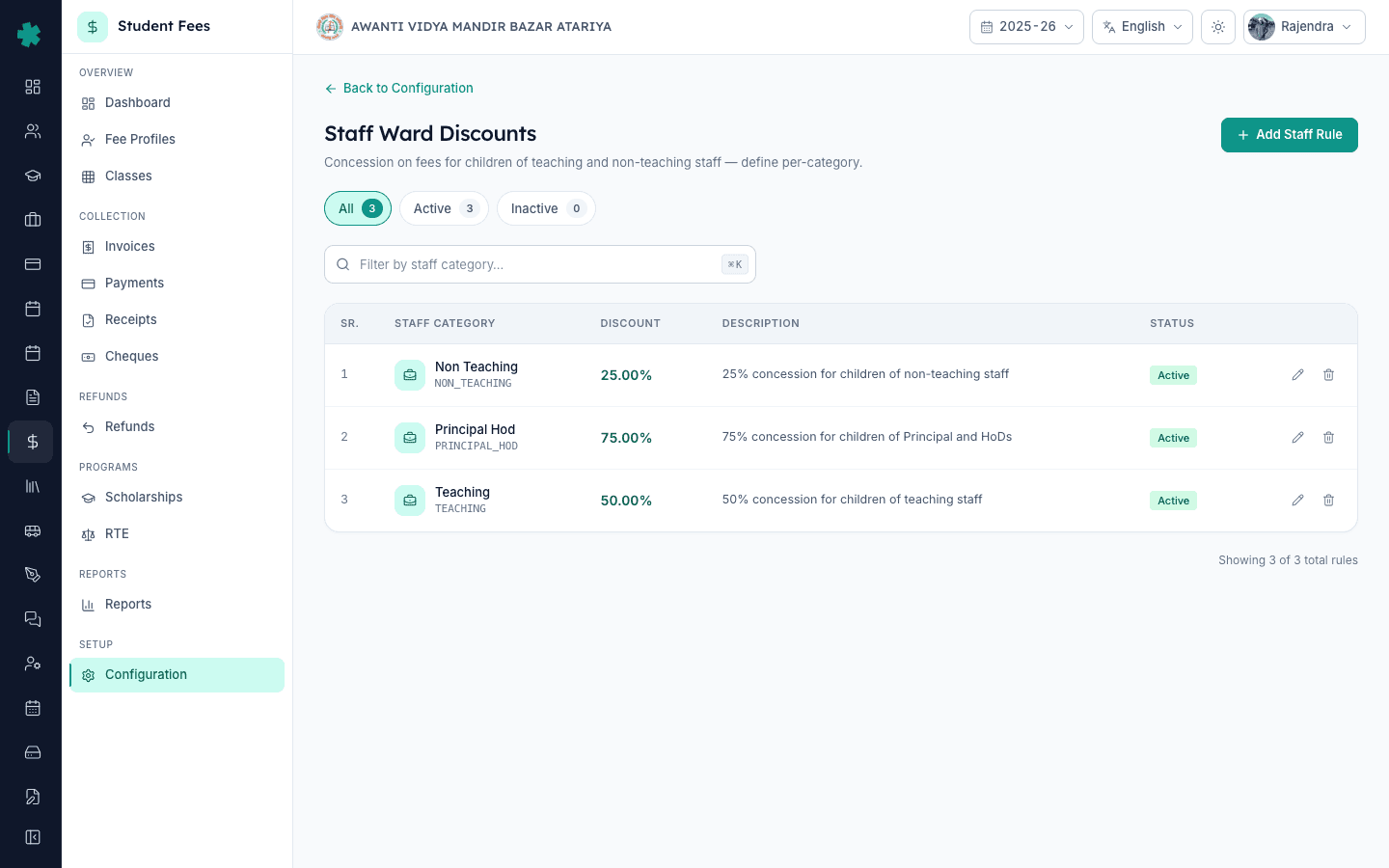
To set up a staff-ward discount in Inkwelly: open Student Fee → Configuration → Staff Ward Discounts, click Add Rule, pick the staff category (Teaching, Non-Teaching, Admin, Support, Driver, or a custom one), enter the discount percentage, leave the rule Active, and save. Inkwelly will apply that concession to the fee profile of every student whose parent record is tagged with the matching staff category — no per-student edit needed.
Staff-ward concession is a retention lever, not a charity line. CBSE-affiliated schools across India offer a 25–100% fee discount for teaching staff children — the 7th Pay Commission education allowance covers ₹27,000 per child per year for government employees, and private schools mirror this to keep good teachers. In a 1,200-student CBSE school with ~60 teachers, roughly 18–22 staff-wards study on campus; a rule-driven 50% concession saves the office about 240 manual edits per session and removes a recurring source of fee-collection disputes. Inkwelly keeps the rule as a single source of truth so promotions, salary revisions and category changes never quietly break the discount.
1. Open Fee Configuration
Open Inkwelly → Student Fee from the left sidebar, then click Configuration under SETUP. The Fee Configuration page shows four sections — Fee Structure, Discounts, Penalties & Refunds, and Preferences. Scroll to the Discounts section. The Staff Ward Discounts tile sits between Sibling Discounts and Early Payment Discounts, with the subtitle 'Set up discounts for children of staff members.'
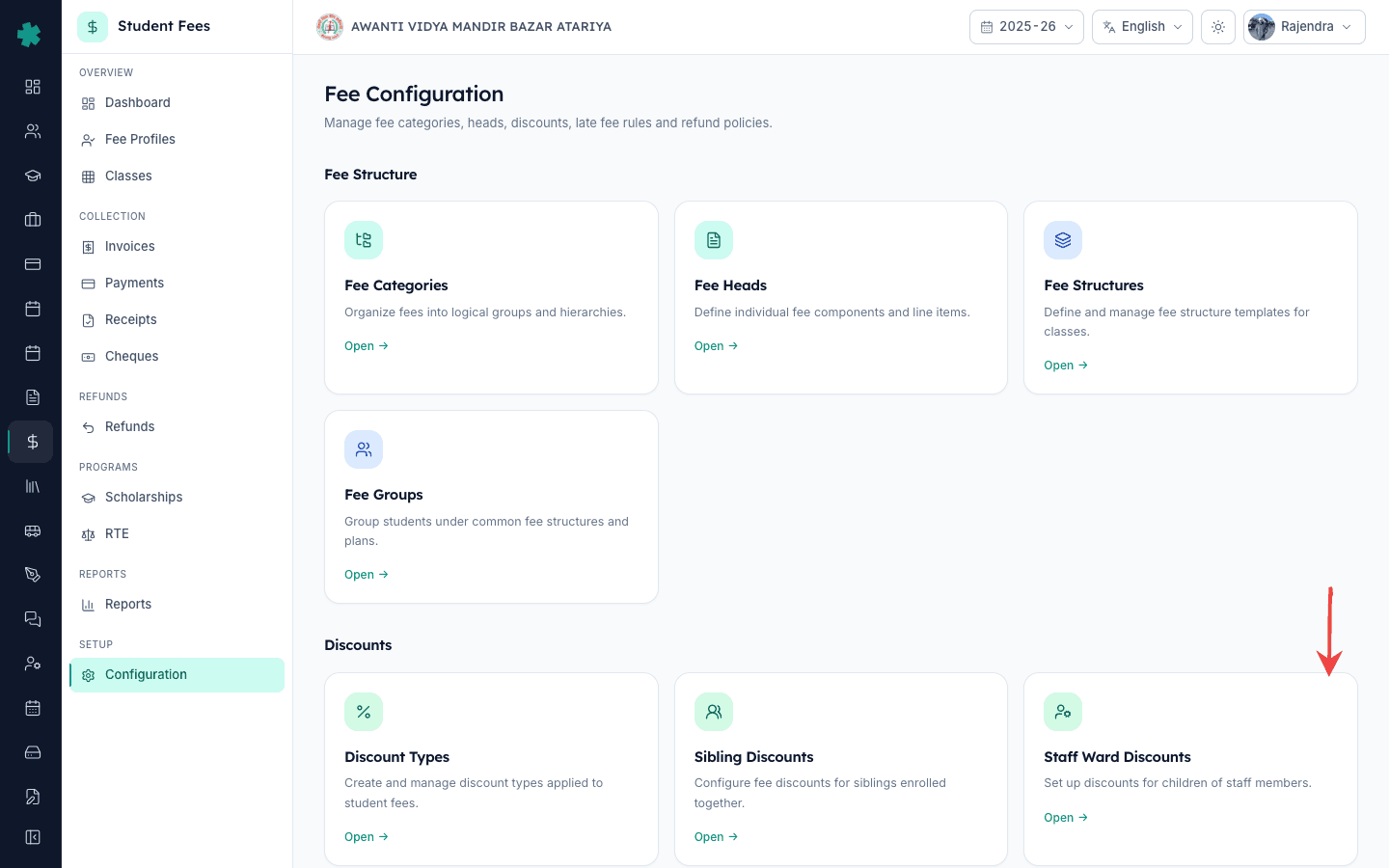
2. Open Staff Ward Discounts
Click Open on the Staff Ward Discounts tile. Inkwelly opens the list page with one row per rule, showing the staff category, the percentage, the description, and an Active/Inactive pill. The top-right corner has the Add Rule button and the top of the page shows three KPI chips — All, Active and Inactive — for a quick read of how many categories are already covered.
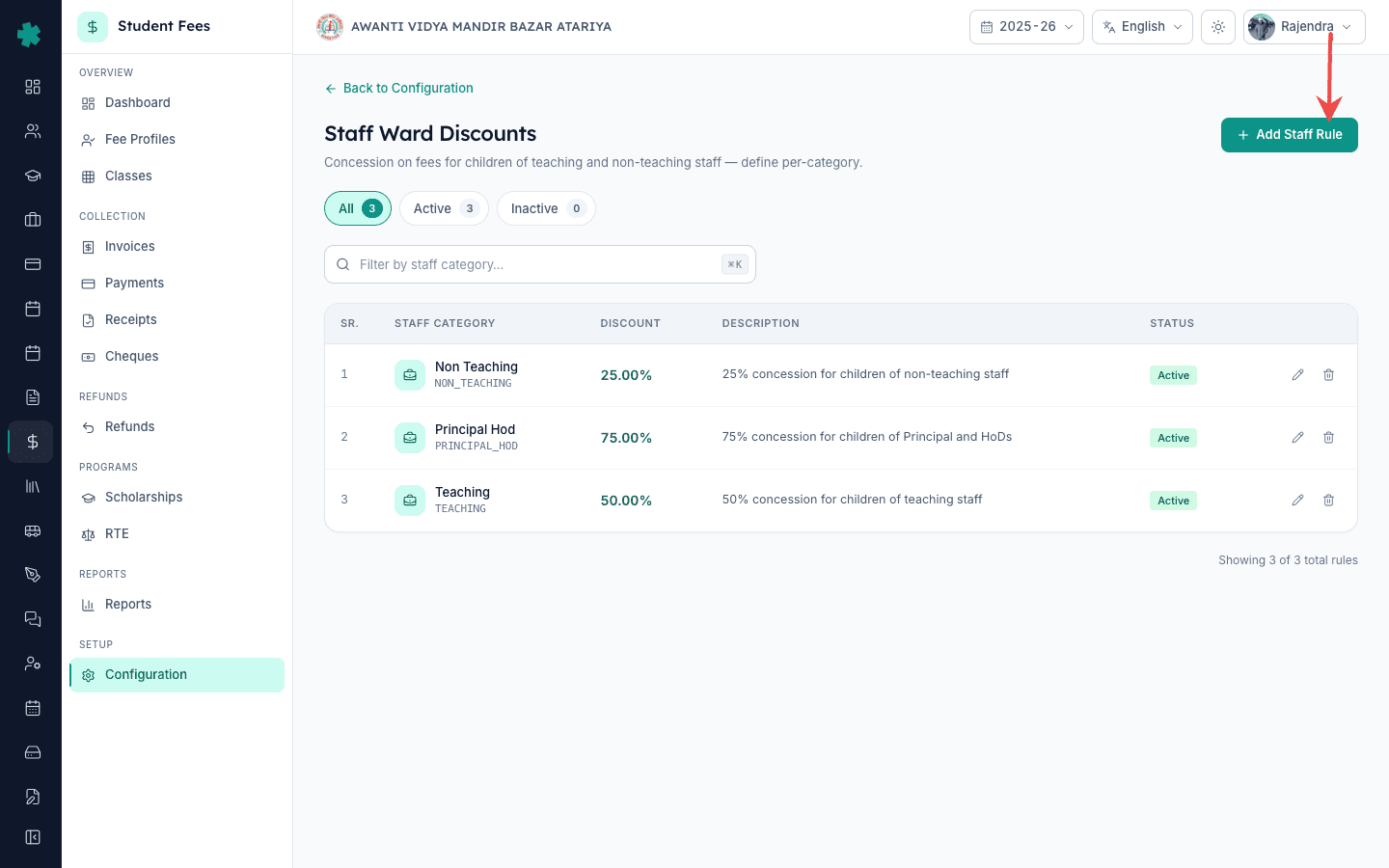
3. Click Add Rule and pick the staff category
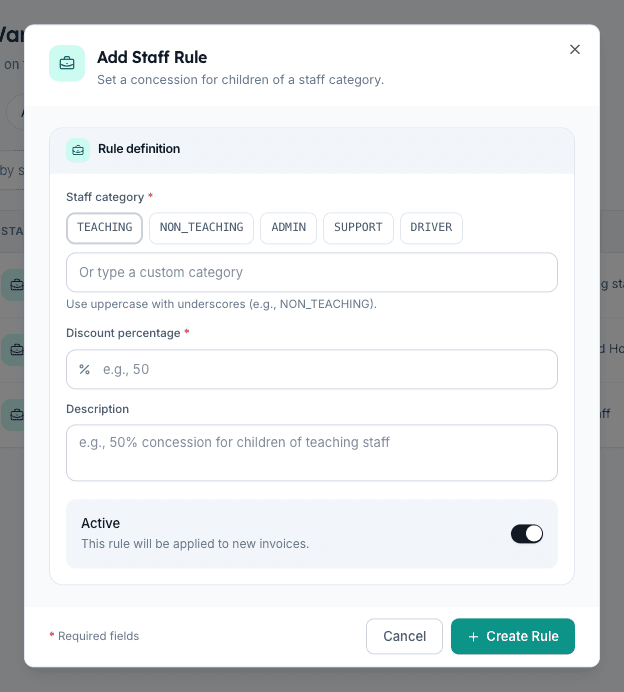
Click Add Rule. In the dialog, pick the staff category. Five quick-pick chips cover the common Indian school taxonomy — TEACHING, NON_TEACHING, ADMIN, SUPPORT, DRIVER — or you can type a custom one in uppercase with underscores (for example PRINCIPAL_HOD or LIBRARIAN). Inkwelly matches this string against the staff-category tag on the parent's HR record, so the spelling must match exactly what the HR team is already using.
4. Enter the discount percentage
Enter the percentage in the Discount Percentage field. Values between 0 and 100 are accepted, with two decimal places allowed (for example 12.50). The most common Indian patterns are 50% for teaching staff, 25% for non-teaching staff, and 75–100% for the principal, vice-principal and HoDs. The number should match the staff-benefit policy approved by the trust; Inkwelly will apply it on top of the base fee structure, before late fees and after sibling concessions.
5. Add a description and confirm Active
Add a short description in the Description field — something like '50% concession for children of teaching staff, as per board resolution dated 1 April 2025'. The description appears in the rule row and on the fee-profile audit log, which makes it easier to defend the discount during a fee-committee review. Leave the Active toggle on so Inkwelly starts applying the rule immediately; switch it off only if you want to pause the rule mid-session without losing the configuration.
6. Click Create Rule and verify the row
Click Create Rule. Inkwelly saves the rule and returns to the list page with the new row at the top, showing a green Active pill. Repeat steps 3 to 6 for every staff category you need — a typical Indian setup has three to five rules covering Teaching, Non-Teaching, Admin or Support, Driver and Principal-HoD. The All, Active and Inactive counts at the top of the page update as you add or pause rules.
7. Confirm the discount on a staff-ward fee profile
Open Student Fee → Fee Profiles, search for a staff-ward student, and open the profile. The Discounts tile on the Overview tab shows the concession amount Inkwelly has applied, and the Fee Breakdown panel on the right shows the net payable after the staff-ward discount. If the rule was added after invoices were already generated, click the Recalculate icon next to the Edit button — Inkwelly will re-cost the profile and apply the concession to open installments.
Next, get the underlying fee structure and fee groups in place before this rule — the discount has no base to apply against without them. Make sure your fee categories and fee heads are also defined, so the concession reduces every line item cleanly. For ad-hoc concessions outside this rule engine — say a one-off hardship case — use the per-student Discounts tab on the fee profile instead.
See Inkwelly Student Fees working end-to-end
Frequently asked
6 questionsHow much fee discount do Indian schools usually give to teachers' children?
50% on tuition is the most common Indian school convention for teaching staff children. Non-teaching staff usually get 25%, and the principal, vice-principal and HoDs get 75% to 100%. The numbers are set by the trust or school management committee in writing and mirror the 7th Pay Commission education allowance benchmark of ₹27,000 per child per year for government employees.
Can a staff-ward discount be applied to all fee heads or only tuition?
In Inkwelly the rule reduces the base fee structure as a whole, so it covers every line item in the structure — tuition, transport, library, lab and activities. If the trust resolution restricts the concession to tuition only, set up a tuition-only fee structure for staff wards or use the per-student Discounts tab to override the rule for that profile.
Teacher ke bachhon ko fee discount kaise de Inkwelly me?
Student Fee menu kholiye, Configuration par jaiye, Staff Ward Discounts tile open kijiye, Add Rule click kijiye. Staff category me TEACHING select kijiye (ya custom uppercase category type kijiye), discount percentage me 50 dijiye, description likhiye, Active toggle on rakhiye, Create Rule dabaiye. Sab teacher-ward students par yeh discount apne aap apply ho jayega — har student ko alag se edit karne ki zaroorat nahi.
Staff ward ke liye kitna concession Inkwelly me set kare?
Standard Indian pattern follow kijiye — Teaching staff ke bachhon ke liye 50%, Non-Teaching staff ke liye 25%, Principal aur HoDs ke liye 75% se 100%. Trust resolution check kar lijiye pehle. Inkwelly me 0 se 100 ke beech koi bhi percentage chalega, do decimal tak. Rule save karne ke baad fee profile khol ke verify zaroor karen ki discount sahi se apply ho raha hai.
What happens to the discount if a staff member resigns mid-session?
Switch the rule off for that category if no one is left in it, or use the per-student Discounts tab on the resigning staff's child to remove the concession from the next installment onward. Inkwelly keeps the full audit trail — earlier installments stay as collected and only the future invoices are recalculated. Most schools honour the discount till the end of the academic session as a goodwill clause.
Does Inkwelly stack the staff-ward discount with sibling and early-payment discounts?
Yes. Inkwelly applies sibling discount first, then staff-ward concession on the reduced base, then any early-payment discount on what is left. The Fee Breakdown panel on the student profile shows each layer separately so the office and the parent can see exactly how the final net payable was reached, which removes most fee-counter disputes.
You might also like
3 readsSources & references
- 7th Central Pay Commission Report — Children Education Allowance · accessed 19 May 2026
The 7th Pay Commission fixed the Children Education Allowance at ₹27,000 per child per year for government employees — the benchmark Indian schools mirror when deciding teacher-ward concession percentages.
- CBSE Affiliation Bye-Laws — Chapter VIII, Staff Welfare · accessed 19 May 2026
CBSE requires affiliated schools to maintain documented staff-welfare provisions including fee concessions for children of teachers, which schools record as standing discount rules.
- Right of Children to Free and Compulsory Education Act, 2009 — Section 13 · accessed 19 May 2026
Section 13 of the RTE Act bars schools from collecting any fee beyond the published structure, making documented concession rules the legally compliant way to grant staff-ward discounts.
See Inkwelly on your school
30-minute demo. We open your current ERP with you and load your data into Inkwelly on the call. Dated go-live plan by the end of it.