सिबलिंग डिस्काउंट नियम कैसे सेट करें Inkwelly में
यह गाइड उन स्कूल अकाउंटेंट और प्रिंसिपल के लिए है जो एक ही स्कूल में पढ़ने वाले भाई-बहनों के परिवार को छूट देना चाहते हैं। अंत में आपके पास Inkwelly में सिबलिंग डिस्काउंट के नियम तैयार होंगे — 2nd child, 3rd child और 4th child — जो अगली बार fee profile recalculate होते ही अपने आप लागू हो जाएँगे।
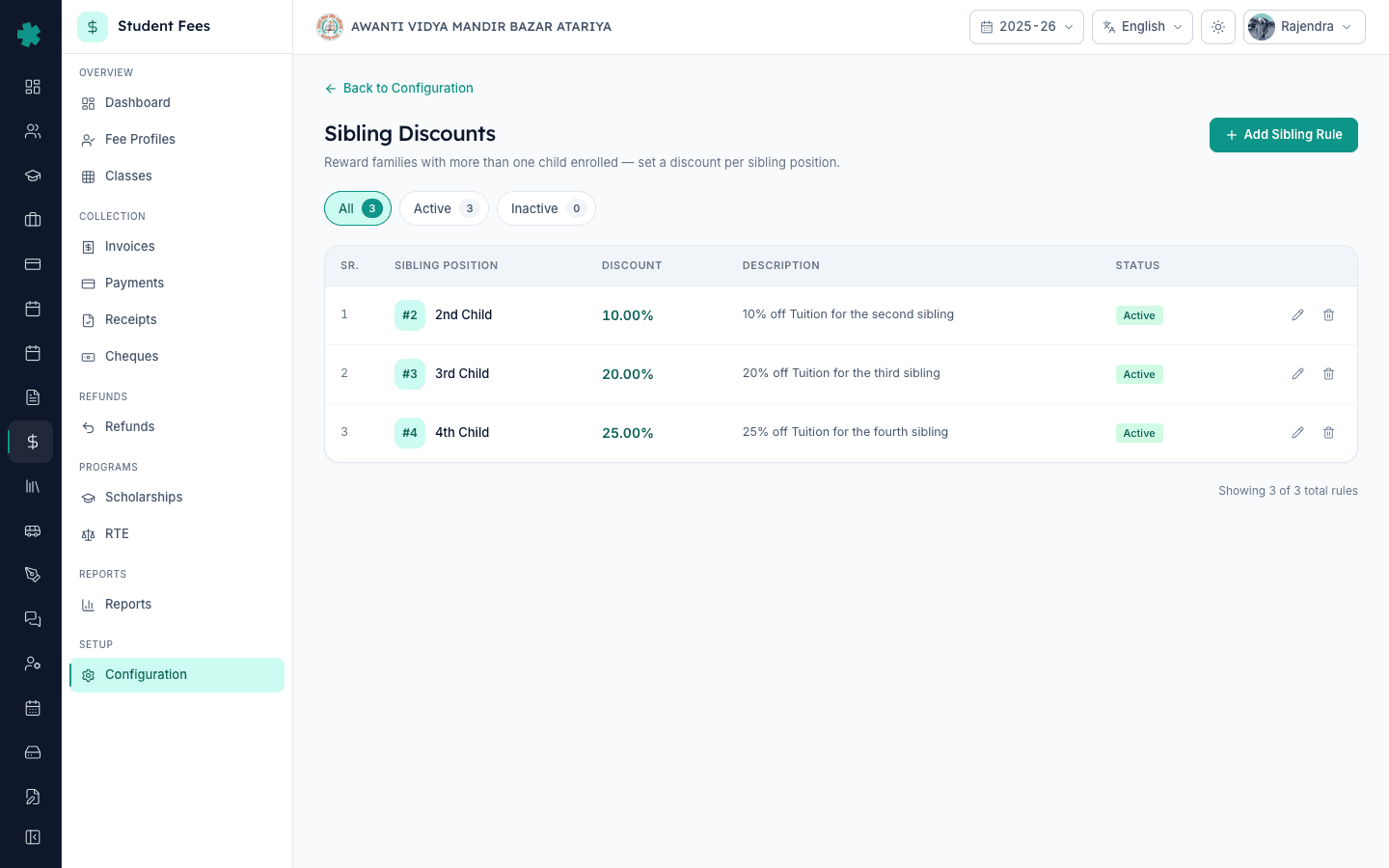
Inkwelly में सिबलिंग डिस्काउंट नियम सेट करने के लिए: Student Fee → Configuration → Sibling Discounts खोलें, Add Sibling Rule पर क्लिक करें, सिबलिंग पोज़िशन (2nd, 3rd या 4th child) चुनें, डिस्काउंट प्रतिशत भरें, एक छोटी description लिखें, Active toggle चालू रखें और सेव करें। हर पोज़िशन के लिए यही दोहराएँ। फिर जब भी ऑफिस किसी ऐसे परिवार की fee profile recalculate करेगा जिसके दो या उससे अधिक बच्चे स्कूल में हैं, नियम अपने आप लागू हो जाएँगे।
सिबलिंग डिस्काउंट भारतीय स्कूलों में दी जाने वाली सबसे आम छूट है। CBSE, ICSE और अधिकांश राज्य बोर्ड के स्कूल चुपचाप परिवार के दूसरे बच्चे को 5 से 25 प्रतिशत और तीसरे को उससे अधिक छूट देते हैं ताकि अभिभावक दो स्कूलों में बच्चों को बाँट न दें। Tier-2 शहर के 1,200 छात्रों वाले CBSE स्कूल में आम तौर पर 200 से 300 multi-child परिवार होते हैं (कुल छात्रों का लगभग 18 से 25 प्रतिशत), यानी एक सिबलिंग नियम हर तिमाही 400 से 600 invoices को प्रभावित कर सकता है। Inkwelly इन्हें rules के रूप में रखता है — प्रति छात्र adjustment के रूप में नहीं — ताकि नियम हर पात्र परिवार पर अपने आप लागू हो और audit trail साफ रहे।
1. Configuration में Sibling Discounts खोलें
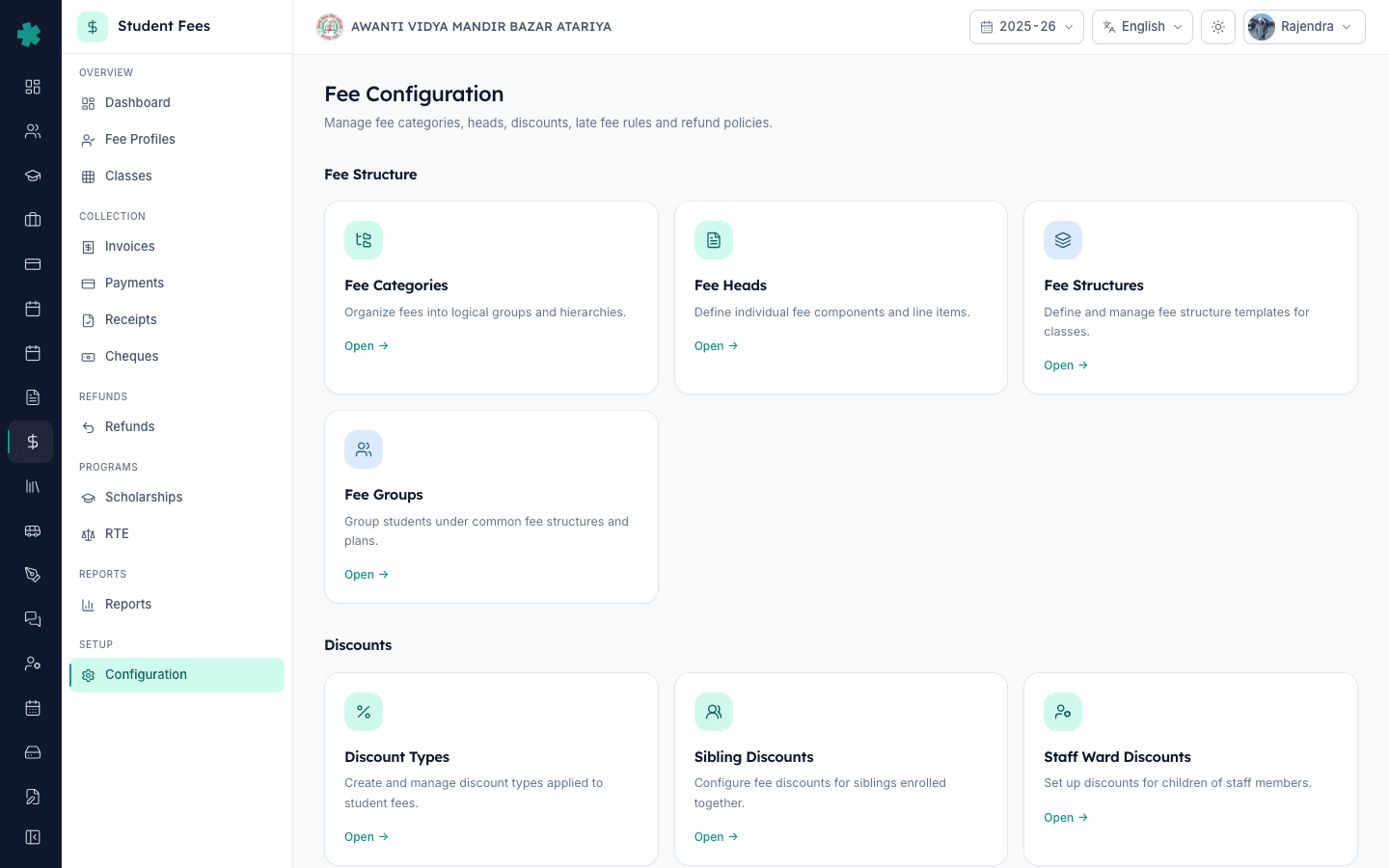
बाएँ साइडबार से Inkwelly → Student Fee खोलें, फिर SETUP के अंतर्गत Configuration पर क्लिक करें। Fee Configuration पेज पर चार सेक्शन दिखेंगे: Fee Structure, Discounts, Penalties & Refunds और Preferences। Discounts सेक्शन के अंदर Sibling Discounts टाइल पर क्लिक करें (subtitle: "Configure fee discounts for siblings enrolled together")।
2. Add Sibling Rule पर क्लिक करें
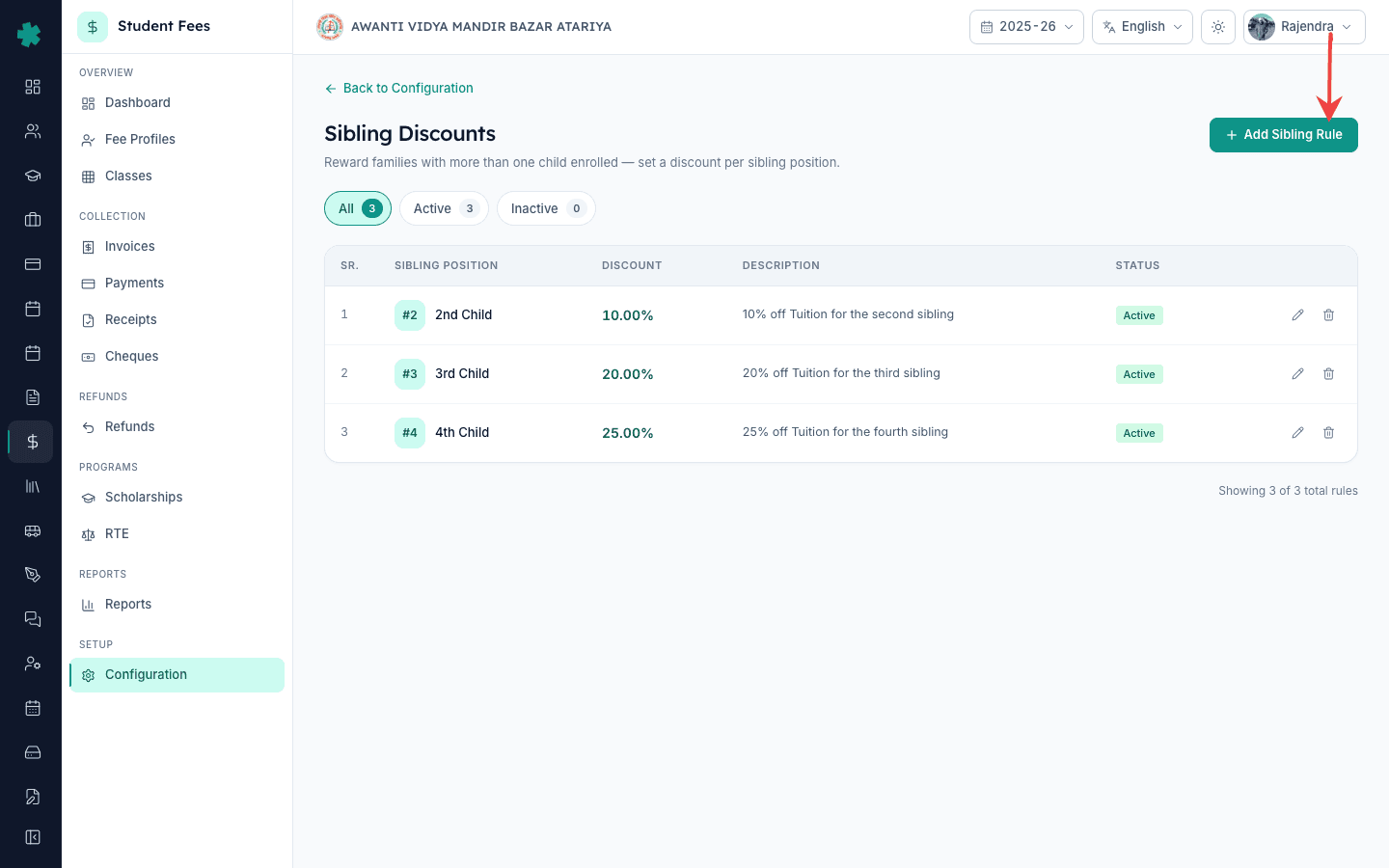
Sibling Discounts पेज पर सत्र के लिए पहले से सेव किए गए हर नियम की सूची दिखाई देती है — सिबलिंग पोज़िशन, डिस्काउंट प्रतिशत, description और status के साथ। ऊपर दाईं ओर के Add Sibling Rule बटन पर क्लिक करें। यदि अभी कोई नियम नहीं है, तो खाली पेज के बीच में भी वही बटन दिखाई देगा।
3. सिबलिंग पोज़िशन चुनें
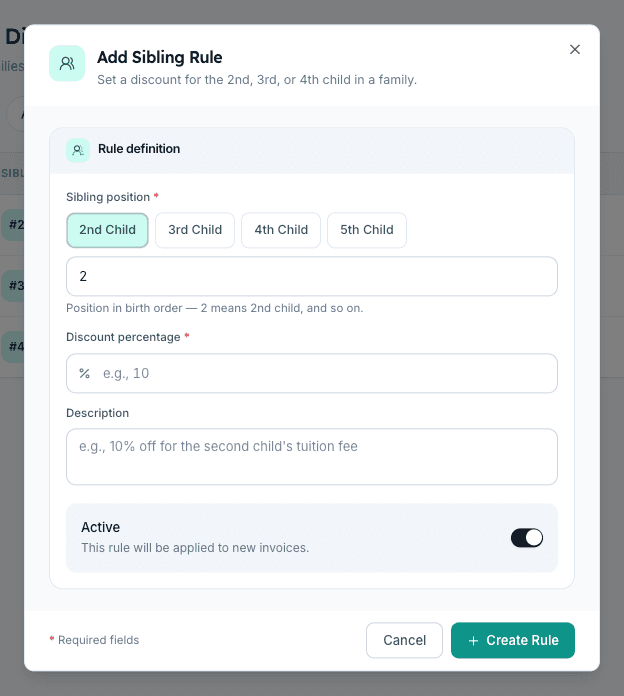
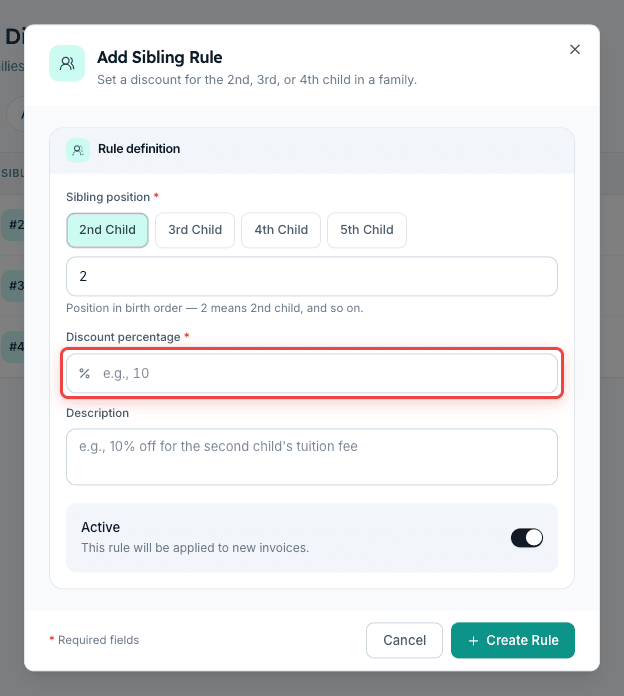
Add Sibling Rule डायलॉग खुलेगा। सिबलिंग पोज़िशन chip पर क्लिक करके चुनें — 2nd Child, 3rd Child, 4th Child या 5th Child — या नीचे के field में 2 से 10 के बीच कोई पोज़िशन टाइप करें। 1st child को सिबलिंग डिस्काउंट नहीं मिलता; नियम हमेशा 2nd child से शुरू होता है। Inkwelly admissions record में दर्ज परिवार के लिंक से birth order खुद पहचान लेता है, इसलिए ऑफिस को हर छात्र के लिए अलग से नहीं भरना पड़ता।
4. डिस्काउंट प्रतिशत और description भरें
Discount percentage field में छूट का प्रतिशत भरें। भारतीय स्कूलों का सामान्य पैटर्न: 2nd child को 10%, 3rd को 20%, 4th और उसके आगे 25% या अधिक। कुछ स्कूल 4th child की पूरी Tuition (100%) माफ कर देते हैं — Inkwelly 0 से 100 के बीच कोई भी मान स्वीकार करता है। एक छोटी Description भी लिखें (जैसे "10% off for the second child's tuition fee") ताकि ऑफिस बाद में सूची में इस नियम को पहचान सके।
5. नियम को Active रखकर सेव करें
Active toggle चालू रहने दें। Active नियम अगली बार fee profile recalculate होते ही अपने आप लागू हो जाते हैं; Inactive नियम सेव तो रहते हैं लेकिन छोड़ दिए जाते हैं — सत्र के अंत में नीति बदलने के लिए उपयोगी। Create Rule पर क्लिक करें। Inkwelly नियम सेव करके आपको Sibling Discounts सूची पर वापस ले आता है, जहाँ नई पंक्ति हरे Active pill के साथ दिखती है।
6. हर सिबलिंग पोज़िशन के लिए दोहराएँ
Add Sibling Rule फिर से दबाएँ और अपनी छूट नीति में जितनी पोज़िशन शामिल हैं उतनी पंक्तियाँ बनाएँ। भारतीय स्कूलों में सामान्य रूप से तीन नियम होते हैं — 2nd Child 10%, 3rd Child 20%, 4th Child 25%। Inkwelly हर पोज़िशन के लिए केवल एक नियम allow करता है, इसलिए ऑफिस गलती से 2nd child के लिए दो नियम नहीं बना सकता। सूची पोज़िशन के क्रम में sort होती है, ताकि स्क्रीन पर दिखने वाला क्रम birth order जैसा ही रहे।
7. Multi-child परिवार की fee profile पर पुष्टि करें
Student Fee → Fee Profiles खोलें, ऐसे परिवार को खोजें जिसके दो या अधिक बच्चे स्कूल में हैं और उसके दूसरे बच्चे की profile खोलें। Discounts टैब उस छात्र पर लागू सिबलिंग नियम — प्रतिशत और रुपये में कमी — दिखाता है। यदि छूट अभी नहीं दिख रही, तो profile header पर Edit बटन के बगल वाले Recalculate icon पर क्लिक करें — Inkwelly breakdown फिर से गणना करता है और सिबलिंग छूट Outstanding लाइन पर दिखाई देती है।
अगला कदम — सिबलिंग डिस्काउंट को बाकी discount engine के साथ जोड़ें। शिक्षकों के बच्चों के लिए How to set up staff-ward discount rules in Inkwelly का नियम बनाएँ, और जो परिवार साल भर की फीस एकमुश्त भर देते हैं उनके लिए How to set up early-payment discount rules in Inkwelly का नियम जोड़ें। यदि किसी विशेष परिवार के लिए नियम-इंजन से बाहर की एक-बार की छूट देनी हो — जैसे hardship case — तो How to apply a discount to a student's fees in Inkwelly के प्रति-छात्र flow का उपयोग करें।
Inkwelly Student Fees को काम करते हुए देखें
अक्सर पूछे गए सवाल
6 सवालभारतीय स्कूल आम तौर पर कितना सिबलिंग डिस्काउंट देते हैं?
CBSE, ICSE और राज्य बोर्ड के स्कूलों में सामान्य पैटर्न है — दूसरे बच्चे को 10%, तीसरे को 15 से 20% और चौथे को 25% या अधिक। Tier-2 और Tier-3 कस्बों के budget स्कूल अक्सर इससे ज़्यादा छूट देते हैं — कभी-कभी चौथे बच्चे की पूरी Tuition माफ कर देते हैं — क्योंकि एक multi-child परिवार को बनाए रखना चार नए छात्रों के admission से सस्ता पड़ता है। Inkwelly हर पोज़िशन पर 0 से 100 के बीच कोई भी प्रतिशत स्वीकार करता है।
क्या सिबलिंग डिस्काउंट को केवल Tuition फीस तक सीमित किया जा सकता है?
अभी नियम छूट प्रतिशत को structure-level fees पर लागू करता है। ज़्यादातर स्कूल केवल Tuition पर ही छूट देना चाहते हैं, इसलिए description field में नीति लिख दें — जैसे "10% off the second child's Tuition"। यदि fee-head स्तर की और बारीक सीमा चाहिए तो नियम को fee-head exclusion के साथ pair करें या उस परिवार के लिए प्रति-छात्र discount flow का उपयोग करें।
यदि परिवार के बच्चे अलग-अलग सत्र या sister school में हैं तो क्या होगा?
Inkwelly सिबलिंग पोज़िशन की गणना में केवल वर्तमान स्कूल और सत्र में सक्रिय बच्चों को गिनता है। जो बच्चा एक ही trust के दूसरे स्कूल में चला गया है या जिसे पिछले सत्र की TC जारी हो चुकी है, उसे birth-order की गणना में शामिल नहीं किया जाता, इसलिए जिस परिवार का यहाँ अभी एक ही बच्चा है उस पर नियम गलती से नहीं लगेगा।
Sibling discount kaise lagaye Inkwelly me?
Student Fee menu kholiye, Configuration par jaiye, Discounts ke neeche Sibling Discounts tile par click kijiye. Add Sibling Rule button dabaiye, sibling position select kijiye (2nd, 3rd ya 4th Child), discount percentage bhariye (jaise 10), chhota description likhiye, Active toggle on rakhiye aur Create Rule par click kijiye. Har position ke liye ek rule banaiye. Multi-child family ki fee profile par discount apne aap apply ho jayega.
Doosre child ka kitna fee kam hota hai aur kab apply hoga?
Yeh aapke school ki policy par depend karta hai. Sabse common pattern: 2nd child ko 10% Tuition par discount, 3rd ko 20%, 4th ko 25%. Rule save karne ke baad jab bhi office us family ki fee profile Recalculate kare, ya jab agla invoice generate ho, discount apne aap line item ke roop me lag jata hai aur Outstanding utna kam ho jata hai.
क्या सिबलिंग नियम को बिना delete किए रोका जा सकता है?
हाँ। Sibling Discounts सूची में नियम खोलें, pencil icon पर क्लिक करके edit करें, और Active toggle off कर दें। नियम पूरे इतिहास के साथ सेव रहता है पर Inkwelly अगली recalculation में उसे छोड़ देता है, इसलिए नए invoices पर छूट नहीं लगेगी। जब नीति फिर शुरू हो, toggle फिर चालू कर दें — कोई data दोबारा नहीं भरना पड़ेगा।
आपको ये भी पसंद आ सकता है
3 लेखस्रोत व संदर्भ
- CBSE Affiliation Bye-Laws — Chapter VII, Fee Structure · देखा गया 19 May 2026
CBSE bye-laws require affiliated schools to publish their fee structure including any concessions or discounts offered, and to keep them consistent across the session.
- Right of Children to Free and Compulsory Education Act, 2009 — Section 13 (No capitation fee) · देखा गया 19 May 2026
The RTE Act prohibits collecting fees beyond the published structure, so any sibling concession a school offers must be reflected in the documented fee structure to remain compliant.
- National Commission for Protection of Child Rights — School Fee Guidance Note · देखा गया 19 May 2026
NCPCR guidance on school fees expects transparent, written concession policies — including sibling concessions — that are uniformly applied and not negotiated case by case.
Inkwelly आपके स्कूल पर — खुद देखें
30 मिनट का डेमो। आपके मौजूदा ERP को आपके साथ खोलकर, कॉल पर ही आपका डेटा Inkwelly में लोड करते हैं। कॉल ख़त्म होते-होते एक तय तारीख़ का गो-लाइव प्लान आपके हाथ में।