RTE disbursement कैसे रिकॉर्ड करें जो सरकार से प्राप्त हुई है
यह गाइड स्कूल अकाउंटेंट और प्रिंसिपल के लिए है जिन्हें RTE reimbursement प्राप्त हुई है। Inkwelly में मूल claim के विरुद्ध बैंक credit का रिकॉर्ड बनेगा।
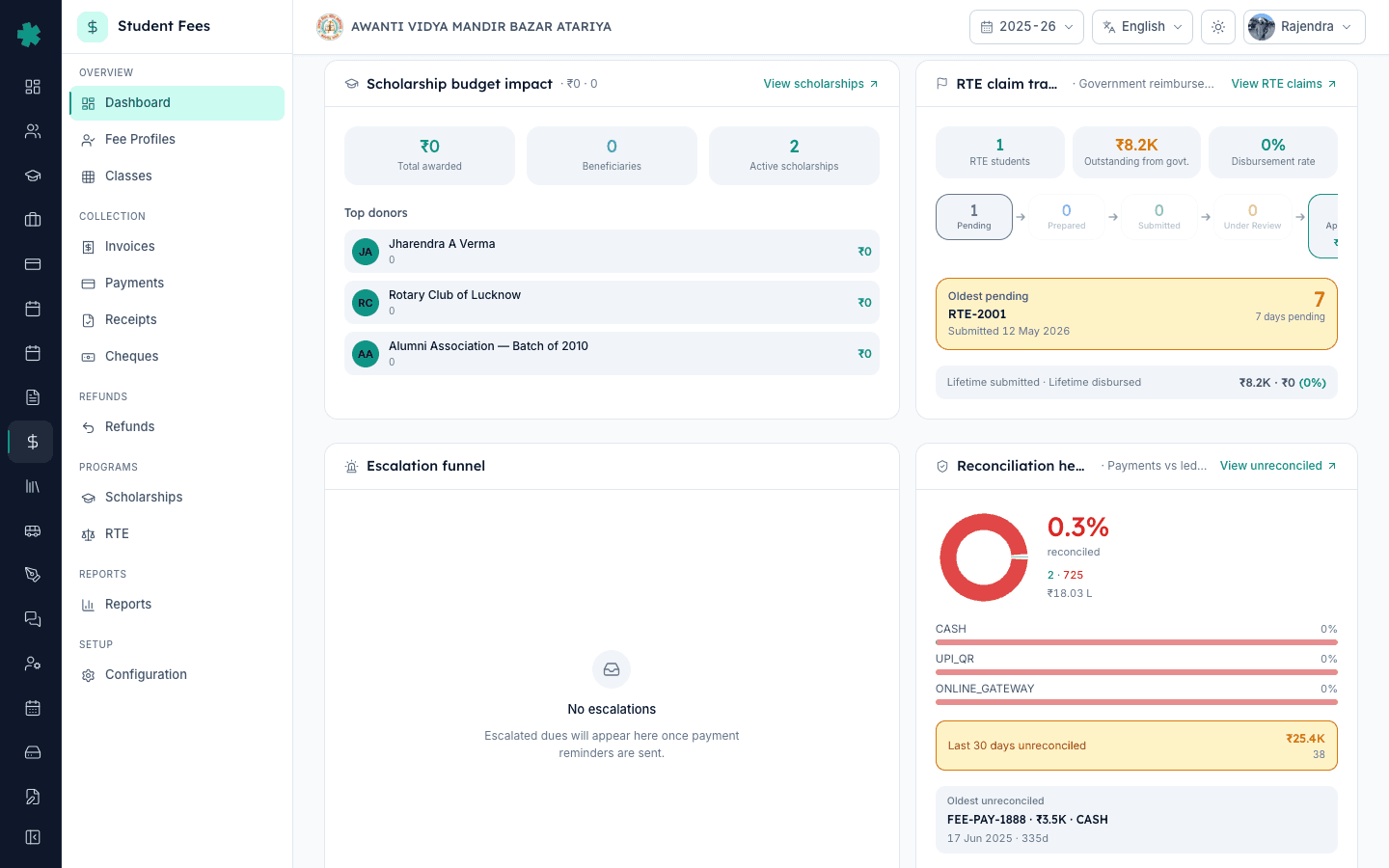
Inkwelly में RTE disbursement रिकॉर्ड करने के लिए: Student Fee → RTE → Reimbursements खोलें, Approved claim (उदाहरण RTE-2001) खोलें, ऊपर दाईं ओर Record Disbursement पर क्लिक करें, disbursement की तिथि, स्कूल बैंक खाते में वास्तव में जमा हुई राशि, और UTR या बैंक reference Remarks में भरें, फिर Record Disbursement पर क्लिक करें। Inkwelly claim को Disbursed (या यदि कम राशि आई है तो Partially Disbursed) कर देता है, disbursement की तिथि स्टैंप कर देता है, और dashboard का RTE tracker नई कुल राशि दिखा देता है।
RTE की राशि शायद ही कभी एक ही किस्त में आती है। शिक्षा का अधिकार अधिनियम, 2009 की धारा 12(1)(c) निजी गैर-सहायता प्राप्त स्कूलों को entry-class की 25 प्रतिशत सीटें वंचित वर्ग के बच्चों के लिए आरक्षित करने के लिए बाध्य करती है, और राज्य सरकार प्रति-बच्चा खर्च की प्रतिपूर्ति करती है। एक सामान्य भारतीय वित्तीय चक्र में स्कूल मई में claim जमा करता है, जिला कार्यालय तीन से छह महीने बाद इसे सैंक्शन करता है, और असली credit साल भर में दो या तीन किस्तों में आता है। उत्तर प्रदेश का एक 1,200 छात्रों वाला CBSE स्कूल जो ₹13,800 प्रति बच्चा (UP की 2024-25 की अधिसूचित दर) पर 30 RTE बच्चों को प्रवेश देता है, पहली किस्त के लिए औसतन 217 दिन प्रतीक्षा करता है, और अधिकांश स्कूलों को claim पूरी तरह क्लियर होने से पहले कम से कम एक partial credit मिलता है। Inkwelly का RTE tracker इसी वास्तविकता के लिए बना है — हर credit उसी claim के विरुद्ध एक अलग event के रूप में दर्ज होता है, approved राशि के सापेक्ष variance दिखता रहता है, और audit trail अगले निरीक्षण में स्कूल को सुरक्षित रखता है।
1. Student Fee से RTE Reimbursements खोलें
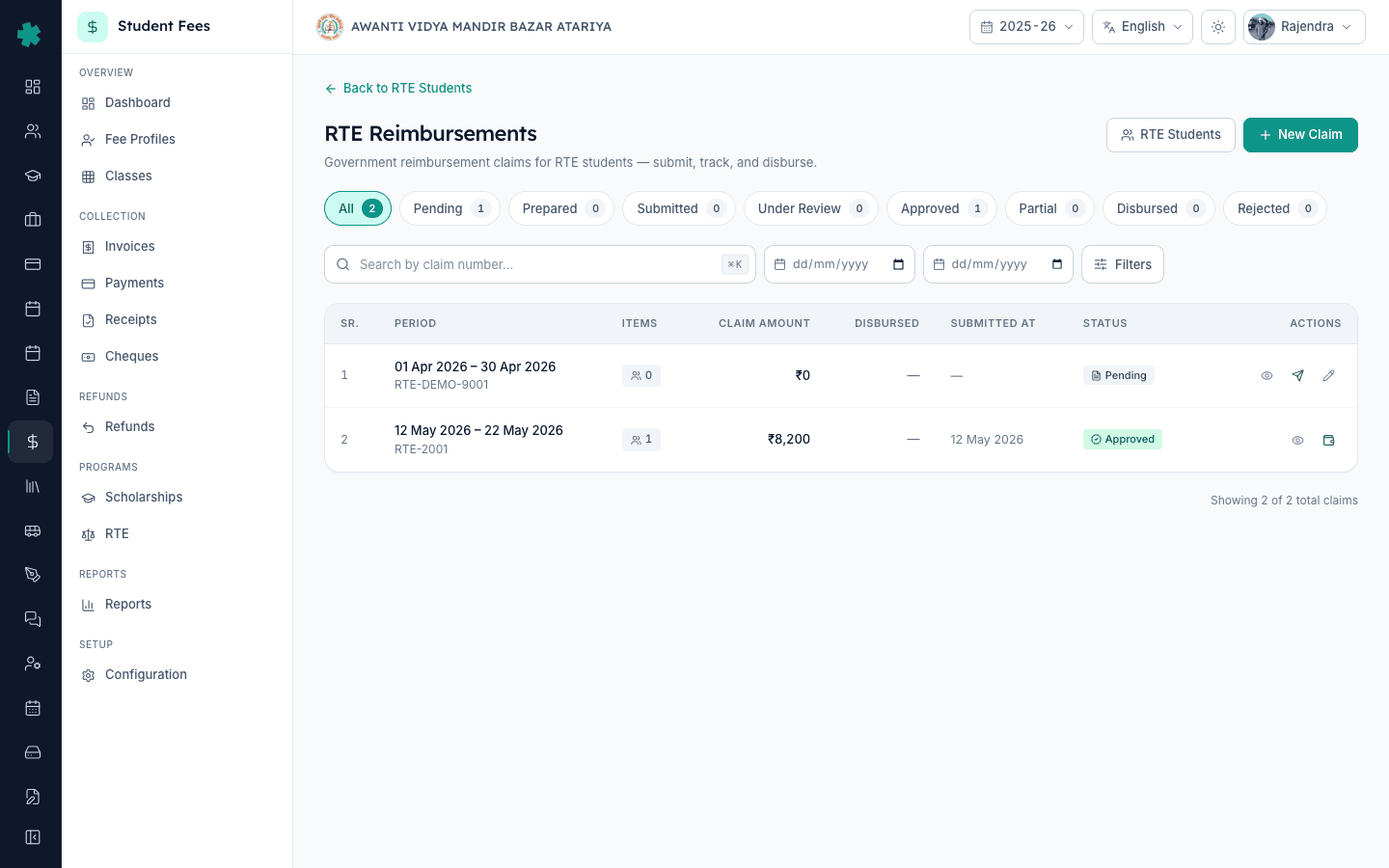
Inkwelly → Student Fee खोलें। बाएँ साइडबार में PROGRAMS सेक्शन के अंतर्गत RTE पर क्लिक करें। RTE landing पेज इस सत्र में स्कूल द्वारा उठाए गए हर reimbursement claim को एक पंक्ति प्रति claim के रूप में दिखाता है, जिसमें claim number, अवधि, claim राशि, approved राशि, disbursed राशि और वर्तमान status होते हैं। ऊपर के status filter से केवल Approved और Partially Disbursed claim दिखाएँ — केवल यही claim नया disbursement स्वीकार कर सकते हैं।
2. Approved claim खोलें
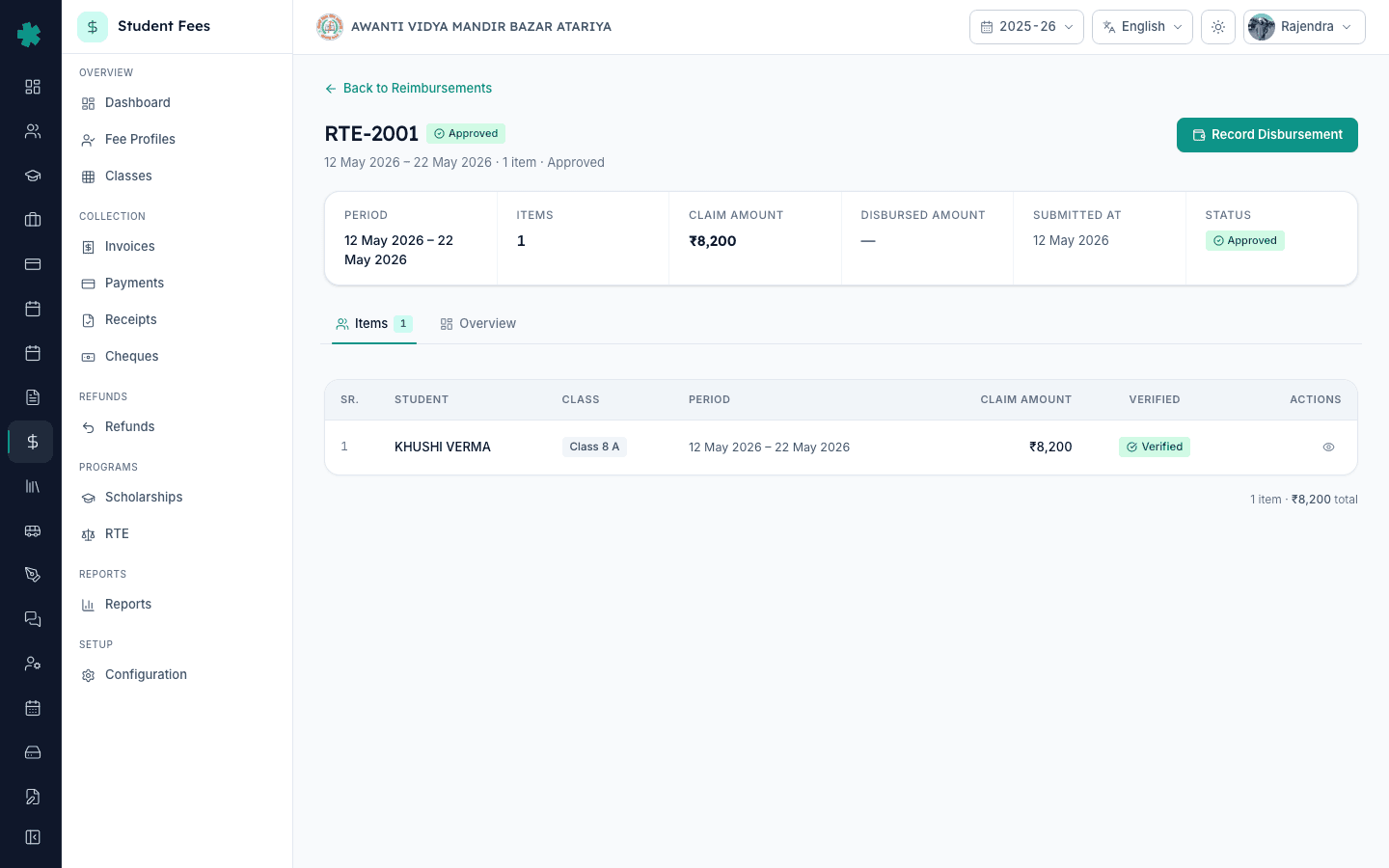
जिस claim के सापेक्ष बैंक credit आया है उसकी पंक्ति पर क्लिक करें — उदाहरण RTE-2001 जो 12-22 मई 2026 की अवधि के लिए ₹8,200 का है। डिटेल पेज खुलता है जहाँ हेडर में claim अवधि, एक Approved status बैज और एक summary कार्ड दिखता है जिसमें Approved ₹8,200 और Disbursed ₹0 लिखा होता है। पात्र छात्र या छात्रों की सूची नीचे Items टैब में होती है। बैंक credit narration के साथ claim number मिलाकर देखें ताकि credit गलत claim पर दर्ज न हो जाए — RTE numbering स्कूल के prefix के अनुसार होती है, इसलिए RTE-2001 और RTE-2002 के बीच गलती सबसे आम है।
3. Record Disbursement पर क्लिक करें
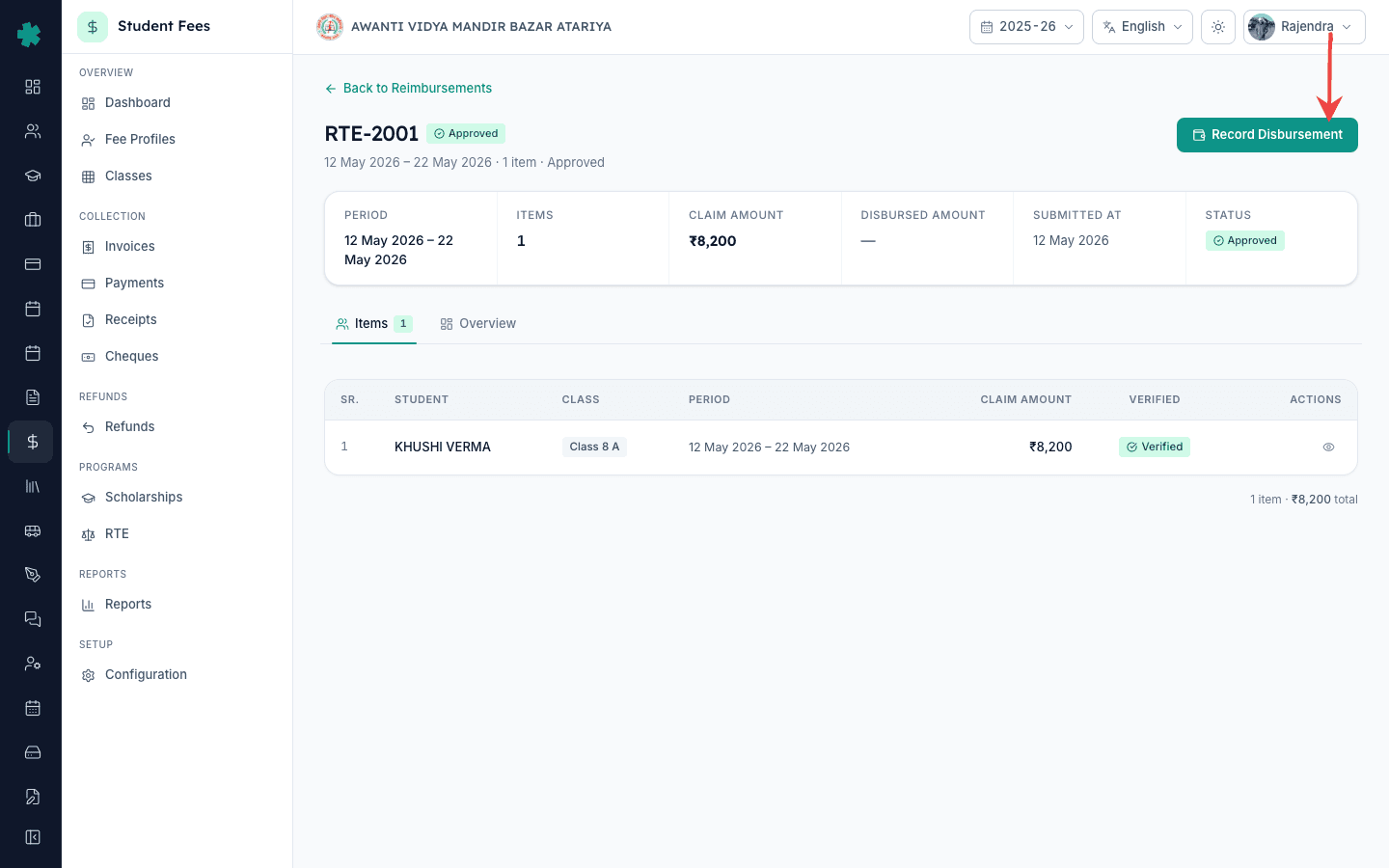
claim डिटेल पेज के ऊपर दाईं ओर देखें। जब claim Approved या Partially Disbursed होता है तब Inkwelly wallet icon के साथ एक प्रमुख Record Disbursement बटन दिखाता है। उस पर क्लिक करें। एक dialog खुलता है जिसमें ऊपर claim अवधि पिन की हुई होती है और ठीक उसके नीचे तीन आंकड़े होते हैं — Approved (₹8,200), Disbursed (₹0), और Remaining (₹8,200)। राशि दर्ज करने से पहले हमेशा Remaining आंकड़ा देखें; यही उस credit के लिए अधिकतम राशि है जिसे Inkwelly स्वीकार करेगा, और शेष से अधिक भरने पर validator save को रोक देता है।
4. disbursement की तिथि, राशि और बैंक reference भरें
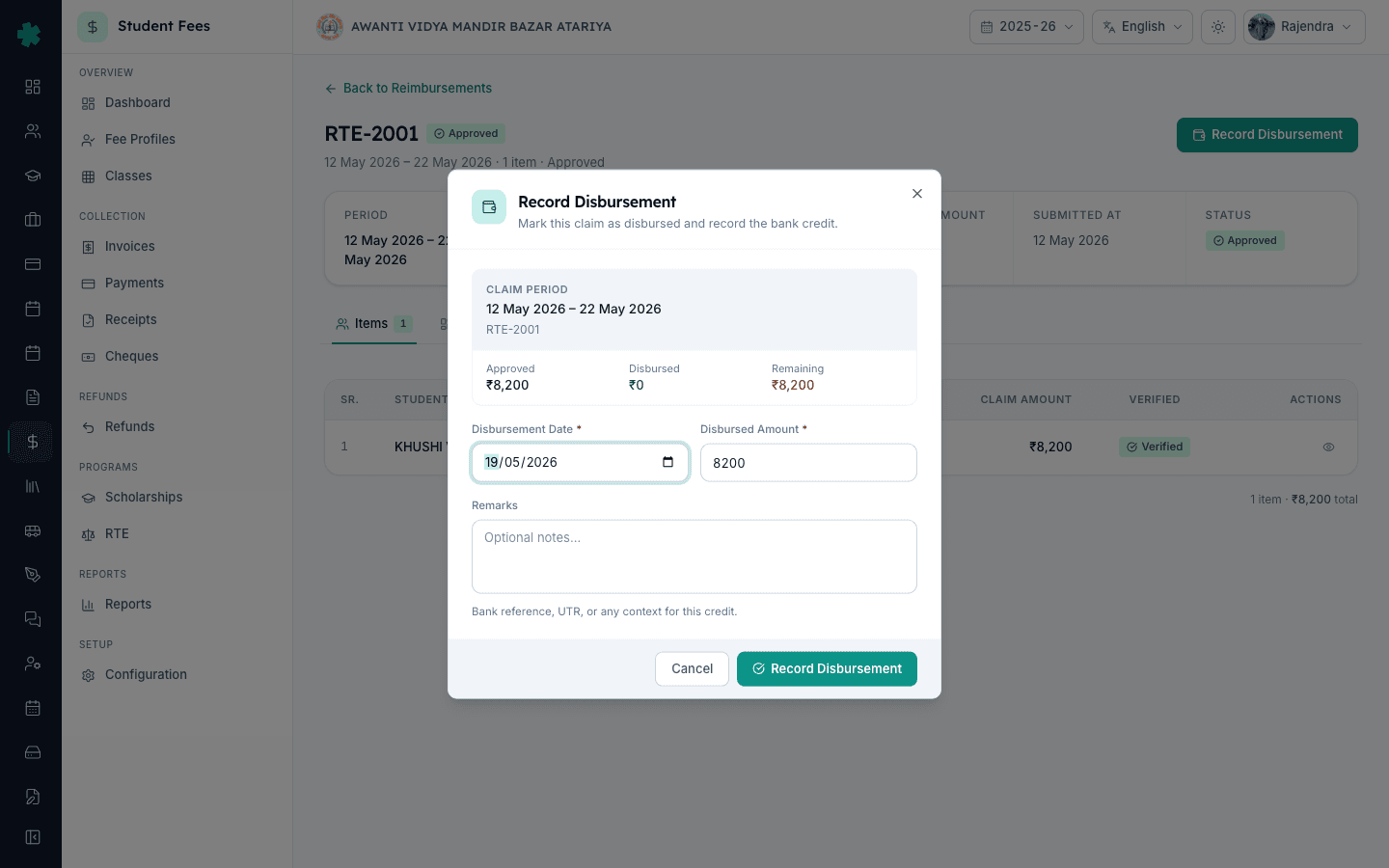
Dialog में Disbursement Date में आज की तिथि और Disbursed Amount में पूरा remaining आंकड़ा पहले से भरा होता है — बैंक statement के अनुसार दोनों को बदलें। यदि केवल आंशिक राशि आई है (मान लीजिए ₹8,200 approved के सापेक्ष ₹5,000), छोटी संख्या भरें; Inkwelly इसे स्वीकार करता है और शेष के लिए claim को खुला रखता है। Remarks में UTR number, NEFT या RTGS reference, treasury voucher number, और एक छोटी टिप्पणी डालें जैसे 'पहली किस्त — UP राज्य शिक्षा विभाग, voucher 4421/2025-26'। यही text अगले साल आपका auditor पढ़ेगा, इसलिए इसे ऐसे लिखें मानो उस समय इसे समझाने के लिए आप उपस्थित नहीं होंगे।
5. Save करने के लिए Record Disbursement पर क्लिक करें
Dialog के नीचे Record Disbursement बटन पर क्लिक करें। Inkwelly credit लिखता है, claim पर Disbursed Amount अपडेट करता है, Last Disbursement Date स्टैंप करता है, और claim का status बदल देता है। यदि नई कुल राशि approved राशि के बराबर हो तो status Disbursed हो जाता है; यदि एक रुपया भी बाकी हो तो Partially Disbursed। एक success toast save की पुष्टि करता है और claim डिटेल पेज नए आंकड़ों के साथ refresh हो जाता है। Inkwelly हर disbursement को एक अलग event के रूप में रखता है, इसलिए जब एक महीने बाद दूसरी किस्त आती है तब ऑफिस केवल step 3 से 5 दोहराकर उसे उसी claim के विरुद्ध नए disbursement के रूप में दर्ज कर देता है।
6. Dashboard के RTE tracker में credit की पुष्टि करें
Student Fee dashboard पर वापस जाएँ। RTE Claim Tracker सेक्शन अब इस claim को Disbursed या Partially Disbursed bucket में दिखाता है, और अद्यतन राशि सत्र के लिए स्कूल की RTE recovered कुल राशि में जुड़ जाती है। Fee Profiles से उस RTE छात्र की फीस profile खोलकर credit attribution की पुष्टि करें — Inkwelly disbursement को claim से जुड़े छात्र रिकॉर्ड के सापेक्ष ले जाता है, यही proof की पंक्ति है जो audit के समय स्कूल के CA को और अगली school management committee की बैठक में प्रिंसिपल को चाहिए होती है।
Disbursement दर्ज होने के बाद, अगले कदमों की योजना बनाएँ। जो स्कूल बाहरी contributors के माध्यम से भी सीटें fund करते हैं, वहाँ Inkwelly में scholarship donors कैसे register करें RTE recoveries के साथ-साथ ledger के उस हिस्से को साफ़ रखने का तरीका बताता है। मूल फीस योजना अब भी प्रकाशित फीस चार्ट के अनुरूप है या नहीं, यह जाँचने के लिए शैक्षणिक सत्र के लिए फीस स्ट्रक्चर कैसे बनाएँ फिर से पढ़ें। और अगली बार साफ़ claim तैयारी के लिए RTE छात्र अपने ही audience में बैठें, इसके लिए Inkwelly में फीस ग्रुप कैसे बनाएँ और कक्षाओं से कैसे जोड़ें देखें।
Inkwelly RTE tracking को काम करते हुए देखें
अक्सर पूछे गए सवाल
6 सवालApproved राशि का कुछ हिस्सा ही आया हो तो partial RTE disbursement कैसे रिकॉर्ड करें?
Approved या Partially Disbursed claim खोलें, Record Disbursement पर क्लिक करें, और पूरी approved राशि के बजाय वास्तव में credit हुई राशि भरें। Inkwelly dialog में दिख रहे Remaining आंकड़े तक किसी भी मान को स्वीकार करता है और शेष के लिए claim को Partially Disbursed रखता है। जब अगली किस्त आए तो वही flow दोहराएँ और उसे उसी claim के विरुद्ध नए disbursement के रूप में दर्ज करें — Inkwelly हर किस्त को अपनी तिथि और reference के साथ अलग event के रूप में सहेजता है।
यदि सरकार गलती से approved राशि से अधिक credit कर दे तो क्या करें?
Inkwelly किसी भी डेटा को सेव होने से पहले exceeds-approved error के साथ save को रोक देता है। अतिरिक्त credit को जबरन दर्ज करने का प्रयास न करें; इसके बजाय जिला शिक्षा कार्यालय से अंतर के बारे में बात करें और उनसे या तो debit advice जारी करने या उसी claim के सापेक्ष top-up sanction करने का अनुरोध करें। एक बार sanction letter से approved राशि बढ़ जाए, तब उचित RTE access वाला Inkwelly user approved figure अपडेट करता है और अतिरिक्त किस्त सामान्य रूप से दर्ज होती है।
एक बार save हो जाने के बाद यदि गलत राशि या तिथि भर दी गई हो तो क्या disbursement को संपादित किया जा सकता है?
Inkwelly किसी को भी save हो चुके disbursement को चुपचाप दोबारा लिखने नहीं देता — हर credit audit trail का हिस्सा है। यदि राशि गलत है, तो उचित access वाले user से back-office tools से credit को reverse कराएँ और मूल entry का reference देते हुए सुधार को नए disbursement के रूप में दर्ज करें। Claim summary कार्ड पर Last Disbursement Date और Disbursed Amount हमेशा नवीनतम मान्य रिकॉर्ड दिखाते हैं।
RTE ka paisa aaye to kaise record kare Inkwelly me?
Sidebar me Student Fee kholiye, PROGRAMS section ke neeche RTE par click kijiye, jis claim me paisa aaya hai woh row open kijiye (jaise RTE-2001), upar dayi taraf Record Disbursement button dabaiye, bank statement wali disbursement date aur exact amount bhariye, Remarks me UTR ya treasury voucher number daliye, aur Record Disbursement save kar dijiye. Status apne aap Disbursed ya Partially Disbursed me badal jayega.
Partial disbursement kaise handle kare jab pura paisa nahi aaya?
Bilkul wahi flow follow kijiye — Record Disbursement dialog me sirf actual credit ki amount type kijiye, full approved amount nahi. Inkwelly Remaining figure dikhata hai aur usse zyada accept nahi karta. Claim Partially Disbursed status me chala jata hai aur agle tranche ke time aap dobara Record Disbursement click karke balance enter kar sakte hain — har tranche alag event ke roop me save hota hai.
Dashboard के RTE claim tracker को कैसे पता चलता है कि disbursement हो गया?
Student Fee dashboard पर मौजूद tracker उन्हीं RTE reimbursement रिकॉर्ड से सीधे पढ़ता है जिन्हें ऑफिस dialog में अपडेट करता है। जैसे ही एक credit save होता है, claim pipeline के Disbursed या Partially Disbursed bucket में चला जाता है और tracker के शीर्ष पर मौजूद recovered-amount कुल राशि उस आंकड़े से बढ़ जाती है। यदि दोनों tab एक ही समय में खुले हों तो dashboard refresh करें।
आपको ये भी पसंद आ सकता है
3 लेखस्रोत व संदर्भ
- Right of Children to Free and Compulsory Education Act, 2009 — Section 12(1)(c) and Section 12(2) · देखा गया 19 May 2026
धारा 12(1)(c) निजी स्कूलों को entry-class की 25 प्रतिशत सीटें वंचित वर्ग के लिए आरक्षित करने को बाध्य करती है; धारा 12(2) सरकार को प्रति-बच्चा खर्च की प्रतिपूर्ति का दायित्व देती है।
- Ministry of Education — Right to Education Section 12(1)(c) Reimbursement Norms · देखा गया 19 May 2026
केंद्रीय योजना पेज प्रति-बच्चा reimbursement framework देता है जिसका पालन राज्य सरकारें स्कूलों को RTE credits जारी करते समय करती हैं।
- Uttar Pradesh Basic Shiksha Parishad — RTE 12(1)(c) per-child reimbursement rates and process · देखा गया 19 May 2026
UP का RTE portal प्रति-बच्चा दर और बहु-किस्त disbursement प्रक्रिया प्रकाशित करता है जिसे स्कूल बैंक credit आते समय अनुभव करते हैं।
Inkwelly आपके स्कूल पर — खुद देखें
30 मिनट का डेमो। आपके मौजूदा ERP को आपके साथ खोलकर, कॉल पर ही आपका डेटा Inkwelly में लोड करते हैं। कॉल ख़त्म होते-होते एक तय तारीख़ का गो-लाइव प्लान आपके हाथ में।