छात्र की फीस प्रोफाइल को कैसे recalculate करें किसी बदलाव के बाद Inkwelly में
यह गाइड उन स्कूल अकाउंटेंट, फीस क्लर्क और फ्रंट-ऑफिस स्टाफ के लिए है जिन्होंने अभी किसी छात्र पर discount, scholarship, fine या waiver बदला है और चाहते हैं कि Net Payable, Paid और Outstanding figure तुरंत मेल खाएँ। अंत में आप Inkwelly की profile header में Recalculate icon दबाकर पूरा breakdown फिर से चलवाना और Before / After / Change टेबल पढ़ना जान जाएँगे।
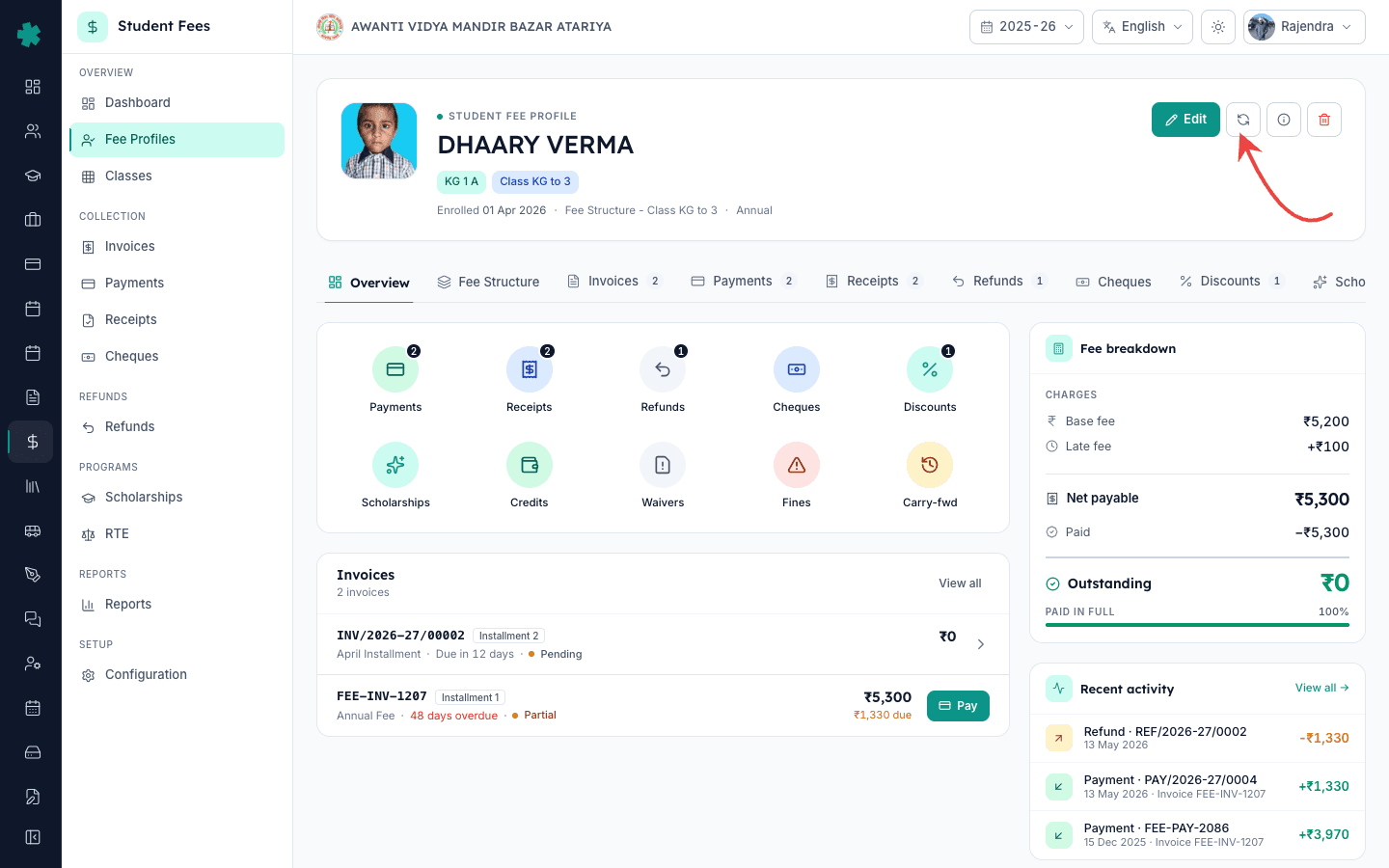
Inkwelly में किसी छात्र की फीस प्रोफाइल recalculate करने के लिए: Student Fee → Fee Profiles खोलकर छात्र पर क्लिक करें, profile header में Edit बटन के बगल में दिख रहे Recalculate icon (refresh arrows) पर क्लिक करें, Include Late Fees चालू रहने दें, Effective Date आज के लिए खाली छोड़ें और Recalculate दबाएँ। Inkwelly breakdown को फिर से चलाता है और दो सेकंड में Total Paid और Outstanding के लिए Before, After और Change टेबल दिखा देता है।
Inkwelly में फीस प्रोफाइल एक सत्र के लिए एक छात्र का चलता हुआ ledger है — fee structure, invoice, payment, discount, scholarship, fine, waiver, credit और carry-forward due सब मिलकर एक Net Payable, Paid और Outstanding संख्या बनाते हैं। अधिकांश अपडेट अपने आप recalculate हो जाते हैं, पर front-office को एक से अधिक concession लगने के बाद (जैसे पहले 50% staff-ward discount और फिर ऊपर से merit scholarship) Recalculate को manually दबाना ज़रूरी होता है। 1,200 छात्रों वाले CBSE स्कूल में हर तिमाही औसतन 30 से 80 mid-session fee adjustment होते हैं — Recalculate उसी जगह काम आता है ताकि parent को सही Outstanding अगले invoice cycle की प्रतीक्षा किए बिना दिखे।
1. छात्र की फीस प्रोफाइल खोलें
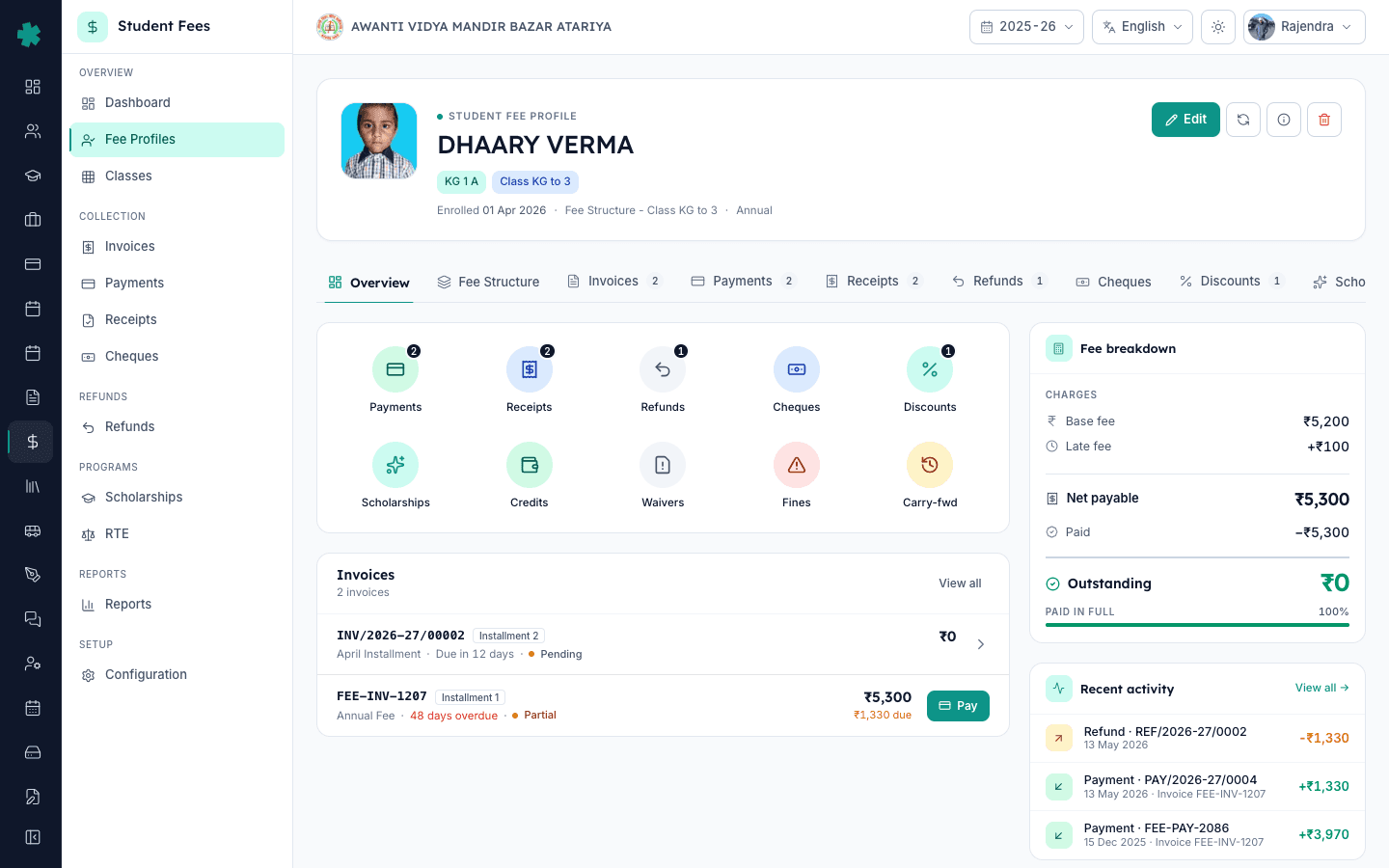
बाएँ साइडबार से Inkwelly → Student Fee → Fee Profiles खोलें। नाम, admission number या roll number से छात्र खोजें और उस पंक्ति पर क्लिक करें। Inkwelly profile detail page खोल देता है — ऊपर identity hero card (छात्र का नाम, admission number, class chip, fee group chip, enrollment date) और दाईं कॉलम में live fee breakdown: Base fee, Late fee, Net Payable, Paid और Outstanding।
2. Edit के बगल में Recalculate icon पहचानें
Profile header के ऊपर दाईं ओर देखें। Inkwelly चार controls एक पंक्ति में रखता है — नीला Edit बटन, चौकोर Recalculate icon (दो गोल refresh arrows), Info icon और लाल Delete icon। आपको Recalculate icon चाहिए; उस पर hover करने पर tooltip Recalculate दिखता है। यदि किसी हालिया discount या fine परिवर्तन के बाद दाईं कॉलम का Net Payable पुराना दिख रहा हो, यही बटन उसे underlying ledger के बराबर लाता है।
3. Recalculate Fee Totals dialog खोलें
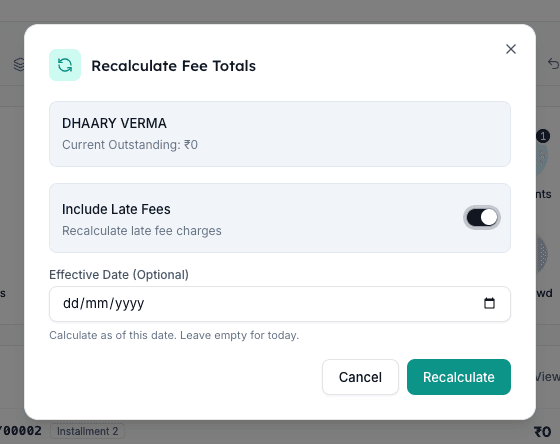
Recalculate icon पर क्लिक करें। Inkwelly Recalculate Fee Totals dialog खोलता है। dialog के ऊपर छात्र का नाम और मौजूदा Outstanding दिखता है ताकि आप पुष्टि कर सकें कि सही profile recalculate हो रहा है। नीचे दो controls आते हैं: Include Late Fees toggle और Effective Date picker। dialog छोटा और modal रहता है — किसी अन्य navigation की ज़रूरत नहीं।
4. Include Late Fees और Effective Date तय करें
सामान्य accounting के लिए Include Late Fees चालू (default) रहने दें — Inkwelly नए ledger के विरुद्ध हर late-fee नियम को फिर से evaluate करेगा। इसे तभी बंद करें जब principal ने इस profile के सारे late charges माफ कर दिए हों और आप उनके बिना breakdown देखना चाहते हों। आज के लिए Effective Date खाली छोड़ें; जब किसी पुराने दिन से लागू होने वाले बदलाव का मिलान कर रहे हों तो back-date लगाएँ (उदाहरण: 1 तारीख को स्वीकृत किया गया discount पर entry 7 तारीख को।)
5. Recalculate दबाएँ और Before / After / Change टेबल देखें
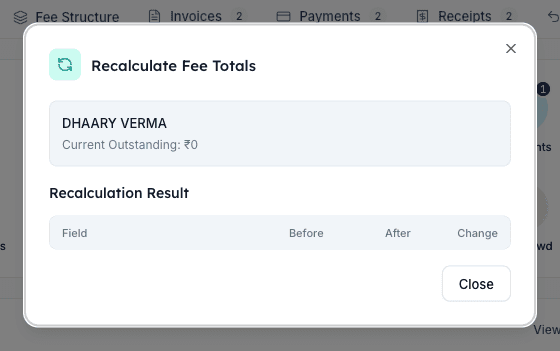
dialog के नीचे दाईं ओर मौजूद नीले Recalculate बटन पर क्लिक करें। Inkwelly पूरा breakdown फिर से चलाता है — fee structure × installments में से discount, scholarship, credit और waiver घटाकर, fine और late fee जोड़कर — और form की जगह एक Recalculation Result टेबल दिखाता है। हर बदले हुए total के लिए Field, Before, After और Change कॉलम वाली पंक्ति दिखती है। बढ़ोतरी लाल upward arrow के साथ, कमी हरे downward arrow के साथ, और अपरिवर्तित पंक्तियाँ छिपी रहती हैं ताकि आप सिर्फ़ बदले हुए मान देखें।
6. Profile header का Outstanding मिलाएँ
Close दबाएँ। dialog बंद हो जाता है और Inkwelly profile page को उसी जगह refresh कर देता है। दाईं कॉलम के breakdown और छात्र के नाम के पास दिख रहा Outstanding figure अब dialog के After value से मिलना चाहिए। Overview tab के नीचे audit trail में Recalculate event user, timestamp और delta के साथ दर्ज होता है — यह तब काम आता है जब कोई auditor या parent पूछे कि figure क्यों बदला।
अगला कदम — जिस concession के कारण Recalculate ज़रूरी हुआ, उसे सही tab से लागू या निरस्त करें। ad-hoc concession के लिए How to apply a discount to a student's fees, scholarship workflow के लिए How to award and approve a scholarship for a student, और library या breakage fine के लिए How to issue and waive a fine for a student देखें। यदि बदलाव पूरे cohort पर स्थायी होना है तो source rule edit करें, हर छात्र की profile नहीं।
Inkwelly Student Fees को काम करते हुए देखें
अक्सर पूछे गए सवाल
6 सवालInkwelly में छात्र की फीस प्रोफाइल पर Recalculate कब दबाना चाहिए?
जब भी आप छात्र के profile पर discount, scholarship, fine, waiver, fee-structure assignment या carry-forward due बदलें और दाईं कॉलम का Net Payable पुराना दिख रहा हो, तब Recalculate दबाएँ। Inkwelly में अधिकांश अपडेट अपने आप recalculate होते हैं — पर bulk operation, back-date के बदलाव और approval वाले concession के बाद manual Recalculate ज़रूरी होता है ताकि parent को सही Outstanding तुरंत दिखे।
बदलाव के बाद profile recalculate न करें तो क्या होता है?
Inkwelly का underlying ledger हमेशा सही रहता है — हर invoice, payment, discount और fine save होते ही record हो जाता है। पर profile header पर दिखने वाले Net Payable, Paid और Outstanding figure पिछली recalculation से cache होते हैं। यदि आप Recalculate कभी न दबाएँ, तो parent और front-office को पुराना Net Payable दिखता रहेगा जब तक अगला invoice cycle न आए या कोई dialog दोबारा न खोले।
क्या Recalculate से पहले से जारी invoice या receipt बदलते हैं?
नहीं। Recalculate केवल profile-level totals — Net Payable, Paid, Outstanding और Late Fee — refresh करता है। जारी हो चुके invoice या receipt को यह कभी नहीं बदलता। यदि किसी discount या scholarship से unpaid invoice की राशि घटनी चाहिए, तो उस invoice को cancel करके फिर से generate करें; audit trail दोनों (cancelled और नया) रिकॉर्ड रखता है।
Recalculate kab dabaye Inkwelly me?
Jab bhi student ki fee profile me kuch badle — discount lagaya, scholarship approve kiya, fine add kiya ya waive kiya, ya carry-forward due edit kiya — aur Net Payable purana dikh raha ho, tab Recalculate dabaiye. Bulk operations aur back-date ki gayi changes ke baad manual Recalculate sabse zaroori hai taaki parent ko sahi Outstanding turant dikhe.
Profile recalculate na kare to kya hota hai?
Inkwelly ka ledger andar se hamesha sahi rehta hai — har invoice, payment aur discount save hote hi record ho jata hai. Lekin profile header par dikhne wala Net Payable, Paid aur Outstanding pichli recalculation se cache hota hai. Recalculate na karne par parent aur front-office ko purana figure dikhta rahega jab tak agla invoice cycle ya koi aur Recalculate na ho.
Recalculate करते समय Effective Date क्यों मायने रखती है?
Effective Date Inkwelly को बताती है कि ledger का मिलान किस दिन के विरुद्ध करना है। रोज़ की desk-side changes के लिए इसे खाली छोड़ें — Inkwelly आज की तारीख लेता है। यदि कोई concession किसी पुरानी तारीख से लागू मानना है (जैसे sibling discount 1 तारीख को स्वीकृत हुआ पर entry 7 तारीख को), तो back-date लगाएँ। Late-fee नियम भी Effective Date पढ़ते हैं, इसलिए back-date से बीच में जुड़े late fee भी माफ हो सकते हैं।
स्रोत व संदर्भ
- CBSE Affiliation Bye-Laws — Chapter VII (Fee structure, refunds and revision) · देखा गया 19 May 2026
CBSE bye-laws affiliated स्कूलों से अपेक्षा करते हैं कि हर छात्र के लिए एक अद्यतन फीस रिकॉर्ड रखें जिसमें management committee द्वारा स्वीकृत हर concession या revision शामिल हो।
- Companies Act 2013 — Section 128 (Books of account, true and fair view, accrual basis) · देखा गया 19 May 2026
Section 8 कंपनी या society के रूप में पंजीकृत स्कूलों के लिए books of account का true and fair view रखना अनिवार्य है; हर concession के बाद profile recalculate करना उसी accrual दायित्व का हिस्सा है।
- NCPCR Guidelines for Eliminating Corporal Punishment in Schools — Annexure on fee transparency · देखा गया 19 May 2026
NCPCR की school-governance गाइडलाइन कहती है कि स्कूल हर छात्र के लिए पारदर्शी और अद्यतन फीस स्थिति प्रकाशित करें ताकि parent dues सत्यापित कर सकें।
Inkwelly आपके स्कूल पर — खुद देखें
30 मिनट का डेमो। आपके मौजूदा ERP को आपके साथ खोलकर, कॉल पर ही आपका डेटा Inkwelly में लोड करते हैं। कॉल ख़त्म होते-होते एक तय तारीख़ का गो-लाइव प्लान आपके हाथ में।