Overdue invoice का follow up कैसे करें Aging Cliff से
यह गाइड स्कूल अकाउंटेंट और ऑफिस स्टाफ के लिए है जो हर महीने फीस वसूली का काम संभालते हैं। अंत में आप Inkwelly के Student Fee dashboard पर Aging Cliff से overdue invoice को days-past-due और क्लास के अनुसार छाँट लेंगे, Invoices Overdue tab खोलेंगे, और सही invoice के लिए WhatsApp, SMS, Email या App Push पर Send to Parent reminder भेजेंगे।
Inkwelly में overdue invoice का follow up करने के लिए: Student Fee → Dashboard खोलें, Aging Cliff tile पर outstanding राशि देखें जो 0-7, 8-15, 16-30, 31-60, 60-90 और 90+ दिन के bucket में बँटी होती है, किसी bucket पर क्लिक करके defaulters की सूची खोलें, फिर Student Fee → Invoices → Overdue tab पर जाएँ, कोई invoice खोलकर Send to Parent दबाएँ। WhatsApp, SMS, Email या App Push में से channel चुनें और Send दबाएँ। Inkwelly reminder को log करता है और delivery status invoice की activity पर दिखाता है।
Aging Cliff Student Fee dashboard का सबसे उपयोगी collection lever है। यह स्कूल की हर outstanding राशि को इस आधार पर समूहित करता है कि invoice की due date को कितने दिन बीत चुके हैं — 0-7 (हल्की याद), 8-15 (पक्की reminder), 16-30 (फ़ोन करें), 31-60 (escalation), 60-90 और 90+ (critical, principal review)। एक सामान्य Tier-2 day school में हर cycle में लगभग 8% से 12% invoice due date के बाद जाते हैं (UDISE+ school finance returns, 2023), और 70% बनाम 92% collection महीने का अंतर लगभग हमेशा इसी पर निर्भर करता है कि 0-7 और 8-15 bucket में ऑफिस कितनी जल्दी reminder भेजता है।
1. Student Fee dashboard खोलें
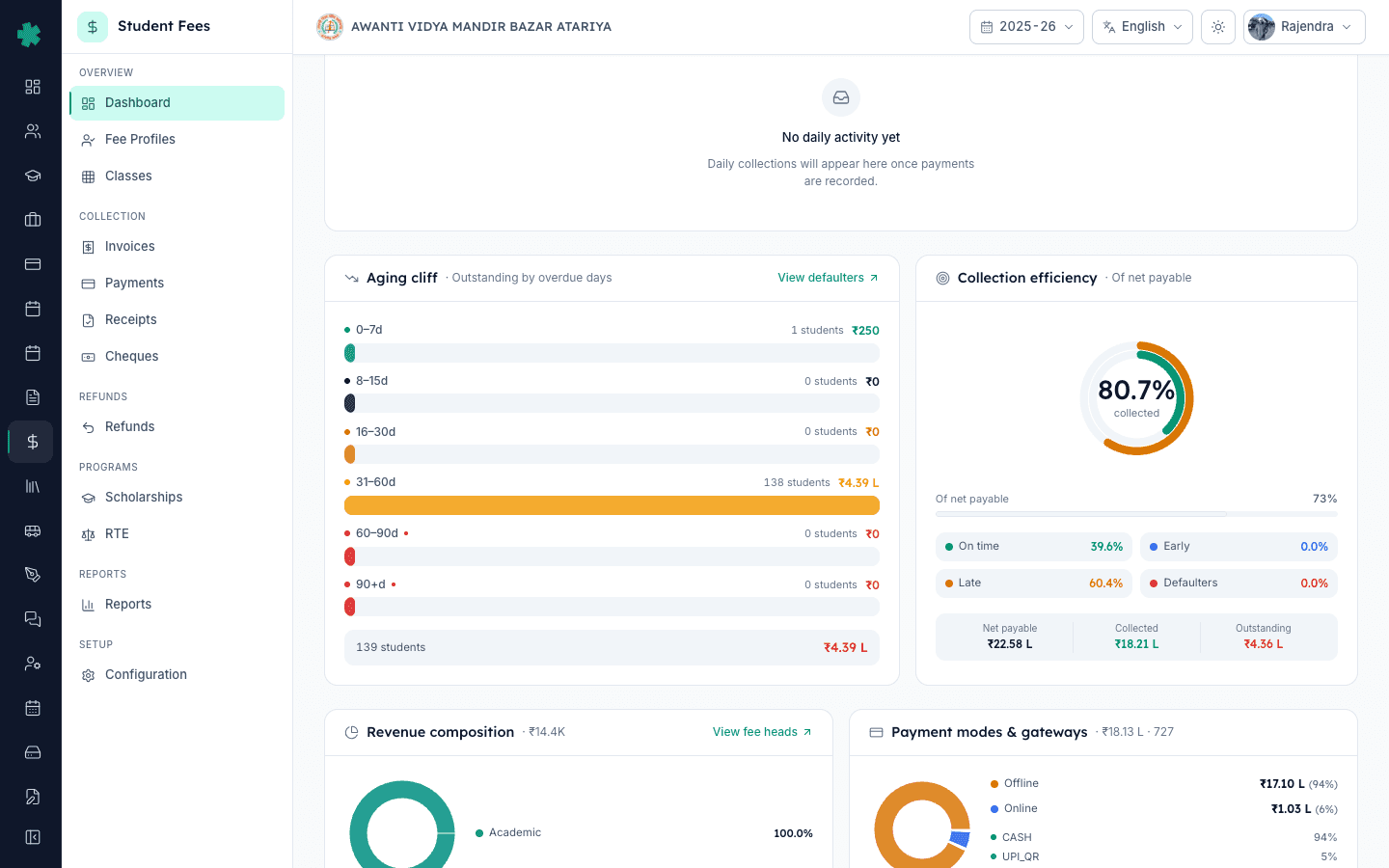
बाएँ साइडबार से Inkwelly → Student Fee खोलें। Dashboard OVERVIEW के अंतर्गत डिफ़ॉल्ट landing page है। ऊपर Total Collected, Outstanding, Collection Efficiency और Reconciliation Readiness के KPI हैं, और उसके नीचे Money Flow, Today Pulse, Cheque Pipeline, Collector Leaderboard, Aging Cliff और Defaulters Heatmap के tile हैं। Aging Cliff tile dashboard के दाईं ओर है, उस पर TrendingDown आइकन और एक View all link दिखता है।
2. Aging Cliff के bucket पढ़ें
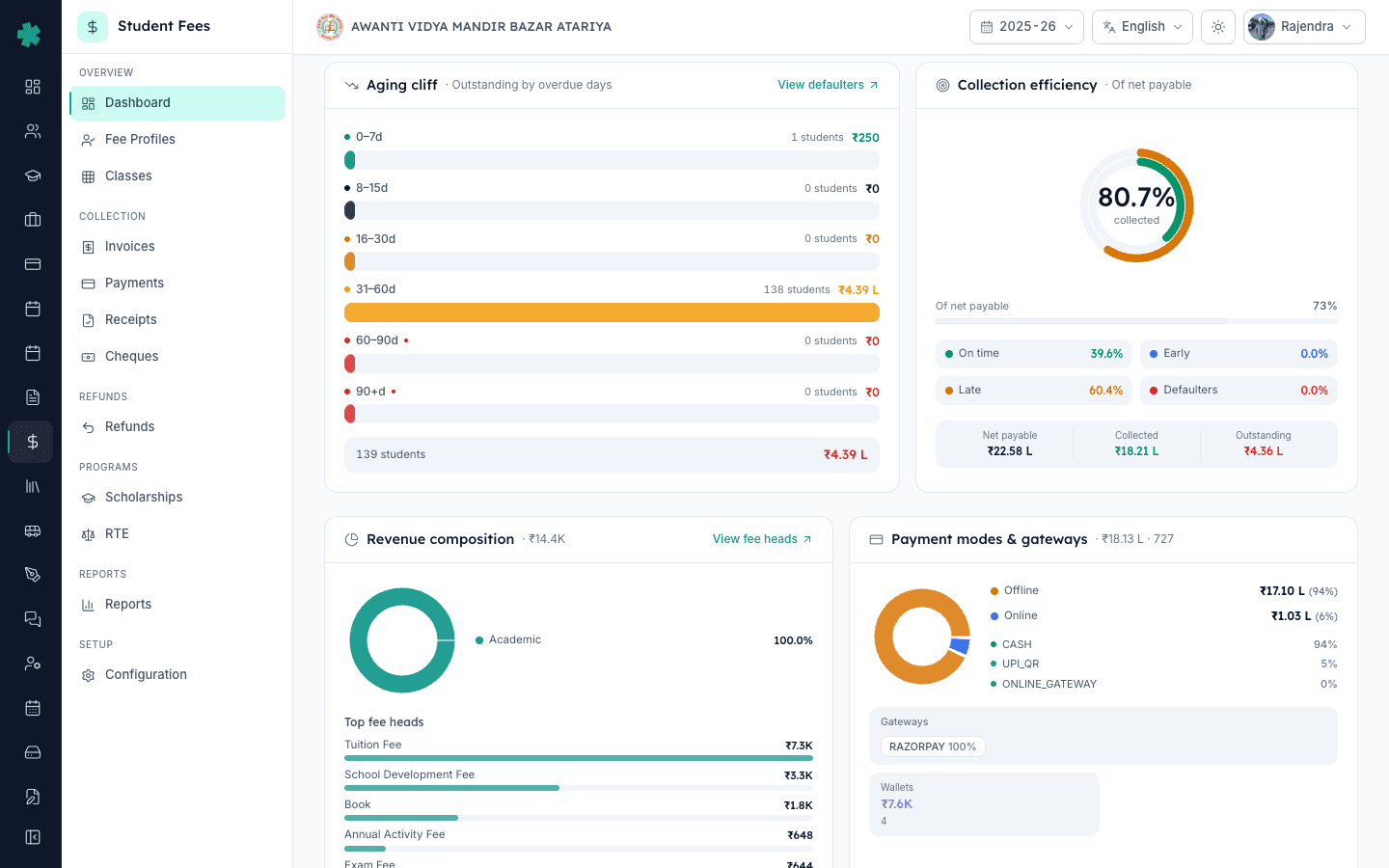
Aging Cliff में ऊपर से नीचे छह बार दिखते हैं: 0-7d, 8-15d, 16-30d, 31-60d, 60-90d और 90+d। हर बार पर उस bucket में आने वाले छात्रों की संख्या और कुल outstanding राशि compact रुपए में दिखती है (₹4.2L, ₹85k आदि)। 0-7d के लिए हरा रंग होता है और 60-90d व 90+d के लिए लाल, ताकि cliff की धार एक नज़र में दिखे। Tile के नीचे की पट्टी पर पूरे स्कूल का कुल — outstanding वाले छात्र और कुल outstanding — दिखता है।
3. किसी bucket पर क्लिक करके defaulters खोलें
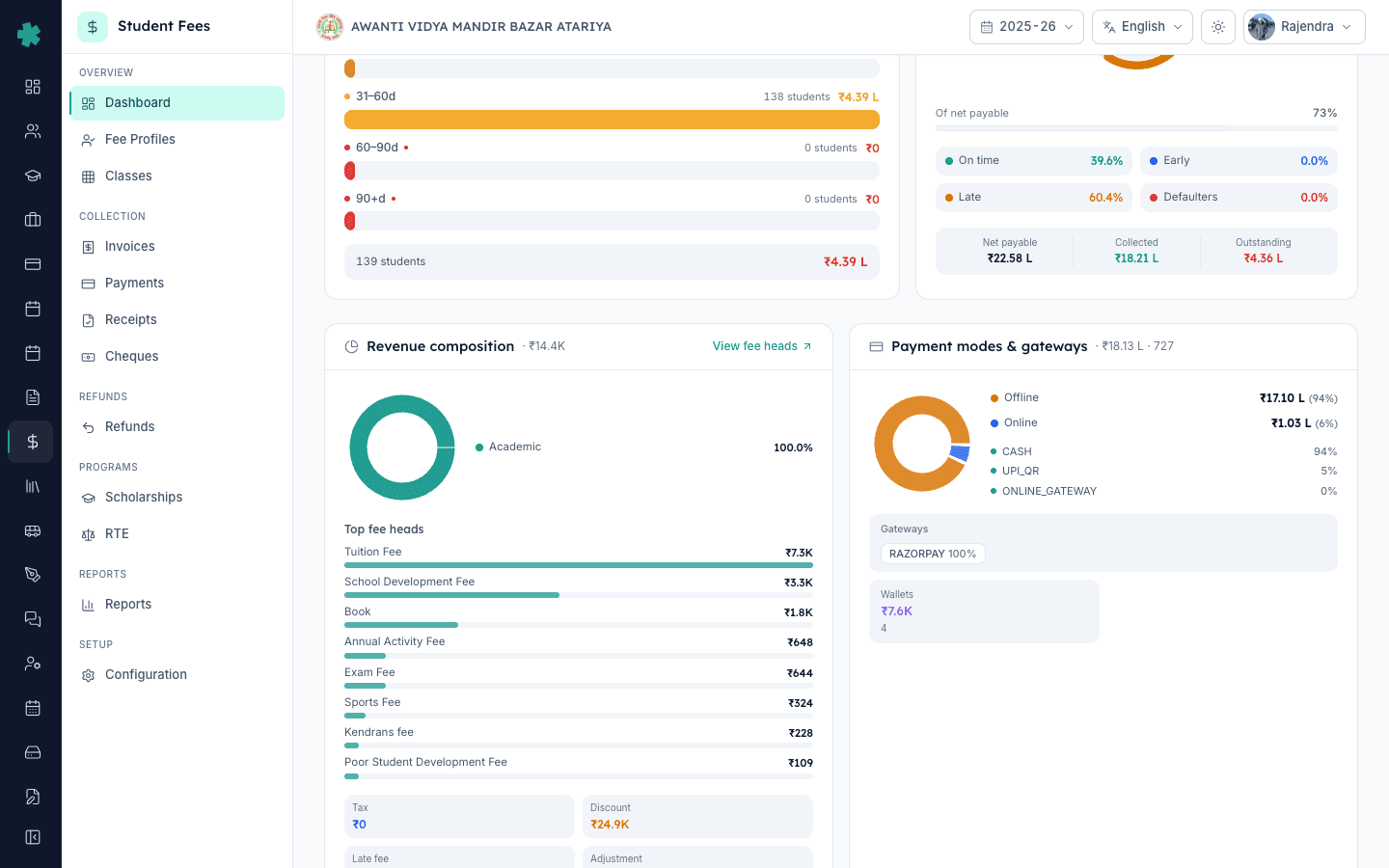
8-15d बार दबाएँ — ज़्यादातर स्कूल यही firm-reminder bucket पहले चलाते हैं — या जिस bucket पर ऑफिस आज काम करना चाहता है। Inkwelly Fee Profiles पेज को उसी days-past-due band के outstanding छात्रों पर filter करके खोल देता है। Aging Cliff के बाईं ओर Defaulters Heatmap tile क्लास स्तर पर यही काम करता है — हर cell एक class-and-bucket जोड़ी है और रंग की गहराई बताती है कि cliff कहाँ सबसे तीखी है। किसी गहरे लाल cell पर (जैसे Class 8A का 31-60d) क्लिक करें तो वही defaulters सूची class और bucket दोनों पर filtered खुलती है।
4. Invoices पर जाएँ और Overdue tab चुनें
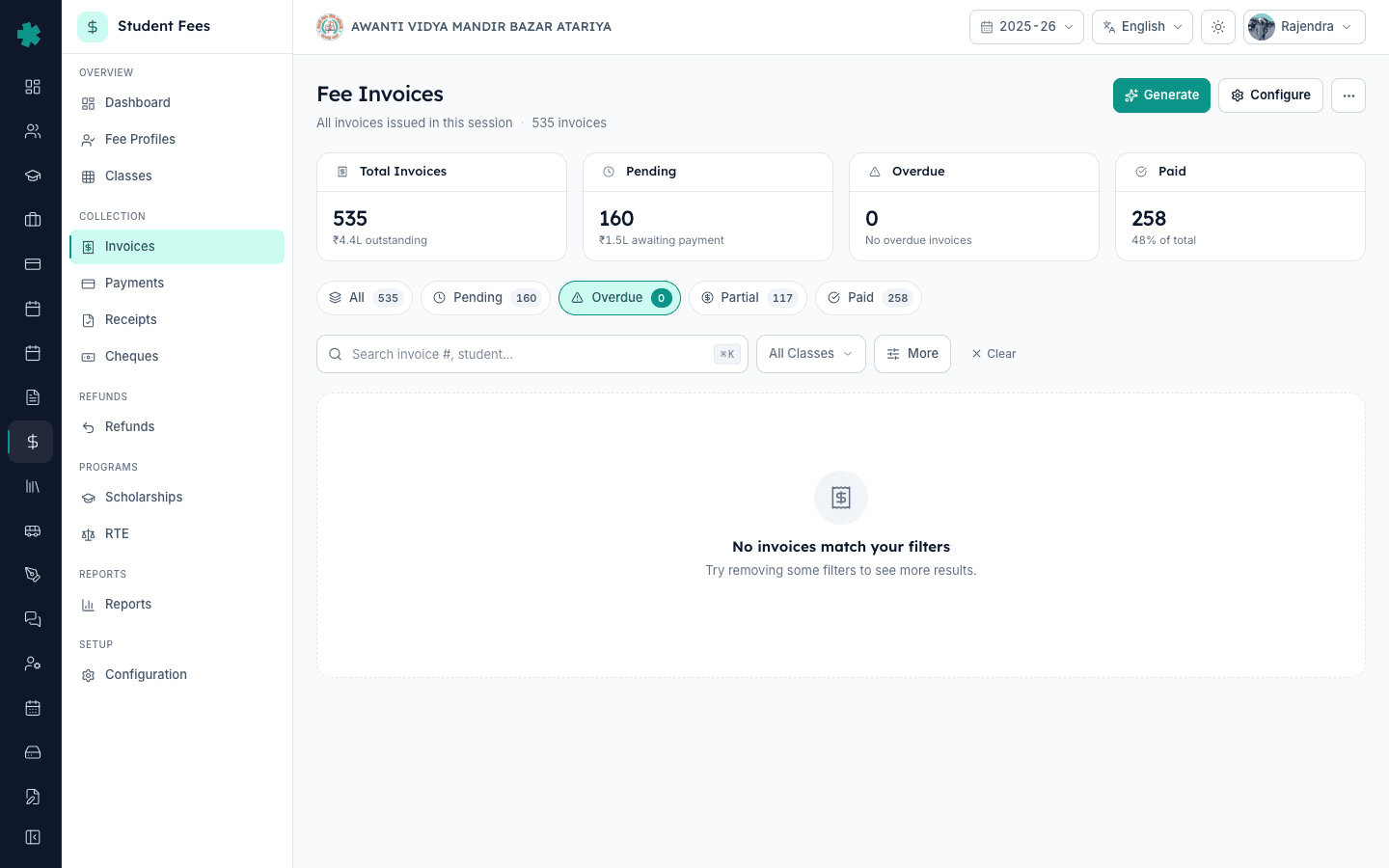
साइडबार के COLLECTION के अंतर्गत Invoices पर क्लिक करें। Invoices पेज पर चार KPI कार्ड — Total Invoices, Pending, Overdue, Paid — और उसके नीचे inline status tab हैं: All, Pending, Overdue, Partial, Paid। Overdue पर क्लिक करें। Inkwelly table को उन सभी invoice पर filter कर देता है जिनकी due date निकल चुकी है और balance अभी शेष है। किसी छात्र विशेष को ढूँढने के लिए search box का प्रयोग करें या क्लास सीमित करने के लिए All Classes filter का — अगर आप किसी bucket से आए हैं और सिर्फ़ उसी क्लास पर काम करना चाहते हैं।
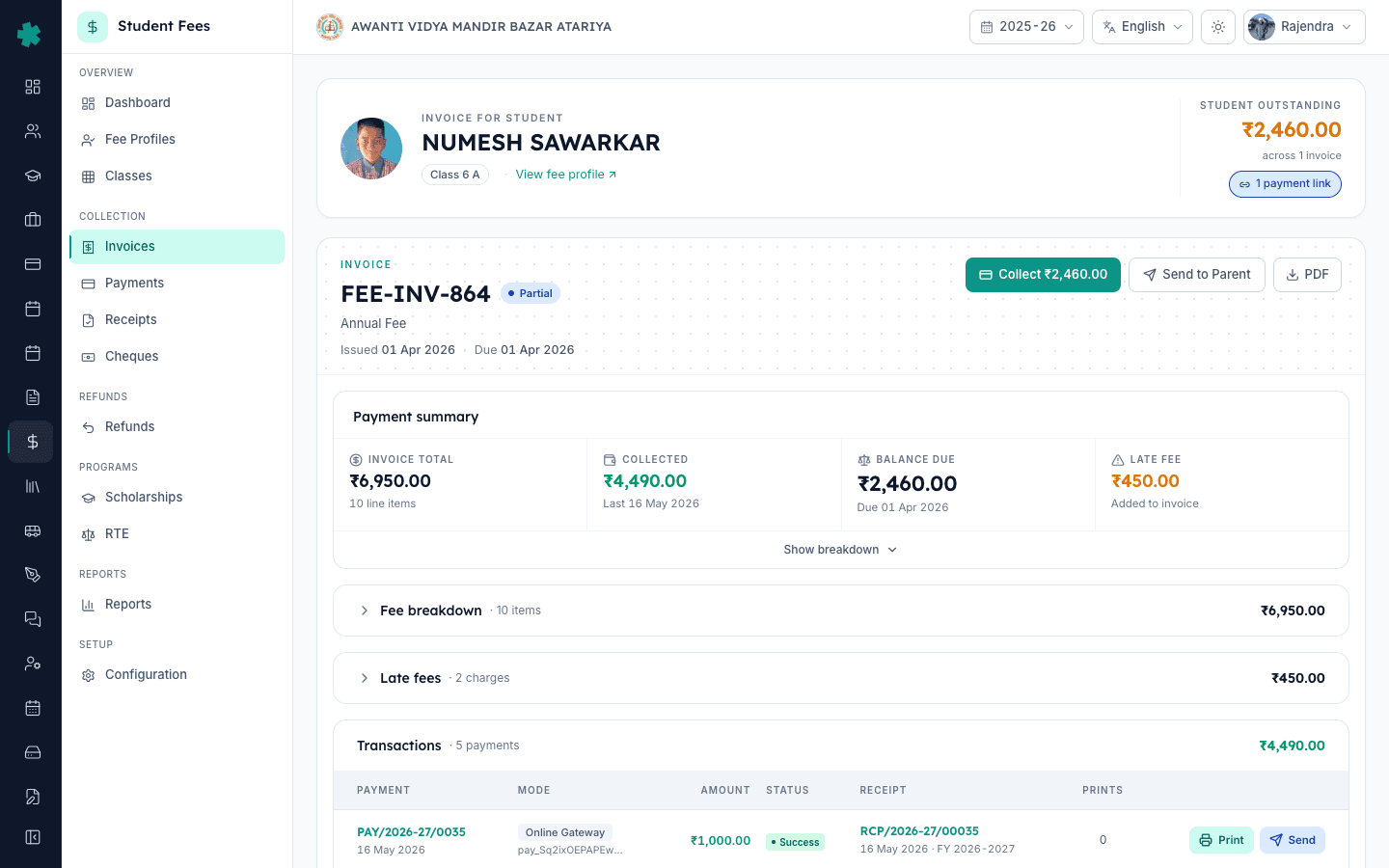
5. कोई overdue invoice खोलें और Send to Parent दबाएँ
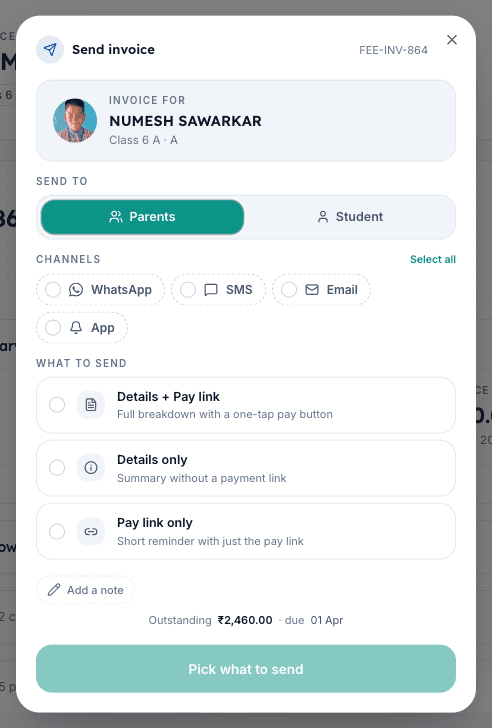
Table में invoice number पर क्लिक करके invoice detail पेज खोलें। Header के ऊपर दाईं ओर तीन action button हैं — Collect, Send to Parent और PDF। Send to Parent दबाएँ। Inkwelly Send to Parent dialog खोलता है जिसमें student photo, invoice summary (Total, Balance Due) और एक channel picker होता है। यही dialog table row के Send Invoice action से भी खुलता है — दोनों रास्ते एक ही picker पर पहुँचते हैं। बहुत सारे invoice के लिए ऑफिस के दो लोग जोड़ी बनाकर काम करें: एक Overdue table देखे, दूसरा हर invoice नए tab में खोलकर Send to Parent दबाए।
6. Channel चुनें, संदेश में बदलाव करें और Send दबाएँ
Channel picker में चार tile दिखते हैं — WhatsApp, SMS, Email और App Push। WhatsApp भारतीय अभिभावकों के लिए सबसे ऊँचे open-rate वाला channel है और TRAI-registered template पर चलता है; जिन parents के पास smartphone या WhatsApp नहीं है, उनके लिए SMS सबसे भरोसेमंद fallback है; Email उन parents के लिए ठीक है जो लिखित record रखना चाहते हैं; App Push उन parents तक पहुँचता है जिनके पास पहले से Inkwelly parent app है। 0-7d की हल्की reminder के लिए एक channel चुनें, 8-15d की पक्की reminder के लिए दो, और 60-90d की critical reminder के लिए चारों। चाहें तो message note में बदलाव करें, फिर dialog के नीचे का बड़ा Send बटन दबाएँ।
7. Invoice activity पर delivery देखें
Toast से reminder queued होने की पुष्टि आने के बाद, उसी invoice detail पेज पर नीचे Communications और Activity सेक्शन तक scroll करें। Communications सेक्शन इस invoice के लिए भेजे गए हर reminder को channel, recipient, timestamp और delivery status पिल — Queued, Sent, Delivered, Read या Failed — के साथ दिखाता है। Activity सेक्शन वह audit-trail entry जोड़ता है जो ऑफिस account review के समय दिखा सकता है। बहुत सारे invoice को एक साथ verify करना हो तो Communications module में पूरे स्कूल का reminder log मिलता है।
अगला कदम — reminder को एक उचित penalty के साथ जोड़ें How to set up late fee rules के माध्यम से ताकि reminder में late fee अलग पंक्ति के रूप में दिखे। बहुत सारे invoice पर penalty एक साथ लगाने के लिए How to bulk-generate invoices for an installment देखें। जिस फीस चार्ट और तिथियों पर dashboard टिका है, उनके लिए How to create a fee structure for the academic session, How to define fee categories and fee heads और How to turn on auto-generation for an installment पढ़ें।
Inkwelly Student Fees को काम करते हुए देखें
अक्सर पूछे गए सवाल
7 सवालInkwelly में overdue फीस invoice कैसे ढूँढें?
Student Fee → Dashboard खोलें और दाईं ओर Aging Cliff tile देखें। छह बार — 0-7d, 8-15d, 16-30d, 31-60d, 60-90d और 90+d — हर outstanding invoice को due date से बीते दिनों के अनुसार समूहित करते हैं। किसी बार पर क्लिक करके defaulters की सूची खोलें, या Invoices पर जाकर Overdue tab दबाएँ ताकि छात्र नाम, क्लास और balance due के साथ overdue invoice की पूरी सूची दिखे।
Inkwelly dashboard के Aging Cliff का क्या मतलब है?
Aging Cliff outstanding invoice का छह-bucket विभाजन है जो उन्हें due date से बीते दिनों के अनुसार बाँटता है। Bucket हैं 0-7, 8-15, 16-30, 31-60, 60-90 और 90+ दिन overdue। Cliff की धार वह bucket है जहाँ outstanding राशि अचानक बढ़ जाती है — सामान्यतः 31-60 या 60-90 अगर reminder देर से गए। शुरुआती bucket पर पहले काम करने से invoice cliff की ओर सरकने से रुक जाते हैं।
क्या एक साथ कई parents को फीस reminder भेजा जा सकता है?
Send to Parent dialog हर invoice पर अलग खुलता है पर एक ही बार में WhatsApp, SMS, Email और App Push चारों channel सपोर्ट करता है — critical reminder के लिए चारों चुनें ताकि parent को हर channel पर वही संदेश मिले। मासिक follow-up के लिए Communications module से व्यापक recipient सूची चलाई जा सकती है; per-invoice reminder के लिए Send to Parent flow late fee, balance due और payment link को सही record से जोड़े रखता है।
Overdue invoice kaise follow up kare Inkwelly me?
Student Fee → Dashboard kholiye, Aging Cliff tile par jaiye. 8-15d ya 16-30d wala bar dabaiye to overdue students ki list khul jayegi. Phir sidebar me Invoices kholiye aur Overdue tab par click kijiye. Kisi invoice par click karke detail kholiye, top-right ka Send to Parent button dabaiye, channel chuniye (WhatsApp, SMS, Email, App), aur Send kar dijiye. Delivery status invoice ke Communications section me dikh jayega.
Bulk reminder kaise bheje overdue invoices ke liye?
Send to Parent dialog ek hi click me chaaron channel — WhatsApp, SMS, Email aur App — par bhej deta hai, isliye ek invoice par char reminders ek saath bhejna possible hai. Bahut saare invoices ke liye, office ke do log Overdue tab ke saath kaam kar sakte hain — ek list dekhe, doosra har invoice naye tab me khol kar Send to Parent dabaye. Communications module se broader campaigns bhi banaye ja sakte hain.
भारतीय अभिभावकों के लिए कौन सा reminder channel सबसे अच्छा है?
WhatsApp भारतीय अभिभावकों के लिए सबसे ऊँचे open-rate वाला channel है और Tier-2 तथा Tier-3 के 60% स्कूलों की पहली पसंद है (Inkwelly customer telemetry, 2024-25)। जिन parents के पास WhatsApp नहीं है उनके लिए SMS सबसे भरोसेमंद fallback है और TRAI DLT रजिस्ट्रेशन का पालन करता है। Email उन parents के लिए ठीक है जो लिखित record रखते हैं। App Push उन तक पहुँचता है जो Inkwelly parent app पर पहले से हैं। 60-90d की critical reminder के लिए चारों channel एक साथ भेजना सबसे प्रभावी है।
क्या Inkwelly एक ही reminder दो बार भेजने से रोकता है?
नहीं। Reminder भेजने के बाद भी Send to Parent बटन उपलब्ध रहता है, ताकि ऑफिस एक हफ़्ते बाद उसी invoice पर फिर chase कर सके। Invoice के Communications सेक्शन में हर भेजी गई reminder — channel, timestamp और delivery status — दिखती है, इसलिए ऑफिस यह देख सकता है कि parent को अब तक कितनी reminder मिल चुकी हैं। TRAI DLT spam flag से बचने के लिए ज़्यादातर स्कूल हर channel पर हफ़्ते में एक reminder तक ही सीमित रहते हैं।
स्रोत व संदर्भ
- CBSE Affiliation Bye-Laws — Chapter VII, Fee Structure · देखा गया 19 May 2026
CBSE bye-laws require affiliated schools to publish the approved fee chart with due dates and any penalty so that overdue follow-ups are predictable for parents.
- Right of Children to Free and Compulsory Education Act, 2009 — Section 13 · देखा गया 19 May 2026
The RTE Act limits schools to the published fee, which means overdue reminders must align with the same fee chart and not introduce undisclosed charges.
- TRAI — Telecom Commercial Communications Customer Preference Regulations (DLT framework) · देखा गया 19 May 2026
TRAI's DLT framework governs SMS and voice reminders sent to parents — schools must use registered templates and respect frequency caps when chasing overdue fees.
Inkwelly आपके स्कूल पर — खुद देखें
30 मिनट का डेमो। आपके मौजूदा ERP को आपके साथ खोलकर, कॉल पर ही आपका डेटा Inkwelly में लोड करते हैं। कॉल ख़त्म होते-होते एक तय तारीख़ का गो-लाइव प्लान आपके हाथ में।