How to follow up overdue invoices using the Aging Cliff
For school accountants and front-office staff running the monthly fee-collection chase. By the end you will have used the Aging Cliff on the Inkwelly Student Fee dashboard to triage overdue invoices by days-past-due and class, opened the Invoices Overdue tab, and sent a Send to Parent reminder on WhatsApp, SMS, Email or App Push for the right invoices.
To follow up overdue invoices in Inkwelly: open Student Fee → Dashboard, look at the Aging Cliff tile to see outstanding amounts grouped into 0-7, 8-15, 16-30, 31-60, 60-90 and 90+ day buckets, click a bucket to open the matching defaulters list, then switch to Student Fee → Invoices → Overdue tab, open an invoice and click Send to Parent. Pick WhatsApp, SMS, Email or App Push and click Send. Inkwelly logs the reminder and tracks delivery on the invoice activity.
The Aging Cliff is the single most useful collection lever on the Student Fee dashboard. It groups every outstanding amount in the school by how many days the invoice has been past its due date — 0-7 (gentle nudge), 8-15 (firm reminder), 16-30 (call home), 31-60 (escalation), 60-90 and 90+ (critical, principal review). A typical Tier-2 day school sees 8% to 12% of invoices slip past the due date each cycle (UDISE+ school finance returns, 2023), and the difference between a 70% and a 92% collection month is almost always how quickly the office gets a reminder out in the 0-7 and 8-15 buckets.
1. Open the Student Fee dashboard
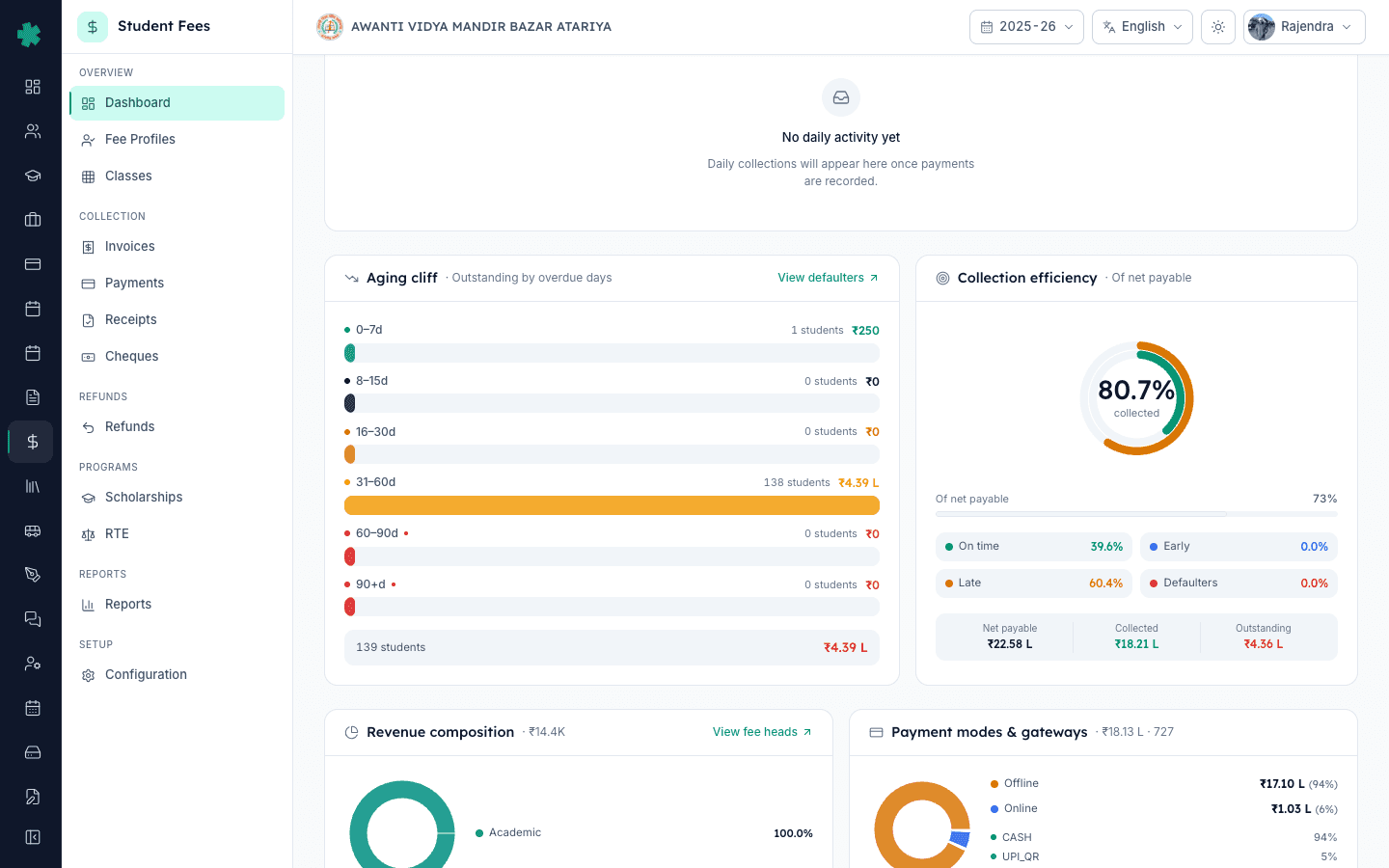
Open Inkwelly → Student Fee from the left sidebar. The dashboard is the default landing page under OVERVIEW. The hero shows Total Collected, Outstanding, Collection Efficiency and Reconciliation Readiness, and below that sit Money Flow, Today Pulse, Cheque Pipeline, Collector Leaderboard, Aging Cliff, and Defaulters Heatmap. Scroll to the Aging Cliff tile — it sits on the right side of the dashboard with a TrendingDown icon and a View all link.
2. Read the Aging Cliff buckets
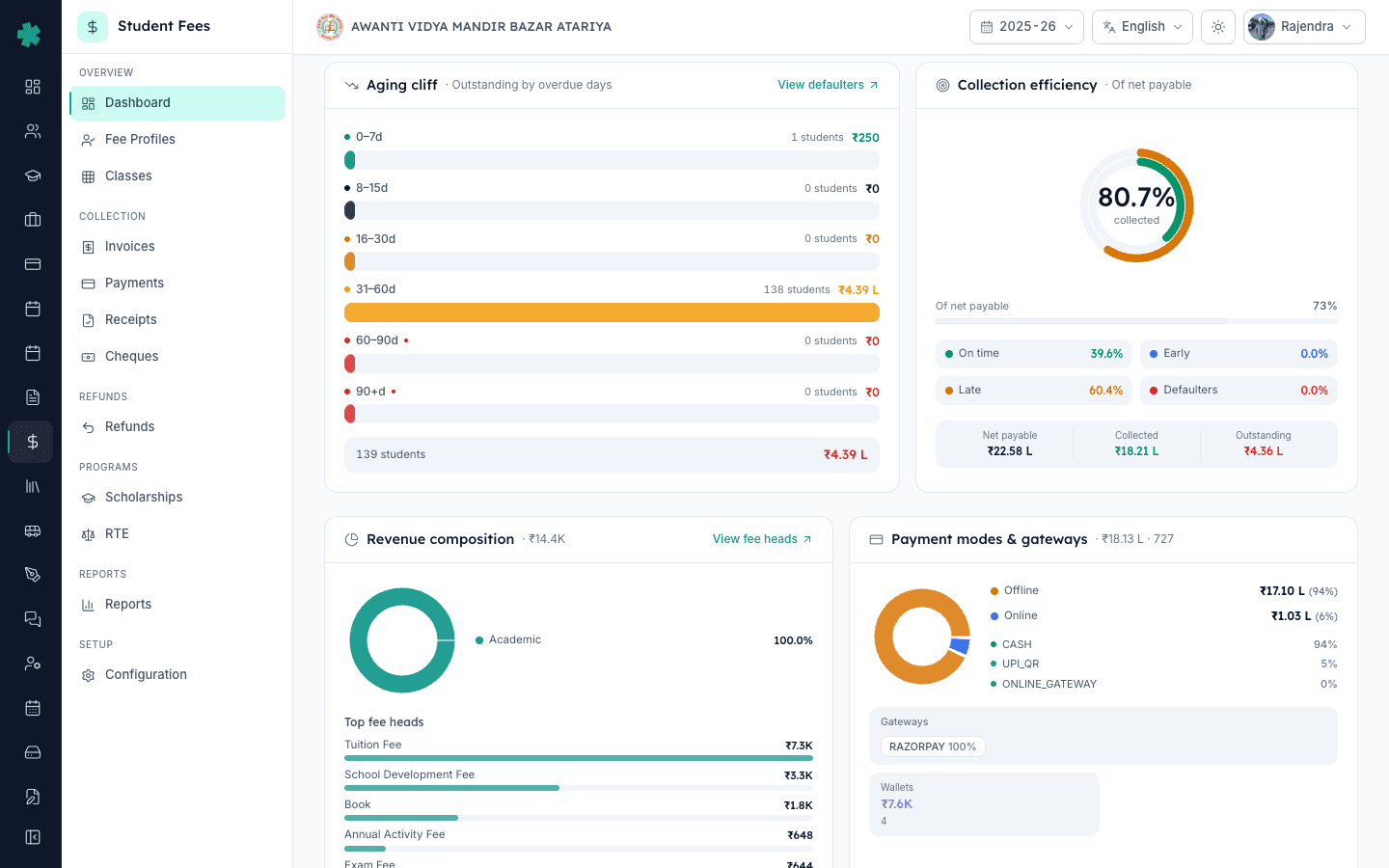
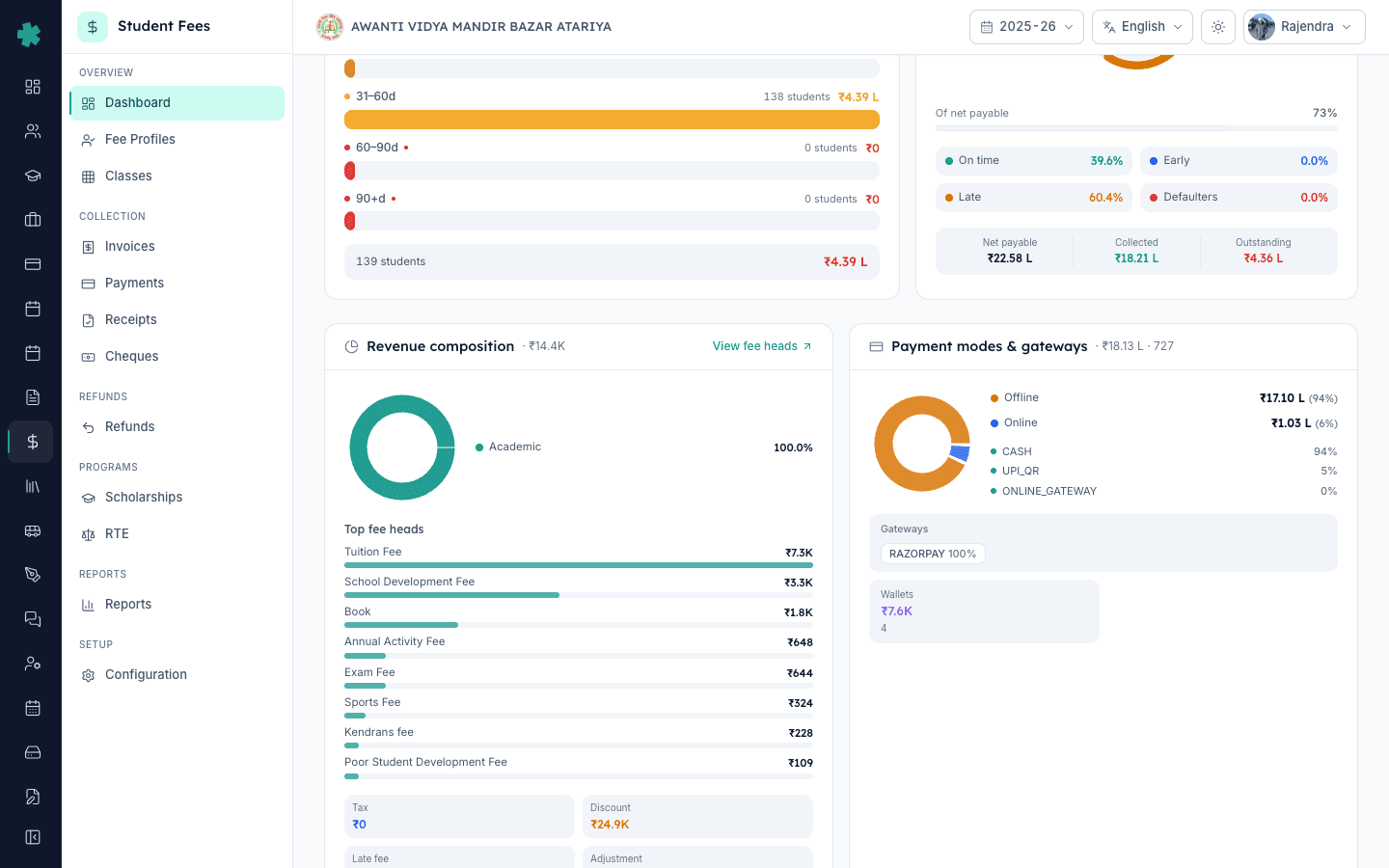
The Aging Cliff shows six bars from top to bottom: 0-7d, 8-15d, 16-30d, 31-60d, 60-90d and 90+d. Each bar carries the number of students with at least one outstanding invoice in that bucket and the total outstanding amount in compact rupees (₹4.2L, ₹85k, and so on). The colour shifts from green for 0-7d to red for 60-90d and 90+d so the cliff edge is visible at a glance. The strip at the bottom of the tile shows the school-wide totals — students with outstanding and total outstanding.
3. Click a bucket to open the matching defaulters
Click the 8-15d bar (the firm-reminder bucket most schools work first) or any other bucket the office wants to chase today. Inkwelly opens the Fee Profiles page filtered to outstanding students in that days-past-due band. The Defaulters Heatmap tile to the left of the Aging Cliff serves the same purpose at class level — every cell is a class-and-bucket pair, and the colour intensity shows where the cliff is steepest. Click a hot red cell (for example Class 8A in the 31-60d bucket) to land on the same defaulters list filtered by both class and bucket.
4. Switch to Invoices and pick the Overdue tab
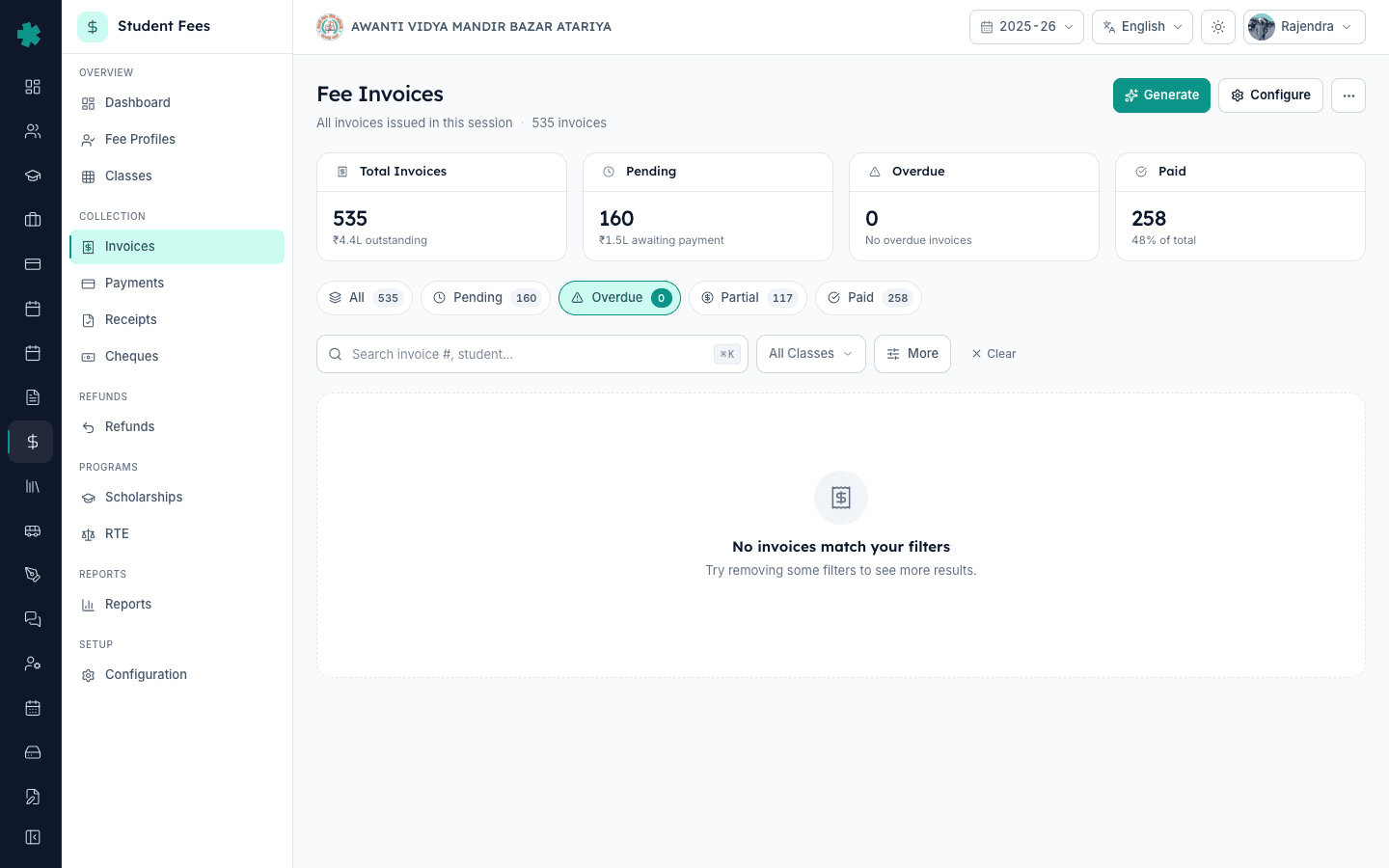
Click Invoices in the left sidebar under COLLECTION. The Invoices page shows four KPI cards — Total Invoices, Pending, Overdue, Paid — and inline status tabs below: All, Pending, Overdue, Partial, Paid. Click Overdue. Inkwelly filters the table to every invoice whose due date has passed and whose balance is still positive. Use the search box to find a specific student or the All Classes filter to narrow by class if you started from a bucket and want only that class.
5. Open an overdue invoice and click Send to Parent
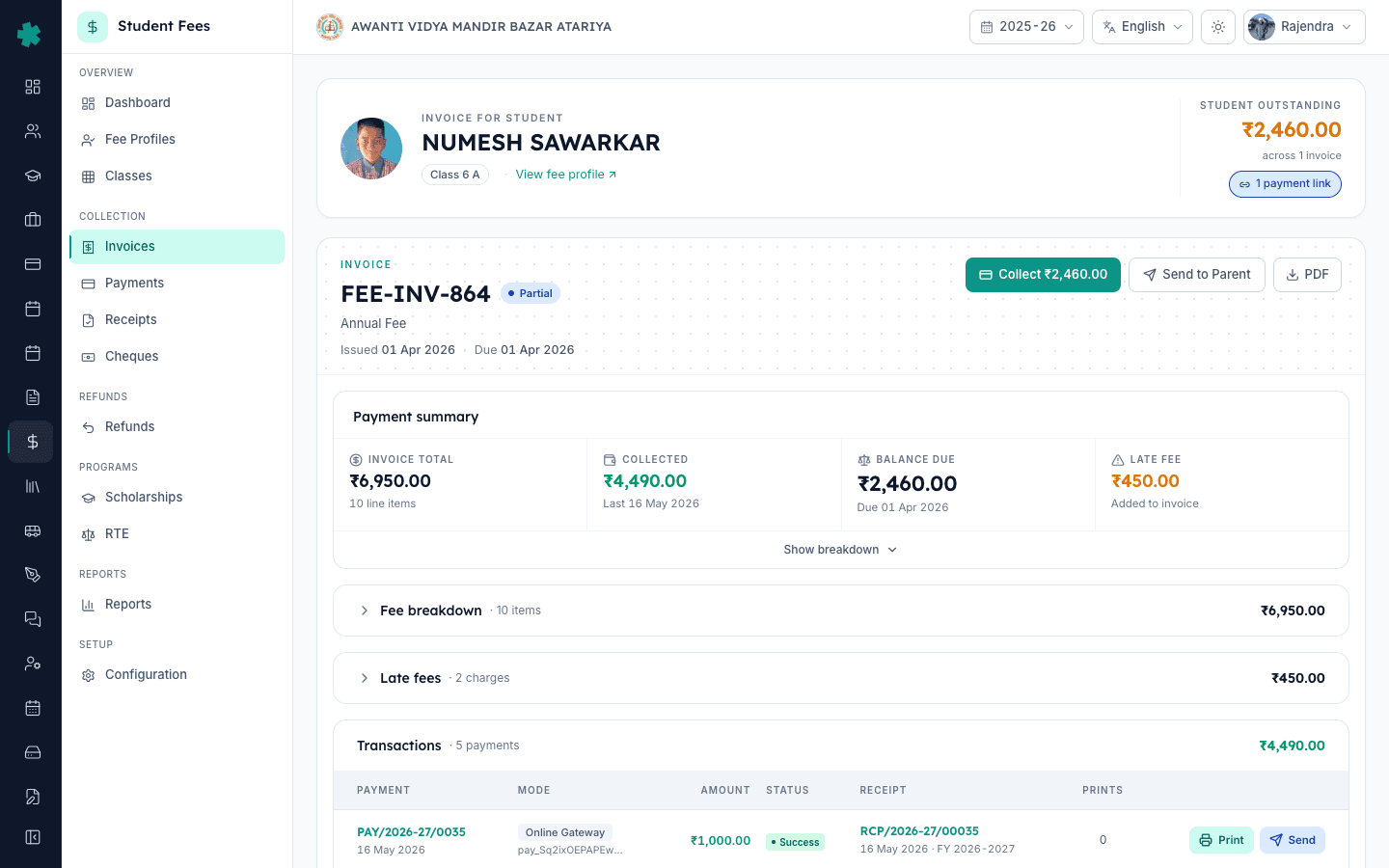
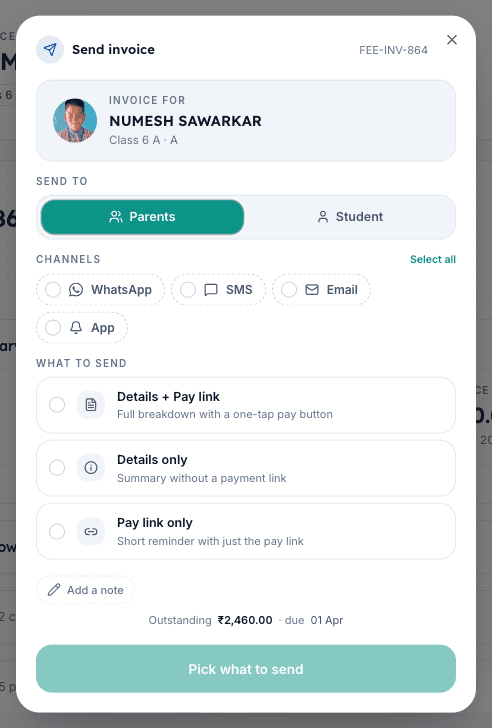
Click the invoice number in the table to open the invoice detail page. The header carries three action buttons on the top right — Collect, Send to Parent, and PDF. Click Send to Parent. Inkwelly opens the Send to Parent dialog with the student photo, the invoice summary (Total, Balance Due) and a channel picker. The same dialog opens from the table row action Send Invoice — both paths lead to the same channel picker. For batches, work the list in pairs of office staff: one walks the Overdue table, the other opens each invoice in a new tab and sends.
6. Pick the channel, customise the note, and click Send
The channel picker shows four tiles — WhatsApp, SMS, Email and App Push. WhatsApp is the highest open-rate channel for Indian parents and uses a TRAI-registered template; SMS is the most reliable fallback when the parent has no smartphone or WhatsApp; Email suits parents who prefer a paper trail; App Push reaches parents who already have the Inkwelly parent app installed. Tick one channel for the gentlest 0-7d reminder, two for a firmer 8-15d nudge, or all four for a 60-90d critical reminder. Optionally edit the message note, then click the big Send CTA at the bottom of the dialog.
7. Track delivery on the invoice activity
After the toast confirms the reminder is queued, scroll down the same invoice detail page to the Communications and Activity sections. The Communications section lists every reminder sent for this invoice with the channel, the recipient, the timestamp and a delivery status pill — Queued, Sent, Delivered, Read or Failed. The Activity section adds the audit-trail entry the office can show during an account review. The school-wide reminder log lives under the Communications module if you need to verify many invoices at once.
Next steps — pair the reminder with a fair penalty using How to set up late fee rules so the reminder text shows the late fee as a separate row. Apply the penalty across many invoices at once with How to bulk-generate invoices for an installment. For the original fee chart and dates the dashboard sits on, review How to create a fee structure for the academic session, How to define fee categories and fee heads, and How to turn on auto-generation for an installment.
See Inkwelly Student Fees in action
Frequently asked
7 questionsHow do I find overdue fee invoices in Inkwelly?
Open Student Fee → Dashboard and look at the Aging Cliff tile on the right. The six bars — 0-7d, 8-15d, 16-30d, 31-60d, 60-90d and 90+d — group every outstanding invoice by days past the due date. Click a bar to open the matching defaulters list, or switch to Invoices and click the Overdue tab to see the full list of overdue invoices with student name, class and balance due.
What does the Aging Cliff in the Inkwelly dashboard mean?
The Aging Cliff is a six-bucket breakdown of outstanding invoices by how many days they have crossed the due date. The buckets are 0-7, 8-15, 16-30, 31-60, 60-90 and 90+ days overdue. The cliff edge is the bucket where outstanding amounts spike — usually 31-60 or 60-90 if reminders went out late. Working the early buckets first stops invoices from sliding down the cliff.
Can I send fee reminders to many parents at once?
The Send to Parent dialog opens per invoice and supports WhatsApp, SMS, Email and App Push together — tick all four channels for a critical reminder so the parent gets the same message on every channel they use. The Communications module also lets the school run a broader recipient list for monthly follow-ups; for invoice-specific reminders, the per-invoice Send to Parent flow keeps the late fee, balance due and payment link tied to the right record.
Overdue invoice ka follow up kaise kare Inkwelly me?
Student Fee → Dashboard kholiye, Aging Cliff tile par jaiye. 8-15d ya 16-30d wala bar dabaiye to overdue students ki list khul jayegi. Phir sidebar me Invoices kholiye aur Overdue tab par click kijiye. Kisi invoice par click karke detail kholiye, top-right ka Send to Parent button dabaiye, channel chuniye (WhatsApp, SMS, Email, App), aur Send kar dijiye. Delivery status invoice ke Communications section me dikh jayega.
Bulk reminder kaise bheje overdue invoices ke liye?
Send to Parent dialog ek hi click me chaaron channel — WhatsApp, SMS, Email aur App — par bhej deta hai, isliye ek invoice par char reminders ek saath bhejna possible hai. Bahut saare invoices ke liye, office ke do log Overdue tab ke saath kaam kar sakte hain — ek list dekhe, doosra har invoice naye tab me khol kar Send to Parent dabaye. Communications module se broader campaigns bhi banaye ja sakte hain.
Which reminder channel works best for Indian school parents?
WhatsApp has the highest open rate for Indian parents and is the preferred channel for 60% of Tier-2 and Tier-3 schools (Inkwelly customer telemetry, 2024-25). SMS is the most reliable fallback for parents without WhatsApp and respects TRAI DLT registration requirements. Email suits parents who keep a paper trail. App Push reaches parents already on the Inkwelly parent app. For 60-90d critical reminders, sending on all four channels at once is the highest-yield option.
Does Inkwelly stop me from sending the same reminder twice?
No. The Send to Parent button stays enabled even after a reminder goes out, so the office can chase the same invoice again a week later. The Communications section on the invoice shows every reminder sent — channel, timestamp and delivery status — so the office can see how many nudges the parent has already received before the next one. Most schools cap repeat reminders at one per channel per week to avoid TRAI DLT spam flags.
You might also like
4 readsSources & references
- CBSE Affiliation Bye-Laws — Chapter VII, Fee Structure · accessed 19 May 2026
CBSE bye-laws require affiliated schools to publish the approved fee chart with due dates and any penalty so that overdue follow-ups are predictable for parents.
- Right of Children to Free and Compulsory Education Act, 2009 — Section 13 · accessed 19 May 2026
The RTE Act limits schools to the published fee, which means overdue reminders must align with the same fee chart and not introduce undisclosed charges.
- TRAI — Telecom Commercial Communications Customer Preference Regulations (DLT framework) · accessed 19 May 2026
TRAI's DLT framework governs SMS and voice reminders sent to parents — schools must use registered templates and respect frequency caps when chasing overdue fees.
See Inkwelly on your school
30-minute demo. We open your current ERP with you and load your data into Inkwelly on the call. Dated go-live plan by the end of it.