Gateway Charges रिपोर्ट कैसे पढ़ें Razorpay MDR और GST प्रति transaction देखने के लिए
यह गाइड उन स्कूल अकाउंटेंट और प्रिंसिपल के लिए है जो हर महीने फीस की P&L बंद कर रहे हैं और online collection की असली लागत देखना चाहते हैं। अंत में आप Inkwelly में Gateway Charges रिपोर्ट खोलना, अपनी billing window पर filter करना, चार hero KPI पढ़ना और parents के दिए हुए पैसे की तुलना Razorpay MDR और GST के बाद बैंक में आए असली पैसे से करना सीख जाएँगे।
Inkwelly में Gateway Charges रिपोर्ट पढ़ने के लिए: Student Fee → Reports → Gateway Charges खोलें। From / To filter में date range चुनें और Apply दबाएँ। चार hero KPI में transactions की संख्या, parents ने कुल कितना दिया, Razorpay ने MDR और GST मिलाकर कितना काटा, और स्कूल के बैंक में कितना net आया — यह सब दिखता है। नीचे By payment method कार्ड और Transactions टेबल हर पंक्ति का विवरण देती है जिसे मासिक मिलान के लिए उपयोग किया जाता है।
Razorpay भारतीय स्कूलों से payment method के अनुसार 1 से 3 percent के बीच MDR लेता है, और उस fee पर 18 percent GST जोड़ता है — यह Reserve Bank of India के MDR framework और payment-gateway services पर लागू GST rate के अनुरूप है। शिक्षण संस्थानों के UPI peer-to-merchant transactions National Payments Corporation of India के नियमों के अनुसार zero-MDR होते हैं, लेकिन card और netbanking payments स्कूल के असली पैसे लेते हैं। 1,200 छात्रों वाला एक स्कूल जो साल भर में ₹4 crore online जमा करता है, औसतन 1.5 percent MDR और GST के साथ लगभग ₹7 lakh का खर्च उठाता है — यह वह P&L line item है जो किताबों में स्पष्ट दिखना चाहिए और जिसके आधार पर convenience-fee नीति तय की जाती है।
1. Student Fee Reports खोलें
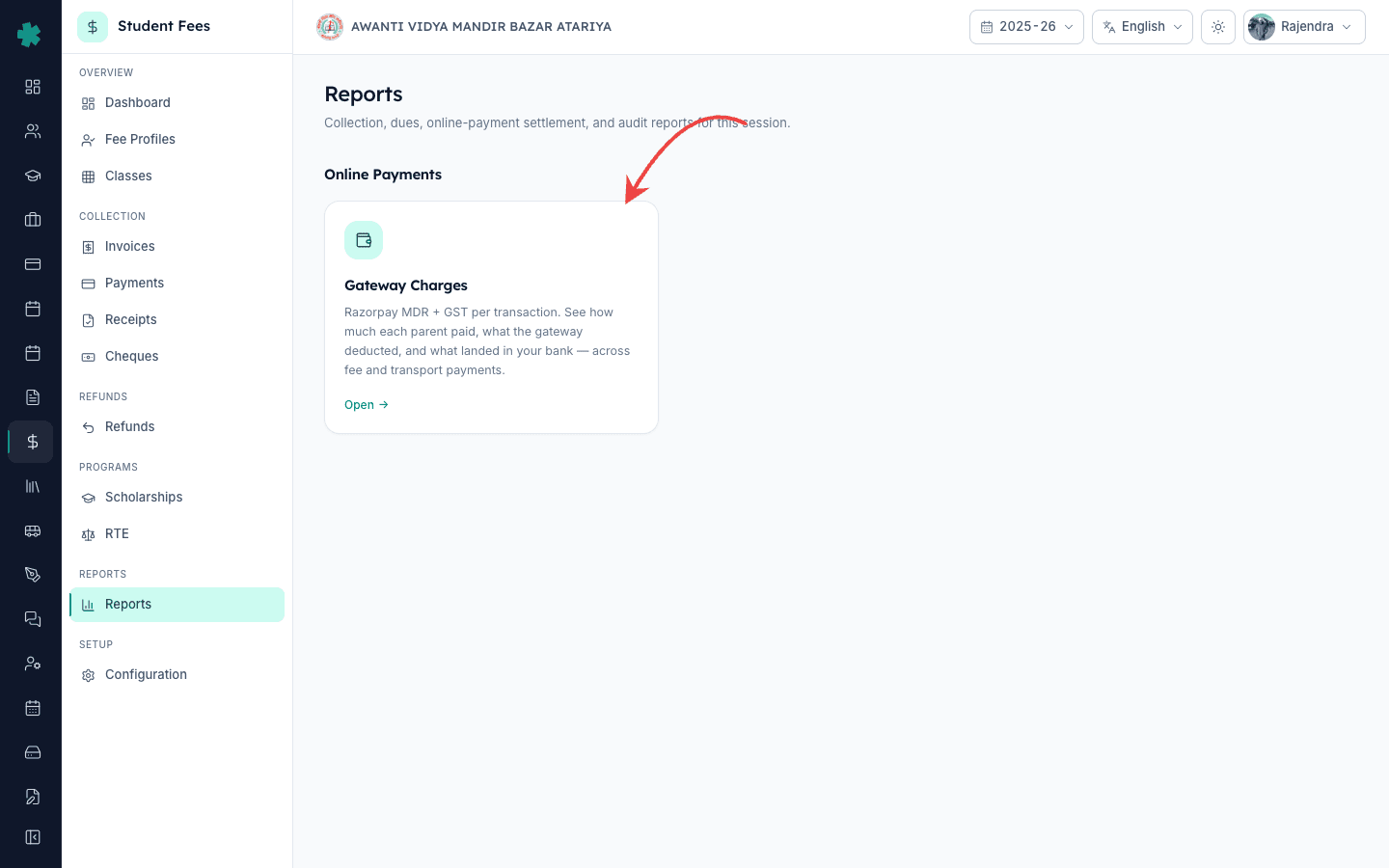
बाएँ साइडबार से Inkwelly → Student Fee खोलें। उप-नेविगेशन में REPORTS सेक्शन के अंतर्गत Reports पर क्लिक करें। Inkwelly Reports landing page दिखाता है जिस पर हर प्रकाशित रिपोर्ट के लिए एक कार्ड होता है और कार्ड क्षेत्र के अनुसार समूहित होते हैं। Online Payments समूह के अंदर ही Gateway Charges कार्ड मौजूद है। हर कार्ड पर एक छोटा विवरण लिखा होता है ताकि अकाउंटेंट खोलने से पहले ही जान ले कि अंदर क्या मिलेगा।
2. Gateway Charges कार्ड खोलें
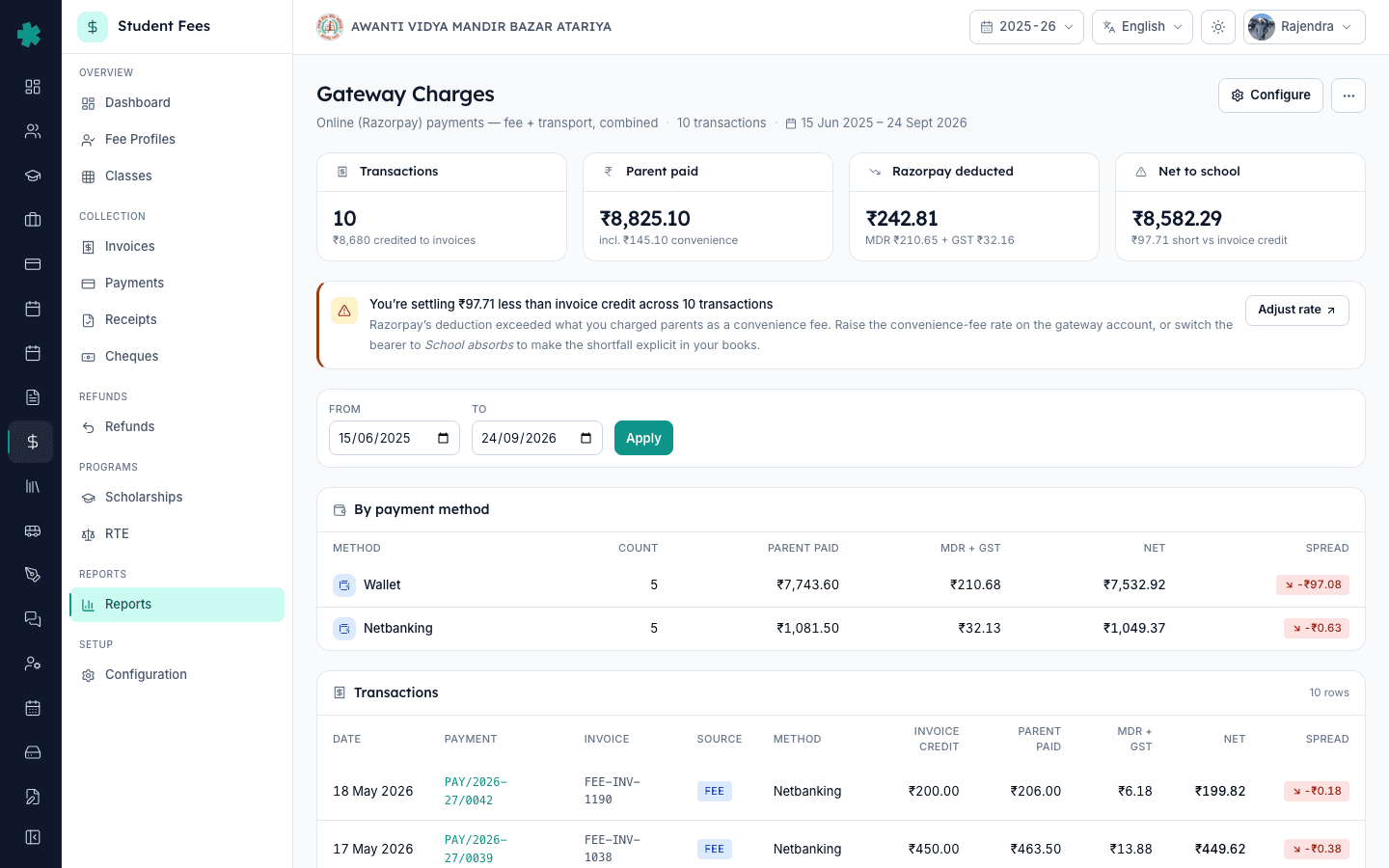
Online Payments के अंतर्गत Gateway Charges कार्ड पर क्लिक करें। Inkwelly रिपोर्ट को /student-fee/reports/gateway-charges पर खोलता है। डिफ़ॉल्ट window मौजूदा सत्र होती है — Inkwelly From और To को सत्र की शुरुआत और अंत की तिथियों से भर देता है ताकि रिपोर्ट तुरंत उपयोगी हो और कोई filter काम करने की आवश्यकता न पड़े। पेज का header चुनी गई window और कुल transactions की संख्या दिखाता है।
3. जिस अवधि की रिपोर्ट चाहिए, उसकी तिथि भरें
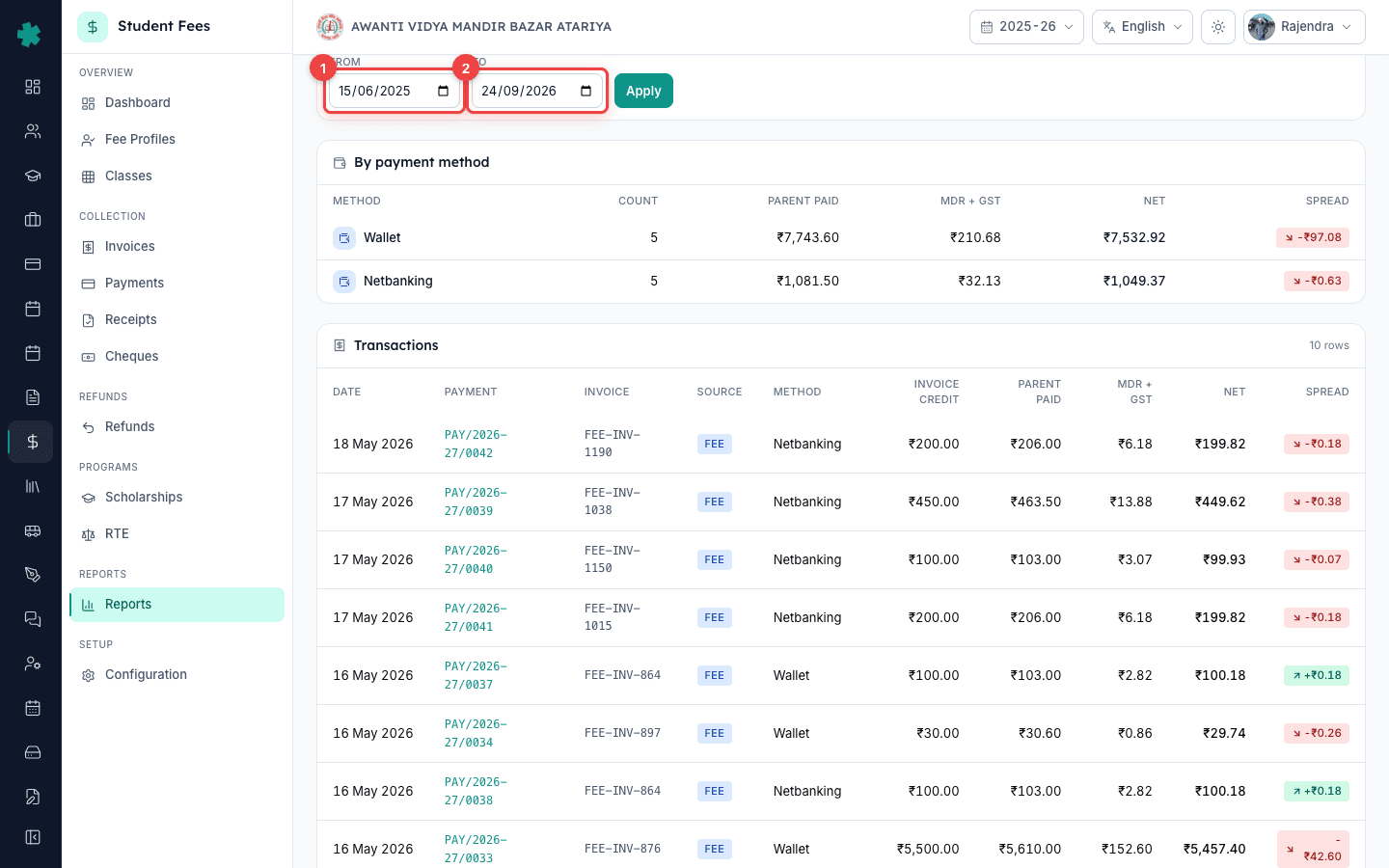
KPI पट्टी के नीचे मौजूद From और To date pickers से तिथि चुनें और Apply दबाएँ। Inkwelly उसी window के लिए रिपोर्ट को फिर से लोड करता है। मासिक closing के लिए From को महीने की पहली तारीख और To को महीने की आखिरी तारीख पर सेट करें। तिमाही समीक्षा के लिए तीन महीने की window चुनें जैसे 1 अप्रैल से 30 जून। पूरे सत्र के audit के लिए डिफ़ॉल्ट को बने रहने दें। नई गणना होते समय Apply बटन पर एक छोटा spinner दिखता है।
4. चार hero KPI पढ़ें
ऊपरी पट्टी में चार कार्ड होते हैं। Transactions उस window में हर online payment की गिनती करता है और उप-लेबल पर invoices में credit हुई कुल राशि दिखती है। Parent paid उस कुल राशि को दिखाता है जो parents ने भेजी, जिसमें स्कूल द्वारा ऊपर जोड़ा गया कोई convenience fee भी शामिल है। Razorpay deducted कार्ड MDR और GST मिलाकर एक संख्या दिखाता है, और उसके नीचे दोनों का अलग-अलग विवरण होता है। Net to school वह राशि है जो Razorpay की कटौती के बाद स्कूल के बैंक खाते में पहुँची — यही वह आँकड़ा है जो आपके bank statement से मिलना चाहिए।

5. By payment method कार्ड पढ़ें
By payment method कार्ड हर method — UPI, card, netbanking, wallet — के लिए उस window में transactions की संख्या, parent paid, MDR और GST का योग, net और spread दिखाता है। इससे पता चलता है कि कौन सा method स्कूल को सबसे महँगा पड़ता है। UPI की पंक्तियों में MDR सामान्यतः शून्य या लगभग शून्य होता है; card और netbanking ही असली charge उठाते हैं। हर पंक्ति का spread pill तब हरा होता है जब net और convenience fee मिलकर MDR को कवर कर लेते हैं, और लाल तब जब स्कूल को कमी झेलनी पड़ी हो।
6. प्रत्येक transaction का विवरण देखने के लिए Transactions टेबल पढ़ें
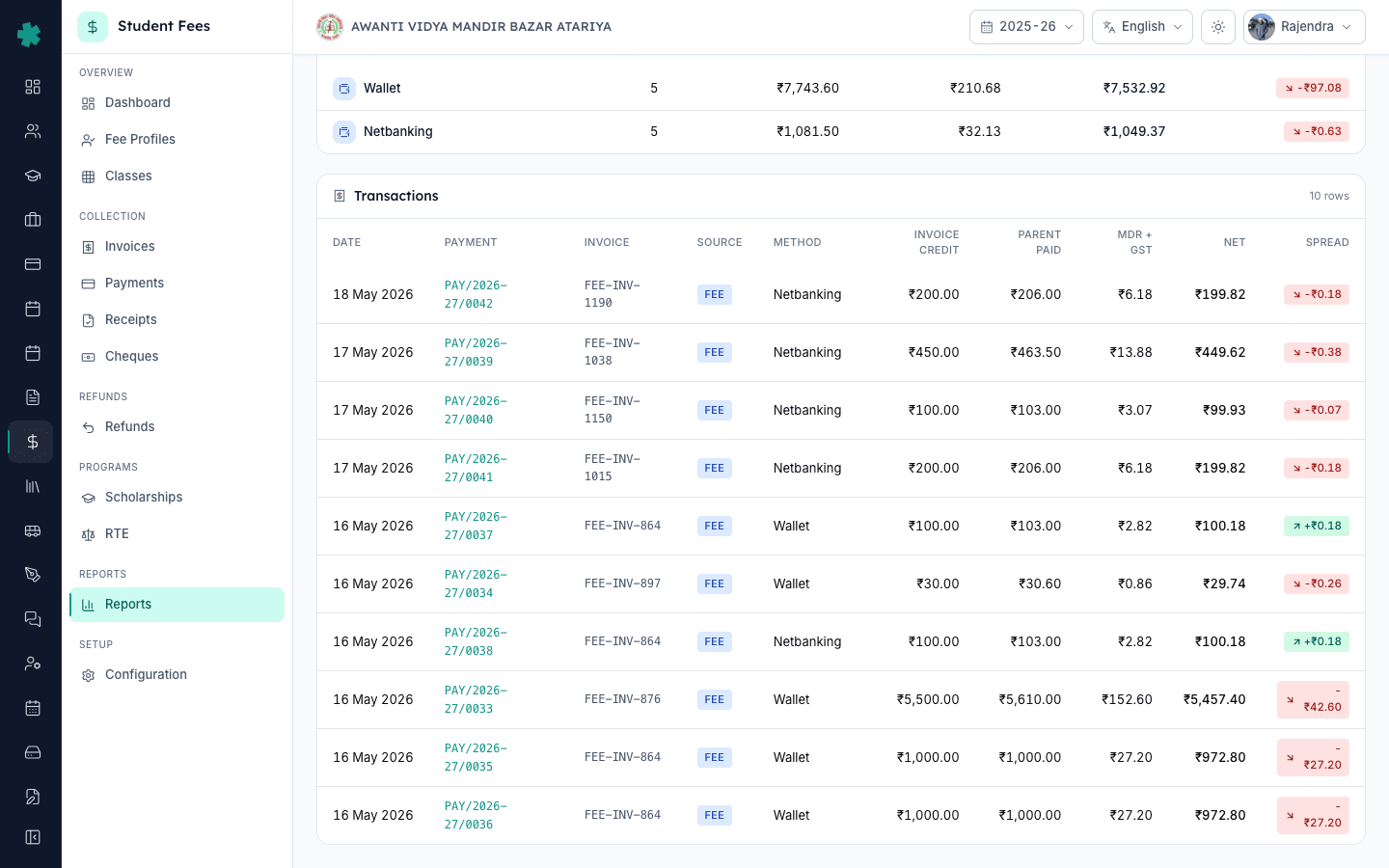
Method कार्ड के नीचे Transactions टेबल उस window के सबसे हालिया 100 online payments तक सूचीबद्ध करती है। हर पंक्ति में payment की तिथि, payment number, जुड़ा हुआ invoice, स्रोत (Fee या Transport), method, invoice credit, parent paid, MDR और GST, net settlement और spread दिखता है। किसी एक transaction की मूल पंक्ति खोलने के लिए payment number पर क्लिक करें — Student Fee → Payments में Razorpay का payment id, fee structure और receipt का मिलान किया जा सकता है। यदि किसी पंक्ति के MDR कॉलम में डैश दिख रहा है तो Inkwelly अभी Razorpay की payment-fetch प्रतिक्रिया का इंतज़ार कर रहा है — पैसा invoice में पहले से credit हो चुका है, केवल gateway breakdown अधूरा है।
7. किताबों के लिए रिपोर्ट सहेजें या साझा करें
Inkwelly को अलग से export बटन की आवश्यकता नहीं है — Reports पेज ही अधिकृत on-screen ledger है और किसी भी window पर filter हो सकता है। किताबों में copy रखने के लिए filtered पेज पर browser के Print to PDF का उपयोग करें ताकि date range, KPIs, by-method योग और transactions टेबल जैसी की वैसी captured हो जाए। उसी PDF को bank statement और Razorpay settlement रिपोर्ट के साथ अकाउंटेंट को दे दें। किसी एक मिलान के लिए Transactions टेबल की प्रति-पंक्ति राशि को स्कूल के मासिक P&L template में copy कर लें।
अगला कदम — यदि Razorpay अभी तक नहीं जुड़ा है तो पहले How to connect Razorpay to accept online fee payments के अनुसार सेटअप करें। यदि कोई refund शामिल है तो How to create a refund policy with time-based slabs पढ़ें। जिन स्कूलों का spread negative दिख रहा है उन्हें अपने Late fee rules और प्रभावित सत्र के Fee structure की समीक्षा करनी चाहिए।
Inkwelly Student Fees को काम करते हुए देखें
अक्सर पूछे गए सवाल
7 सवालRazorpay स्कूलों से कितना MDR लेता है?
Razorpay भारतीय स्कूलों से payment method के अनुसार 1 से 3 percent के बीच MDR लेता है, और उस fee पर 18 percent GST अलग से जोड़ता है। शिक्षण संस्थानों के UPI peer-to-merchant transactions National Payments Corporation of India के नियमों के अनुसार zero-MDR होते हैं, जबकि card और netbanking सामान्य charge उठाते हैं। हर स्कूल का असली प्रतिशत Razorpay merchant agreement में तय होता है और volume के अनुसार बदल सकता है।
Gateway Charges रिपोर्ट में Net to school KPI का क्या अर्थ है?
Net to school वह राशि है जो Razorpay द्वारा MDR और GST काटने के बाद आपके बैंक खाते में वास्तव में credit हुई। यदि किसी window में parents ने ₹1,00,000 दिए और Razorpay ने ₹1,800 MDR और GST के रूप में काटे, तो Net to school KPI ₹98,200 दिखाएगा — यही वह राशि है जो आपके bank statement में Razorpay की settlement के रूप में आनी चाहिए।
किसी एक payment का Razorpay MDR के बाद net amount कैसे देखें?
Student Fee → Reports → Gateway Charges खोलें, From और To को उस payment की तारीख पर सेट करें, फिर Transactions टेबल में संबंधित पंक्ति देखें। MDR + GST कॉलम Razorpay की कटौती दिखाता है और Net कॉलम बैंक में आई असली राशि। payment number पर क्लिक करके मूल payment record खोला जा सकता है जिसमें Razorpay का payment id भी मौजूद होता है।
Razorpay MDR report kaise nikale Inkwelly me?
Inkwelly me Student Fee kholiye, sidebar me Reports par jaiye, phir Gateway Charges card par click kijiye. Top par From aur To date pickers se period chuniye (jaise pichla mahina ya current quarter) aur Apply dabaiye. Page par 4 KPI tiles, By payment method ka card aur Transactions table dikhega — yahi aapka Razorpay MDR plus GST ka official report hai jise accountant ko mahine ki closing ke saath dijiye.
Online payment ka net amount kaise check kare?
Student Fee → Reports → Gateway Charges kholiye aur jis period ke liye check karna hai uska From-To date set kijiye. Apply dabaiye. Net to school naam ka KPI card jo amount dikhata hai, wahi aapke bank account me Razorpay se actually credit hua hai us window ke liye. Har transaction ke liye alag se dekhna ho to Transactions table me Net column dekhiye.
मेरा Net to school bank statement से बिल्कुल क्यों नहीं मिलता?
Razorpay स्कूल के बैंक खाते में सामान्यतः T+2 या T+3 cycle पर settlement करता है, इसलिए महीने की आखिरी तारीख का payment अगले महीने के bank statement में दिख सकता है। Gateway Charges रिपोर्ट payment date के अनुसार समूह बनाती है, settlement date के अनुसार नहीं। मिलान के लिए To को दो-तीन दिन आगे बढ़ाएँ, या Razorpay का settlement report अलग से देखें।
क्या स्कूल Razorpay MDR को parents से convenience fee के रूप में वसूल सकता है?
हाँ। Inkwelly /settings/payment-gateways पर gateway account पर convenience-fee नीति देता है — स्कूल चाहे तो MDR स्वयं absorb करे या parents से अलग convenience-fee line के रूप में वसूले। जब नीति pass-on पर सेट होती है तब Gateway Charges रिपोर्ट का spread कॉलम लगभग शून्य रहता है और parent paid KPI invoice credit से ठीक उतना अधिक होता है जितनी convenience fee जोड़ी गई।
स्रोत व संदर्भ
- Reserve Bank of India — Framework for processing of e-mandates for recurring transactions and MDR rationalisation · देखा गया 19 May 2026
RBI sets the policy framework for merchant discount rate (MDR) on card and digital payments in India that Razorpay and other gateways operate under.
- National Payments Corporation of India — UPI Procedural Guidelines (P2M MDR) · देखा गया 19 May 2026
NPCI specifies that UPI peer-to-merchant transactions for educational institutions are zero-MDR, which is why UPI rows in the Gateway Charges report typically show no Razorpay deduction.
- Razorpay — Pricing and fee structure for businesses · देखा गया 19 May 2026
Razorpay publishes the MDR rates charged on different payment methods (cards, netbanking, UPI, wallets) that schools see as the Razorpay deducted figure in Inkwelly's Gateway Charges report.
- Central Board of Indirect Taxes and Customs — GST rate on payment-gateway services (Notification No. 11/2017 Central Tax (Rate)) · देखा गया 19 May 2026
Payment-gateway services are taxed at 18 percent GST, which is added on top of Razorpay's MDR and shown as the GST component of the Razorpay deducted KPI.
Inkwelly आपके स्कूल पर — खुद देखें
30 मिनट का डेमो। आपके मौजूदा ERP को आपके साथ खोलकर, कॉल पर ही आपका डेटा Inkwelly में लोड करते हैं। कॉल ख़त्म होते-होते एक तय तारीख़ का गो-लाइव प्लान आपके हाथ में।