How to read the Gateway Charges report to see Razorpay MDR and GST per transaction
For school accountants closing the monthly fee P&L and principals reviewing the true cost of online collection. By the end, you will know exactly how to open the Gateway Charges report in Inkwelly, filter it to a billing period, read the four hero KPIs, and reconcile what parents paid versus what your bank actually received after Razorpay MDR and GST.
To read the Gateway Charges report in Inkwelly: open Student Fee → Reports → Gateway Charges. Pick a date range in the From / To filter and click Apply. The four hero KPIs show transactions, what parents paid, what Razorpay deducted as MDR plus GST, and the net amount settled to your bank. The By payment method card and the Transactions table show the per-row breakdown for monthly reconciliation.
Razorpay charges Indian schools an MDR between 1 percent and 3 percent depending on the payment method, plus 18 percent GST on that fee, per the Reserve Bank of India MDR framework and the Goods and Services Tax rate on payment-gateway services. UPI peer-to-merchant transactions for educational institutions are zero-MDR under the National Payments Corporation of India guidelines, but card and netbanking payments cost the school real money. For a 1,200-student school collecting ₹4 crore online in a year, even a 1.5 percent average MDR plus GST becomes roughly ₹7 lakh — a P&L line item that must show up in the books and, where the school passes it on, in the convenience-fee policy.
1. Open Student Fee Reports
Open Inkwelly → Student Fee from the left sidebar. Under the REPORTS section in the sub-navigation, click Reports. Inkwelly shows the Reports landing page with one card per published report grouped by area. The Online Payments group is where Gateway Charges lives. Each card carries a short description so the accountant knows what to expect before opening it.
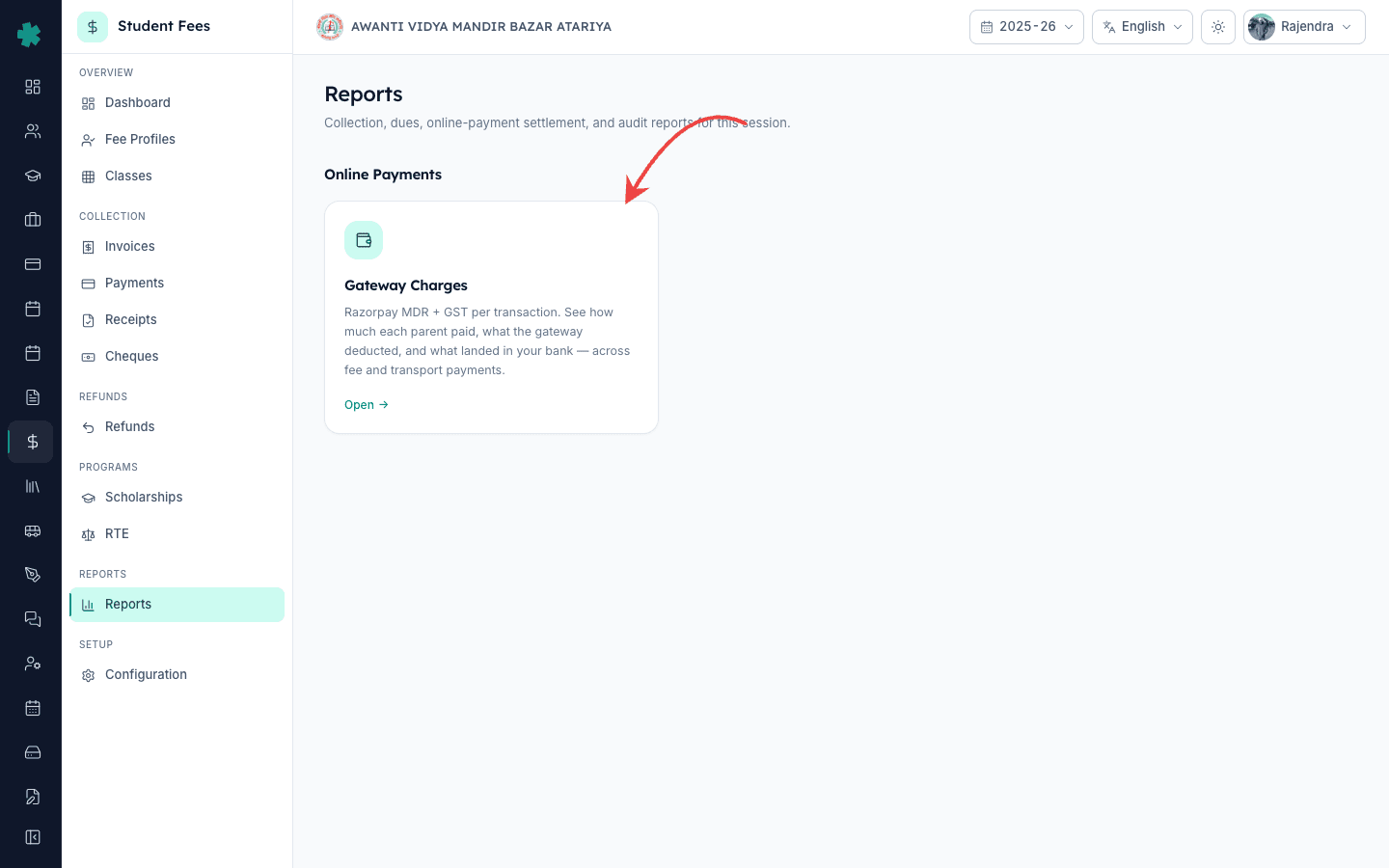
2. Open the Gateway Charges card
Click the Gateway Charges card under Online Payments. Inkwelly opens the report at /student-fee/reports/gateway-charges. The default window is the current session — Inkwelly fills From and To based on the session start and end dates so the report is immediately useful without any filter work. The page header confirms the window and shows the total transaction count for the picked period.
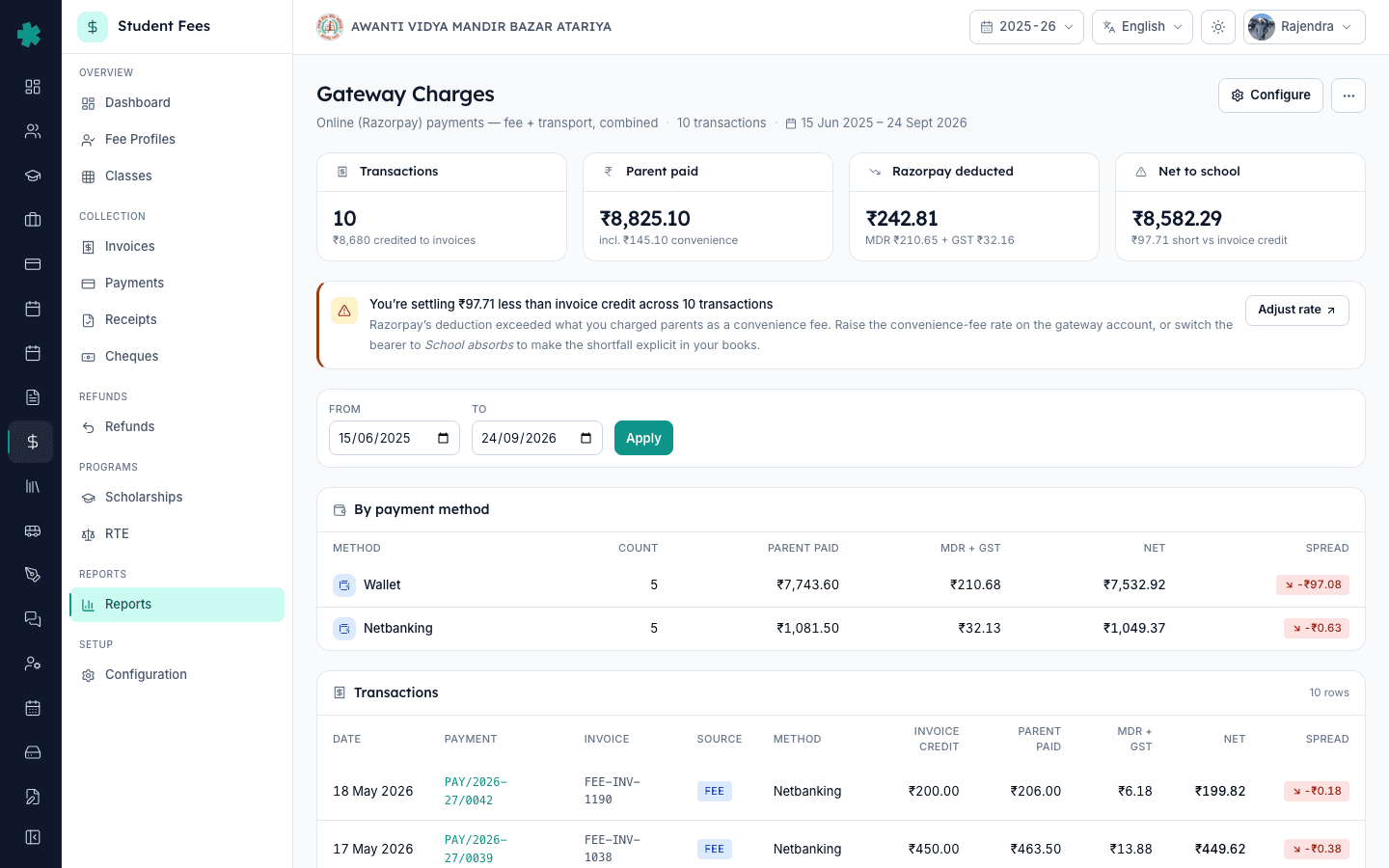
3. Set the period you want to read
Use the From and To date pickers below the KPI strip and click Apply. Inkwelly reloads the report for that exact window. For monthly closing, set From to the first of the month and To to the last day of the month. For quarterly review pick a three-month window such as April 1 to June 30. For a full-session audit leave the default in place. The Apply button shows a small spinner while the new totals are computed.
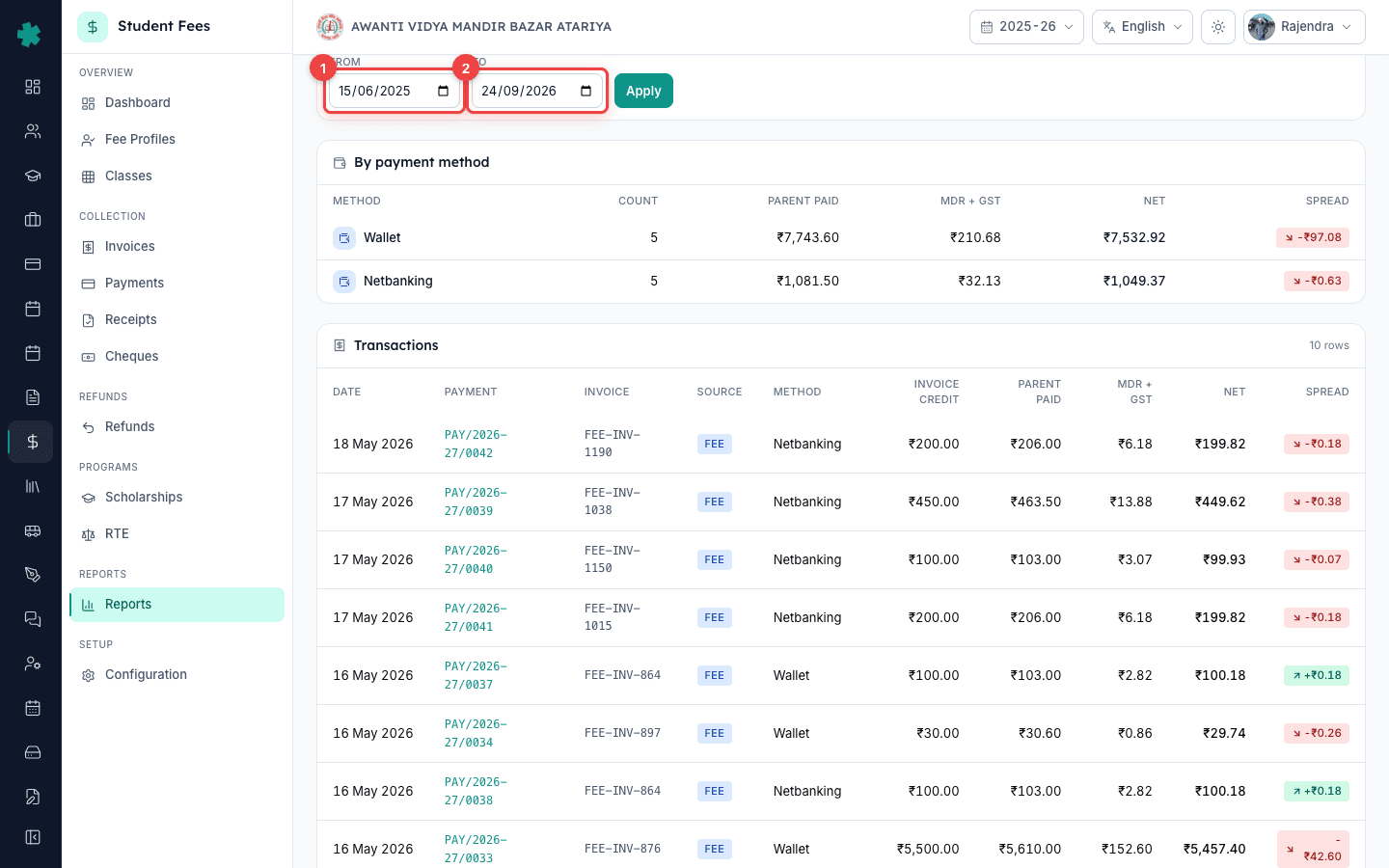
4. Read the four hero KPIs
The top strip shows four cards. Transactions counts every online payment in the window and the sub-label shows the total amount credited against invoices. Parent paid is the gross amount parents transferred, including any convenience fee the school added on top. Razorpay deducted is MDR plus GST combined, with the breakdown below it. Net to school is what your bank account actually received after Razorpay's deduction — this is the number that should match your bank statement.

5. Open the By payment method card
The By payment method card lists each method — UPI, card, netbanking, wallet — with the count of transactions, parent paid, MDR plus GST, net and spread for the window. Use this to spot which method costs the school the most. UPI rows typically show zero or near-zero MDR; cards and netbanking carry the real charge. The spread pill on each row goes green when net plus convenience fee covered MDR, and red when the school absorbed a shortfall.
6. Read the Transactions table for per-row detail
Below the method card, the Transactions table lists up to 100 most recent online payments in the window. Each row shows the payment date, payment number, linked invoice, source (Fee or Transport), method, invoice credit, parent paid, MDR plus GST, net settlement and spread. Click the payment number to open the original payment in Student Fee → Payments and cross-check the Razorpay payment id, fee structure and receipt. If a row shows a dash in the MDR column, Inkwelly is still waiting for Razorpay's payment-fetch to return the fee breakdown — the money is already credited to the invoice but the gateway data is incomplete.
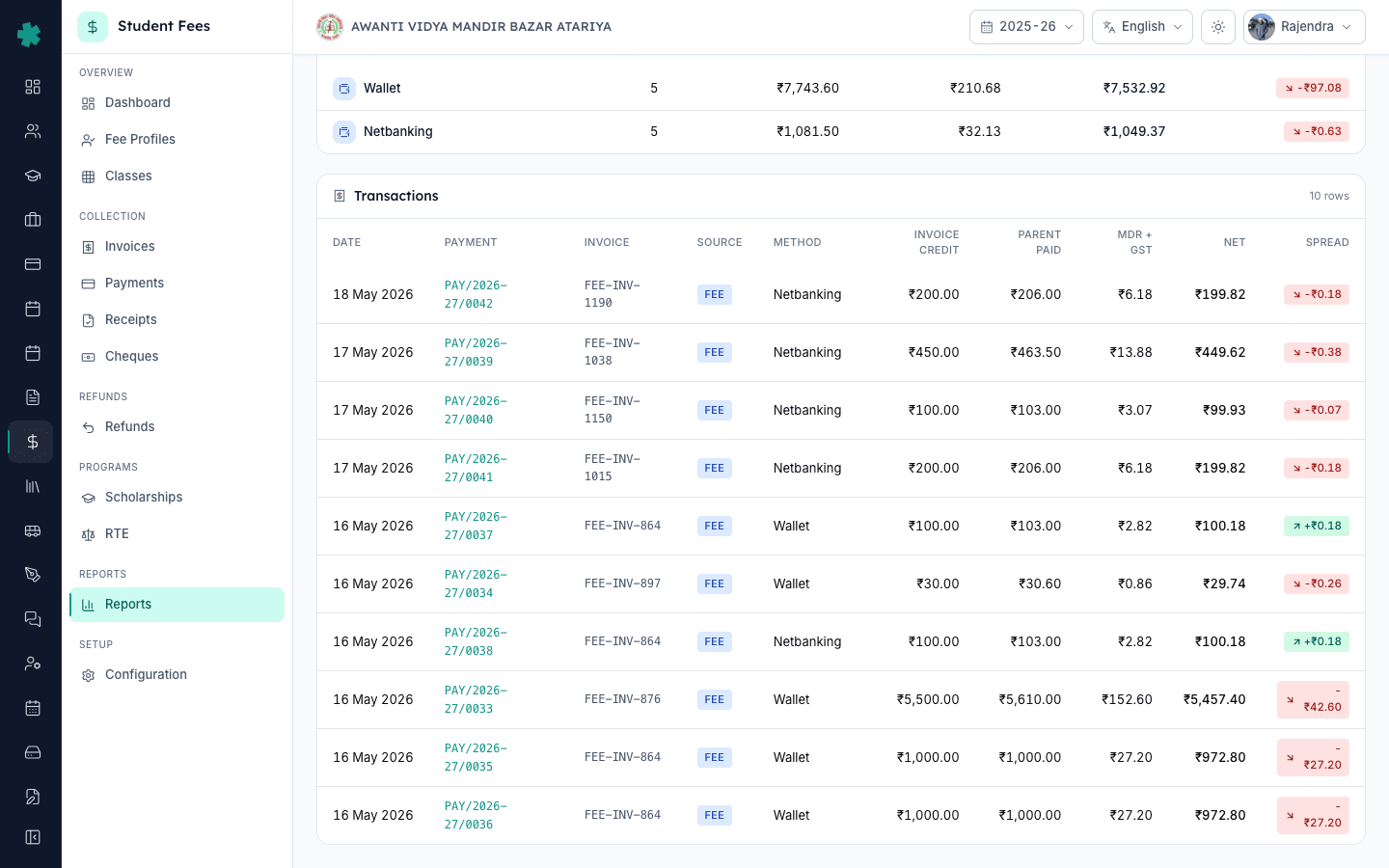
7. Save or share the report for the books
Inkwelly does not need a separate export button — the Reports page is the authoritative on-screen ledger and is filterable to any window your accountant needs. To put a copy in the books, use the browser's Print to PDF on the filtered page so the date range, KPIs, by-method totals and the transactions table are captured exactly as displayed. Hand the PDF to your accountant alongside the bank statement and the Razorpay settlement report. For one-off reconciliation, copy the per-row figures from the Transactions table into the school's monthly P&L template.
Next steps — if you have not connected Razorpay yet, set it up first using How to connect Razorpay to accept online fee payments. For posting the parent-side adjustment when a refund is involved, follow How to create a refund policy with time-based slabs. Schools tightening the convenience-fee rate after seeing the spread go negative should revisit their Late fee rules and the Fee structure for the affected session.
See Inkwelly Student Fees in action
Frequently asked
7 questionsHow much MDR does Razorpay charge schools?
Razorpay charges Indian schools between 1 percent and 3 percent MDR depending on the payment method, plus 18 percent GST on that fee. UPI payer-to-merchant transactions for educational institutions are zero-MDR under the National Payments Corporation of India rules, while card and netbanking carry the standard charge. The actual percentage a school pays is set in the Razorpay merchant agreement and varies by volume and risk profile.
What does the Net to school KPI mean in the Gateway Charges report?
Net to school is what your bank account actually received after Razorpay deducted MDR and GST from the gross parent payment. If parents paid ₹1,00,000 in a window and Razorpay deducted ₹1,800 as MDR plus GST, the Net to school KPI reads ₹98,200 — which is also what your bank statement should show as Razorpay's settlement credit for that period.
How do I check the net amount after Razorpay MDR for one specific payment?
Open Student Fee → Reports → Gateway Charges, set the From and To filter to the payment date, then find the row in the Transactions table. The MDR + GST column shows what Razorpay deducted and the Net column shows what landed in your bank for that one transaction. Click the payment number to open the Inkwelly payment record and verify the Razorpay payment id.
Razorpay MDR report kaise nikale Inkwelly me?
Inkwelly me Student Fee kholiye, sidebar me Reports par jaiye, phir Gateway Charges card par click kijiye. Top par From aur To date pickers se period chuniye (jaise pichla mahina ya current quarter) aur Apply dabaiye. Page par 4 KPI tiles, By payment method ka card aur Transactions table dikhega — yahi aapka Razorpay MDR plus GST ka official report hai jise accountant ko mahine ki closing ke saath dijiye.
Online payment ka net amount kaise check kare?
Student Fee → Reports → Gateway Charges kholiye aur jis period ke liye check karna hai uska From-To date set kijiye. Apply dabaiye. Net to school naam ka KPI card jo amount dikhata hai, wahi aapke bank account me Razorpay se actually credit hua hai us window ke liye. Har transaction ke liye alag se dekhna ho to Transactions table me Net column dekhiye.
Why does my Net to school not match my bank statement exactly?
Razorpay typically settles to the school bank account on a T+2 or T+3 cycle, so a payment captured on the last day of the month may show in the next month's bank statement. The Gateway Charges report groups by payment date, not settlement date. To reconcile to a bank statement, widen the To date by two or three days, or cross-check the Razorpay settlement report which groups by settlement date.
Can a school recover Razorpay MDR from parents as a convenience fee?
Yes. Inkwelly supports a convenience-fee policy on the gateway account at /settings/payment-gateways — the school can either absorb the MDR or pass it on to parents as a separate convenience-fee line. When the policy is set to pass-on, the Gateway Charges report's spread column reads near zero and the parent paid KPI exceeds the invoice credit by exactly the convenience-fee amount.
You might also like
3 readsSources & references
- Reserve Bank of India — Framework for processing of e-mandates for recurring transactions and MDR rationalisation · accessed 19 May 2026
RBI sets the policy framework for merchant discount rate (MDR) on card and digital payments in India that Razorpay and other gateways operate under.
- National Payments Corporation of India — UPI Procedural Guidelines (P2M MDR) · accessed 19 May 2026
NPCI specifies that UPI peer-to-merchant transactions for educational institutions are zero-MDR, which is why UPI rows in the Gateway Charges report typically show no Razorpay deduction.
- Razorpay — Pricing and fee structure for businesses · accessed 19 May 2026
Razorpay publishes the MDR rates charged on different payment methods (cards, netbanking, UPI, wallets) that schools see as the Razorpay deducted figure in Inkwelly's Gateway Charges report.
- Central Board of Indirect Taxes and Customs — GST rate on payment-gateway services (Notification No. 11/2017 Central Tax (Rate)) · accessed 19 May 2026
Payment-gateway services are taxed at 18 percent GST, which is added on top of Razorpay's MDR and shown as the GST component of the Razorpay deducted KPI.
See Inkwelly on your school
30-minute demo. We open your current ERP with you and load your data into Inkwelly on the call. Dated go-live plan by the end of it.