How to create a refund policy with time-based slabs in Inkwelly
This guide is for the school accountant and fee office handling Transfer Certificate withdrawals, mid-year exits, and family relocations. By the end you will have a refund policy in Inkwelly with day-based slabs that automatically tells the office what percentage of fees to return when a parent withdraws their child.
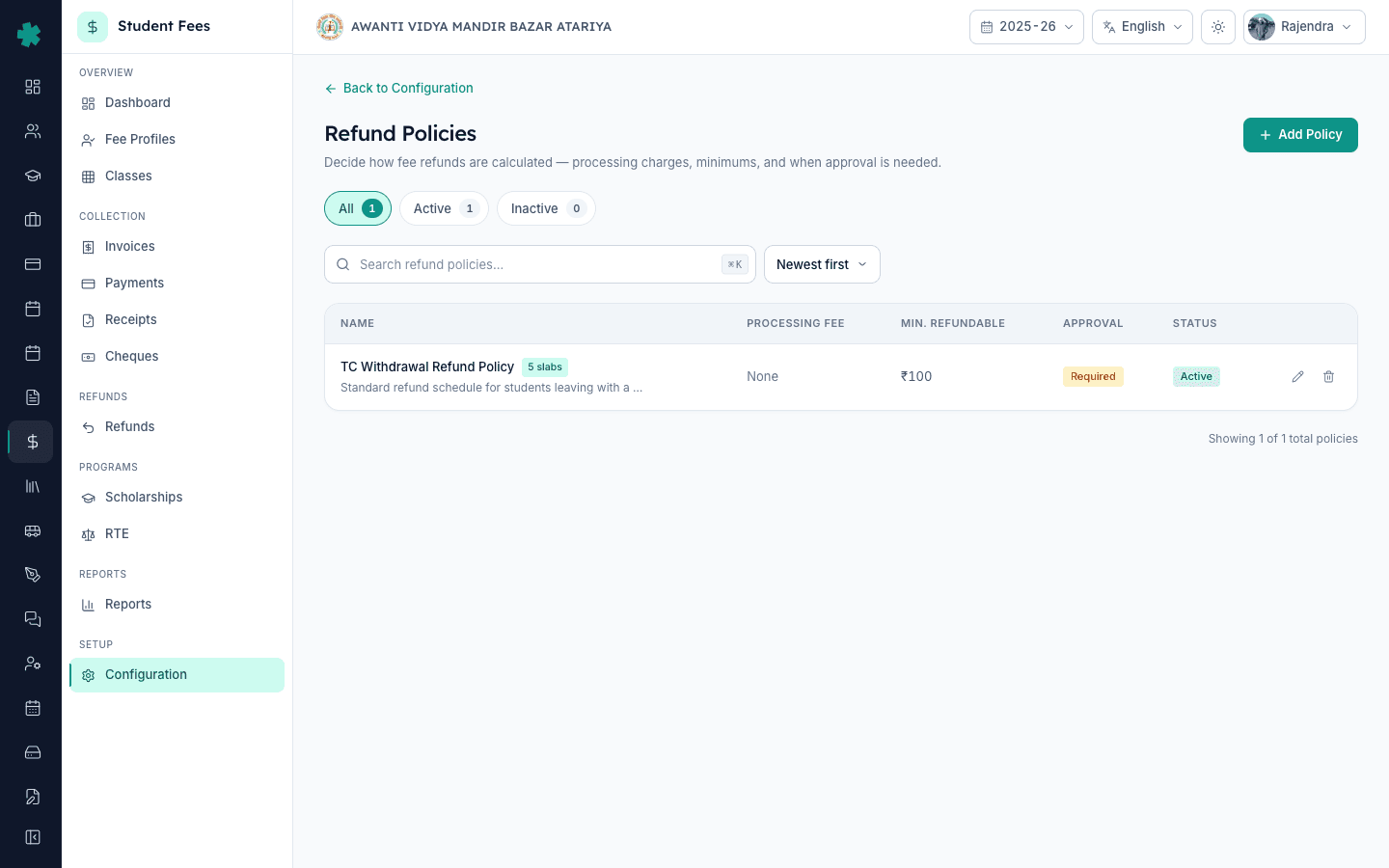
To create a refund policy with time-based slabs in Inkwelly: open Student Fee → Configuration → Refund Policies, click Add Refund Policy, enter the name (TC Withdrawal Refund Policy), set processing fee and minimum refundable amount, save the policy, open it to add slabs, and create one slab per band (100% if 30 days before session start, 75% within 30 days after, 50% within 60 days, 25% within 90 days, 0% after that).
Refunds are the most disputed line on an Indian school office desk. CBSE-affiliated schools issue an average of 6–10% of class strength as Transfer Certificates each year, and 30–40% of those students receive a partial fee refund based on the date of withdrawal. Without a written, day-banded refund policy, every TC turns into a one-off negotiation, parents claim full refund well into the session, and the accountant ends up reverse-calculating the slab on a calculator. A refund policy in Inkwelly fixes the bands once at the start of the session and applies the right percentage whenever a refund is initiated — predictable for the office, transparent for the parent.
1. Open Refund Policies under Configuration
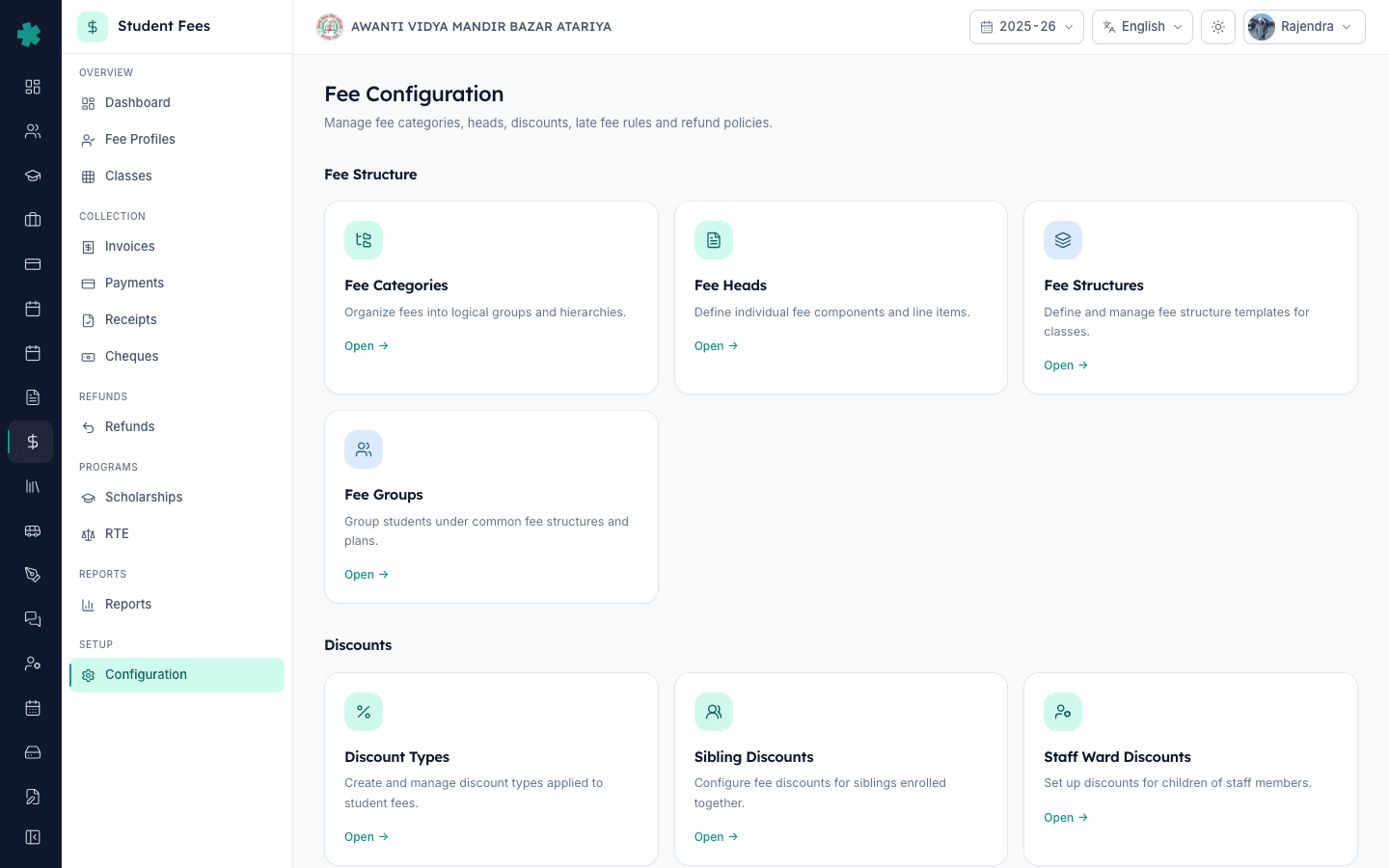
Open Inkwelly → Student Fee from the left sidebar, then click Configuration under SETUP. The Fee Configuration page has four sections — Fee Structure, Discounts, Penalties & Refunds, and Preferences. Scroll to Penalties & Refunds and click the Refund Policies tile. This is where every refund slab the office uses lives, alongside late fee rules.
2. Click Add Refund Policy
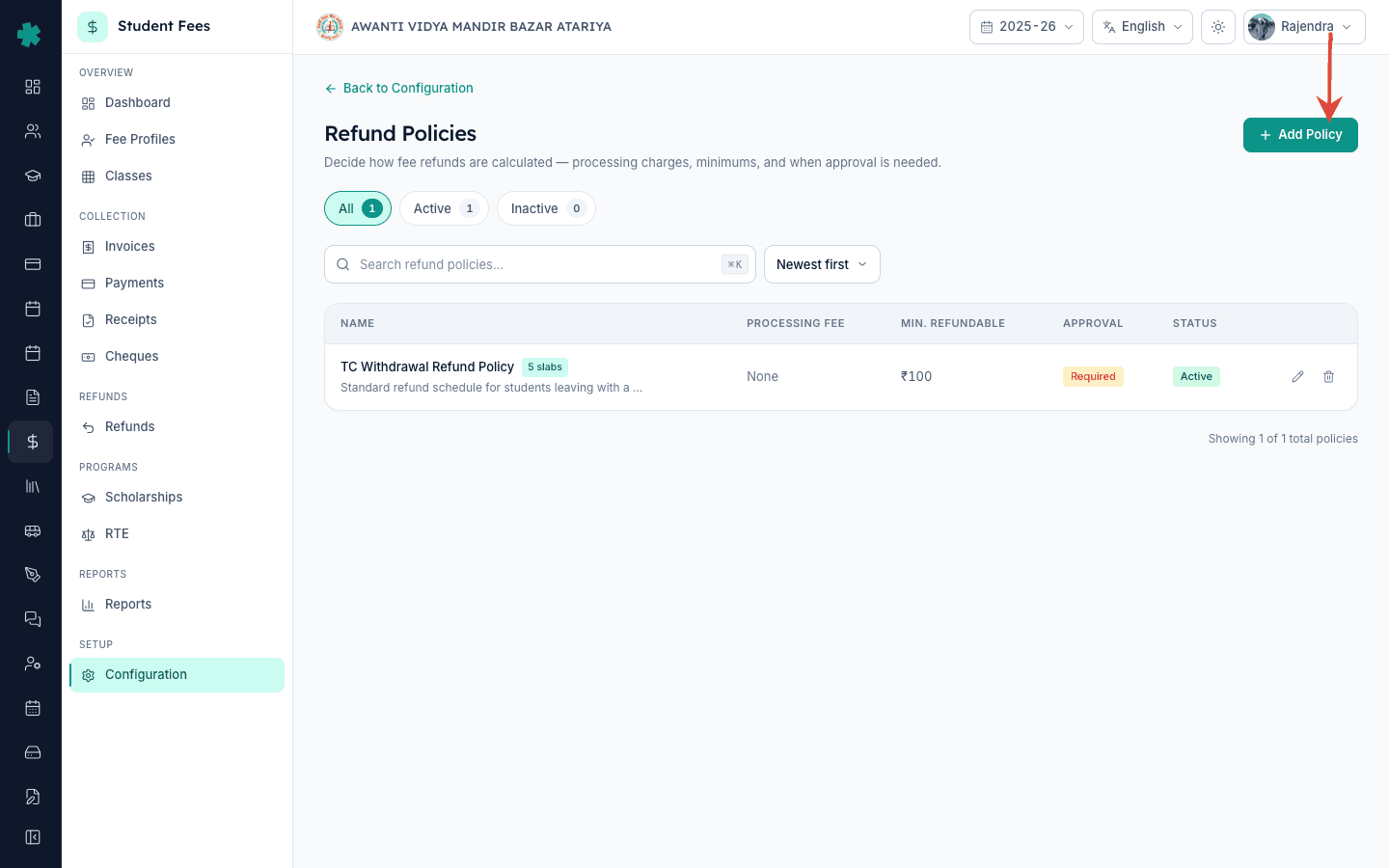
The Refund Policies page lists every policy in the session along with its name, processing fee, approval setting, and Active status. Click the Add Refund Policy button on the top right. Inkwelly opens a dialog with the policy basics — name, description, processing fee, minimum refundable amount, and an approval toggle. Each school session normally has one policy, named for the situation it covers (TC Withdrawal Refund Policy is the most common).
3. Fill the policy basics and approval rule
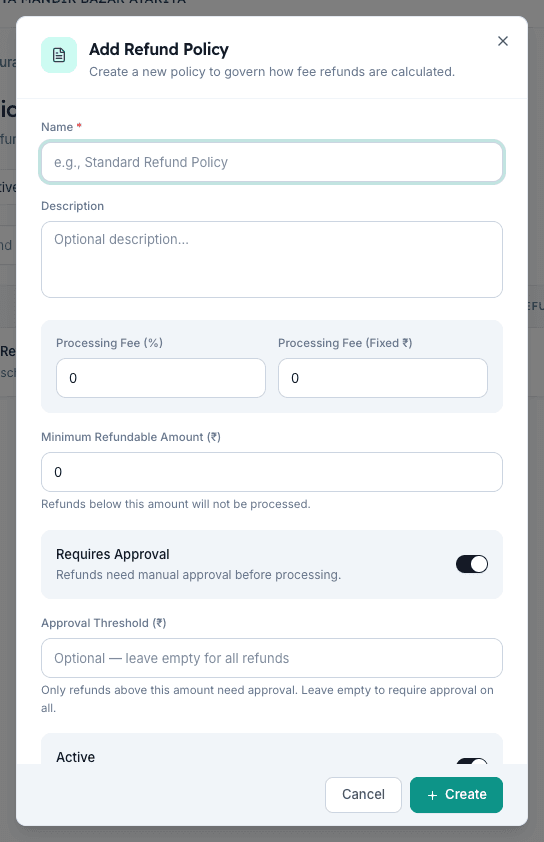
Enter a clear name (TC Withdrawal Refund Policy) and a one-line description so the office understands when this policy applies. Set Processing Fee — leave it 0 if your school does not deduct a processing charge, otherwise enter a percentage or fixed rupee amount. Set Minimum Refundable Amount (Inkwelly skips refunds below this — ₹100 is a sensible floor). Turn Requires Approval on, and enter an Approval Threshold in rupees if only large refunds need principal sign-off. Turn Active on and click Create.
4. Open the policy and start adding slabs
On the Refund Policies list, click the policy row to open the slab editor. The page shows a breadcrumb (Configuration → Refund Policies → policy name → Slabs) and an empty slab table the first time. Click Add Slab on the top right. A dialog opens with five fields — Description, Timing (Before Session Start or After Session Start), Days, Refund Percentage, and Display Order. Slabs are evaluated against the session start date you set on the school session, so every band is one of the two: 'so many days before' or 'so many days after' that date.
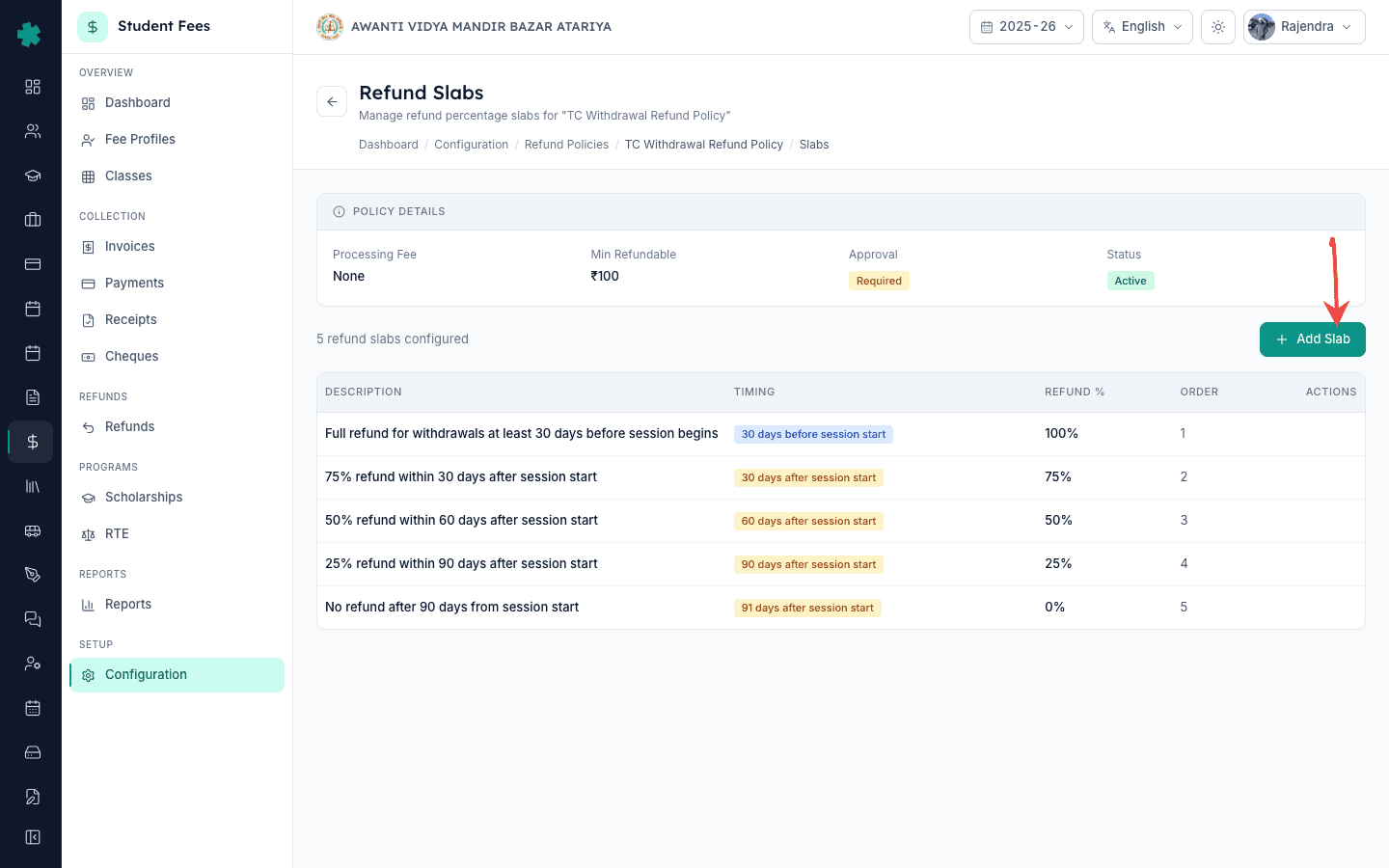
5. Add the early-withdrawal slab (100% refund)
In the slab dialog, set Timing to Before Session Start and Days to 30. Enter 100 in Refund Percentage. Write a clear Description for the office record (Full refund for withdrawals at least 30 days before session begins). Set Display Order to 1 so this band appears first. Click Create. Parents who withdraw the student before the academic year even starts get the full amount back, less the processing fee you set on the policy.
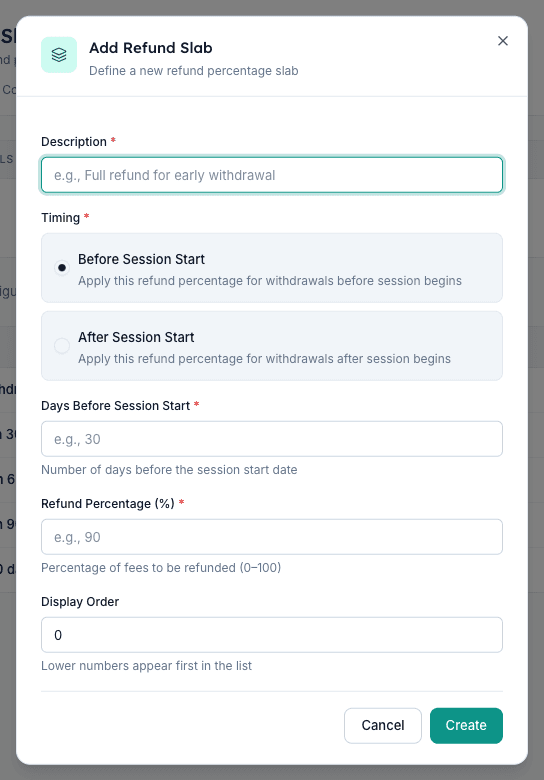
6. Add the in-session slabs (75 / 50 / 25 / 0%)
Click Add Slab again. Timing After Session Start, Days 30, Refund Percentage 75, Description '75% refund within 30 days of session start', Display Order 2. Repeat for the next bands — Days 60 with 50%, Days 90 with 25%, and Days 91 with 0%. Indian schools normally use four to five slabs because tuition is consumed gradually through the term. Inkwelly evaluates from the smallest day count upward, so put the strictest cut-off (Days 91, 0%) last.
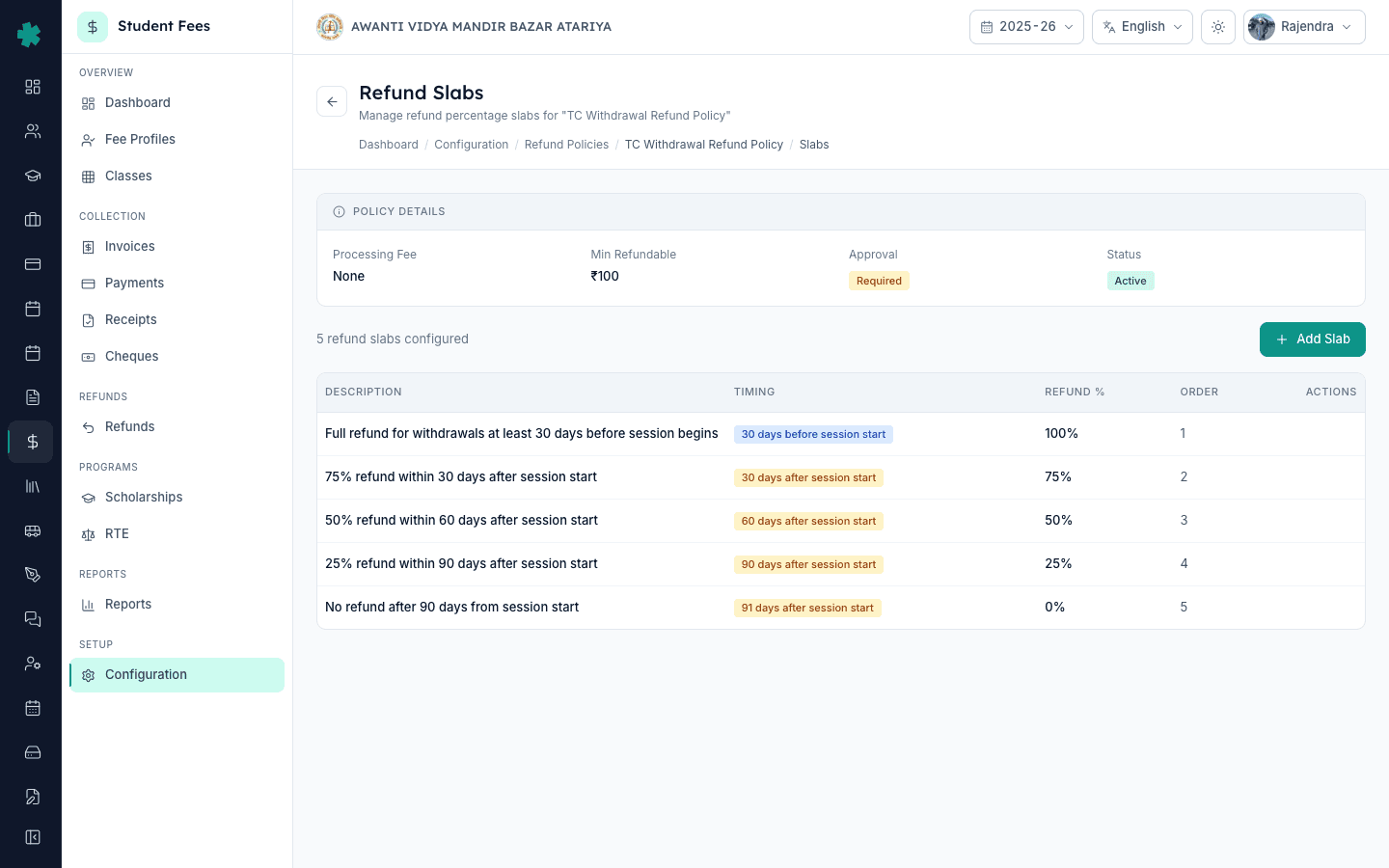
7. Review the slab list and confirm the policy is Active
Go back to Refund Policies. The TC Withdrawal Refund Policy card shows the slab count, processing fee, approval setting, and a green Active pill. Open the policy once more and confirm the slab table reads top-to-bottom in the order parents will experience it — 100% before, then 75 / 50 / 25 / 0% after session start. From now on, every time the office initiates a refund against this policy, Inkwelly automatically picks the matching slab from the parent's withdrawal date and pre-fills the refund amount.
Next steps — use this refund policy when a parent walks in with a Transfer Certificate request by following How to initiate a refund for a parent in Inkwelly, then close the loop with How to process and disburse a refund once the principal approves. If you still need to finish setting up the broader fee office, How to create a fee structure for the academic session and How to set up late fee rules cover the other two configuration tiles every school touches in the first week of a new session.
See Inkwelly Student Fees working in your office
Frequently asked
6 questionsHow does Inkwelly decide which refund slab to apply?
Inkwelly compares the withdrawal date you record on the refund against the academic session start date on the school session record. It picks the first slab in display order whose day band matches — for example, a parent withdrawing 45 days after the session began lands on the 50% slab (60 days after, 50%) and the refund amount pre-fills automatically. The accountant only confirms and sends for approval.
Can a school in Inkwelly run more than one refund policy in a session?
Each Inkwelly school session normally runs one active refund policy because every fee account routes through it. If your school treats Tuition, Transport, and Hostel refunds differently, set the slabs in one policy to reflect the strictest schedule and handle the exceptions as adjustments at the time of refund. Most CBSE day schools find one TC Withdrawal Refund Policy with four to five slabs covers every case in the year.
Do refund slabs apply to fees already paid or to the full annual fee?
Slabs apply to the fees the student has already paid to date — Inkwelly multiplies the paid amount for the affected fee heads (typically Tuition, Library, Activities) by the slab percentage and subtracts the processing fee on the policy. Untouched future-installment payments are normally refunded in full unless your school's circular says otherwise. The Initiate Refund flow shows the calculation line by line for the accountant to confirm.
TC ke baad fees refund kaise milte hai school me?
Parent ko Inkwelly office se refund tab milta hai jab Transfer Certificate raise hone ke saath fee refund request bhi banaya jaye. Office TC Withdrawal Refund Policy ke slab dekh kar — kitne din pehle ya baad me withdrawal hua — applicable percentage tay karta hai. Principal approve karte hain, aur paisa NEFT ya UPI se 7 to 14 working days me wapas aata hai. Pura record ledger me reh jata hai.
Refund slab kaise banaye Inkwelly me?
Student Fee → Configuration → Refund Policies kholiye, policy par click kijiye, Add Slab dabaiye. Description likhiye (jaise '50% refund within 60 days of session start'), Timing me Before ya After Session Start chuniye, Days field me ginti likhiye (jaise 60), Refund Percentage (jaise 50), aur Display Order set kijiye. Create dabane par slab list me dikh jata hai. Strictest slab (Days 91, 0%) ko sabse last me rakhiye.
What happens if a parent withdraws the student after the cut-off slab?
If the withdrawal date is past every after-session-start slab, the refund percentage on the final slab (typically 0% after 90 days) applies and Inkwelly pre-fills a zero refund. The accountant can still raise a goodwill or hardship adjustment outside the policy, but the line goes through Fee Waiver instead of Refund so the audit trail records the exception. Document the reason against the waiver record so it shows on the principal's approval queue.
You might also like
3 readsSources & references
- CBSE Affiliation Bye-Laws — Chapter VII, Fee Structure · accessed 19 May 2026
CBSE bye-laws require affiliated schools to publish a transparent fee structure and refund schedule for each academic session and to refund unconsumed fees when a student withdraws.
- Department of School Education — Madhya Pradesh Niji Vidyalaya (Fee Tatha Sambandhit Vishayon Ka Viniyaman) Adhiniyam, 2017 · accessed 19 May 2026
The Madhya Pradesh private school fee regulation requires schools to refund proportionate fees for unconsumed academic period when a student leaves with a Transfer Certificate.
- National Consumer Disputes Redressal Commission — Indian School Certificate Examination v. Sandeep Prabhakar (2009) · accessed 19 May 2026
The Commission held that schools collecting full annual fees and refusing proportionate refund on student withdrawal amounts to unfair trade practice — making a documented, published refund schedule the school's primary legal defence.
See Inkwelly on your school
30-minute demo. We open your current ERP with you and load your data into Inkwelly on the call. Dated go-live plan by the end of it.