अपने स्कूल का WhatsApp नंबर Inkwelly से कैसे जोड़ें
School office staff और principals के लिए जो Inkwelly पर onboard हो रहे हैं और Meta WhatsApp Business account पहले से है। इस गाइड के बाद आपके स्कूल का अपना WhatsApp नंबर fee receipts, payment reminders, attendance alerts और homework updates parents को Inkwelly से सीधे भेजेगा।
अपने स्कूल का WhatsApp नंबर Inkwelly से जोड़ने के लिए: Communications → Channels → Connect channel खोलें, WhatsApp चुनें, अपने Meta Cloud credentials (Phone Number ID, WhatsApp Business Account ID, system user token और app secret) पेस्ट करें, auto-generated webhook URL Meta में डालें, और Verify दबाएं। Inkwelly आपके नंबर पर 10 मिनट के अंदर live हो जाता है।
भारत में parents WhatsApp messages को SMS के मुक़ाबले कहीं ज़्यादा खोलकर पढ़ते हैं — यही वजह है कि अब ज़्यादातर भारतीय स्कूल WhatsApp को primary parent channel मानते हैं और SMS को legal fallback के रूप में रखते हैं। अगर आपका Meta Business Manager पहले से verified है तो setup में लगभग 10 मिनट लगते हैं — आपका मौजूदा WhatsApp Business Account, फ़ोन नंबर और Meta App पुराने ERP से जैसे थे वैसे ही चलते रहते हैं, इसलिए न तो नंबर migrate करना है, न ही parents को Inkwelly का कोई नया contact save करना है। नीचे जो चार credentials माँगे जा रहे हैं वो वही चार values हैं जो Meta अपनी Cloud API setup guide में document करता है; Inkwelly इन सबको AES-256-GCM से encrypt करके store करता है।
1. Channels पेज खोलें
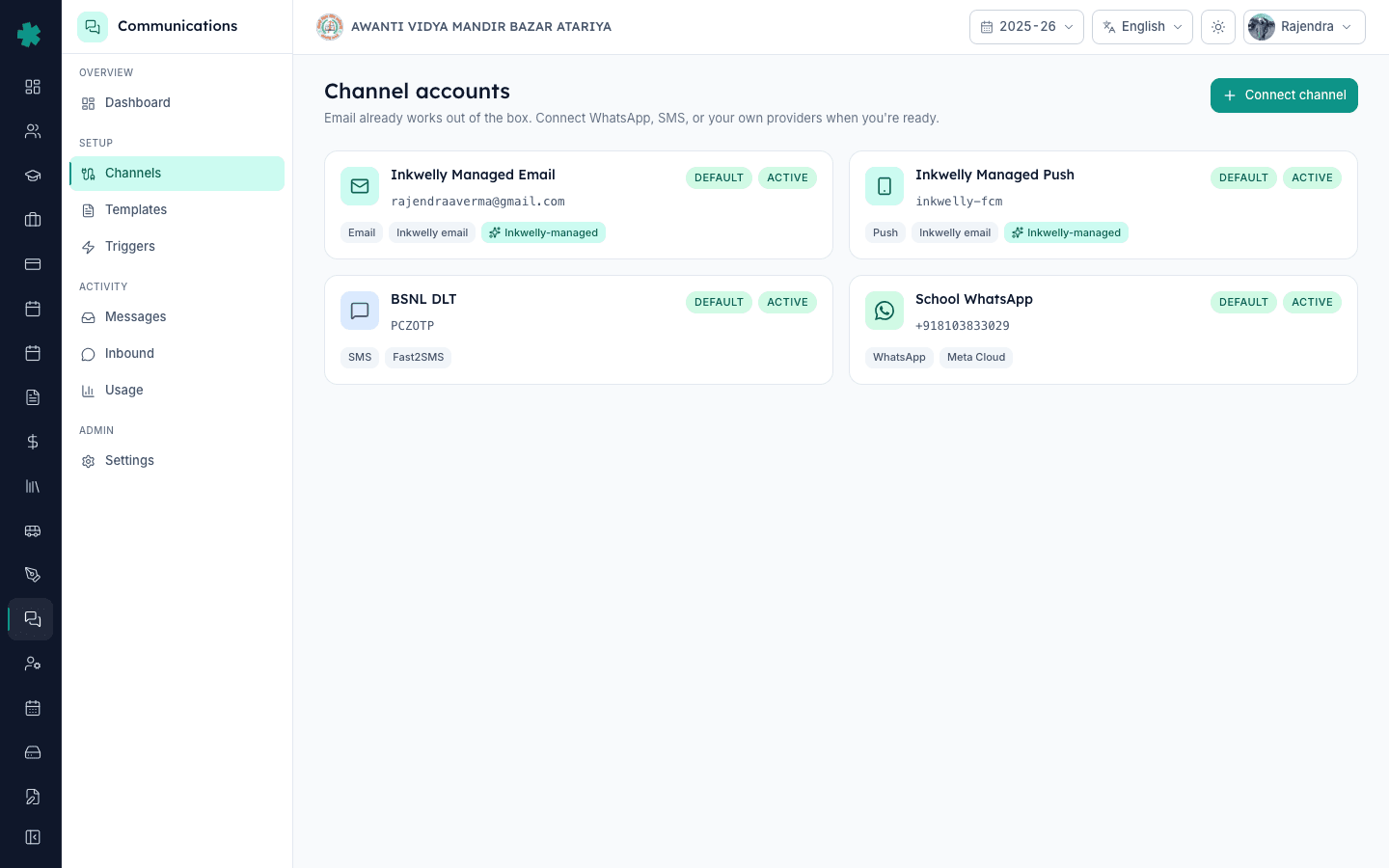
Inkwelly में sign in करें और left sidebar से Communications module खोलें। Setup section के अंदर Channels पर click करें। यह वो पेज है जहाँ आपके स्कूल से जुड़ा हर provider एक ही list में दिखाई देता है — WhatsApp, SMS, email और push। Inkwelly हर स्कूल को branded email और push पहले से active देता है, इसलिए इस पेज पर शुरू से ही दो active rows दिखती हैं। WhatsApp connect करते ही आपके स्कूल का अपना नंबर इस list में जुड़ जाता है और WhatsApp हर parent notification के लिए unlock हो जाता है — fee receipts, payment-link reminders, attendance alerts और homework updates।
2. WhatsApp को channel के रूप में चुनें
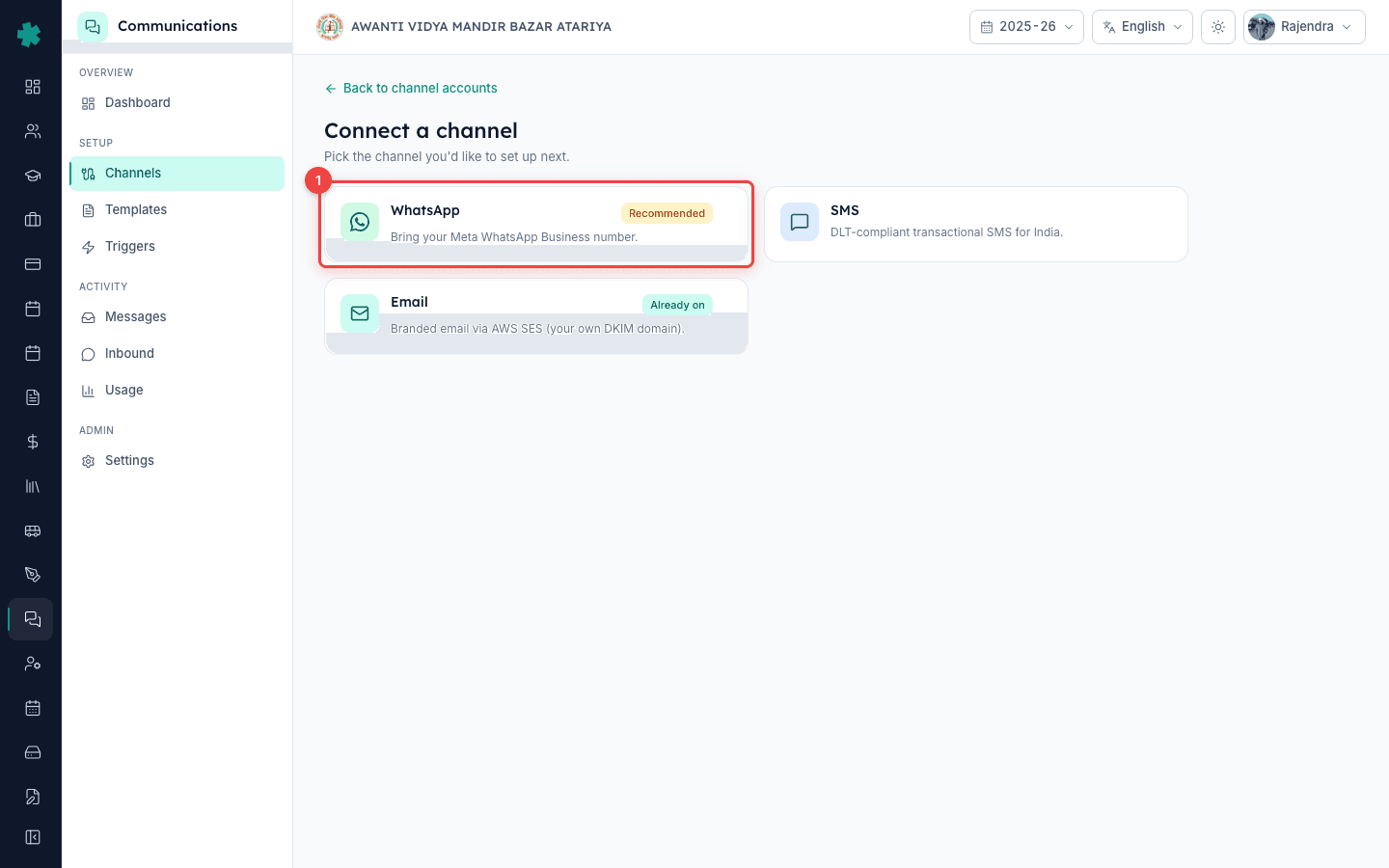
Channels पेज के top-right पर Connect channel button पर click करें। एक channel picker खुलता है जिसमें तीन options होते हैं — WhatsApp, SMS और Email। WhatsApp चुनें; picker इसे Recommended tag करता है क्योंकि भारतीय स्कूलों में इसकी parent reach सबसे ज़्यादा है। WhatsApp setup form तीन sections के साथ खुलता है: Identity, Meta Cloud credentials, और Defaults। हर section में वही जानकारी माँगी जाती है जो आपके पास पहले से मौजूद है — अगर आप किसी और ERP से या सीधे Meta Business Manager से WhatsApp messages भेज रहे थे तो न कोई नई approval चाहिए, न नया नंबर और न ही Meta का wait।
3. अपना sender phone number डालें
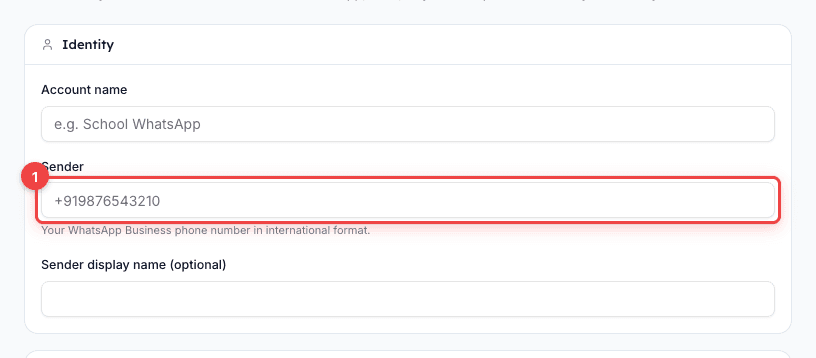
Identity section भरें। Account name में एक पहचानने लायक नाम दें — जैसे School WhatsApp या Main Office WhatsApp — ताकि team में कोई भी देखकर समझ जाए कि यह row किस account को control करती है। Sender field में अपने स्कूल का WhatsApp Business phone number international format में डालें country code के साथ (भारत के लिए +91...)। चाहें तो sender display name भी add कर सकते हैं। यही वो नंबर है जिससे parents को messages आते हुए दिखेंगे; अगर आप किसी और ERP से send कर रहे थे तो वही exact number यहाँ paste करें ताकि parents को पुराना WhatsApp chat ही दिखता रहे जिसे उन्होंने पहले से save कर रखा है।
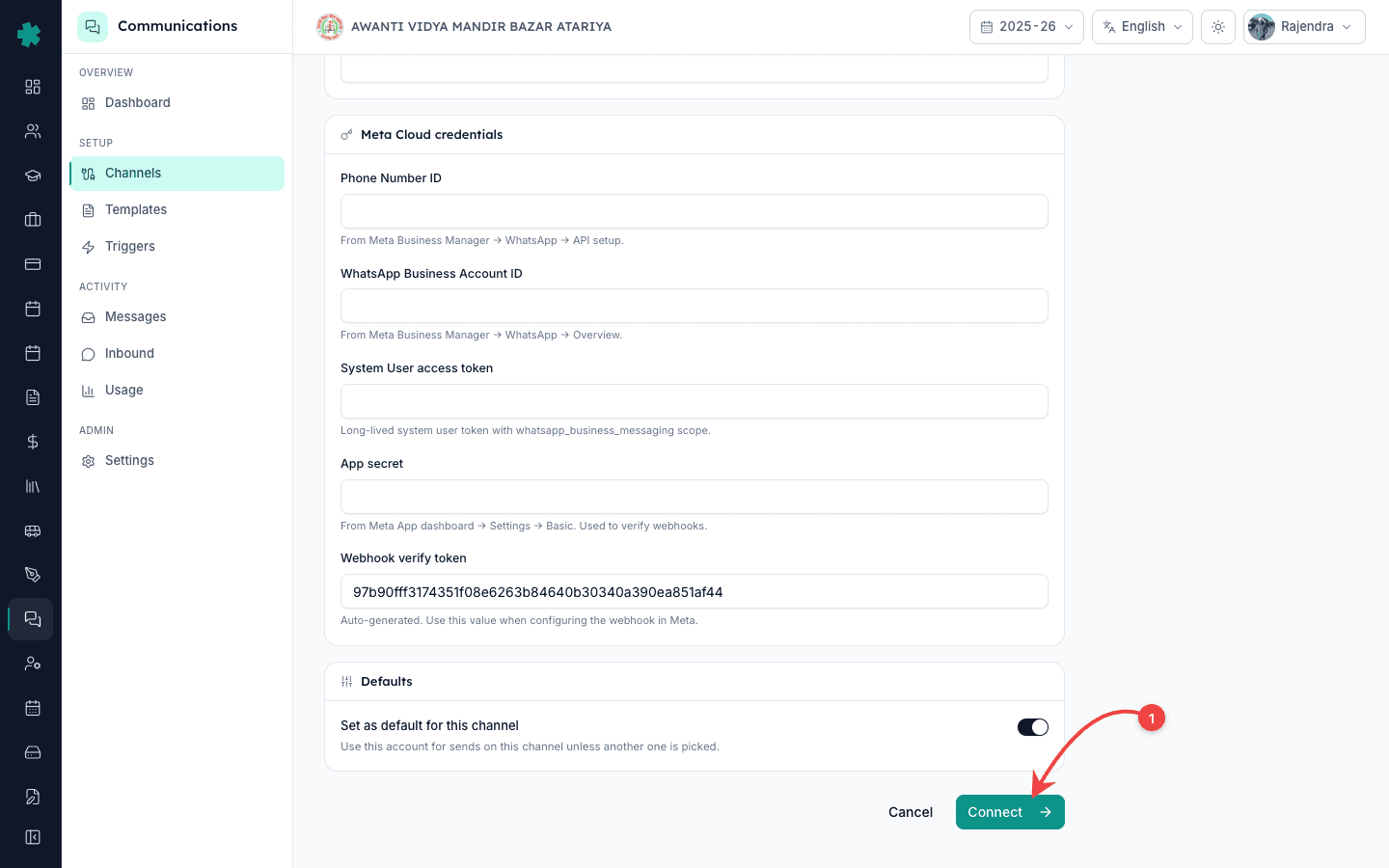
4. Meta Cloud credentials डालें
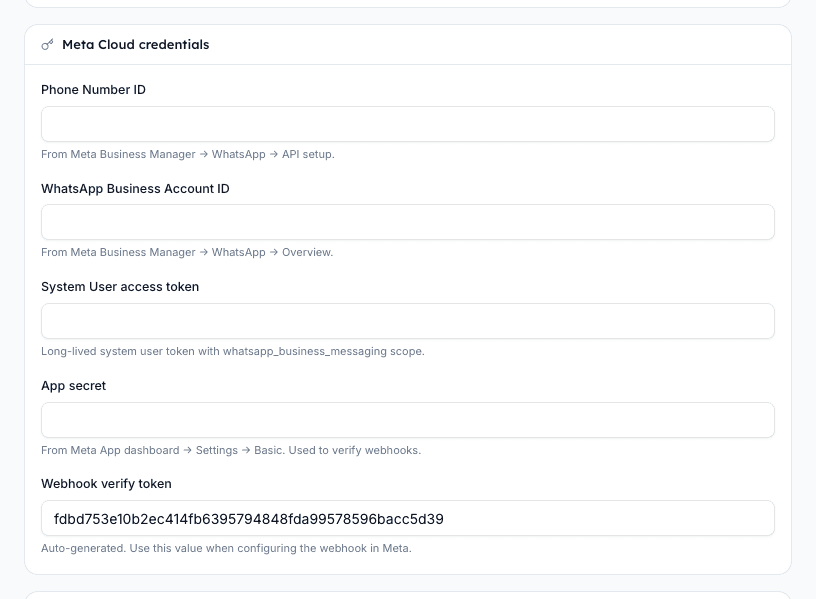
दूसरे tab में Meta Business Manager खोलें और चार values को Meta Cloud credentials section में copy करें: Phone Number ID (Meta Business Manager → WhatsApp → API setup), WhatsApp Business Account ID (WhatsApp → Overview), System User access token (Business Settings → System Users — whatsapp_business_messaging scope के साथ एक long-lived token generate करें), और App secret (Meta App dashboard → Settings → Basic)। Inkwelly हर credential को database में पहुँचने से पहले ही encrypt कर देता है। Token और app secret save होने के बाद write-only हो जाते हैं — आपकी अपनी team भी इन्हें वापस पढ़ नहीं सकती, जिसकी वजह से school ERPs में सबसे common WhatsApp-credential leak की संभावना भी बंद हो जाती है।
5. Account save करें
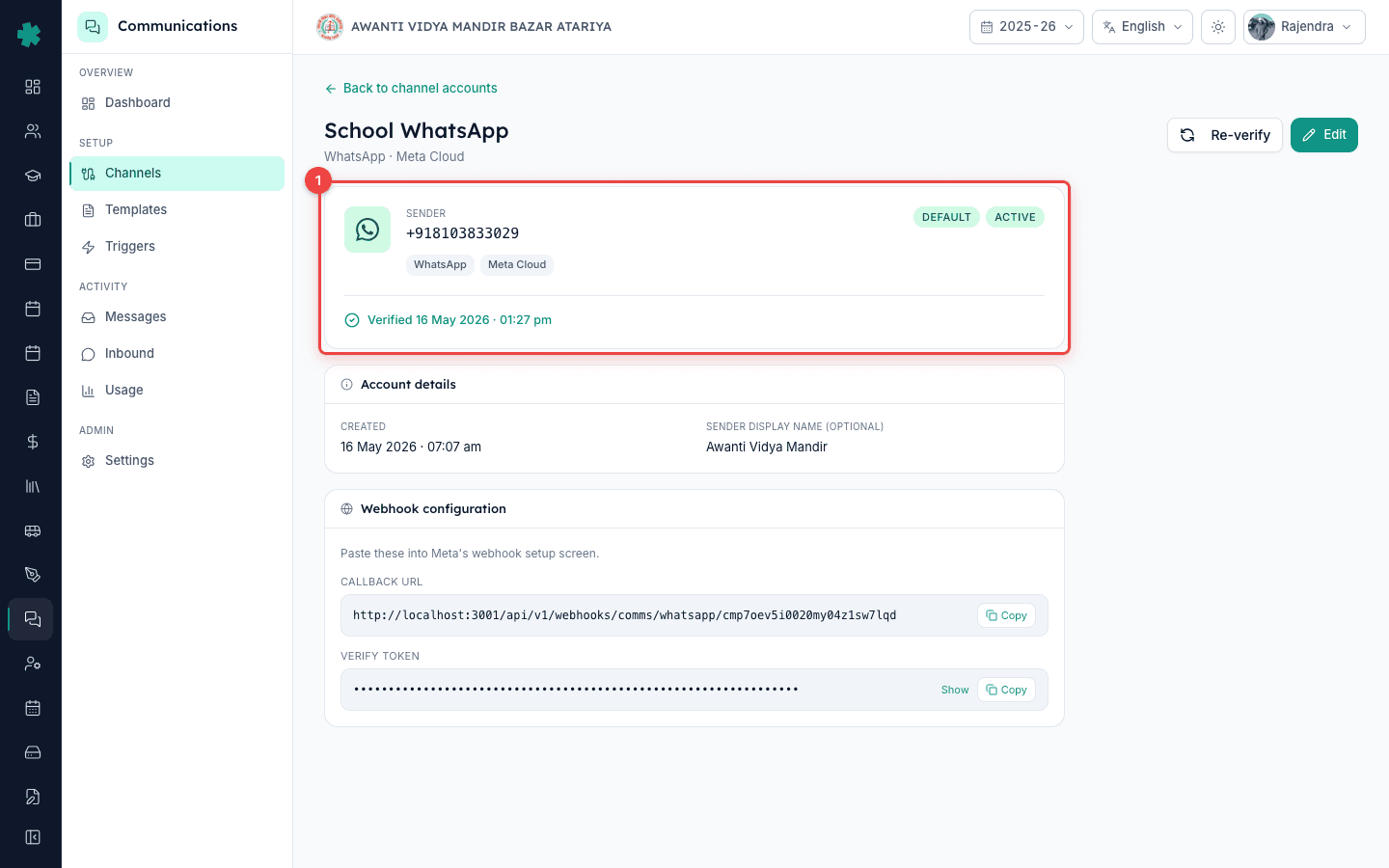
Defaults section तक scroll करें और Set as default for this channel toggle on करें अगर यह नंबर इस स्कूल के लिए primary WhatsApp sender होना चाहिए। ज़्यादातर single-branch स्कूल इसे on ही रखते हैं। Connect पर click करें। Inkwelly encrypted credentials को save करता है, इस account के लिए एक unique webhook URL और एक verify token generate करता है, और फिर account detail पेज खोल देता है। Status pill पहले PENDING दिखती है — मतलब account save हो चुका है पर अभी Meta से delivery confirmations नहीं आ रही हैं। इस loop को बंद करने के लिए एक और step बाक़ी है।
6. Meta में webhook set करें
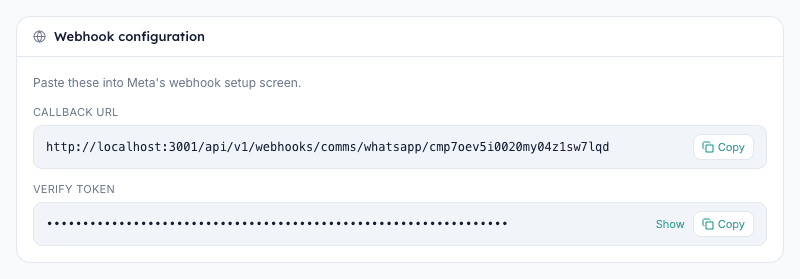
Account detail पेज पर Inkwelly Webhook URL और Verify token दिखाता है, दोनों one-tap copy buttons के साथ। वापस Meta App dashboard → WhatsApp → Configuration → Webhook पर जाएँ। Edit click करें, Webhook URL को Callback URL field में paste करें, Verify token को Verify token field में paste करें, और Verify and save दबाएं। Meta handshake confirm करने के लिए Inkwelly को एक ping भेजता है। उसी Webhook screen पर messages field को subscribe करें — यही वो setting है जो Meta को बताती है कि हर delivery receipt, read receipt और parent reply Inkwelly तक forward करना है।
7. Connection verify करें
वापस Inkwelly के account detail पेज पर आकर Verify button पर click करें। Inkwelly stored credentials को re-decrypt करता है, Meta के identity endpoint को call करता है, और phone number, display name और Meta का दिया हुआ quality rating confirm करता है। Status pill PENDING से ACTIVE हो जाती है और एक fresh verifiedAt timestamp दिखता है। आपके स्कूल का WhatsApp नंबर अब Inkwelly के पूरे system में live है। अब इस स्कूल के किसी भी student पर जो भी fee receipt, payment-link reminder, attendance alert या homework notification fire होगा, वो इसी नंबर से जाएगा — और कोई setup करने की ज़रूरत नहीं है।
WhatsApp live होने के बाद next दो पेज खोलने लायक हैं — Templates और Triggers। Inkwelly दस parent-facing templates English और Hindi दोनों में pre-written देता है; Templates पेज से ही WhatsApp variants को Meta को approval के लिए submit करें ताकि fee receipts और admit-card alerts आपके स्कूल की voice और signature के साथ live हो जाएँ। फिर Triggers खोलें और WhatsApp को उन events पर on करें जो सबसे ज़्यादा matter करते हैं — Fee payment received, Payment-link reminder, Attendance marked absent और Homework assigned एक typical भारतीय स्कूल के लिए चार highest-impact triggers हैं।
अपने स्कूल के WhatsApp नंबर पर Inkwelly को live देखें
20 मिनट का walkthrough एक असली Indian-school dataset के साथ। कोई sales pitch नहीं — बस product, end to end।
अक्सर पूछे गए सवाल
6 सवालक्या मुझे नया WhatsApp नंबर लेना होगा, या Inkwelly के साथ मैं अपना मौजूदा school WhatsApp Business नंबर use कर सकता हूँ?
Inkwelly आपके मौजूदा WhatsApp Business नंबर पर ही काम करता है। अपने पहले से बने हुए Meta Cloud credentials — Phone Number ID, WhatsApp Business Account ID, system user token और app secret — paste करें, और parents को वही पुराना chat thread दिखता रहता है जो उन्होंने पहले से save कर रखा है। न तो नंबर migration चाहिए, न नई Meta approval और न ही parent confusion।
Inkwelly se WhatsApp messages me school ka naam dikhega ya Inkwelly ka?
Parents ko hamesha aapke school ka naam hi dikhega. Sender aapka verified WhatsApp Business profile hota hai, jisme aapke school ka display name, photo aur About page Meta ke saath registered hai. Inkwelly to bas message bhejne wala engine hai — parent ke phone par Inkwelly ka naam kabhi nahi dikhta. Branding sau pratishat aapke school ka rehti hai.
क्या Inkwelly को मेरा Meta का password या Business Manager का full login चाहिए?
नहीं। Inkwelly को सिर्फ़ चार values चाहिए: Phone Number ID, WhatsApp Business Account ID, एक System User access token, और एक App secret। Token आप ख़ुद Meta Business Settings → System Users में messaging के लिए ज़रूरी minimum scope के साथ generate करते हैं। Inkwelly को कभी आपका Meta login या personal Facebook account देखने की ज़रूरत नहीं पड़ती।
Inkwelly me apna WhatsApp number kaise jode?
Inkwelly kholiye → Communications module → Channels → Connect channel → WhatsApp select kijiye. Apna number aur Meta Business Manager se 4 values (Phone Number ID, WABA ID, system user token, app secret) paste kijiye. Connect dabaiye, fir webhook URL Meta me paste kijiye, aur Verify pe click kijiye. Aapka school WhatsApp number 10 minute me live ho jata hai.
Connect करने के बाद parents को WhatsApp पर fee receipts और attendance alerts कब से जाने लगेंगे?
तुरंत। जिस moment status pill ACTIVE होती है, उसके बाद Inkwelly में कहीं भी जो भी event fire होगा — कोई parent online fee pay करे, कोई teacher absent student mark करे, कोई homework post हो — वो आपके नंबर से WhatsApp पर ही जाएगा, बशर्ते उस event का WhatsApp trigger on हो और template Meta-approved हो।
क्या एक ही trust के दूसरे branch के लिए दूसरा WhatsApp नंबर add कर सकते हैं?
हाँ। अपने organisation के दूसरे स्कूल पर वही flow दोहराएँ और उस branch के अपने Meta Cloud credentials paste करें। Inkwelly channel accounts हर स्कूल के हिसाब से अलग store करता है, इसलिए हर branch का अपना sender नंबर, display name, quality rating और webhook secret होता है। एक trust, कई WhatsApp नंबर, zero credential mixing।
आपको ये भी पसंद आ सकता है
3 लेखस्रोत व संदर्भ
- Meta WhatsApp Business Platform — Cloud API setup · देखा गया 18 May 2026
वो चार credentials define करता है (Phone Number ID, WhatsApp Business Account ID, System User access token, App secret) जो Inkwelly का WhatsApp connector माँगता है।
- Meta WhatsApp Business Platform — Set up webhooks · देखा गया 18 May 2026
Callback URL, Verify token, और messages field-subscription की वो प्रक्रिया document करता है जो Inkwelly का account-detail पेज Meta में paste करने को कहता है।
Inkwelly आपके स्कूल पर — खुद देखें
30 मिनट का डेमो। आपके मौजूदा ERP को आपके साथ खोलकर, कॉल पर ही आपका डेटा Inkwelly में लोड करते हैं। कॉल ख़त्म होते-होते एक तय तारीख़ का गो-लाइव प्लान आपके हाथ में।