How to connect your school's WhatsApp number to Inkwelly
For school office staff and principals onboarding to Inkwelly with a Meta WhatsApp Business account already in place. By the end your school's own WhatsApp number sends fee receipts, payment reminders, attendance alerts and homework updates to parents from inside Inkwelly.
To connect your school's WhatsApp number to Inkwelly: open Communications → Channels → Connect channel, pick WhatsApp, paste your Meta Cloud credentials (Phone Number ID, WhatsApp Business Account ID, system user token and app secret), copy the auto-generated webhook URL into Meta, and click Verify. Inkwelly is live on your number in under 10 minutes.
WhatsApp open rates in India consistently outpace SMS by a wide margin, which is why most Indian schools now treat WhatsApp as the primary parent channel and SMS as the legal fallback. Setting up takes roughly 10 minutes if your Meta Business Manager is already verified — your existing WhatsApp Business Account, phone number and Meta App carry forward unchanged from your previous ERP, so there is no number migration and no parent re-saving Inkwelly's contact. The four credentials below are the same four Meta documents in its Cloud API setup guide; Inkwelly stores them encrypted at rest with AES-256-GCM.
1. Open the Channels page
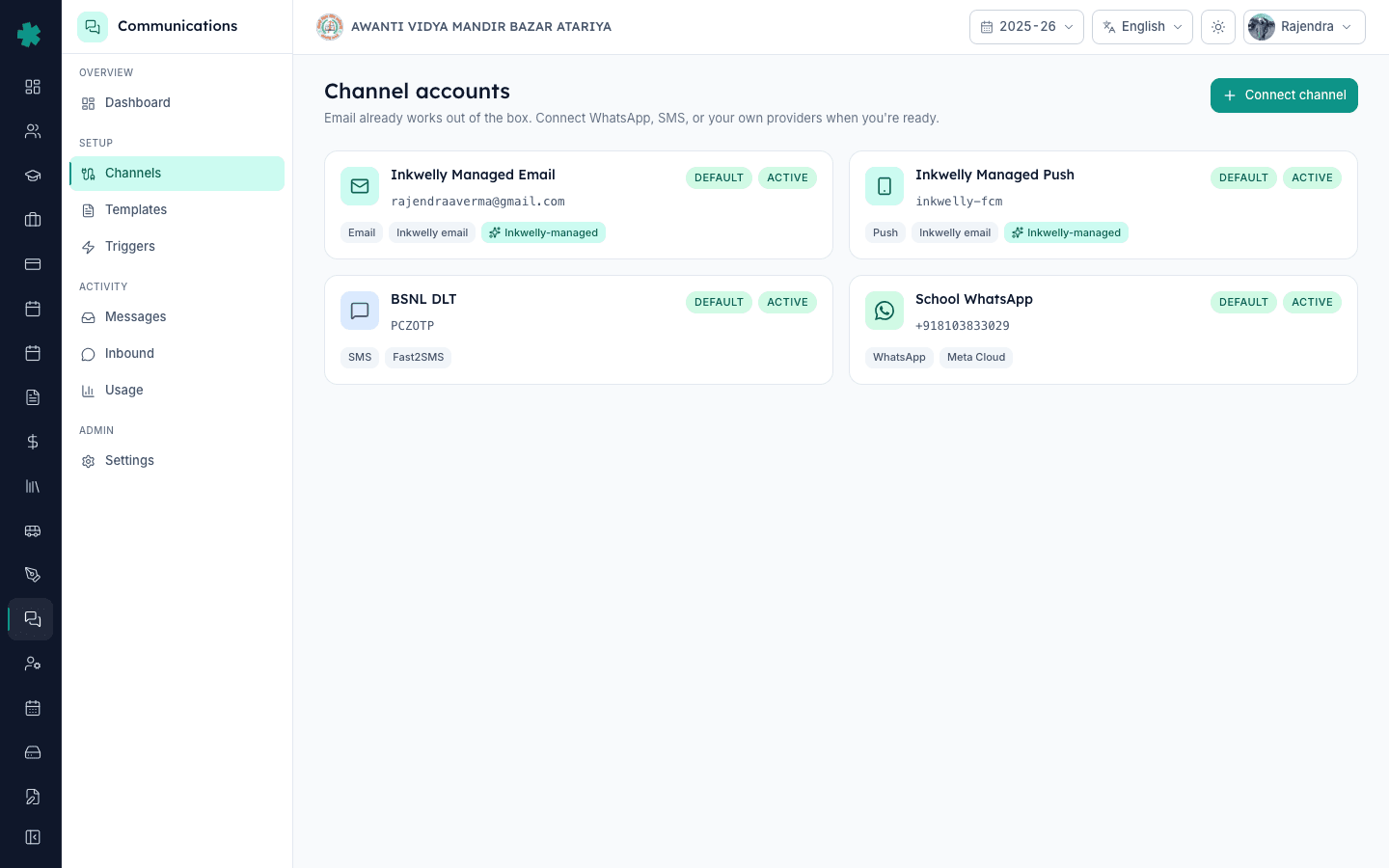
Sign in to Inkwelly and open the Communications module from the left sidebar. Click Channels under the Setup section. The Channels page is where every provider connected to your school lives in one place — WhatsApp, SMS, email and push. Inkwelly ships with branded email and push already switched on for every school, so this page already shows two active rows. Connecting WhatsApp adds your school's own number to that list and unlocks WhatsApp on every parent notification — fee receipts, payment-link reminders, attendance alerts and homework updates.
2. Pick WhatsApp as the channel
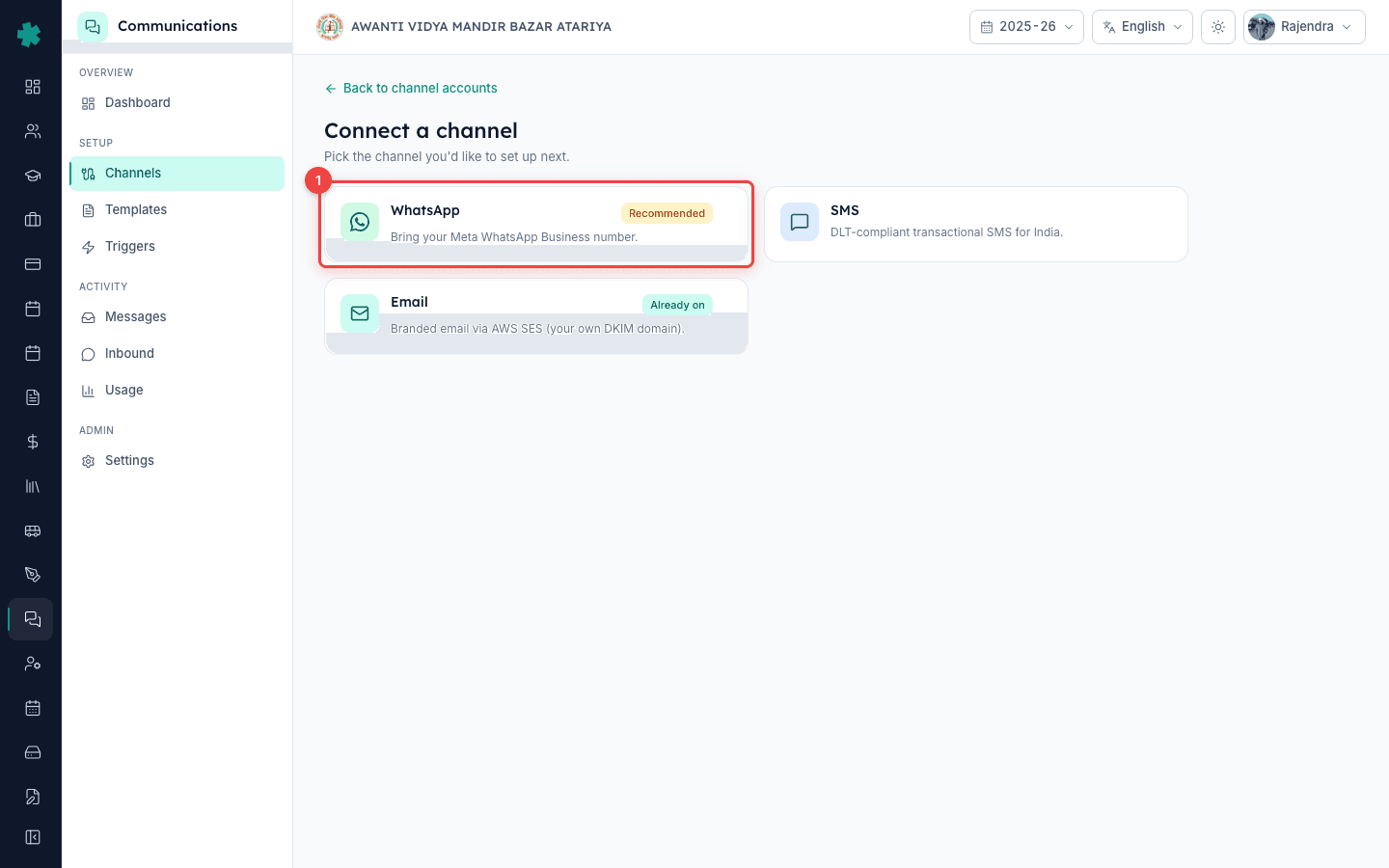
Click the Connect channel button at the top right of the Channels page. A channel picker opens with three options — WhatsApp, SMS and Email. Pick WhatsApp; the picker tags it Recommended because it carries the strongest parent reach for Indian schools. The WhatsApp setup form opens with three sections: Identity, Meta Cloud credentials, and Defaults. Each section asks for information you already have if your school is currently sending WhatsApp messages from another ERP or directly from Meta Business Manager — no fresh approval, no new number, no waiting on Meta.
3. Enter your sender phone number
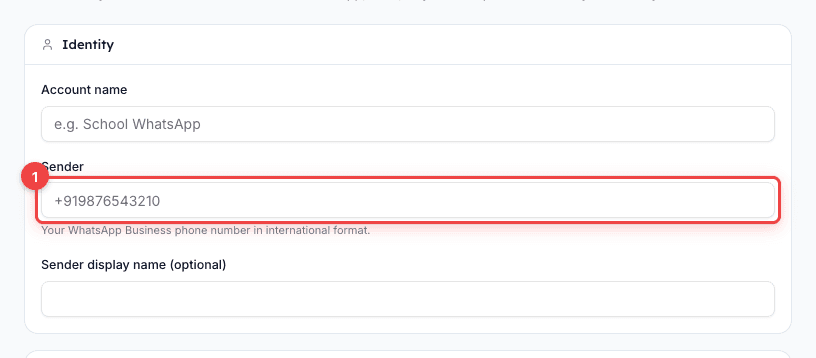
Fill the Identity section. Type a recognisable name for the account in Account name — for example, School WhatsApp or Main Office WhatsApp — so anyone on the team knows what this row controls. Enter your school's WhatsApp Business phone number in Sender using international format with the country code (+91... for India). Optionally type a sender display name. This is the number parents see the message come from; if you have been sending from another ERP, paste the exact same number here so parents keep seeing the chat they already saved.
4. Enter your Meta Cloud credentials
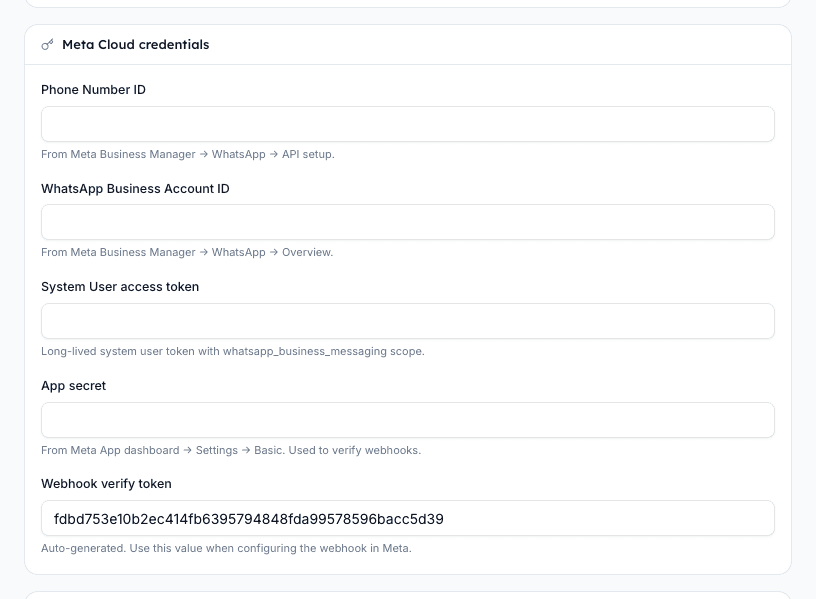
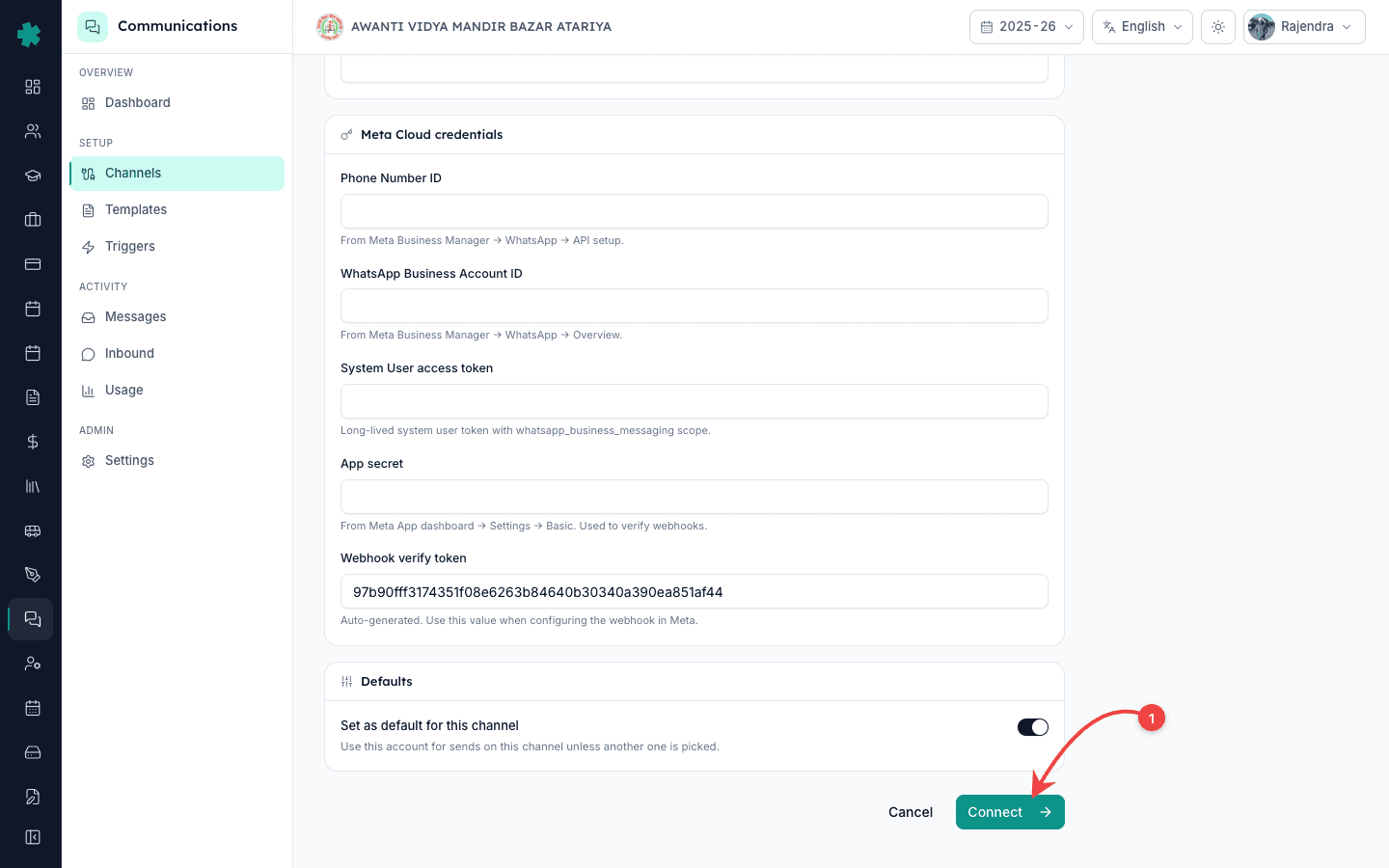
Open Meta Business Manager in a second tab and copy four values into the Meta Cloud credentials section: Phone Number ID (Meta Business Manager → WhatsApp → API setup), WhatsApp Business Account ID (WhatsApp → Overview), System User access token (Business Settings → System Users — generate a long-lived token with the whatsapp_business_messaging scope), and App secret (Meta App dashboard → Settings → Basic). Inkwelly encrypts every credential before it touches the database. The token and app secret are write-only after this — your own team cannot read them back, which closes the most common WhatsApp-credential leak in school ERPs.
5. Save the account
Scroll to the Defaults section and toggle Set as default for this channel on if this number should be the primary WhatsApp sender for the school. Most single-branch schools leave it on. Click Connect. Inkwelly saves the encrypted credentials, generates a unique webhook URL plus a verify token for this account, and opens the account detail page. The status pill starts as PENDING — the account is saved but not yet receiving delivery confirmations from Meta. One more step closes that loop.
6. Set the webhook in Meta
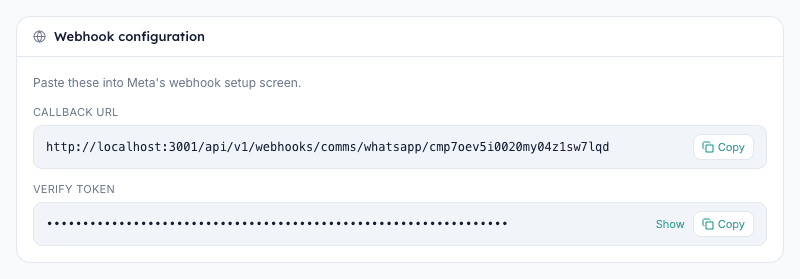
On the account detail page Inkwelly shows a Webhook URL and a Verify token, both with one-tap copy buttons. Switch back to Meta App dashboard → WhatsApp → Configuration → Webhook. Click Edit, paste the Webhook URL into Callback URL, paste the Verify token into Verify token, and click Verify and save. Meta pings Inkwelly to confirm the handshake. On the same Webhook screen, subscribe to the messages field — this is what tells Meta to forward every delivery receipt, read receipt and parent reply back to Inkwelly.
7. Verify the connection
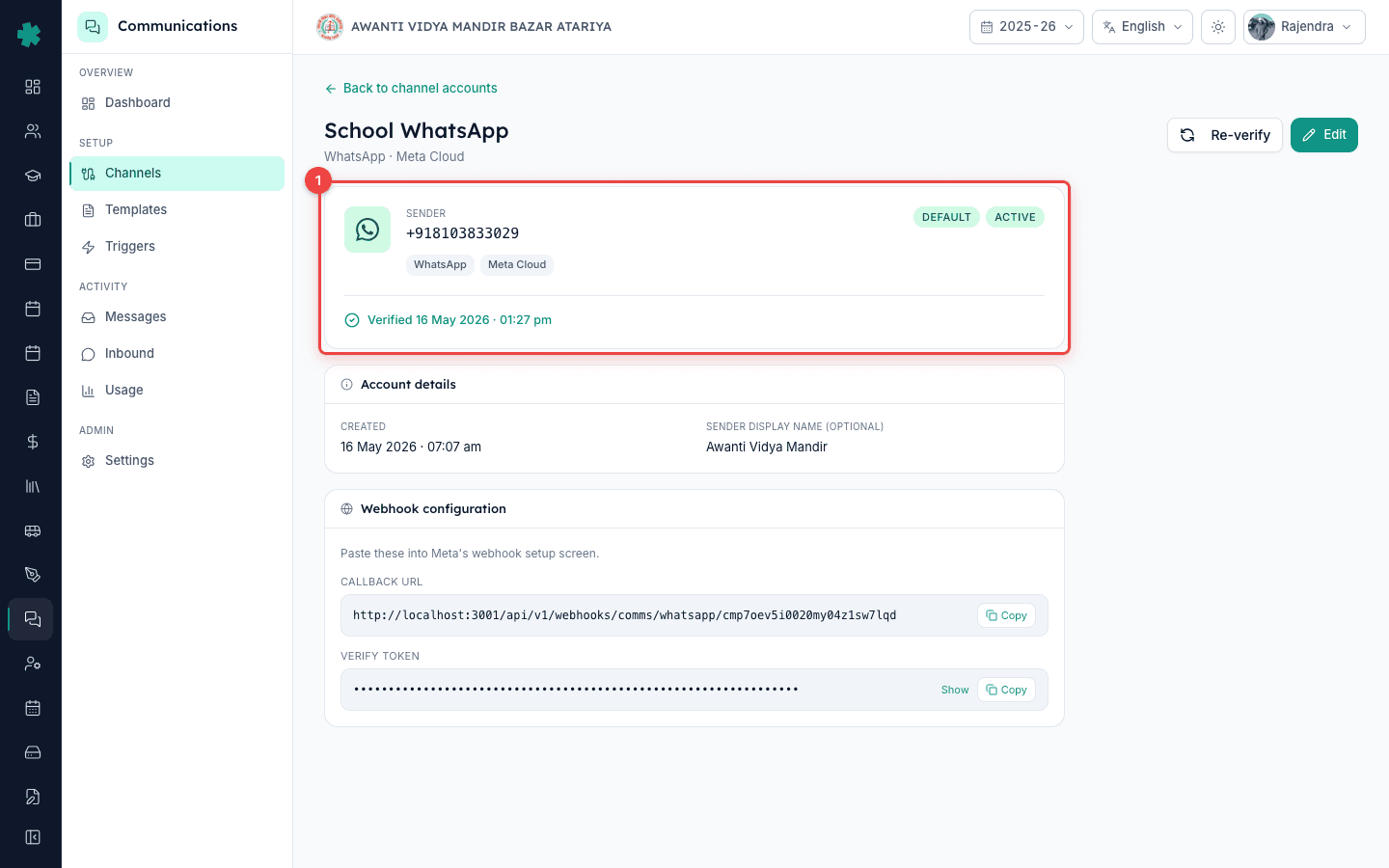
Back on Inkwelly's account detail page, click Verify. Inkwelly re-decrypts the stored credentials, calls Meta's identity endpoint, and confirms the phone number, display name, and Meta-assigned quality rating. The status pill flips from PENDING to ACTIVE with a fresh verifiedAt timestamp. Your school's WhatsApp number is now live across Inkwelly. Every fee receipt, payment-link reminder, attendance alert and homework notification that fires for any student in this school from now on uses this number — no further setup needed.
Now that WhatsApp is live, the next two pages worth opening are Templates and Triggers. Inkwelly ships ten parent-facing templates pre-written in English and Hindi; submit the WhatsApp variants to Meta for approval from inside the Templates page so fee receipts and admit-card alerts go live with your school's voice and signature. Then open Triggers and turn WhatsApp on for the events that matter most — Fee payment received, Payment-link reminder, Attendance marked absent, and Homework assigned are the four highest-impact triggers for a typical Indian school.
See Inkwelly live on your own school's WhatsApp number
20-minute walkthrough with a real Indian-school dataset. No sales pitch — just the product, end to end.
Frequently asked
6 questionsDo I need a new WhatsApp number, or can I use my existing school WhatsApp Business number with Inkwelly?
Inkwelly works with the WhatsApp Business number you already have. Paste your existing Meta Cloud credentials — Phone Number ID, WhatsApp Business Account ID, system user token and app secret — and parents keep seeing the same chat thread they already saved. No number migration, no fresh Meta approval, no parent confusion.
Will parents see Inkwelly's name or my school's name when WhatsApp messages arrive?
Parents see your school's name. The sender is your verified WhatsApp Business profile, which carries your school's display name, photo and About page exactly as registered with Meta. Inkwelly is the engine that sends the message — it never appears on the parent's phone. Branding stays one hundred percent with the school.
Does Inkwelly need my Meta password or my full Business Manager login?
No. Inkwelly only needs four values: Phone Number ID, WhatsApp Business Account ID, a System User access token, and an App secret. The token is generated by the school itself inside Meta Business Settings → System Users with the minimum scope needed for messaging. Inkwelly never sees a Meta login or any personal Facebook account.
Inkwelly me apna WhatsApp number kaise jode?
Inkwelly kholiye → Communications module → Channels → Connect channel → WhatsApp select kijiye. Apna number aur Meta Business Manager se 4 values (Phone Number ID, WABA ID, system user token, app secret) paste kijiye. Connect dabaiye, fir webhook URL Meta me paste kijiye, aur Verify pe click kijiye. Aapka school WhatsApp number 10 minute me live ho jata hai.
How long until fee receipts and attendance alerts start going out on WhatsApp after I connect?
Immediately. The moment the status pill flips to ACTIVE, the next event that fires anywhere in Inkwelly — a parent paying a fee online, a teacher marking an absent student, a homework being posted — goes out on WhatsApp using your number, provided that event's WhatsApp trigger is on and the template is Meta-approved.
Can I add a second WhatsApp number for another branch in the same trust?
Yes. Repeat the same flow on the second school inside your organisation and paste that branch's own Meta Cloud credentials. Inkwelly stores channel accounts per school, so each branch keeps its own sender number, display name, quality rating and webhook secret. One trust, many WhatsApp numbers, zero credential mixing.
You might also like
3 readsSources & references
- Meta WhatsApp Business Platform — Cloud API setup · accessed 18 May 2026
Defines the Phone Number ID, WhatsApp Business Account ID, System User access token, and App secret that Inkwelly's WhatsApp connector requires.
- Meta WhatsApp Business Platform — Set up webhooks · accessed 18 May 2026
Documents the Callback URL, Verify token, and messages field-subscription pattern Inkwelly's account-detail page asks the school to paste into Meta.
See Inkwelly on your school
30-minute demo. We open your current ERP with you and load your data into Inkwelly on the call. Dated go-live plan by the end of it.