किसी installment के लिए एक साथ सब invoice कैसे बनाएं Inkwelly में
यह गाइड स्कूल ऑफिस के हेड और फीस क्लर्क के लिए है — हर तिमाही की शुरुआत में (Q1 अप्रैल, Q2 जुलाई) या मासिक शेड्यूल में हर महीने। अंत में आप Inkwelly में चुनी गई किस्त के सभी पेंडिंग invoice एक मिनट से कम में बना चुके होंगे, जिसमें withdrawn और RTE छात्र साफ-साफ छोड़ दिए गए होंगे।
Inkwelly में किसी installment के लिए एक साथ सब invoice बनाने के लिए: Student Fee → Invoices → Generate खोलें, इस billing cycle के लिए सही fee structure का कार्ड ढूँढें, सही installment row पर Generate क्लिक करें, preview tiles (Will create, Skip existing, Skip filtered) पढ़ें, Exclude withdrawn फ़िल्टर चालू रखें, और हरे Generate बटन पर क्लिक करें। 1,200 छात्रों वाले स्कूल में अप्रैल का हर invoice लगभग 30 सेकंड में तैयार हो जाता है, जबकि Excel और Tally में यही काम आधे दिन का होता है।
Bulk invoice generation पूरे साल का सबसे ज़्यादा इस्तेमाल होने वाला Student Fee action है — हर तिमाही या महीने में हर पेड छात्र को ठीक एक नया invoice मिलता है। CBSE affiliation bye-laws के अनुसार स्कूल को हर सत्र की प्रकाशित फीस structure के विरुद्ध receipt जारी करनी होती है (CBSE Affiliation Bye-Laws, Chapter VII)। 1,200 छात्रों वाला एक सामान्य Tier-2 day school चार तिमाही installments के साथ साल भर में लगभग 4,800 invoice जारी करता है — Inkwelly इसी काम को चार batch run में बदल देता है, हर run एक मिनट से कम का। Excel और Tally वाला विकल्प प्रति तिमाही एक क्लर्क का पूरा दिन ले लेता है, और बीच सत्र में जिनकी क्लास सेक्शन बदली होती है, उनके invoice अक्सर छूट जाते हैं।
1. Invoices खोलें और Generate दबाएँ
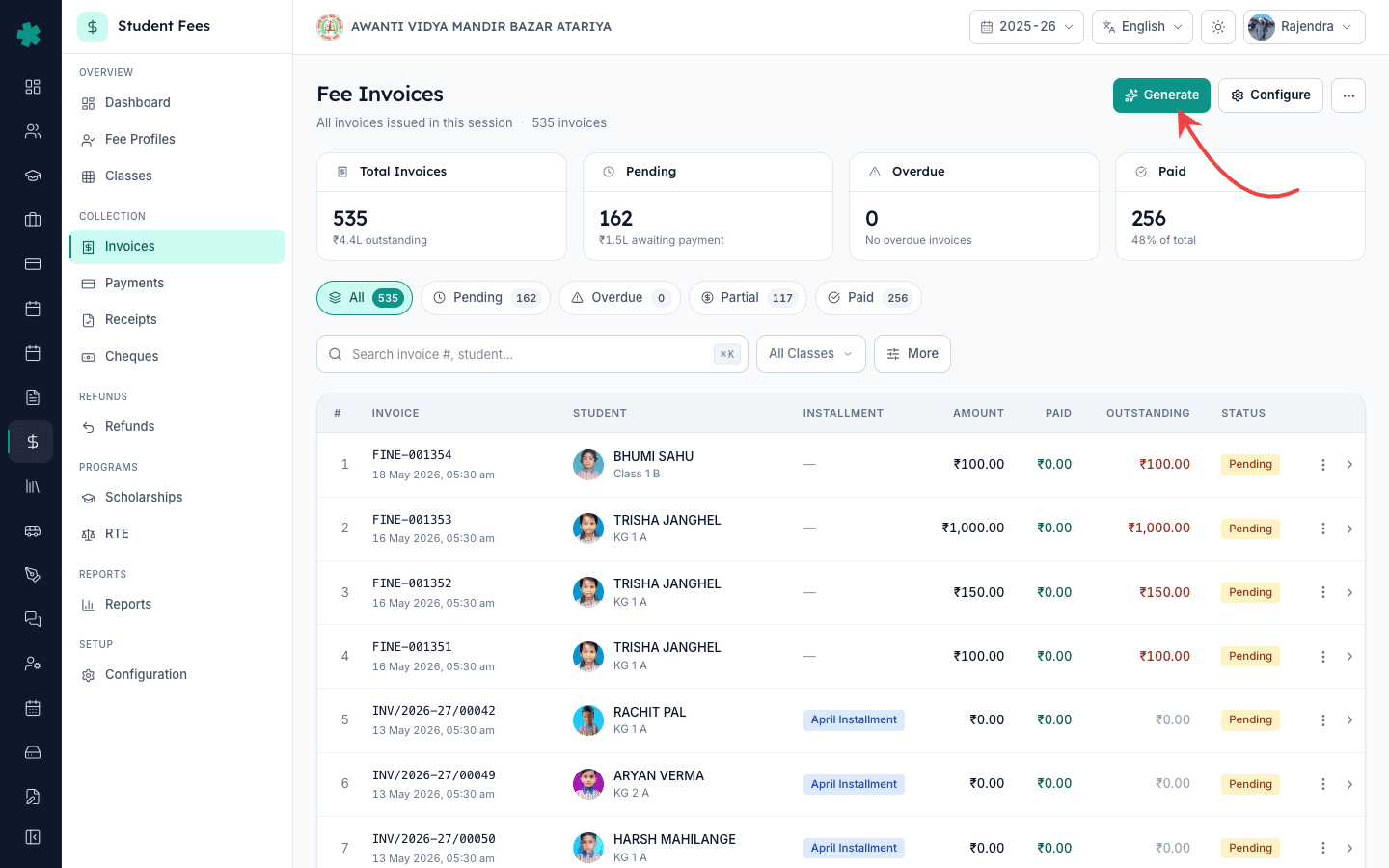
बाएँ साइडबार से Inkwelly → Student Fee खोलें। COLLECTION सेक्शन में Invoices चुनें। Invoices सूची चार KPI टाइल — Total Invoices, Pending, Overdue और Paid — और चार status टैब के साथ खुलती है। ऊपर दाईं ओर दो बटन हैं: Configure (कॉलम और template के लिए) और प्राथमिक Generate बटन। Generate Invoices wizard खोलने के लिए Generate पर क्लिक करें।
2. ऊपर के चार KPI tiles पढ़ें
Generate Invoices wizard के सबसे ऊपर चार KPI tiles दिखते हैं: Active Students (इस सत्र में fee profile वाले सभी छात्र), Open Installments (सभी structures के कुल), Auto-gen On (कितने installment अपने आप बनने के लिए सेट हैं) और Overall Coverage (अपेक्षित invoices में से कितने प्रतिशत बन चुके हैं)। Overall Coverage ही वह नंबर है जिस पर नज़र रखें — एक नई अप्रैल installment के पहले यह 0% होता है और साफ batch run के बाद 100% तक पहुँचता है। दाईं ओर Run auto-sweep बटन का इस्तेमाल केवल तब करें जब scheduled job पिछड़ गया हो।

3. इस cycle के लिए सही fee structure कार्ड ढूँढें
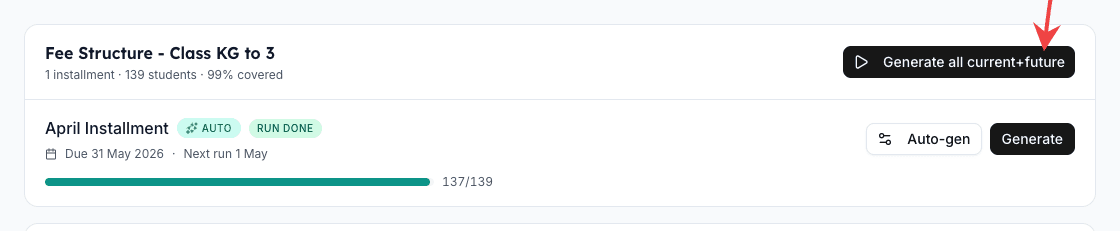
KPI tiles के नीचे हर active fee structure का एक कार्ड है — Annual 2025-26 — Class KG to 3, Class 4-5, Class 6-8 इत्यादि। हर कार्ड के header में structure का नाम, installment की संख्या, active छात्र संख्या और मौजूदा coverage प्रतिशत है। हर कार्ड के ऊपर दाईं ओर एक प्राथमिक Generate all current+future बटन है — साल की शुरुआत में पूरे structure के सभी installments एक साथ बनाने के लिए उपयोगी। header के नीचे हर installment की अपनी पंक्ति है, अपने Auto-gen और Generate बटन के साथ।
4. जिस installment के invoice बनाने हैं, उस पंक्ति पर Generate क्लिक करें
Installment पंक्ति पर — उदाहरण Q1 — April-June, Due 10 Apr 2025 — दाईं ओर के गहरे Generate बटन पर क्लिक करें। Bulk Generate dialog installment के नाम और due date के साथ खुलता है। Inkwelly तुरंत लाइव छात्र सूची पर एक dry-run preview चलाता है, इसलिए अगली स्क्रीन ठीक वही दिखाती है जो Generate दबाने पर होगा। dialog modal रहता है — बंद कर देने पर कोई invoice नहीं बदलता।

5. Preview tiles देखें और फ़िल्टर सेट करें
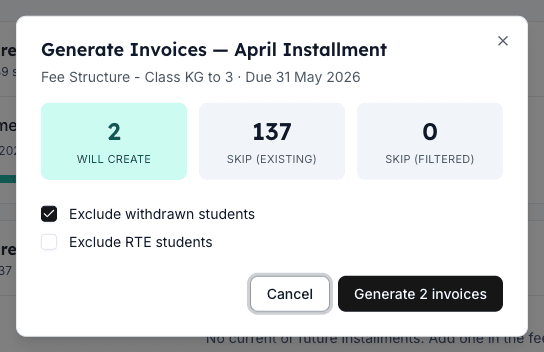
Preview में तीन tiles दिखते हैं: Will create (Inkwelly कितने नए invoice बनाएगा), Skip existing (जिन छात्रों का इस installment का invoice पहले से है) और Skip filtered (फ़िल्टर से हटाए गए छात्र)। नीचे एक वैकल्पिक Breakdown by fee group है जब installment एक से ज़्यादा group पर फैला हो। सबसे नीचे दो फ़िल्टर टॉगल हैं: Exclude withdrawn students डिफ़ॉल्ट रूप से चालू रहता है — हर स्कूल में इसे चालू रहने दें। Exclude RTE students केवल तब चालू करें जब आपका स्कूल RTE में admit बच्चों के invoice अलग RTE reimbursement flow के तहत बनाता है।
6. पुष्टि करें और batch submit करें
dialog के नीचे हरे Generate N invoices बटन पर क्लिक करें — N वही संख्या है जो Will create tile पर दिख रही है। Inkwelly एक अंतिम confirmation dialog खोलता है जो installment का नाम बताता है, due date दोहराता है और चेतावनी देता है कि बने हुए invoice को एक साथ undo नहीं किया जा सकता, केवल delete किया जा सकता है। Yes, generate पर क्लिक करें। dialog progress indicator के साथ खुला रहता है; 1,200 invoice के लिए सामान्यतः 20 से 40 सेकंड का समय लगता है, यह इस पर निर्भर करता है कि हर invoice में कितने fee head हैं।
7. परिणाम देखें और coverage refresh करें
रन पूरा होने पर dialog हरे success कार्ड में बदल जाता है, जिसमें generated, skipped और failed की संख्या दिखती है। dialog बंद करें। Generate Invoices wizard अपने आप refresh हो जाता है — Overall Coverage tile ऊपर बढ़ता है, installment पंक्ति नया coverage प्रतिशत दिखाती है, और यदि installment एक से ज़्यादा group पर फैला है तो एक छोटा fee-group breakdown chip दिखता है। Invoices खोलें, Pending पर फ़िल्टर करें, और आपको नए invoice अभिभावकों को भेजने के लिए तैयार दिखेंगे।
Batch तैयार होने के बाद ज़्यादातर स्कूलों के अगले कदम हैं — नए invoice अभिभावकों को WhatsApp और SMS पर भेजना, और Inkwelly से online payment स्वीकार करना। कई स्कूल बाकी सत्र की installments के लिए auto-generation भी चालू कर देते हैं ताकि अगली तिमाही due date पर खुद ही उठ जाए — इसके लिए auto-generation वाला sibling LEARN देखें। बीच सत्र में आए नए admission के लिए छात्र के fee profile से एक अलग invoice बनाना सही तरीका है। हर तिमाही की शुरुआत में Generate Invoices wizard पहली स्क्रीन है जिसे ऑफिस हेड को खोलना चाहिए।
Inkwelly Student Fees को काम करते हुए देखें
अक्सर पूछे गए सवाल
6 सवालInkwelly में 1,200 छात्रों के invoice एक साथ बनाने में कितना समय लगता है?
Inkwelly एक installment के सभी पेंडिंग invoice 1,200 छात्रों वाले स्कूल के लिए 20 से 40 सेकंड में बना देता है, यह इस पर निर्भर करता है कि हर invoice में कितने fee head हैं। Bulk Generate dialog पूरे रन के दौरान modal रहता है और पूरा होते ही हरा success कार्ड दिखाता है, जिसमें generated, skipped और failed की संख्या होती है। उसी स्क्रीन पर wizard का coverage भी बढ़ता है।
Pure school ke liye ek baar mein invoice kaise banaye?
Inkwelly → Student Fee → Invoices kholiye. Top-right ke Generate button par click kijiye. Generate Invoices wizard me apni fee structure card find kijiye, top-right ke 'Generate all current+future' button par click kijiye, confirmation dialog me Yes dabaiye. Pure school ke har class ke har installment ke liye ek baar me invoice ban jate hain — typically ek minute ke andar.
Bulk invoice generation kitni der lagti hai?
Ek standard Tier-2 school me 1,200 students ke liye ek installment ke invoices banane me 20 se 40 second lagte hain. Agar pure session ke saare four installment ek saath generate karein 'Generate all current+future' button se, to lagbhag do se char minute. Excel aur Tally me yahi kaam ek pure din me hota hai.
क्या Inkwelly उन छात्रों को छोड़ता है जिनका इस installment का invoice पहले से बना है?
हाँ। Bulk Generate dialog असली batch से पहले एक dry-run preview चलाता है और Skip existing tile में उन छात्रों की संख्या दिखाता है जिनका इस installment का invoice पहले से बना है। Inkwelly एक छात्र-installment जोड़ी के लिए कभी duplicate invoice नहीं बनाता, इसलिए एक ही installment पर दोबारा Generate दबाना बिना जुड़वाँ बनाए सुरक्षित है।
Withdrawn या RTE छात्रों को bulk run से कैसे बाहर रखें?
Bulk Generate dialog में सबसे नीचे दो फ़िल्टर टॉगल हैं। Exclude withdrawn students डिफ़ॉल्ट रूप से चालू है — चालू ही रहने दें, withdrawn बच्चों को नए invoice नहीं मिलने चाहिए। Exclude RTE students डिफ़ॉल्ट रूप से बंद है; इसे केवल तब चालू करें जब आपका स्कूल Right to Education में admit बच्चों के invoice राज्य RTE reimbursement flow के तहत अलग बनाता है। फ़िल्टर बदलने पर Will create की संख्या तुरंत अपडेट होती है।
अगर कुछ गलत लगे तो क्या bulk run को undo कर सकते हैं?
Inkwelly पूरे bulk run को एक action में undo नहीं करता, और dialog submit से पहले इसकी चेतावनी देता है। Invoices सूची से अलग-अलग या छोटे batch में invoice delete किए जा सकते हैं — आमतौर पर तब ज़रूरी होता है जब फीस चार्ट ही गलत बना हो। बेहतर तरीका है preview फ़िल्टर से Will create की संख्या Generate दबाने से पहले ही सही कर लेना।
आपको ये भी पसंद आ सकता है
3 लेखस्रोत व संदर्भ
- CBSE Affiliation Bye-Laws — Chapter VII, Fee Structure · देखा गया 19 May 2026
CBSE bye-laws के अनुसार affiliated स्कूल हर सत्र की प्रकाशित fee structure के विरुद्ध receipt जारी करते हैं — यही हर छात्र पर per-installment एक invoice बनाने का कानूनी आधार है।
- Right of Children to Free and Compulsory Education Act, 2009 — Section 12 and 13 · देखा गया 19 May 2026
RTE Act private unaided स्कूलों में 25% RTE आरक्षण अनिवार्य करता है और RTE छात्रों से राज्य reimbursement से अधिक कोई फीस लेने पर रोक लगाता है — इसी कारण Exclude RTE students bulk run में पहली श्रेणी का फ़िल्टर है।
- Ministry of Education — UDISE+ Data Capture Format (School Finance section) · देखा गया 19 May 2026
UDISE+ रिटर्न में स्कूलों को क्लास और fee head के अनुसार वसूली रिपोर्ट करनी होती है, जो Inkwelly के per-installment per-fee-group invoice मॉडल से मेल खाती है।
Inkwelly आपके स्कूल पर — खुद देखें
30 मिनट का डेमो। आपके मौजूदा ERP को आपके साथ खोलकर, कॉल पर ही आपका डेटा Inkwelly में लोड करते हैं। कॉल ख़त्म होते-होते एक तय तारीख़ का गो-लाइव प्लान आपके हाथ में।