अग्रिम भुगतान को क्रेडिट बैलेंस के रूप में कैसे जोड़ें Inkwelly में
यह गाइड स्कूल अकाउंटेंट और फीस काउंटर स्टाफ के लिए है जिन्हें अभिभावक से अग्रिम फीस मिलती है — पूरे साल का annual upfront, गलती से ज़्यादा जमा हुई रकम, या refund जिसे परिवार ने credit के रूप में रखने को कहा है। अंत में छात्र की fee profile पर एक credit balance दर्ज होगा जिसे Inkwelly अगले invoice पर अपने आप लागू कर देगा।
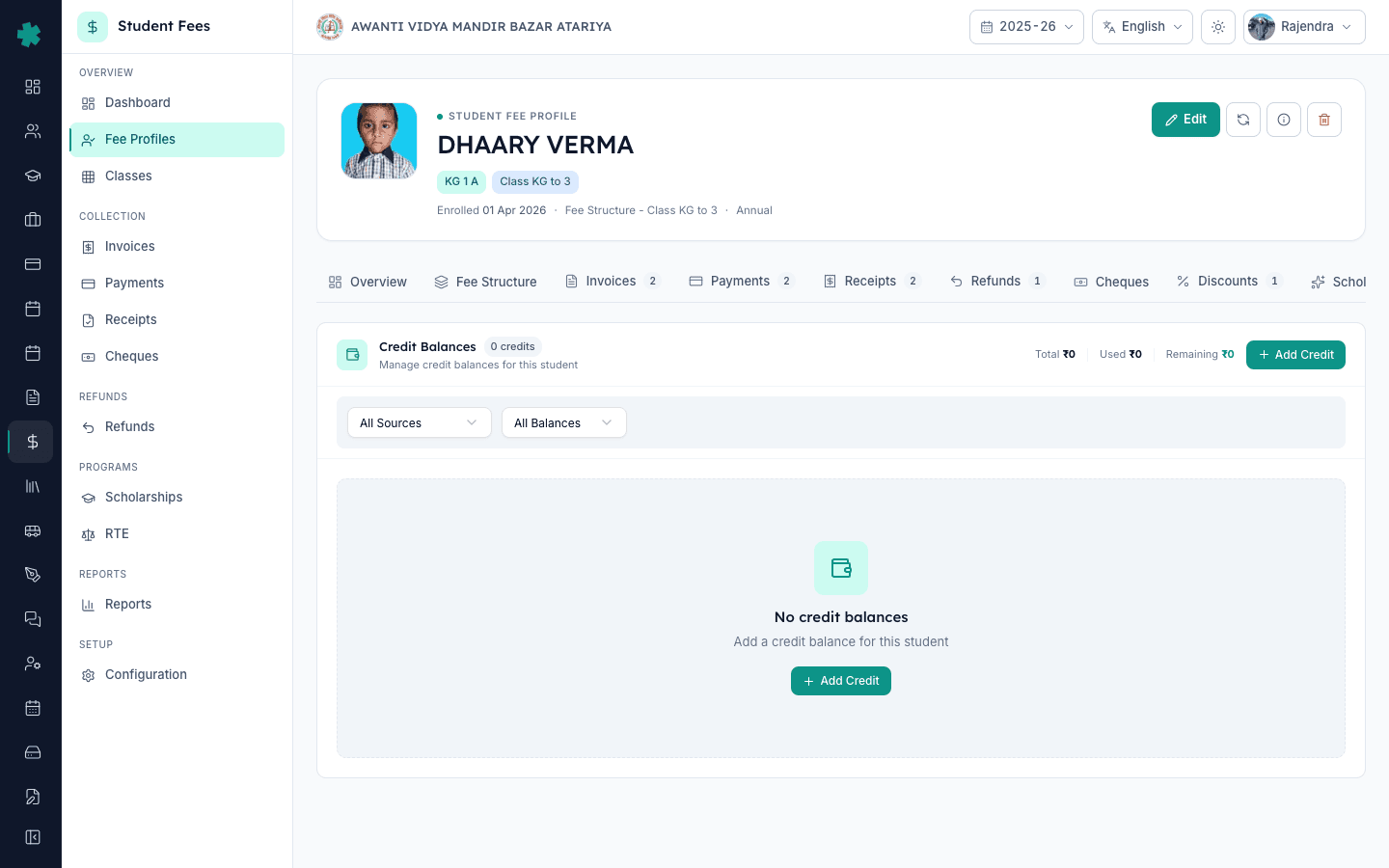
Inkwelly में अग्रिम भुगतान को credit balance के रूप में जोड़ने के लिए: छात्र की fee profile खोलें, बाएँ sub-nav से Credits पर क्लिक करें, + Add Credit दबाएँ, रुपयों में राशि भरें, Source चुनें (Overpayment, Refund, Adjustment, या Carried Forward), ऑफिस के लिए छोटा remark लिखें, यदि नीति हो तो expiry date डालें, और Add Credit दबाएँ। Credit profile पर Remaining balance के साथ दिखेगा और Inkwelly अगले invoice पर इसे अपने आप लागू कर देगा।
भारतीय स्कूलों में अग्रिम फीस भुगतान आम है। Right of Children to Free and Compulsory Education Act 2009, Section 13 प्रकाशित फीस चार्ट से ऊपर कोई भी राशि लेने की मनाही करता है, इसलिए जब अभिभावक मौजूदा invoice से बड़ी रकम सौंपता है — जैसे पूरे साल का एक cheque — तो surplus को परिवार के नाम पर credit balance के रूप में स्पष्ट रूप से किताबों में रखना ज़रूरी है। हर student fee profile पर मौजूद Credit Balances tab ही Inkwelly में इसका कानूनी record है। Income Tax Department के advance-receipt नियम भी इसे स्कूल की liability मानते हैं जब तक यह किसी भविष्य के invoice से समायोजित न हो जाए, और Inkwelly ठीक यही करता है — credit छात्र के नाम पर सुरक्षित रहता है, चुपचाप absorb नहीं होता, और auto-allocation engine सबसे पहले इसी से अगली pending installment काटता है। NPCI के 2024 आँकड़ों के अनुसार metro में 61 प्रतिशत और Tier-2 शहरों में 38 प्रतिशत school fees UPI पर एकमुश्त राशि में आती हैं, जिसका मतलब है कि 1,200 छात्रों वाले स्कूल का accountant fee-cycle सप्ताह में औसतन 4 से 9 credit entry दर्ज करता है।
1. छात्र की fee profile खोलें
बाएँ साइडबार से Inkwelly → Student Fee → Fee Profiles खोलें। Admission number, नाम, या roll number से छात्र खोजें और row पर क्लिक करके profile खोलें। Header में छात्र का नाम, क्लास, paid status badge, और Edit / Recalculate / Info / Delete बटन दिखते हैं। नीचे sub-nav में Overview, Fee Structure, Invoices, Payments, Receipts, Refunds, Cheques, Discounts, Scholarships, Credits, Waivers, Fines, और Carry-forward के विकल्प हैं।
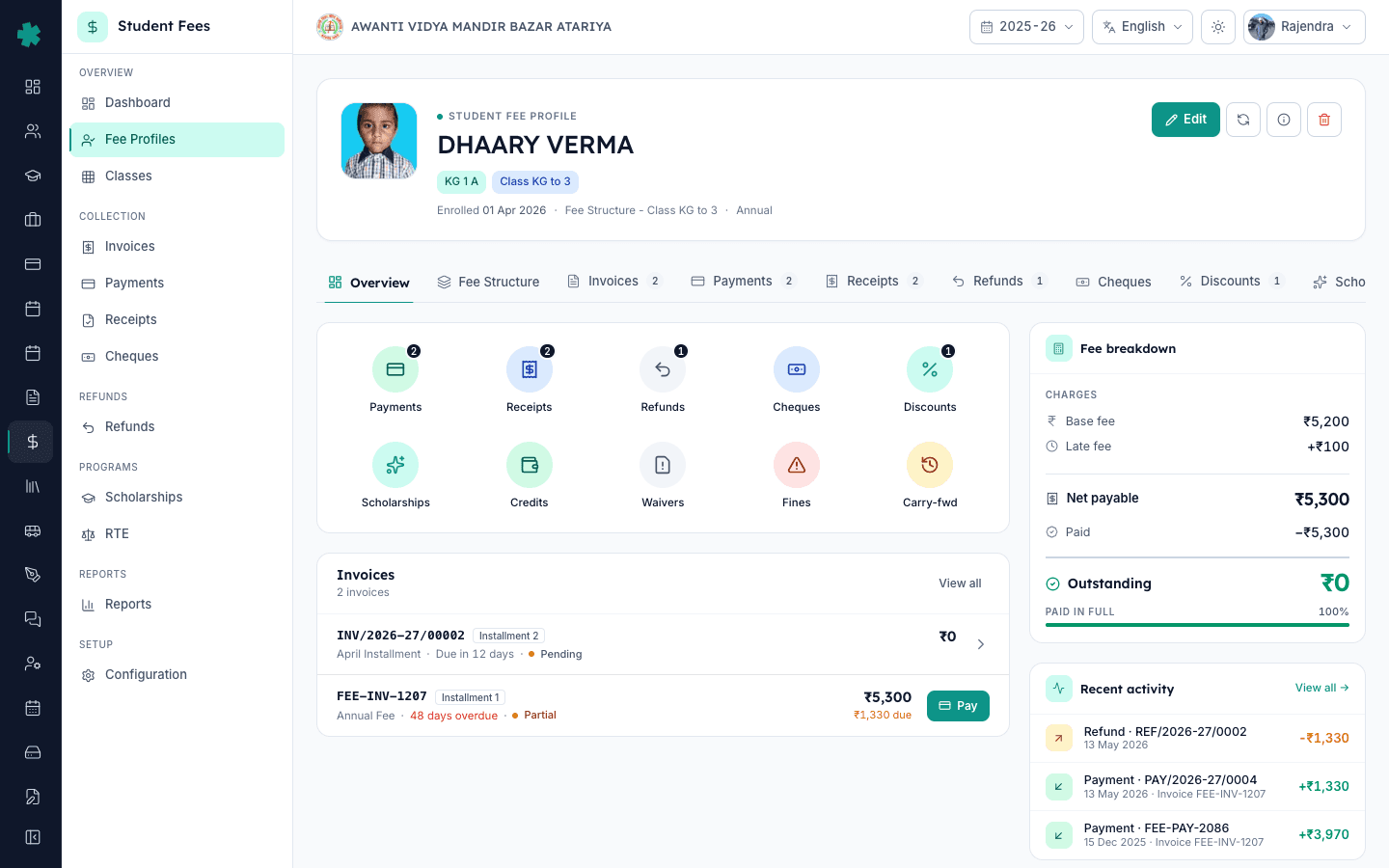
2. Profile sub-nav में Credits पर क्लिक करें
Credits पर क्लिक करें। Inkwelly इस छात्र के लिए Credit Balances पेज खोलता है। Header पर Credit Balances — Manage credit balances for this student लिखा होता है और दाईं ओर तीन लाइव कुल — Total, Used, और Remaining — दिखते हैं। हरे रंग में Remaining वही राशि है जिसे Inkwelly अगली collection में पहले काटेगा। नीचे filter bar में Source (All Sources / Overpayment / Refund / Adjustment / Carried Forward) और Balance (All / Has Balance / Fully Used) के विकल्प हैं — नया credit जोड़ते समय दोनों को All पर रहने दें।
3. + Add Credit दबाएँ
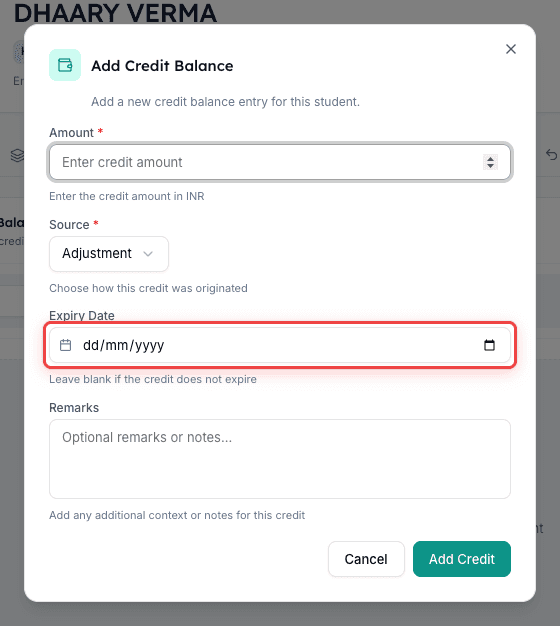
पेज के ऊपर दाईं ओर + Add Credit बटन पर क्लिक करें। Inkwelly Add Credit Balance dialog खोलता है, जिसमें wallet icon और helper line Add a new credit balance entry for this student दिखती है। Dialog में चार fields हैं — Amount, Source, Expiry Date, और Remarks — और नीचे Add Credit submit बटन। यहाँ payment-mode (cash, UPI, cheque, NEFT) नहीं चुना जाता; वह जानकारी जुड़े हुए Payment record पर रहती है। Credit row केवल surplus है जो profile पर रखी जाती है, चाहे अभिभावक ने पैसे किसी भी मोड से दिए हों।
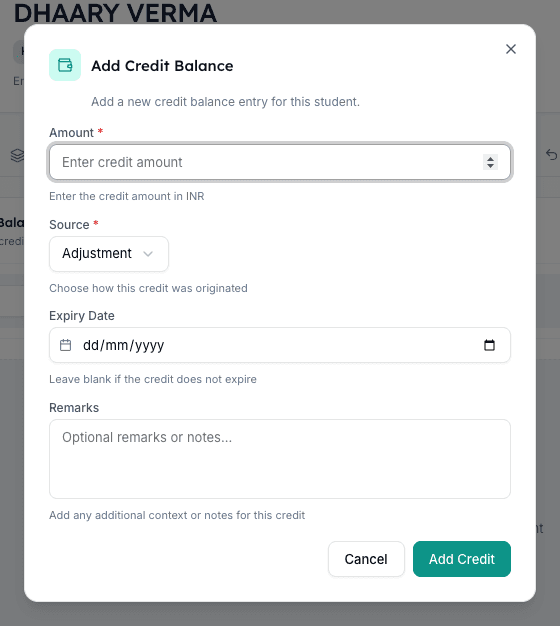
4. राशि भरें और Source चुनें
Amount field में रुपयों में credit की राशि भरें — उदाहरण 25000 उस अभिभावक के लिए जिसने ₹22,000 के invoice के बदले ₹25,000 दिए और ₹3,000 जुलाई की किस्त के लिए रखने को कहा। Source dropdown से चार में से एक विकल्प चुनें। Overpayment, जब किसी मौजूदा invoice पर surplus आ गया हो। Refund, जब refund disburse करने के बजाय उसे credit के रूप में रोका जा रहा हो। Adjustment, मैनुअल bookkeeping सुधार के लिए। Carried Forward, जब पिछले सत्र की unused credit नए सत्र में लाई जा रही हो। Source का label parent receipt और audit ledger पर छपता है, इसलिए वही चुनें जो वास्तविक कारण से मेल खाता हो।
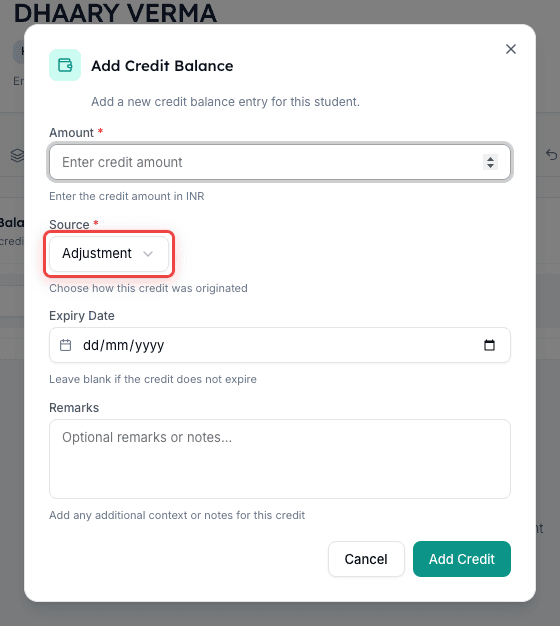
5. छोटा remark और (वैकल्पिक) expiry date जोड़ें
Remarks textarea में एक छोटी पंक्ति लिखें जो office और अभिभावक दोनों समझ सकें — जैसे Annual upfront against Inv 1207, surplus held for July installment या Refund of transport fee retained as credit per parent request. आंतरिक codes से बचें; यह पंक्ति credit list और receipt पर दिखती है। Expiry Date वैकल्पिक है। यदि स्कूल की नीति है कि unused credit अनिश्चित काल तक रहती है तो खाली छोड़ें। यदि fee circular कहता है कि सत्र समाप्ति पर unused credit समाप्त हो जाएगी, तो उस सत्र की अंतिम तिथि — जैसे 31 March — डालें।
6. Add Credit दबाएँ और सेव की गई row सत्यापित करें
Dialog के नीचे दाईं ओर Add Credit बटन दबाएँ। Inkwelly credit सेव कर देता है और ऊपर दाईं ओर Credit added successfully का toast दिखता है। Dialog बंद हो जाता है और Credit Balances table में नई row दिखती है — बाईं ओर Source pill, bold में Amount, Used पर ₹0, हरे रंग में Remaining जो Amount के बराबर है, Expiry pill (यदि सेट हो), और बनाने की तिथि। Header card का Remaining कुल भी उतना ही बढ़ जाता है। यदि गलत source या remark डाल दिया हो, auto-allocation चलने से पहले row पर Edit दबाकर सुधार लें।
7. देखें कि Inkwelly अगले invoice पर credit स्वतः लागू कर रहा है
जब इस छात्र के लिए अगली किस्त का invoice बनेगा — या जब आप किसी pending invoice पर Collect दबाएँगे — Inkwelly पहले Credits tab देखता है, सबसे पुरानी Remaining balance से कटौती करता है, और invoice पर इसे Credit Applied नाम की अलग पंक्ति में दिखाता है। Credit row का Used उतना बढ़ जाता है; Remaining उसी राशि से घटती है। Parent receipt पर credit line आसान भाषा में छपती है ताकि परिवार को कोई आश्चर्य न हो। यदि credit पूरे invoice को कवर कर लेती है, तो counter पर बिना नकद लिए invoice का status Paid हो जाता है।
अगला कदम — credit को fee chart के साथ जोड़ें ताकि office एक surplus को दो बार न दर्ज करे। यदि अभिभावक पूरे साल का upfront दे रहा है तो चार तिमाही invoice के बजाय एक annual invoice बनाएँ — इसकी पूरी प्रक्रिया How to bulk-generate invoices for an installment में दी गई है ताकि credit साफ-साफ लागू हो। यदि unused credit को अगले सत्र में ले जाना है तो How to carry forward unpaid dues from the previous session से rollover सेट करें। Annual upfront देने वाले अभिभावकों को credit के साथ percentage discount भी देना हो, तो How to set up early-payment discount rules पढ़ें।
Inkwelly Student Fees को काम करते हुए देखें
अक्सर पूछे गए सवाल
6 सवालInkwelly अगले fee invoice पर credit balance को कैसे लागू करता है?
जब आप किसी भी pending invoice पर Collect दबाते हैं, या नई किस्त generate होती है, Inkwelly पहले Credits tab देखता है और सबसे पुरानी Remaining balance से तब तक काटता है जब तक invoice पूरा कवर न हो जाए या credit ख़त्म न हो जाए। यह कटौती invoice और receipt पर अलग `Credit Applied` line में दिखती है, credit row का Used बढ़ता है और Remaining उतनी ही राशि से घटती है।
Inkwelly में Credit Balance, Refund, और Overpayment में क्या अंतर है?
Overpayment वह surplus है जो तब बनती है जब अभिभावक invoice की राशि से ज़्यादा जमा कर देता है; Inkwelly उस surplus को source Overpayment के साथ Credit Balance के रूप में रख सकता है ताकि बाद में अपने आप लागू हो। Refund परिवार को cash, NEFT, या UPI से पैसे लौटाता है और loop बंद करता है। यदि परिवार refund लेने के बजाय credit रखने को कहे, तो accountant उसे source Refund के साथ Credit Balance के रूप में दर्ज करता है ताकि वही राशि अगले term में काम आए।
क्या मैं भविष्य की किस्त का invoice बनाए बिना अग्रिम भुगतान दर्ज कर सकता हूँ?
हाँ। Credits tab invoices से अलग है। source Overpayment या Adjustment के साथ कभी भी credit जोड़ें, राशि सेट करें, और Inkwelly इसे profile पर तब तक रोके रखता है जब तक अगला invoice generate नहीं होता। जैसे ही भविष्य का invoice बनता है या counter पर Collect दबाया जाता है, credit अपने आप कट जाती है — कोई manual linking नहीं चाहिए और कोई orphan credit संभव नहीं।
Advance payment kaise record kare Inkwelly me?
Student Fee → Fee Profiles kholiye, student select kijiye, left sub-nav me Credits par jaiye, top-right ka + Add Credit button dabaiye. Amount me rupye bhariye, Source dropdown se Overpayment / Refund / Adjustment / Carried Forward me se sahi option chuniye, Remarks me chhota note likhiye, aur Add Credit dabaiye. Credit profile par save ho jayega aur next invoice par apne aap deduct ho jayega.
Credit balance kab use hota hai Inkwelly me?
Credit balance teen common situations me kaam aata hai — pehla, parent ne annual upfront ya extra paisa de diya aur surplus next installment ke liye rakhna hai; doosra, ek collection me overpayment ho gayi aur amount adjust karni hai; teesra, refund disburse karne ke bajay parent ne credit rakhne ko kaha. Teeno me Inkwelly automatic se next invoice par yeh credit deduct kar deta hai.
क्या credit balance समाप्त हो जाती है यदि अभिभावक सत्र के भीतर उपयोग न करे?
केवल तब, जब स्कूल credit row पर Expiry Date सेट करे। डिफ़ॉल्ट रूप से Expiry field खाली रहती है, यानी Inkwelly तब तक credit रखता है जब तक वह पूरी तरह उपयोग न हो जाए। यदि स्कूल की fee circular कहती है कि सत्र समाप्ति पर unused credit समाप्त होगी, तो Expiry में सत्र की अंतिम तिथि डालें। समाप्त हो चुकी credit जिसका Remaining शेष है, table में लाल Expiry pill के साथ दिखती है ताकि office तय कर सके कि परिवार को refund करना है या आगे ले जाना है।
आपको ये भी पसंद आ सकता है
3 लेखस्रोत व संदर्भ
- Right of Children to Free and Compulsory Education Act, 2009 — Section 13 (No capitation fee) · देखा गया 19 May 2026
RTE Act प्रकाशित फीस से ऊपर कोई भी राशि लेने की मनाही करता है, इसलिए अभिभावक की दी गई कोई भी surplus स्कूल की किताबों पर परिवार के नाम credit के रूप में रहनी चाहिए।
- CBSE Affiliation Bye-Laws — Chapter VII, Fees & Funds · देखा गया 19 May 2026
CBSE bye-laws affiliated schools से अभिभावकों से प्राप्त हर राशि का पारदर्शी हिसाब रखने की माँग करते हैं, जिससे Credit Balances ledger advance payments का कानूनी record बनता है।
- NPCI — UPI Product Statistics 2024 (school fees use case) · देखा गया 19 May 2026
NPCI के आँकड़े metro और Tier-2 शहरों में school fees के लिए UPI के तेज़ अपनाव को दिखाते हैं, जहाँ अभिभावक अक्सर एकमुश्त राशि देते हैं जो स्कूल की किताबों पर अग्रिम credit balance में बदलती है।
Inkwelly आपके स्कूल पर — खुद देखें
30 मिनट का डेमो। आपके मौजूदा ERP को आपके साथ खोलकर, कॉल पर ही आपका डेटा Inkwelly में लोड करते हैं। कॉल ख़त्म होते-होते एक तय तारीख़ का गो-लाइव प्लान आपके हाथ में।