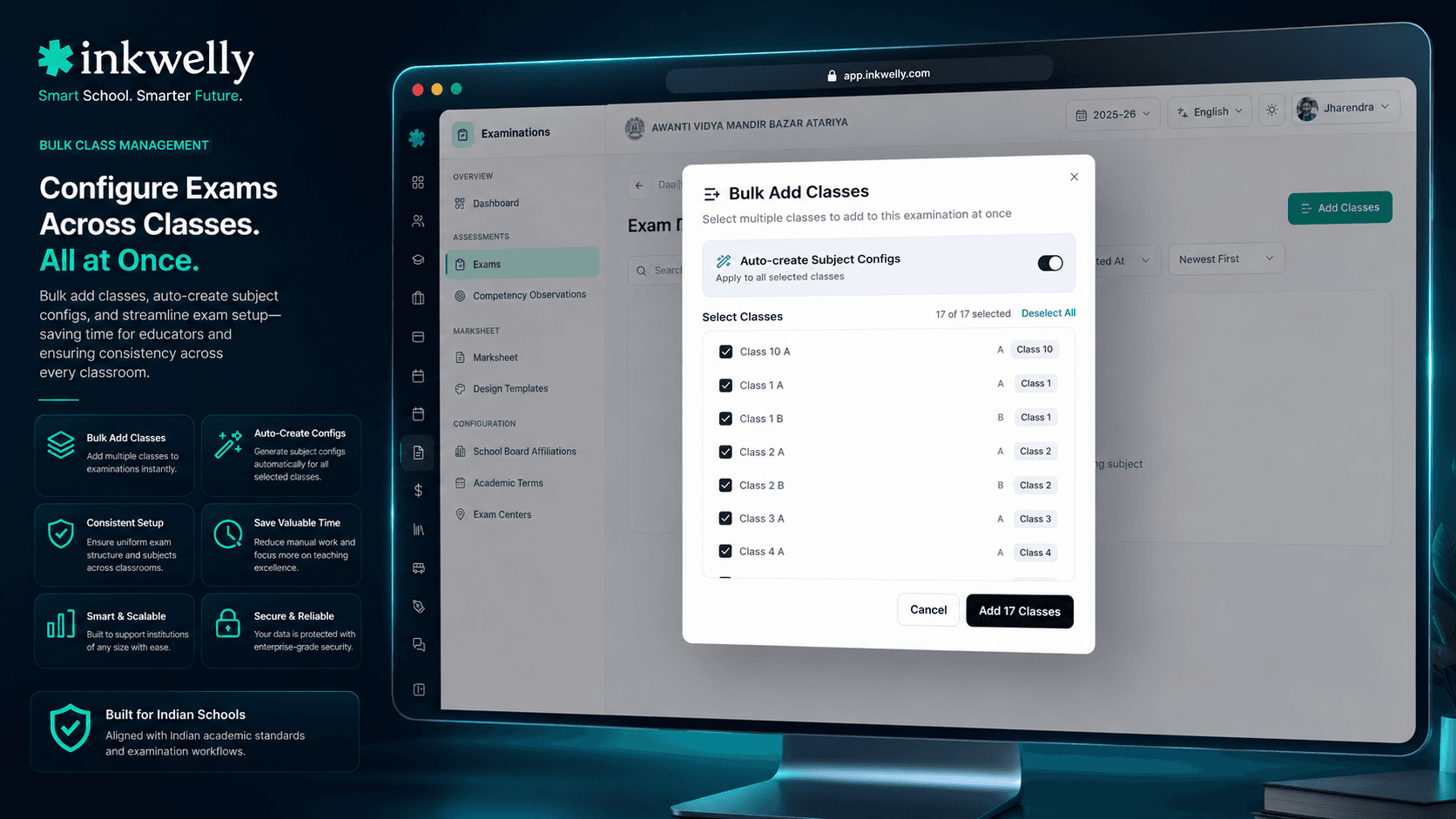
Exam में classes 60 second में attach करें। Bulk picker, locked dates, हर student auto-linked।
Paper देने वाली classes pick करें, exam start और end dates set करें, और Inkwelly subject config defaults auto-create करके हर enrolled student को link कर देता है। Class 10 का pre-board, Class 6 का half-yearly, Class 1 का unit test — एक screen, एक minute, कोई spreadsheet नहीं।
आज ज़्यादातर भारतीय schools exam में classes कैसे attach करते हैं
Indore के एक CBSE स्कूल में September के अंत का Tuesday है। Exam coordinator half-yearly की तैयारी कर रही हैं। उनके सामने principal के office से academic session की classes की एक printed sheet है, July में add हुए Class 11 commerce stream का sticky note है, और Class 9 की class teacher का WhatsApp message है — पूछ रहा है कि पिछली unit test में उसकी section क्यों missing थी। तीन अलग lists, एक outdated, और office उसी list पर चलता है जो coordinator के हाथ में है।
Class assignment ग़लत होने का खर्चा छोटा नहीं है। Half-yearly से एक class accidentally छूट गई तो 38 बच्चे एक paper बैठते हैं जिसका system में record ही नहीं। उनके marks 'unmapped exam' में चले जाते हैं और result publish से एक रात पहले हाथ से reconcile करने पड़ते हैं। ग़लत start date — 2026-09-22 की जगह 2026-09-12 की एक typo — का मतलब है कि parents तक गई date sheet principal की announcement से 10 दिन बाद की पढ़ी जाती है। हर parent office को call करता है। Class 10 pre-board की वो section जो late add हुई थी, seating plan और admit cards से चुपचाप excluded हो जाती है। अगली सुबह दो parents call करते हैं — उनके बच्चे का admit card कहाँ है।
अगर आपने भारतीय स्कूल में दो session से ज़्यादा exams चलाए हैं, यह scene आप जी चुके हैं। Inkwelly के Examinations module में class assignment 60 second का काम बन जाता है — एक bulk picker, हर enrolled class visible, हर section accounted for, per-class dates set, और हर student का auto-link Save click करते ही wired।
Inkwelly में exam class assignment कैसे काम करता है
Exam coordinator जब Exam → Classes screen खोलती हैं, एक ही page पर तीन चीज़ें दिखती हैं। ऊपर एक summary card — पहले से added classes का count, academic session से eligible classes का count, पहले से linked students का count। नीचे currently-attached classes की एक table, हर class के अपने start date, end date, last modified timestamp और एक isActive toggle के साथ। और एक primary 'Add Classes' button जो एक bulk picker खोलता है — academic session पर pre-filtered।
Bulk picker इस feature का workhorse है। Academics Module में running session के लिए published हर class visible होती है। Class teacher के नाम, section labels, current student count और stream metadata (Class 11-12 के लिए commerce, science, humanities) सब दिखता है ताकि coordinator को second-guess नहीं करना पड़े। Checkboxes से multi-select, class name से search, grade level से filter — सब available। Same picker एक 'select all eligible' भी देता है जो already-attached classes को exclude करता है — एक careless click पर भी कोई duplicate नहीं बनता।
दूसरा decision per-class dates का है। ज़्यादातर school exams कई papers कई दिनों में चलाते हैं, अलग sections अलग dates पर शुरू करती हैं। Class 10 का board pre-board English से 18 February को शुरू हो के Sanskrit पर 4 March को ख़त्म हो सकता है, जबकि Class 9 का half-yearly 22-30 September चलता है। Inkwelly examStartDate और examEndDate per class store करता है — per exam नहीं — ताकि हर class को अपना window मिले और date sheet, admit cards और verification queue सब सही dates पढ़ें।
तीसरा decision subject default का है। जब class add होती है, Inkwelly स्कूल के standard totalMaxMarks और overallPassMarks के साथ subject configuration auto-create करने का option देता है — typically CBSE Class 9-10 के लिए 80+20, primary के लिए 100, State Board के लिए 70+30। Coordinator defaults accept करती हैं या attachment के moment पर override करती हैं। एक click से Subject configuration screen हर class, हर subject के लिए pre-populated हो जाती है — और SCHEDULED status reach करते ही subject teachers को marks entry windows दिखने लगती हैं।
Class assignment क्या-क्या करता है
- Bulk class picker eligible-only filter के साथ — एक click में half-yearly के लिए 6 classes add, 6 अलग dialogs की ज़रूरत नहीं
- Per-class
examStartDateऔरexamEndDate— अलग sections, अलग windows, सब ISO dates में stored - स्कूल के grading template के standard
totalMaxMarksऔरoverallPassMarksdefaults के साथ subject configs का auto-creation - हर enrolled student का selected class में auto-link — कोई manual roster import नहीं, कोई 'student missing from exam' reconciliation नहीं
- हर class पर
isActivetoggle — section mid-session में fold हो जाए तो data delete किए बिना temporarily disable - हर class पर lock indicator — SCHEDULED status पहुँचते ही dates और subject configs read-only, बिना audit-logged transition के नहीं बदलते
- 20 classes per page pagination, sortable createdAt और updatedAt के साथ — large multi-stream higher secondary schools के लिए
- Modify-in-place — end date change,
isActivetoggle, class entirely remove — हर action user और timestamp के साथ marks audit log में लिखा जाता है - Class name से search और grade level से filter — 32-class स्कूल में Class 9 Hindi-medium A और B एक search में
- One-click eligible filter — already attached classes, no enrolled students, session के बाहर की classes auto-exclude
Eligible-only filter — छोटा UX, बड़ा reliability
Real भारतीय स्कूल में October में classes देखो — Class 9 A, Class 9 B, Class 9 C, Class 9 D — एक नज़र में identical लगती हैं। Half-yearly की तैयारी करने वाली coordinator एक missed checkbox दूर है उस section से जो अपने admit cards खोने वाली है। Inkwelly का bulk picker सिर्फ़ वो classes दिखाता है जो एक ही moment पर तीन conditions meet करती हैं — class running academic session का part है, class में कम-से-कम एक enrolled student है, और class इस exam के लिए already attached नहीं है।
Filter optional और configurable नहीं है — यही default behaviour है। जो class तीनों conditions meet नहीं करती picker से hide हो जाती है। Coordinator ग़लती से Class 8 की July में wound-up section add नहीं कर सकती, already-attached Class 9 A को duplicate नहीं कर सकती, पिछले session की Class 5 attach नहीं कर सकती। Picker जो ग़लतियाँ रोकता है, वो ग़लतियाँ हर बार 2 parents के phone calls cost करती थीं।
Per-class dates — अलग sections, अलग windows, कोई spreadsheet नहीं
ज़्यादातर CBSE schools में Class 10 का board pre-board एक 12-day block की तरह चलता है — हर working day पर एक paper, जबकि Class 9 का half-yearly एक tight 8-day block होता है — एक दिन में दो short papers। Class 6 unit test आधे दिन में ख़त्म हो सकता है। February में तीनों concurrent exams चलाने वाला school तीन classes के लिए तीन अलग exam windows handle करता है — और date sheet, admit cards, seating plan और result publish queue सबको per-class सही dates पढ़ने होते हैं।
Inkwelly examStartDate और examEndDate exam-class join row पर store करता है, parent exam पर नहीं। Class window source of truth है — हर downstream screen, parent app की date sheet समेत, यहीं से पढ़ता है। एक बार date change करें इस screen पर, और date sheet next revalidate window में हर जगह update हो जाती है। Maintain करने को कोई separate date sheet नहीं, re-mail करने को कोई Excel file नहीं, सही date कौन-सी है पूछने का कोई message subject teachers को नहीं।
हर enrolled student का auto-link — कोई roster import नहीं, कोई missing children नहीं
'Student exam से missing दिख रहा है' की सबसे बड़ी वजह एक class roster है जो तीन हफ़्ते पहले correct था पर आज stale है। Mid-term में add हुआ बच्चा, August में section switch करने वाला बच्चा, half-yearly से एक सुबह पहले admission finalize होने वाला बच्चा — spreadsheet world में ये सब exam से vanish हो जाते थे।
Inkwelly कभी separate exam roster maintain नहीं करता। Exam-class link ही एक source है — किसी भी moment पर class में enrolled हर student exam से auto-linked है, और linkage deadline तक enrolment changes track करती है। Exam शुरू होने से एक दिन पहले enrol हुआ बच्चा seating plan पर है, उसका admit card है, हर subject teacher के लिए marks-entry rows ready हैं। 10 दिन पहले admission cancel होने वाला बच्चा audit-log entry के साथ cleanly remove होता है। Student Information Module class membership का source of truth है; exam उसी से पढ़ता है, कभी re-key नहीं करता।
“पिछले साल Class 9 की एक section half-yearly में रह गई थी। Office में reconciliation में एक हफ़्ता लगा। अब Inkwelly पर bulk picker से 60 second में सारी classes attach हो जाती हैं।”
Real-world scenarios — exam class assignment कैसे play out होता है
-
March में late-admission बच्चा। Class 10 का pre-board दो हफ़्ते से SCHEDULED है। पहले paper से Friday पहले एक नई admission होती है। Inkwelly में, Student Information Module admission confirm करते ही auto-linked roster उसे pull कर लेता है। Saturday सुबह तक उसके पास seat, admit card और हर subject के लिए marks-entry rows हैं।
-
July में wound-up section। Class 8 D section में year start पर सिर्फ़ 9 students थे, July में Class 8 C में merge हो गई। Half-yearly October में है। Eligible-only filter wound-up section को automatically exclude करता है; picker में दिखती ही नहीं। Coordinator को याद नहीं रखना पड़ता कि कौन-सी sections अभी exist करती हैं।
-
August में add हुआ Class 11 commerce stream। स्कूल science admissions close होने के बाद नया commerce stream open करता है। Class 11 commerce section August में academic session में add होती है। October का half-yearly picker उसे eligible दिखाता है — कोई separate workflow नहीं, कोई exception code नहीं, कोई override required नहीं।
-
Subject teacher की WhatsApp confusion। Class 9 maths teacher Class 9 staff WhatsApp group पर message करता है — पूछ रहा है उसकी section marks entry screen में क्यों नहीं। Coordinator Exam → Classes screen खोलती हैं, देखती हैं section missing है, सही dates के साथ bulk picker से add करती हैं, और अगले minute में maths teacher के app में marks-entry rows दिख जाती हैं। कोई support ticket नहीं, कोई Excel reconciliation नहीं।
-
Inter-school event के रूप में board pre-board। स्कूल Class 10 pre-board के लिए दो और CBSE schools host कर रहा है। Inkwelly का class assignment इसे support करता है — visiting school की Class 10 sections Exam Centers and Rooms feature के through linked हैं, और seating plan तीनों schools के बच्चों को accommodate करता है। Host school की classes screen अभी भी date sheet और marks workflow drive करती है।
इस screen पर common operations
- Custom dates के साथ single class add — जब section paper बाक़ी से एक दिन late शुरू करे
- Eligible classes bulk add — सभी sections के half-yearly और annual exams के लिए typical
- Existing class window edit — circular या regional bandh की वजह से एक दिन push back
isActivetoggle — linked marks entry data delete किए बिना class temporarily disable- Class remove — audit-log entry के साथ full removal; subject configs और student linkages cascade
- createdAt या updatedAt से sort — useful जब investigate करना है किसने क्या कब add किया
- Search और filter — class name, grade level, section letter या stream से
- Current class list का PDF export — staff briefing, trustees और affiliation cell visit के लिए
अपने school के data पर exam class assignment running देखें
20-minute walkthrough आपके existing class structure के साथ — आपकी sections, आपका stream metadata, आपकी enrolment shape। कोई sales pitch नहीं, कोई slide deck नहीं।
Limits, safety और small print
Class assignment screen Inkwelly के 8-stage exam lifecycle के under है। SCHEDULED पहुँचने के बाद भी classes add हो सकती हैं पर उनकी dates और subject defaults silently नहीं बदल सकतीं — एक audit-logged transition required है। IN_PROGRESS पहुँचने के बाद class list lock हो जाती है। IN_PROGRESS के बाद class remove करना सिर्फ़ isActive=false toggle के रूप में supported है जो marks entry data preserve करता है; full delete के लिए exam को DRAFT पर वापस ले जाना पड़ता है, जो ख़ुद एक audited transition है — principal sign-off के साथ।
Class assignment role-based access respect करता है। Exam coordinator और principal classes add या remove कर सकते हैं; subject teachers और class teachers read-only list देखते हैं। Audit log हर write capture करता है — user, timestamp, prior value, new value — और affiliation cell visit के लिए PDF के रूप में exportable है। कोई soft-delete loophole नहीं; removed class audit log में removed दिखती है, removal के moment पर captured reason के साथ।
सबसे बड़े schools — multi-campus chains और 60+ sections वाले senior-secondary schools — के लिए class picker server-side filtering के साथ 20 classes per page paginate करता है। Eligible-only filter database level पर compute होता है, client-side नहीं, ताकि 1000-class chain को भी 12-class neighbourhood school जैसा 60-second add experience मिले। Pagination, sort और filter reloads के across stable हैं — exam coordinator lunch के बाद screen पर वापस आती हैं और जहाँ छोड़ा था वहीं से शुरू करती हैं।
किस मॉड्यूल का हिस्सा
1 moduleअक्सर पूछे गए सवाल
7 सवालक्या same session में same class को दो अलग exams में attach कर सकते हैं?
हाँ। एक class उतने exams के साथ link हो सकती है जितने academic session में हैं — एक typical CBSE Class 10 same session में 4 periodic tests, half-yearly, pre-board और annual exam का हिस्सा होती है। हर link independent है — अपने start और end dates, अपने subject configs, अपनी marks entry windows के साथ। एक exam से link remove करने का बाक़ी exams पर कोई असर नहीं।
Mid-session class composition edit करने पर linked students का क्या होता है?
Inkwelly exam roster को class enrolment के साथ continuously auto-sync करता है। Class 9 A में नई admission हर active exam में next sync window के अंदर दिखने लगती है। Sections switch करने वाले बच्चे का पुराना exam-section link close होता है और audit-log entry के साथ नया open होता है। Section change से पहले के marks entry rows original section के against preserve रहते हैं।
क्या same grade की अलग sections के अलग exam dates हो सकते हैं?
हाँ। Exam window per-class-link store होता है, per-exam नहीं। Class 9 A 22-30 September चल सकती है जबकि Class 9 B 24 September से 2 October। Date sheet, admit cards, marks entry deadlines और parent app notifications सब per-class dates correctly read करते हैं। कोई एक 'exam date' concept नहीं जो uniformly हर class पर apply हो।
Class remove करने से उसके marks lose होते हैं?
नहीं, silently नहीं। Class remove करने से वो active class list से audit-log entry के साथ बाहर निकलती है, पर already entered marks audit log और historical results table में queryable रहते हैं। बिना recovery के fully delete के लिए exam को DRAFT पर वापस ले जाना पड़ता है, जो ख़ुद principal sign-off require करता है और एक separate audit-log entry लिखता है। System कभी data silently destroy नहीं करता।
Class assignment academic session boundary के साथ कैसे integrate होता है?
Picker में दिखने वाली हर class उस academic session की होती है जिसमें exam create हुआ है। Session ख़त्म होते ही नया session शुरू होता है, नए exams का picker सिर्फ़ नए session की classes दिखाता है। Old session exams archive में queryable रहते हैं, original class links intact के साथ। Cross-session leakage नहीं होता।
क्या SCHEDULED status से पहले भी class lock हो सकती है?
हाँ। हर class link पर `isActive` toggle है जो marks entry रोक देता है जबकि link dashboard और audit log में visible रहता है। ये सही choice है जब section irregularity के लिए investigate हो रही हो और office उसकी state freeze करना चाहती हो — exam के record से remove किए बिना।
Class assignment mobile पर available है?
हाँ। Bulk picker, per-class date editor और `isActive` toggle सब principal और exam coordinator के mobile app पर fully responsive हैं। Real भारतीय schools में common pattern देखा है — coordinator morning break में staff room से phone पर half-yearly class list तैयार करती हैं।
आपको ये भी पसंद आ सकता है
1 लेखInkwelly आपके स्कूल पर — खुद देखें
30 मिनट का डेमो। आपके मौजूदा ERP को आपके साथ खोलकर, कॉल पर ही आपका डेटा Inkwelly में लोड करते हैं। कॉल ख़त्म होते-होते एक तय तारीख़ का गो-लाइव प्लान आपके हाथ में।