Issue a Transfer Certificate in one click — and undo a mistake just as fast. CBSE / ICSE / State Board ready. Bulk exits at session-end. Legacy students imported in seconds.
Inkwelly's Transfer Management hub turns the messiest week of the school year — when 30 to 200 students leave with their TC, parents are calling for the printed certificate, and the office is already late on next year's admissions — into a few clicks. Issue a board-compliant Transfer Certificate with allocated number, downloadable PDF, QR verification and audit trail in one click. Run end-of-session bulk exits with auto-generated TCs. Import every legacy transfer from your old ERP. And when a student is transferred by mistake, restore them in seconds — even if they left two years ago.
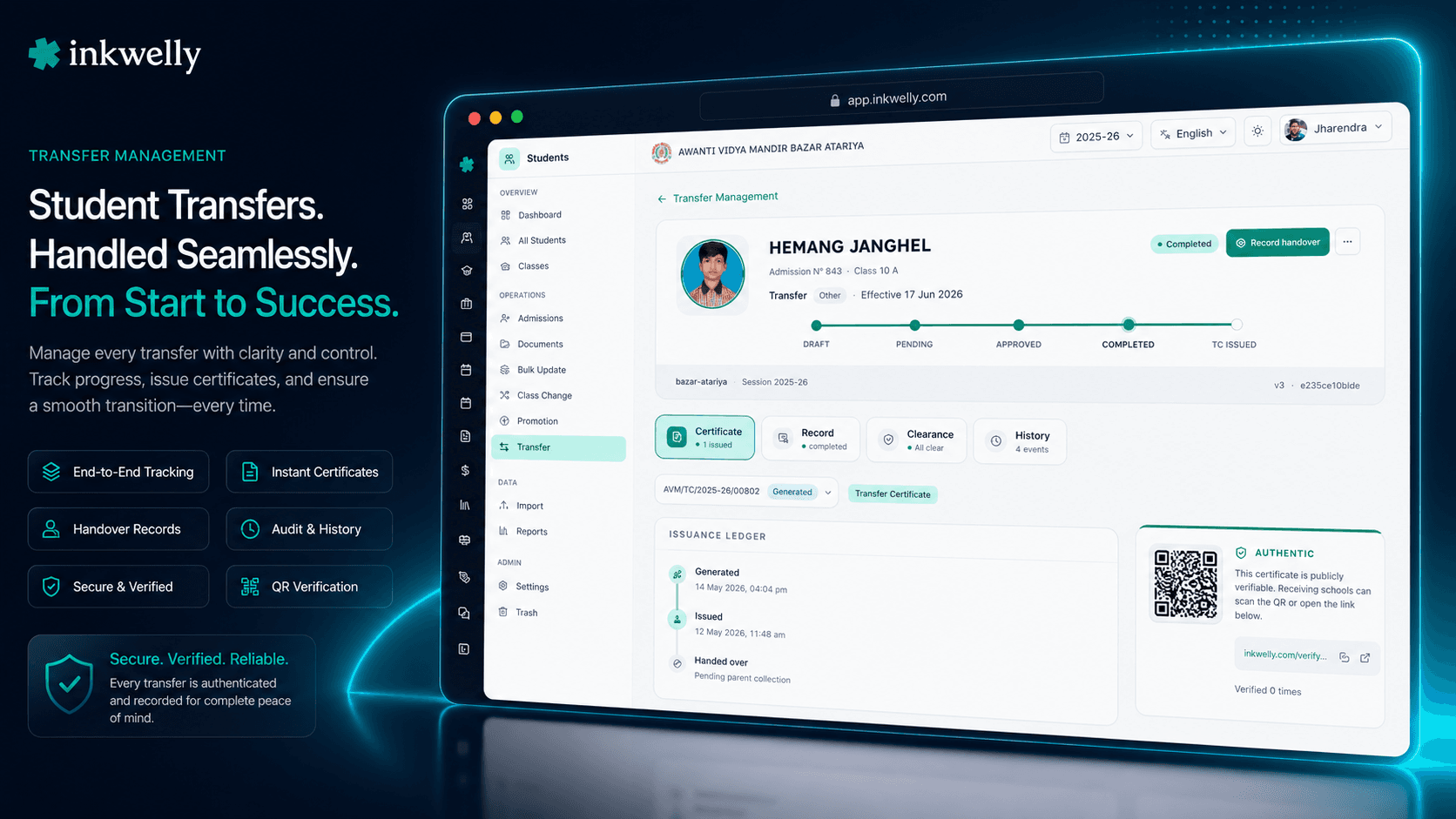
Why student exit week breaks every school office
It's the last week of March in a CBSE school in Indore. Fifty-eight students are leaving — eight transferred to other cities because parents got jobs in Bangalore and Hyderabad, twelve are migrating after their Class 10 board exam, six were withdrawn mid-session for medical reasons, and the rest are graduating from Class 12. Every parent wants the Transfer Certificate in hand before April 5th, because the receiving school's admission counter won't process the new application without it. The office assistant has a pile of fifty-eight blank pre-printed TC books stacked on her desk, a Class 10 student's mother on speakerphone asking why the certificate isn't ready, and the principal's signature backlog from yesterday still unsigned.
In most school ERPs this becomes a manual treadmill. Open the student profile. Mark transferred. Switch to the TC module. Pick the template. Type the TC number by hand from a register the previous office assistant kept (and lost the last page of). Type the leaving date. Type the reason. Type the conduct grade. Type the attendance summary. Type the fee balance. Type the parent's name three times because the form has father's name, mother's name and guardian's name as separate fields. Print on stationery. Get principal's signature. Hand to parent. Repeat fifty-seven times. The previous TC number was KSM/TC/2024-25/00342; the next one should be KSM/TC/2024-25/00343 — but the office assistant typed 00344 by mistake on student #18, and now there's a missing number in the school's official register that the CBSE affiliation renewal inspector will flag next year. The week the school dreads ends with seven Saturday hours, three reissued TCs because of typos, and the principal still owes two parents a phone call.
We built Transfer Management as a dedicated hub that handles the entire student-exit lifecycle in one place. Initiate a transfer with a structured reason, optional approval gate, and clearance checks for fees, library books and transport. Click 'Generate & Issue TC' once and Inkwelly allocates the next certificate number atomically (no gaps, no duplicates, no register-keeping), renders the bilingual PDF with the school's letterhead and principal's seal, stores it on secure cloud storage, and stamps a QR code that any receiving school can scan to verify in seconds. Run a session-end bulk exit for an entire Class 12 graduating cohort and every TC is issued in parallel. When a parent comes back two months later saying the transfer was a mistake — the family stayed in Indore after all — restore the student to active status with one click, even if the system's reversal window has expired. The week the school dreads becomes a Tuesday afternoon.
How Transfer Management works — one hub, every exit type
Open Students → Transfers in the session sidebar. The hub auto-filters to the current academic session — 2025-26 if that's what's in the URL — so the Indore office assistant managing this year's exits doesn't see last year's records cluttering the screen. Stats cards across the top show pending approvals, completed this month, changes requested, and rejected — all reflecting the full filtered dataset, not just the visible page. The list below sorts by latest leaving date, with tiebreakers so pagination stays stable.
Step 1 — Initiate a transfer. Click 'Initiate Transfer' and pick the student. Three exit kinds are first-class: TRANSFER (leaving with a TC for another school), WITHDRAWAL (leaving without continuing studies), MIGRATION (leaving the board entirely after Class 10 or Class 12). Pick a structured reason — relocation, financial, academic, medical, family, better opportunity, or other — and an effective date. For inter-school destinations, capture the receiving school's name, board affiliation, UDISE code, and address. The form respects per-school settings: if your school has approval-required mode on, the request enters PENDING_APPROVAL for the principal's sign-off; otherwise it goes straight to completion.
Step 2 — Clearance probes. Before completion, Inkwelly probes the four mandatory clearance gates configured for your school: fees outstanding, library books not returned, active transport assignment, hostel allotment. Each probe runs against the student's actual records — not a manual checklist. Fees clearance reads from the Student Fee module and shows the exact outstanding amount with a settle-or-override option for the office assistant. Library clearance counts unreturned books. Transport and hostel similarly. If any required gate fails, completion is blocked until settled or explicitly overridden by an authorised user — every override is audit-logged.
Step 3 — Generate & Issue Transfer Certificate. From the completed transfer, click 'Generate TC' on the detail page. Pick the TC configuration (your school's CBSE template, ICSE template or custom design) and the document kind (Transfer Certificate, Character Certificate, Bonafide, Study Certificate, Migration Certificate). Inkwelly chains the entire generate-and-issue flow in a single click: allocates the next certificate number atomically from a per-(school, session, prefix) sequence — so even if two office assistants click at the same moment, no two TCs ever share a number — renders the PDF with your school's letterhead, principal's signature placeholder, and frozen student/school/academic snapshots, uploads to secure storage, stamps a unique QR verification token on the document, and flips the certificate to ISSUED status. The office assistant gets the PDF download link, the parent gets a shareable QR code, and the audit log gets a complete event chain.
Step 4 — Hand over and (if needed) reverse. Print on stationery if the school still uses pre-printed books, or share the digital PDF directly. If a parent comes back saying the transfer was a mistake, click 'Reverse Transfer' on the record. Inkwelly restores the student to ACTIVE, revokes the issued TC (the QR code starts returning a revoked status to anyone who scans), reactivates parent portal access, and writes a RESTORATION audit entry. Reversal works regardless of how long ago the student left — a 30-day window is configurable but legacy-imported records bypass it entirely, so a student transferred two years ago in your old ERP can still be restored cleanly today.
What you can capture per transfer
- Three exit kinds first-class — TRANSFER (with TC), WITHDRAWAL (no continuing studies), MIGRATION (board exit). Each drives different downstream behaviour and reports separately.
- Structured exit reason — Relocation, Financial, Academic, Medical, Disciplinary, Family, Better Opportunity, Transferred to Another School, Dropped Out, Deceased, Other — picked from a dropdown so reports group cleanly.
- Effective date — last working day of the student at this school, drives the leaving date on the TC and on every report from that day forward.
- Receiving school — for external transfers, capture name, board (CBSE/ICSE/State/IGCSE/IB/NIOS), UDISE code, address, city and state. Required-or-optional configurable per school.
- Inter-school within trust — for trusts running multiple schools, mark the destination as another Inkwelly school in the same org and Inkwelly auto-creates the destination admission with admission-number continuity.
- Clearance gates — fees outstanding, library books, transport assignment, hostel allotment. Each gate is configurable as required or optional per school. Authorised users can override a failed gate with a logged reason.
- Approval workflow — opt-in per school. When on, transfers enter PENDING_APPROVAL until the principal approves. Reject and Request-Changes paths are first-class.
- Reversal window — configurable in days; isLegacy-imported records bypass the window entirely so historical transfers stay restorable.
- Per-record audit log — every state change writes an append-only event with actor, timestamp, IP, from-state, to-state, and reason. Stands up to CBSE renewal and state-board RTE inspection.
- Optimistic locking — two office assistants approving the same transfer at the same instant: one wins cleanly, the other gets a clear conflict toast. No silent overwrites.
Auto-filter by current session — never see stale data
The URL is the source of truth. When the office assistant is working in the 2025-26 session — the URL slug literally contains /2025-26/ — the Transfer Hub auto-filters to fromSessionId for that session. She sees only this year's exits. The session dropdown is pre-selected with the URL session, with a clear (Current) tag, and a single click on 'All Sessions' opts out for the rare cross-year audit query.
This matters for Indian schools running 5+ years of sessions in the same instance. A Class 5 exit from 2022-23 should not appear when she's processing Class 8 exits from 2025-26. The same auto-filter logic applies to the Transfer Certificates listing screen, so the office assistant never accidentally re-issues a duplicate from a previous year's records.
One click — number, PDF, QR, signature placeholder, audit
In most ERPs, generating a TC is a multi-step nightmare: pick template, allocate number from register, print, sign, scan, upload, mark issued. Each step is its own opportunity for a typo, a duplicate, or a lost record. Inkwelly chains the entire flow into a single click.
The atomic number allocation runs inside the same database transaction as the certificate creation, with a per-(school, session, prefix) sequence row that increments inside a row-level lock — even if two office assistants click 'Issue' at the exact same millisecond, no two TCs ever share a number. The PDF is rendered server-side from your school's configured template (CBSE format, ICSE format, or a custom designer-built layout) using a frozen snapshot of the student's profile, the school's letterhead, and the academic record at the moment of issue. The QR code stamped on the document encodes a unique verification token that any receiving school can scan to confirm authenticity in seconds — and the QR keeps working forever, because the verification endpoint is public-facing and serves the same snapshot data the parent received.
Bulk exits at session-end — entire Class 12 cohort in one batch
April doesn't just bring promotions. For every Class 10 and Class 12 school, it brings the cohort exit — students whose board results are out and who are migrating to junior college, university or another board. A school with two Class 12 sections has 80 students leaving on the same day with Class 12 Migration Certificates needed before the parent can apply to the next institution.
The Bulk Transfer wizard handles the entire cohort in two phases. Phase one validates: pick the students, pick the shared parameters (transfer kind, reason, effective date, destination metadata, optional auto-issue TC checkbox), and Inkwelly returns a per-student verdict — ok or blocked with a reason for each. Phase two executes: with one click, every passing student is transferred, the TC is generated and issued, and the result envelope reports succeeded: 78, failed: 2 with the failures itemised. Configurable abort-on-error means a school can demand strict-mode (halt on first failure) or partial-success (commit the wins, fix the failures separately) per batch.
Legacy import — bring every old transfer in one click
Schools switching from another ERP usually have hundreds of historical transferred students sitting in their database — students who left two, three, five years ago, with their original TC issued on paper from the old system. Without the right import, they're invisible to the new module: not searchable, not restorable, not auditable. The new principal can't answer when an alumnus from 2022 walks in asking for a duplicate TC.
Inkwelly's Transfer Hub detects these legacy records on first visit and surfaces a banner: 'You have 154 legacy transfers from before this module. Import to view and manage.' One click runs the bulk-backfill: every student in TRANSFERRED, WITHDRAWN or MIGRATED status that doesn't yet have a transfer record gets one synthesised with isLegacy=true, the original leaving date preserved, the exit reason mapped from the old database. The operation is idempotent — running it twice does nothing the second time — and the records show up in the hub immediately, fully searchable, fully audit-logged, and (critically) fully restorable. A historical transfer that's a mistake can be reversed even years later, because legacy records bypass the standard reversal window.
Restore a mistakenly transferred student — even years later
The most common Transfer support call to a school office is: 'Sir, the transfer was a mistake — can we restore the child?' A parent moved cities, then changed their mind. A student was withdrawn mid-session for a medical reason, recovered, and is back. An office assistant clicked Transfer instead of Class Change last term and nobody noticed for three weeks. In every case, the school needs to undo the action without losing the student's history — their attendance, their marks, their fee ledger, their entire profile.
Click 'Reverse Transfer' on the record. Inkwelly restores StudentAcademic.status = ACTIVE, clears the leaving date, clears the exit reason, reactivates parent portal access, and writes a structured restoration audit entry. If a TC was already issued, it flips to REVOKED — and the QR code on the printed certificate immediately starts returning a REVOKED status to anyone who scans, so a receiving school can't accidentally onboard the student off a revoked document. Reversal honours the configurable per-school window (default 30 days), but legacy-imported records bypass the window entirely. The student's marks, attendance, fees and every other record stay intact — the only thing that changes is their status.
“March mein 58 students ki TC banane mein pehle 5-6 din lagte the, aur 2 baar number repeat ho gaya tha jo CBSE inspection mein problem ban gaya. Ab Generate & Issue TC ek click hai — number automatic, PDF download ho jaata hai, QR bhi lag jaata hai. Bulk Transfer Wizard se Class 12 ke 78 students ek dopahar mein nikal gaye. Ek mother ne galti se transfer hua bola — ek click se reverse, baccha wapas active. Saara process audit log mein bhi hai.”
A typical end-of-session week with Inkwelly
March 25th — Pre-flight. The principal's signed list of leaving students arrives in the office — 58 names spanning all grades, a mix of inter-state relocations, post-Class-10 board exits and post-Class-12 graduations. The office assistant opens Transfer Settings once and verifies the four clearance gates are configured the way the principal wants — fees required, library required, transport optional, hostel disabled (the school doesn't have a hostel). She confirms the school's CBSE TC template is set as default and the number prefix KSM/TC/2025-26/ is correct. Five-minute task, one-time per year.
March 27th — Inter-state and mid-session exits. Twelve students are transferring to schools in Bangalore, Hyderabad, and Pune. She opens Transfer Hub, clicks 'Initiate Transfer' for the first student. Form: pick student, kind = TRANSFER, reason = RELOCATION, effective date = March 31st, destination = external CBSE school in Bangalore. Submit. Clearance probe runs — fees clear, library clear, transport not applicable. Status auto-flips to COMPLETED. Click 'Generate & Issue TC' on the detail page. One click → TC number KSM/TC/2025-26/00298 allocated, bilingual PDF downloaded, QR stamped, status ISSUED. She prints on the school's pre-printed stationery, gets the principal's signature in the afternoon batch, and hands to the parent. Repeats eleven times. By 4 PM, all twelve are done.
March 30th — Class 12 board cohort. Seventy-eight students whose Class 12 board exam is over and who need Migration Certificates before college admission. She opens Bulk Transfer Wizard. Phase 1: validate 78 students against shared parameters (kind = MIGRATION, reason = OTHER + remark 'Class 12 board exit', effective date = March 31st, destination = NOT_APPLICABLE, auto-issue TC = on). Verdict: 76 cleared, 2 blocked because of pending library books. The two students return their books in the afternoon, she re-validates — 78 cleared. Phase 2: execute. The wizard processes all 78 in parallel — each transfer COMPLETED, each TC generated and issued with a unique number, each PDF stored on cloud storage. Result envelope: succeeded: 78, failed: 0. She downloads the bulk ZIP and sends each parent the digital PDF on WhatsApp. By 6 PM, the entire Class 12 cohort is done.
April 2nd — Reversal of a mistake. A Class 6 parent calls saying the family job in Bangalore fell through — they're staying in Indore, please undo the transfer. The office assistant opens the student's transfer record, clicks 'Reverse Transfer', enters reason 'Family decision changed; staying in original city', confirms. Student ACTIVE status restored, TC revoked, parent portal reactivated. The QR code on the printed TC the parent received last week now returns REVOKED if anyone scans it. The child shows up in school the next morning and is on the class roster as if nothing happened. Total time: 90 seconds.
Through the year — alumni duplicate requests. An alumnus from Class 12 2022-23 walks in asking for a duplicate TC because his original was destroyed in the floods. She searches the Transfer Certificates list, switches the session filter to 2022-23, finds his record. Click 'Issue Duplicate' — Inkwelly creates a new TC with the same data, a fresh certificate number, a duplicateNumber: 1 flag, a fresh QR token, and the original TC link preserved. Five minutes, no rummaging through old paper registers.
Edge cases the Transfer hub handles cleanly
- Inter-school within trust — a trust running 6 schools transfers a student from
KSMtoKSM-2with admission number continuity and a single audit chain across both schools. - Approval-required mode — schools that want principal sign-off enable approval; transfers wait in PENDING_APPROVAL until approved, rejected, or sent back for changes.
- Self-approval guard — when approval is required, the same user cannot both initiate and approve unless the school explicitly allows self-approval.
- Clearance override with reason — authorised users can override a failed clearance gate (e.g., parent has agreed to settle dues separately) with a logged reason; the override is part of the audit trail.
- Pre-printed stationery — schools using physical TC books can configure the template as PRE_PRINTED with field-mapping coordinates; Inkwelly prints only the values onto the pre-printed form.
- Bilingual TC — every certificate template supports English-only or English+Hindi side-by-side; the rendered PDF reflects the school's chosen language preference.
- Public verification page — every issued TC carries a QR code linking to a public verify URL; receiving schools see the certificate number, school name, student name, class, and validity in one tap, with optional captcha-gated full details.
- Number format flexibility — configure prefixes like
KSM/TC/{YYYY-YY}/{SEQ:5}, with placeholders that resolve from the academic session start date — never from the system clock. - Number allocation timing — choose between allocating at GENERATED (early, common for digital workflows) or at ISSUED (late, for boards that require gap-free issuance).
- TC kinds beyond Transfer — the same template engine renders Character Certificates, Bonafide Certificates, Study Certificates and Migration Certificates with the same atomic numbering and QR verification.
- Mistakenly transferred — restorable years later — legacy-imported records bypass the reversal window so a transfer from 2022 can be reversed in 2026 if needed.
- Bulk concurrency cap — admin-configurable per school; protects the database from runaway bulk runs on shared infrastructure.
See Transfer Management live on your school's data
Bring last year's TC register and your old ERP's transferred-student list. We'll set up your school's Transfer Settings and TC template during the demo, run an end-of-session bulk for an entire cohort, and show you how a week of office work becomes one afternoon — including the legacy import.
Limits, safety, and the small print
Atomic number allocation, no gaps. TC numbers are allocated inside the same database transaction as the certificate row, from a per-(school, session, prefix) sequence with a row-level lock. Two office assistants clicking 'Issue' at the same instant: one wins, one gets a clean conflict response, no number is ever skipped or duplicated. Optional gap-free mode allocates only at ISSUED time (rather than GENERATED) for boards that require strict serial issuance.
Optimistic locking on every state change. Approve-twice, reverse-twice, complete-twice — every state transition uses a version check so the second action returns a conflict instead of silently overwriting. The office assistant always knows whether her click took effect.
Append-only audit log. Every state change writes a TransferEvent row with from-state, to-state, actor, timestamp, IP and notes. CANCELLED, REJECTED, REVERSED, REVOKED and REPLACED are terminal states — never deleted, never edited. The audit trail stands up to CBSE renewal, ICSE inspection and state-board RTE compliance review.
QR verification is public-facing. Every issued TC's QR encodes a unique token that resolves at /verify-tc/<token> with no login required. Default response is minimal (TC number, school, student name, class, validity) for privacy. Optional full details are gated by captcha and access-logged. Rate-limited at 10 requests per IP per minute, 3 per token per minute.
Multi-tenant isolation. Every transfer operation strictly respects the school it ran in. A trust running 6 schools runs Transfer Management per-school independently with no cross-school leak. Inter-school-within-trust transfers are a special supported flow with explicit destination capture.
Reversal window. Configurable per school, default 30 days from the effective date. After the window, reversal is blocked with a clear error unless the record is isLegacy=true (which bypasses the window) or an authorised user is explicitly granted unlimited-reversal permission.
Role-based access. Eight transfer-specific permissions: view, initiate, approve, complete, reverse, override-clearance, manage-tc, design-tc. Most schools keep manage-tc and design-tc to admin and principal, view to all office staff. Configure per role from school IAM settings.
Idempotent legacy import. The bulk legacy backfill is safe to re-run — it skips students who already have a transfer record. Useful when migrating in stages from another ERP.
Module gate. Transfer Management is part of the Student Information module. Schools can disable the module entirely to hide every related screen and endpoint.
Belongs to
1 moduleWhat’s new
1 updateFrequently asked
9 questionsWhat's the difference between Transfer, Withdrawal and Migration?
TRANSFER is when a student leaves with a Transfer Certificate to join another school — the most common case in Indian schools. WITHDRAWAL is when a student leaves without continuing studies — health reasons, family decisions, or dropping out. MIGRATION is when a student exits the board entirely after `Class 10` or `Class 12` — typically post-board-exam migration to junior college, university or a different educational track. All three are first-class exit kinds in Inkwelly with separate reports, separate audit trails, and the same Transfer Certificate document workflow available.
How does Inkwelly prevent duplicate TC numbers?
TC numbers are allocated atomically inside the same database transaction as the certificate creation, from a per-(school, session, prefix) sequence row. Postgres row-level locking ensures that even if two office assistants click 'Issue' at the exact same millisecond on different students, no two TCs ever share a number. The sequence resets per academic session — `KSM/TC/2025-26/00001` is independent of `KSM/TC/2026-27/00001`. Schools that need gap-free serial issuance for board compliance can configure allocation to happen at ISSUED time (instead of GENERATED time) so that any failed-and-discarded draft never consumes a number.
Can I issue a Transfer Certificate in Hindi for a Hindi-medium school?
Yes. Every TC template supports an English-only render or an English+Hindi side-by-side render, configured per template. The PDF generator resolves the school's preferred language at issue time and renders student name, parent names, class name, declarations, and the official certifying statement in the chosen language. Numbers stay in Latin digits (per Indian schooling convention). The QR code and verification URL are language-agnostic. Brand names like CBSE, ICSE, UP Board stay in English script even on the Hindi version.
What if a student is transferred by mistake — can I undo it?
Yes — click 'Reverse Transfer' on the record. Inkwelly restores the student to ACTIVE status, clears the leaving date, clears the exit reason, reactivates parent portal access, revokes the issued TC (the QR code immediately returns REVOKED to anyone who scans), and writes a structured restoration audit entry. The student's marks, attendance, fees and every other record stay intact — only their status flips back. Default reversal window is 30 days from the effective date, configurable per school. Legacy-imported records (transfers brought in from your old ERP) bypass the window entirely, so a transfer from two years ago is still restorable today.
We have 200 students leaving at the end of `Class 12`. Can I issue all their TCs at once?
Yes — use the Bulk Transfer Wizard. Phase 1 validates: pick the cohort, pick the shared parameters (kind = MIGRATION, reason, effective date, optional auto-issue-TC checkbox), and Inkwelly returns a per-student verdict. Phase 2 executes: every passing student is transferred and their TC is generated and issued in parallel, with each certificate getting its own atomically-allocated number. The result envelope reports succeeded, failed counts. Configurable abort-on-error means you can demand strict-mode (halt on first failure) or partial-success (commit the wins, fix failures separately). A 200-student cohort is typically done in 5-10 minutes.
We're switching from another ERP and have hundreds of historical transferred students. Will Inkwelly carry them over?
Yes. After your data migration, the Transfer Hub detects every student in TRANSFERRED, WITHDRAWN or MIGRATED status that doesn't yet have a transfer record and surfaces a banner: 'You have N legacy transfers from before this module. Import to view and manage.' One click runs the bulk-backfill — every legacy student gets a synthesised transfer record with isLegacy=true, the original leaving date preserved, the exit reason mapped from the source database. The records are immediately searchable, fully audit-logged and (importantly) restorable — bypassing the standard reversal window so a 2022 transfer can still be reversed in 2026 if needed. The operation is idempotent — running it twice does nothing the second time.
How does Transfer Certificate verification work for the receiving school?
Every issued TC carries a QR code that encodes a unique verification token. The receiving school's office staff scan the QR (any phone camera works) which opens a public verification URL — no login required. The default response is minimal — TC number, school name, student name, class, board, issue date, and a validity tag (VALID, REVOKED, REPLACED, BLOCKED). Optional captcha-gated full details show parent names, conduct, attendance and fee status. The endpoint is rate-limited (10 requests per IP per minute, 3 per token per minute) to prevent enumeration. Revoked or replaced certificates immediately reflect that status — so a TC that was issued and later revoked because of a reversal can no longer be used to onboard the student elsewhere.
Does Inkwelly support pre-printed Transfer Certificate stationery?
Yes. Schools that prefer the physical pre-printed TC books configure the template type as PRE_PRINTED instead of DIGITAL, with field-mapping coordinates (X/Y position in mm) for each value. Inkwelly prints only the values — TC number, student name, class, dates, declarations — onto the pre-printed form, leaving the school letterhead, seal area and signature block as the pre-printed background. Calibration offsets handle minor printer-tray drift. The same template can be flipped to DIGITAL for parents who want a soft copy with QR verification.
Can I issue a duplicate TC for an alumnus who lost their original?
Yes. Find the original TC in the Transfer Certificates list (use the session filter to switch to the alumnus's leaving year), open the record, and click 'Issue Duplicate'. Inkwelly creates a new TC with the same student/school/academic snapshot, a fresh atomically-allocated certificate number, a duplicateNumber counter (1 for the first duplicate, 2 for the second, and so on), a fresh QR verification token, and a back-link to the original. The new TC has its own audit trail with the duplicate reason. Both the original and the duplicate stay valid — verification responses correctly identify which is the original and which is a duplicate copy.
You might also like
2 readsSee Inkwelly on your school
30-minute demo. We open your current ERP with you and load your data into Inkwelly on the call. Dated go-live plan by the end of it.