Move students between classes — mid-session, in seconds. Single or bulk. Roll numbers, effective date, audit included.
Inkwelly's Class Change moves a student — or fifty — from one class section to another inside the same academic session, with the effective date, reason, remarks and audit log captured in one save. Designed for the routine reshuffles every Indian school office runs in July, October and January when sections rebalance, parents request a section move, or RTE seats fill up.
Why mid-year class changes happen — every Indian school, every term
The school year opens on April 1st with each section — Class 6 A, 6 B, 6 C — neatly balanced at 38 students. By July, that balance is gone. Three students transfer in from a sister branch and need Class 6. Two parents walk into the office insisting their child be moved to the section with the better Hindi teacher. The District Education Officer's RTE inspection in October flags two students whose reservation seats are in Section A but were admitted into Section C. The Class 6 B teacher resigns in January and the principal decides to merge thirteen of her students into 6 A and 6 C.
In most school ERPs, every one of those moves is a clerical war. Open the student profile. Change the class dropdown. Manually pick a new roll number. Re-save. Hope the parent app updates the section on their child's dashboard. Hope the fee ledger doesn't break. Hope the audit log records who changed what when. Most ERPs don't even ask for an effective date — the change just happens, immediately, with no record of the reason. Six months later when a parent disputes the move, nobody can find the trail.
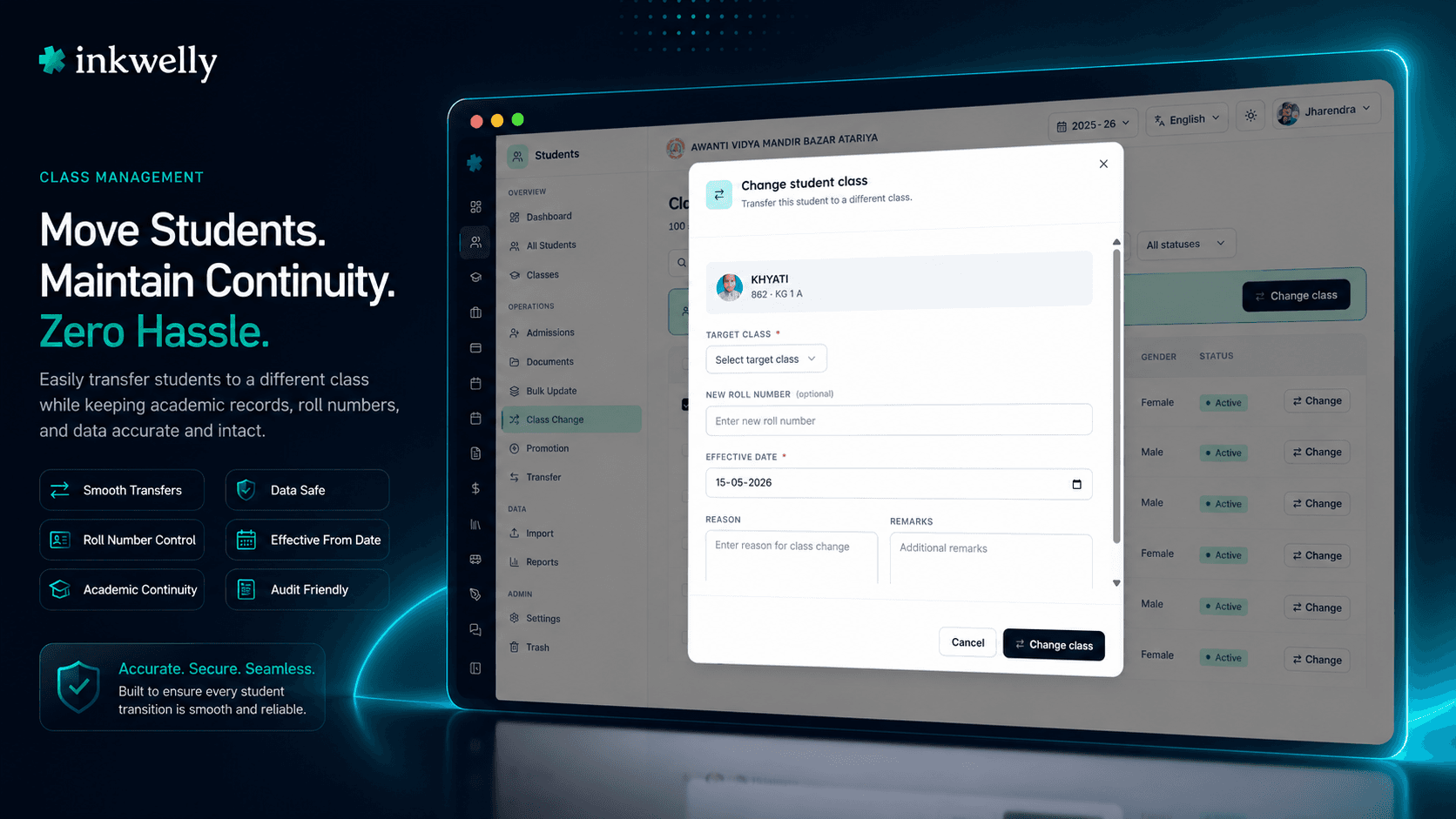
We built Class Change as a dedicated screen that handles this routine without ceremony. Filter to the cohort. Tick the students who are moving. Pick the target class. Set the effective date. Add a one-line reason if you want. Save. Inkwelly assigns new roll numbers, refreshes the parent app, updates the fee ledger, and writes an audit-log entry per student — all in a single transaction.
How Class Change works — one screen, one save
Open Students → Class Change in the session sidebar. The page loads with up to 100 active students from the current session, sorted alphabetically. The header shows three counters — total students, active count, and inactive count — so the office assistant immediately knows the cohort size she is working with.
Step 1 — Filter to the cohort. Four filters across the top: free-text search by name, class dropdown (populated from your school's actual class list — Pre-Nursery through Class 12 Commerce), gender, and status (Active / Inactive / All). The grid updates instantly. Most class-change runs filter to one section — Class 6 B — narrowing 1,200 students to the 38 you actually need to act on.
Step 2 — Pick the students. Tick the row checkboxes for the students moving. The selection bar appears at the top with a count and a 'Change class' button. Or hover any single row's right-side button — a one-click move for that student alone, no checkbox needed.
Step 3 — Configure the move. A dialog opens. Pick the target class from the same school class list. For bulk selections, an inline mini-table lets you type a new roll number per student (optional — leave blank to let Inkwelly assign sequentially). Set the effective date — defaults to today, can be back-dated for record correction or forward-dated for an upcoming term. Add a reason and remarks if you want them on record.
Step 4 — Save. Inkwelly applies the change per student in a single batch. A success toast confirms the count moved. Failed rows (a duplicate roll number in the target class, an inactive class, a section already at capacity) toast back with the specific reason. The students you successfully moved are immediately reflected in the class roster, the fee ledger, the attendance register, and the parent app — no second save, no manual refresh.
What gets recorded with every class change
- Source class — the student's current
Class 6 B(with section) at the moment of the move. - Target class — the new
Class 6 Aselected from your school's actual class list, never free-text. - New roll number — typed per student, or auto-assigned by Inkwelly to the next available number in the target section.
- Effective date — back-datable for record correction, forward-datable for next-term moves; defaults to today.
- Reason — short text field for the human-readable cause: 'Section rebalancing', 'Parent request', 'RTE seat correction', 'Teacher merge'.
- Remarks — longer free-text field for any additional context the office wants on record.
- Actor — the user who performed the move, from the authenticated session.
- Timestamp — server-side, with timezone, written to the audit log.
- Affected modules — fee ledger, attendance register, exam roster, transport route assignment all auto-update against the new class.
- Per-student outcome — success or specific failure reason, returned per row so partial-success runs don't lose the changes that did go through.
- Soft history — the previous class-membership row stays in the student's academic history, so reports across the year reflect both sections.
Filter first — never open the whole school
Most school ERPs that have any class-change screen at all dump every student into one giant table. 1,400 students render at once, the page lags on the office laptop, and the office assistant scrolls forever to find the 8 students she actually wants to move. We don't do that.
The filter bar at the top of Class Change supports four narrowing tools — free-text name search, class dropdown (your real class list), gender filter, and active/inactive toggle. With page size capped at 100 students, the grid stays fast even on a school with 2,500 students. Filter to Class 6 B — 38 rows. Filter to all girls in Class 8 — 32 rows. Filter to a name match like 'Ahmed' — 4 rows. You only see the students you intend to act on. Less to scroll, less to misclick, faster to save.
The header counter line — total students, active, inactive — tells you at a glance whether your filter is on the right cohort before you tick a single checkbox.
Single moves AND bulk moves — same screen, same dialog
Most school operations are mixed. The office assistant moves one student in the morning when a parent calls about a section preference, then runs a 30-student rebalance in the afternoon when the principal merges two sections. Forcing her to learn two different screens for those two flows is the kind of busywork that makes school staff hate ERPs.
Class Change handles both from one screen. For a single move, hover any row — an inline ArrowRightLeft button on the right opens the dialog with that one student pre-selected. For bulk, tick the row checkboxes, click 'Change class' in the selection bar — the same dialog opens, with a per-student roll number table embedded inside. The fields, the validation, the audit log behavior — identical between the two. The office assistant learns one flow that scales from 1 student to 100.
Per-student roll numbers, in the dialog itself
Indian schools care about roll numbers. The Class 6 A roll list is read out at morning assembly. The exam seating plan goes by roll. Teachers identify students by roll-and-name in the attendance register. When a student moves from 6 B to 6 A, she needs a new roll number — typically the next available one in the target section, sometimes a specific number the principal wants reserved.
The Class Change dialog has a sticky-header mini-table for the new roll numbers. Each selected student gets a row with their photo, name, admission number, and an inline number input for the new roll. Type sequentially — 40, 41, 42, 43 — or skip the input and let Inkwelly auto-assign the next available number in the target class. Either pattern works, in the same flow. The roll numbers are validated against the target class — if Class 6 A already has a roll 40, the failed row reports back specifically and stays editable, while the rest of the batch saves.
Effective date, reason, remarks — every change traceable
The two fields most ERPs forget — effective date and reason — are the two fields that survive an audit. When the District Education Officer asks why a Class 6 RTE student moved sections in October, 'because someone changed it' is not an answer. The Class Change dialog makes the answer mechanical.
Effective date defaults to today but accepts any date — back-datable for cleanup of historical errors (a student was actually in 6 A since June 15th, the office only entered the change today), forward-datable for upcoming term moves (effective October 1st, when the new term starts). Reports across the year honour the effective date — a Class 6 B attendance summary for September will show the student as 6 B, October will show her as 6 A, automatically.
Reason is a one-line free-text field. Most schools use four to six standard phrases — 'Section rebalancing', 'Parent request', 'RTE seat correction', 'Teacher merge', 'Discipline transfer', 'Section closure'. Remarks is the longer field for context — the parent's email reference, the management committee meeting date, the file note number. Both are written to the audit log alongside the actor and timestamp. Six months later, the trail is intact.
“October mein RTE inspection ke pehle hum ne 14 students ko sahi sections mein move kiya. Pehle 14 alag-alag profiles open karke save karna padta tha — pura din lag jata tha. Ab Class Change screen pe filter laga, tick kiya, save kiya — 9 minute. Reason field mein 'RTE seat correction' likh diya, audit log saaf hai. Inspector ne dekh ke poochha bhi nahi — date aur reason saamne tha.”
Five real Indian-school class-change scenarios
1. July section rebalancing (Tier-2 city CBSE day school). Three students transferred in from the sister branch. Class 6 A has 41 students, 6 B has 36, 6 C has 38. The principal asks the office to move two from 6 A to 6 B to even it out. Filter to Class 6 A, tick the two students by name, target class Class 6 B, effective date today, reason 'Section rebalancing'. Saved in 4 minutes — including the conversation with the principal about which two students.
2. RTE seat correction before October DEO inspection. Fourteen students were admitted under the RTE 25% reservation but the document compliance audit reveals their reservation seats were assigned in Class 1 A while their actual classroom is Class 1 B. Filter to admission-year-2026 + Class 1, tick the 14 RTE students, target class Class 1 A, effective date back-dated to admission date (April 1st), reason 'RTE seat correction'. Saved in 9 minutes. The DEO inspection has the trail.
3. Teacher resignation mid-year (residential school, January). The Class 6 B form teacher resigns. The principal decides to merge the section — 13 students go to 6 A, 12 to 6 C. Filter to Class 6 B, tick the first 13 by roll number order, target Class 6 A, type new roll numbers 40-52, effective date February 1st (forward-dated to the new term). Save. Filter again, tick the remaining 12, target Class 6 C, roll numbers 38-49, save. Two batches, 11 minutes total. The Class 6 B fee ledger and attendance register cleanly close on January 31st.
4. Parent request after parent-teacher meeting. A Class 4 parent writes to the principal asking that her son be moved from Class 4 B to Class 4 A because his closest friend transferred there. The principal approves. Office assistant opens Class Change, finds the student by name, hits the inline ArrowRightLeft button, target Class 4 A, reason 'Parent request', remarks 'Letter dated 2026-08-10, file note PT-2026/47'. 90 seconds.
5. Discipline transfer (Tier-3 town state-board school). A Class 9 student is moved from Class 9 A to Class 9 C for behavioural reasons after a management committee decision. Office assistant runs a single-row class change with reason 'Disciplinary transfer per MC resolution dated 2026-09-14', remarks 'MC resolution PDF attached to student file'. The audit log links the move to the management decision — three years later when a board appeal references it, the trail is intact.
Common Indian-school class-change scenarios — all in one screen
- Section rebalancing in July — even out 41-36-38 sections after late admissions land.
- RTE seat correction — fix mismatches between reservation roster and classroom assignment.
- Teacher resignation merge — close a section, redistribute students into siblings.
- Parent request transfer — move a single child after a parent-teacher meeting.
- Disciplinary transfer — record the management committee decision alongside the move.
- Stream change — Class 11 student switches from
CommercetoArtsafter JEE-result review. - Boarding-house section split — move day scholars and boarders to separate sections at boarding intake.
- Sibling co-section move — keep two siblings in the same section after a family request.
- Hostel-block class re-mapping — when residential schools re-assign hostel blocks to specific class sections.
- Mid-term affiliation change — students moving between CBSE and State Board sections within the same school.
- Forward-dated next-term move — record an October 1st change today so the next-term roster auto-applies.
See Class Change live on your school's sections
Bring 5 routine class-change scenarios you handle every term. We'll set up your school's class list during the demo, run all 5 scenarios live, and show you how each becomes a single audited save.
Limits, safety, and the small print
Within-session only. Class Change moves a student between two classes inside the same academic session. For year-end moves to the next session — 2025-26 to 2026-27 — use the dedicated Promotion screen instead. Promotion handles the cross-session migration of the entire fee ledger, attendance register and exam roster; Class Change does the within-session reshuffle.
100 students per page. The grid loads up to 100 students at once — enough for an entire class section, a filtered cohort, or a name search. To act across a larger set, page through using the filter (Class 1, then Class 2, then Class 3 — 100 each) and run successive saves. Each save is its own atomic batch with its own per-row outcomes.
Per-row atomicity. Every selected student is processed as its own transaction. A duplicate roll number in the target class fails that one row — the rest of the batch saves. The Results toast shows successes and the specific reasons for any failures. No all-or-nothing rollback.
Effective date drives reports. Reports across the year honour the effective date — a Class 6 B attendance summary for September will show the student as 6 B, an October summary will show her as 6 A. Back-dated and forward-dated changes are honoured the same way. The audit log captures both the change-creation timestamp and the effective date.
Audit log per change. Every field change writes to the audit log — actor, timestamp, IP address, source class, target class, roll number, effective date, reason, remarks, source ('Class Change'). The audit log is exportable from the school admin panel and is what stands up to a CBSE renewal or DEO inspection.
Role-based access. Class Change is gated to school admin and principal roles by default. Class teachers see individual student edits in their own assigned section but not the bulk class-change screen. Configure permissions per role from the school IAM settings.
Multi-tenant isolation. Like every Inkwelly module, your school's Class Change operates strictly on your school's records. Multi-school trusts run Class Change per-school independently — no cross-tenant access, no risk of editing the wrong school's records.
Multi-language record handling. Names in non-English scripts (Devanagari, Bengali, Tamil) on the student record carry through unchanged — the class change does not alter name fields. Records remain valid for state-board paperwork in the regional script after the move.
Belongs to
1 moduleFrequently asked
8 questionsWhat's the difference between Class Change and Promotion?
Class Change moves a student between sections inside the SAME academic session (e.g., from Class 6 A to Class 6 B in 2025-26). Promotion moves students to the NEXT academic session (e.g., Class 5 in 2025-26 to Class 6 in 2026-27). Class Change is a within-session reshuffle; Promotion is a year-end cross-session migration. Use Class Change for July rebalancing, RTE corrections, teacher merges, parent requests, and disciplinary transfers.
Can I move a student to a class in a different school session (year)?
No — Class Change is strictly within-session. For year-end moves from 2025-26 to 2026-27, use the dedicated Promotion screen instead. Promotion handles the cross-session migration of the entire fee ledger, attendance register and exam roster. Class Change is for the within-session reshuffles every Indian school office runs in July, October, January and February.
Will the change reflect immediately in the parent app and fee ledger?
Yes. The save updates the class roster, fee ledger, attendance register, exam roster, transport route assignment, and parent-app dashboard in a single transaction. Parents see the updated section the next time they open the app — typically within seconds. The effective date determines which historical reports include the student in the old vs new section.
Can I back-date a class change for record correction?
Yes. The effective date defaults to today but accepts any date — past or future. Back-dated changes correct historical records (e.g., a student was actually in Class 6 A since June 15th, the office is recording it on July 20th). Forward-dated changes record upcoming term moves (e.g., effective October 1st when the new term starts). Reports across the year honour the effective date automatically.
What happens if a roll number I assign is already taken in the target class?
That specific row fails with a clear error — 'roll number 40 already exists in Class 6 A'. The other students in your batch save successfully. The failed row stays editable so you can pick a different roll number and retry. No all-or-nothing rollback. If you leave the roll number blank, Inkwelly auto-assigns the next available number in the target class — no conflict possible.
Is the change audit-logged?
Yes. Every class change writes a per-student entry to the audit log — actor, timestamp, IP address, source class, target class, roll number, effective date, reason, remarks, source ('Class Change'). The audit log is exportable from the school admin panel and is what stands up to a CBSE renewal, ICSE inspection, or state-board RTE compliance audit. The previous class-membership row stays in the student's academic history — never deleted.
Can class teachers run class changes for their own section?
By default no — Class Change is gated to school admin and principal roles. Class teachers see individual student edits in their assigned section but not the bulk class-change screen. Most schools keep it admin-only because the impact of a class change touches the fee ledger, attendance register and exam roster. If your school wants to delegate, that's configurable from the school IAM settings as a per-role permission.
Does it support all CBSE / ICSE / State Board class structures?
Yes. Class Change uses your school's actual class list — Pre-Nursery through Class 12, science / commerce / arts streams, vocational classes, NIOS classes, hostel-block-specific classes, residential boarding sections, even non-standard names. Works for CBSE day schools, ICSE residential schools, IB primary years, IGCSE secondary, NIOS, and every Indian state board (UP, Maharashtra, Karnataka, Tamil Nadu, West Bengal, Rajasthan, Madhya Pradesh, Kerala, Andhra Pradesh, Telangana, Bihar, Gujarat, Punjab and beyond).
You might also like
3 readsSee Inkwelly on your school
30-minute demo. We open your current ERP with you and load your data into Inkwelly on the call. Dated go-live plan by the end of it.