How to mark RTE students and prepare a claim in Inkwelly
For school accountants and principals running the 25% RTE quota under the Right to Education Act in private unaided schools. By the end you will have a Pending claim in Inkwelly with eligible RTE students, per-child amounts and a claim period — ready for the office to submit to the District Education Office.
To mark RTE students and prepare a claim in Inkwelly: open Student Fee then Students, edit each eligible child's fee profile and switch on RTE Student. Then open RTE then Reimbursements, click New Claim, enter a claim number with the period dates, and from the claim detail page add each RTE student with the per-child reimbursable amount. The claim sits as Pending until the office submits it to the District Education Office.
Section 12(1)(c) of the Right of Children to Free and Compulsory Education Act, 2009 reserves 25% of Class 1 seats in private unaided schools for children from Economically Weaker Sections and Disadvantaged Groups, and the state reimburses the school for the per-child cost. A 1,200-student school with 25% RTE intake at Class 1 carries roughly 30 RTE students per cohort, meaning around 150 to 180 active RTE students across Classes 1 to 6 once the rolling intake matures. Most states accept quarterly claim windows of three months each, so an office that bundles students correctly files four claims a year per District Education Office.
1. Open the student fee profile
Open Inkwelly, then Student Fee, then Students from the left sidebar. Search by admission number, name or class. Click the RTE-eligible student to open the fee profile detail page. The profile header shows Edit, Recalculate, Info and Delete actions on the right. This is the same profile that holds the student's fee structure, invoices, payments and outstanding balance, and RTE eligibility lives here so the discount and the claim trail stay tied to one record.
2. Switch on RTE Student in Edit Profile
Click Edit on the fee profile header. The Edit Profile dialog opens with the RTE Student toggle near the bottom of the form. Switch it on and click Save. Inkwelly now tags this child as RTE, the student appears on the RTE Students list, on the dashboard RTE tracker and in the eligible roster when you add items to a reimbursement claim. Repeat this step for every RTE-admitted child for the session. For schools that admitted ten or more RTE children in one batch, the admissions team usually pre-sets this flag during entrance; this step is the office's fallback when the flag was missed.
3. Open RTE Students and verify the roster
From the Student Fee sidebar open RTE, then RTE Students. The page lists every child you have flagged, with four KPI tiles at the top: Total RTE, With Claims, Without Claims, Disbursed. Use the Without Claims pill to see which RTE children have not yet been added to any reimbursement claim, these are the ones the next claim should cover. Confirm class, date of birth and admission number for each child against the original RTE allotment list from the District Education Office before moving to the claim itself.
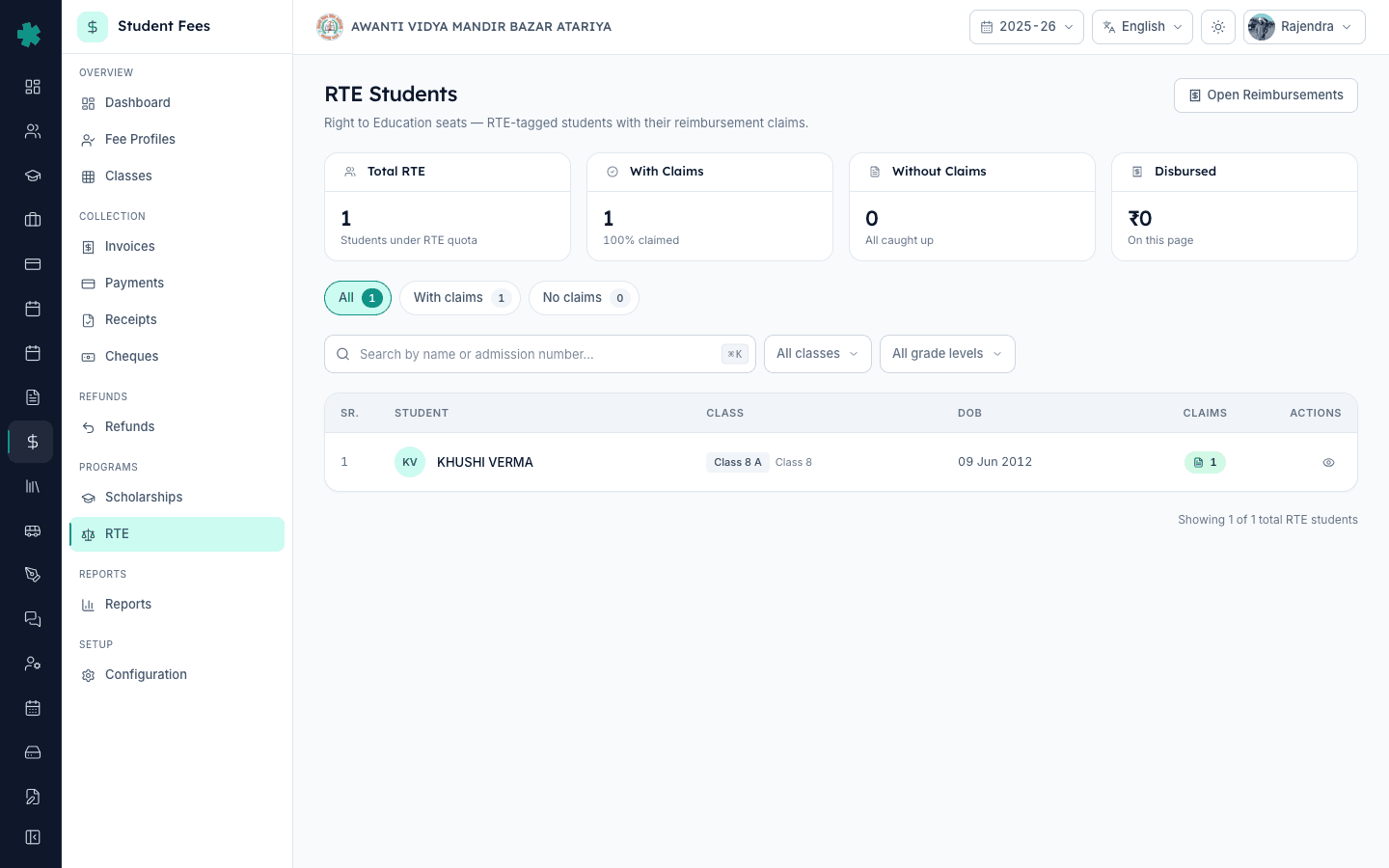
4. Open Reimbursements and click New Claim
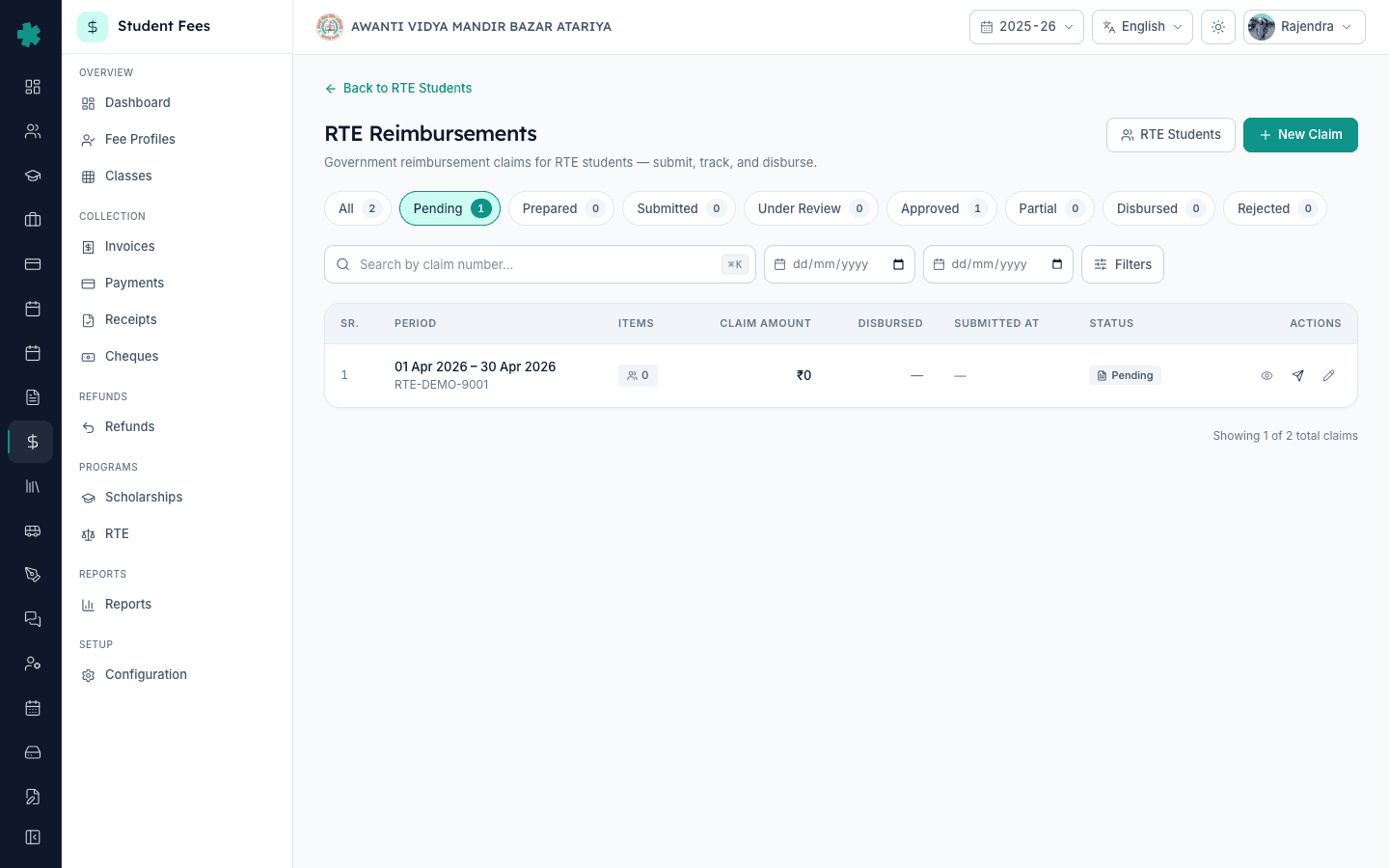
Click Open Reimbursements on the RTE Students page, or open RTE then RTE Reimbursements directly. The page lists every claim the school has filed, with status filters across the top: All, Pending, Prepared, Submitted, Under Review, Approved, Partial, Disbursed, Rejected. Click the blue New Claim button on the top right. The New Claim dialog asks for a claim number, period from, period to and optional remarks. The claim number is the internal reference your office writes on the cover letter to the District Education Office.
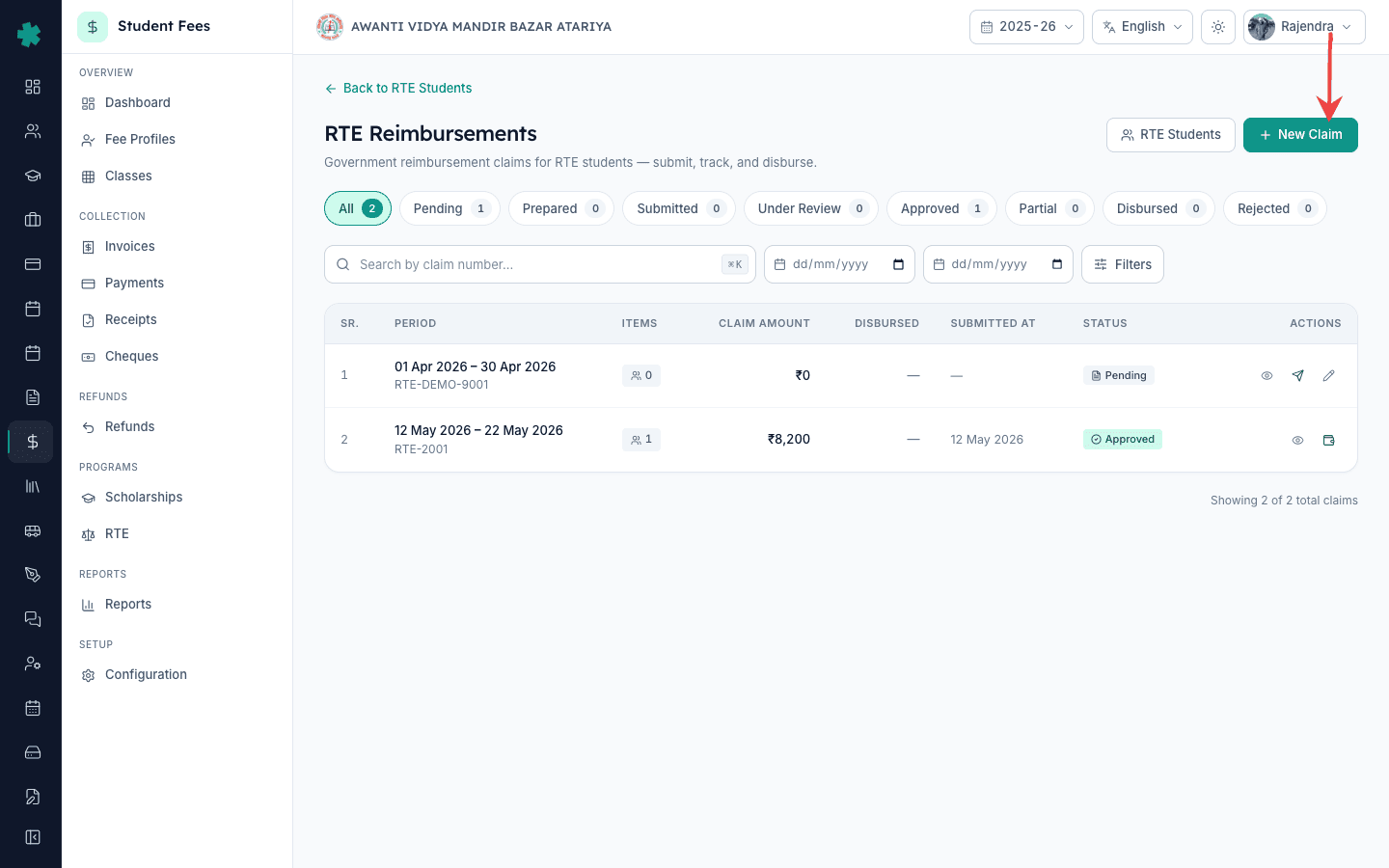
5. Fill the claim number and period dates
Enter a claim number in the format your office uses, for example RTE-2025-Q1 for the first quarter or RTE-2026-001 for a sequential scheme. Pick Period From and Period To covering the months this claim accounts for (quarterly windows are typical: April to June, July to September, October to December, January to March). Add a one-line remark such as the District Education Office reference or the cohort being claimed for, then click Create Claim. Inkwelly opens the new claim in Pending status with zero items and zero claim amount.
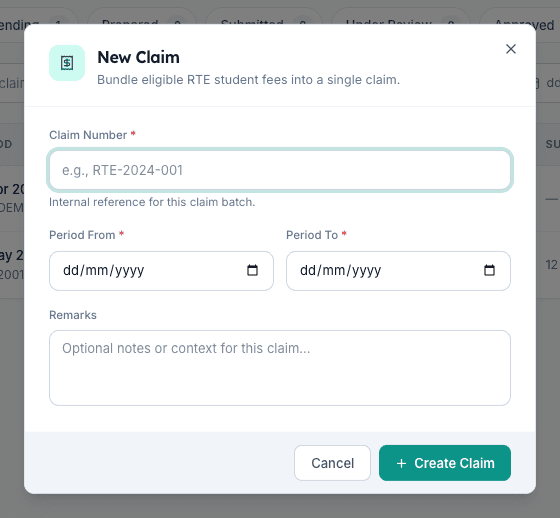
6. Add eligible RTE students with per-child amounts
On the claim detail page click Add Item. The Add Claim Item dialog shows only RTE-tagged students who are not already in this claim, so duplicates across claims are prevented. Pick the child from the dropdown, enter the Claim Amount in rupees (the state's per-child annual reimbursement, or the prorated quarterly slice if the state pays quarterly), add an optional remark and click Add Item. Repeat for every eligible child in the roster. The claim totals at the top update live as each item is added, total students, total claim amount and the disbursed running total.
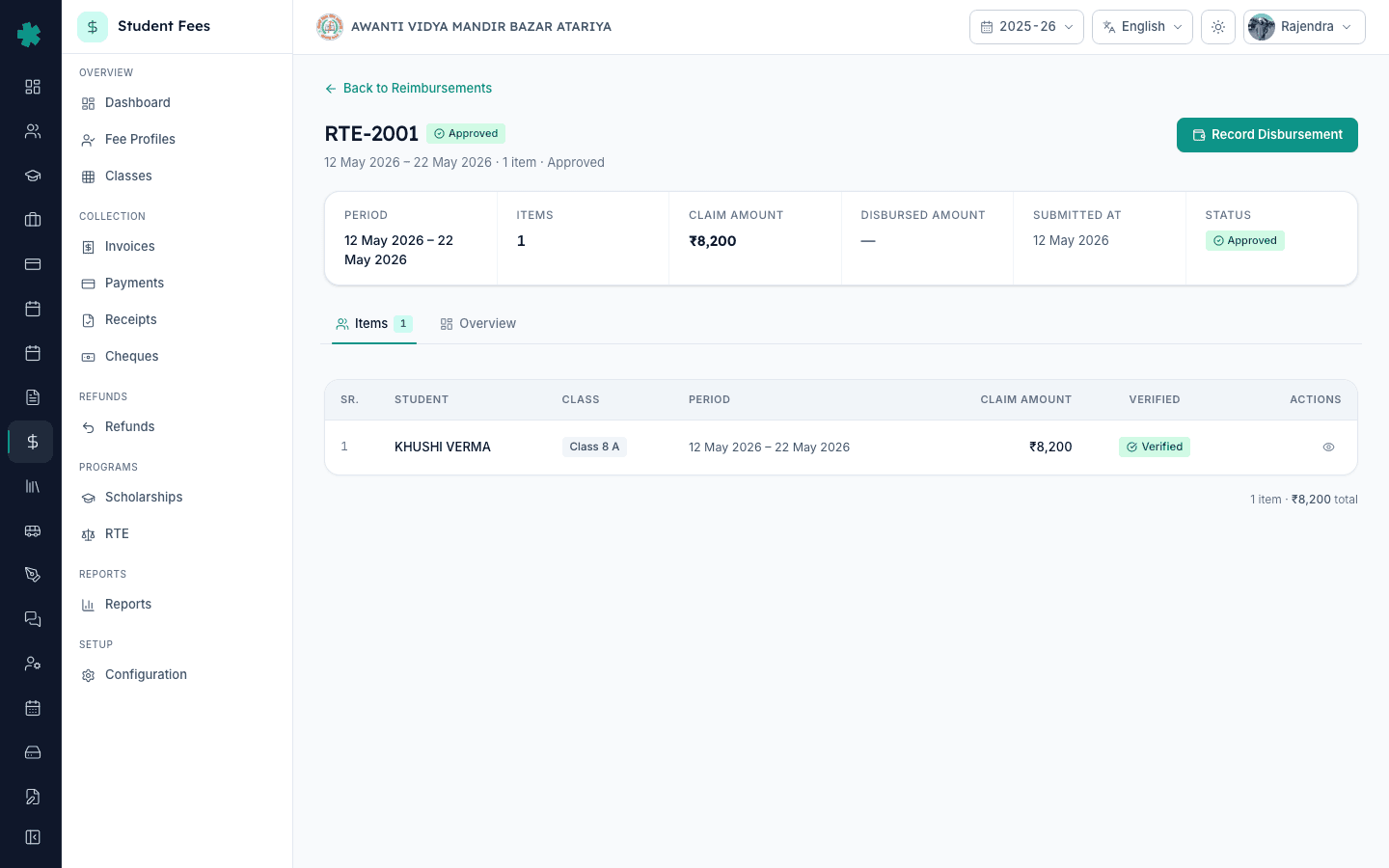
7. Review the claim and keep it Pending until submission
Scroll the claim items list and confirm every child has the right per-head amount. Use the pencil icon on any row to fix a wrong amount and the dustbin icon to remove a child who shouldn't be in this batch. Keep the claim in Pending status, Inkwelly only allows edits and deletes while the claim is Pending or Prepared. When the cover letter and certificate set are ready and the principal has signed, the office moves the claim to Submitted from the action menu, which locks the items. The status pipeline from here is Submitted, Under Review, Approved, Partial or Disbursed when the state releases money.
Upstream of this workflow the office should have the master setup ready: how to create a fee structure for the academic session explains the per-class plans that decide which fees an RTE student would otherwise pay, and the fee groups and fee categories and heads cluster covers the line items a state reimbursement is supposed to cover. Schools that pair RTE with private scholarship support also lean on how to register scholarship donors in Inkwelly so the donor ledger and the RTE ledger stay separate.
See Inkwelly Student Fees in action
Frequently asked
6 questionsWho counts as an RTE-eligible student in an Indian private school?
Under Section 12(1)(c) of the Right of Children to Free and Compulsory Education Act 2009, private unaided schools must reserve 25% of Class 1 seats for children from Economically Weaker Sections and Disadvantaged Groups, allotted through the state's online RTE portal. The state government then reimburses the school the per-child cost up to its own state notification limit. The child stays RTE-tagged through Class 8 (or higher, in states that extended the cover), and the school cannot collect tuition, examination or admission fees from the family.
How does the RTE reimbursement amount work in Inkwelly?
Inkwelly does not pick the per-child amount automatically; the state notifies the figure each year and it varies by state (Uttar Pradesh, Madhya Pradesh, Karnataka and Tamil Nadu all publish different rates). When you add an RTE student to a claim, enter the rupee amount the state pays for that child for the period the claim covers. If the state pays quarterly, enter the quarterly slice; if it pays annually, enter the full annual amount on the first claim of the year.
How many RTE claims should a school file per year?
Most state RTE rules accept quarterly claims, four per academic year, covering April to June, July to September, October to December and January to March. A few states accept a single annual claim instead. Inkwelly does not restrict the number of claims, so the office can match whatever cadence the District Education Office expects. Each claim is a separate row with its own claim number, period and status pipeline.
RTE student kaise mark kare Inkwelly me?
Student Fee, Students kholiye, RTE child ko search kijiye, fee profile open kijiye. Edit button par click kijiye - Edit Profile dialog ke neeche RTE Student toggle hai, use ON kar ke Save dabaiye. Ab woh child RTE Students list, dashboard RTE tracker aur New Claim ke Add Item dropdown me dikhne lagega. Har RTE-admitted bachhe ke liye yahi process repeat kijiye.
RTE reimbursement claim kaise prepare kare?
Student Fee, RTE, Reimbursements kholiye, top right ke blue New Claim button par click kijiye. Claim number daliye (jaise RTE-2025-Q1), Period From aur Period To dates select kijiye (quarterly window common hai), remarks me District Education Office ka reference likhiye, aur Create Claim dabaiye. Phir Add Item se RTE students aur unka per-child amount add kijiye. Claim Pending status me rahega jab tak office formally submit nahi karta.
Can a school remove a student from an RTE claim before submission?
Yes. Inkwelly only allows edits and deletes while the claim is in Pending or Prepared status. On the claim detail page each item row has a pencil icon to edit the per-child amount and a dustbin icon to remove the student from this claim. Once the office moves the claim to Submitted, the items lock; any correction after that has to be coordinated with the District Education Office through their own revision channel.
You might also like
3 readsSources & references
- RTE Act 2009 Section 12(1)(c) · accessed 19 May 2026
Mandates that private unaided schools reserve 25% of Class 1 seats for EWS and Disadvantaged Groups, with state reimbursement.
- MHRD RTE Section 12(1)(c) Implementation Guidelines · accessed 19 May 2026
How state governments fix the per-child reimbursement rate and how schools file claims with the District Education Office.
- Uttar Pradesh RTE Rules 2011 · accessed 19 May 2026
State rules specifying claim format, supporting documents and quarterly reimbursement procedure under the RTE Act.
See Inkwelly on your school
30-minute demo. We open your current ERP with you and load your data into Inkwelly on the call. Dated go-live plan by the end of it.