How to customise a parent notification in Inkwelly
For principals and Communications Admins who want fee receipts, attendance alerts, admit cards and homework notices to read in their school's voice — with the principal's signature, the school's helpline, a culturally-appropriate greeting. By the end you have a school-owned copy of any Inkwelly template ready to dispatch through your channels.
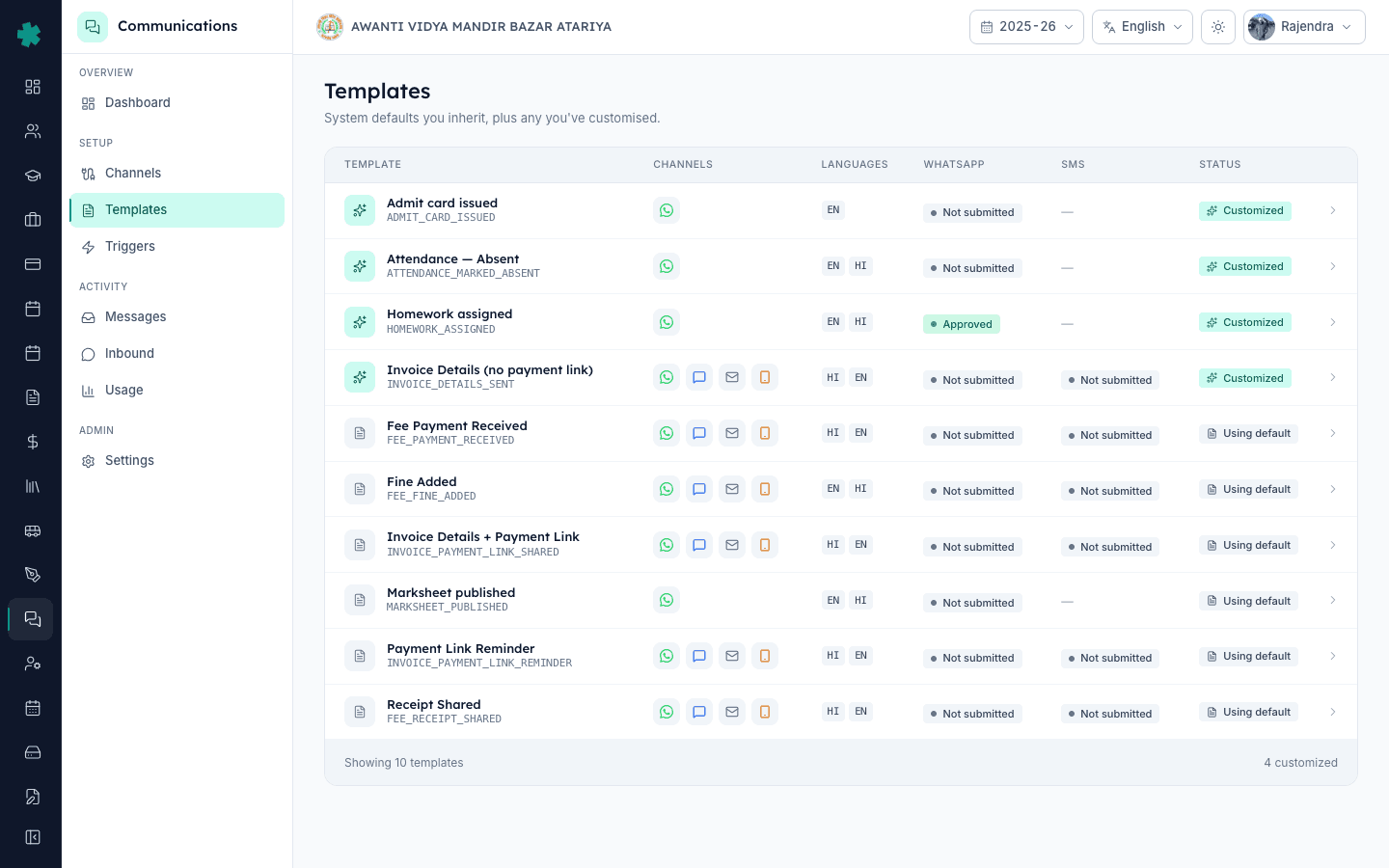
To customise a parent notification in Inkwelly: open Communications → Templates, click the template you want to change, switch to the channel tab (WhatsApp, SMS or Email), click Customise on the language variant you want to edit. Inkwelly forks the system default into your school's own copy. Edit the body keeping the variable placeholders intact, save, and the customised version is what parents see from the next send onward.
Inkwelly ships ten parent-facing templates pre-written by the editorial team in clean Indian-school English and Hindi — enough for most schools to go live without customising a single character. The schools that customise do it for three reasons: (a) brand voice (the principal's name, school motto, helpline at the end), (b) regional language preference (Marathi, Tamil, Telugu, Kannada, Bengali in place of Hindi), and (c) policy-specific wording (a CBSE board school may need to mention an APAAR ID, a state-board school may need an admit-card sub-line). All three are one-click forks from the default.
1. Open the Templates page
In Inkwelly open Communications → Templates. The list shows every notification template available to the school. Each row tells you whether the school is currently using Inkwelly’s default (the gray Using default tag) or its own customised copy (the teal Customized tag). Click into the template you want to change — Invoice Details + Payment Link, Fee Payment Received, Attendance Marked Absent, anything on the list.
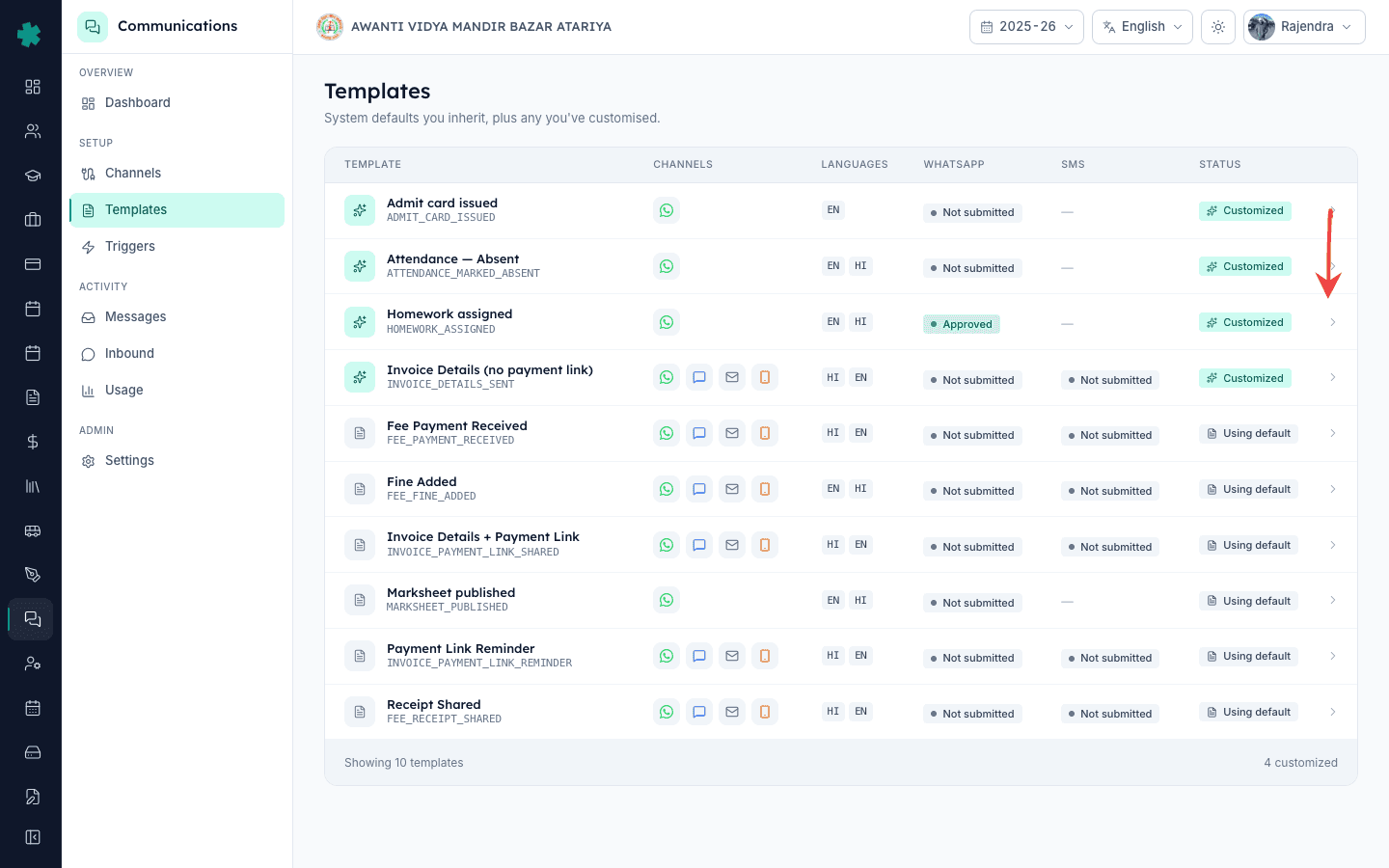
2. Switch to the channel and language you want to change
The template detail page has three channel tabs at the top — WhatsApp, SMS, Email — plus a Push tab for app-only schools. Click the channel you want to customise; each channel has its own body because the same notification reads differently on a 160-character SMS than on a WhatsApp message with rich formatting. Inside that tab, each language (EN, HI, more) is a separate row. Pick the row you want.
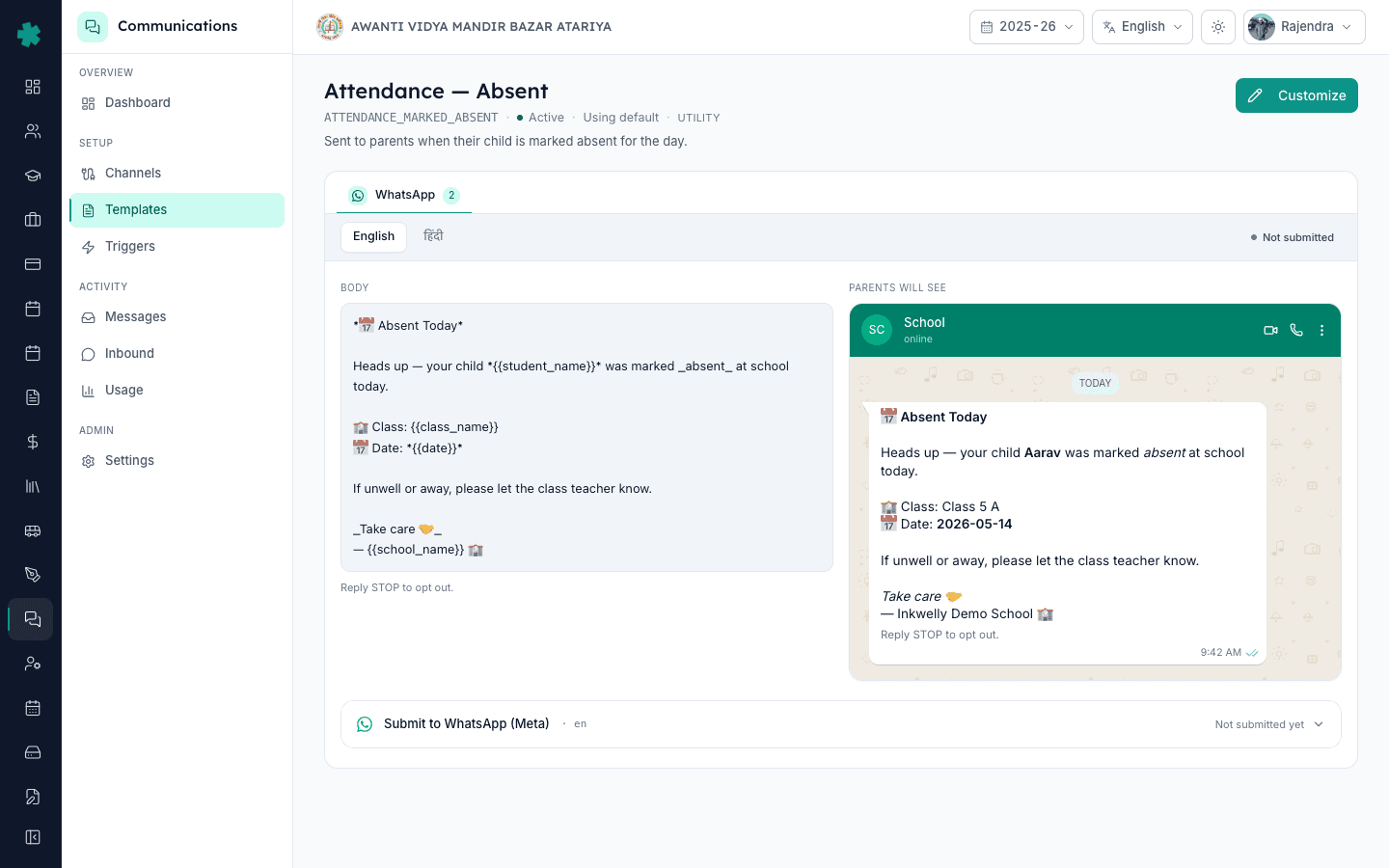
3. Click Customise
Click the Customise button on that language row. Inkwelly forks the system default into a school-owned copy and unlocks the editor. The page now shows the previous read-only body next to an editable text area pre-filled with the same words — so the starting point is identical, and any change is purely additive. The template status drops from APPROVED to Customized · Not submitted (for WhatsApp) so you can see at a glance which variants now diverge from default.
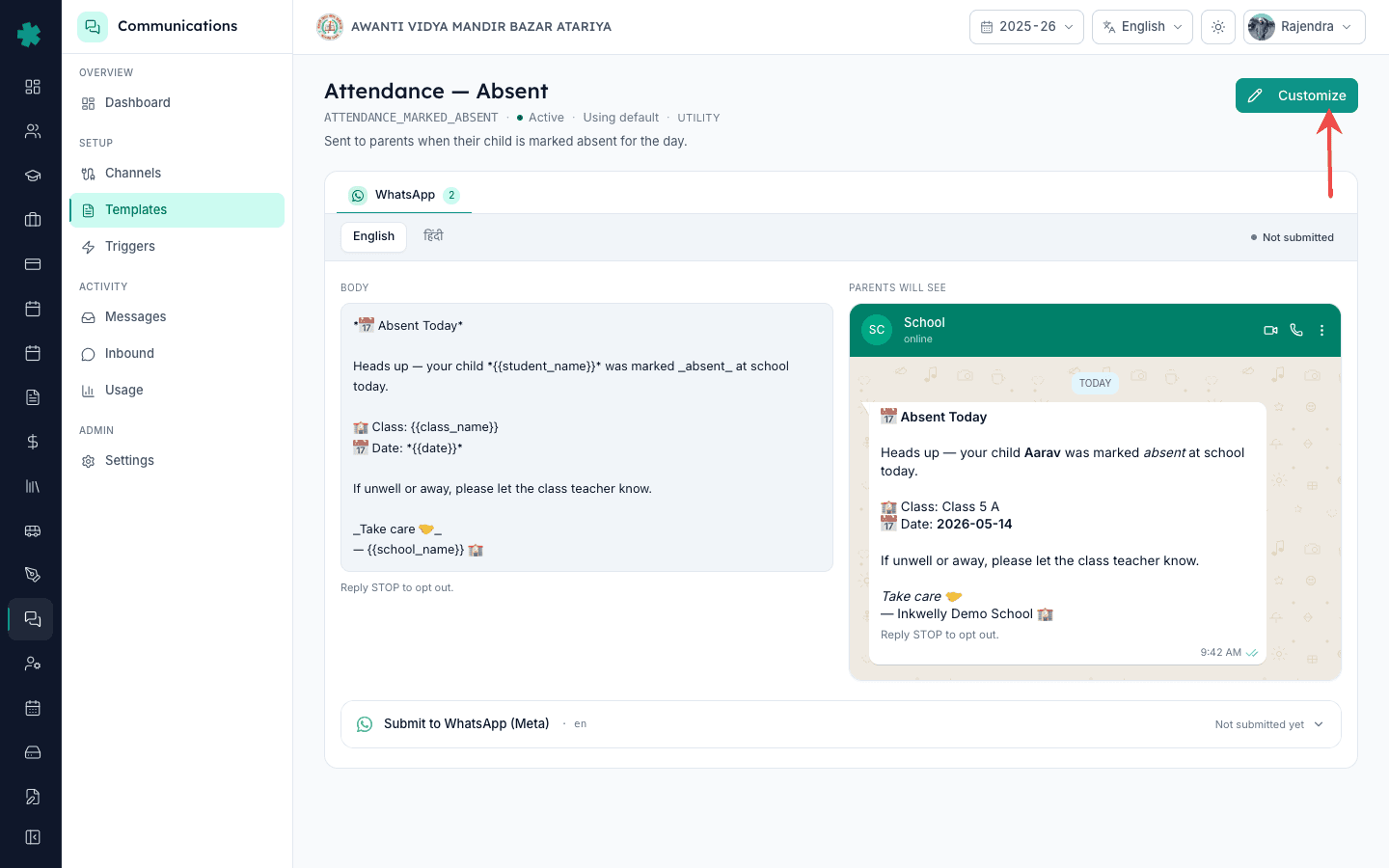
4. Edit the body, keeping variables intact
Edit the body. Keep every variable placeholder in place — {{1}}, {{2}} on WhatsApp; {#var#} style on SMS; {{studentName}} style on Email. Inkwelly fills these from real student / fee / attendance data at send time. Reordering variables or renaming them breaks the substitution. You can freely add static text around the variables — the school's name, a sign-off line, an emergency contact — and that is where most schools concentrate the customisation.
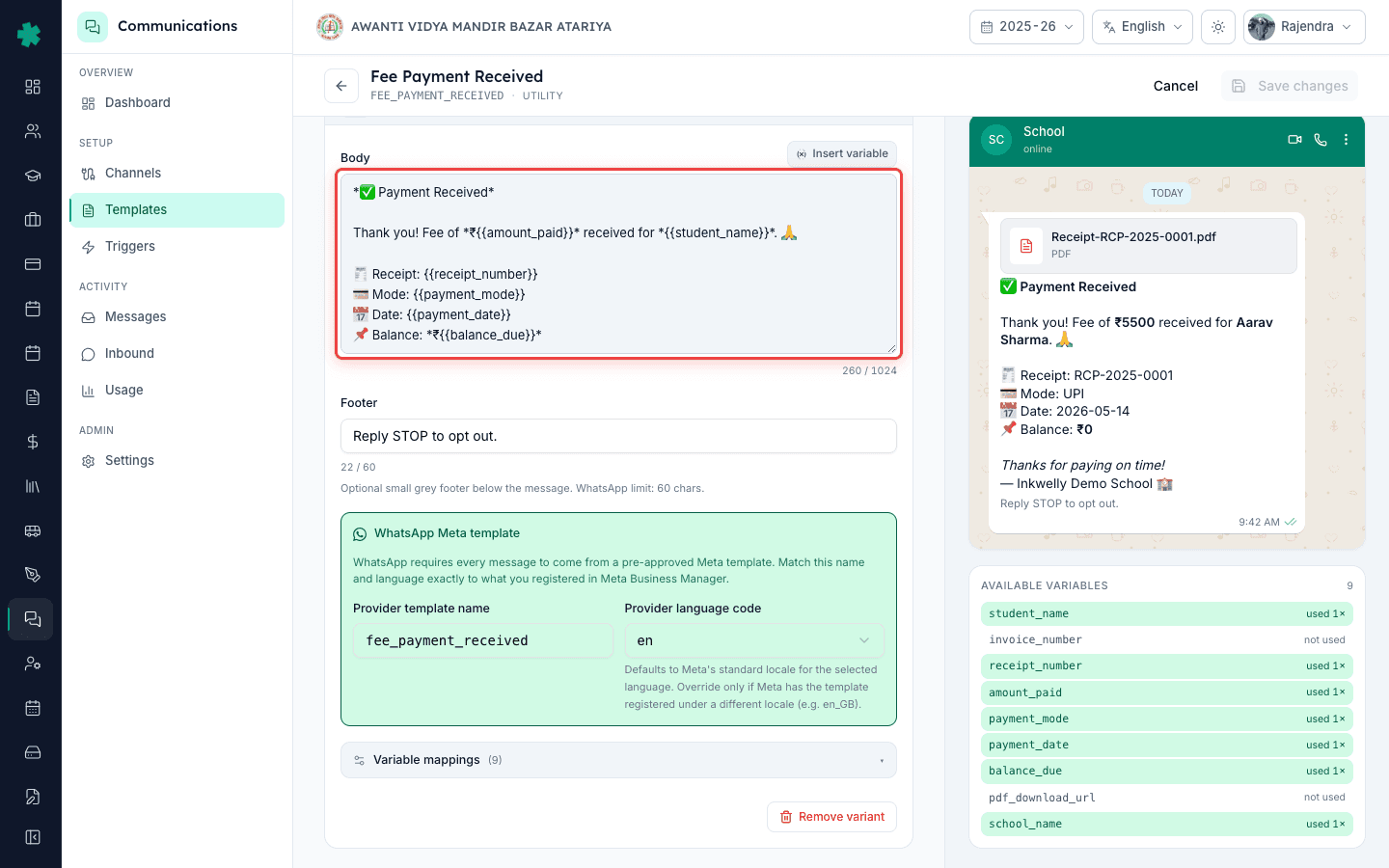
5. Preview the parent's view
The right pane of the editor shows a live preview rendered the way the actual parent will see it: WhatsApp's chat-bubble style with bold and italics, SMS's plain 160-character view (Inkwelly counts the segments), Email's full HTML rendered inside a phone-width frame. Sample values for the variables come from the school's own dataset, so the preview looks like a real outgoing notification — catch typos, awkward line breaks and oversize lengths before saving.
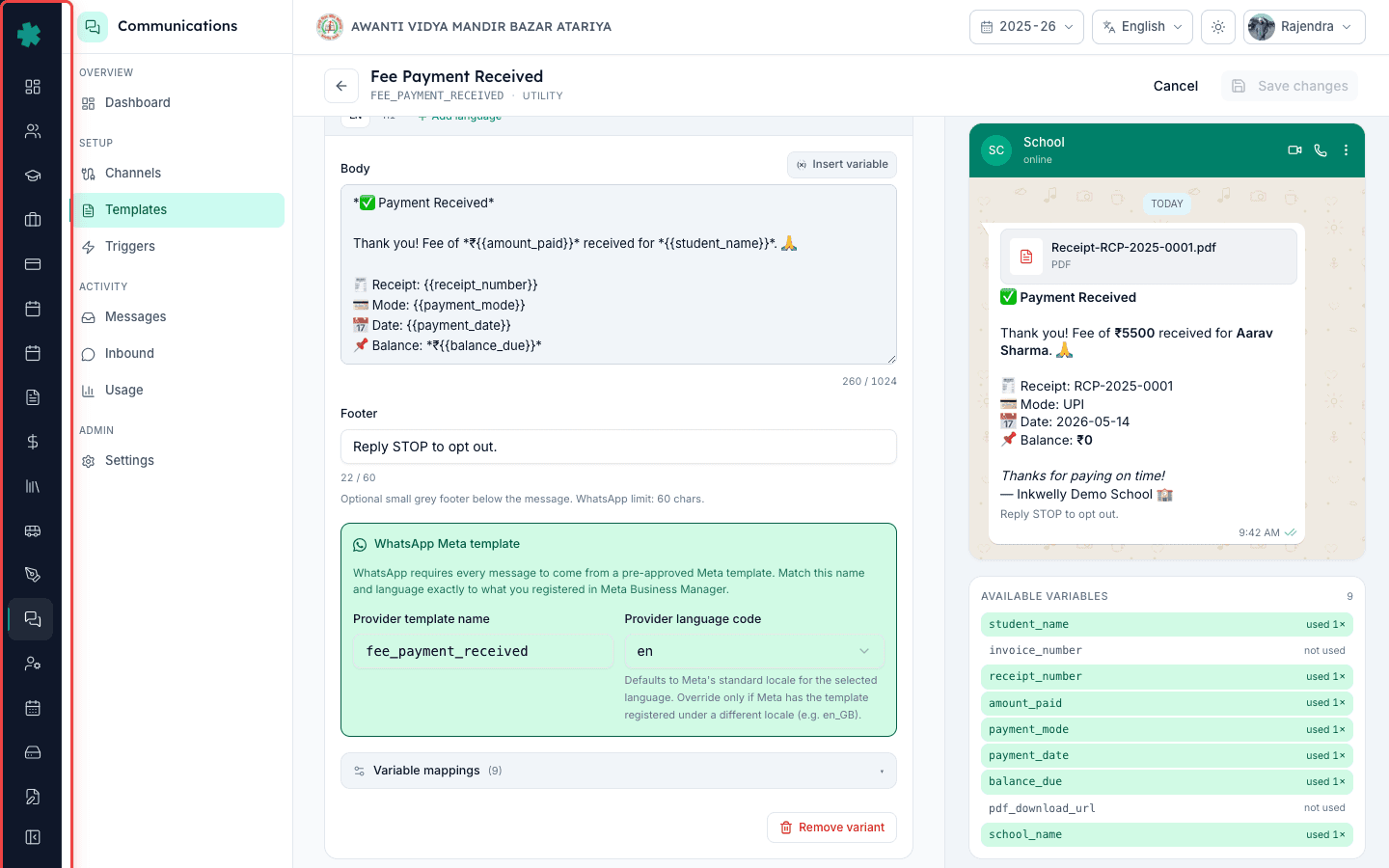
6. Save the customisation
Click Save. Inkwelly stores the new body against the school + channel + language combination and stamps a customizedAt timestamp on the row. Customised templates persist across sessions and are visible to the rest of the school admin team. The Customized badge replaces Using default on the Templates list row — anyone walking the dashboard tomorrow will see that this template now belongs to the school.
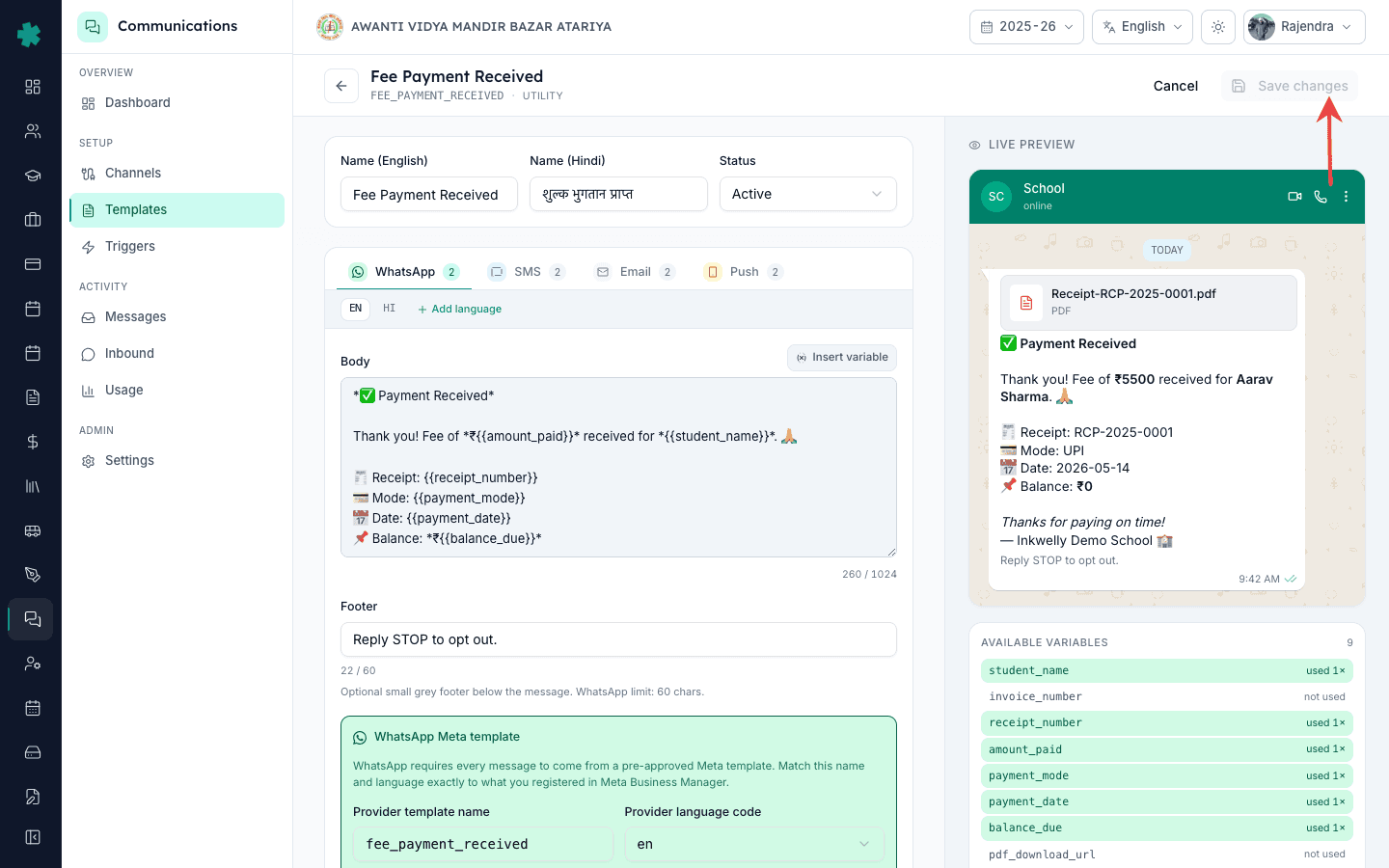
7. Re-submit for approval where required
For WhatsApp variants, click Submit to Meta on the same screen — customised wording is a new template asset to Meta, and Inkwelly will not dispatch through a customised but unapproved WhatsApp variant. For SMS variants, copy the new body to your DLT operator portal, register it, and paste the new 19-digit template ID back into Inkwelly. Email variants are dispatch-ready immediately because Inkwelly does not require provider-side approval for email.
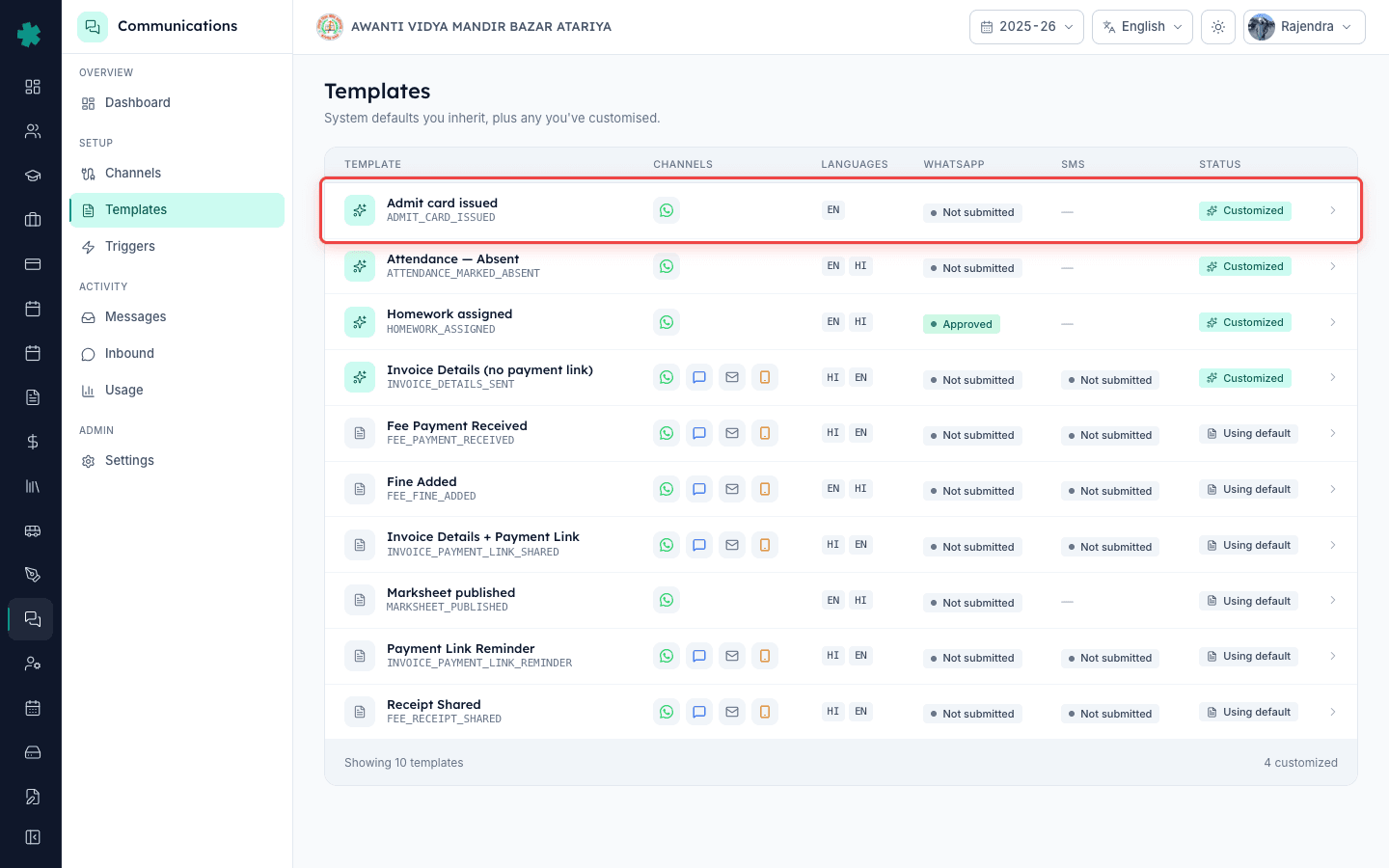
Now that one template carries your school's voice, the highest-impact templates to customise next are the ones parents see most often: Fee Payment Received (because the receipt should carry the school name and accountant's signature), Invoice Details + Payment Link (because the payment-link explanation benefits from school-specific context), and Attendance Marked Absent (because the absent message often needs the school's helpline number for parents to call back). Saving a fork for each takes roughly fifteen minutes total.
See Inkwelly's template customisation editor live
20-minute walkthrough showing a real Indian school rewriting its fee-receipt template in its own voice, previewing on a phone, and re-submitting to Meta.
Frequently asked
6 questionsWill Inkwelly’s default template stop working once I customise it?
No. The system default lives untouched in Inkwelly’s template library; your customisation is a separate school-owned fork. If you reset the customisation, the default takes over again instantly. You can roll back at any time with one click. There is no destructive editing in the Inkwelly template system.
Do I need to re-submit a customised template to Meta or DLT every time?
WhatsApp customised variants need a fresh Submit to Meta because Meta treats any body change as a new asset for approval. SMS customised variants need a fresh DLT registration on the operator portal and a new 19-digit template ID pasted back. Email customised variants are dispatch-ready immediately — no provider approval needed for email.
Inkwelly me parent template kaise customise kare?
Communications → Templates pe jaaiye, jis template ko change karna hai uspe click kijiye. Channel tab (WhatsApp, SMS, Email) chuniye aur language row pe Customise dabaiye. Body edit kijiye, variables ko vaise hi rakhiye, preview check kijiye aur Save dabaiye. WhatsApp variant ko Meta resubmit, SMS variant ko DLT re-register karna padega.
Can I have two customised versions of the same template — one for primary, one for secondary?
Customisation in Inkwelly is per school + channel + language — not per class or per cohort. If your primary and secondary parents need different messaging on the same event, the cleaner path is to use class-segmented triggers (planned for a future release) or, for now, to keep the template general enough to fit both and put grade-specific detail in a follow-up message. Customisation does not fork further than language.
What happens to messages already queued when I customise a template mid-send?
Messages already queued and accepted by the provider continue to dispatch with whatever body they were built against — you don’t catch a half-customised run. Once the customisation is saved (and re-approved where required), every fresh trigger fired from that moment forward uses the new body. Communications → Messages clearly stamps which body each historical send used.
How do I know which templates my school has already customised?
On Communications → Templates the right-most column shows Customized vs Using default for every template. The Communications dashboard’s Templates & triggers card highlights the most recently customised templates. There is no separate hidden list — the Templates page is the single source of truth.
You might also like
4 readsSources & references
- Meta — WhatsApp Business Platform: Message Templates · accessed 18 May 2026
Defines Meta’s rule that any body change is a new template asset — the reason Inkwelly re-opens the Submit to Meta button after a customisation.
- TRAI — Telecom Commercial Communications Customer Preference Regulations (TCCCPR), 2018 · accessed 18 May 2026
Mandates DLT template registration for every commercial SMS body — the reason a customised SMS variant needs a new 19-digit template ID.
See Inkwelly on your school
30-minute demo. We open your current ERP with you and load your data into Inkwelly on the call. Dated go-live plan by the end of it.