How to get WhatsApp templates approved by Meta in Inkwelly
For schools that have a WhatsApp channel connected and want fee receipts, attendance alerts, admit cards and homework notifications to dispatch through their own Meta-approved templates. By the end your school's templates carry the Meta APPROVED badge and parents see your school's words instead of Inkwelly defaults.
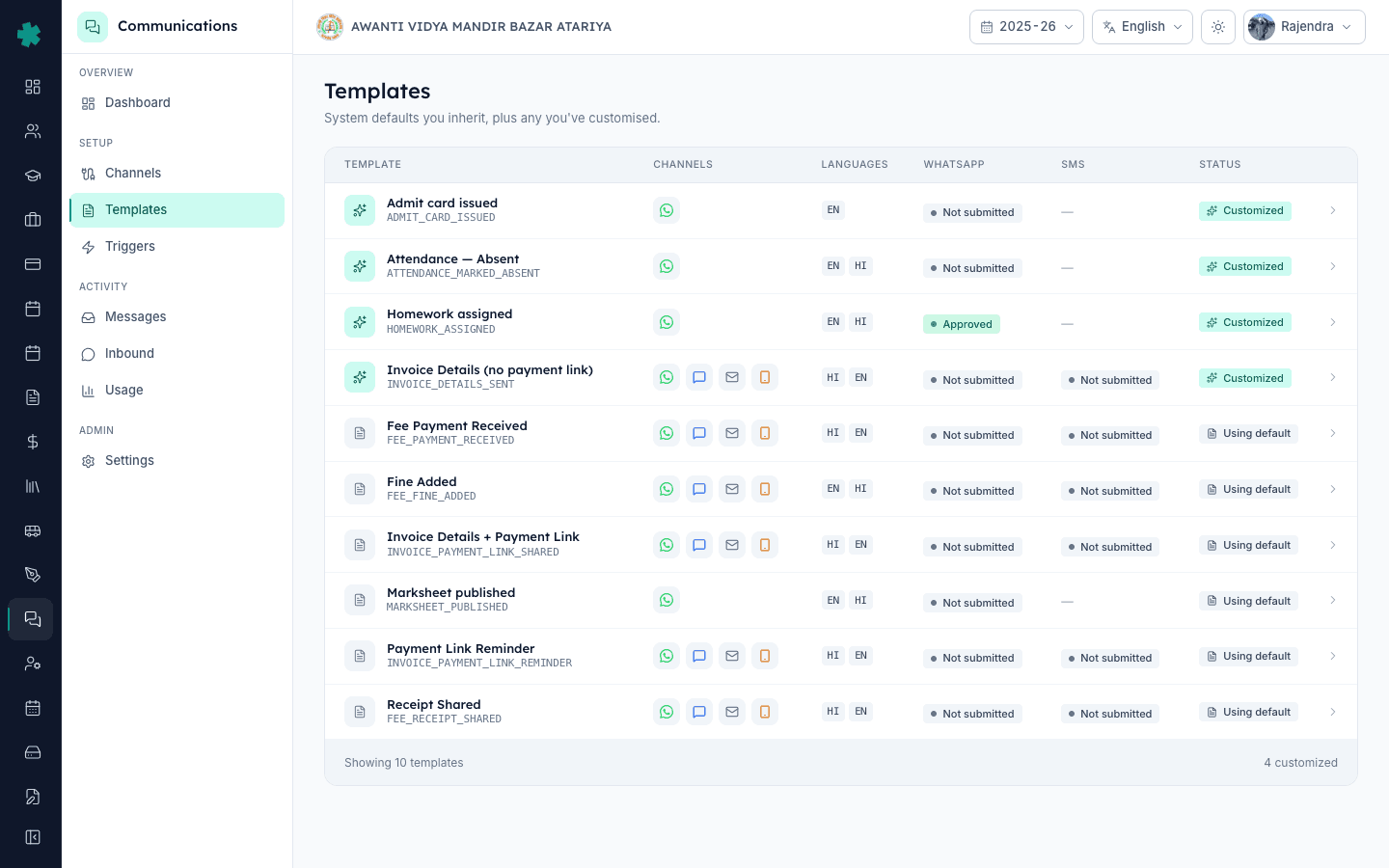
To get a WhatsApp template approved by Meta in Inkwelly: open Communications → Templates, pick the template, click Customise (if you want school-specific words), then click Submit to Meta. Pick the language variant and the WhatsApp account, click Submit, and watch the status move from NOT_SUBMITTED to SUBMITTED, then to APPROVED once Meta’s reviewer signs off — usually within 30 minutes for utility templates.
WhatsApp templates in India fall into three Meta categories: UTILITY (fee receipts, attendance, admit cards, marksheets), AUTHENTICATION (OTPs), and MARKETING (event invites, admission promos). Inkwelly’s ten parent-facing templates all ship as UTILITY which Meta approves the fastest. Schools that customise the template body have to re-submit — because once a template is changed even by a single word, Meta treats it as a new asset that needs its own approval pass. Inkwelly handles the re-submission automatically when you click Submit to Meta after editing.
1. Open the Templates page
In Inkwelly, open Communications → Templates. The page lists every notification template available to the school — ten system defaults plus any school-specific copies you have already forked. Each row shows the channels the template targets (WhatsApp, SMS, Email), the languages it ships in (EN, HI, more), and the current approval status per channel — Not submitted, Submitted, Approved, or Rejected for WhatsApp; Not submitted or DLT-ID-set for SMS.
2. Open the template you want to submit
Click the row of the template you want to ship under your own Meta account. The detail page opens with three tabs: WhatsApp, SMS, Email — each tab shows the template body in every language Inkwelly has, the variable placeholders Meta requires ({{1}}, {{2}}, etc.), and a live preview rendered the way the parent will see it. Use this preview to spot anything that needs school customisation — the principal’s name, the school’s phone number, an emergency line.
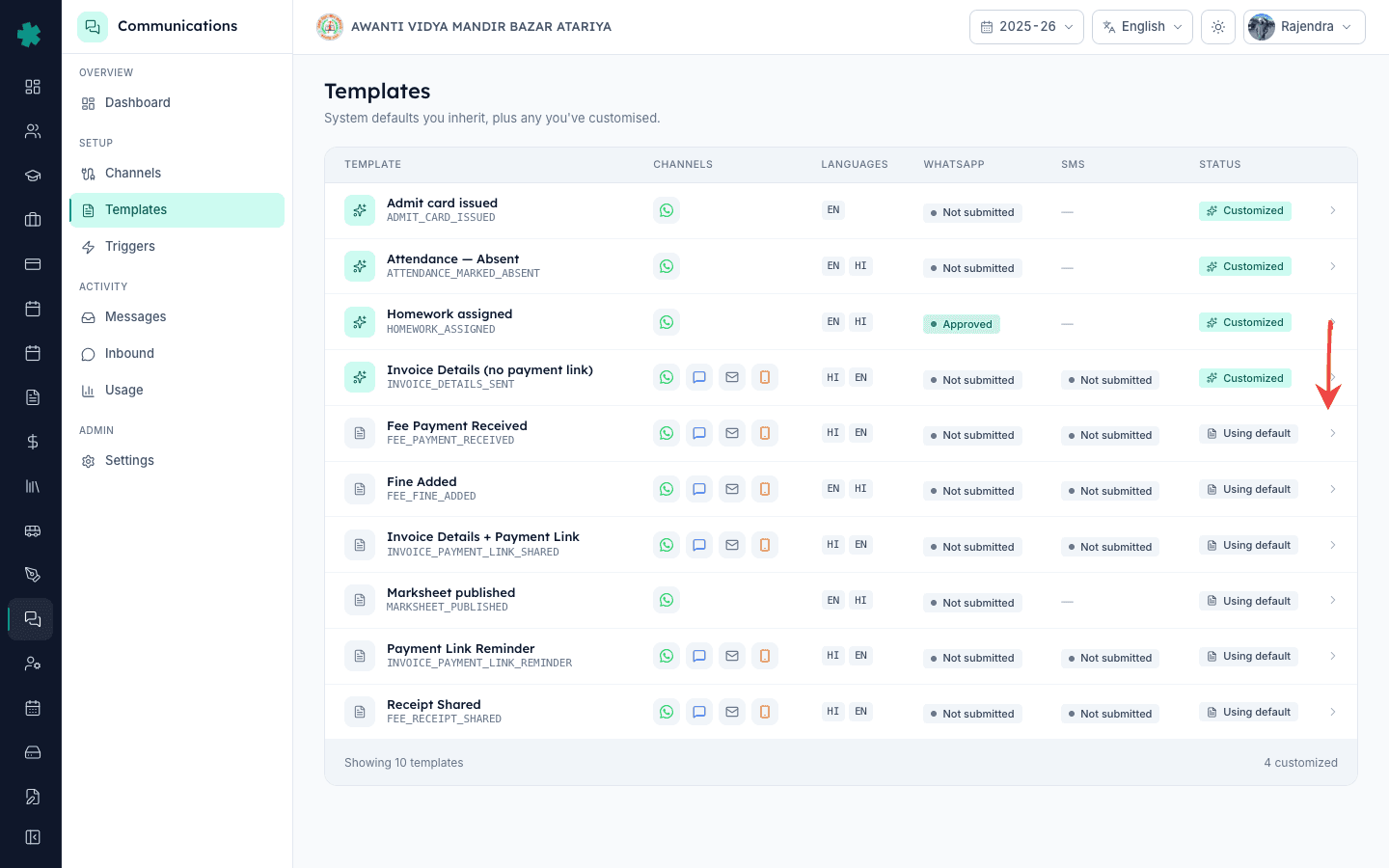
3. (Optional) Customise the template body
If you want school-specific wording, click Customise on the WhatsApp tab. Inkwelly forks the system default into your school’s own copy. Edit the body using the variables Meta supports — plain text plus {{1}} style placeholders. Keep the variable order identical to the default; reordering breaks the way Inkwelly fills them at send time. Save. The status drops back to Not submitted because the body changed.
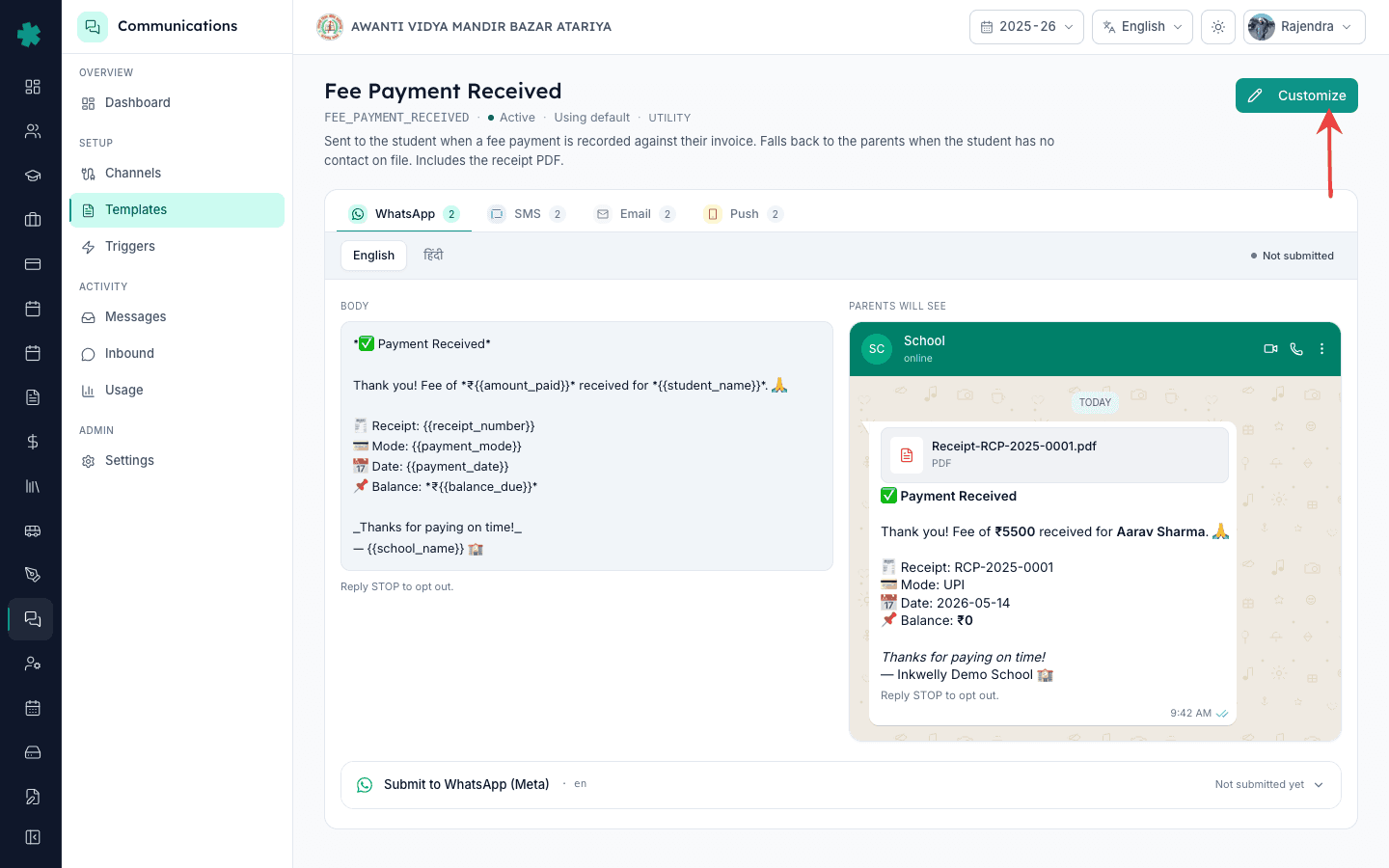
4. Click Submit to Meta
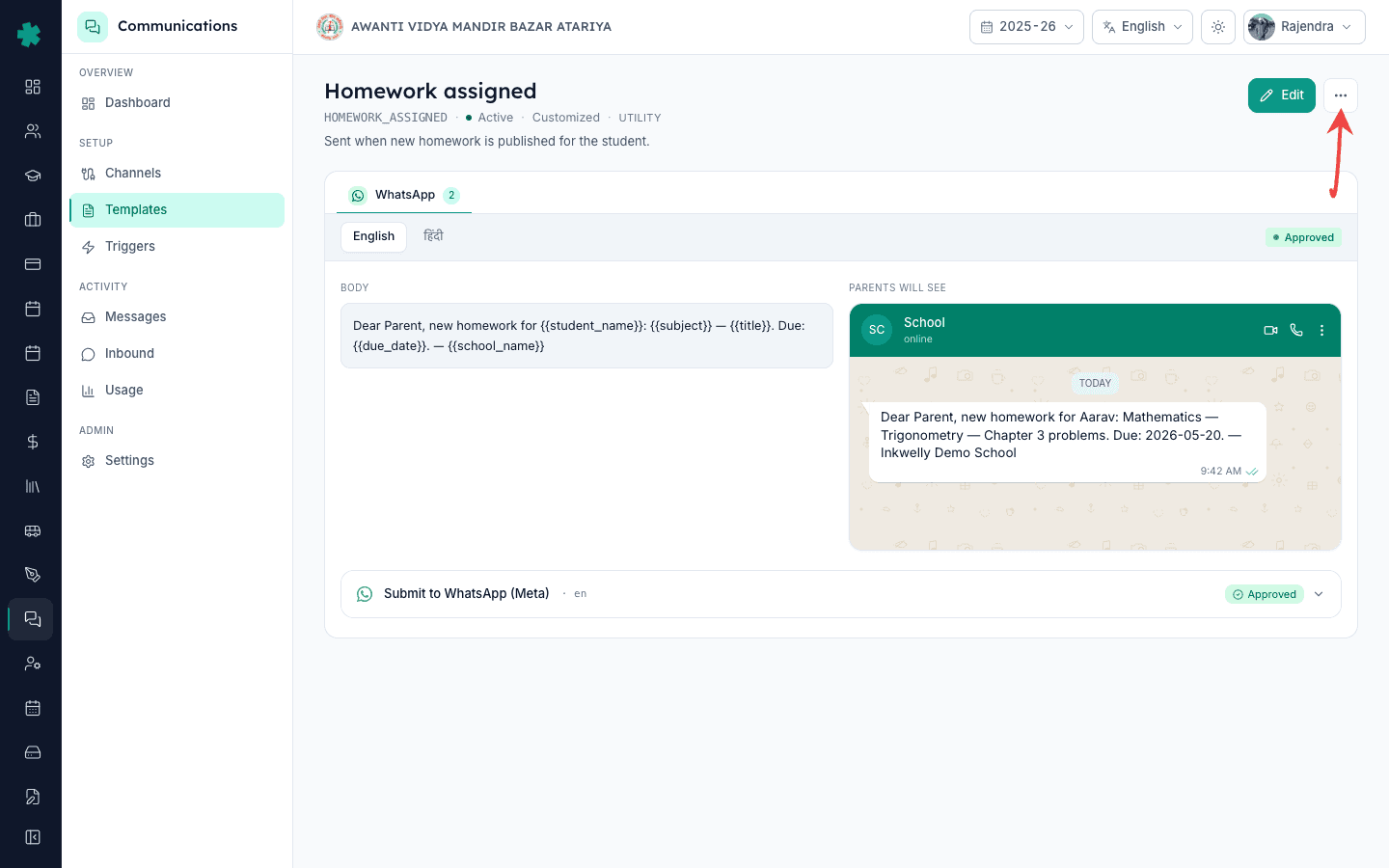
On the template detail page click Submit to Meta. A small dialog opens with two pickers: Language and WhatsApp account. Pick the language variant you want Meta to approve first (most schools submit EN first, then HI as a separate submission). Pick the WhatsApp channel account that this template should ship through — schools with a single number have only one choice; multi-branch trusts pick the right branch number here.
5. Confirm and submit
Click Submit. Inkwelly serialises the template body, the variable count, the language and the category into Meta’s expected payload, then calls Meta’s message_templates POST. Meta returns either an immediate SUBMITTED status (template is now in Meta’s review queue) or a synchronous rejection if anything in the body violates Meta’s policy — missing variables, banned wording, or wrong category. Rejection reasons surface inline on the Inkwelly screen with the exact Meta error text.
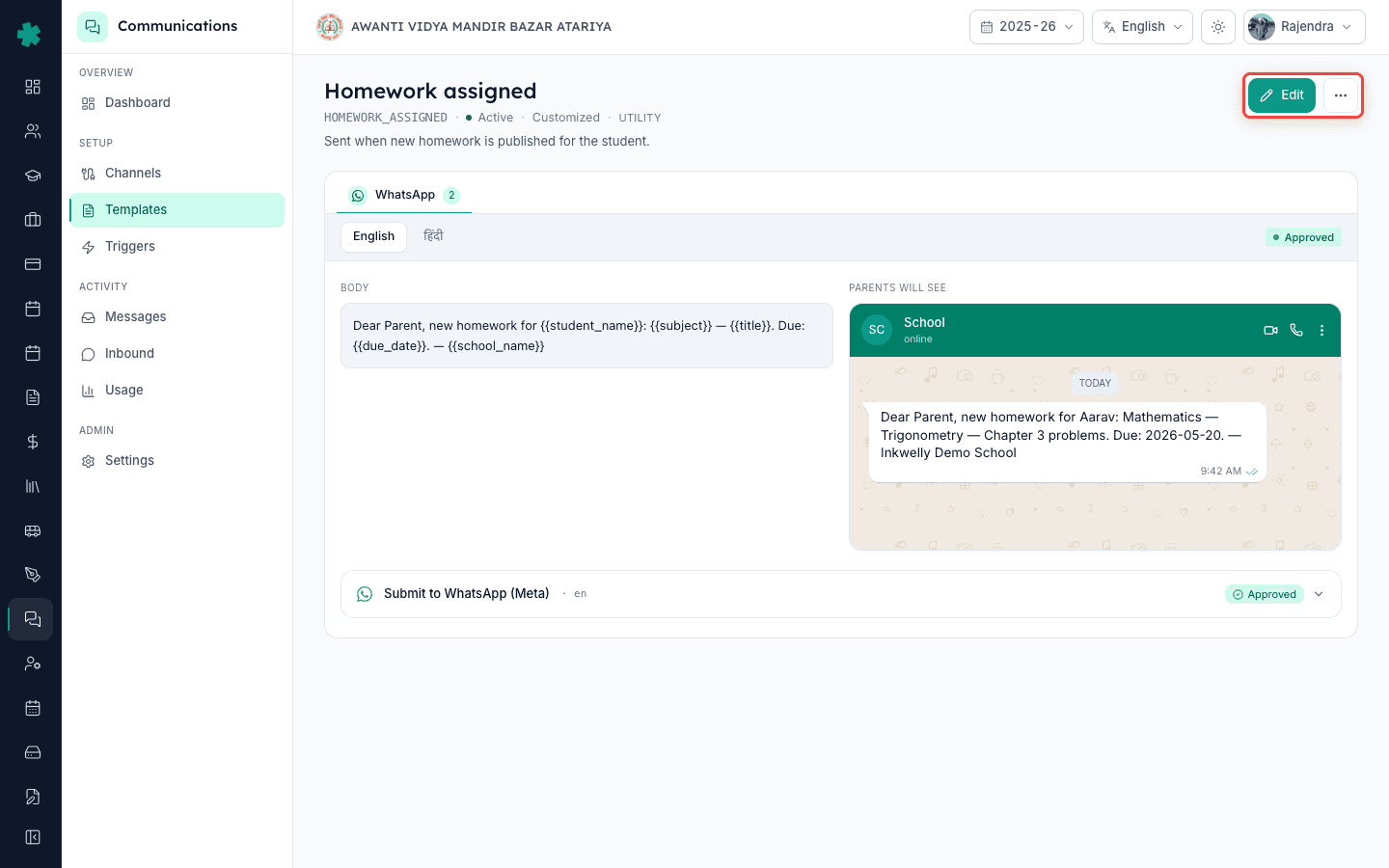
6. Watch the status flip to APPROVED
On the template row the status pill switches to SUBMITTED. Inkwelly polls Meta every few minutes and updates the status automatically; you do not need to refresh manually. For UTILITY templates the typical Meta turnaround in India is under 30 minutes during business hours, sometimes under 5 minutes; for MARKETING templates it can stretch to 24 hours. Status flips to APPROVED when Meta’s reviewer signs off and the template is now dispatch-ready.
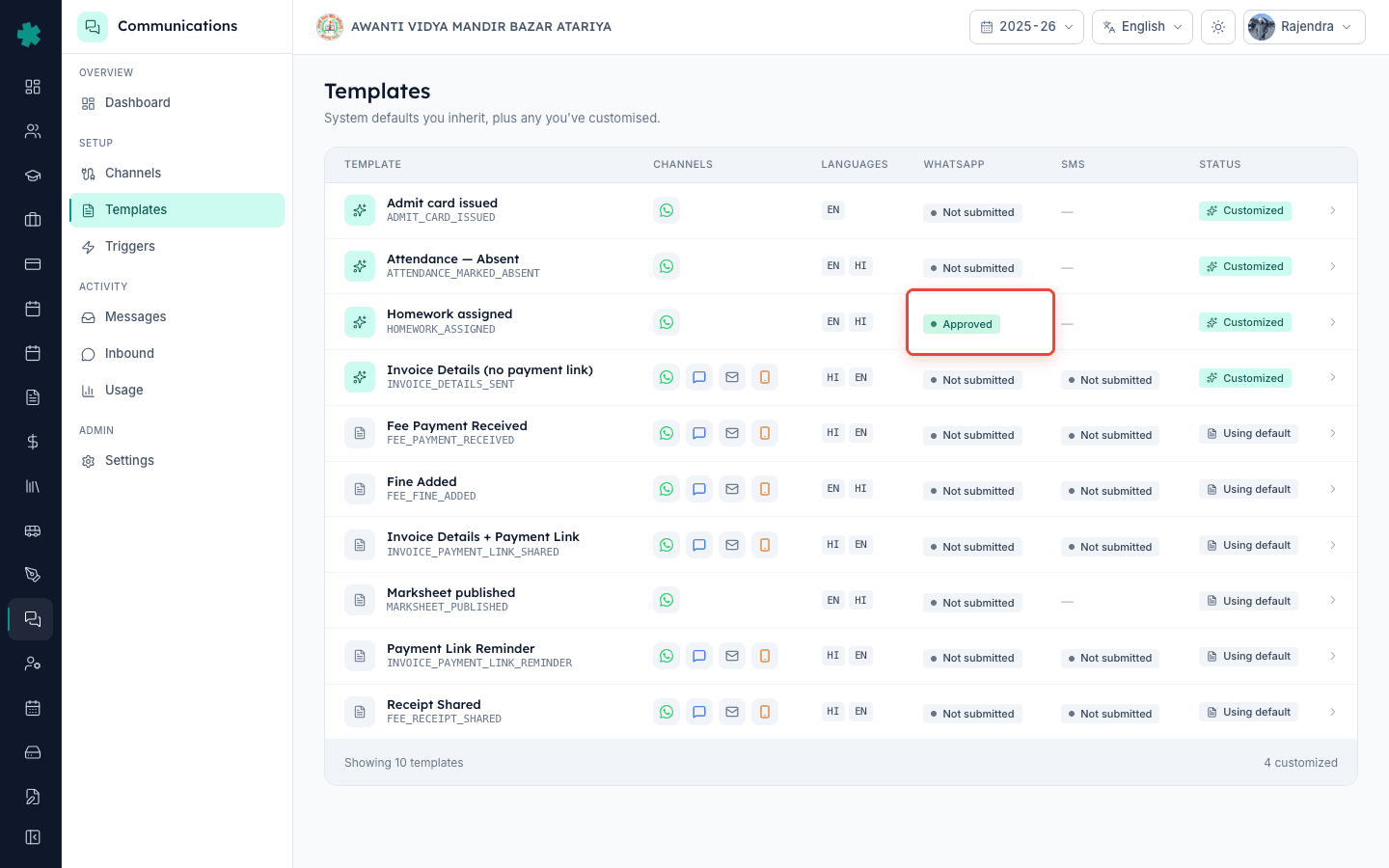
7. If Meta rejects, fix the body and re-submit
A REJECTED status shows the exact reason next to the language variant — most rejections are for content that reads like marketing in a UTILITY category (“Buy now”, “Limited offer”) or for variable count mismatches. Fix the body via Customise, save, then click Submit to Meta again. Meta treats the resubmission as a new asset — there is no penalty for being rejected once. Schools that re-submit promptly almost always clear on the second pass.
Now that one template is approved, the highest-leverage next step is to repeat the same flow for the four other revenue-critical templates: Fee Payment Received, Invoice Payment Link Shared, Payment Link Reminder, and Receipt Shared. Once all four are approved every fee-related parent moment is on your school’s own Meta account. Then submit Attendance Marked Absent and Homework Assigned for the daily-operations side. Set HI variants last — they are independent submissions and can be done in a single afternoon.
See Inkwelly’s Meta template approval flow live
20-minute walkthrough showing a real school customising and submitting a fee-receipt template to Meta inside Inkwelly.
Frequently asked
6 questionsHow long does Meta usually take to approve a WhatsApp template from inside Inkwelly?
For UTILITY templates (fee receipts, attendance, admit cards), Meta typically approves within 5–30 minutes during Indian business hours. Authentication templates clear in similar time. MARKETING templates can stretch to 24 hours. Inkwelly polls Meta automatically and flips the status pill the moment Meta signs off — no manual refresh is needed.
Do I need to submit EN and HI templates separately to Meta?
Yes. Meta treats each language as a separate template asset, so EN and HI variants are independent submissions inside Inkwelly. The Submit dialog has a Language picker for exactly this reason. Most schools submit EN first to learn the Meta acceptance pattern, then submit HI the same way. Status badges show independently per language on the template row.
Inkwelly me WhatsApp template Meta ko kaise submit kare?
Inkwelly kholiye → Communications → Templates pe jaaiye. Jo template approve karwana hai uspe click kijiye. Customise pe jaake school ke hisaab se body edit kar sakte hain. Phir Submit to Meta button dabaiye, language aur WhatsApp account select kijiye, aur Submit click kijiye. Meta 30 minute me approve kar deta hai aam taur par.
What does Inkwelly do if Meta rejects my template?
The rejection reason is displayed inline next to the language variant on the template row — in Meta’s own words. Common rejections in India are marketing-style language in a UTILITY category or a mismatched variable count. Fix the body via Customise, save, and click Submit to Meta again. There is no penalty for one rejection, and most schools clear on the second try.
Can I keep using Inkwelly’s default template while my custom version waits for Meta approval?
Yes. Until your customised template is APPROVED, Inkwelly continues to dispatch through the system-default template that is already approved on Meta. The switch happens automatically the moment your custom template reaches APPROVED status — zero downtime, no manual cutover, parents never see a break in messages.
Why does the Submit dialog ask me to pick a WhatsApp account?
Meta approval is per-WABA (WhatsApp Business Account) — a template approved on one WABA is not automatically approved on another. The picker exists so multi-branch trusts running a separate WABA per school submit to the right account. Single-branch schools have only one WhatsApp account in the picker; it is preselected by default.
You might also like
3 readsSources & references
- Meta — WhatsApp Business Platform: Message Templates · accessed 18 May 2026
Documents Meta’s template categories (UTILITY, AUTHENTICATION, MARKETING) and the submission payload Inkwelly’s Submit-to-Meta flow uses.
- Meta — WhatsApp Business Policy · accessed 18 May 2026
Defines the content restrictions Meta’s reviewer applies during template approval — the policy Inkwelly surfaces inline on rejections.
See Inkwelly on your school
30-minute demo. We open your current ERP with you and load your data into Inkwelly on the call. Dated go-live plan by the end of it.