Any student report, in 30 seconds. Pick fields. Filter scope. Export.
A reports workshop built into the Student Information module — pick the fields you want, filter the students you care about, choose a row-level list or a summary breakdown, run it. Save it as a template for next April. Export CSV in one click. Designed for the reports Indian schools actually print every week — RTE rosters, board affiliation lists, district reporting, parent meeting attendance, fee category audits.
Why every Indian school office needs a real reports tool
Monday morning, 9:15 a.m. The principal walks into the office and asks for the RTE 25% admission list, by class, with parent contact numbers. The District Education Officer is visiting at noon. The office assistant pulls out an Excel sheet someone built two years ago, copies rows for current-session students, manually deletes the ones who left, looks up parent mobile numbers from the register, and prints. By the time the DEO arrives, the list is forty minutes late and three students are missing from it.
This is not the office assistant's failure. It is the system's failure. Indian schools generate twenty different student lists every month — RTE rosters for the RTE 25% reservation audit, gender breakdowns for the CBSE annual return, transport route lists for the bus contractor, blood group lists for the medical room, fee category lists for the accountant, missing-Aadhaar lists for the document compliance dashboard, parent meeting RSVP lists for the class teacher, transfer certificate hand-off lists at session-end. Every one of these is built the same way: somebody opens Excel, somebody types, somebody scrolls.
We asked: what if your office could pick the fields they want, filter the students they care about, and have the report appear in 30 seconds — printed, exported, or saved as a template for next April? So we built it. Inkwelly's Student Reports lets any office assistant or principal compose a custom list or a summary breakdown in three clicks. Once. Use it again every Monday. Hand it off to the next office assistant when this one retires.
How Student Reports works
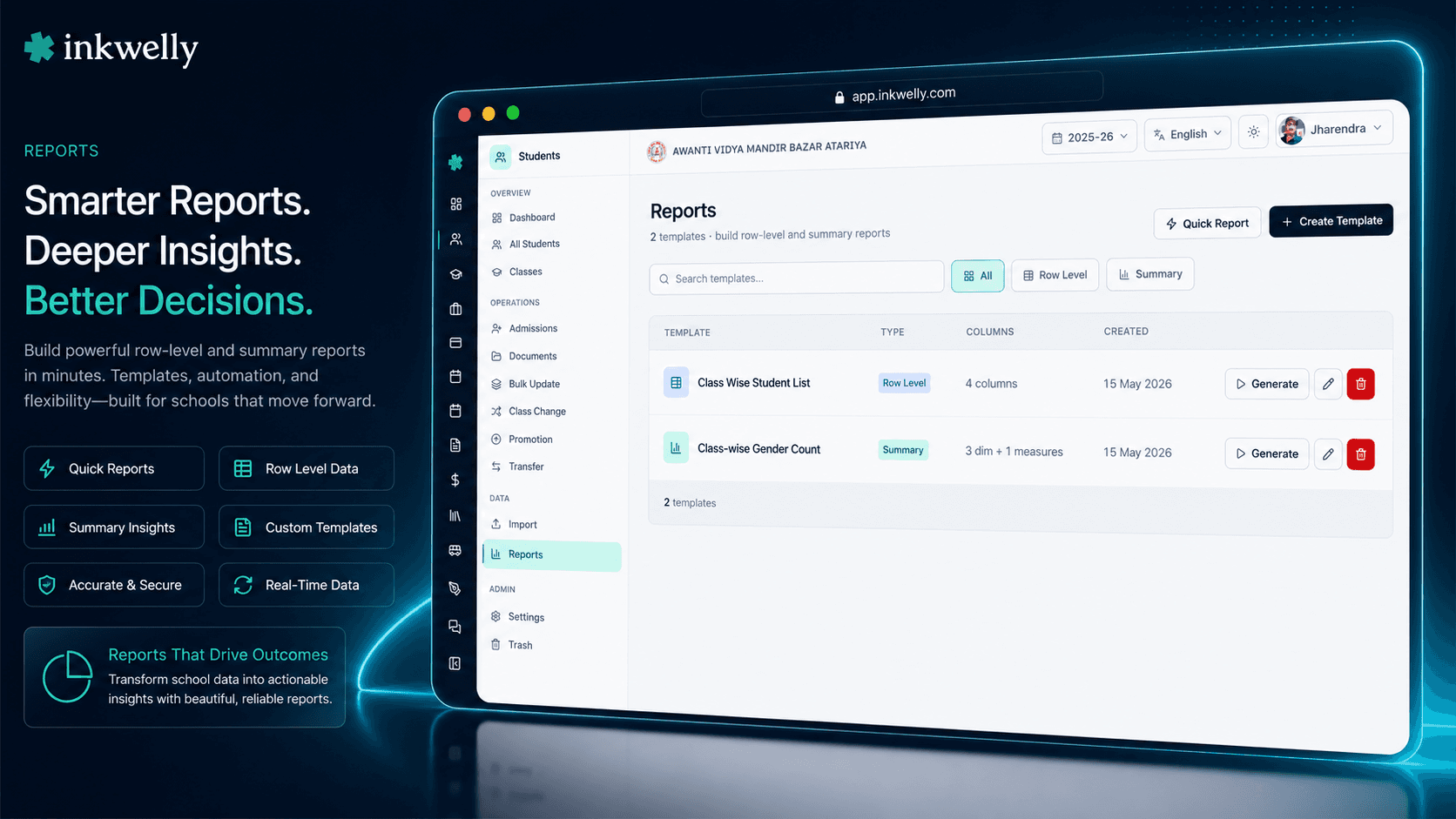
Open Students → Reports. The page lists every report template your school has saved — sortable, searchable by name, filterable by report type. Two buttons sit in the header: Quick Report for an ad-hoc report you don't want to save, + Create Template for a report you'll re-run every week or every month.
Step 1 — Pick the fields. A field selector opens with every student field grouped into Profile (name, DOB, gender, blood group, religion, caste, Aadhaar, mobile), Academic (class, section, roll number, admission number, registration number, RTE flag, status), Parent (father / mother name, occupation, education, mobile), Address (line 1, city, state, postal code) and Document IDs (APAAR, ABC ID, PEN). Tick the columns you want. The grid below updates in real time so you see exactly what your report will look like.
Step 2 — Filter the scope. Pick the academic session (one or many — useful for year-over-year reports), pick the classes (one section, an entire grade, or all classes). Filters compose automatically. Need only RTE students of Class 5 across both 2024-25 and 2025-26? Tick those filters and the report scope is set.
Step 3 — Choose row-level or summary. A row-level report lists every student matching your filter, one row per child. A summary report aggregates them — Total students, Boys | Girls | Other | Total, General | OBC | SC | ST | EWS | Other | Total, RTE | Non-RTE | Total, Hindu | Muslim | Sikh | Christian | Buddhist | Jainism | Other | Total, Active | Promoted | Suspended | Transferred | Graduated | Inactive | Total. Pick the breakdown your audience needs.
Step 4 — Save or export. Click Save Template to keep it for next time. Click Download CSV to ship it to the District Officer right now. A template you save today is the template the next office assistant runs in five years.
Every student field your reports can include
- Profile (12 fields): First/middle/last name, gender, date of birth, blood group, religion, caste category, mother tongue, nationality, mobile, email, profile photo flag.
- Academic (10 fields): Class, section, roll number, admission number, registration number, admission date, status (Active / Promoted / Suspended / Transferred / Graduated / Inactive), RTE student flag, sort order, active flag.
- Parent — Father (6 fields): Title, first/middle/last name, mobile, occupation, education — every detail that goes onto Bonafide and Transfer Certificates.
- Parent — Mother (6 fields): Title, first/middle/last name, mobile, occupation, education — separately addressable for state-board paperwork.
- Address (6 fields): Line 1, line 2, city, state, country, postal code — the same address that drives transport route assignment and scholarship eligibility.
- Document IDs (4 fields): Aadhaar number, APAAR ID, ABC ID, PEN (Permanent Education Number) — the identifiers Indian boards now require.
- Multi-language fields: Names, parent names, occupation, education, work address, nationality, mother tongue — display the English value or the Hindi/regional script value, whichever locale your audience needs.
- Computed fields: Age (computed from DOB on report-run date), full name (joined from first/middle/last), parent contact (joined from father + mother mobile).
Two report modes — pick the right one for the audience
Indian schools need two very different things from a reports tool. Sometimes you need every student listed — name, class, parent mobile, address — for a parent meeting attendance sheet or a board affiliation submission. That is a row-level report. One row per student, every column you picked, sorted and grouped how you asked.
Other times you need numbers — how many students by gender per class, how many RTE students per grade, how many students missing Aadhaar by section. That is a summary report. Class on the rows, the breakdown you chose on the columns, totals at the bottom. The CBSE annual return, the UDISE+ submission, the District Officer's gender-ratio query — all summary reports. Inkwelly handles both. Same field selector. Same filter system. Same template engine. The mode is the only switch.
Templates for the routine, Quick Report for the one-off
Not every report needs to be saved. The principal calls and asks for a list of all Class 8 students born in February — for a birthday assembly. You don't need a template for that. Click Quick Report, tick the fields, run it, download the CSV, close the tab. Inkwelly forgets the report. The principal gets the list in 30 seconds.
The RTE 25% list, the UDISE+ class-wise breakdown, the parent-meeting RSVP list — those run every term, every year, by every office assistant who passes through your school. Save them as templates. Give the template a clear name (RTE Students by Class — Annual), a short description (Submitted to DEO every March, includes parent contact), and never re-build that report again. New office assistant joins in May? Click the template, run, export — they are productive on day one.
Filters that compose — session, class, status, every dimension
Most school ERPs that ship a reports tool only let you filter by one thing. Inkwelly composes them. Pick 2024-25 + 2025-26 in the session multi-select. Pick Class 5 A + Class 5 B in the class multi-select. The report scope is automatically the intersection: students in those two classes across those two sessions. Twenty seconds.
Need only RTE students? Add the RTE flag filter. Need only active students (excluding promoted-out and transferred-away)? Add the status filter. Need students whose Aadhaar field is empty? Add the field-completion filter. Filters compose automatically — every filter narrows the scope further, every change updates the live grid below so you see your report before you save it. The same filter system powers both row-level and summary reports — learn it once, use it everywhere.
Eight summary breakdowns Indian boards actually ask for
The summary mode has eight ready-made measures, picked from the questions Indian school boards and government departments routinely ask:
- Total Count — students per class, students per filter scope.
- Gender breakdown — Boys | Girls | Other | Total. The CBSE annual return needs this every year.
- Caste category breakdown — General | OBC | SC | ST | EWS | Other | Total. Critical for RTE 25% admission audits and state scholarship submissions.
- Religion breakdown — Hindu | Muslim | Sikh | Christian | Buddhist | Jain | Other | Total. Required by minority-status schools for board affiliation paperwork.
- Status breakdown — Active | Promoted | Suspended | Transferred | Graduated | Inactive | Total. Year-end TC reconciliation in one report.
- RTE breakdown — RTE | Non-RTE | Total. The single most-asked question in the District Education Officer's annual visit.
- Blood group breakdown — A+ | A- | B+ | B- | O+ | O- | AB+ | AB- | Total. The medical room's emergency contact list.
- Field completion —
Field Filled | Field Empty | Total. Audit Aadhaar coverage, APAAR coverage, profile-photo coverage, parent-mobile coverage. Find the gaps before the auditor does.
Reports in English or your regional script — same template
Indian state boards often require student records in both English and the regional script. Bonafide Certificate in Devanagari for a UP Board school, Transfer Certificate in Tamil for a Tamil Nadu Matric school, scholarship application list in Bengali for a West Bengal school. Most school ERPs make you pick one language at the system level. Inkwelly does not.
Reports inherit the language preference of the user running them. The principal opens the same template in English and gets Rajendra A Verma. The office assistant opens the same template with locale set to Hindi and gets राजेन्द्र अ वर्मा. The CSV export carries the locale-correct value. Multi-language fields (names, parent names, occupations, addresses) are stored once in Bulk Update Students — and shown correctly in every report that includes them. No double maintenance, no two parallel lists, no wrong-script certificate handed to a parent.
“Pehle Class 5 A ki RTE list banane mein 30-35 minute lagte the — Excel mein names copy karna, parent number dhundhna, format karna. Ab template Run karte hain, 20 second mein CSV mil jaata hai. DEO ki visit ke pehle stress hi nahi rehta.”
Real-world reports your office runs every month
Five routine school-office reports that traditionally take an hour each in Excel:
1. RTE 25% audit list (annual, March) — every student admitted under the RTE 25% reservation, with class, section, parent name, parent mobile, EWS certificate status, and address. Built once as a template, run every March in 20 seconds, exported to CSV, emailed to the District Education Officer. Without templates: 45 minutes of Excel work every March, plus another 30 minutes if the DEO asks for an updated version a week later.
2. CBSE annual return — gender-wise per class (annual, October) — Class on rows, Boys / Girls / Other / Total on columns, every class from Pre-Nursery to Class 12, totals at the bottom. The exact format CBSE asks for. Inkwelly's gender-breakdown summary measure produces it directly. Run, export, paste into the affiliation portal.
3. Missing-Aadhaar audit (any month) — list of all students whose Aadhaar field is empty, with class, parent mobile, admission date. Run, export, hand to the office assistant for parent follow-up calls. Inkwelly's field-completion measure handles this in one click. Without it: filtering students one by one in the student list page.
4. Transport route list (per route, monthly) — list of all students assigned to a specific transport route, with name, class, boarding stop, parent mobile. Used by the bus contractor for the daily attendance check. Built as a template per route — Route 1, Route 2, Route 3 — each one runs in 15 seconds.
5. Parent meeting RSVP list (per term) — every parent of Class 8 students, with father mobile, mother mobile, and email. The class teacher exports the CSV before parent-teacher meeting day, runs WhatsApp broadcast invitations from it, and then takes attendance against the same list during the meeting.
Common reports Indian schools generate every month
- RTE 25% reservation list — for District Education Officer audit, includes parent contact and EWS verification status.
- UDISE+ enrollment summary — class-wise, gender-wise, category-wise, RTE-wise — the four breakdowns UDISE+ asks for.
- CBSE annual return — gender breakdown per class for the affiliation portal submission.
- Transport route lists — per-route student list for the bus contractor and the route teacher.
- Medical room blood group list — class-wise blood group summary for emergency response.
- Document compliance audits — students with missing Aadhaar, APAAR, ABC ID, PEN, or profile photo.
- Parent meeting RSVP — class-wise parent contact list for WhatsApp broadcasts and meeting attendance.
- Class roster with photos — printable class list with student names, roll numbers, and parent mobile for the class teacher's register.
- Birthday list by month — students born in a given month for assembly recognition.
- Status reconciliation — Active vs Promoted vs Transferred vs Graduated, used at session-end for transfer certificate generation.
- Caste-category report — General / OBC / SC / ST / EWS breakdown for state scholarship submissions.
- Religion breakdown — required by minority-status schools for board affiliation paperwork.
- Year-over-year enrollment trend — gender or category breakdown across multiple sessions for management review.
See Student Reports on your school's data, live in 30 minutes
Bring 5 reports your office currently builds in Excel. We will set up your school's classes during the demo, build all 5 as Inkwelly templates, and hand them back to you in CSV — running on your real students.
Limits, safety, and the small print
Per-row limit per report run. A single row-level report is capped at the row count your school plan allows — 5,000 students for the standard plan, 25,000 for the multi-school trust plan. For schools that exceed this, segment the run by session and class — every Inkwelly school we work with stays well within these limits.
CSV-first export. Every report exports to CSV by default — universal compatibility with Excel, Google Sheets, the CBSE affiliation portal, the UDISE+ portal, and every government department portal that accepts file uploads. PDF export is available per-template via the page-orientation setting (portrait or landscape) — useful for printed registers and parent-meeting attendance sheets.
Filters do not edit data. Reports are read-only. Filtering to a class and selecting fields never modifies a student record. To bulk-edit fields across the same scope, use Bulk Update Students — the field selector and filter UI is identical, so once you know reports, you already know bulk update.
Per-template audit log. Every report run writes to the audit log — user, timestamp, template ID (or 'ad-hoc'), filter parameters, row count of the result, CSV export flag. The audit log is exportable from the school admin panel. If a report's CSV ends up where it shouldn't, you trace it to the user, the timestamp, and the exact filter that produced it.
Role-based access. Reports respect Inkwelly's Identity & Access Management permissions. Class teachers see reports scoped to their assigned section only; office staff see the whole school; principals see everything. Aadhaar and other sensitive fields can be hidden from non-admin roles via per-field permission rules. Bulk download permission is separately gateable — a teacher can run a report on screen but cannot export the CSV unless the role allows it.
Multi-tenant isolation. Like every Inkwelly module, reports operate strictly on your school's data. Multi-school trusts run reports per-school independently — no cross-tenant access, no risk of pulling another school's student list by accident.
Belongs to
1 moduleFrequently asked
7 questionsCan a class teacher run reports for their own section only?
Yes. Reports inherit the same role and section scope from Identity & Access Management as the rest of Inkwelly. A class teacher running the same template as the principal sees only their assigned class section's students. The principal sees the whole school. The same template, the same filters, the same CSV format — the only thing that changes is the row scope.
Can I run a report across multiple academic sessions?
Yes. The session filter is multi-select. Pick 2024-25 and 2025-26 together to compare year-over-year, or pick a single session for the current report. The summary mode is especially useful here — you can see Class 5 enrollment by gender across two sessions side by side, useful for management review and board affiliation paperwork.
Does the report support Hindi or regional scripts?
Yes. Reports inherit the locale preference of the user running them. Names, parent names, occupations and addresses stored as multi-language values in Bulk Update Students display in the user's preferred locale — English, Hindi, Tamil, Bengali, Marathi or any locale your school has enabled. The CSV export carries the locale-correct value, so a Hindi-medium parent gets a Devanagari Bonafide list and an English-medium parent gets an English list — from the same template.
Can I generate the same report next year without re-building it?
That is exactly what templates are for. Build once, save with a clear name and description, run again every term. The new office assistant who joins next May runs the same templates the previous one built — they are productive on day one. Templates can be edited any time, duplicated for variants, or deleted if they're no longer needed.
Is there a way to see students with missing data — like blank Aadhaar?
Yes. Use the field-completion summary measure. It produces a 'Field Filled | Field Empty | Total' breakdown for any field you pick — Aadhaar, APAAR ID, ABC ID, PEN, profile photo, parent mobile, address. Run it across all classes to find your gaps before the next compliance audit. Combine with the gender breakdown to see, for example, how many girls in Class 8 are missing APAAR ID.
Can I export the report as a PDF for printing?
CSV is the default — best for Excel, Google Sheets, and government portal uploads. PDF export is available per template via the page orientation setting (portrait or landscape). Useful for printed parent-meeting attendance sheets and class registers. The PDF includes your school letterhead and the running session name on every page.
Are report runs audit-logged?
Yes — every report run writes to the audit log with user, timestamp, template ID (or 'ad-hoc' if Quick Report), filter parameters, the row count of the result, and a CSV-export flag if the user downloaded the file. The audit log is exportable from the school admin panel. Combined with role-based access and per-field permission rules, this gives you full traceability of who saw which student data and when.
You might also like
2 readsSee Inkwelly on your school
30-minute demo. We open your current ERP with you and load your data into Inkwelly on the call. Dated go-live plan by the end of it.