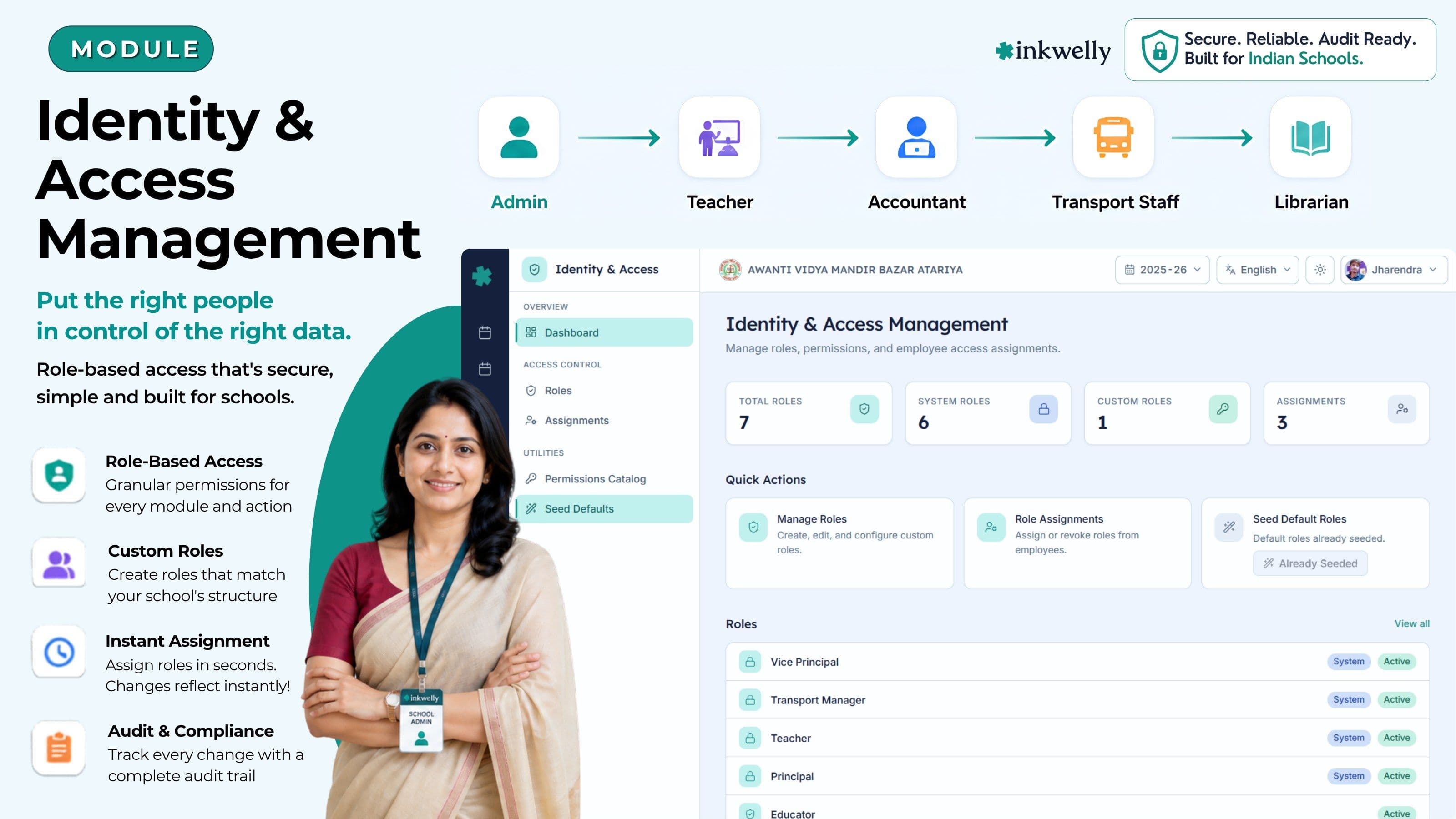
Put the right people in control of the right data
Every staff member in your school has a different job. Your accountant should see fee records — not student exam marks. Your class teacher should mark attendance — not edit payroll. Inkwelly's Access & Role Management lets you set exactly that, for every person, in minutes.
How most Indian schools handle staff access today
It is late October. The UDISE submission deadline is two weeks away and your office assistant is trying to download the student strength report. She opens the ERP, clicks around, and hits a dead end — the report button is visible but nothing happens. She walks to the principal's cabin, borrows the principal's login, downloads the report, and walks back. The principal's credentials are now on three computers in the building.
This is not a fringe scenario. In most school ERPs deployed across India, everyone either gets a generic 'staff' login with full access to everything, or gets locked out of so much that they end up using the principal's password. Both outcomes are bad. One exposes sensitive data. The other creates bottlenecks where every task that requires the ERP flows through one or two people.
The cost is not just inconvenience. When a teacher can see every student's fee status, you have a privacy problem. When an accounts clerk can accidentally delete a student profile, you have a data integrity problem. When your payroll data is visible to everyone who logs in, you have a serious confidentiality problem. Indian schools are increasingly under DPDP Act scrutiny — and poor access control is the first thing an audit finds.
What Inkwelly's Access & Role Management solves
Inkwelly was built from day one with role-based access control (RBAC) at its core. Every action in the system — viewing a student profile, marking attendance, collecting a fee, downloading a payroll report — is governed by a permission. You decide who holds which permissions through custom roles. Assigning a role to a staff member takes under 30 seconds.
The system works at two levels. At the module level, you control whether a staff member can access fee management, attendance, examinations, transport, and every other Inkwelly module at all. At the action level within a module, you control whether they can view, create, update, delete, approve, import, or export. A class teacher might have 'view' and 'mark attendance' permissions for Student Attendance — but not 'manage settings' or 'export'. Your accountant might have full access to Student Fee Management — but zero access to Examination or Payroll.
This is not about distrust. It is about giving every staff member a clean, focused interface with only the tools their job requires — and protecting the school from accidental or intentional misuse.
Everything access control needs in a school
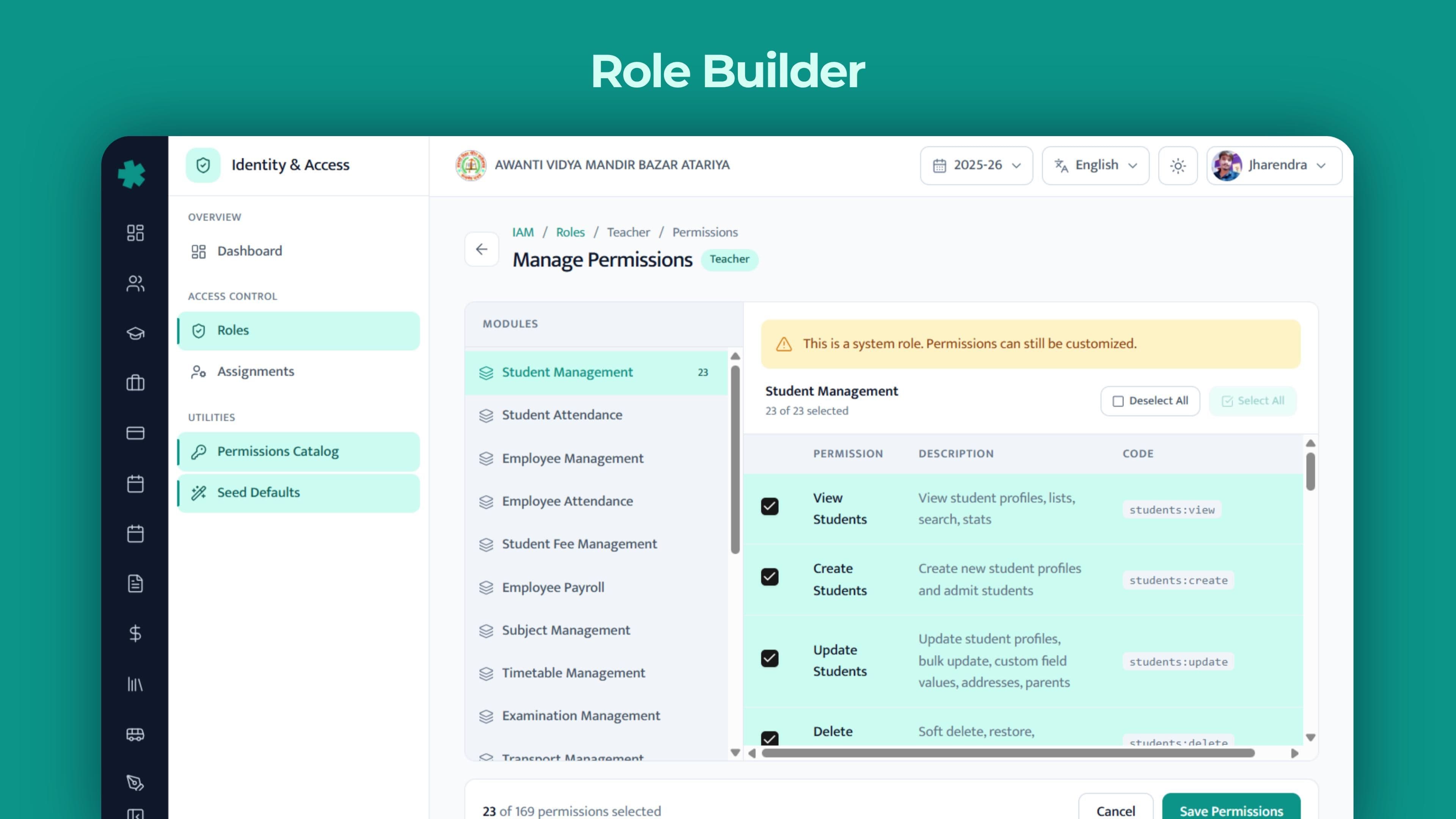
Custom Role Builder
Create named roles — Class Teacher, Accountant, Office Assistant, Librarian, Transport Coordinator — with exactly the permissions each job needs. No code, no IT team required. Built and managed from the school's admin panel.
Granular Per-Module Permissions
Every Inkwelly module has its own permission set: view, create, update, delete, approve, import, export. Assign each independently. A role can have 'view' in one module and 'manage everything' in another.
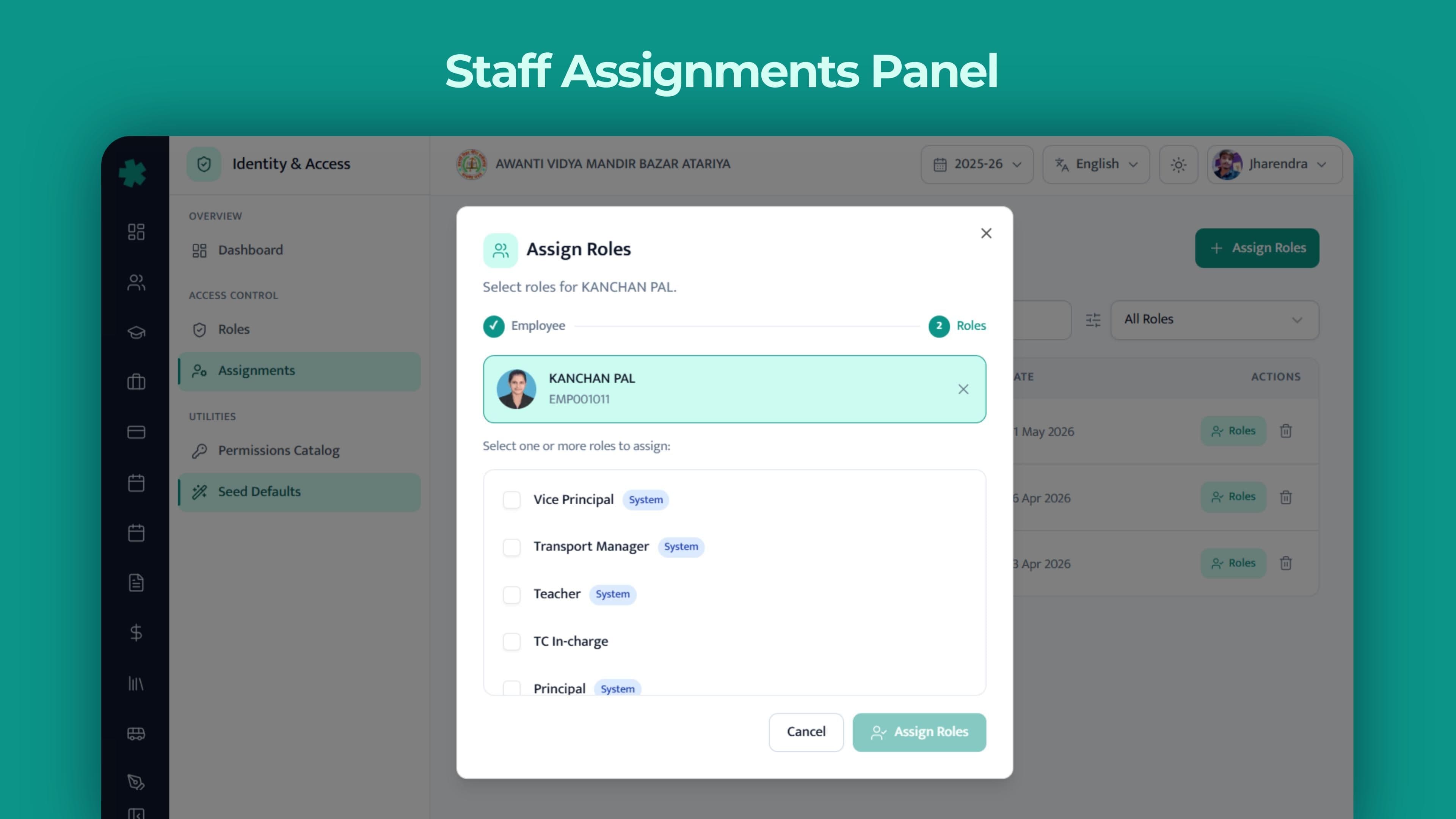
One-Click Staff Assignments
Assign a role to any employee in two clicks from the IAM dashboard. When a staff member's responsibilities change, update their role in seconds — access changes immediately on next login. No helpdesk tickets, no waiting.
Multiple Roles per Employee
A staff member can hold more than one role simultaneously. A subject teacher who also coordinates transport gets both the Teacher and Transport Coordinator roles. Permissions are additive — they get the union of both.
System-Defined Baseline Roles
Start with Inkwelly's pre-built roles — School Admin, Class Teacher, Accountant, Librarian — and customise them to match your school's structure. Or build entirely new roles from scratch.
Role & Assignment Audit Trail
Every role change and assignment is logged with a timestamp and the admin who made it. Full visibility into who has what access, and when it changed — critical for compliance and governance.
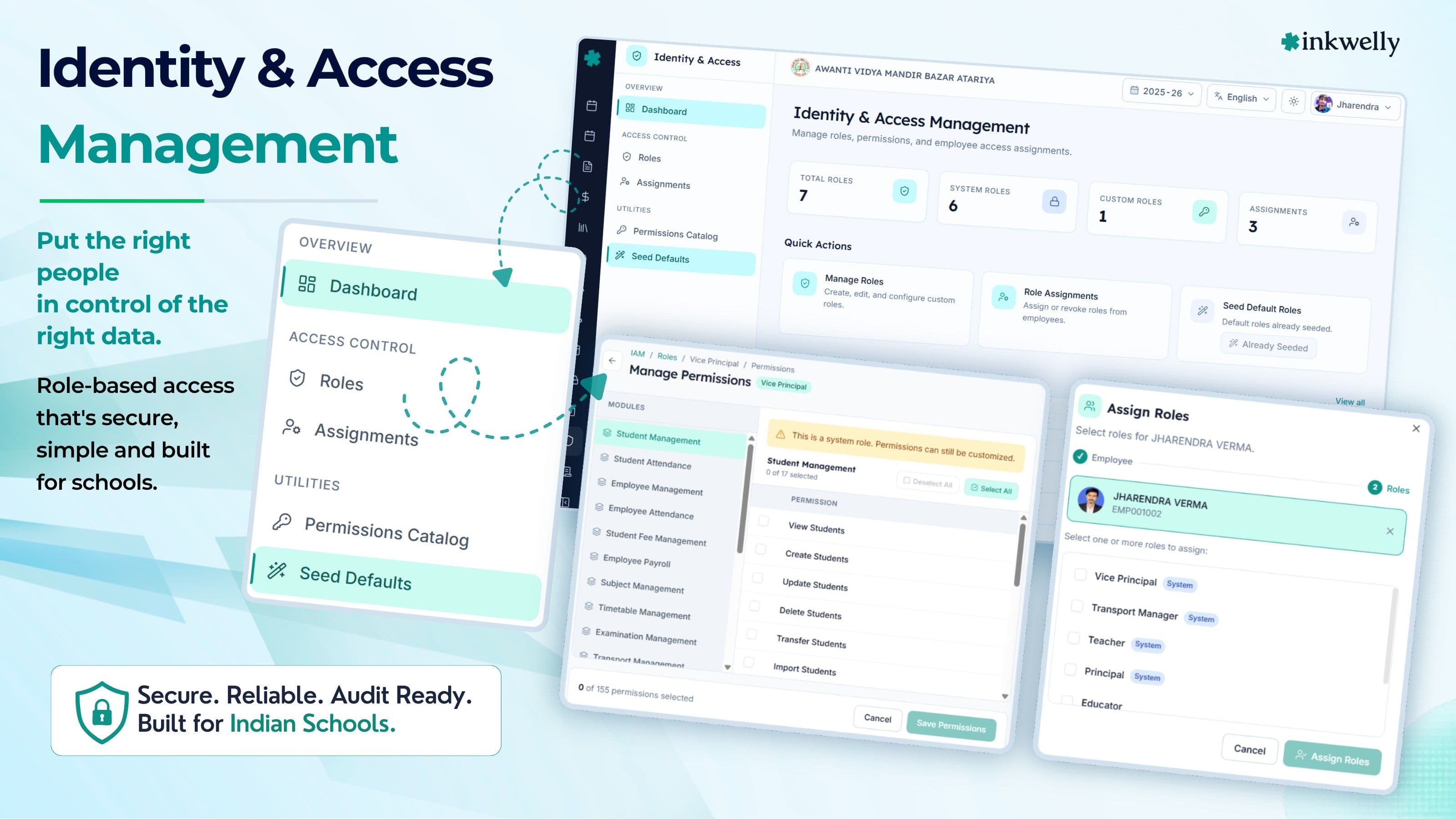
How roles and permissions work in Inkwelly
Inkwelly's IAM system is built on three concepts: modules, permissions, and roles.
Modules
Every major function in Inkwelly is a module: Student Management, Student Attendance, Employee Management, Fee Management, Payroll, Timetable, Examinations, Transport, Library, Homework, Events, Media Center, and more. Access to each module can be granted or denied entirely — a user with no Student Attendance permissions simply does not see the attendance section.
Permissions
Within each module, there are granular permissions. For Student Management, these include: view students, create students, update students, delete students, transfer students, import students, export students, manage settings, and manage documents. For Fee Management: view invoices, create fee structures, collect payments, issue receipts, manage refunds, export reports. Each permission maps to a specific set of API endpoints — granting the permission grants only the actions it covers, nothing more.
Roles
A role is a named collection of permissions. You create a 'Class Teacher' role, tick the permissions that class teachers need — view students, mark attendance, view timetable, view exam marks — and save. From that point, every employee assigned the 'Class Teacher' role gets exactly those permissions.
When your school's structure changes — a new coordinator position, a split accounts team, a visiting teacher — you create or modify a role and the change propagates to all assigned employees immediately. There is no need to update each employee individually.
Setting up access control for your school
Most Inkwelly schools complete their full IAM setup in one session, typically 30–45 minutes for a school with 40–60 staff members. The process follows a consistent pattern:
Step 1 — Audit your staff categories. Before opening the IAM panel, write down your distinct job categories: Principal, Vice-Principal, Office Admin, Class Teacher, Subject Teacher, Accounts Clerk, Librarian, Transport Coordinator, and so on. Most schools have 5–10 distinct categories.
Step 2 — Map permissions to each category. For each category, decide: which modules does this role need access to? And within those modules, which actions (view, create, update, delete, export) does the role require? Inkwelly's permission catalog lists every permission with a plain-English description — no guesswork.
Step 3 — Create roles in Inkwelly. Open the IAM dashboard, click 'New Role', name it, select permissions, and save. Repeat for each category. Inkwelly ships with a set of pre-built template roles — many schools start with these and edit rather than building from scratch.
Step 4 — Assign roles to employees. Go to each employee profile or use the IAM Assignments panel, select their role(s), and save. They see the updated interface on their next login — no app restart, no cache clearing needed.
Step 5 — Review quarterly. As staff join, leave, or change responsibilities, update assignments accordingly. Inkwelly's audit log shows you every assignment change, so your access control record is always current.
See access control in action
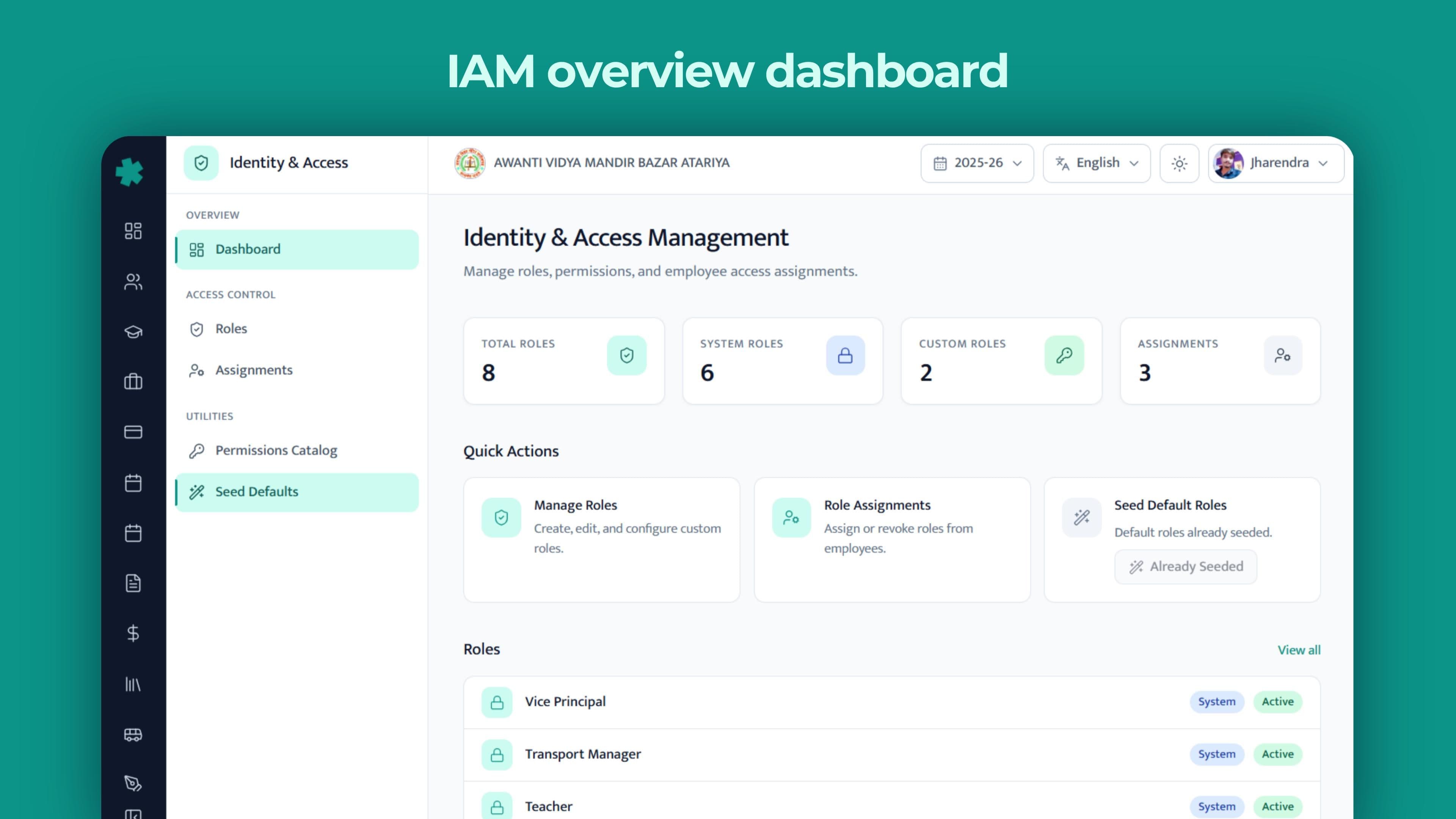
Why granular permissions matter in Indian schools
Indian schools are complex institutions. A mid-size CBSE school in Lucknow or Indore typically has 60–120 staff members across academic, administrative, and operational functions. Fee data, payroll data, student health records, parent contact details, exam marks — these are all sensitive. Not every staff member should access every category.
Under India's Digital Personal Data Protection (DPDP) Act, 2023, schools that collect and process personal data of students and parents are classified as Data Fiduciaries. While enforcement timelines are evolving, the Act's core principle is clear: access to personal data must be limited to those who need it for their specific function — the 'purpose limitation' and 'data minimisation' principles.
Inkwelly's role-based access control directly supports compliance:
- Purpose limitation — a staff member's access is defined by their role. A librarian's role has no access to fee or payroll data; that access was never granted.
- Data minimisation — the system prevents accidental data exposure because the interface literally does not show what the user has no permission to see.
- Audit trail — every permission assignment change is logged. If a data audit asks who had access to student records on a given date, the answer is in the system.
Beyond compliance, good access control has a practical benefit: it makes the ERP simpler for each staff member. When a class teacher logs in and sees only attendance and timetable — not 15 modules they'll never use — they learn the system faster and make fewer errors. Focused interfaces drive adoption.
Access control across the school hierarchy
Inkwelly's IAM system operates at the school level. Each school in your organisation has its own IAM setup, independent of other schools in the same organisation. A staff member assigned a role at School A has no access to School B's data unless explicitly assigned there too.
For multi-school organisations managed by a single Inkwelly organisation account, the Org Admin level has visibility across all schools. School Admins and below are scoped entirely to their school. This separation is enforced at the API level — not just the UI level — so there is no way for a school-level user to access another school's data through the API either.
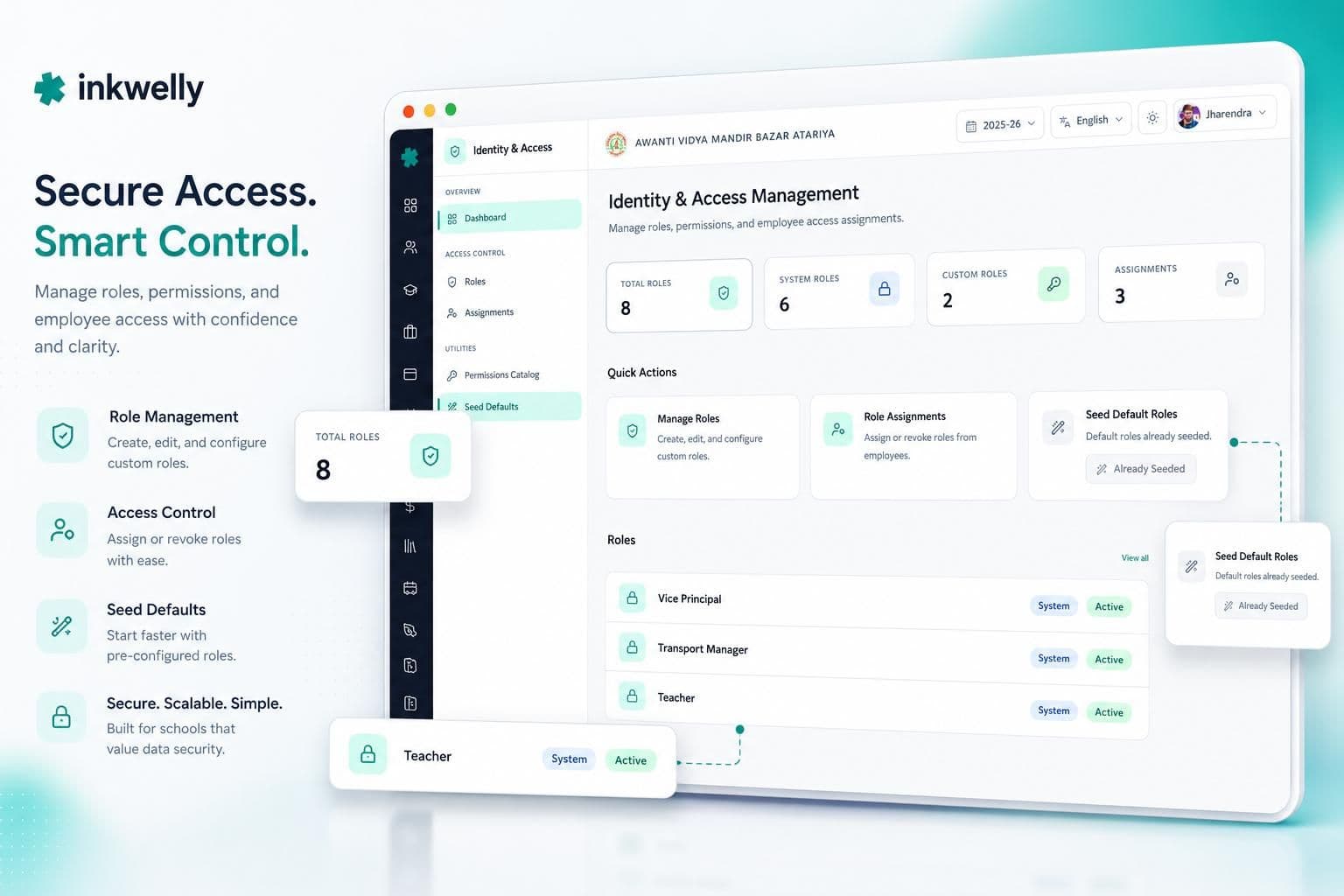
What you control with Inkwelly IAM
- Student Management — view, create, update, delete, transfer, import, export, manage documents, manage settings
- Student Attendance — view records, mark attendance, manage leave requests, configure settings, export reports
- Employee Management — view profiles, create, update, delete, import, export, manage documents
- Employee Attendance — view records, mark attendance, approve leaves, manage settings
- Fee Management — view invoices, create fee structures, collect payments, issue receipts, manage refunds, export reports
- Payroll — view payslips, run payroll, approve disbursements, manage TDS settings, export Form 16
- Examinations — view exam schedules, create assessments, enter marks, generate report cards, manage grade settings
- Timetable — view timetable, create/edit periods, manage templates, assign teachers
- Transport — view routes, manage fleet, assign students to routes, manage transport fees
- Library — catalog access, issue/return books, manage members, view overdue fines
- IAM itself — view roles, manage roles, view assignments, manage assignments
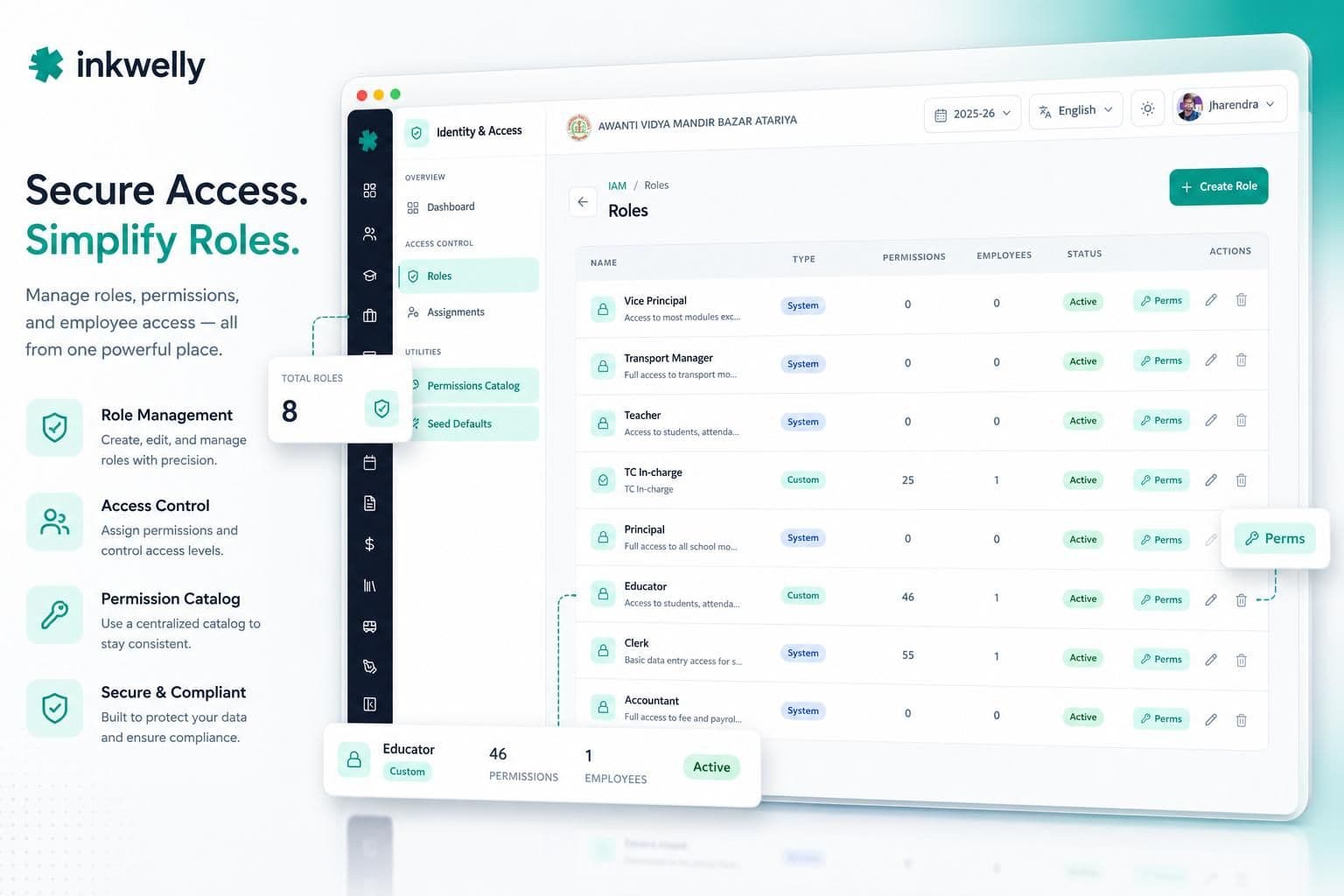
Before and after Inkwelly Access Control
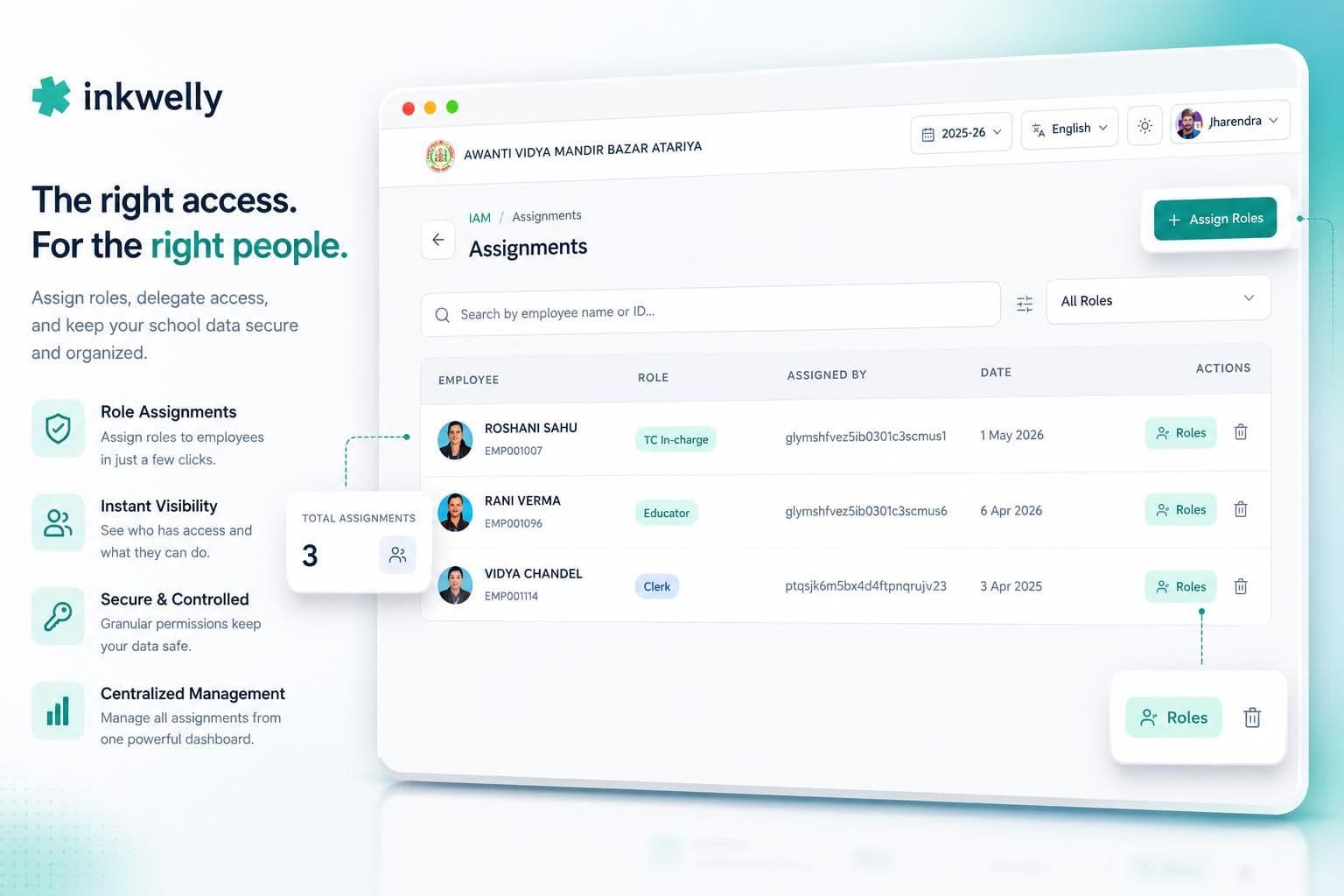
How Inkwelly IAM compares to older school ERPs
Most school ERPs deployed in India — particularly older systems installed in the 2010s — use a flat permission model. There are 3–4 fixed user types: Super Admin, Admin, Teacher, and sometimes Accountant. You cannot add new types, cannot modify what each type can do, and cannot grant partial access within a type. When your school's org chart does not match those 4 boxes, you either squeeze people into the wrong box or give everyone Admin access.
Some newer ERPs offer module-level toggles — you can turn modules on or off per user — but no action-level control. So a user who needs to view fee data but not collect payments gets full fee management access including collection, refunds, and ledger edits. That is still a large exposure surface.
Inkwelly's two-level RBAC — module access + action permissions within each module — gives you the precision that school administration actually requires. And because roles are reusable, maintaining access control as your staff changes is a minutes-per-month task, not a quarterly IT project.
Integration with Inkwelly's audit log
Every action performed by every user in Inkwelly is recorded in the Audit Logs module. This integrates directly with IAM: when you review an audit log entry, you see not just what action was taken, but which role the user held at the time and which permission covered that action.
For schools that need formal access reports — for a trust board meeting, a board inspection, or an internal compliance review — the Audit Logs module gives you an exportable record of who did what, when, and under which permission. IAM defines the rules; Audit Logs records the execution.
Frequently asked questions
School principals and IT coordinators ask these questions most often when evaluating Inkwelly's access control system.
Frequently asked
7 questionsCan I create my own custom roles, or am I limited to the default ones?
You can create unlimited custom roles. Inkwelly ships with pre-built template roles (School Admin, Class Teacher, Accountant, Librarian, etc.) as a starting point, but you can modify them or create entirely new roles from scratch. Role names are free text — name them whatever matches your school's terminology.
What happens to a staff member's access when I change their role?
The change takes effect on their next login. There is no delay, no cache to clear, and no need to contact support. If the change is urgent — for example, a staff member has left the school — you can also deactivate their account entirely from the Employee Management module, which immediately blocks all access regardless of their assigned roles.
Can one staff member have multiple roles?
Yes. A staff member can hold multiple roles simultaneously. Their effective permissions are the union of all their roles. If Role A gives 'view students' and Role B gives 'create students', a user with both roles can view and create. This is useful for staff who have dual responsibilities — a teacher who also coordinates the library, for example.
Is the same IAM setup shared across all schools in my organisation?
No. Each school in your Inkwelly organisation has its own IAM configuration — its own roles and its own staff assignments. A role created for School A does not automatically exist in School B. This is by design: different schools often have different org structures, different staff designations, and different module configurations.
Does Inkwelly's access control help with DPDP Act compliance?
Yes, directly. The DPDP Act requires Data Fiduciaries (which includes schools processing student and parent data) to implement 'purpose limitation' — access to personal data only by those who need it for their specific function. Inkwelly's role-based system implements exactly this: each role is scoped to only the data actions that role's function requires. The built-in audit log further supports compliance by recording every access event.
Can I see a list of all employees and their current roles?
Yes. The IAM Assignments panel shows every employee in the school alongside their currently assigned role(s). You can filter by role, by department, or search by name. This makes quarterly access reviews straightforward — you can verify that every employee's access still matches their current responsibilities.
What happens when a new module is added to our Inkwelly subscription?
New modules are added in a permissions-off state — no existing role gets access to the new module until you explicitly add those permissions to a role. This prevents accidental access expansion when your subscription is upgraded. You review the new module's permissions, decide which roles should have which access, and update accordingly.
You might also like
3 readsSee Inkwelly on your school
30-minute demo. We open your current ERP with you and load your data into Inkwelly on the call. Dated go-live plan by the end of it.