Fee receipt parent को कैसे भेजें WhatsApp, SMS या Email पर
यह गाइड फीस काउंटर स्टाफ, अकाउंटेंट और प्रिंसिपल के लिए है जो payment लेने के बाद parent तक receipt कुछ मिनटों में पहुँचाना चाहते हैं। अंत में आप Inkwelly की कोई भी fee receipt parent या student के WhatsApp, SMS या Email पर PDF के साथ और एक छोटे personal note के साथ भेज पाएँगे।
Inkwelly में fee receipt parent तक भेजने के लिए: Student Fee → Receipts खोलें, receipt पर click करके detail page open करें, top-right के Send button पर click करें, Parents या Student चुनें, WhatsApp, SMS या Email चुनकर tick करें, PDF attached रहने दें और Send दबाएँ। Inkwelly तुरंत receipt parent तक पहुँचा देता है और receipt history में समय, channel और recipient stamp कर देता है।
जो parent payment के कुछ ही मिनट में अपने WhatsApp पर fee receipt पाता है, वह स्कूल पर उससे अधिक भरोसा करता है जो काग़ज़ी पर्ची पकड़ा देता है और पूरे साल उसे संभाल कर रखना पड़ता है। भारतीय parents तक WhatsApp message 95% से अधिक deliver होते हैं, transactional SMS साधारण फ़ोन पर भी लगभग 80% तक पहुँचता है और email लगभग 50% तक — तीनों एक साथ भेजने से बाकी की पहुँच भी पूरी हो जाती है। Payment का क्षण किसी भी fee counter का सबसे high-trust touch होता है; Inkwelly उसी क्षण को एक डिजिटल record में बदल देता है जिसे parent audit के समय, board admission के समय या scholarship के समय कभी भी search कर सकते हैं।
1. Receipts page खोलें
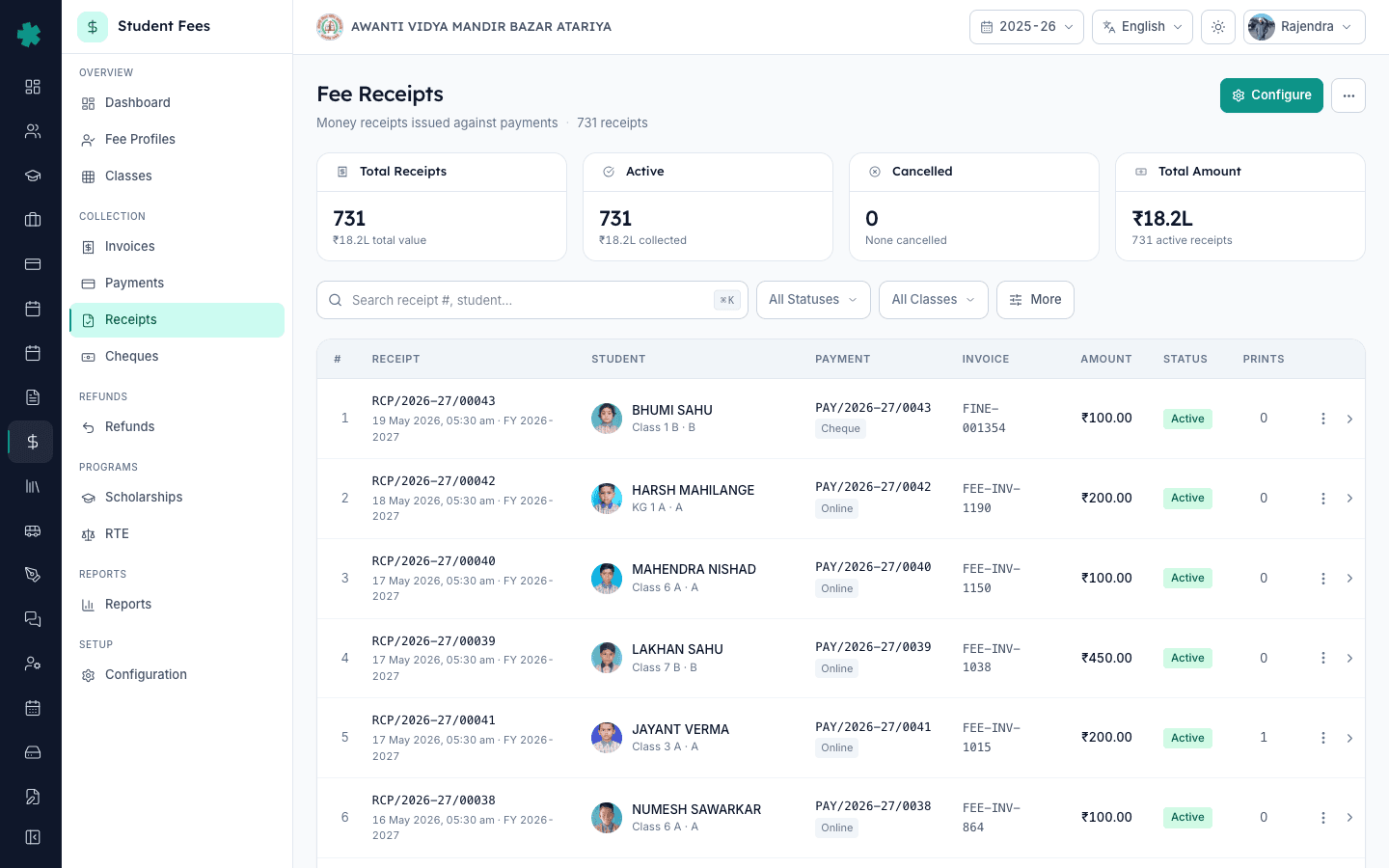
बाएँ साइडबार से Inkwelly → Student Fee खोलें, फिर COLLECTION section में Receipts पर click करें। Receipts page चालू सत्र की हर paid और partial receipt दिखाता है — receipt number, student, class, राशि, payment mode और तारीख़। ऊपर सर्च बार में student का नाम, admission number या receipt number डालकर receipt ढूँढ लें। ज़्यादातर स्कूल हर महीने 200 से 1,500 receipts जारी करते हैं, इसलिए search करना scroll करने से बेहतर है।
2. Receipt detail खोलें
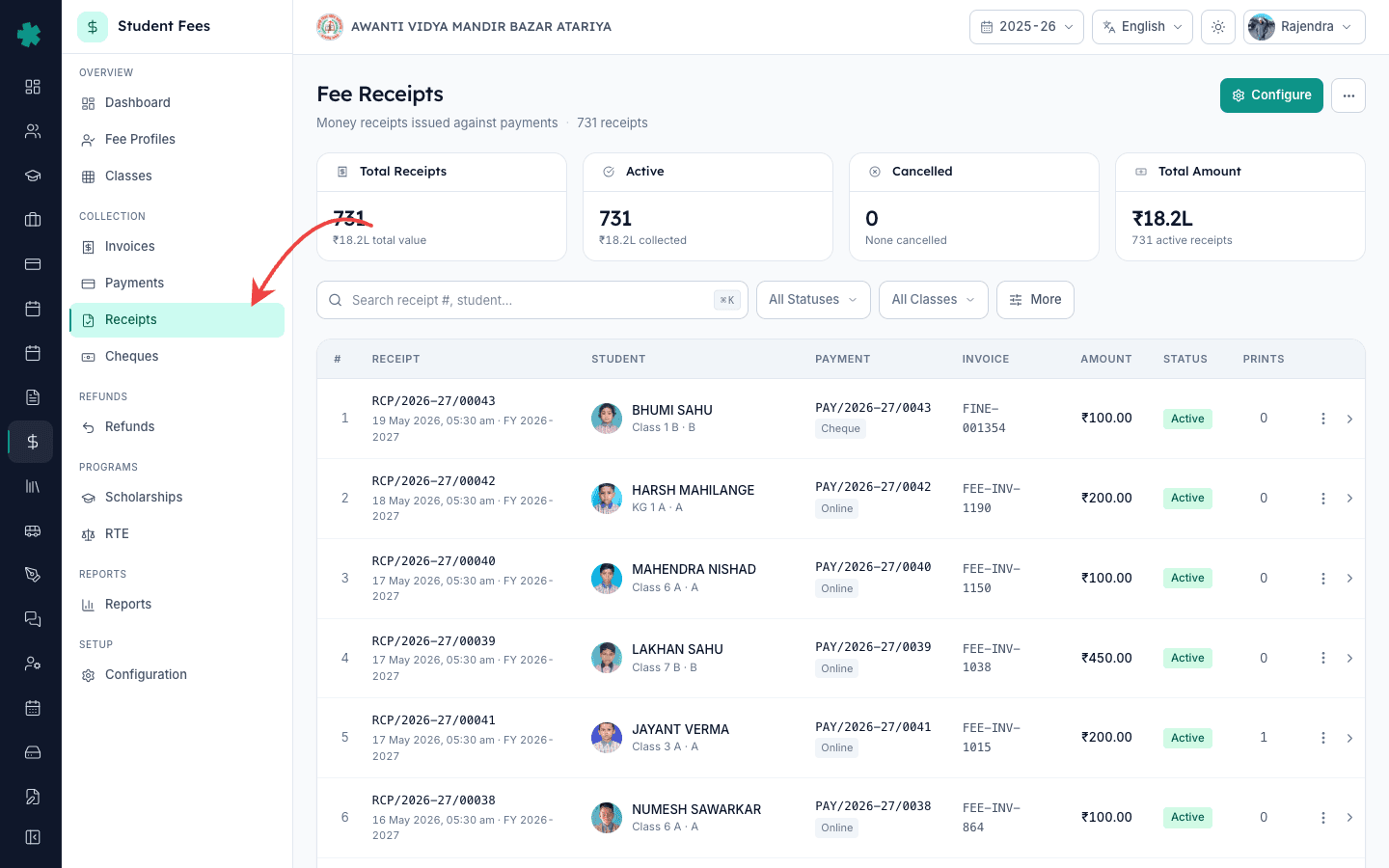
Receipt की row पर click करके detail page खोलें। ऊपर header में student की फ़ोटो, class, parent का नाम, receipt number, paid राशि, payment mode और जुड़ी हुई invoice दिखती है। Top-right action bar पर Send, Print, PDF और Cancel — चार बटन हैं। Inkwelly हर payment record होने पर यह receipt अपने आप बना देता है, इसलिए यह पहले से ही board-compliant और signed होती है — आपको केवल इसे parent तक deliver करना है।
3. Send पर click करके recipient चुनें
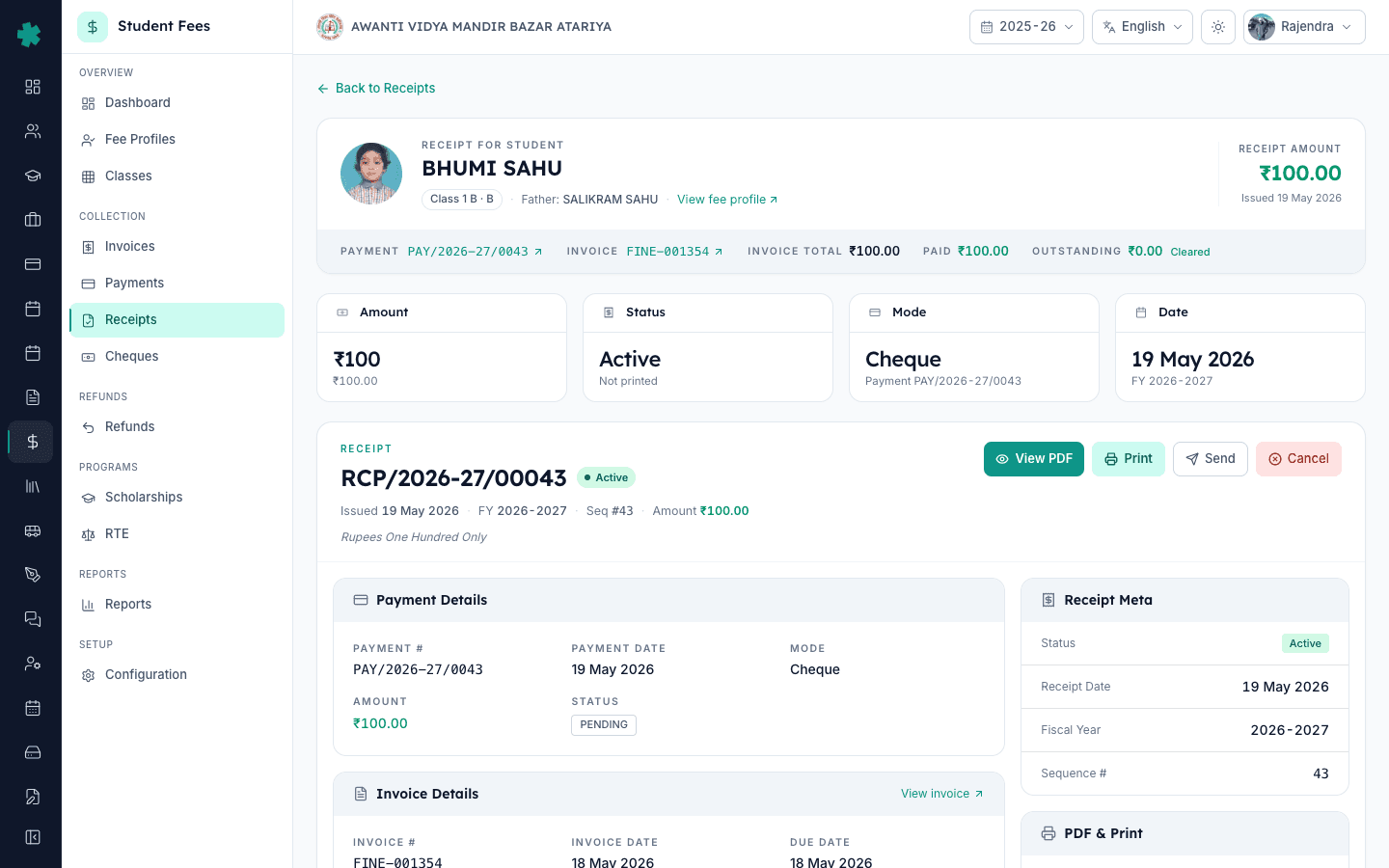
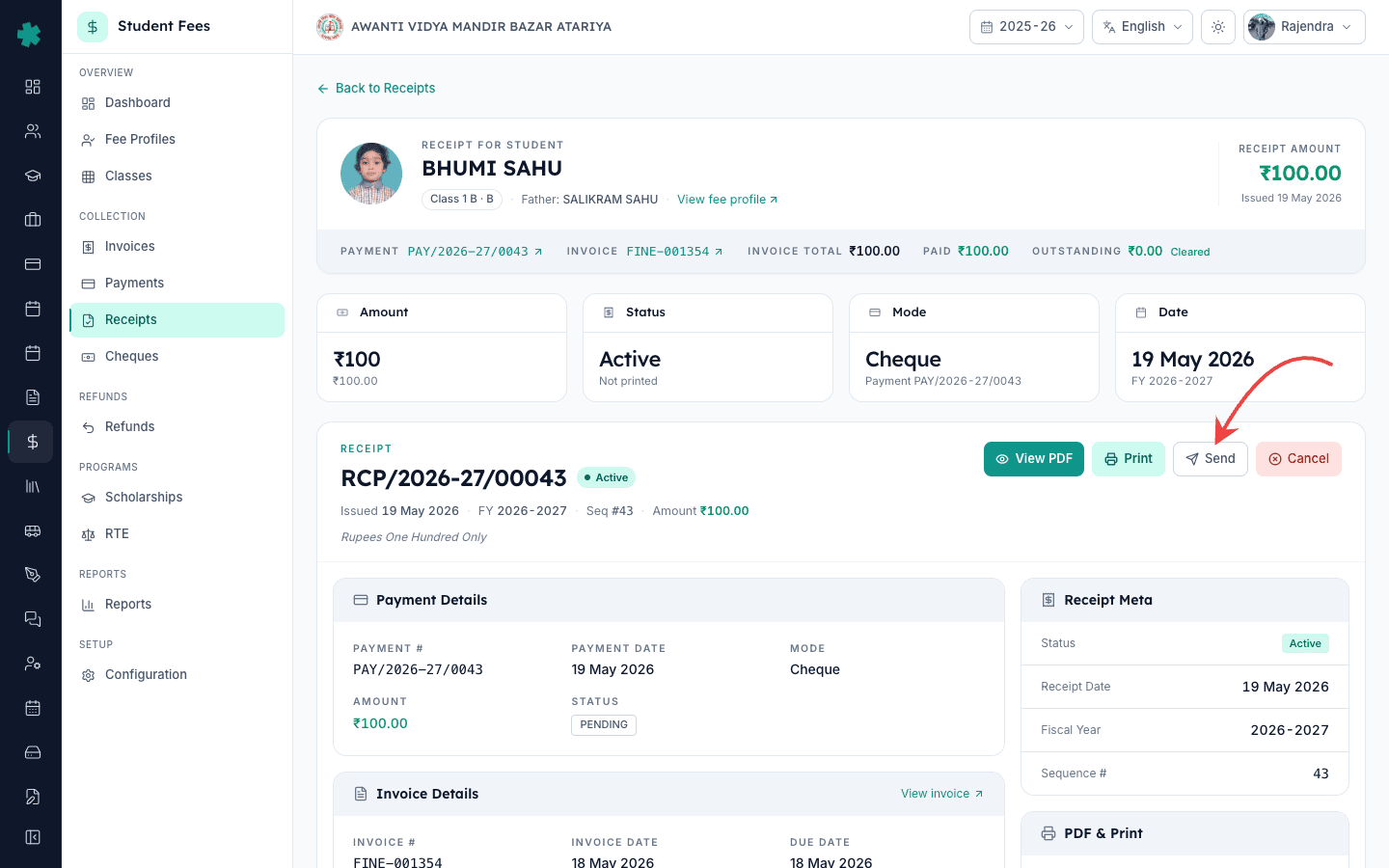
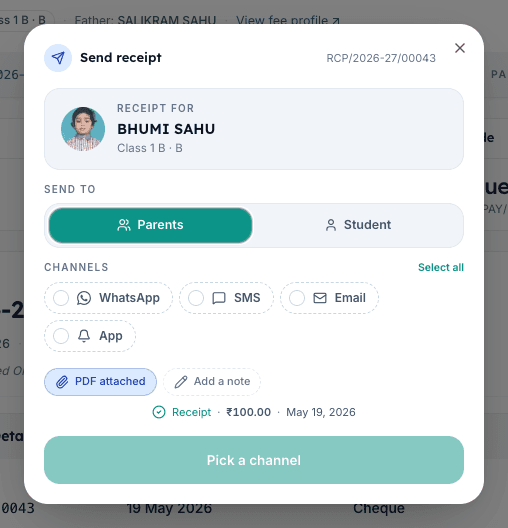
Top-right action bar के Send button पर click करें। Inkwelly Send receipt dialog खोलता है, जिसके ऊपर student की identity card होती है — नाम, class, फ़ोटो और receipt number। Send to row में दो pills होते हैं: Parents और Student। आम तौर पर Parents selected रहने दें। केवल class 11–12 के उन day-scholar students के लिए Student चुनें जो अपनी फ़ीस ख़ुद भरते हैं और profile में जिनका अपना phone number है।
4. एक या एक से अधिक channel चुनें
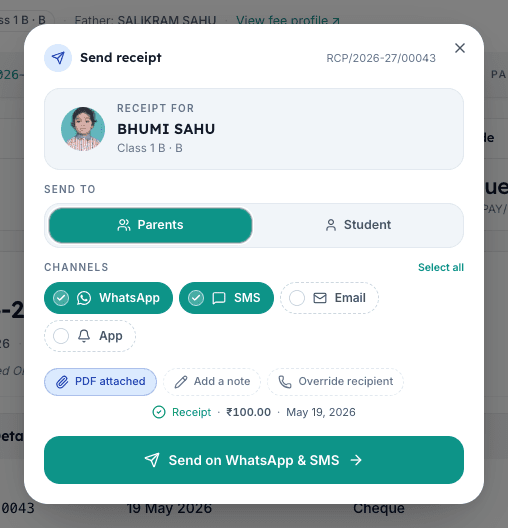
Channels row में चार chip होते हैं: WhatsApp, SMS, Email और App। जिस channel पर भेजना है उस पर click करें — ये multi-select हैं और tick हो जाते हैं। भारतीय parents के लिए WhatsApp सबसे ज़्यादा पहुँच वाला channel है; SMS उन parents के लिए safe backup है जिनके पास smartphone नहीं है; Email official record के लिए है। App, Inkwelly के parent app के अंदर receipt को notification की तरह push कर देता है। दो या तीन channel एक साथ चुनना सामान्य है — parent को हर channel पर एक delivery जाती है और एक ही Send action से सभी channels पर भेज दिया जाता है।
5. PDF चालू रखें, note जोड़ें और Send करें
PDF attached chip default पर on होता है — उसे on ही रहने दें ताकि parent बाद में receipt save कर सके या आगे forward कर सके। Add a note पर click करके 500 अक्षरों तक एक छोटा personal line लिख सकते हैं, जो receipt के ऊपर दिखाई देता है — late payment या term-end thank-you के लिए उपयोगी है। Override recipient पर तभी click करें जब parent ने अभी-अभी number बदला हो और नया number profile में अभी update नहीं हुआ है। नीचे Send on (channels) button पर click करें। Inkwelly messages fire करता है, success toast दिखाता है और dialog बंद कर देता है।
6. Receipt history में send verify करें
Receipt detail page refresh होता है और activity timeline के ऊपर एक नई Sent row आ जाती है जिसमें timestamp, recipient (parent या student), channels (WhatsApp, SMS, Email या App) और delivery status दिखाई देता है। WhatsApp Read और SMS Delivered जैसा status कुछ ही seconds में update हो जाता है। यदि delivery fail हुई — ग़लत number, blocked sender या भरा हुआ inbox — तो row Failed और reason दिखाती है, और आप सही phone या email डालकर Send दोबारा कर सकते हैं।
अगला कदम — यदि receipt ग़लत student को या ग़लती से भेज दी गई हो, तो How to cancel a fee receipt देखकर void करें ताकि audit trail बरकरार रहे। बकाया फीस पर भी यही pattern लागू होता है — How to send an invoice to a parent over WhatsApp, SMS or email देखें। WhatsApp sender, SMS DLT template और email domain set करने के लिए Communications के channel setup guides पढ़ें, और A4 fee receipt का layout बदलने के लिए How to customise the receipt template for A4 fee receipts देखें।
Inkwelly Student Fees को काम करते हुए देखें
अक्सर पूछे गए सवाल
7 सवालक्या Inkwelly से fee receipt parent के WhatsApp पर सीधे भेजी जा सकती है?
हाँ। Inkwelly → Student Fee → Receipts खोलें, receipt पर click करके top-right के Send button पर click करें, WhatsApp chip tick करें, PDF attached on रखें और Send दबाएँ। Parent को स्कूल का logo, student का नाम, राशि और PDF कुछ ही seconds में मिल जाते हैं। पहले Communications → Channels में WhatsApp Business sender connect होना ज़रूरी है।
क्या एक ही receipt को WhatsApp, SMS और Email तीनों पर एक साथ भेज सकते हैं?
हाँ। Send receipt dialog की Channels row multi-select है — WhatsApp, SMS और Email तीनों tick करके Send दबाएँ। Inkwelly हर channel पर एक-एक message भेजता है और receipt history में एक ही Sent row में तीनों channels दर्ज कर देता है। ज़्यादातर fee counter staff WhatsApp और SMS साथ भेजते हैं, और Email केवल board audit copy के लिए।
Receipt WhatsApp par kaise bheje?
Inkwelly → Student Fee → Receipts kholiye, receipt par click karke detail page open kijiye. Top-right me Send button hai — uspar click kijiye. Send receipt dialog me Parents select rahega, niche Channels me WhatsApp chip tick kijiye, PDF attached on rakhiye aur Send button dabaiye. Parent ke WhatsApp par receipt PDF ke saath bhej di jayegi.
Bulk receipt send hota hai ya ek-ek karke?
Aaj ke version me Send button per-receipt hai — ek baar me ek receipt parent ko jaati hai. Agar ek installment ke 200 receipts ek saath bhejni ho, Receipts page par date range filter laga ke har row par Send to Parent kebab menu se click kijiye. Aage aane wale releases me bulk-send queue add ho rahi hai.
यदि parent ने phone number बदला है तो बिना profile बदले नए number पर कैसे भेजें?
Send receipt dialog में channels के नीचे Override recipient pill पर click करें, नया phone number type करें और Send दबाएँ। Inkwelly केवल इसी एक send के लिए वह number इस्तेमाल करता है — student profile नहीं बदलती। नए number को स्थायी करने के लिए बाद में student profile में parent contact को update कर दें।
क्या Inkwelly WhatsApp पर पूरी PDF attach करता है या केवल receipt number?
Default पर PDF attached chip on रहता है, इसलिए WhatsApp और Email पर पूरी PDF जाती है — स्कूल header, student का नाम, paid राशि, payment mode और board-compliant signature के साथ। SMS में attachment नहीं जाते — Inkwelly 160 अक्षरों में receipt number, राशि और parent portal पर PDF का link भेज देता है।
कैसे पता चलेगा कि parent को receipt वाकई मिल गई?
Send के बाद receipt detail page refresh होता है और Sent activity row में हर channel का delivery status दिखता है: Sent, Delivered, Read (WhatsApp के लिए) या Failed reason के साथ। Provider से delivery report आने पर Inkwelly seconds में status update कर देता है। Failed sends को सही number या दूसरे channel से retry किया जा सकता है।
आपको ये भी पसंद आ सकता है
3 लेखस्रोत व संदर्भ
- TRAI — Telecom Commercial Communications Customer Preference Regulations (transactional SMS DLT framework) · देखा गया 19 May 2026
TRAI ka DLT framework har transactional SMS ke liye registered sender ID aur approved template anivaarya banata hai, jisme school fee receipt bhi shamil hai.
- Meta — WhatsApp Business Platform Messaging Policy (utility / transactional messages) · देखा गया 19 May 2026
Meta WhatsApp Business Platform par school fee receipt confirmation ko utility message manta hai, jo Inkwelly approved template se deliver karta hai.
- CBSE Affiliation Bye-Laws — Chapter VII (record of fees collected) · देखा गया 19 May 2026
CBSE bye-laws affiliated schools ko har fee collection ka verifiable record rakhne ke liye baadhya karte hain; Inkwelly ki WhatsApp / SMS / Email delivery yahi record poora karti hai.
Inkwelly आपके स्कूल पर — खुद देखें
30 मिनट का डेमो। आपके मौजूदा ERP को आपके साथ खोलकर, कॉल पर ही आपका डेटा Inkwelly में लोड करते हैं। कॉल ख़त्म होते-होते एक तय तारीख़ का गो-लाइव प्लान आपके हाथ में।