Cheque को बैंक में deposited कैसे मार्क करें Inkwelly में
यह गाइड उस स्कूल कैशियर या ऑफिस हेड के लिए है जो सप्ताह भर में काउंटर पर cheque इकट्ठा करता है और एक साथ बैंक ले जाता है — आमतौर पर हर सोमवार सुबह। अंत में आपके पास Inkwelly में deposited मार्क किया हुआ cheque होगा, जिसकी deposit तारीख और बैंक खाता रिकॉर्ड पर रहेगा, ताकि Student Fee डैशबोर्ड का cheque pipeline बैंक में क्लियरिंग के दौरान भी cheque को सही से ट्रैक करता रहे।
Inkwelly में cheque को deposited मार्क करने के लिए: Student Fee फिर Cheques खोलें, Pending tab पर जाएँ, cheque row पर kebab menu (तीन बिंदु) पर click करें और Deposit चुनें, deposit तारीख और स्कूल का बैंक खाता भरें, फिर Deposit Cheque दबाएँ। Inkwelly cheque की status को Received से Deposited कर देता है, deposit तारीख को audit trail पर मुहर लगा देता है, और Student Fee डैशबोर्ड का Cheque Pipeline tile cheque को एक चरण आगे बढ़ा देता है। Cleared या Bounced का अगला निर्णय बैंक के confirm करने के बाद ऑफिस अलग step में चलाता है।
Inkwelly में हर स्कूल cheque के तीन lifecycle चरण होते हैं — counter पर Received, बैंक में Deposited, और बैंक की clearing window के बाद Cleared या Bounced। Cheque को Deposited मार्क करना केवल status बदलना नहीं है। यह ऑफिस हेड को बताता है कि cheque स्कूल के हाथ से कब निकला, यह capture करता है कि किस बैंक खाते में गया, और Cheque Pipeline tile पर clearing window की उलटी गिनती शुरू कर देता है। Reserve Bank of India हर बैंक से local, outstation और CTS clearing window प्रकाशित करवाती है; अधिकांश CTS-enabled centre के local cheque T+1 working day में clear होते हैं, outstation cheque 3 से 7 working day लेते हैं। 1,200 छात्रों वाला स्कूल आमतौर पर सप्ताह में दो deposit trip करता है और एक शैक्षणिक सत्र में 250 से 400 cheque clear करता है; deposit तारीख track किए बिना खोए हुए cheque या देर से बैंक entry का audit trail नहीं बचता।
1. Student Fee खोलें और Cheques पर click करें
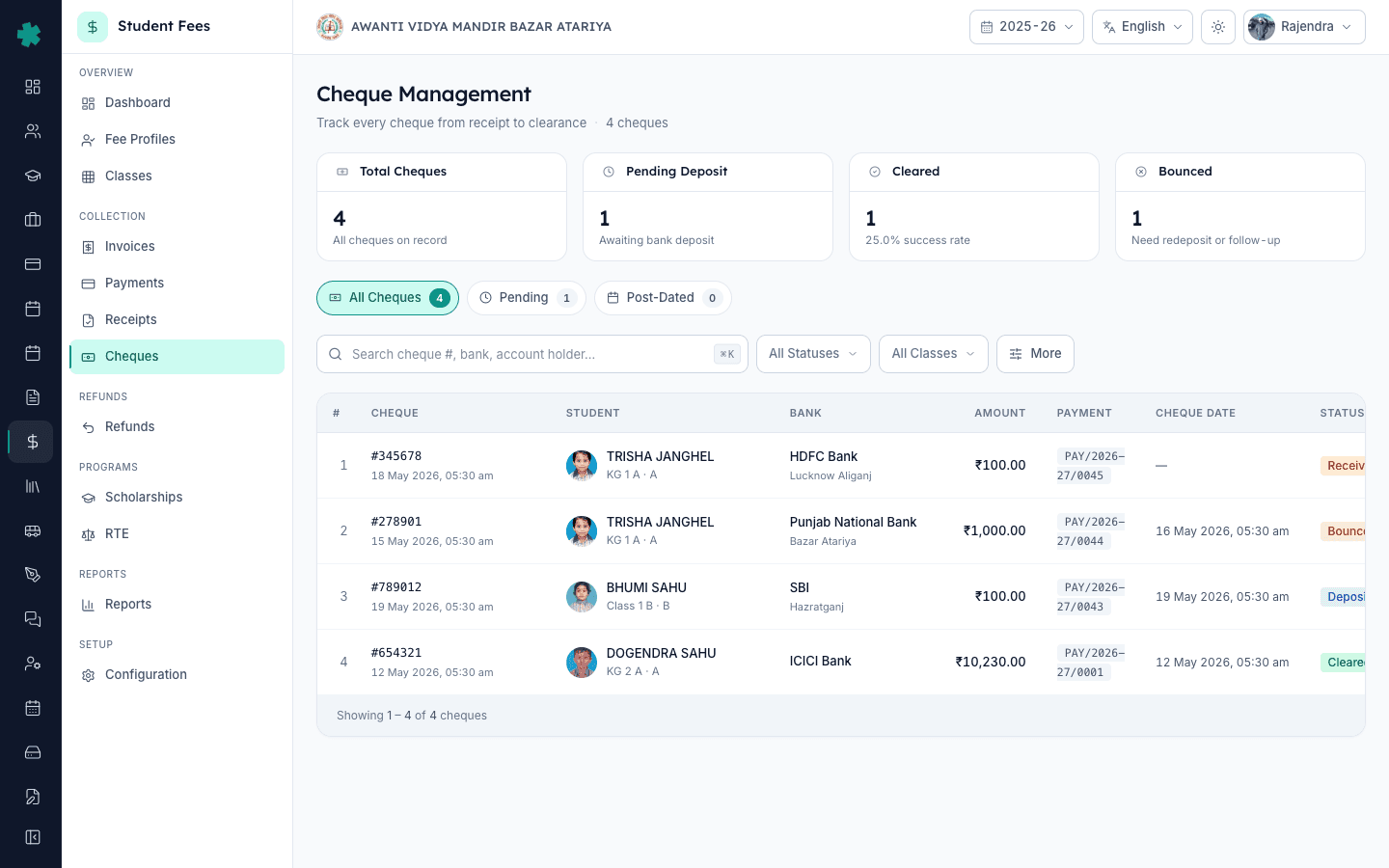
बाएँ साइडबार से Inkwelly फिर Student Fee खोलें। COLLECTION group के अंतर्गत Cheques पर click करें। Cheques पेज ऊपर चार KPI tile दिखाता है — Total Cheques, Pending Deposit, Cleared और Bounced — और नीचे तीन tab: All Cheques, Pending और Post-Dated। Pending Deposit KPI वही count है जिस पर आज आप काम करने वाले हैं। Pending tab पर हरा badge उसी count को दोहराता है ताकि एक नज़र में स्थिति समझ आ जाए।
2. Pending tab पर जाएँ ताकि undeposited cheque दिखें
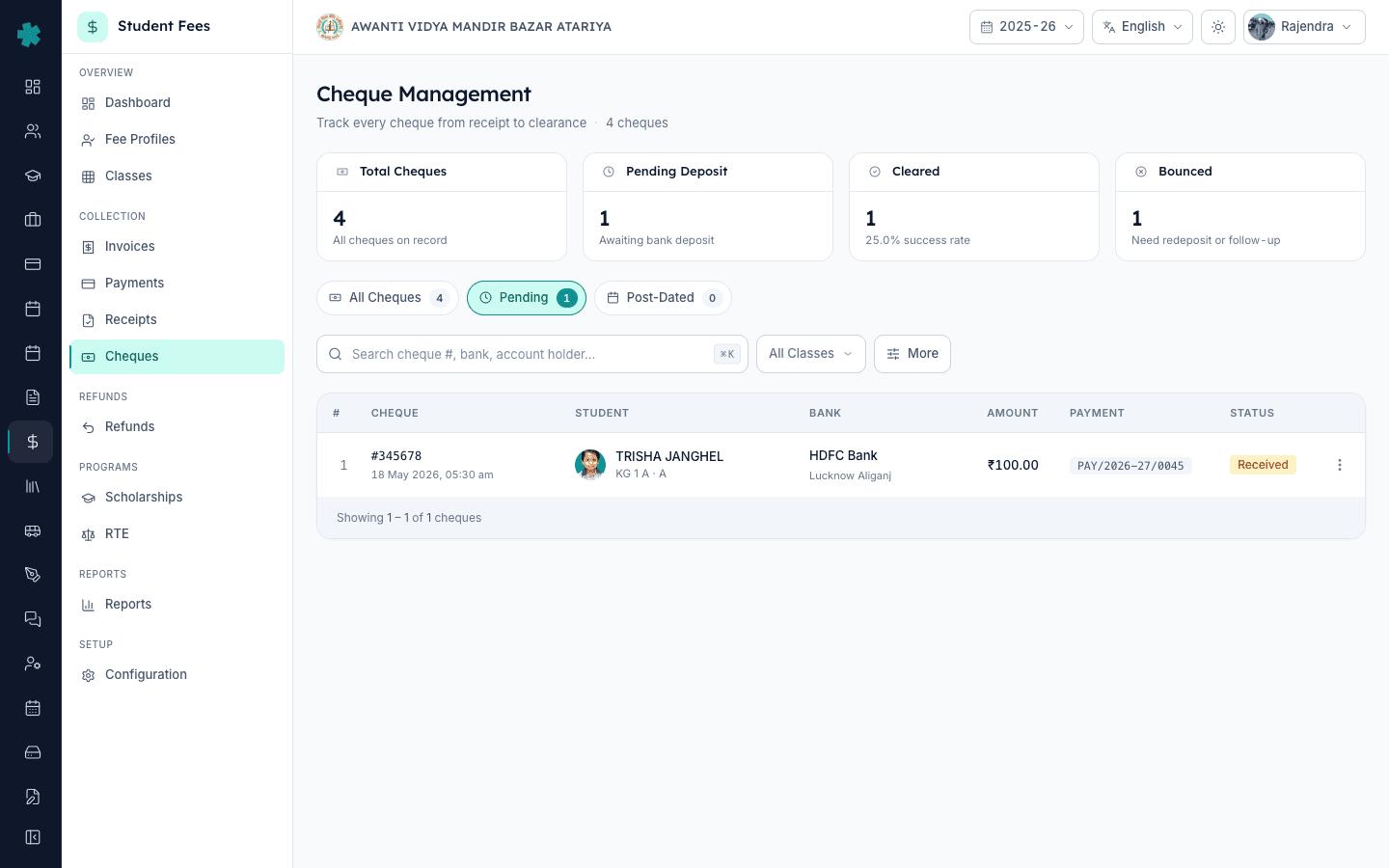
Pending tab पर click करें। Inkwelly तालिका को Received state के cheque तक सीमित कर देता है — वे cheque जो काउंटर पर तो लिए जा चुके हैं लेकिन अभी बैंक नहीं ले जाए गए। हर row पर cheque number, छात्र और class, बैंक, राशि, cheque date, और एम्बर रंग का Received status pill दिखता है। सूची लंबी होने पर ऊपर के search bar से cheque number या छात्र के नाम से ढूँढें, या class filter से deposit batch को बैंक trip से पहले section के हिसाब से समूह बना लें।
3. Cheque row पर kebab menu खोलें और Deposit चुनें
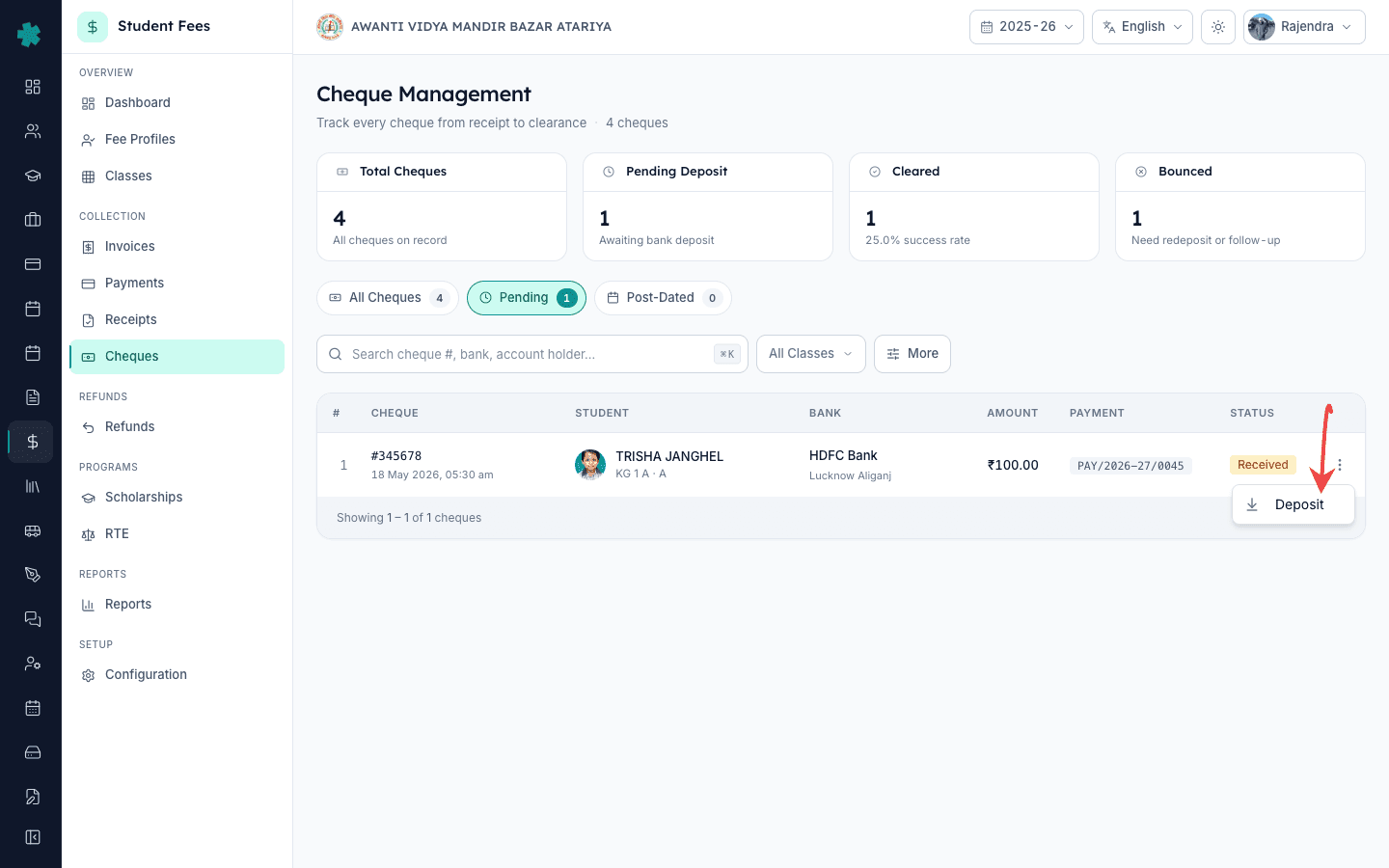
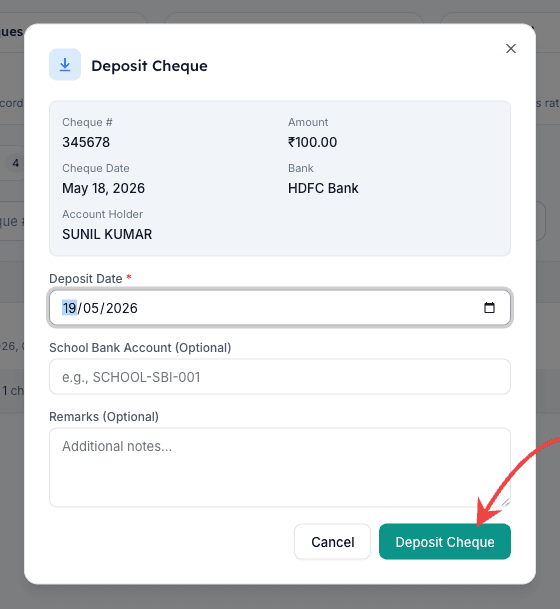
जो cheque आप बैंक ले गए, उसे ढूँढें और उसकी row के दाएँ छोर पर kebab icon (तीन ऊर्ध्व बिंदु) पर click करें। Received cheque के लिए actions menu में एक option दिखेगा — Deposit, नीचे की ओर तीर वाले icon के साथ। Deposit पर click करें। Inkwelly Deposit Cheque dialog खोलता है जिसमें cheque का number, राशि, बैंक, cheque date और account holder ऊपर एक sunken card में दिखते हैं, ताकि कैशियर physical cheque और entry का मिलान सेव करने से पहले कर ले।
4. Deposit तारीख और स्कूल का बैंक खाता भरें
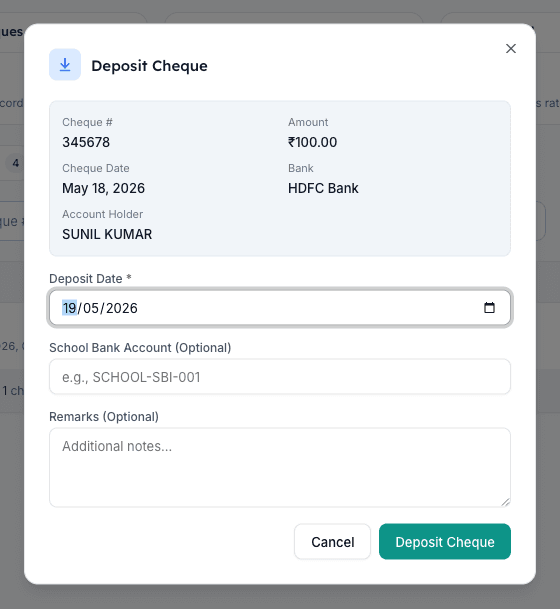
Deposit Cheque dialog में तीन input field हैं। Deposit Date field अनिवार्य है और default आज की तारीख से भरा होता है; इसे केवल तब बदलें जब बैंक trip किसी और दिन हुई हो। वैकल्पिक School Bank Account field में स्कूल बैंक खाता label टाइप करें; एक fixed naming pattern रखें जैसे SCHOOL-SBI-001, HDFC-MAIN या AXIS-CURRENT ताकि Reports module बैंक खाते के अनुसार deposit समूह बना सके। Remarks field का उपयोग audit trail के लिए कोई भी context रखने के लिए करें, जैसे deposit slip का नंबर, cheque जिस branch में गया, या यह कि cheque Class 9 के hostel batch का है।
5. Deposit Cheque दबाएँ और status बदलते देखें
Deposit तारीख, बैंक खाते और remarks की एक बार समीक्षा करें, फिर dialog के नीचे दाईं ओर हरे Deposit Cheque बटन पर click करें। Inkwelly cheque के विरुद्ध deposit event लिखता है, उसे Received state से Deposited state में ले जाता है, deposit तारीख को audit trail पर मुहर लगाता है, और dialog बंद कर देता है। एक success toast Cheque deposited successfully की पुष्टि करता है। Row Pending tab से गायब हो जाती है; cheque अब All Cheques tab पर नीले Deposited status pill के साथ दिखता है, और Pending Deposit KPI count एक कम हो जाता है। वही cheque छात्र की fee profile के Cheques tab पर भी नई state में दिखाई देता है।
6. डैशबोर्ड के Cheque Pipeline tile पर पुष्टि करें
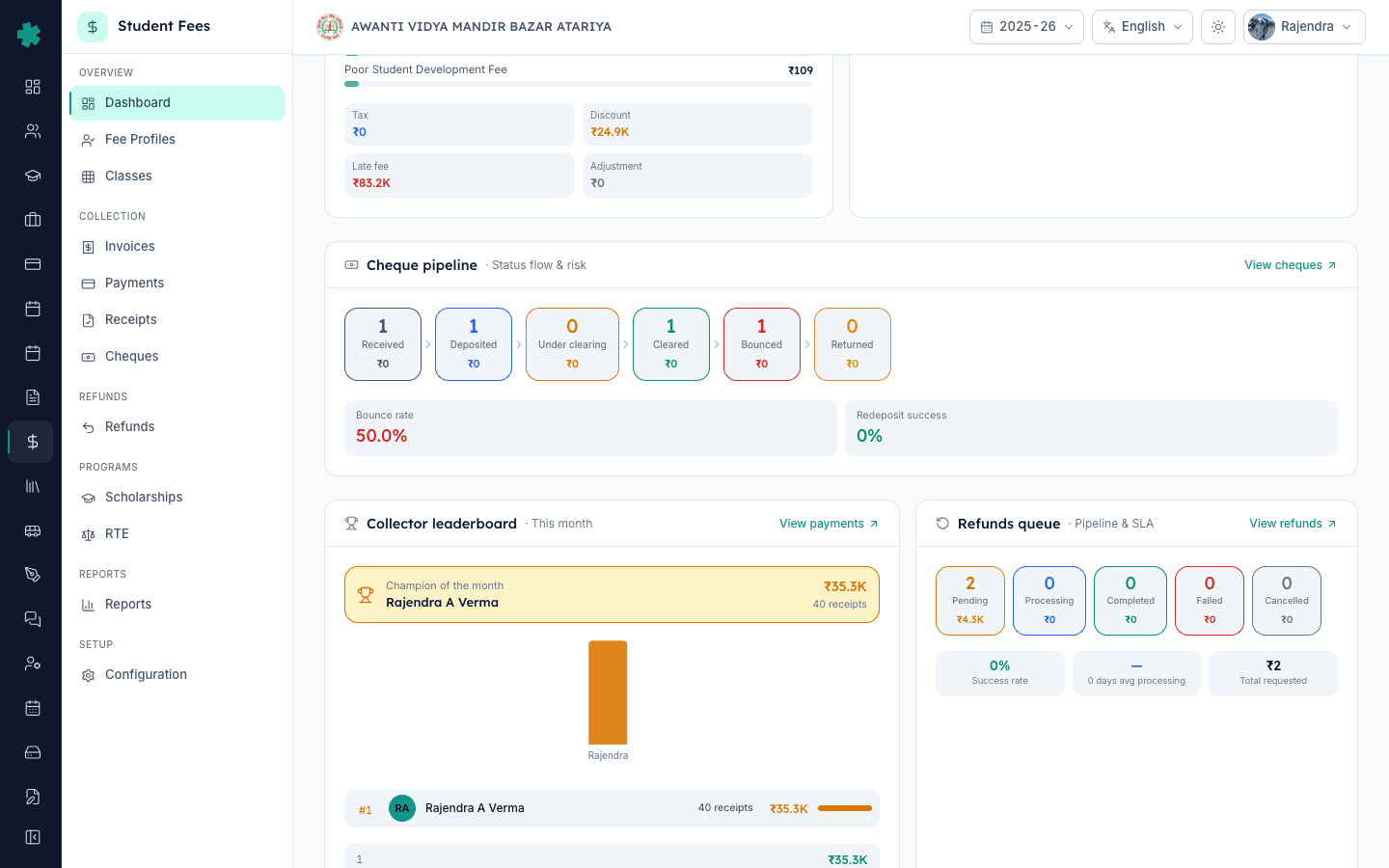
डैशबोर्ड पर लौटने के लिए बाएँ साइडबार से Student Fee खोलें। Cheque Pipeline tile तक scroll करें — यह चार चरणों वाला एक horizontal funnel है: Received, Deposited, Cleared और Bounced। जो cheque अभी deposit किया उसे आप एक चरण दाईं ओर बढ़ता हुआ देखेंगे। Deposited count tile पर आज सुबह की तुलना में एक अधिक संख्या दिखती है, और tile पर click करने से All Cheques tab Deposited filter के साथ खुलता है ताकि ऑफिस हेड पूरे deposit batch का एक ही view में audit कर सके। बैंक के clearing confirm करते ही यही cheque इसी row से Cleared मार्क किया जाता है — वह flow इस cluster का अगला LEARN है।
अगला कदम — बैंक की clearing window की प्रतीक्षा करें, जो local CTS cheque के लिए सामान्यतः एक working day और outstation के लिए तीन से सात working day होती है। बैंक की पुष्टि के बाद, How to mark a cheque as cleared in Inkwelly का अनुसरण करके receipt को बंद करें। यदि बैंक cheque वापस लौटाता है, तो How to handle a bounced cheque and redeposit it in Inkwelly से payment reverse करें, invoice फिर से outstanding करें और bounce charge जोड़ें। यदि इस batch के बंद होने से पहले कोई नया cheque जोड़ना हो, तो counter entry का तरीका How to record a cheque payment in Inkwelly में बताया गया है।
Inkwelly Student Fees को काम करते हुए देखें
अक्सर पूछे गए सवाल
6 सवालCheque को deposited मार्क करने से Inkwelly में क्या होता है?
Cheque को deposited मार्क करने से उसकी status Received से Deposited हो जाती है, deposit तारीख audit trail पर लिख दी जाती है, और Student Fee डैशबोर्ड का Cheque Pipeline tile cheque को एक चरण आगे ले जाता है। Receipt और invoice अपनी मौजूदा स्थिति में बने रहते हैं; clearing एक अलग action है जो आप तब चलाते हैं जब बैंक पैसा स्कूल खाते में आने की पुष्टि कर दे।
क्या cheque deposit होने पर अभिभावक की receipt फिर से जारी होती है?
नहीं। counter पर cheque लेने वाले दिन जारी की गई receipt वैसी की वैसी रहती है। Deposit स्कूल और बैंक के बीच एक आंतरिक lifecycle event है; यह audit trail पर दर्ज होता है और छात्र की fee profile के Cheques tab पर दिखता है, लेकिन अभिभावक की receipt केवल तब reprint होती है जब cheque बाद में bounce हो जाए और payment reverse हो जाए।
Cheque deposit kaise mark kare Inkwelly me?
Inkwelly me Student Fee section ke andar Cheques page kholiye, upar Pending tab par click kijiye. Jis cheque ko aap bank le gaye usske row ke right me kebab menu (teen dot) par click kijiye, Deposit option par click kijiye. Deposit Cheque dialog me Deposit Date select kijiye (default aaj ka hota hai), school bank account ka label likhiye jaise SCHOOL-SBI-001, aur niche green Deposit Cheque button dabaiye. Status Received se Deposited ho jayega.
Pending cheque ko kab clear maane?
Cheque ko Cleared sirf tab maaniye jab bank account me paisa actually credit ho jaye; Inkwelly me status badalna alag step hai. CTS-enabled local cheque normally T+1 working day me clear hota hai, outstation cheque 3 se 7 working day leta hai. Tab tak cheque Deposited state me rahe aur Cheque Pipeline tile par track hote rahe. Bank statement check karne ke baad hi Mark Cleared dabaiye.
क्या एक साथ कई cheque batch में deposited मार्क किए जा सकते हैं?
अभी Inkwelly deposit एक-एक cheque पर ही process करता है ताकि ऑफिस हर cheque की deposit तारीख और बैंक खाते को deposit slip के साथ मिलाकर सत्यापित कर सके; इससे यह आम भूल पकड़ी जाती है कि batch में से कोई cheque counter तक पहुँचने से पहले कहीं रह जाए। trip तेज़ करने के लिए, Pending tab को class या बैंक के अनुसार sort करें, deposit slip के ऊपर से नीचे काम करें, और पूरे batch में एक ही School Bank Account label रखें ताकि reconciliation report एक साथ समूहित हो जाए।
अगर मैंने गलती से cheque deposit की तारीख गलत डाल दी तो क्या करें?
Cheques page से cheque खोलें, cheque detail page पर audit trail देखें, और deposit तारीख ठीक करने के लिए स्कूल admin से संपर्क करें; एक बार audit trail पर deposit event आ जाने के बाद cheque को चुपचाप Received में वापस नहीं लाया जा सकता। यह guard इसलिए है क्योंकि Negotiable Instruments Act की Section 138 deposit तारीख को bounce dispute में साक्ष्य मानती है, इसलिए Inkwelly हर deposit event end-to-end सुरक्षित रखता है।
आपको ये भी पसंद आ सकता है
1 लेखस्रोत व संदर्भ
- Reserve Bank of India - Master Circular on Customer Service in Banks (Cheque Collection Policy) · देखा गया 19 May 2026
RBI हर बैंक से local, outstation और CTS clearing window वाली Cheque Collection Policy प्रकाशित करवाती है; यही windows Inkwelly Received, Deposited, Cleared / Bounced lifecycle में track करता है।
- Negotiable Instruments Act, 1881 - Section 138 (Dishonour of cheque) · देखा गया 19 May 2026
Section 138 fee cheque के bounce को छह महीने की कानूनी window के साथ दंडनीय अपराध मानती है, इसी कारण Inkwelly deposit तारीख और event को audit trail पर बनाए रखता है।
- CBSE Affiliation Bye-Laws, 2018 - Chapter VII (Fee Structure and Receipts) · देखा गया 19 May 2026
CBSE-affiliated स्कूल हर fee instrument के साक्ष्य रखें और numbered receipt जारी करें; इसी आधार पर Inkwelly cheque object को हर deposit event के साथ रखता है।
Inkwelly आपके स्कूल पर — खुद देखें
30 मिनट का डेमो। आपके मौजूदा ERP को आपके साथ खोलकर, कॉल पर ही आपका डेटा Inkwelly में लोड करते हैं। कॉल ख़त्म होते-होते एक तय तारीख़ का गो-लाइव प्लान आपके हाथ में।