अभिभावक के लिए रिफंड कैसे शुरू करें Inkwelly में
यह गाइड उन स्कूल अकाउंटेंट और फीस ऑफिस के लिए है जो Transfer Certificate withdrawal, मध्य सत्र में स्कूल छोड़ने, duplicate payment या पारिवारिक परेशानी पर रिफंड संभाल रहे हैं। अंत में आपके पास Inkwelly में मूल payment के विरुद्ध एक रिफंड record तैयार होगा, जो Pending status में होगा और प्रिंसिपल की मंज़ूरी के बाद ऑफिस द्वारा भुगतान के लिए तैयार होगा।
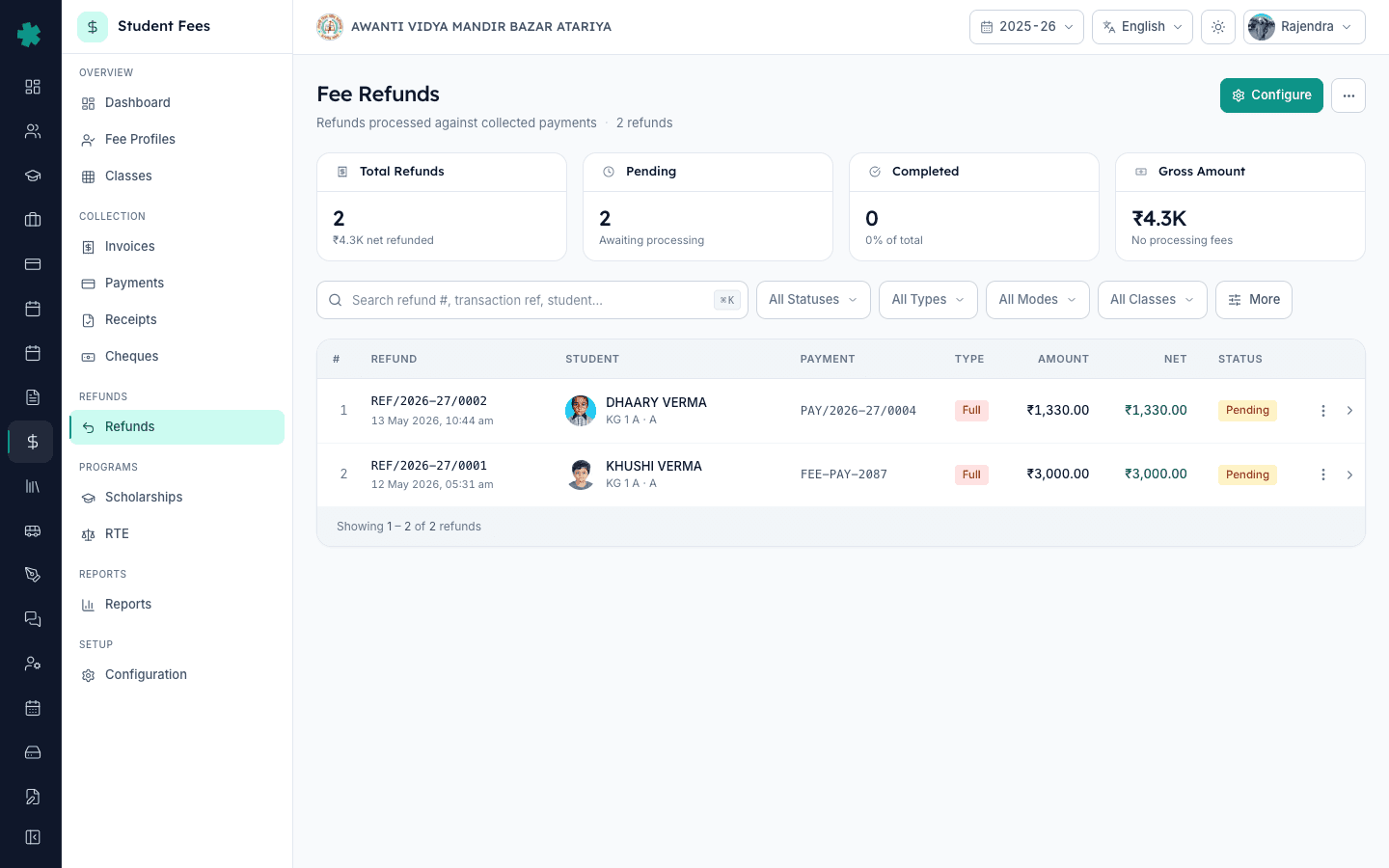
Inkwelly में अभिभावक के लिए रिफंड शुरू करने के लिए: Student Fee → Payments खोलें, parent के नाम, payment number या invoice number से मूल payment खोजें, उस row पर क्लिक करके Payment Detail पेज खोलें, ऊपर दाईं ओर Refund बटन दबाएँ, Create Refund डायलॉग में Full या Partial चुनें, amount और reason भरें (TC withdrawal, parental hardship, duplicate payment), refund mode चुनें (Bank Transfer / UPI / Cash / Cheque), और Create Refund दबाएँ। रिफंड Pending status में save हो जाता है और मूल invoice का outstanding अपने आप बहाल हो जाता है।
रिफंड भारतीय स्कूल ऑफिस की सबसे विवादित line item है। CBSE से affiliated स्कूल हर साल अपनी क्लास strength के 6 से 10 प्रतिशत छात्रों को Transfer Certificate जारी करते हैं, और इनमें से लगभग एक तिहाई परिवार आंशिक फीस रिफंड माँगते हैं। एक साफ-सुथरा, documented रिफंड flow कानूनी सुरक्षा भी है — National Consumer Disputes Redressal Commission बार-बार यह मान चुका है कि unconsumed academic period के लिए पूरी वार्षिक फीस रोक लेना unfair trade practice है। Inkwelly मूल payment के विरुद्ध रिफंड बनाता है, invoice outstanding बहाल करता है, और प्रिंसिपल के लिए audit trail दिखाता रखता है — जिससे 20 मिनट का manual reconciliation 2 मिनट का counter task बन जाता है।
1. Payments लिस्ट खोलें
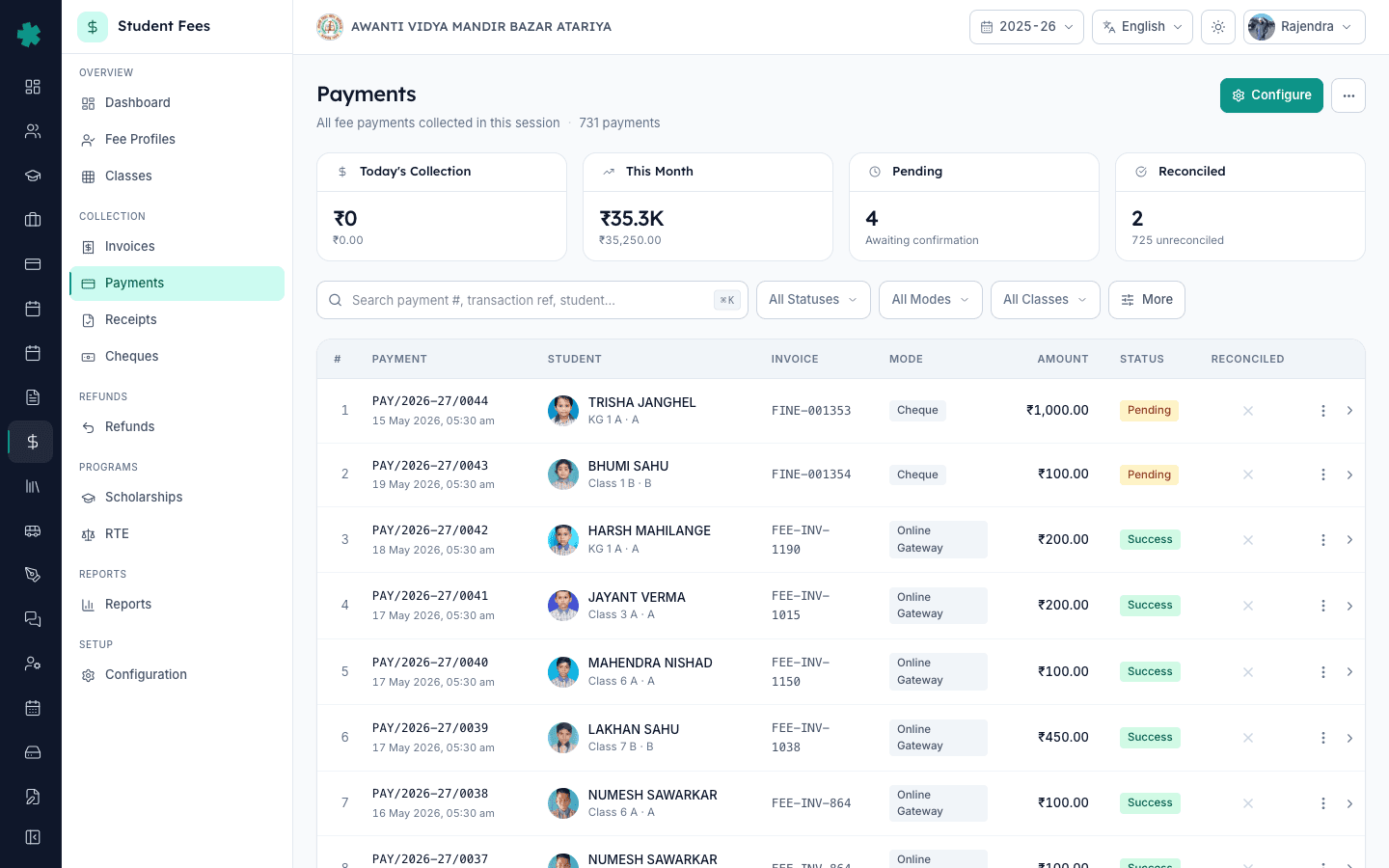
बाएँ साइडबार से Inkwelly → Student Fee खोलें, फिर COLLECTION सेक्शन के अंतर्गत Payments पर क्लिक करें। Payments पेज पर सत्र के सभी payments दिखते हैं — cash, UPI, cheque, bank transfer और online-gateway entries एक साथ — parent के नाम, तिथि, राशि और वर्तमान status (Success, Pending, Reversed) के साथ। ऊपर KPI strip में कुल collection, आज का collection और reconciliation readiness दिखती है, जिससे अकाउंटेंट एक नज़र में देख सके कौन से payments settle हैं।
2. मूल payment खोजें और खोलें
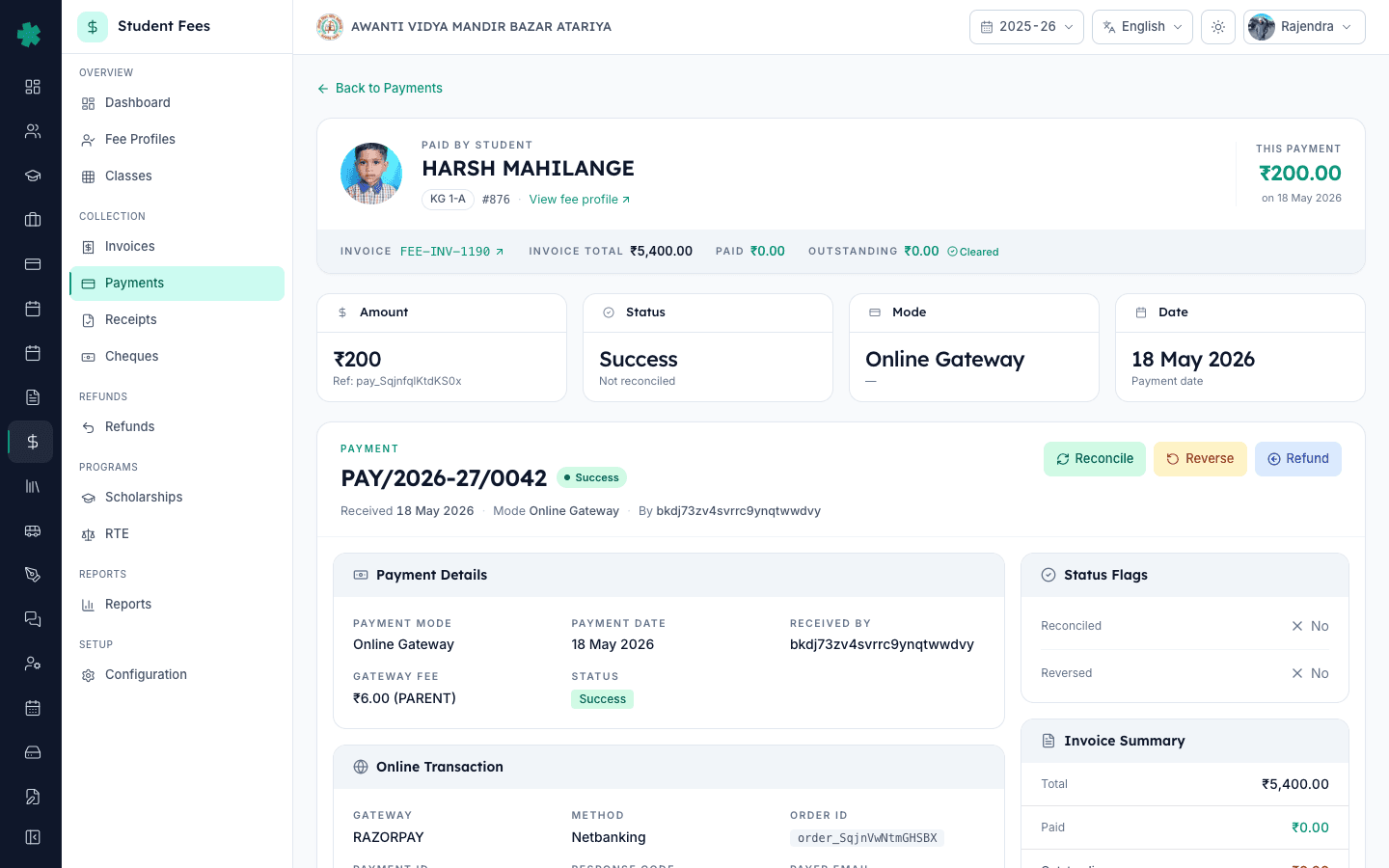
Search bar से parent का नाम, admission number, payment number (PAY/2026-27/0042 format) या invoice number डालकर payment खोजें। अगर parent अस्पष्ट reference देता है तो date या payment-mode filter लगाएँ। उस row पर क्लिक करके Payment Detail पेज खोलें। Detail पेज पर payment summary card, सेटल हुई invoice, ऑफिस का receipt और action बटन (Reconcile, Reverse, Refund) ऊपर दाईं ओर दिखते हैं — रिफंड केवल उसी payment पर बनाया जा सकता है जो सफलतापूर्वक record हुआ हो।
3. Refund बटन दबाएँ
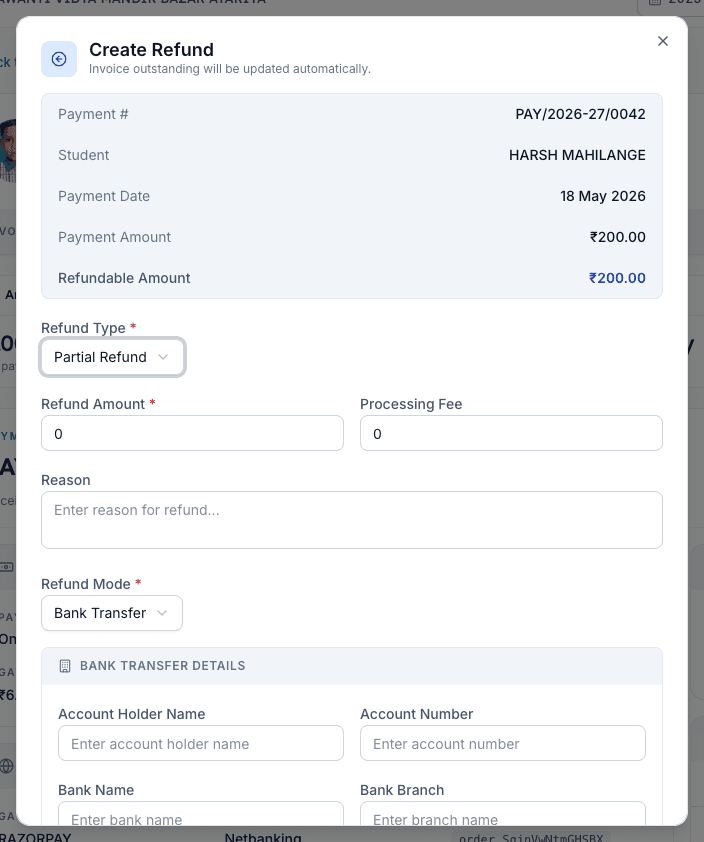
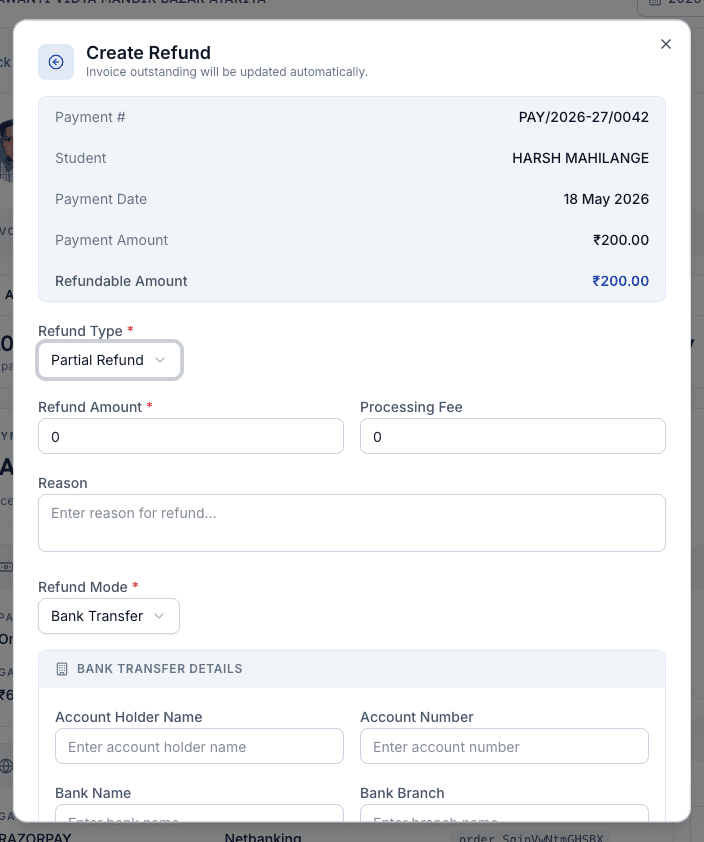
Payment Detail पेज पर ऊपर दाईं ओर Refund बटन दबाएँ। Inkwelly Create Refund डायलॉग खोलता है। डायलॉग header मूल payment का सारांश दिखाता है — payment number, student का नाम, payment date, payment amount — और प्रमुखता से Refundable Amount दिखाता है, जो मूल payment से पहले से बने रिफंड घटाकर बची राशि है। यदि Refund बटन नहीं दिख रहा तो payment या तो reversed है, या पूरी तरह refund हो चुका है, या अभी pending है — ये स्थितियाँ डिज़ाइन से नया रिफंड रोकती हैं।
4. Refund Type चुनें और amount भरें
Create Refund डायलॉग में Refund Type चुनें — Full जब आप पूरी राशि वापस कर रहे हैं (typical duplicate payment या refund-policy के 100 percent slab में TC withdrawal के लिए) और Partial जब policy slab केवल अंश देता है (mid-session withdrawals पर 50 या 25 percent)। Full के लिए Inkwelly amount अपने आप भर देता है; Partial के लिए slab calculation के अनुसार राशि टाइप करें। यदि policy एक handling charge काटती है तो Processing Fee भरें — डायलॉग live Net Refund Amount दिखाता है ताकि save से पहले ऑफिस संख्या की पुष्टि कर सके।
5. Refund policy के अनुसार reason लिखें
Reason field में स्पष्ट कारण भरें — TC withdrawal, पारिवारिक परेशानी और relocation, parent से दो बार आया duplicate payment, mid-year exit, या किसी और बोर्ड में जाना। यह reason प्रिंसिपल की approval queue और Refund Detail पेज पर दिखता है, इसलिए वही पंक्ति लिखें जिसे आप तीन महीने बाद parent और trustee के सामने defend कर सकें। TC issued on 12 May, 50 percent slab applied per refund policy जैसी विशिष्ट पंक्ति सामान्य Refund as per policy से कहीं मज़बूत है।
6. Refund mode चुनें और bank details भरें
Refund Mode चुनें — Bank Transfer (parent के bank में NEFT या RTGS के लिए), UPI (तुरंत parent की UPI ID पर), Cash (counter पर हाथ से लौटाने के लिए), Cheque (स्कूल का छपा हुआ cheque), या Original Payment Mode (जब parent ने online भुगतान किया था और gateway अपने आप refund करेगा)। Bank Transfer पर Bank Transfer Details सेक्शन खुलता है जिसमें account holder name, account number, bank name, branch और IFSC भरने हैं — ये parent के cancelled cheque या bank statement से भरें। Inkwelly IFSC format validate करता है, ताकि कोई typing गलती disbursement day के बजाय counter पर ही पकड़ी जाए।
7. रिफंड save करें और Pending status देखें
डायलॉग के नीचे Create Refund बटन दबाएँ। Inkwelly REF/2026-27/0003 format में एक रिफंड record बनाता है, उसे Pending status में मार्क करता है, refund की राशि के अनुसार invoice outstanding बहाल करता है, और रिफंड को मूल payment से जोड़ देता है ताकि दोनों पेज एक-दूसरे का reference रखें। एक success toast save की पुष्टि करता है। साइडबार से Student Fee → Refunds खोलें — नया रिफंड लिस्ट के सबसे ऊपर parent का नाम, राशि, mode और पीली Pending status pill के साथ दिखता है — जो प्रिंसिपल की मंज़ूरी के लिए तैयार है।
अगला कदम — प्रिंसिपल के approve करने के बाद How to process and disburse a refund in Inkwelly का अनुसरण करके NEFT, UPI या cash payout मार्क करें और loop बंद करें। यदि आपके स्कूल के पास अभी लिखित refund schedule नहीं है, तो पहले How to create a refund policy with time-based slabs in Inkwelly से उसे सेट करें ताकि भविष्य के रिफंड में सही प्रतिशत पहले से भरा हो। फीस ऑफिस की पूरी तस्वीर — invoice template, late fee rules, online payment gateway — के लिए How to create a fee structure for the academic session से शुरू करें और बाकी Configuration tiles पर चलें।
Inkwelly Student Fees को काम करते हुए देखें
अक्सर पूछे गए सवाल
7 सवालमध्य सत्र में withdrawal पर Inkwelly रिफंड राशि कैसे तय करता है?
Inkwelly Create Refund डायलॉग पर अपने आप राशि गणना नहीं करता — अकाउंटेंट Configuration → Penalties & Refunds में बनी policy slab देखकर राशि टाइप करते हैं। यदि policy कहती है `session start के 60 दिन के भीतर 50 percent` और parent ने ₹20,000 दिए थे, तो amount field में ₹10,000 भरें और reason में slab का उल्लेख करें। भविष्य के संस्करण slab calculation पहले से भरेंगे; आज field खुली रहती है ताकि hardship cases पर ऑफिस निर्णय ले सके।
क्या ऐसे cheque payment पर रिफंड बना सकते हैं जो अभी clear नहीं हुआ?
नहीं। Inkwelly रिफंड केवल उन payments पर देता है जो सफलतापूर्वक record हुए हों — Success या Reconciled status। Pending status वाला cheque payment (deposited लेकिन not cleared) Refund बटन नहीं दिखाता क्योंकि पैसा अभी स्कूल bank तक पहुँचा ही नहीं। पहले cheque clear होने का इंतज़ार करें; यदि cheque bounce हो जाए तो `How to handle a bounced cheque and redeposit it in Inkwelly` का अनुसरण करें।
TC ke baad parent ko refund kaise kare Inkwelly me?
Pehle Student Fee → Payments par jaiye, parent ka original payment dhundhiye (parent ke naam ya payment number se), payment detail kholiye, top right me Refund button par click kijiye. Create Refund dialog me Full ya Partial chuniye, refund-policy slab ke hisab se amount likhiye (jaise 50% within 60 days), reason me TC withdrawal likhiye, mode chuniye (Bank Transfer, UPI, Cash, ya Original Payment Mode), aur Create Refund dabaiye. Refund Pending status me save ho jata hai aur principal approval ke baad accountant disburse karta hai.
Refund kitne din mein parent ke account me aata hai?
Inkwelly me refund ka record turant ban jata hai, lekin actual paisa parent tak pahuchne me 7 se 14 working days lagte hain. Pehle refund principal approval queue me jata hai (typically 2 to 3 working days), accountant NEFT ya UPI initiate karta hai school bank se (1 to 2 working days), aur parent ke bank ya UPI app me credit hone me 1 to 5 working days lagte hain. Razorpay jaise online gateway refunds 5 to 7 working days me complete ho sakte hain. Pura status Refund Detail page par dikhata hai.
Inkwelly में रिफंड बनने पर invoice का क्या होता है?
मूल invoice का outstanding refund की राशि के बराबर बढ़ जाता है, और उसका status Paid से वापस Partial में आ जाता है (यदि पूरा payment refund हो तो Pending में)। यह design से ऐसा है — एक refund उस invoice पर collection को mathematically उल्टा कर देता है, इसलिए student के fee profile पर सही dues फिर से दिखते हैं। यदि parent पहले ही withdraw कर चुका है और invoice अब लागू नहीं है, तो ऑफिस रिफंड क्लियर होने के बाद invoice को cancel या written-off कर देता है।
क्या initiate करने के बाद रिफंड cancel किया जा सकता है?
हाँ, जब तक वह Pending status में है। Student Fee → Refunds से Refund Detail पेज खोलें, Cancel Refund दबाएँ — Inkwelly refund record को उलट देता है, invoice outstanding को refund से पहले की value पर बहाल करता है, और audit trail पर cancellation reason stamp कर देता है। एक बार refund Processing या Completed में पहुँच जाए, cancellation अब संभव नहीं — तब ऑफिस को parent से नई collection दर्ज करनी होगी।
Partial refund kaise initiate kare jab refund policy slab 50 percent ho?
Payment detail page kholiye, Refund button dabaiye, Refund Type me Partial chuniye, Refund Amount field me total payment ka 50 percent type kijiye (jaise ₹20,000 ka payment hai to ₹10,000), Reason field me likhiye `TC withdrawal — 50% refund per policy slab (within 60 days of session start)`, refund mode chuniye, aur Create Refund dabaiye. Pending status me save ho jata hai. Refund policy slab calculation manual hai abhi — future me automatic pre-fill aayega.
आपको ये भी पसंद आ सकता है
3 लेखस्रोत व संदर्भ
- National Consumer Disputes Redressal Commission — Indian School Certificate Examination v. Sandeep Prabhakar (2009) · देखा गया 19 May 2026
The Commission held that schools collecting full annual fees and refusing proportionate refund on student withdrawal amounts to unfair trade practice, making a documented refund process the school's primary legal defence.
- CBSE Affiliation Bye-Laws — Chapter VII, Fee Structure and Refunds · देखा गया 19 May 2026
CBSE bye-laws require affiliated schools to refund unconsumed fees when a student withdraws and to maintain transparent records of every refund issued.
- National Commission for Protection of Child Rights — Guidelines on School Fees and Refunds · देखा गया 19 May 2026
NCPCR guidance on parental complaints reinforces that schools must process refund requests within a reasonable timeframe and maintain a written, auditable trail for every refund.
Inkwelly आपके स्कूल पर — खुद देखें
30 मिनट का डेमो। आपके मौजूदा ERP को आपके साथ खोलकर, कॉल पर ही आपका डेटा Inkwelly में लोड करते हैं। कॉल ख़त्म होते-होते एक तय तारीख़ का गो-लाइव प्लान आपके हाथ में।