How to customise the invoice template (logo, GSTIN, bank, signature)
For school accountants and principals who want every fee invoice PDF to look exactly like the school's letterhead — with the right logo, address, GSTIN, bank details and signed authority. By the end you will have a fully branded, board-compliant invoice template saved in Inkwelly that every future invoice will use automatically.
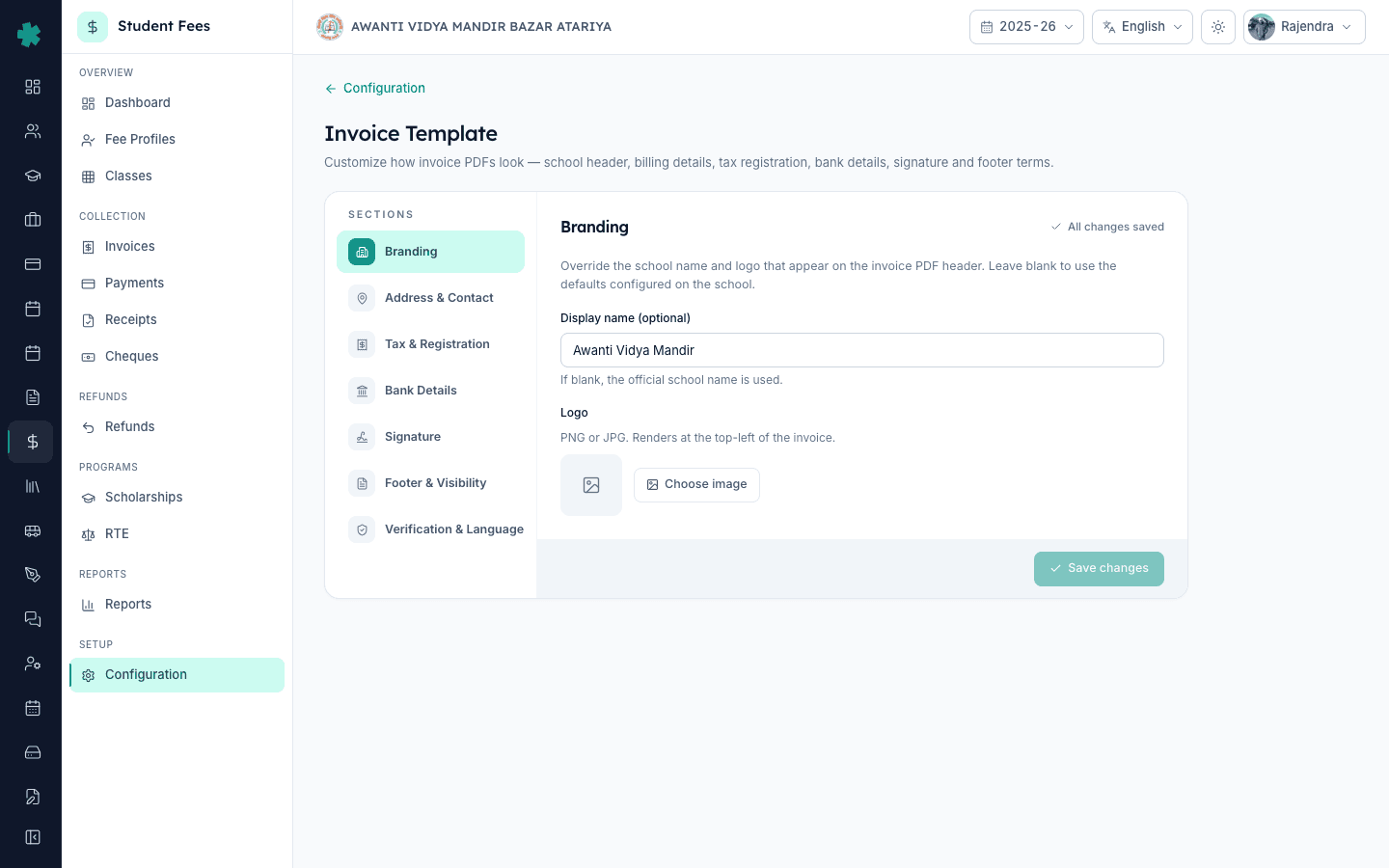
To customise the invoice template in Inkwelly: open Student Fee → Configuration → Invoice Template, then walk the seven sections in the sidebar — Branding, Address & Contact, Tax & Registration, Bank Details, Signature, Footer & Visibility, Verification & Language — filling logo, GSTIN, bank IFSC, signatory image and footer terms. Click Save. Every invoice generated after that uses this template automatically.
The invoice template in Inkwelly is school-level, not per-student — set it once at the start of the session and every future PDF inherits it. Indian CBSE and state-board schools issue between 4,000 and 12,000 fee invoices a year against this template (UDISE+ 2024 finance data for a 1,200-student school), so a clean header, accurate GSTIN under section 7 of the CGST Act and a verifiable signature are not cosmetic — they decide whether the invoice survives a parent dispute, a board inspection or a fee-cap audit. Tuition fees collected by a recognised school are exempt under GST notification 12/2017; transport and hostel are taxable, which is why the GSTIN field still matters even for fee-only schools.
1. Open Invoice Template under Configuration
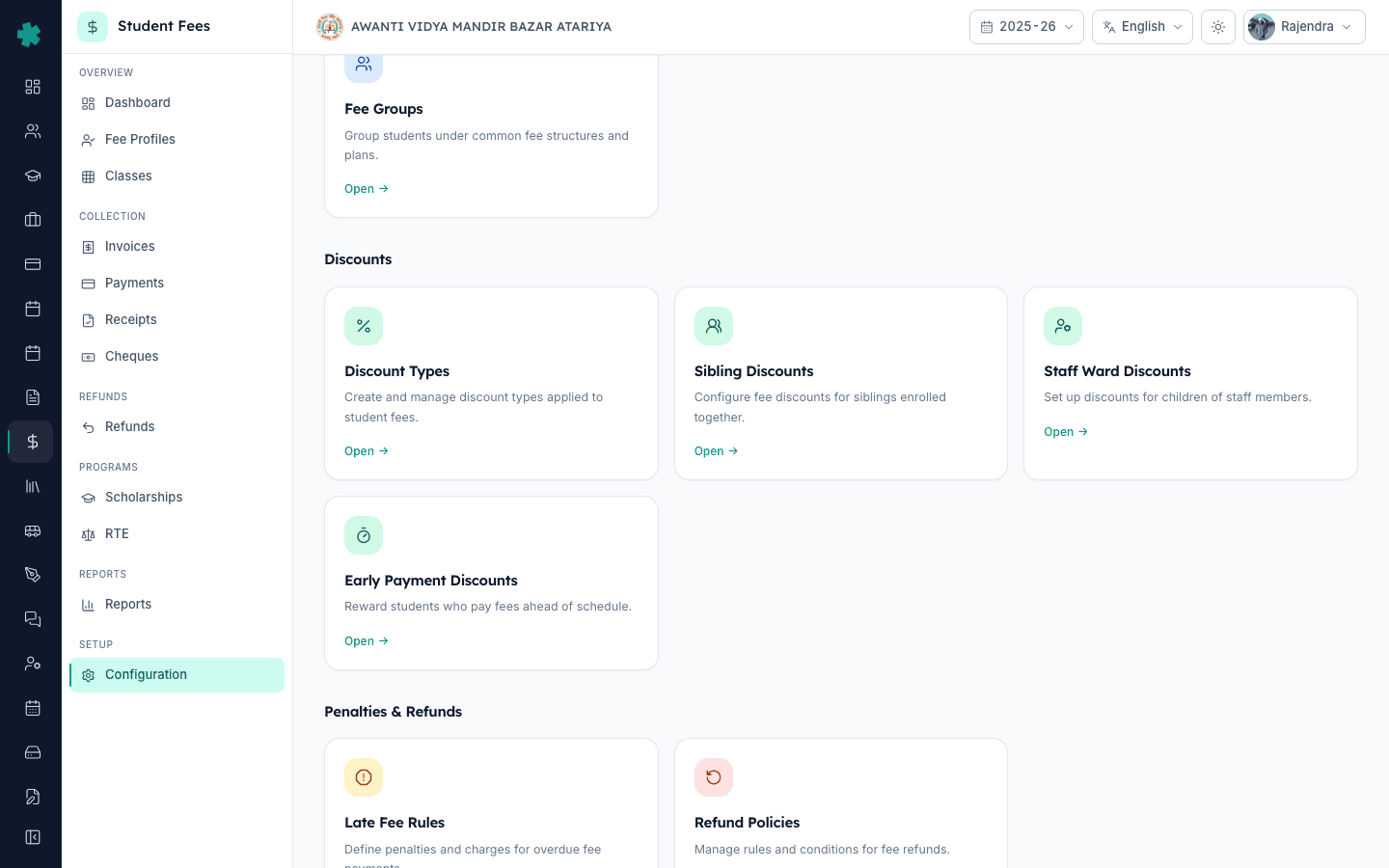
Open Inkwelly → Student Fee → Configuration. The Configuration page groups every fee setting into four sections — Fee Structure, Discounts, Penalties & Refunds and Preferences. Inside Preferences, click the Invoice Template tile (subtitle: 'Customize the invoice PDF — header, address, GSTIN, bank details, signature, terms'). Inkwelly opens the sectioned editor with seven tabs in the left sidebar. The first time the page loads, Inkwelly seeds the form with school defaults — name, address, email — so you only have to override what differs on the printed invoice.
2. Set the school name and logo under Branding
The Branding section opens by default. In Display name, type the exact school name as it should print on the invoice — leave blank to fall back to the official school name registered in Inkwelly. Under Logo, click Choose image and pick the school crest from the media library, or upload a fresh PNG. A 300×300 px PNG with a transparent background looks best at the top-left of an A4 invoice. The same logo is reused on the receipt template, so upload it once and Inkwelly references it everywhere.
3. Fill the printed address and contact under Address & Contact
Click Address & Contact in the sidebar. Fill Address line 1 with the street or building, Address line 2 with the landmark (optional), then City, State and Pincode in the three-column row. Pincode and phone numbers stay in Latin digits — Inkwelly enforces this on every printed surface. The Phone, Email and Website fields together form the contact strip that prints under the school name. Parents look here first when an invoice arrives by hand, so use the office phone, not a personal number.
4. Enter GSTIN and PAN under Tax & Registration
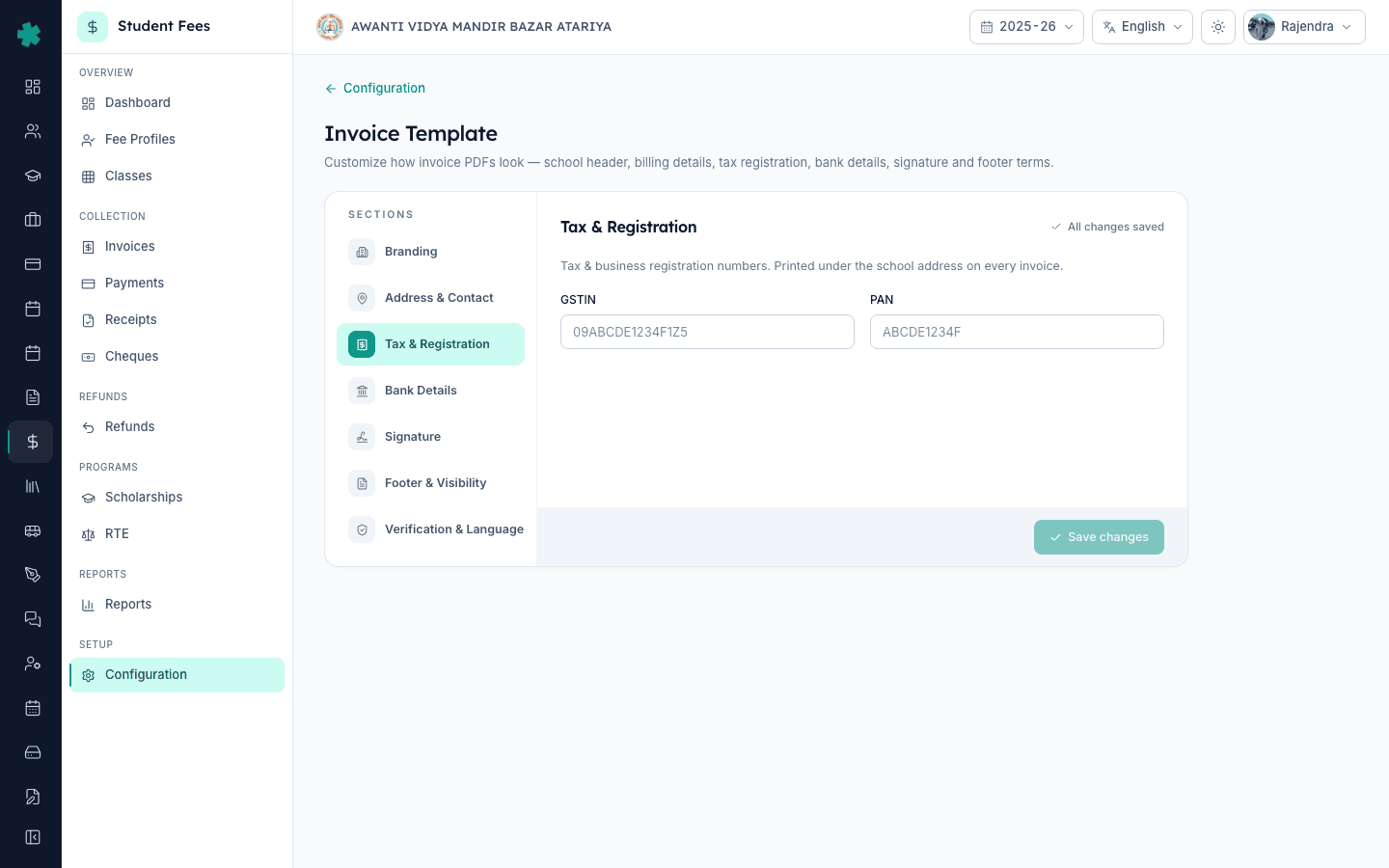
Click Tax & Registration. Type the 15-character GSTIN — Inkwelly auto-uppercases it (the GST portal stores GSTINs in upper case per CBIC guidelines). Type the 10-character school PAN below it. Both fields stay blank-safe — if your school is GST-exempt and runs only tuition collections, leave GSTIN blank and Inkwelly hides the tax row on the printed invoice. Once saved, these numbers appear under the school address block on every invoice and feed the income-tax compliance footer most state boards now ask for.
5. Add bank details and toggle visibility under Bank Details
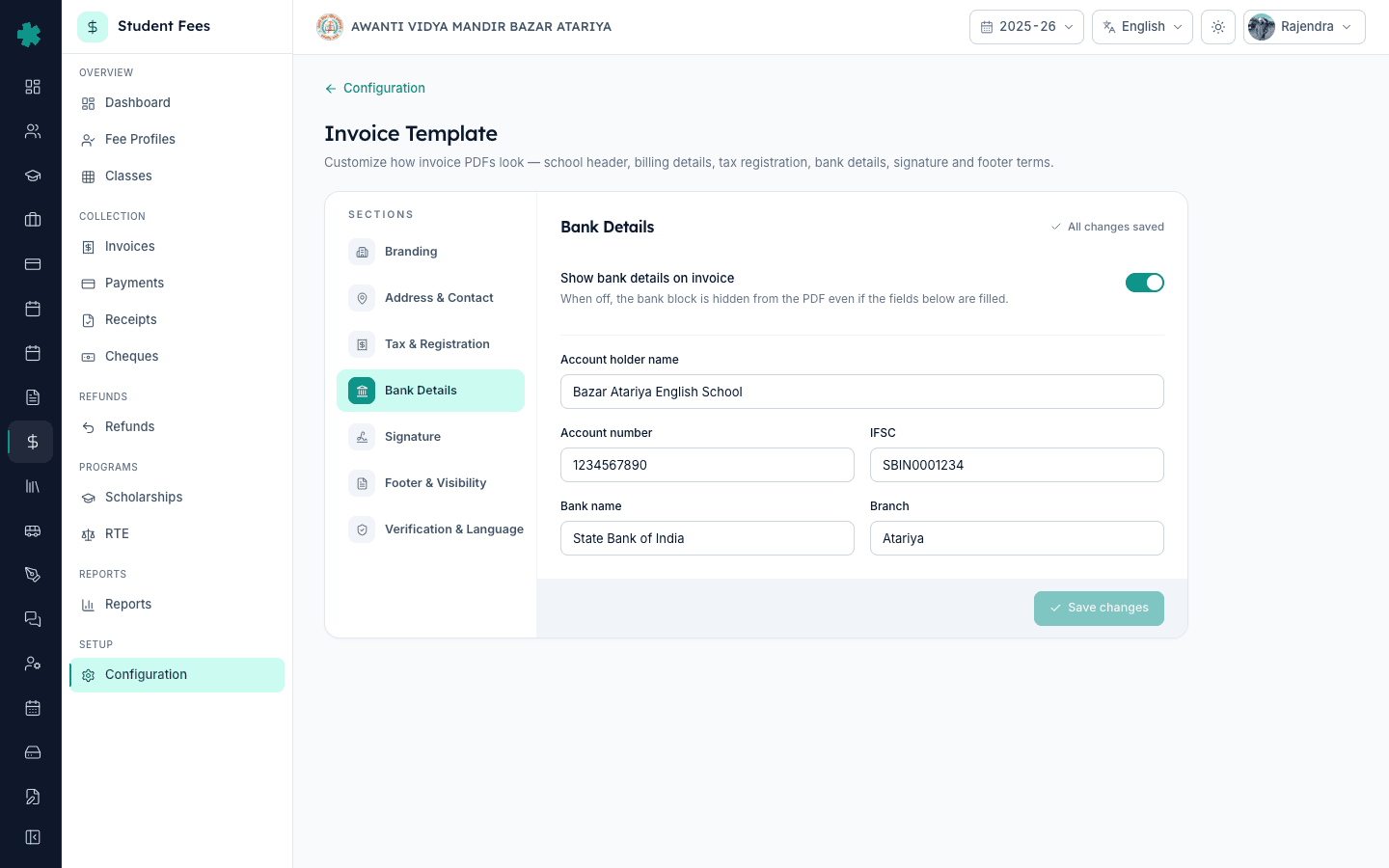
Click Bank Details. Toggle 'Show bank details on invoice' to on if you want the NEFT block printed; off keeps the fields stored for internal records but hides them from the PDF (useful when the school accepts only counter or UPI payments). Fill Account holder name as the school registers it with the bank, then Account number and the 11-character IFSC code — Inkwelly auto-uppercases IFSC. Add Bank name and Branch in the bottom row. Parents copy these into NEFT screens, so verify the IFSC matches the branch shown on a recent passbook before saving.
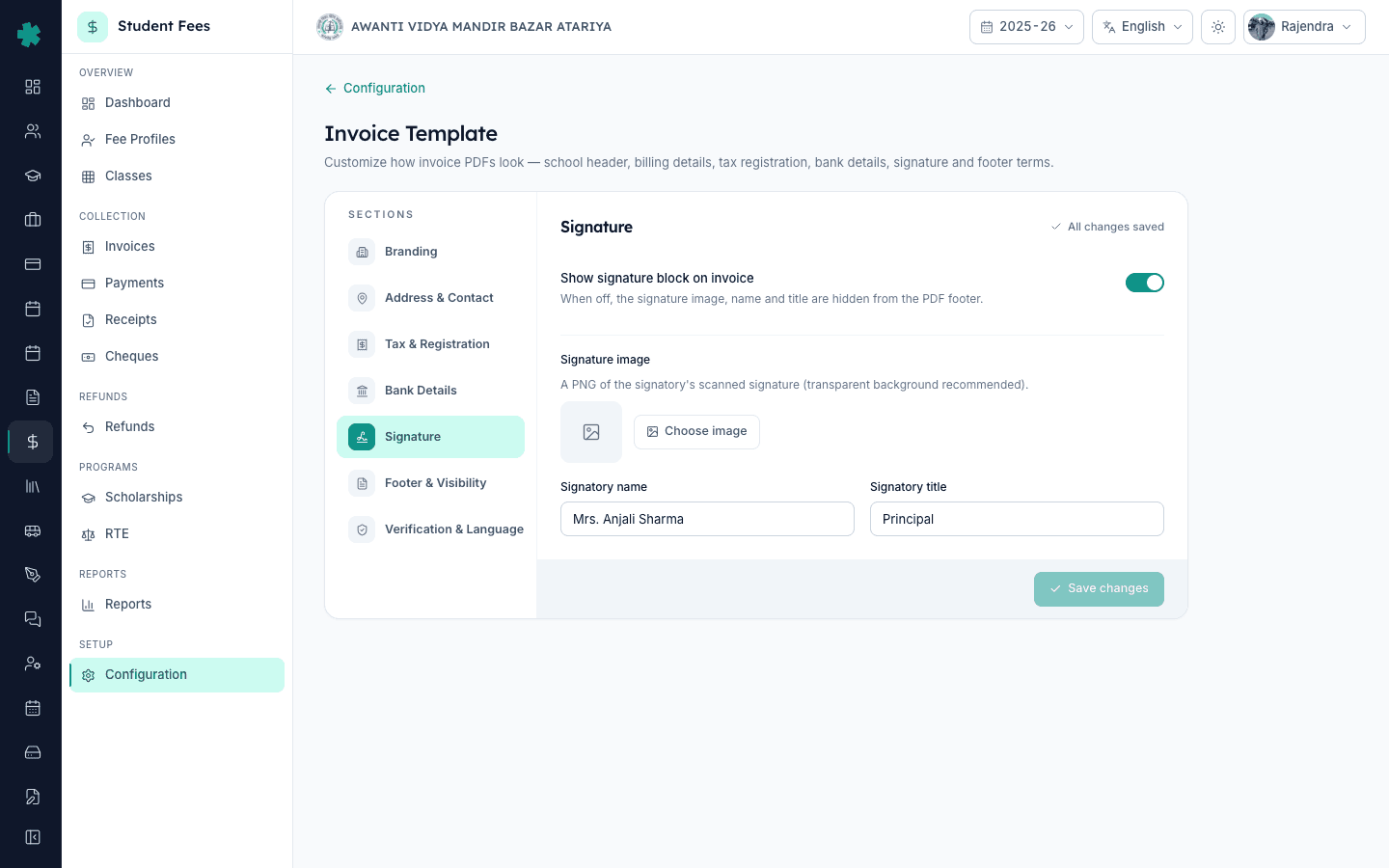
6. Upload the signatory image and details under Signature
Click Signature. Toggle 'Show signature block on invoice' to on for a normal printed invoice — off is useful for digital-only PDFs where the school stamps later. Under Signature image, upload a scanned PNG of the Principal's or accounts head's signature on a transparent background. Then fill Signatory name (for example, 'Mrs. Anjali Sharma') and Signatory title ('Principal' or 'Accounts In-Charge'). Inkwelly prints the image, name and title together in the bottom-right of the PDF — the same place a hand-signed receipt would sit.
7. Write the footer terms and pick which PDF sections show
Click Footer & Visibility. In Footer terms, paste the school's standard clauses — for example, '1. Fees once paid are non-refundable. 2. Cheques subject to realisation. 3. Late fee will be charged after due date.' Inkwelly preserves line breaks and the field accepts up to 2000 characters. Under PDF sections, toggle 'Show late fee charges' on so the invoice lists any late-fee additions, and toggle 'Show payments received' on so partial collections appear on the PDF — together they let parents see exactly why the balance is what it is.
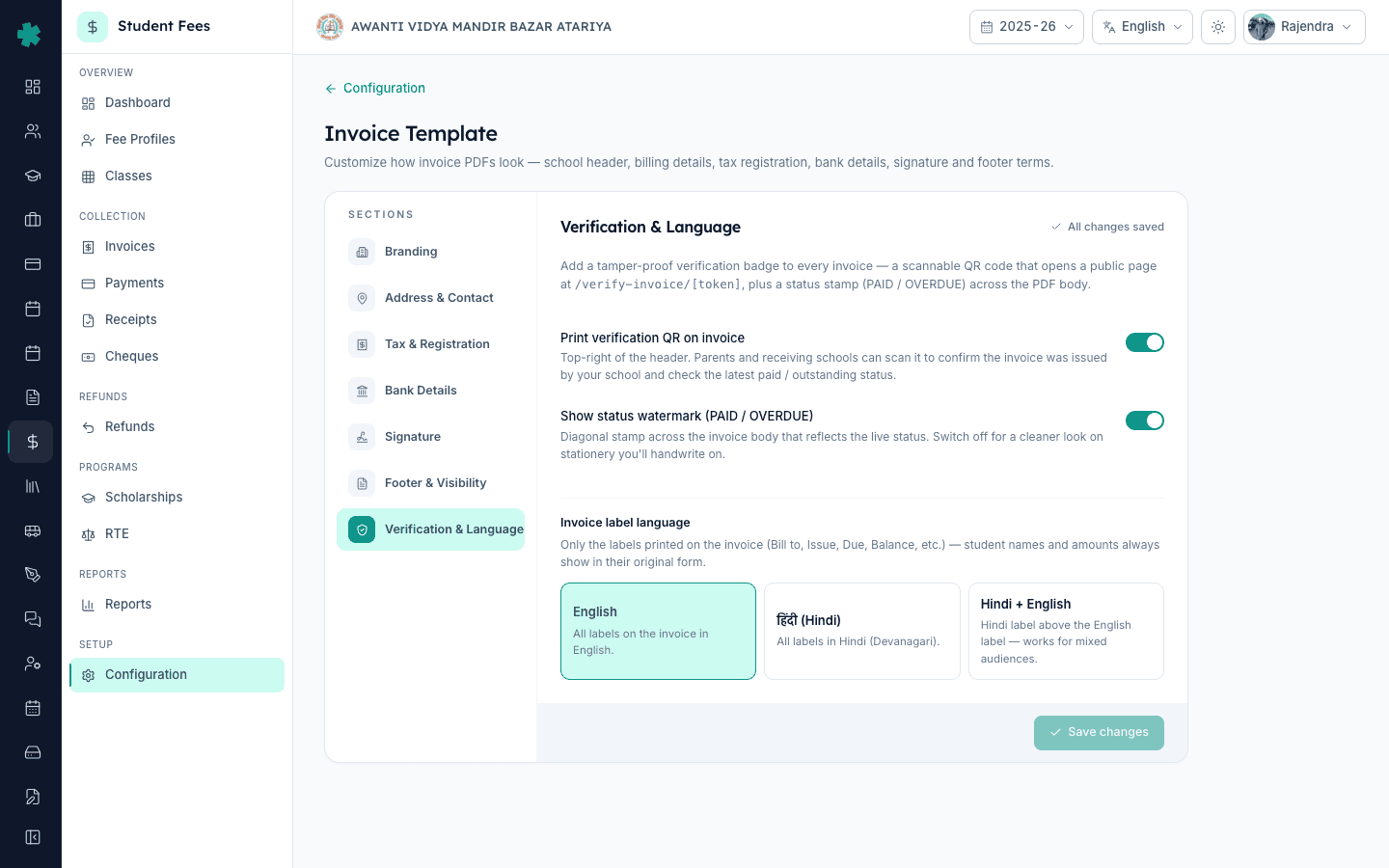
8. Turn on the verification QR, status watermark and label language
Click Verification & Language. Toggle 'Print verification QR on invoice' on — Inkwelly stamps a QR in the top-right corner of every invoice that opens a public page at /verify-invoice/[token], so parents and receiving schools can confirm the invoice was issued by your school. Toggle 'Show status watermark' on for a diagonal PAID or OVERDUE stamp across the body. Then pick Invoice label language — English, हिंदी (Hindi) or Hindi + English. Hindi + English is the right pick for Tier-2 and Tier-3 schools where some parents read Devanagari and others read Latin labels. Click Save changes in the bottom-right. The Unsaved changes indicator flips to All changes saved and every future invoice PDF uses this template.
What to try next — the receipt PDF uses a separate template, so customise it the same way under Configuration → Receipt Template before the first cash collection of the session. If your school plans to print thermal slips at the fee counter, set up the QZ Tray and Olivetti printer pairing once. To send these new-format invoices to parents over WhatsApp, SMS or email, finish connecting Razorpay first so the 'Pay now' link in the message routes to a live gateway — Inkwelly's invoice-send dialog stays disabled for any channel that isn't connected.
See Inkwelly Student Fees in action
Frequently asked
7 questionsDoes my school need a GSTIN on a fee invoice if we only collect tuition?
No. Tuition fees from a recognised school are exempt under GST notification 12/2017, so a tuition-only school can leave the GSTIN field blank in Inkwelly and the printed invoice hides the tax row. Add the GSTIN only when the school also charges parents for transport, hostel, uniform or stationery — those services are taxable and the invoice must show the GSTIN.
Why is my logo blurry on the printed invoice?
Inkwelly prints the logo at the size it was uploaded. A 100×100 px logo will look pixelated on A4. Upload a PNG of at least 300×300 px (600×600 is better for school crests with text) with a transparent background. The Branding section in the invoice template accepts both PNG and JPG — PNG with transparency reads cleaner against the white invoice header.
Can I show one signatory on invoices and a different one on receipts?
Yes. The invoice template and the receipt template are separate — each has its own Signature section with its own image, name and title. Most Indian schools put the Principal on invoices and the accounts head on receipts. Toggle Show signature block off on a template if you would rather sign and stamp by hand at the counter.
Inkwelly me invoice par logo aur GSTIN kaise add kare?
Student Fee menu kholiye → sidebar me Configuration par jaiye → Preferences section me Invoice Template tile click kijiye. Left sidebar me Branding par logo upload kijiye (PNG 300×300), phir Tax & Registration tab par 15-character GSTIN aur 10-character PAN bhar dijiye. Niche right me Save changes button dabaiye — agla har invoice naye logo aur GSTIN ke saath print hoga.
Will Inkwelly update old invoices when I change the template?
No. Inkwelly stamps every invoice with the template that was active when the invoice was generated, so old PDFs keep their old logo, address and footer. The new template applies only to invoices created after you click Save. This is by design — board inspectors expect each printed invoice to match the template that was in force on that issue date.
Can I change the invoice label language to Hindi for Tier-2 city parents?
Yes. Under Verification & Language in the invoice template, pick हिंदी (Hindi) for Hindi-only labels (Devanagari script), or Hindi + English to print the Hindi label above the English label. Student names, fee head names and amounts always print in their original form — only the printed labels like Bill to, Issue, Due, Balance switch language.
Invoice template kaise reset kare default ke liye?
Filhal Inkwelly me ek-click reset nahi hai. Manual reset ke liye Branding, Address, Tax, Bank, Signature, Footer aur Verification sections me jaake fields blank kar dijiye aur Save kar dijiye — Inkwelly fir official school name, default address aur seeded defaults par fallback karega. Footer terms textarea aur logo image alag se hatana padta hai.
You might also like
3 readsSources & references
- CGST Act 2017 — Section 7 (Scope of Supply) and Notification 12/2017 (Exemption of educational services) · accessed 19 May 2026
Defines the GST treatment of tuition versus auxiliary school services, and confirms the GSTIN-on-invoice requirement for taxable supplies.
- CBSE Affiliation Bye-Laws — Chapter VII, Fee Structure · accessed 19 May 2026
Mandates that CBSE-affiliated schools issue an itemised fee receipt or invoice showing the school name, address and management-committee-approved fee structure.
- Companies Act 2013 — Section 12 (Display of name and registered office) and Section 128 (Books of account) · accessed 19 May 2026
Requires every registered entity, including schools run as Section 8 companies or trusts, to print the legal entity name and address on financial documents and retain signed copies as books of account.
See Inkwelly on your school
30-minute demo. We open your current ERP with you and load your data into Inkwelly on the call. Dated go-live plan by the end of it.