पिछले सत्र के बकाया दुएस कैसे carry forward करें नए शैक्षणिक सत्र में
यह गाइड उन स्कूल अकाउंटेंट और प्रिंसिपल के लिए है जो पुराने सत्र को बंद करके नया सत्र शुरू कर रहे हैं और कुछ अभिभावक अभी भी पिछले साल की फीस के बकायेदार हैं। अंत में पिछले साल का बकाया Inkwelly के नए सत्र वाले profile पर Outstanding के रूप में बैठा होगा, इस साल की invoice के साथ collect करने के लिए तैयार।
Inkwelly में पिछले सत्र के बकाया दुएस carry forward करने के लिए: Student Fee → Fee Profiles में छात्र खोलें, profile पर Carry-fwd tile क्लिक करें, + Add Due पर क्लिक करें, स्पष्ट description भरें (जैसे 2024-25 का बकाया), original amount और वैकल्पिक remarks भरकर save करें। entry नए सत्र के profile पर Outstanding लाइन के रूप में दिखेगी और तब तक छात्र के साथ बनी रहती है जब तक उसे pay, write off या cancel न कर दिया जाए।
Carry-forward दुएस वह तरीका है जिससे Inkwelly पिछले साल की लंबित फीस को वर्तमान सत्र में दिखाता है, बिना पुरानी invoice दोबारा बनाए। एक सामान्य भारतीय CBSE या राज्य बोर्ड का स्कूल हर सत्र क्लास स्ट्रेंथ का लगभग 4 से 8 प्रतिशत बकाया अगले सत्र में ले जाता है — 1,200 छात्रों के स्कूल के लिए यह हर मार्च-अप्रैल रोलओवर में लगभग 60 से 96 carry-forward entries होती हैं। Excel या किसी और ERP से Inkwelly पर शिफ्ट हो रहे स्कूल आम तौर पर सत्र बदलाव के एक-दो दिन में ये entries बल्क में बनाते हैं, और अप्रैल-मई में कुछ बचे हुए केस ऑफिस के मिलान के साथ-साथ जोड़ते हैं।
1. छात्र का fee profile खोलें
बाएँ साइडबार से Inkwelly → Student Fee खोलें और OVERVIEW के अंतर्गत Fee Profiles पर क्लिक करें। search बॉक्स से छात्र का नाम, admission number या roll number डालकर ढूँढें, फिर row पर क्लिक करके profile खोलें। profile detail पेज पर छात्र की फोटो, क्लास, fee group, दाईं ओर fee breakdown और overview tiles की एक पंक्ति दिखती है — Payments, Receipts, Refunds, Cheques, Discounts, Scholarships, Credits, Waivers, Fines और Carry-fwd।
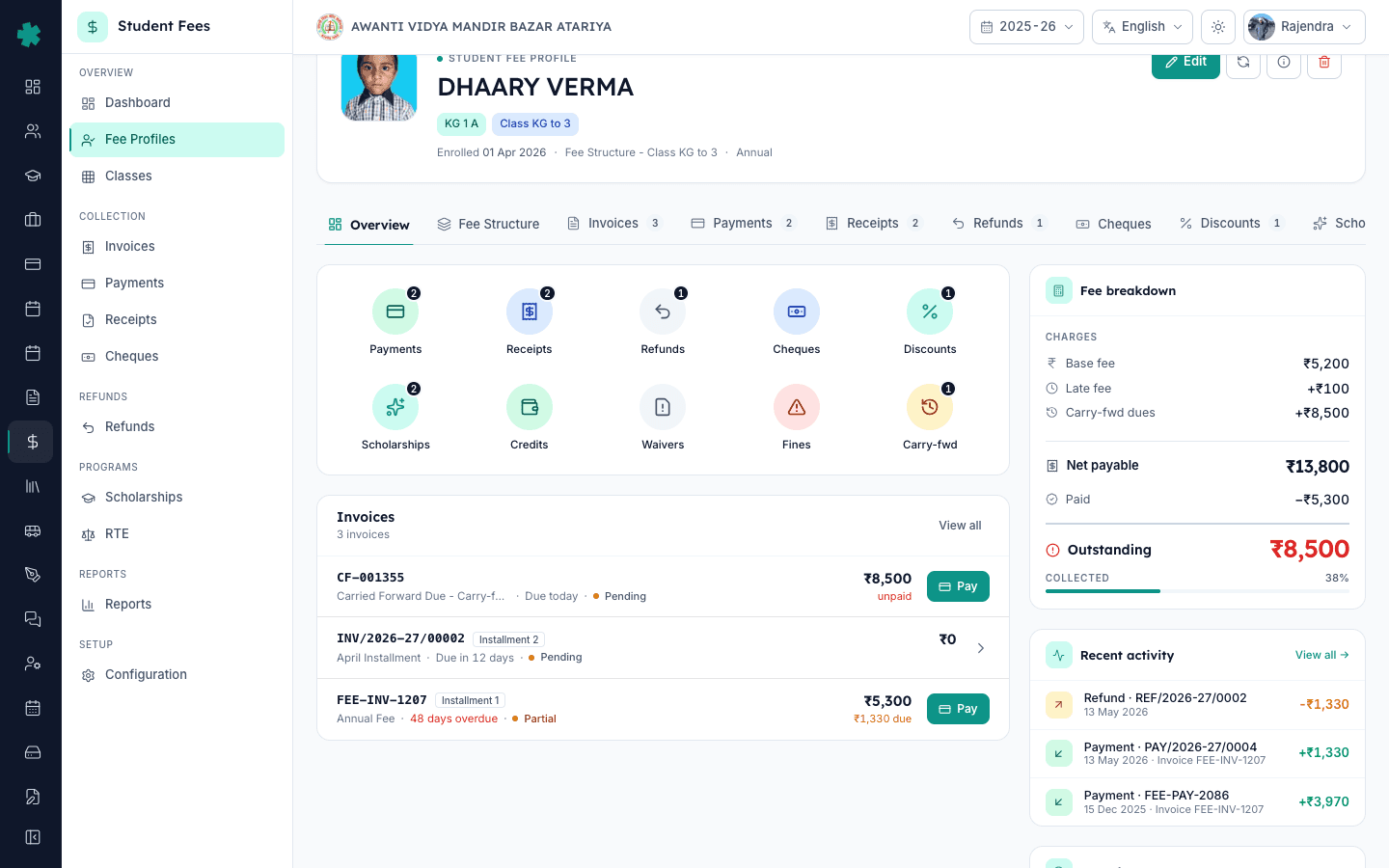
2. Carry-fwd tile पर क्लिक करें
profile की overview पंक्ति में Carry-fwd tile पर क्लिक करें। Inkwelly इस छात्र का Carried Forward Dues पेज खोलता है और हर मौजूदा entry को card के रूप में दिखाता है — description, original amount, status badge (Active, Partially Paid, Paid, Written Off, Adjusted या Cancelled) और किसने जोड़ा। यदि इस छात्र का अभी कोई रोलओवर नहीं है तो एक empty state दिखेगा जिसमें clock icon और card के ऊपर दाईं ओर + Add Due बटन होगा।
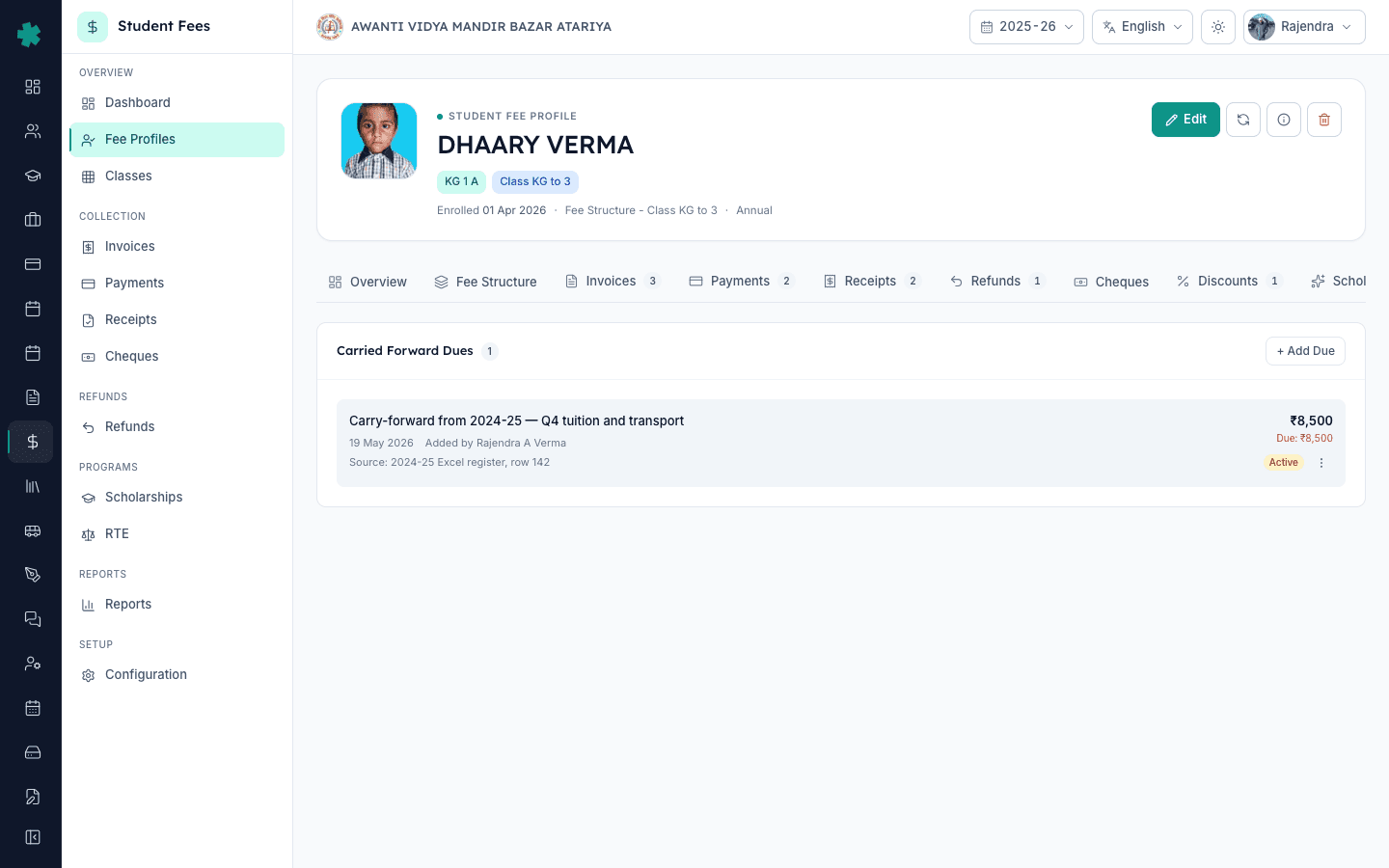
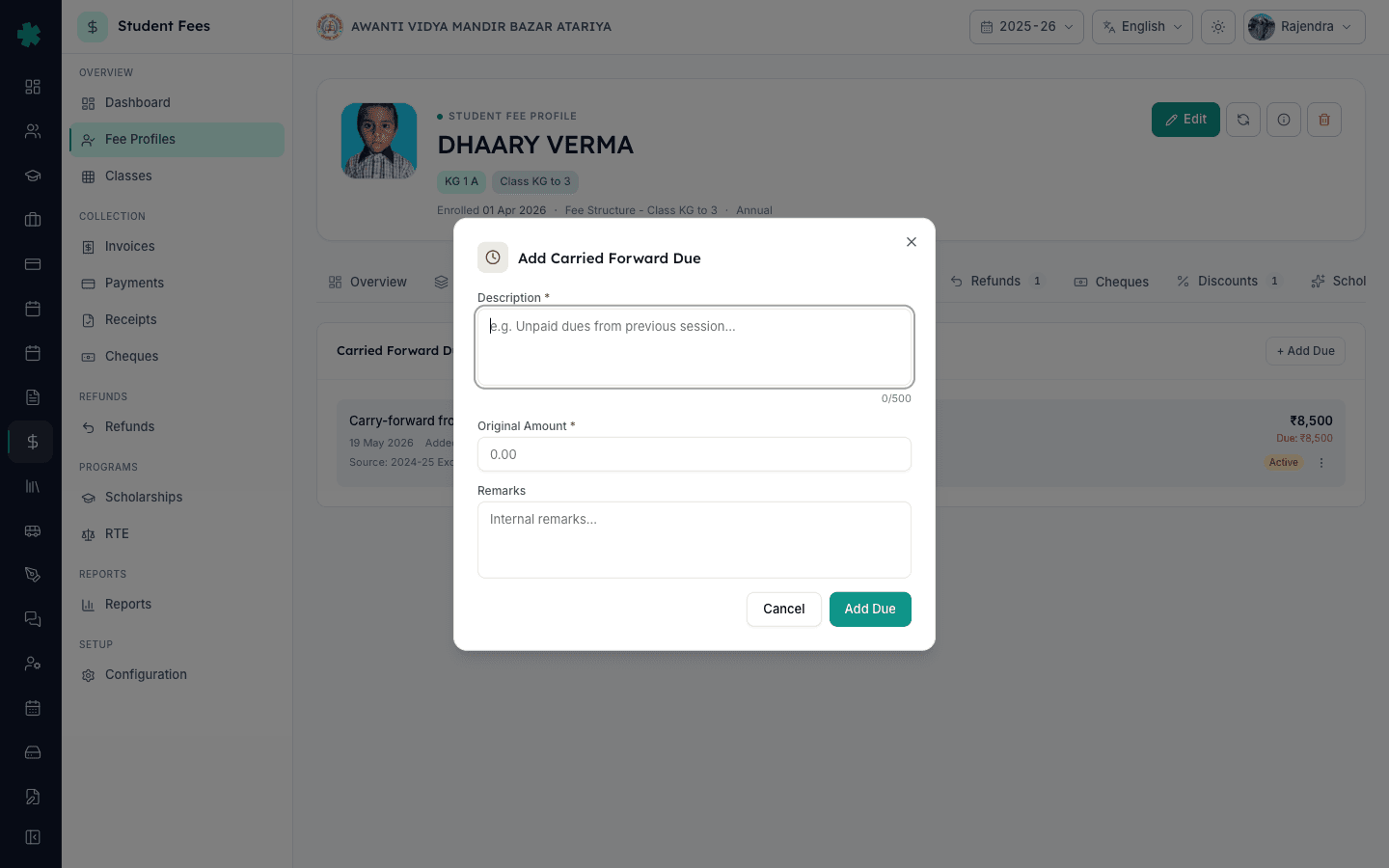
3. + Add Due पर क्लिक करें और dialog भरें
card के ऊपर दाईं ओर + Add Due बटन पर क्लिक करें। Add Carried Forward Due dialog तीन फील्ड के साथ खुलता है। Description में ऐसा कुछ लिखें जो अभिभावक और ऑफिस receipt पर पहचान सकें — जैसे 2024-25 का बकाया — Q4 tuition aur transport। Original Amount में carry की गई सटीक राशि भरें, उदाहरण के लिए 8500। Remarks फील्ड वैकल्पिक है और ऑफिस के अंदर रहती है — इसमें राशि का स्रोत नोट करें, जैसे Source: 2024-25 Excel register, row 142।
4. entry save करें
Add Due बटन क्लिक करके save करें। Inkwelly status Active के साथ carry-forward record बनाता है, वर्तमान तिथि और staff सदस्य का नाम stamp करता है, और पेज refresh करता है। नई entry Carried Forward Dues card के सबसे ऊपर दिखती है — दाईं ओर original amount, उसी राशि की लाल Due लाइन और Active status badge के साथ। छात्र का overall fee breakdown — profile की दाईं ओर वाले कॉलम में — इस राशि को Outstanding में जोड़ देता है।
5. पिछले सत्र के बकायेदार हर छात्र के लिए दोहराएँ
Fee Profiles पर वापस जाएँ, अगला छात्र खोजें और चरण 1 से 4 दोहराएँ। पहली बार Excel से शिफ्ट हो रहे स्कूल पुराने रजिस्टर को Inkwelly के साथ खुला रखें और हर नाम पर tick करते जाएँ — एक clerk सामान्यतः 30 मिनट में 60 entries जोड़ सकता है। यदि कुछ अभिभावकों ने आँकड़े निकालने के बाद भुगतान कर दिया हो तो उन rows को छोड़ दें। Inkwelly अभी session-to-session auto-rollover नहीं करता, इसलिए यह manual pass ही पिछले साल के बकाए का एकमात्र authentic record है।
6. management की स्वीकृति पर पूरा या आंशिक write off करें
Active या Partially Paid किसी carry-forward entry के तीन-डॉट menu पर क्लिक करें और Write Off चुनें। Write-Off dialog एक अनिवार्य reason माँगता है — उदाहरण Trust approval dated 12 April — financial hardship case — और एक Partial toggle। Partial off रखें यदि पूरा outstanding write off करना हो, या on करके छोटी राशि भरें। Confirm क्लिक करें। Inkwelly outstanding को write-off राशि से घटाता है, status को Written Off या Partially Paid कर देता है, और card पर तिथि व approver सहित record कर देता है।
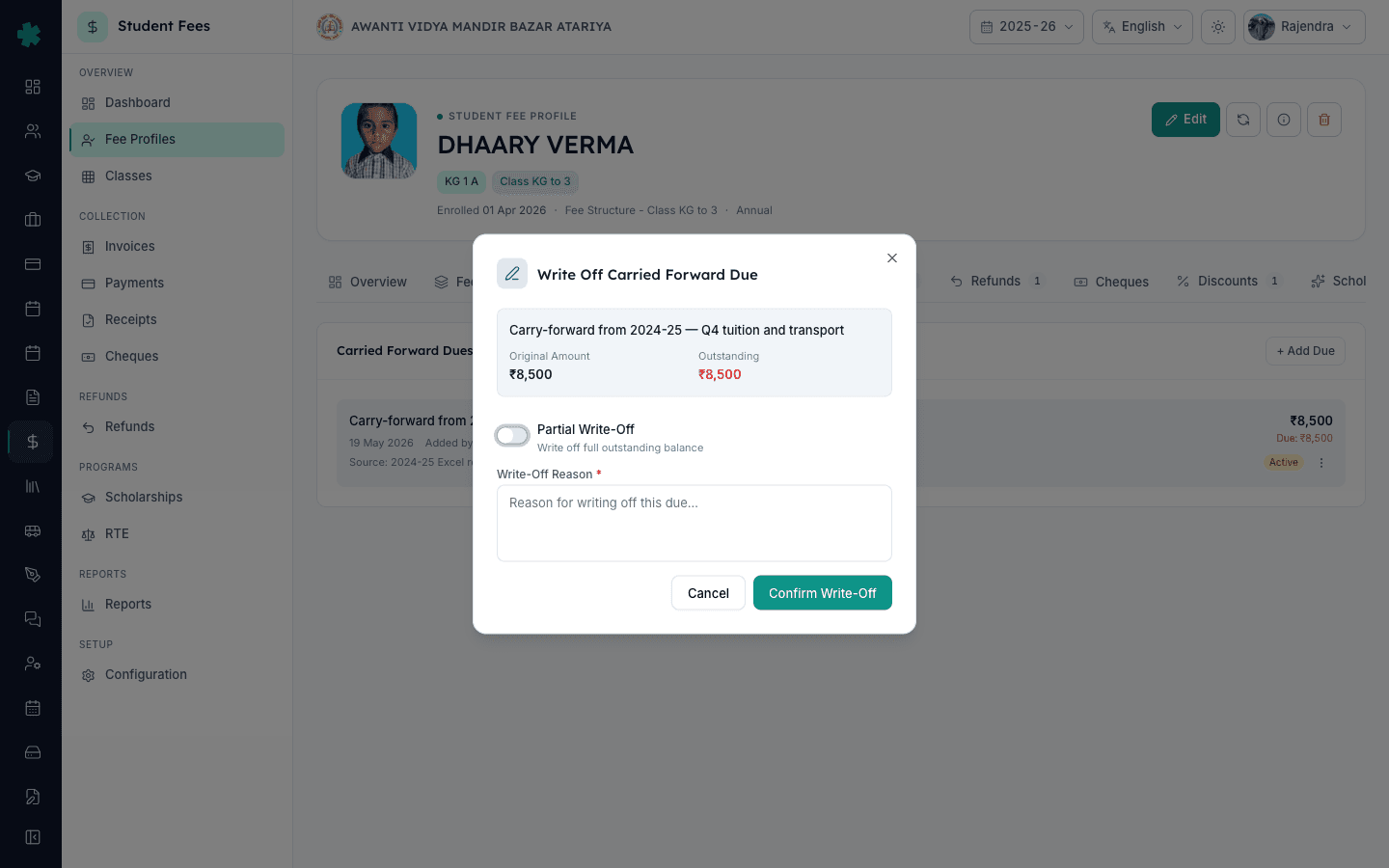
7. गलती से बनी entry को cancel या delete करें
यदि गलत राशि या duplicate row बन गई है और अभी तक एक भी रुपये का भुगतान नहीं हुआ है, तो तीन-डॉट menu खोलें। Cancel status को Cancelled करके राशि को profile totals से हटा देता है, परंतु audit trail दिखाई देता रहता है। Delete record को पूरी तरह हटा देता है और केवल तब उपलब्ध है जब entry Active हो और कोई भुगतान न हुआ हो। जिस entry पर अभिभावक एक रुपया भी जमा कर चुके हों, वहाँ Cancel या Delete के बजाय Write Off reason के साथ करें — ताकि auditor के लिए receipt chain सुरक्षित रहे।
अगला कदम — carry-forward dues के विरुद्ध भुगतान कैसे collect करें इसके लिए How to collect a cash, UPI, card or bank-transfer fee payment at the counter पढ़ें, और छात्र का साल-दर-साल पूरा fee इतिहास देखने के लिए How to view a student's fee ledger and breakdown पढ़ें। यदि स्कूल साल के अंत में इन दुएस को माफ करने का निर्णय लेता है, तो ऊपर का write-off चरण अपनाएँ और उसे How to record a fee waiver for a student के साथ pair करें ताकि books में स्वीकृत राशि साफ-सुथरी झलके।
Inkwelly Student Fees को काम करते हुए देखें
अक्सर पूछे गए सवाल
6 सवालनए शैक्षणिक सत्र की शुरुआत में छात्र की बकाया फीस का Inkwelly में क्या होता है?
Inkwelly पिछले साल की बकाया फीस को नए सत्र में अपने आप copy नहीं करता। ऑफिस छात्र के नए सत्र वाले fee profile पर सटीक राशि और स्पष्ट description के साथ Carry-Forward Due जोड़ता है। नए सत्र का profile इस carry-forward को अलग Outstanding लाइन के रूप में दिखाता है, जिसे अभिभावक इस साल की invoice के साथ भर सकते हैं।
Excel से Inkwelly पर शिफ्ट हो रहे स्कूल पिछले साल की बकाया फीस कैसे दर्ज करें?
Inkwelly में हर छात्र का fee profile खोलें, Carry-fwd tile क्लिक करें और + Add Due दबाएँ। description में लिखें जैसे `2024-25 का बकाया` और Excel sheet से सटीक बकाया राशि भरें। एक clerk लगभग 30 मिनट में 60 entries दर्ज कर सकता है। Audit के लिए Excel फाइल का संदर्भ Remarks फील्ड में नोट करें।
Pichhle saal ka due Inkwelly me kaise carry forward kare?
Student Fee Fee Profiles kholiye, student ka naam ya admission number search kijiye, profile open hone par Carry-fwd tile par click kijiye. Top-right ke + Add Due button par click kijiye, description me likhiye jaise 2024-25 ka baki dues, original amount me exact rupaya bhariye, aur Add Due dabaiye. Entry naye session ke profile me Outstanding ke saath dikhne lagegi.
Carry-forward due kaise add aur write off kare?
Student profile ke Carry-fwd tab me + Add Due dabaiye, description aur amount bhariye, save kijiye. Agar trust write-off approve kare to entry ke teen-dot menu se Write Off chuniye, reason bhariye jaise Trust approval dated 12 April, partial toggle off rakhke poora write off karein ya on karke chhota amount bhariye, aur Confirm dabaiye. Audit trail me kab aur kisne kiya, dono record ho jata hai.
क्या आंशिक भुगतान के बाद carry-forward due को delete किया जा सकता है?
नहीं। एक बार जब carry-forward due के विरुद्ध कोई भुगतान collect हो जाता है, Inkwelly में Delete बटन disable हो जाता है। केवल अनुमत समायोजन हैं Write Off (लिखित reason के साथ, सामान्यतः जब trust शेष राशि माफ करने को मंजूरी देता है) और आगे के भुगतान दर्ज करना। Cancel और Delete केवल उन entries के लिए हैं जो अभी Active हैं और जिन पर एक भी रुपया नहीं वसूला गया।
Inkwelly में Cancel, Delete और Write Off में क्या अंतर है?
Cancel status को Cancelled करता है और राशि को profile totals से हटा देता है, परंतु record audit के लिए दिखाई देता रहता है — साफ entry गलतियों के लिए उपयुक्त। Delete record को स्थायी रूप से हटा देता है और केवल तब अनुमत है जब entry Active हो और शून्य भुगतान हुआ हो। Write Off entry को रखता है पर outstanding को स्वीकृत राशि से reason के साथ घटाता है — कोई भुगतान होने पर या management की औपचारिक मंजूरी पर इसका उपयोग करें।
आपको ये भी पसंद आ सकता है
3 लेखस्रोत व संदर्भ
- CBSE Affiliation Bye-Laws - Chapter VII, Fee Structure · देखा गया 19 May 2026
CBSE bye-laws require affiliated schools to maintain accurate financial records of fee collection and outstanding dues per academic session, making a documented carry-forward record the audit-safe choice.
- Right of Children to Free and Compulsory Education Act, 2009 - Section 13 · देखा गया 19 May 2026
The RTE Act forbids collecting any fee beyond the published structure, which means previous-session unpaid amounts must be recorded transparently as a separate line.
- Companies Act, 2013 - Section 128 (Maintenance of books of account) · देखा गया 19 May 2026
Trust-run and Section 8 schools must keep books that reflect a true and fair view including a clear audit trail for every adjustment.
Inkwelly आपके स्कूल पर — खुद देखें
30 मिनट का डेमो। आपके मौजूदा ERP को आपके साथ खोलकर, कॉल पर ही आपका डेटा Inkwelly में लोड करते हैं। कॉल ख़त्म होते-होते एक तय तारीख़ का गो-लाइव प्लान आपके हाथ में।