पूरे school को एक afternoon में promote करें। Per-student class, roll, registration. Skip-on-error messy data के लिए।
Inkwelly का Promotion screen हर active student को आपके current academic session से अगले में carry करता है — `2025-26` से `2026-27` तक — per-student target class, नया roll number, fresh registration number और messy edge cases के लिए skip-on-error toggle के साथ। Built for उस April promotion week के लिए जिसे हर Indian school office dread करता है, और उस year-end batch closing के लिए जो हर CBSE / ICSE / state-board affiliation requires करती है।
April promotion week हर school office को क्यों तोड़ देता है
March का last week — हर Indian school office एक paperwork war zone में बदल जाता है। Class 5 के annual results out हो चुके हैं। Principal ने promotion list sign कर दी — 250 students Class 5 से Class 6 move हो रहे हैं, 195 Class 4 से Class 5, 220 Class 3 से Class 4। हर grade में multiply करो और school में 1,200 students हैं जिन सब को next year के session 2026-27 में carry करना है — नए section assignments, target sections में fresh roll numbers, और upcoming CBSE board exam batch के लिए clean registration numbers के साथ।
Most school ERPs में यह 1,200 separate operations बन जाते हैं। 2025-26 में student profile open करो। Current class note करो। 2026-27 पर switch करो। Student re-enter करो। New class pick करो। New roll number pick करो। Hope करो कि section सही हुआ (वो Class 5 A में थी या Class 5 B में?)। Hope करो कि जो student actually held back थी वो accidentally promote न हो। Hope करो कि new year का fee ledger बने। Hope करो कि parent app correct class reflect करे। 1,200 students वाले school में एक office assistant को 12 working days लगते हैं। Principal 25 April तक pending entries chase करते रहते हैं जबकि new session शुरू हो चुका है। 3 weeks lost।
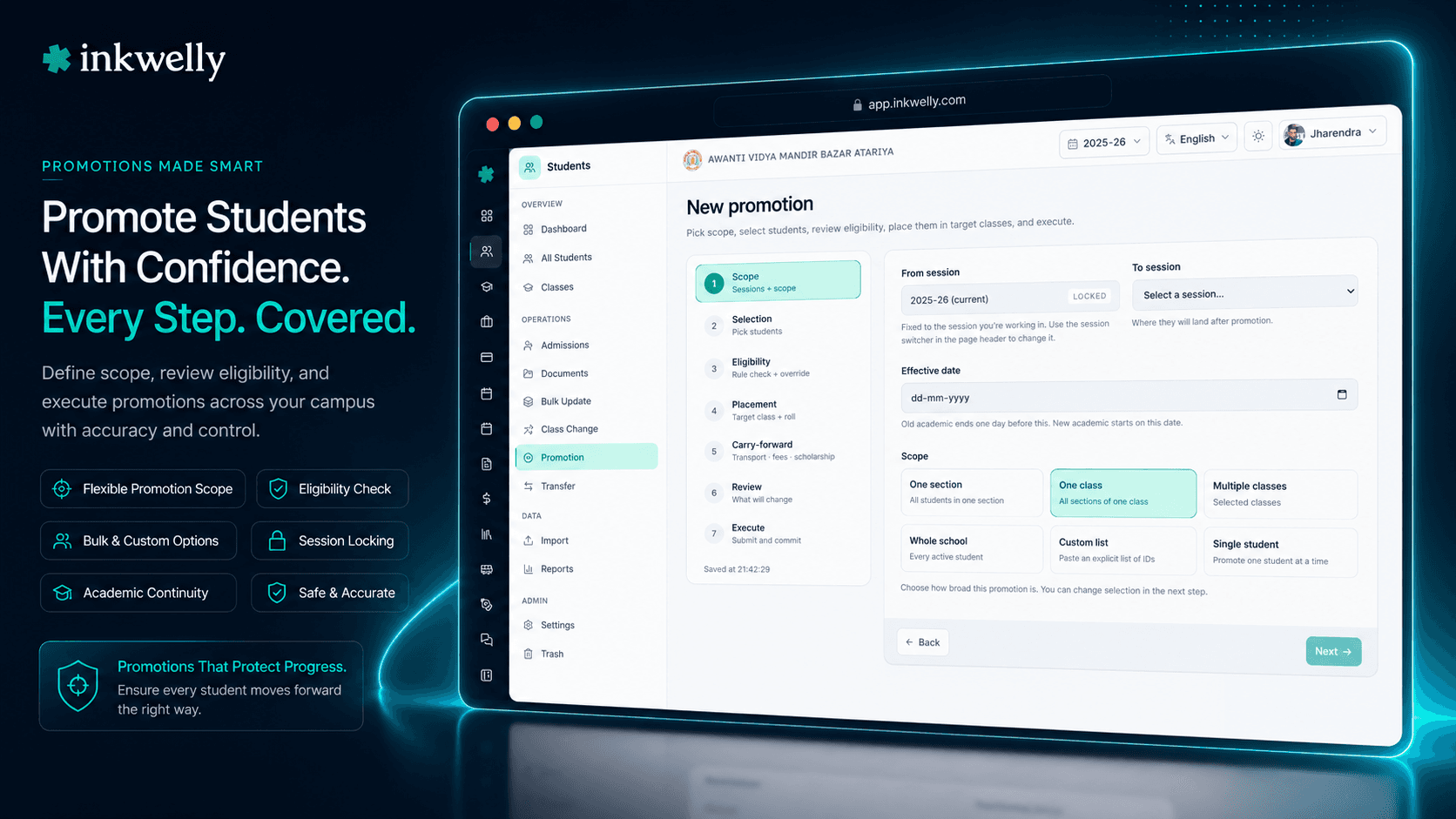
हमने Promotion को एक dedicated screen बनाया है जो पूरे school को year boundary के across single afternoon में carry कर देती है। Target session pick करो। Screen current session के हर active student को दिखाती है। Class पर filter, rows tick, target class और नए roll numbers inline table में set, save। Inkwelly हर student का next-session academic record बनाता है, new year के लिए उनका fee ledger open करता है, attendance baseline transfer करता है, और audit log पर per-student promotion entry लिखता है — सब एक bulk save में। 1,200-student school promotion एक afternoon में finish कर सकता है, fortnight में नहीं।
Promotion कैसे काम करता है — एक screen, दो sessions, एक save
Students → Promotion open करें session sidebar में। Page current session से 100 तक active students load करता है, alphabetical sort में। Header cohort breakdown दिखाता है — total students, boys, girls — ताकि office assistant तुरंत scope जान ले।
Step 1 — Target session pick करें। Page के top पर एक card target academic session माँगता है — typically next year, 2026-27 अगर आप 2025-26 में हैं। Dropdown आपके school के हर active session को list करता है, current session disabled (same year में promote नहीं कर सकते)। Target pick करने पर, Inkwelly उस year की class list lazy-load करता है — Class 1 A, Class 1 B, से लेकर Class 12 Commerce तक, वैसे जैसे आपके school ने configure किया है। एक small green pill confirm करती है 'Classes available for 2026-27' load complete होने पर।
Step 2 — Cohort पर filter लगाओ। ऊपर 3 filters: free-text name search, current-session class dropdown, gender। Grid default पर सिर्फ active students दिखाता है — जो students inactive mark हो चुके हैं (transferred out, withdrawn) वो accidentally promote नहीं होते। Class 5 A पर filter लगाओ उस section को Class 6 में promote करने के लिए; Class 8 की सब girls पर filter उन्हें cohort के रूप में promote करने के लिए; या filter open छोड़ दो पूरे active student body पर act करने के लिए।
Step 3 — Students tick करो और per-student configure करो। Row checkboxes tick करो उन students के लिए जो promote हो रहे हैं। Selection bar count, target session, और 'Promote' button दिखाता है। 'Promote' click करने पर configuration dialog open होता है। Bulk selections के लिए, Inkwelly sticky-header table दिखाता है — एक row per selected student — 3 editable columns के साथ: target class (next-session classes का dropdown), नया roll number, नया registration number। Quick apply dropdown table के top पर use करके एक click में हर selected student के लिए same target class set करें — typical जब पूरी Class 5 A को Class 6 A में promote करना हो।
Step 4 — Effective date, remarks set करो, save करो। Shared effective date इस batch के हर student पर apply होती है — typically new session की 1 April। Optional shared remarks context के लिए। Bulk runs में, skipErrors checkbox choose करने देता है: failed rows के पार continue करो (successes को keep करते हुए) या first failure पर stop करो। Save। Inkwelly हर student का new-session academic record बनाता है, target class से link करता है, roll और registration numbers assign करता है, new year के लिए fee ledger open करता है, और audit log पर per-student promotion entry लिखता है। Dialog successful और failed promotions के count के साथ close होता है — clean run में successful: 38, failed: 0।
एक single bulk run में per-student आप क्या configure करते हैं
- Target class — नया
Class 6 Aआपकी2026-27class list से, per-row dropdown से picked या Quick apply से globally set। - नया roll number — हर student के लिए typed, या blank छोड़कर Inkwelly को target class में sequentially auto-assign करने दें।
- नया registration number — हर student के लिए free text, useful CBSE registration के लिए जहाँ हर student new academic year में fresh registration पाता है।
- Effective date (shared) — इस batch के हर student पर apply होती है; default today, typically new session की 1 April से set।
- Remarks (shared) — optional context जो पूरे batch पर apply होता है, e.g., 'Annual promotion 2025-26 → 2026-27, signed by Principal on 2026-03-31'।
- Skip-on-error toggle — bulk runs के लिए, decide करो कि एक failed row everything stop करे या baki batch save हो।
- Quick apply — one-click bulk-set same target class हर selected student पर (most common: पूरी section promote करना)।
- Per-row outcome — हर student success या specific failure reason return करता है; batch report
successful: 38, failed: 2करता है failures itemised के साथ। - Default पर active-only — inactive students (transferred out, withdrawn, suspended) grid से excluded हैं ताकि mistake से promote न हों।
- Linked records carried — new academic record student के profile, parent contacts, address, photo, blood group, religion, RTE flag और हर दूसरे profile field को carry करता है; सिर्फ class, roll और registration change होते हैं।
पहले target session pick करो — बाकी unlock हो जाता है
Promotion screen का top card एक decision माँगता है: किस session में promote कर रहे हो? Inkwelly हर active session दिखाता है जो आपके school ने configure किया है — typically 2025-26, 2026-27, कभी-कभी future 2027-28 भी अगर आप ने early planning के लिए set up किया हो। Current session जिसे आप view कर रहे हो dropdown में disabled है — students को same year में promote नहीं कर सकते।
2026-27 pick करते ही Inkwelly उस year की class list का background load fire करता है। Second के अंदर next-year classes available — Class 1 A, Class 1 B, ..., Class 12 Science, Class 12 Commerce, Class 12 Arts। Card पर small green pill confirm करती है 'Classes available for 2026-27'। अगर आप गलती से वो session pick करते हो जिसकी classes अभी set up नहीं हैं, एक yellow warning सामने आती है — 'Set up the class list for 2026-27 first' — academic year setup screen के link के साथ।
Quick apply — whole-section promotions के लिए one click
Most common Indian-school promotion pattern है पूरी section को group के रूप में move करना। Class 5 A becomes Class 6 A। Class 5 B becomes Class 6 B। Principal ने section assignments पहले से ही draw कर दिए हैं। Office assistant को बस उन्हें apply करना है।
Promotion dialog में per-student table के ऊपर एक Quick apply dropdown है। Dropdown से Class 6 A pick करो और table में हर selected student का target one click में Class 6 A set हो जाता है — 38 individual dropdowns click करने की जरूरत नहीं। वहाँ से office assistant inline number column में sequential roll numbers type करती है — 1, 2, 3, 4... उस order में जिस में Principal चाहते हैं — या Inkwelly को auto-assign करने के लिए blank छोड़ देती है। Mixed-section promotions के लिए — कुछ students Class 6 A, कुछ Class 6 B में move हो रहे हैं — majority को Quick apply से set करो, फिर individual rows change करो जो exceptions हैं। Flow seconds में 80/20 case handle करती है और एक कुछ extra clicks में 20% को।
Per-student class, roll number, registration number
Indian schools तीनों care करते हैं। Class assignment determine करता है next year का section। Roll number determine करता है morning assembly call order, exam seating, attendance register sequence। Registration number वो है जो CBSE / ICSE / state board new year के exam roster के लिए register करता है — Class 9 promoting to Class 10 (board year) में, यही number admit card पर दिखता है।
Promotion bulk table में तीनों columns inline हैं। Target class next-year classes का dropdown है, नया roll number numeric input (min: 1 validation के साथ), नया registration number free-text input — अगर आपका school externally board registration numbers issue करता है तो pre-prepared spreadsheet से paste कर सकते हो। हर row student का photo, current name, और current section भी दिखाती है, ताकि office assistant को individual profiles open किए बिना सही values fill करने के लिए context मिले। Single-student version के dialog में वही 3 fields हैं but vertically laid out one-record clarity के लिए।
Skip-on-error — messy data run को break नहीं करता
Real Indian-school data 31 March को clean शायद ही होती है। कुछ students last week inactive mark हुए। Class 5 A में 2 duplicate roll numbers manual edit से exist करते हैं जिन्हें किसी ने fix नहीं किया। एक student के profile में missing date of birth है जो new session में validation fail करती है। Strict ERP में, कोई एक भी problem whole bulk promotion abort कर देती है — office assistant row fix करती है, retry करती है, next problem hit होती है, retry, next, और 90-minute job 4 hours का stop-start बन जाता है।
Promotion dialog में bulk runs के लिए skipErrors checkbox है। Tick करो, और Inkwelly हर per-row failure के पार continue करता है — वो 36 students save करता है जो cleanly promote होते हैं, फिर result envelope successful: 36, failed: 2 return करता है specific reason per failure के साथ। 2 failures source list में editable रहती हैं, office assistant अपने pace से fix करती है, और सिर्फ उन दो को re-run करती है। No retry-the-whole-batch churn। Rare case जहाँ strict-mode चाहिए (e.g., board-year Class 10 students promote करना जहाँ partial promotion unacceptable है), skipErrors off छोड़ो — bulk save first failure पर single error toast के साथ halt हो जाता है।
“April mein 1,150 students ka promotion ek session se doosre mein le jaane mein pehle 11 din lagte the. Ab Promotion screen pe class-wise filter karke, Quick apply se target class set karke, roll numbers paste karke — saara school ek doopahar mein ho gaya. Skip-errors ne 7 missing-DOB students ko side mein rakha, baaki 1,143 saaf chal gaye. Naya session 1 April ko ready tha.”
Inkwelly के साथ एक typical April promotion week
28 March — Pre-flight check। Principal की signed promotion list office में आ जाती है। Office assistant Inkwelly पर login करती है, academic year setup open करती है, और confirm करती है कि 2026-27 की class list ready है — Class 1 A से Class 12 Commerce तक, सही intake counts के साथ, हर section के सही teacher-in-charge के साथ। अगर कुछ missing है, वो पहले set up करती है — 30-minute task per session, year में one-time।
30 March — Class 1 से Class 5 promotions। School का bulk। वो Promotion screen को Class 1 पर filter करती है, master checkbox से सारे 90 students tick, target session 2026-27 pick, dialog open, Quick apply से पहले 45 के लिए Class 2 A set (जिन्हें Principal ने उस section में assign किया है), skipErrors on करके save। Result: successful: 44, failed: 1। Failure वो student है जिसके profile में missing date of birth है — वो उसे profile screen में fix करती है, सिर्फ उस student के लिए Promotion re-run करती है, success। Class 1 → Class 2 B के लिए repeat, फिर Class 5 तक हर grade के लिए। 4 PM तक primary-school promotion done।
31 March — Class 6 से Class 12 promotions, plus held-back exclusions। Middle school और senior school। Principal की list ने 14 students flag किए हैं जो promotion criteria meet नहीं कर पाए — वो same grade में रहेंगे। Office assistant class-by-class काम करती है, सिर्फ वो students tick करती है जो Principal की promotion list पर हैं (held-back skip करके), और हर section की promotion run करती है। Class 9 → Class 10 batch को special handling चाहिए — हर student को fresh CBSE registration number चाहिए जो office ने last week spreadsheet में prepare किया था। वो registration numbers inline column में paste करती है। Result: successful: 78, failed: 0। 6 PM तक, पूरा school 2026-27 पर है।
1 April — New session cleanly open। Class teachers login करते हैं और अपनी new sections fully populated पाते हैं। 2026-27 की fee invoices new fee structure के आधार पर auto-generate हो जाती हैं। Parents day one से parent app में अपने बच्चे की new section देखते हैं। Morning assembly new roll lists printed PDF से read करती है जो office ने class roster screen से generate किया। Principal की secretary को एक भी 'pending promotion' email chase नहीं करनी पड़ती। New academic year पहले ही शुरू हो चुका है, on time।
Promotion screen cleanly handle करने वाले edge cases
- Held-back students — सिर्फ bulk selection में tick मत करो; वो अपनी current section में रहते हैं जब new session open होता है।
- Promotion पर section reshuffle — कुछ
Class 5 AstudentsClass 6 Aजाते हैं, कुछClass 6 B; majority के लिए Quick apply use करो, exceptions के लिए individual rows override करो। - Class 11 पर stream choice —
Class 10studentsClass 11 Science,Class 11 Commerce,Class 11 Artsमें promote होते हैं; per student target stream pick करो। - Board-year fresh registration —
Class 9 → 10औरClass 11 → 12को fresh CBSE/ICSE/state-board registration numbers मिलते हैं; registration column में paste करो। - Inactive list से skipped students — transferred-out और withdrawn students default पर grid से excluded हैं; accidentally promote नहीं हो सकते।
- Mid-session entries — जो students current year की 1 April के बाद admit हुए वो भी year-end पर promote होते हैं, full profile और fee ledger के साथ carry forward।
- Hostel-block re-mapping — residential schools जहाँ hostel-block-class assignments हर year change होती हैं; new hostel layout से match करने वाली target sections में promote करो।
- Forward-dated promotions — batch 28 March को run करो but effective date 1 April set करो; reports effective date honour करती हैं।
- Multi-school trust — 6 schools run करने वाला trust Promotion per-school independently run करता है, कोई cross-tenant leak नहीं।
- RTE 25% reservation continuity — RTE-flagged students new session में flag retain करते हैं; reservation status carry forward होता है re-classification के बिना।
- Messy data के लिए Skip-on-error — failed rows itemised, batch continue करता है; office failures separately fix करती है और सिर्फ उन्हें re-run करती है।
- Per-student audit log — हर promotion source class, target class, effective date, actor, और timestamp के साथ audit entry लिखती है; CBSE renewal, ICSE inspection और state-board RTE compliance के लिए trails full हैं।
अपने school के data पर live Promotion देखें
Last year की promotion list लाएँ। हम demo के दौरान आपके school के 2 sessions set up करेंगे, एक पूरे grade की promotion live run करेंगे, और दिखाएँगे कि 12 days का काम कैसे एक afternoon में बदलता है।
Limits, safety और small print
Cross-session by design। Promotion वो एकमात्र screen है students को एक academic session से दूसरे में move करने के लिए। Within-session moves के लिए sections के बीच — same year में Class 6 A से Class 6 B — dedicated Class Change screen use करें। Class Change को year-end migration के लिए use करना fee-ledger creation, attendance baseline transfer और audit-log linkage lose करता है जो Promotion automatically handle करता है।
100 students per page। Grid एक बार में 100 active students तक load करता है — entire class section या filtered cohort के लिए काफी। 1,000+ students वाले schools class-by-class promote करते हैं — Class 1 पर filter, promotion batch run, Class 2 पर filter, next batch run, और ऐसे ही। हर batch अपना atomic save है अपने per-row outcomes के साथ। पूरा school typically 90 minutes के focused work में done।
Default पर active-only। Inactive students (transferred out, withdrawn, suspended, deceased) grid से excluded हैं। यह intentional safety है — office assistant वो student promote नहीं कर सकती जो जा चुका है। Previously-inactive student को promote करने के लिए (rare — e.g., sister school से transfer back), पहले student profile में reactivate करो, फिर Promotion run करो।
Skip-on-error के साथ per-row atomicity। हर student अपनी transaction के रूप में process होता है। skipErrors on के साथ, bulk save हर successful row commit करता है और failures separately report करता है — कोई all-or-nothing rollback नहीं। skipErrors off (strict mode) के साथ, bulk save first failure पर halt हो जाता है। Default safety के लिए off है; messy bulk runs के लिए on करो जहाँ partial-success acceptable है।
Effective date reports drive करती है। Years के across reports effective date honour करती हैं। Class 5 A का March attendance summary student को 5 A दिखाएगा; new session का April summary उसे 6 A दिखाएगा, automatically — कोई manual report regeneration नहीं। Back-dated promotions (28 March का decision 5 April को record करना) और forward-dated promotions (batch late February में 1 April के लिए run करना) दोनों same way काम करते हैं।
Per-student audit log। हर promotion per-student audit entry लिखती है — actor, timestamp, IP address, source session, source class, target session, target class, नया roll number, नया registration number, effective date, remarks, source ('Promotion')। Audit log school admin panel से exportable है और CBSE renewal, ICSE inspection और state-board RTE compliance के against खड़ा होता है।
Role-based access। Promotion default पर school admin और Principal roles पर gated है। Class teachers अपनी assigned section की individual student profile edits देखते हैं but bulk promotion screen नहीं। Most schools इसको admin-only रखते हैं क्योंकि bad promotion run का impact 2 years के across fee ledger, attendance register और exam roster पर touch करता है।
Multi-tenant isolation। हर Inkwelly module की तरह, आपके school का Promotion strictly आपके school के records पर operate करता है। Multi-school trusts Promotion per-school independently run करते हैं — कोई cross-school access नहीं। एक trust admin same login से 6 schools की promotions succession में run कर सकते हैं।
Target session में class list exist होना चाहिए। Promotion saves allow करने से पहले validate करती है कि target session में configured class list है। अगर 2026-27 में abhi classes set up नहीं हैं, page yellow warning surface करता है academic year setup screen के link के साथ — year में one-time class list set up करो, फिर उसके against promotions run करो।
किस मॉड्यूल का हिस्सा
1 moduleअक्सर पूछे गए सवाल
9 सवालPromotion और Class Change में क्या difference है?
Promotion students को CURRENT academic session से NEXT में move करता है (e.g., Class 5 in 2025-26 → Class 6 in 2026-27)। Class Change एक student को SAME session के अंदर sections के बीच move करता है (e.g., Class 6 A → Class 6 B in 2025-26)। Promotion year-end cross-session migration है नए fee ledgers और audit linkage के साथ; Class Change July rebalancing, RTE corrections और parent requests के लिए within-session reshuffle है। Annual April lift के लिए Promotion use करें, सब mid-year के लिए Class Change।
क्या मैं 1,000 students को एक click में promote कर सकती हूँ?
Grid 100 students per page load करता है, इसलिए 1,000-student school के लिए 10 bulk batches run करने होंगे — typically class-by-class। Class 1 पर filter, master checkbox tick, Quick apply से configure, save। Class 2 पर filter, repeat। हर batch अपना atomic save है अपने per-row outcomes के साथ। पूरा school typically 90 minutes के focused work में done — vs legacy ERPs में one-by-one promotion के 10–12 days।
अगर कुछ students promote होने में fail हो जाएँ, तो क्या होगा?
bulk dialog में skipErrors checkbox on करो। Inkwelly हर per-row failure के पार continue करता है — वो students save करता है जो cleanly promote होते हैं, result envelope `{ successful: 36, failed: 2 }` return करता है specific reason per failure के साथ (e.g., 'date of birth missing', 'duplicate registration number', 'target class no longer active')। 2 failures editable रहती हैं; आप fix करके सिर्फ उन्हें re-run कर सकते हो। कोई all-or-nothing rollback नहीं। skipErrors off (strict mode) के साथ, batch first failure पर halt हो जाता है।
क्या मुझे हर student के लिए manually class pick करना होगा?
नहीं — bulk dialog table के top पर Quick apply dropdown use करो। एक बार `Class 6 A` pick करो और batch का हर selected student `Class 6 A` को target के रूप में पाता है। वहाँ से individual rows change करो exceptions के लिए (e.g., 3 students `Class 6 B` में move हो रहे हैं instead)। Most whole-section promotions एक Quick apply click प्लस zero overrides में होती हैं। Mixed-section promotions एक Quick apply click प्लस कुछ row edits में होती हैं।
क्या new session का fee ledger automatically create होगा?
हाँ। जब student promote होता है, Inkwelly target session में एक नया academic record बनाता है जो same student profile से linked होता है। `2026-27` का fee ledger आपकी configured fee structure के आधार पर new class के लिए automatically open होता है। Attendance baselines, exam records और parent-app dashboards सब new session के लिए cleanly open होते हैं। Previous-session records preserved होते हैं (delete नहीं), ताकि historical reports accurate रहें।
वो students जो held back हुए, क्या वो mistake से promote हो जाएंगे?
सिर्फ वो students promote होते हैं जिन्हें आप grid में tick करते हो। Held-back students को सिर्फ tick नहीं करो — वो अपनी current section में रहते हैं। इसको और safer बनाने के लिए, [student profile](/modules/student-information) में held-back students का custom flag set कर सकते हो और Promotion grid filter में exclude कर सकते हो। Default पर grid का active-only filter भी transferred-out या withdrawn students को accidentally promote होने से protect करता है।
क्या inactive students (transferred out, withdrawn) promotion से excluded हैं?
हाँ — grid default पर सिर्फ active students दिखाता है। Transferred-out, withdrawn, suspended और deceased students excluded हैं ताकि accidentally promote न हों। Rare case में previously-inactive student को promote करने के लिए (e.g., sister school से transfer back), पहले student profile में reactivate करो, फिर Promotion run करो। Default common case protect करता है।
क्या यह Class 11 पर stream choice और board-year registration numbers support करता है?
हाँ। `Class 10 → Class 11` promotions के लिए, target class dropdown सभी configured streams दिखाता है — `Class 11 Science`, `Class 11 Commerce`, `Class 11 Arts`, और कोई और जो आपके school ने set up किए हों (`Class 11 Vocational`, `Class 11 Humanities`)। Per student pick करो। Board-year fresh registration (`Class 9 → 10` और `Class 11 → 12`) के लिए, inline registration number column CBSE/ICSE/state-board registration spreadsheet से pasted values accept करती है।
क्या promotion audit-logged है?
हाँ। हर promotion per-student audit-log entry लिखती है — actor, timestamp, IP address, source session, source class, target session, target class, नया roll number, नया registration number, effective date, remarks, source ('Promotion')। Audit log school admin panel से exportable है और CBSE renewal, ICSE inspection, या state-board RTE compliance audit के against खड़ा होता है। Previous-session academic record preserved रहता है — कभी delete नहीं होता — ताकि cross-year reports accurate रहें।
आपको ये भी पसंद आ सकता है
4 लेखInkwelly आपके स्कूल पर — खुद देखें
30 मिनट का डेमो। आपके मौजूदा ERP को आपके साथ खोलकर, कॉल पर ही आपका डेटा Inkwelly में लोड करते हैं। कॉल ख़त्म होते-होते एक तय तारीख़ का गो-लाइव प्लान आपके हाथ में।