How to submit an RTE reimbursement claim to the government in Inkwelly
For school accountants and principals filing the RTE Section 12(1)(c) reimbursement claim with the state education office. By the end the claim in Inkwelly will move from Pending to Submitted, every student item will be verified, and the government tracking reference will be recorded against the claim for the audit trail.
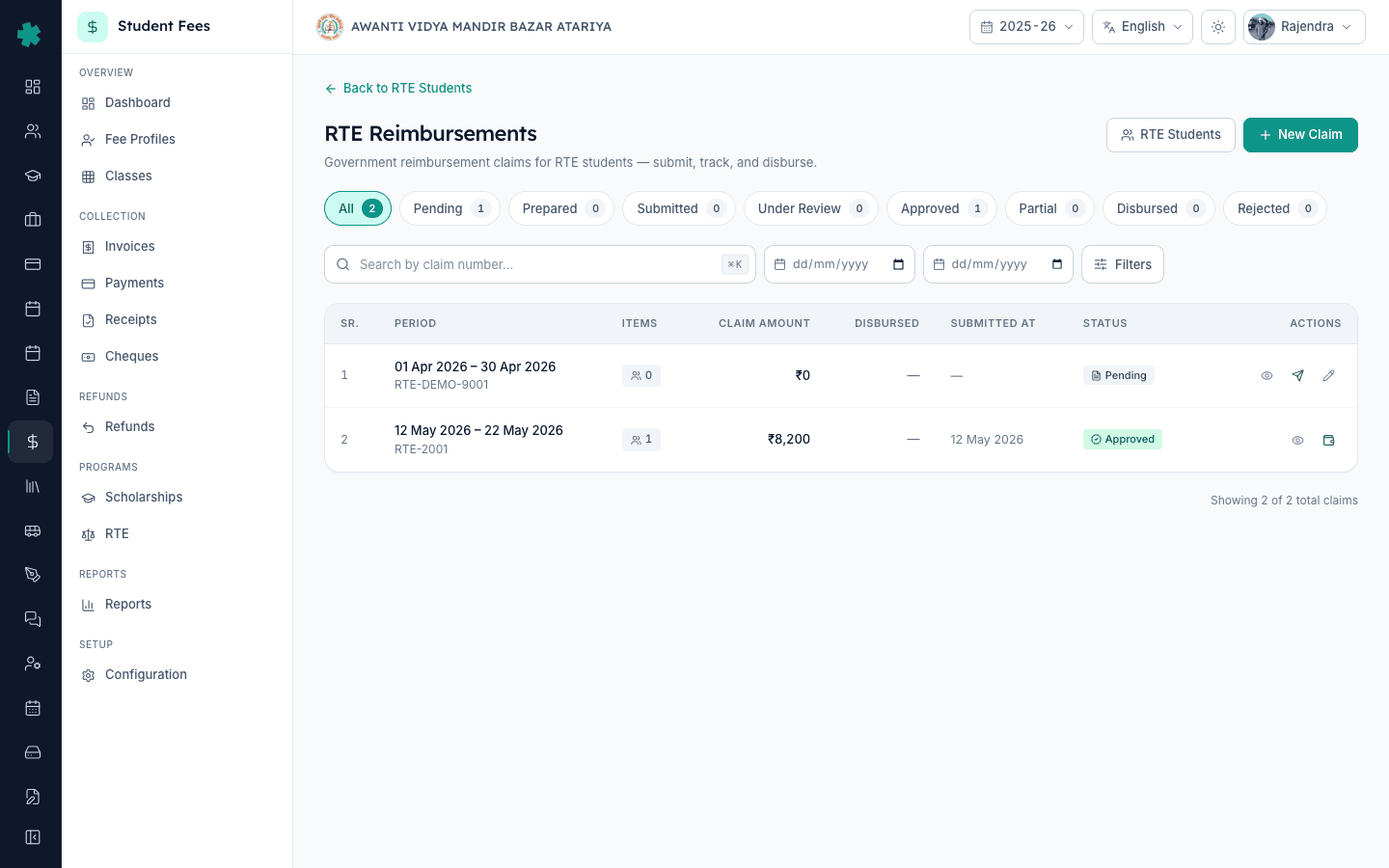
To submit an RTE claim in Inkwelly: open Student Fee → RTE → Claims, open the prepared claim, verify each student item against attendance, fees collected and the RTE certificate, then click Submit Claim on the top right. Paste the government file or portal reference into Submission Reference and confirm. The claim moves from Pending to Submitted, items lock from edits, and Inkwelly stamps the submitted date for the audit trail.
The RTE Act 2009 entitles every recognised private unaided school in India to claim per-child reimbursement from the state for the 25 percent of seats reserved for children from economically weaker and disadvantaged groups under Section 12(1)(c). The state notifies a per-child rate annually — for the 2024-25 session this sits between ₹450 and ₹2,200 per child per month depending on the state and class — and the school files a quarterly or annual claim with the District Education Office. Inkwelly bundles each child's reimbursable fee period into one claim row so the school can verify every line and submit a single consolidated file rather than re-keying entries into a spreadsheet.
1. Open the prepared claim
Open Inkwelly → Student Fee from the left sidebar, then click RTE → Claims under the PROGRAMS section. The Claims page lists every reimbursement claim the school has prepared, with the claim number, period, student count, total amount and current status — Pending, Prepared, Submitted, Under Review, Approved, Partially Disbursed, Disbursed or Rejected. Click the claim row in Pending or Prepared status to open the detail page. The header carries the claim number, period and status pill, with Submit Claim, Edit and Delete buttons on the top right.
2. Review per-student amounts on the Items tab
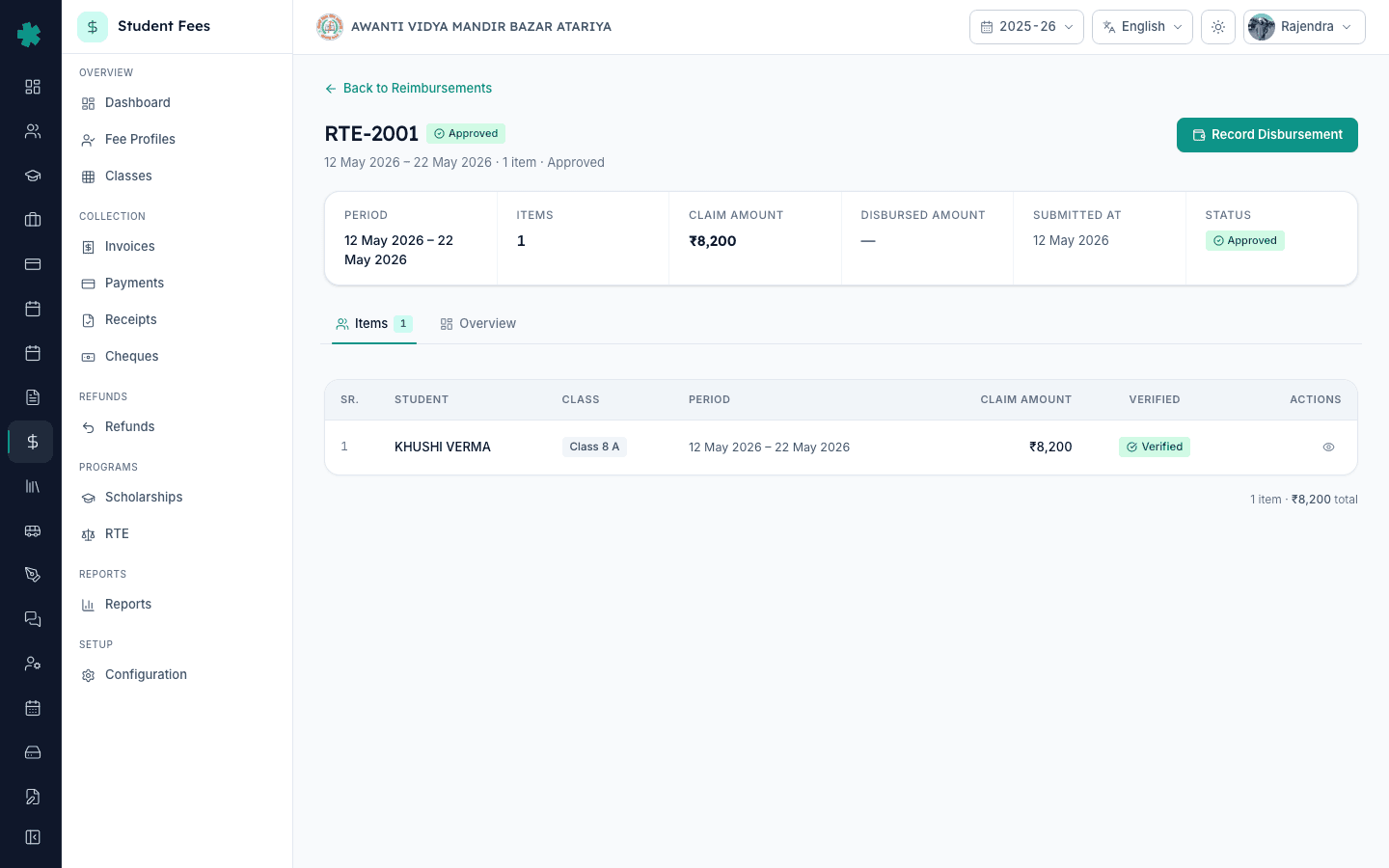
The Items tab is selected by default. Each row shows the student name, admission number, class chip, the claim period, the per-student claim amount and a Verified column with a Pending or Verified pill. Cross-check every row against the school's fee ledger — the claim amount should equal Tuition plus any other reimbursable head for the claim period, less any fee already collected from the family. The footer of the table prints the total claim and the count of items so the office can match it to the summary card before signing. To trace the per-student amount back to its source, see [#ref:cmpcg48ql033dv535lsn21rn2].
3. Gather supporting papers for each child
For every student item, the office stacks three papers in the claim file before going back into Inkwelly to verify: the attendance register for the claim period (the state expects 75 percent attendance for the period to be reimbursable), the fees collected ledger entry showing the child paid nothing under RTE, and the RTE eligibility certificate the parent received from the BSA or block office at admission. These three papers are the photographic proof the District Education Office asks for during the audit; Inkwelly does not upload them, the school carries them in the physical claim file.
4. Verify each item with a click
Click the green tick icon in the Actions column on the first unverified row. Inkwelly opens the Verify Claim Item dialog with the student summary card on top — name, admission, class and claim amount. Type a short note in Verification Notes such as Attendance 88 percent, fees waived, RTE certificate UP-RTE-2024-0117 on file so the audit ledger records the cross-check. Click Verify. The row pill flips from Pending to a green Verified badge. Repeat for every item — a claim cannot be submitted with any item still in Pending.
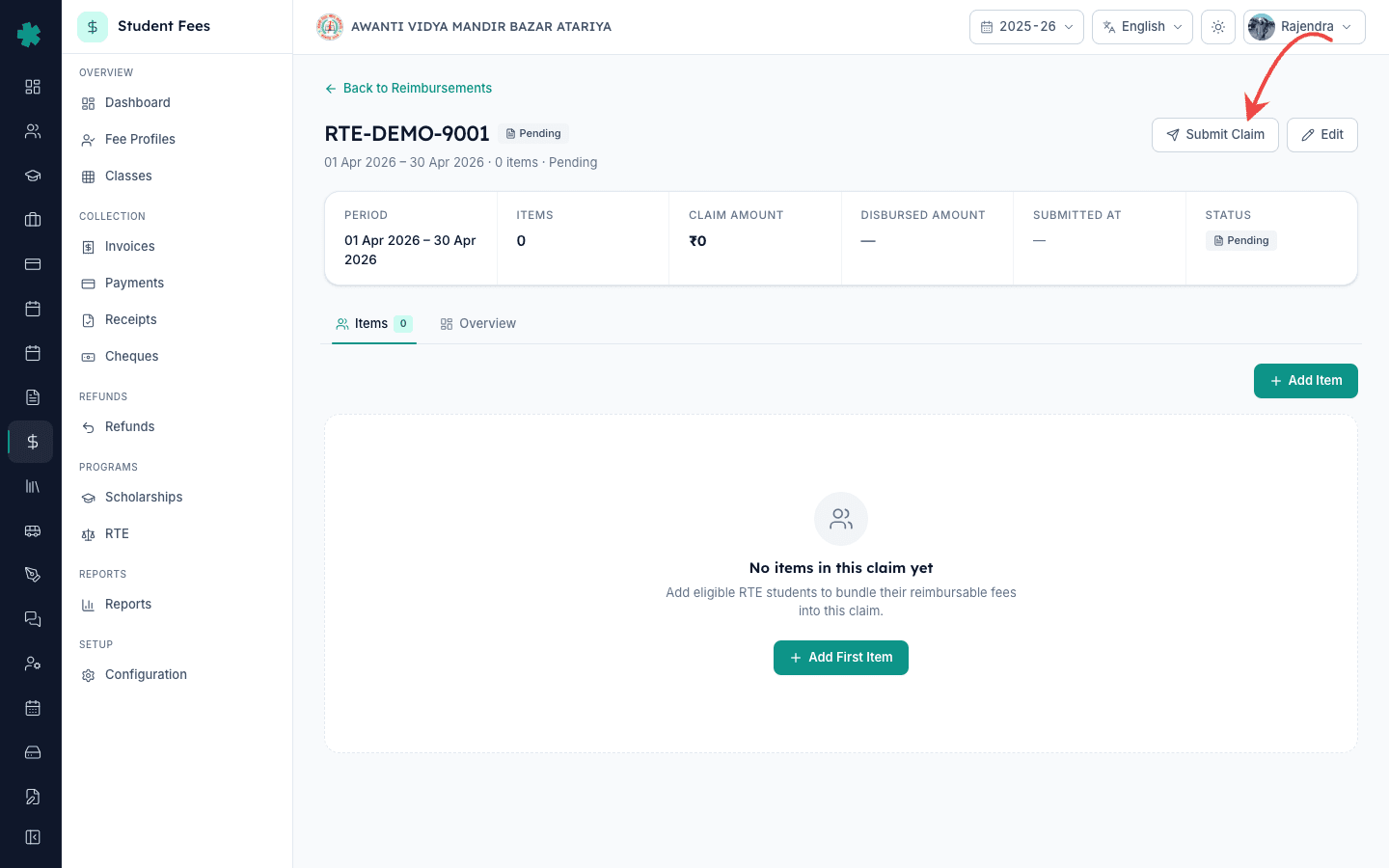
5. Click Submit Claim on the top right
Once every item shows the green Verified pill, click Submit Claim on the top right of the claim header. Inkwelly opens the Submit Claim dialog showing the Claim Period, the Claim Number, Total Items, Claim Amount and a single text input — Submission Reference. The dialog also warns that once submitted, claim items can no longer be edited and the state office will review and approve the claim before any disbursement is recorded against it.
6. Paste the government tracking reference
File the printed claim summary and supporting papers at the state portal or the District Education Office. The portal returns an acknowledgment number — Uttar Pradesh issues a UP-RTE-YYYY-NNNN format, Madhya Pradesh and Maharashtra use file numbers like GOV/RTE/2024/1234. Paste that exact reference into the Submission Reference field — leaving it blank is allowed but the audit trail becomes harder to defend during the next quarterly review. Click Submit Claim. Inkwelly records the submitted date as today and pings a toast Claim submitted to government.
7. Confirm the Submitted status and timestamp
The claim header pill switches from Pending or Prepared to a blue Submitted badge. The summary card now shows the Submitted At date, the Submission Reference appears under the Overview tab in the About section, and the Items table action column changes to a view-only eye icon for every row. The Submit Claim button is replaced by an Edit button — the schema still allows minor header edits while the claim is Under Review with the state. The claim is now waiting for the District Education Office's response, which Inkwelly will reflect when the status moves to Approved and the disbursement can be recorded.
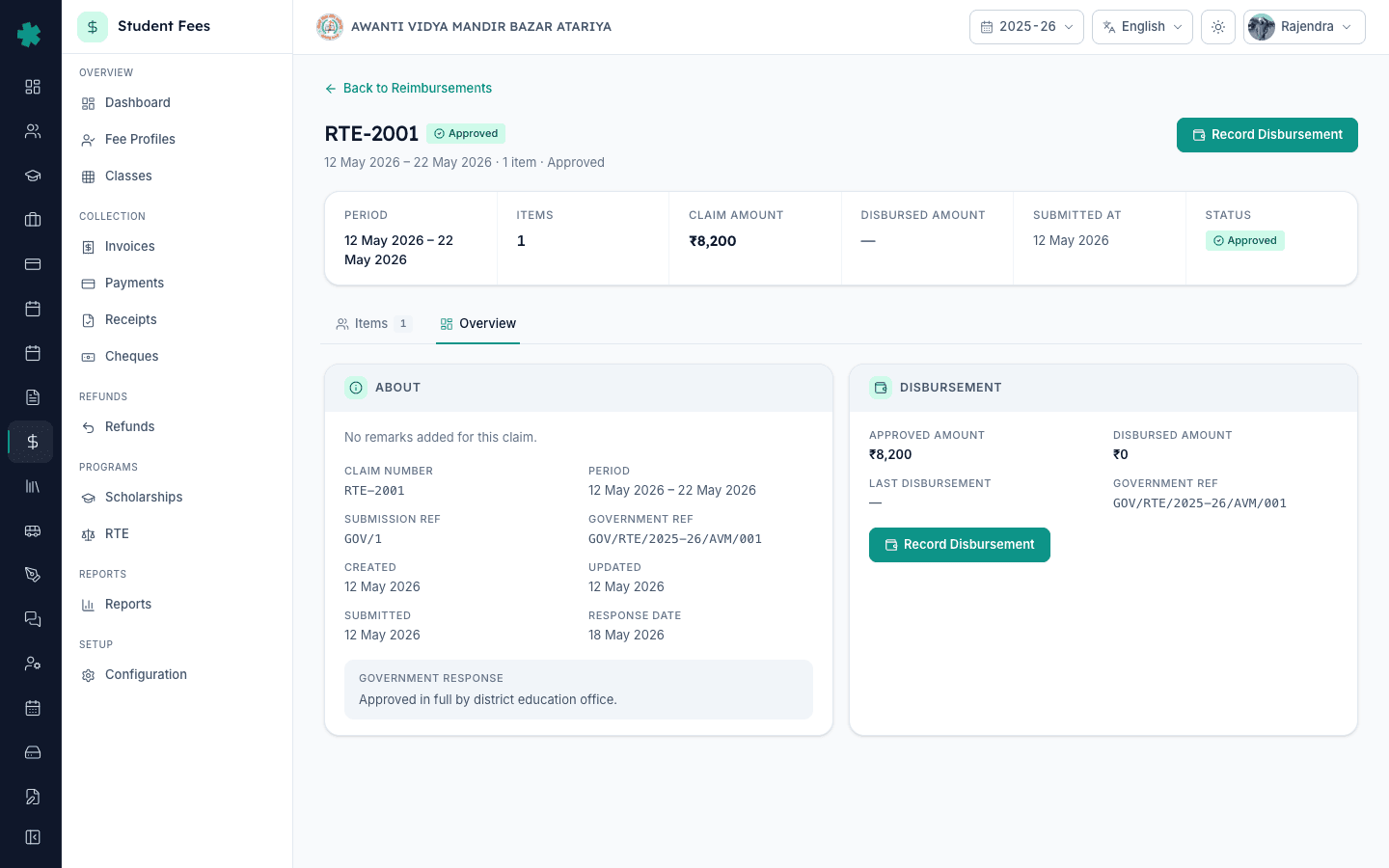
Next steps — when the District Education Office responds with the approved amount, follow [#ref:cmpcg66uh034av535xoltnvc6] to log the payment against this claim and tag the per-student disbursements. Schools preparing a fresh claim for the next period should review [#ref:cmpcgstq903l9v535oflghuh6] for the related scholarship-donor workflow that often funds RTE top-ups. To set up the underlying fee plan that produces the per-student reimbursable amount, see [#ref:cmpcg3yww032zv535sb03l510].
See Inkwelly Student Fees in action
Frequently asked
7 questionsHow long does the state take to disburse an RTE reimbursement after submission?
Most Indian states process RTE claims on a quarterly cycle, but actual disbursement to schools runs six to eighteen months behind submission. Uttar Pradesh and Madhya Pradesh have the longest lag; Maharashtra and Karnataka are faster. Schools should treat the submitted claim as a long-dated receivable and use the Claim Tracker on the Student Fee dashboard to follow its movement through Submitted, Under Review, Approved and Disbursed.
Can I edit an RTE claim item after the claim is submitted?
No. Inkwelly locks items the moment the claim moves to Submitted — the Actions column changes to a view-only eye icon and the API rejects further item edits. Header fields such as Submission Reference and Government Reference stay editable so the office can update the acknowledgment number if the state office reissues one. If the state rejects the claim, items unlock once the status moves back to Pending after an admin reset.
Inkwelly me RTE claim kaise submit kare?
Student Fee menu kholiye, sidebar me RTE → Claims par jaiye, Pending ya Prepared claim ko click kijiye. Items tab par har student row ke green tick icon par click karke Verify Claim Item dialog se ek-ek karke verify kijiye. Sab items green Verified ho jaane ke baad top-right Submit Claim button dabaiye, government portal ka acknowledgment number Submission Reference field me paste kijiye aur Submit Claim dabaiye. Status Submitted ho jayega.
Verification mein kya documents chahiye?
Teen documents chahiye har RTE student ke liye: claim period ka attendance register (75 percent attendance mandatory hai), fees collected ledger ka entry yeh dikhane ke liye ki bachhe se koi fee nahi li gayi, aur BSA ya block office se mila RTE eligibility certificate. Inkwelly ye papers upload nahi karta — physical file me rakhe jaate hain. Verify Claim Item dialog me Verification Notes field me reference number aur attendance percent type kar dijiye taaki audit trail clear rahe.
What if some items have not been verified yet?
The Submit Claim API returns an UNVERIFIED_ITEMS error and the claim does not move to Submitted. Inkwelly's Submit Claim dialog shows a red banner with the message All items must be verified before submission. Close the dialog, scroll the Items tab, and click the green tick icon on every row still showing the Pending pill. Once every item is Verified, retry Submit Claim — the dialog accepts the action.
Which states accept the Inkwelly claim summary directly?
Inkwelly produces a consolidated claim file with per-student amounts, periods, admission numbers and class — the same fields every state RTE portal asks for. Uttar Pradesh, Madhya Pradesh, Maharashtra, Karnataka, Rajasthan and Tamil Nadu accept the printed summary as the cover sheet of the physical file submitted to the District Education Office. The portal itself still expects each child to be entered into the state form online; Inkwelly's summary is the master worksheet the data-entry operator transcribes from.
Kya ek hi claim me alag-alag class ke RTE students daal sakte hain?
Haan. Ek claim me KG se Class 8 tak ke saare RTE students ek saath bundle ho sakte hain — Inkwelly har row me class chip aur per-student amount alag dikhata hai. Lekin agar state per-child rate class-wise alag hai (jaise UP me Class 1-5 ka rate Class 6-8 se kam hai), to office aksar do alag claims banata hai taaki audit me clarity rahe.
You might also like
3 readsSources & references
- Right of Children to Free and Compulsory Education Act, 2009 — Section 12(1)(c) · accessed 19 May 2026
Section 12(1)(c) mandates 25 percent reservation in private unaided schools for children from economically weaker and disadvantaged groups, with the state reimbursing the per-child fee.
- Ministry of Education — RTE Act 2009 Model Rules (Reimbursement procedure) · accessed 19 May 2026
The model rules issued by the central government direct each state to publish a per-child reimbursement rate and a quarterly claim submission procedure routed through the District Education Office.
- Ministry of Education — UDISE+ Data Capture Format (RTE Section) · accessed 19 May 2026
UDISE+ requires schools to report RTE student counts and reimbursement claim status annually, which mirrors the per-student claim record Inkwelly maintains.
See Inkwelly on your school
30-minute demo. We open your current ERP with you and load your data into Inkwelly on the call. Dated go-live plan by the end of it.