How to set a monthly Communications budget in Inkwelly
A short guide for school admins and accountants who want a predictable monthly bill on parent notifications. By the end of this page you will have a soft monthly INR budget saved in Inkwelly, visible on the usage dashboard, and ready to share with your principal at the next finance review.
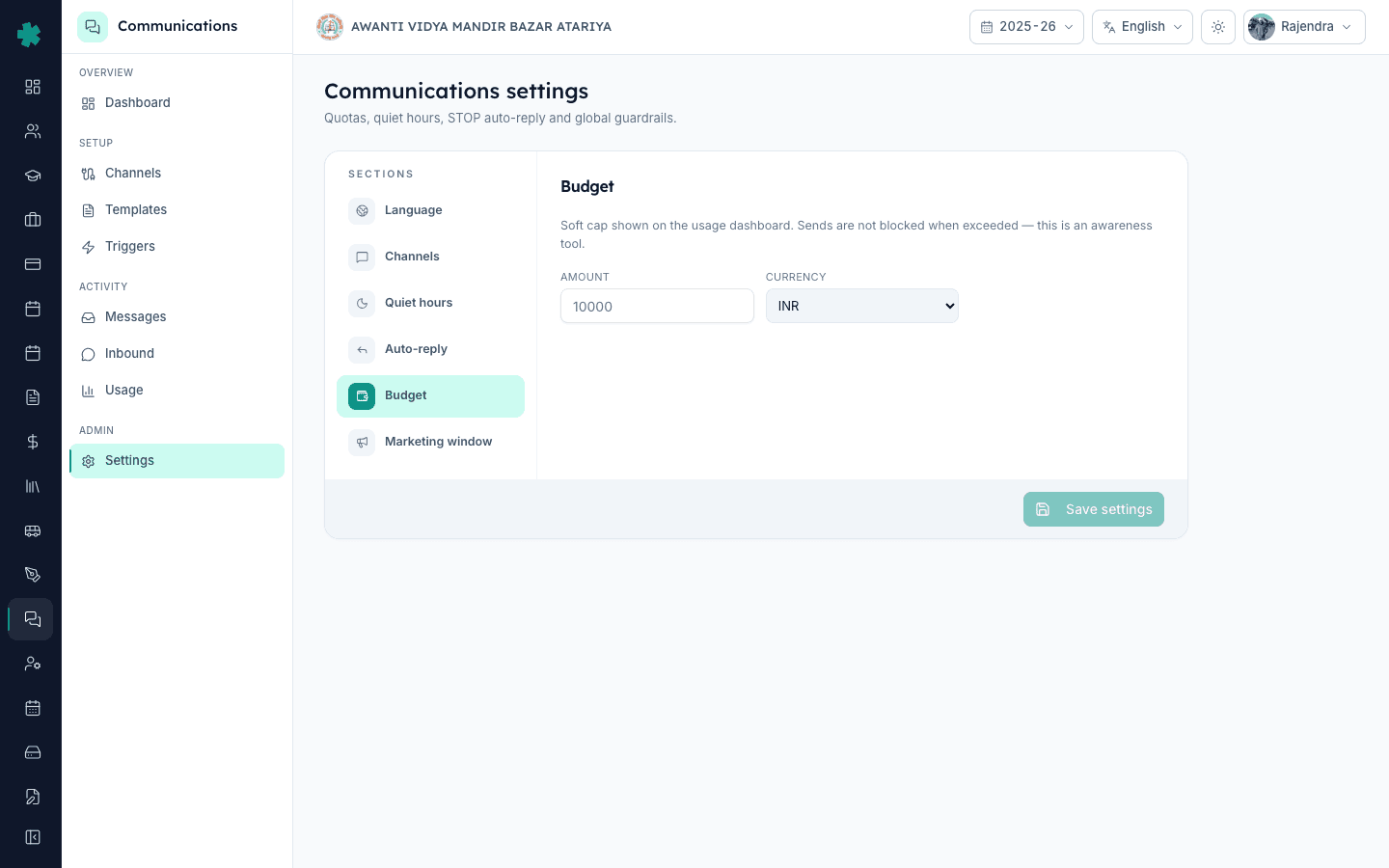
TL;DR — Open Communications, go to Settings, pick the Budget section, type a monthly amount in rupees, keep currency on INR, and click Save settings. Inkwelly shows this soft cap on the usage dashboard so you can see how close the school is to it. The cap is awareness only — sends are not auto-blocked when you cross it.
For a 600-student CBSE school in a Tier-2 city, parent messaging easily crosses 12,000 sends a month across WhatsApp, SMS and email. Fee-deadline week pushes that 30 percent higher, and result day can double a single day's volume. WhatsApp utility messages in India sit around Rs 0.12 to Rs 0.16 each after Meta's 2024-25 pricing changes, and DLT-routed SMS runs roughly Rs 0.18 to Rs 0.25 per message depending on the operator. Without any reference number, one badly scoped broadcast can quietly burn Rs 4,000 in a morning. A soft budget gives the principal one number to look at on the dashboard — and an accountant a predictable line item — without forcing teachers to second-guess every reminder they send.
1. Open Communications settings
Log in as an admin. From the left sidebar, click Communications. Inside the Communications workspace, scroll the side menu to the Admin group and click Settings. The Communications settings page opens with a header that reads Quotas, quiet hours, STOP auto-reply and global guardrails. On the right is a Sections column listing Language, Channels, Quiet hours, Auto-reply, Budget and Marketing window. This is the same page where you configure quiet hours and STOP handling later.
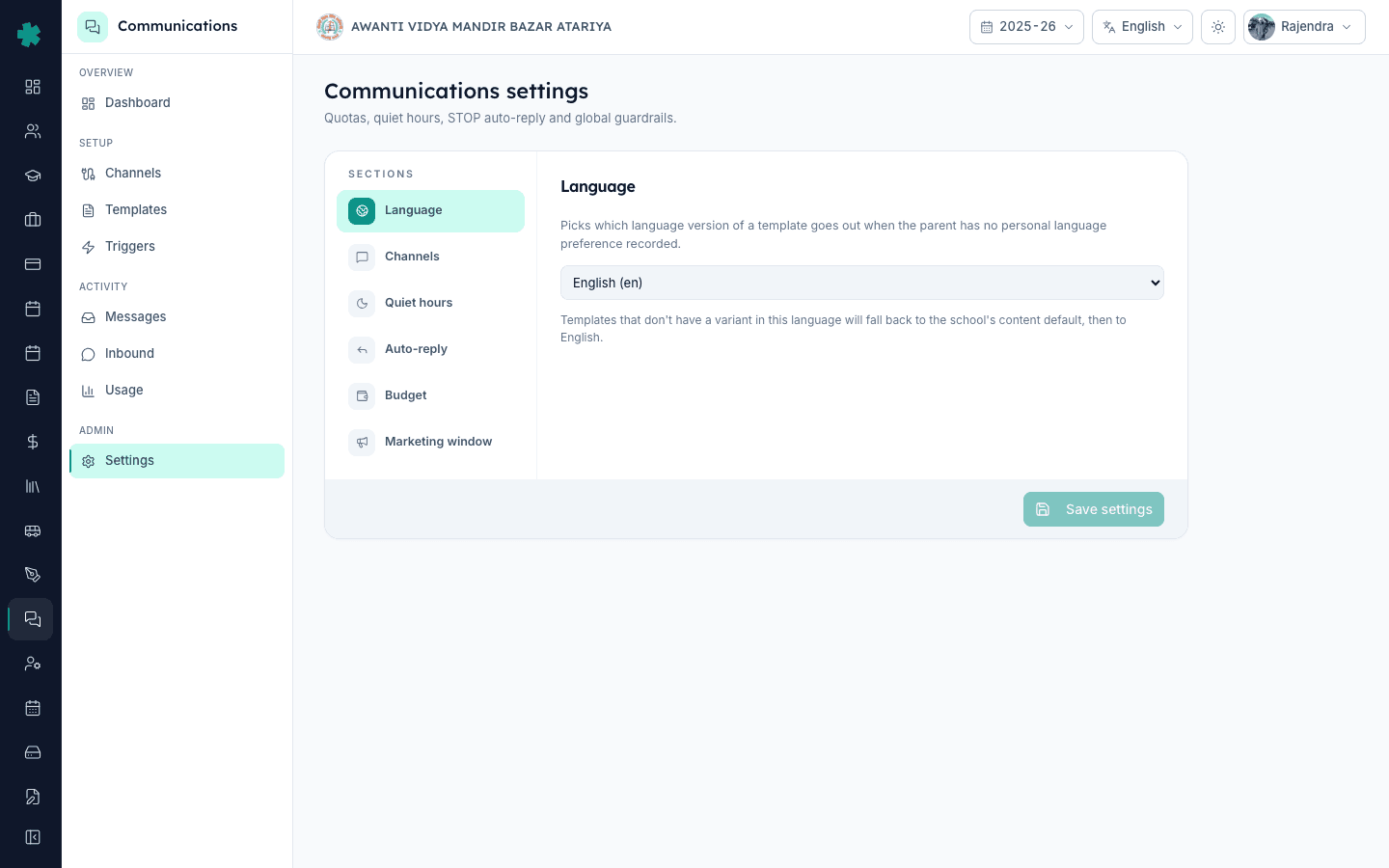
2. Click the Budget section
In the Sections column on the right side of the page, click Budget. The active section highlights in green and the right pane swaps to show the Budget panel. The heading reads Budget and the description below it states Soft cap shown on the usage dashboard. Sends are not blocked when exceeded — this is an awareness tool. Read that line carefully so you and your principal share the same expectation about what this number does and does not do.
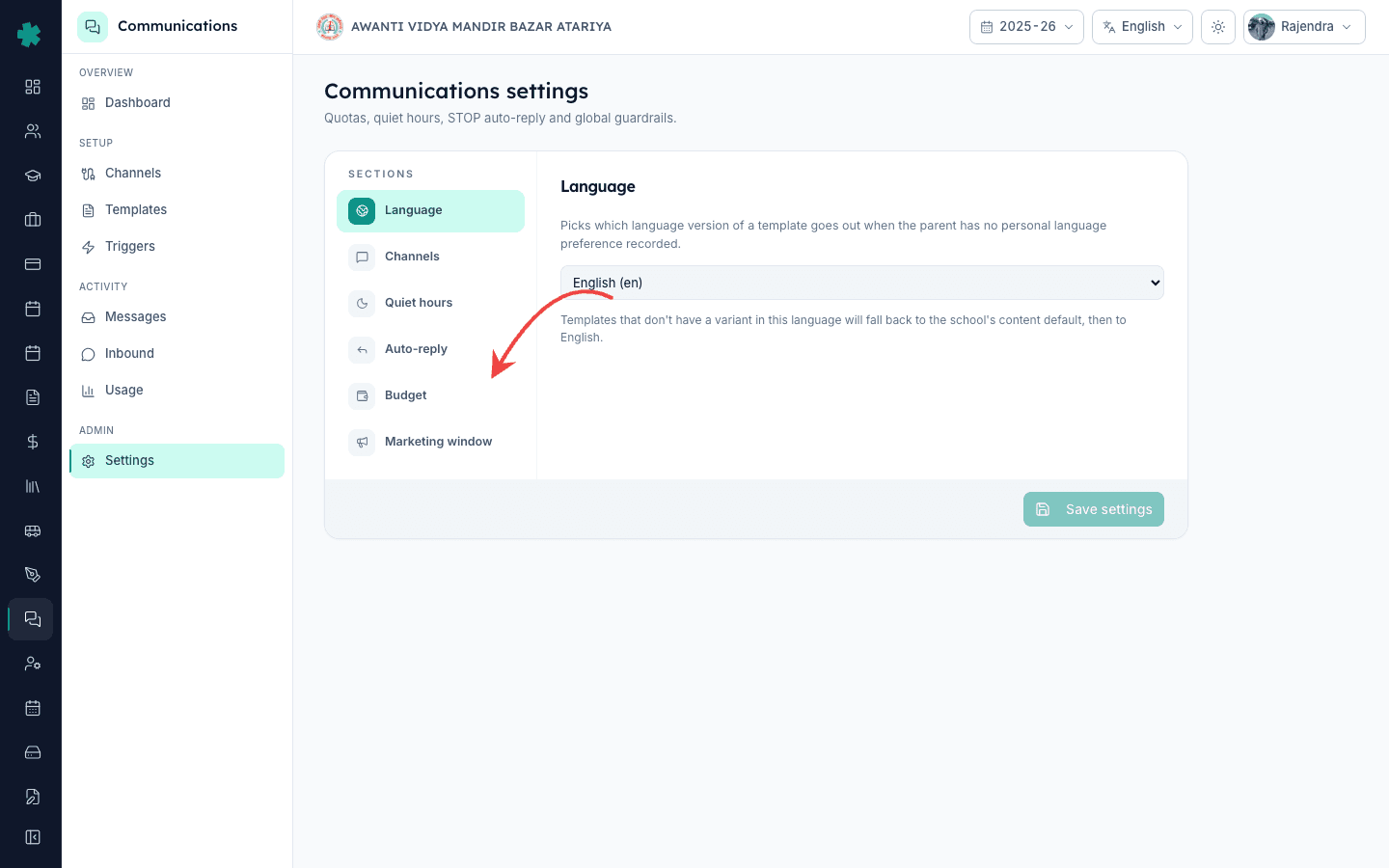
3. Enter your monthly amount in rupees
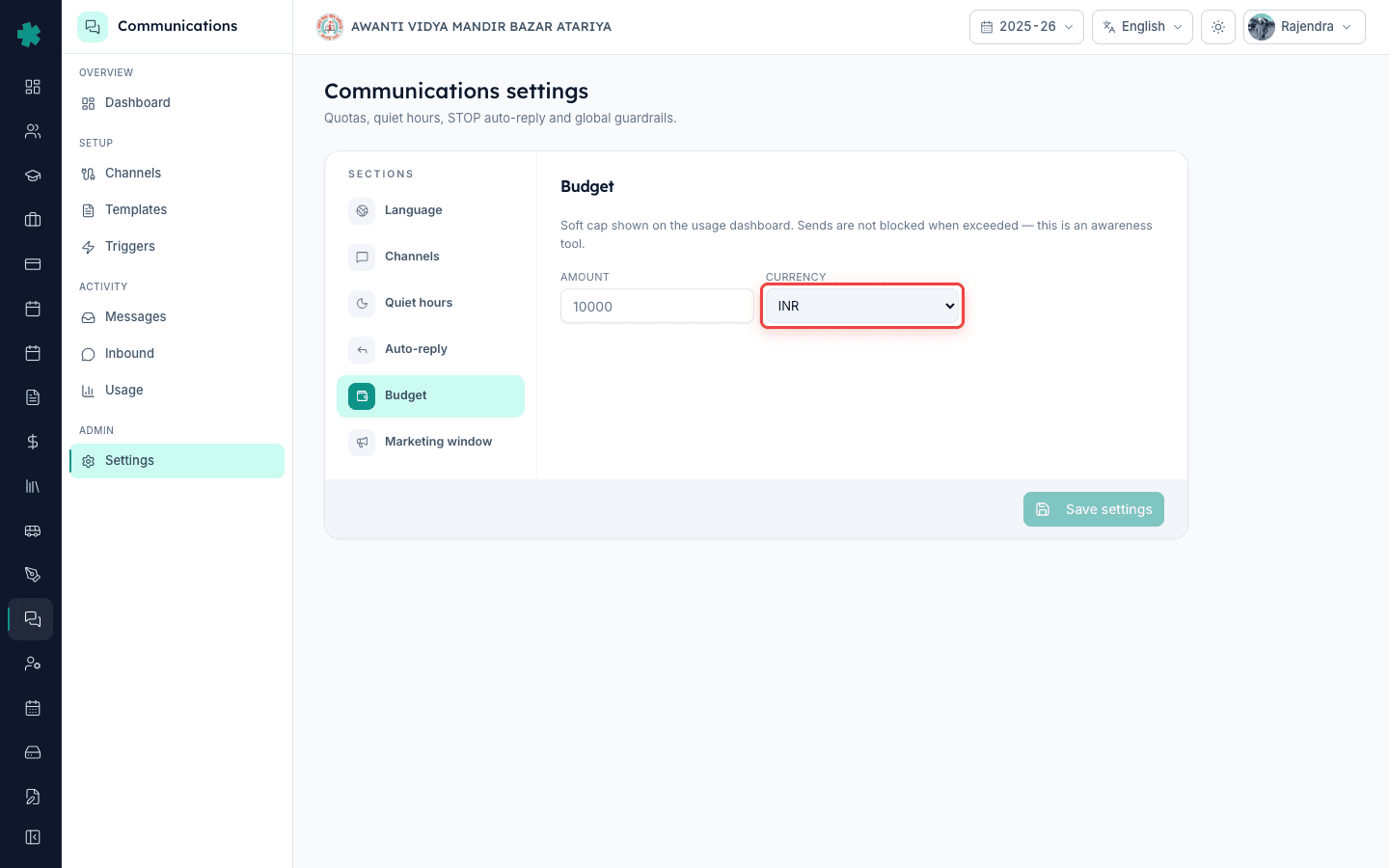
The Budget panel shows two fields side by side — Amount and Currency. In the Amount field, type a whole number, the rupees you want to allow per calendar month. A 500 to 1000 student day school usually starts at Rs 5,000 to Rs 8,000. A budget school can run a tighter Rs 2,500. A residential school with daily parent updates often needs Rs 15,000 or more. Add a 10 to 15 percent buffer over last month's actual spend so a normal traffic spike does not blow past the number on day twenty.
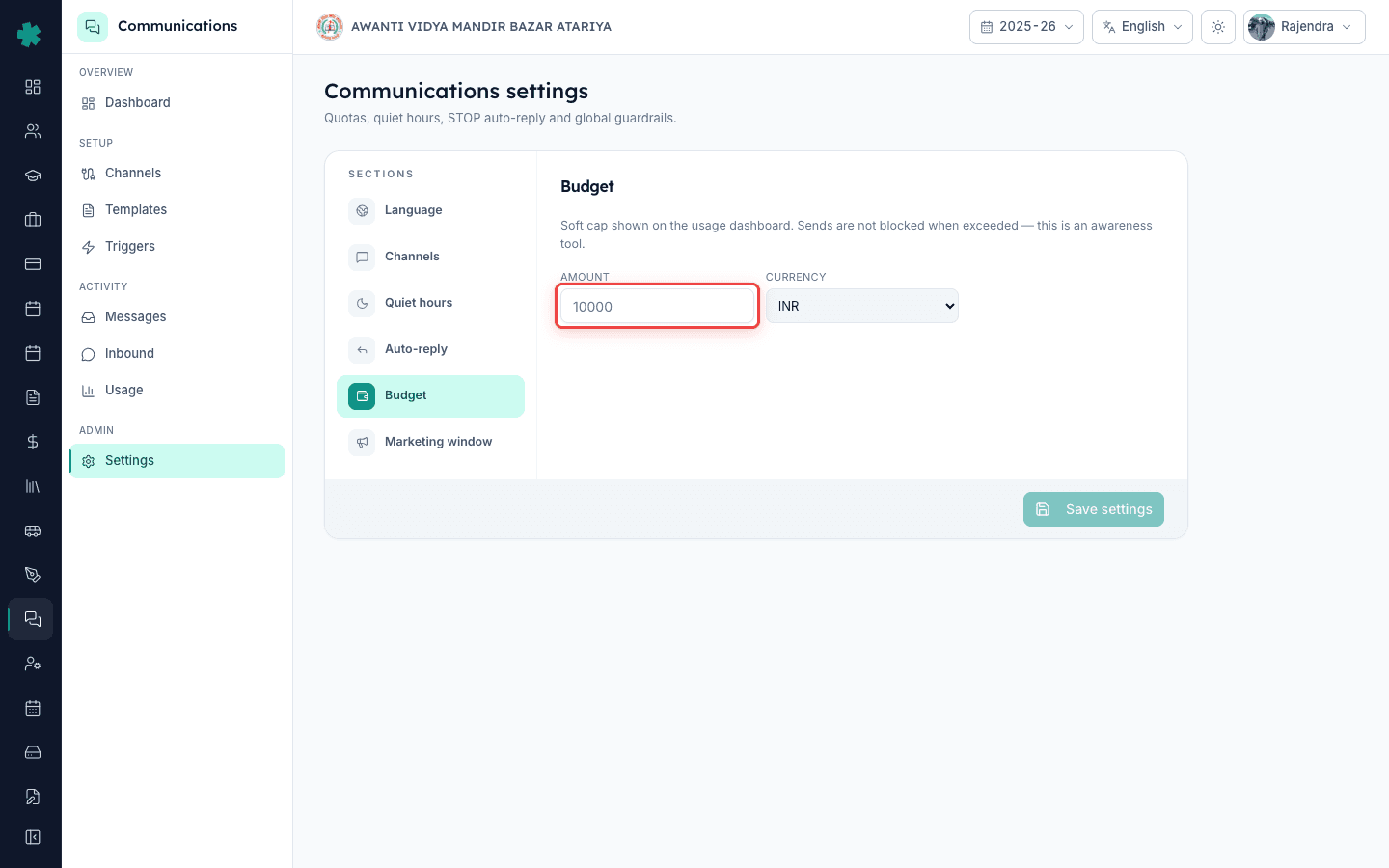
4. Keep the currency on INR
The Currency dropdown stays on INR for every Indian school. The amount is interpreted in rupees and that is what shows on the usage dashboard. Unless you operate cross-border campuses on the same tenant, leave the dropdown alone. If you ever switch back to look at historical reports, your old INR figures stay as INR — the dropdown only affects how the cap is read on the dashboard.
5. Save the cap
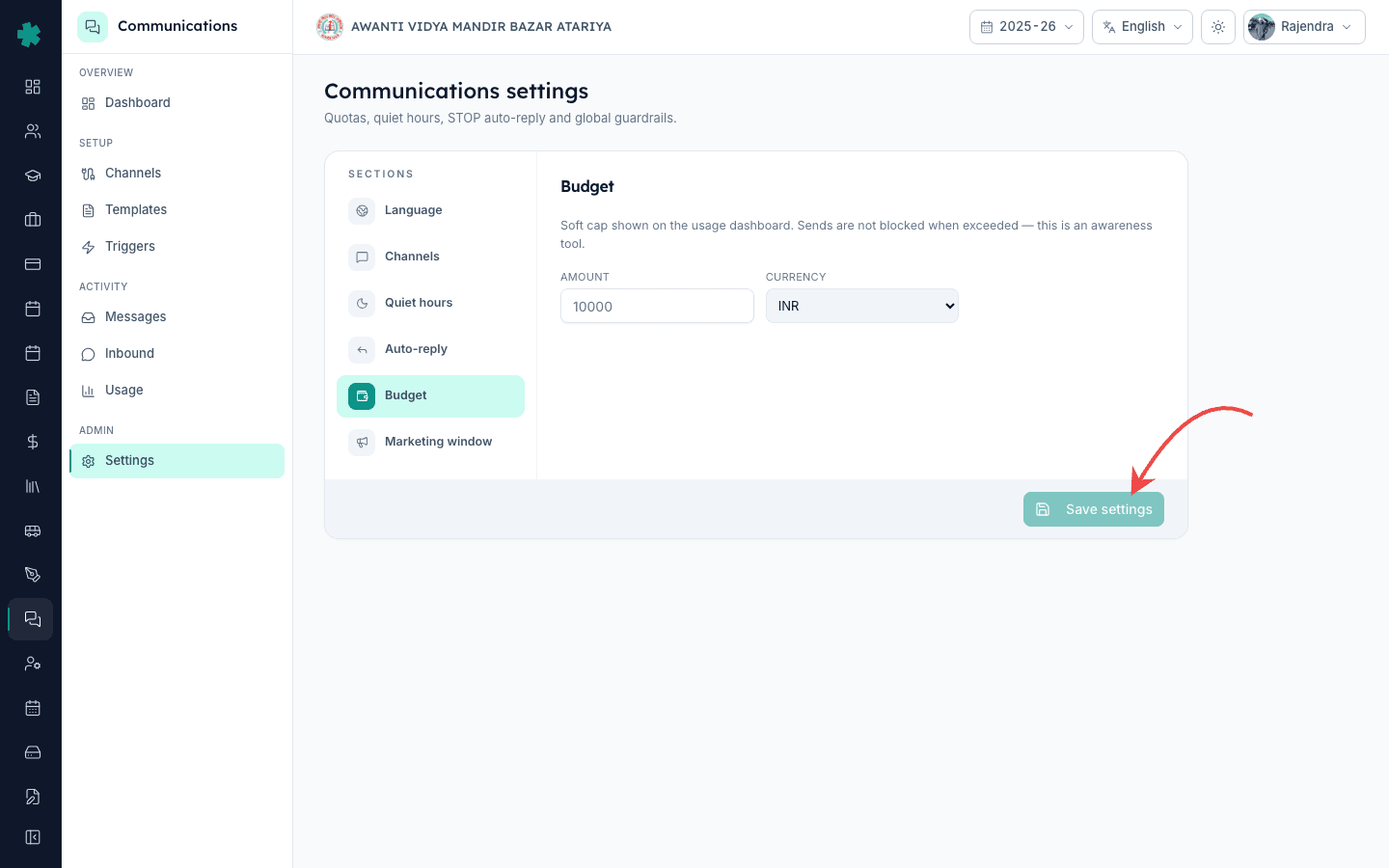
Click the Save settings button at the bottom right of the page. Inkwelly stores the cap and the page confirms the save. The budget is now active for the current calendar month and every month after, until you change it. There is no separate Apply step and no email confirmation — the cap quietly starts driving the usage dashboard from this point on.
6. Open the Usage dashboard to see live spend
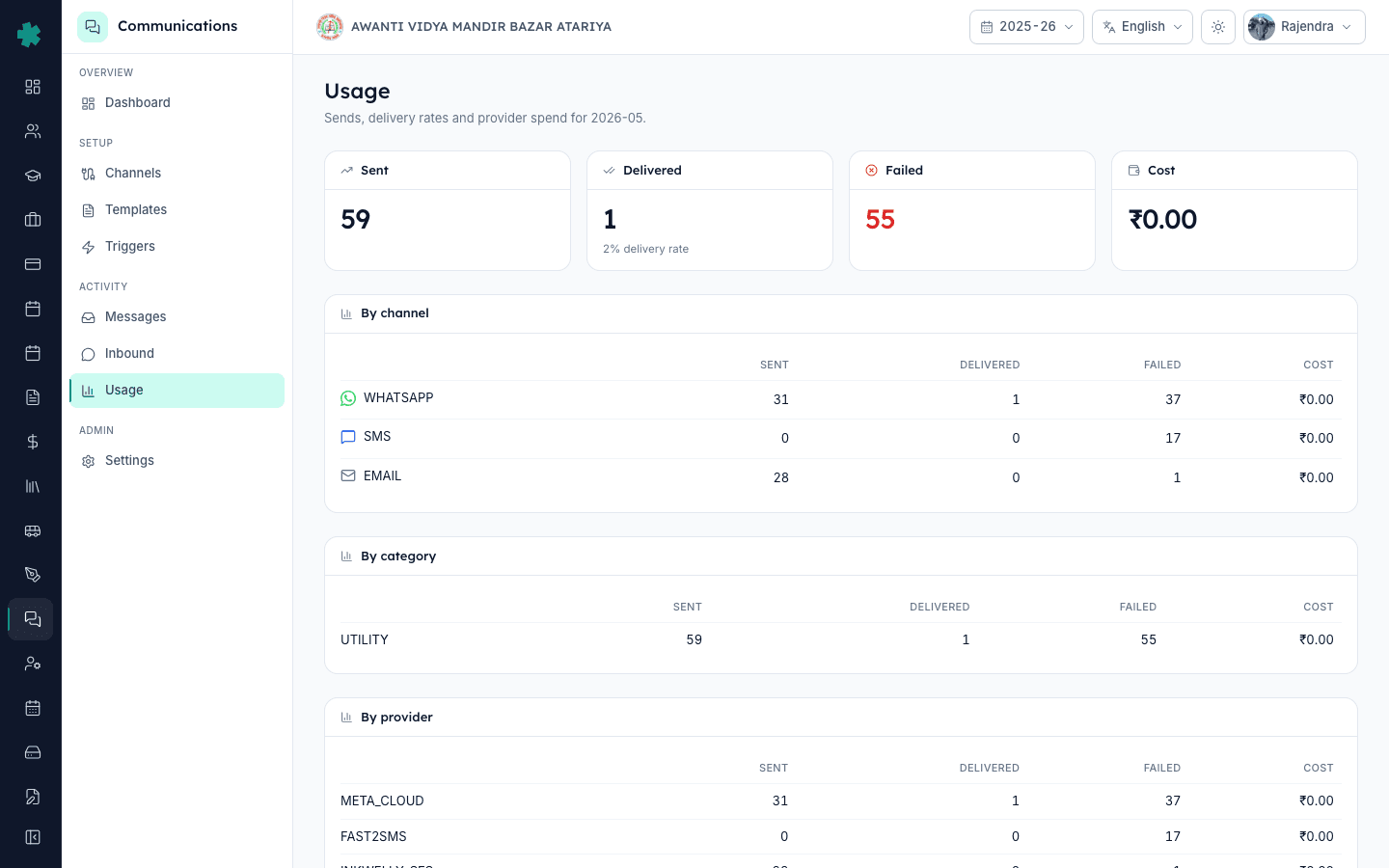
From the Communications sidebar, click Usage. The dashboard shows current-month spend broken down by channel — WhatsApp, SMS and email — alongside the cap you just saved. As your school sends fee reminders, attendance alerts and homework messages through the day, the spend number climbs in near real time. Your principal or office in-charge should bookmark this page and check it once or twice a week.
7. Review and adjust on the first of every month
On the first working day of each new month, reopen Communications, Settings, Budget. Compare last month's actual spend (from Usage) against the cap you had set. Adjust the Amount up or down by Rs 1,000 to Rs 2,000 until the number stabilises over three months. Once stable, leave it untouched — your accountant will thank you at audit time, and the principal has a clean number to sign off on every quarter.
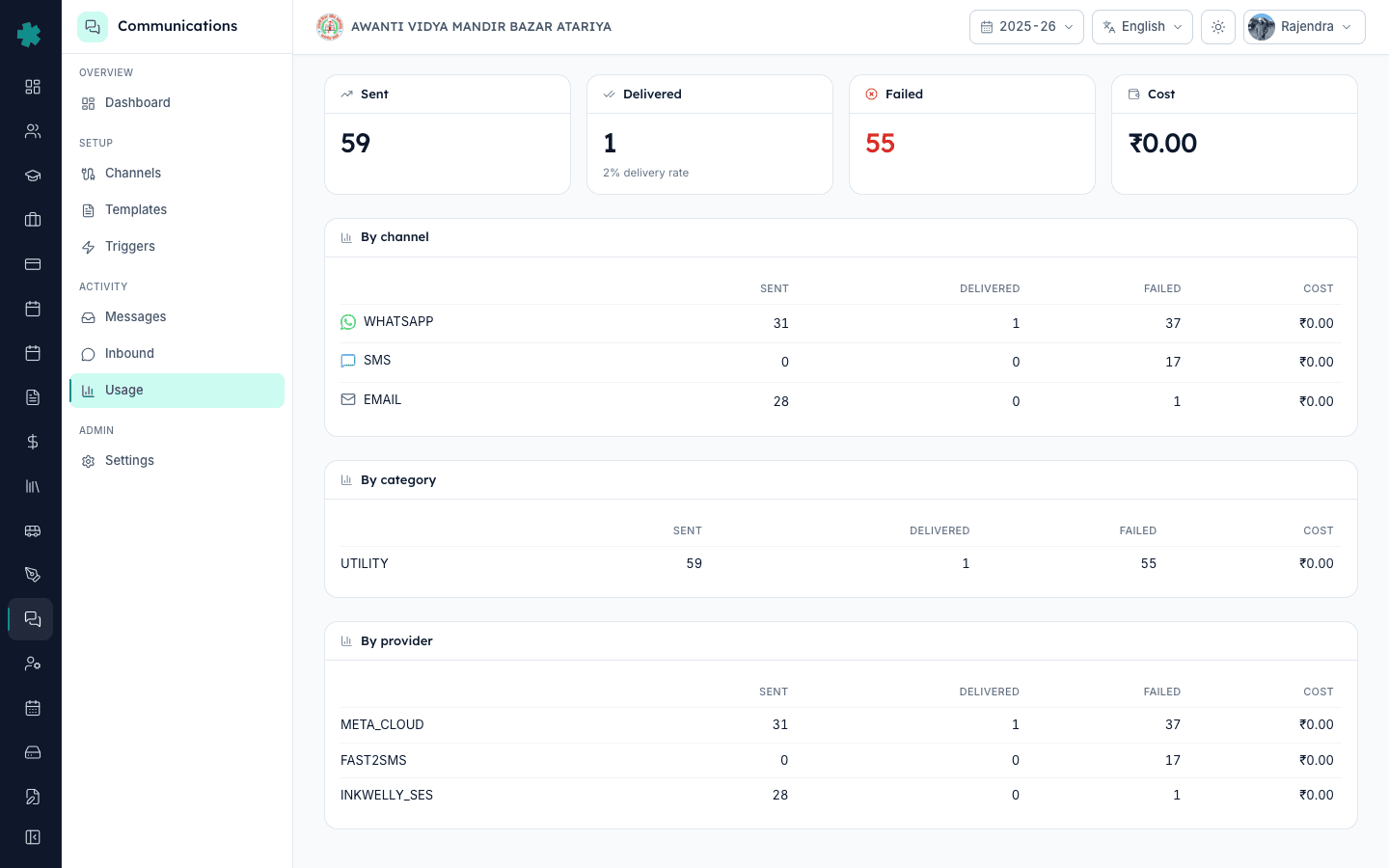
Now that the cap is live, open the Usage report and look at which templates and triggers consumed the most rupees last month. Most schools discover that one daily homework template alone is 25 to 30 percent of the bill — a candidate for switching to SMS, moving to a parent app push, or cutting frequency. Pair the budget with quiet hours and STOP auto-reply (the next two sections in the same Settings page) so your spend stays clean and your school stays inside TRAI norms. Revisit the cap on the first of every month for the first three months, then let it run.
See Inkwelly's Communications module on a live school
Book a 20-minute demo and we will walk you through the budget panel, the live usage dashboard, and how Indian schools cut their parent-notification bill by 30 to 40 percent in the first quarter.
Frequently asked
6 questionsDoes the Inkwelly Communications budget block sends when crossed?
No. The Budget panel says explicitly — Soft cap shown on the usage dashboard. Sends are not blocked when exceeded. The number exists as an awareness tool so the principal and accountant can spot a runaway month early. If you need an actual stop-send rule, contact the Inkwelly team and we will scope an approval-gated workflow for your tenant.
What counts towards the monthly Communications budget in Inkwelly?
Every WhatsApp, SMS and email send routed through your school's connected providers is billed at provider rates and rolled into the usage dashboard. Internal Inkwelly system emails — admin invites, password resets — are not part of the parent-communication bill. The dashboard resets its current-month counter on the 1st of each calendar month.
How much do most CBSE schools spend per month on parent notifications?
A 600-student CBSE day school typically lands at Rs 4,000-7,000 a month — roughly 60% WhatsApp, 35% SMS, 5% email. Schools running daily homework on WhatsApp can hit Rs 10,000+. Result-day and fee-deadline weeks are the two biggest spikes, and most schools start their cap a bit above the bigger month.
Can teachers see the budget figure from their portal?
No. Teachers do not see rupee figures at all. Budget visibility is limited to admins on Communications, Settings, Budget and on the Usage dashboard. Teachers continue to send fee reminders, attendance notes and homework as usual — the cap never appears in their workflow.
What if I change the cap mid-month?
The new number takes effect immediately and the usage dashboard re-renders against the updated cap. Historical spend already recorded for the month is not changed — only the reference line moves. Most schools set their cap on the 1st and only revise it when the school year changes or a large campaign is planned.
Does the cap include WhatsApp marketing template costs?
Yes. WhatsApp utility, authentication and marketing categories are all summed at Meta's current India per-message rates, which Inkwelly updates within 24 hours of any official Meta price change. You see the exact per-template breakdown on the Usage dashboard, including which template family ate the most rupees.
You might also like
5 readsSources & references
- TRAI TCCCPR 2018 - Telecom Commercial Communications Customer Preference Regulations · accessed 18 May 2026
DLT-routed SMS pricing and operator-tariff structure relevant to school SMS costs
- Meta WhatsApp Business pricing for India · accessed 18 May 2026
Per-conversation utility, authentication and marketing pricing applied to Indian school WhatsApp spend
See Inkwelly on your school
30-minute demo. We open your current ERP with you and load your data into Inkwelly on the call. Dated go-live plan by the end of it.