How to connect your school's SMS sender to Inkwelly
For school office staff and principals who already have a DLT-onboarded sender header and either an MSG91 or Fast2SMS account. By the end your school's own SMS sender is active inside Inkwelly — sending fee receipts, payment reminders, attendance alerts and admit-card notices as the legal fallback when WhatsApp cannot deliver.
To connect your school's SMS sender to Inkwelly: open Communications → Channels → Connect channel → SMS, pick your provider (MSG91 or Fast2SMS), enter your DLT-registered 6-character sender header, paste your provider credentials, click Connect, and then click Verify on the account detail page. SMS goes live the moment the status pill turns ACTIVE.
Every commercial SMS sent in India must travel through a DLT-registered header and a DLT-approved template — this has been a TRAI requirement since the TCCCPR 2018 reforms. Inkwelly assumes the school has already completed its DLT registration before this step (a one-time exercise the SMS provider's onboarding team usually walks the school through). Once the sender is wired in, every Inkwelly trigger with SMS turned on falls back to this account whenever WhatsApp delivery fails or a parent has opted out of WhatsApp — which keeps fee receipts and absentee alerts legally reachable on a numbered, regulated channel.
1. Open the Channels page
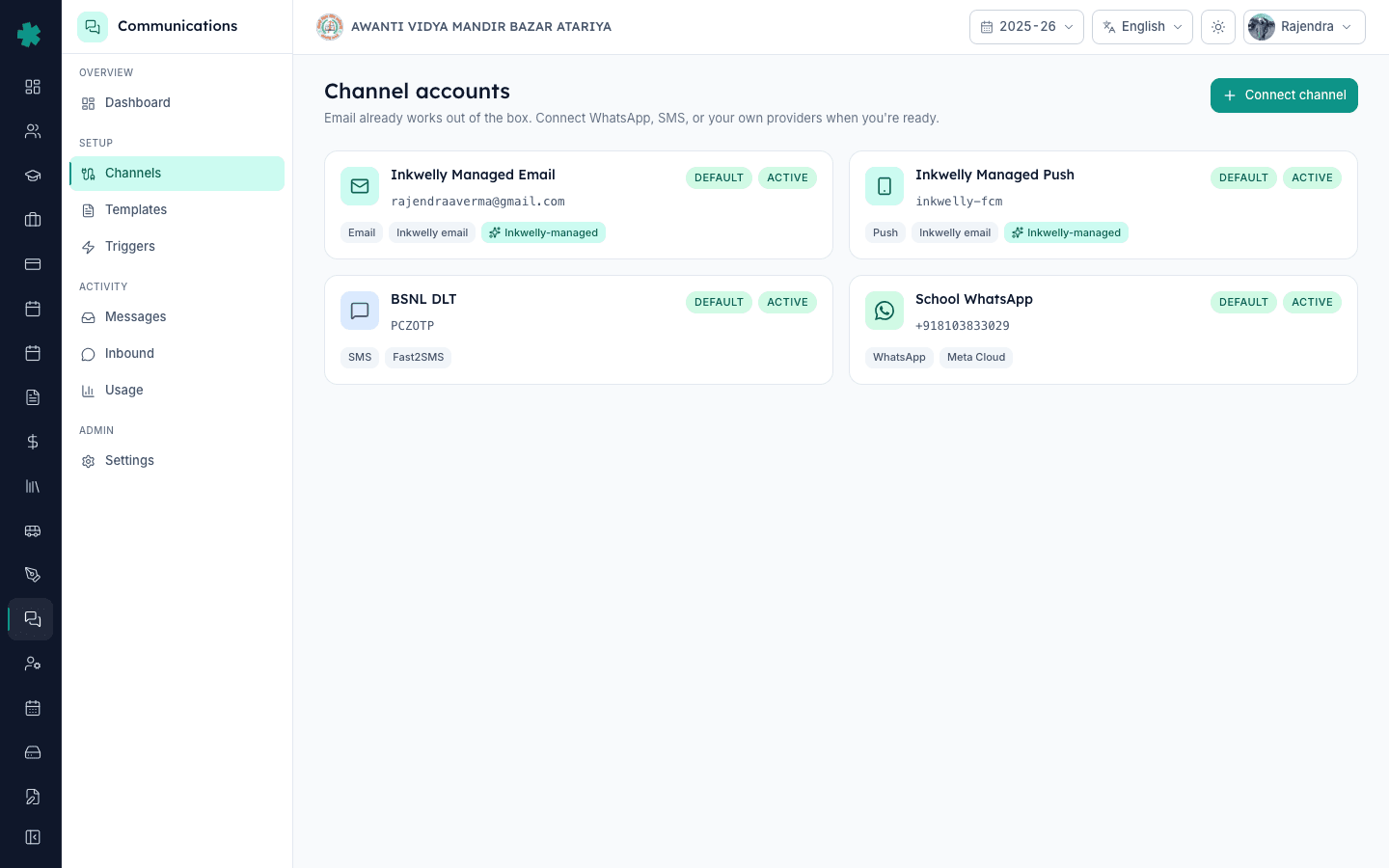
Sign in to Inkwelly and open the Communications module from the left sidebar. Click Channels under the Setup section. The Channels page lists every provider Inkwelly will dispatch through for your school — branded email and push are already active, and WhatsApp (if connected) shows here too. Connecting SMS adds a fourth row and unlocks SMS as a fallback channel on every trigger that supports it.
2. Pick SMS as the channel
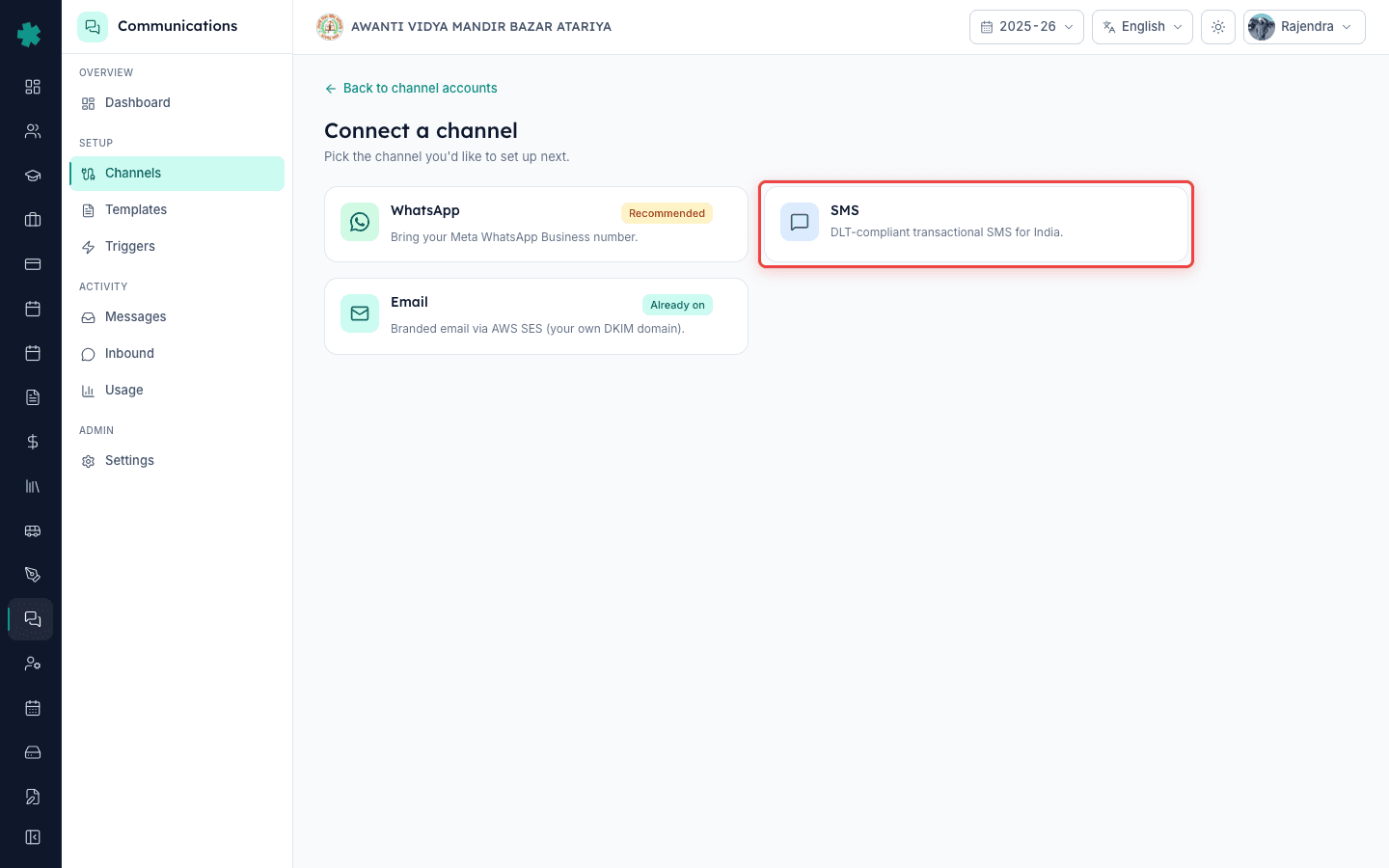
Click Connect channel at the top right. In the channel picker, pick SMS. The setup form opens with three sections: Identity, SMS provider credentials, and Defaults. The Identity section is where you tell Inkwelly which DLT-onboarded gateway your school uses and which 6-character header parents will see as the SMS sender.
3. Choose your DLT-onboarded provider
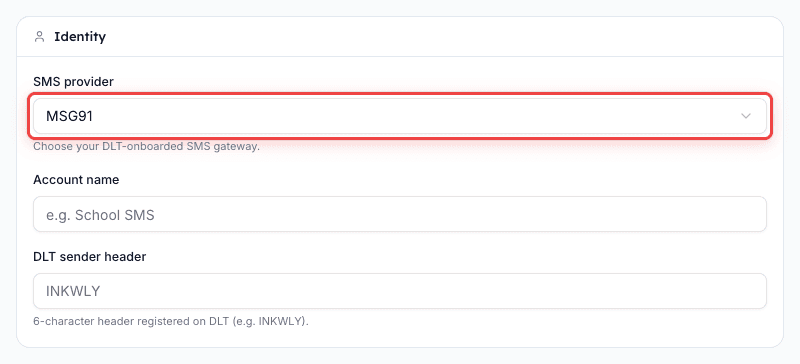
In the SMS provider dropdown, choose MSG91 or Fast2SMS — whichever your school's DLT entity is already onboarded with. MSG91 is the more common pick for schools that want both transactional and OTP SMS through one account; Fast2SMS is the lighter choice for schools that only need transactional messaging. The choice changes which credential field appears next; it does not affect DLT compliance — Inkwelly enforces the header check on both.
4. Enter your DLT sender header
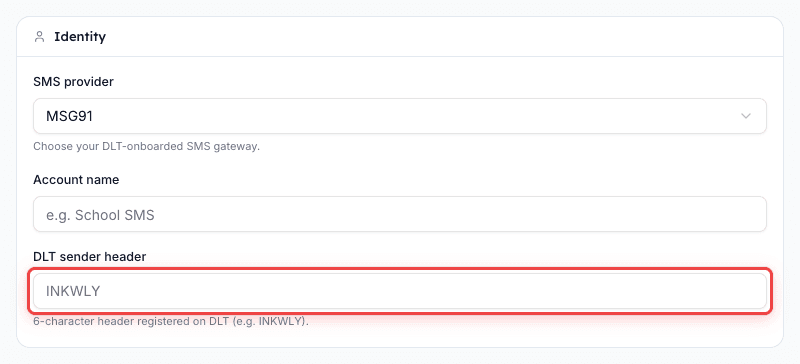
In Account name, type a recognisable name (for example School SMS or BSNL DLT). In DLT sender header, type the exact 6-character header your school registered with DLT (for example AVMBZA for AWANTI VIDYA MANDIR BAZAR ATARIYA). Inkwelly stamps this header on every outgoing SMS — if the value here doesn't match what is on file with your DLT entity, the provider will reject the send. Header is case-insensitive on most networks but Inkwelly preserves it exactly as typed for audit.
5. Enter your provider credentials
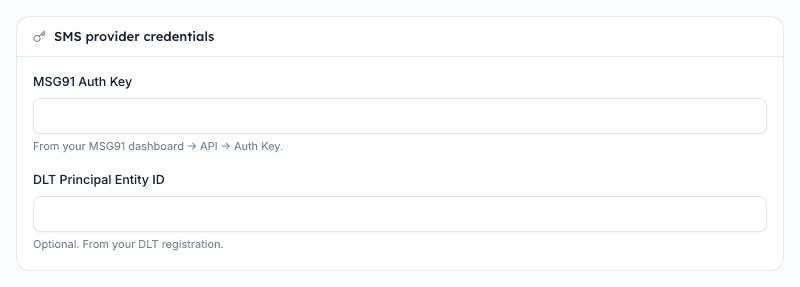
For MSG91, paste the Auth Key from MSG91 dashboard → API → Auth Key. Optionally paste the DLT Principal Entity ID from your DLT registration — Inkwelly attaches it to MSG91 requests when supplied and that lifts message throughput on rate-limited routes. For Fast2SMS, paste your API Key from the Fast2SMS dashboard. Inkwelly encrypts both at rest with AES-256-GCM; after Save the field becomes write-only — your own team cannot read it back.
6. Save the account
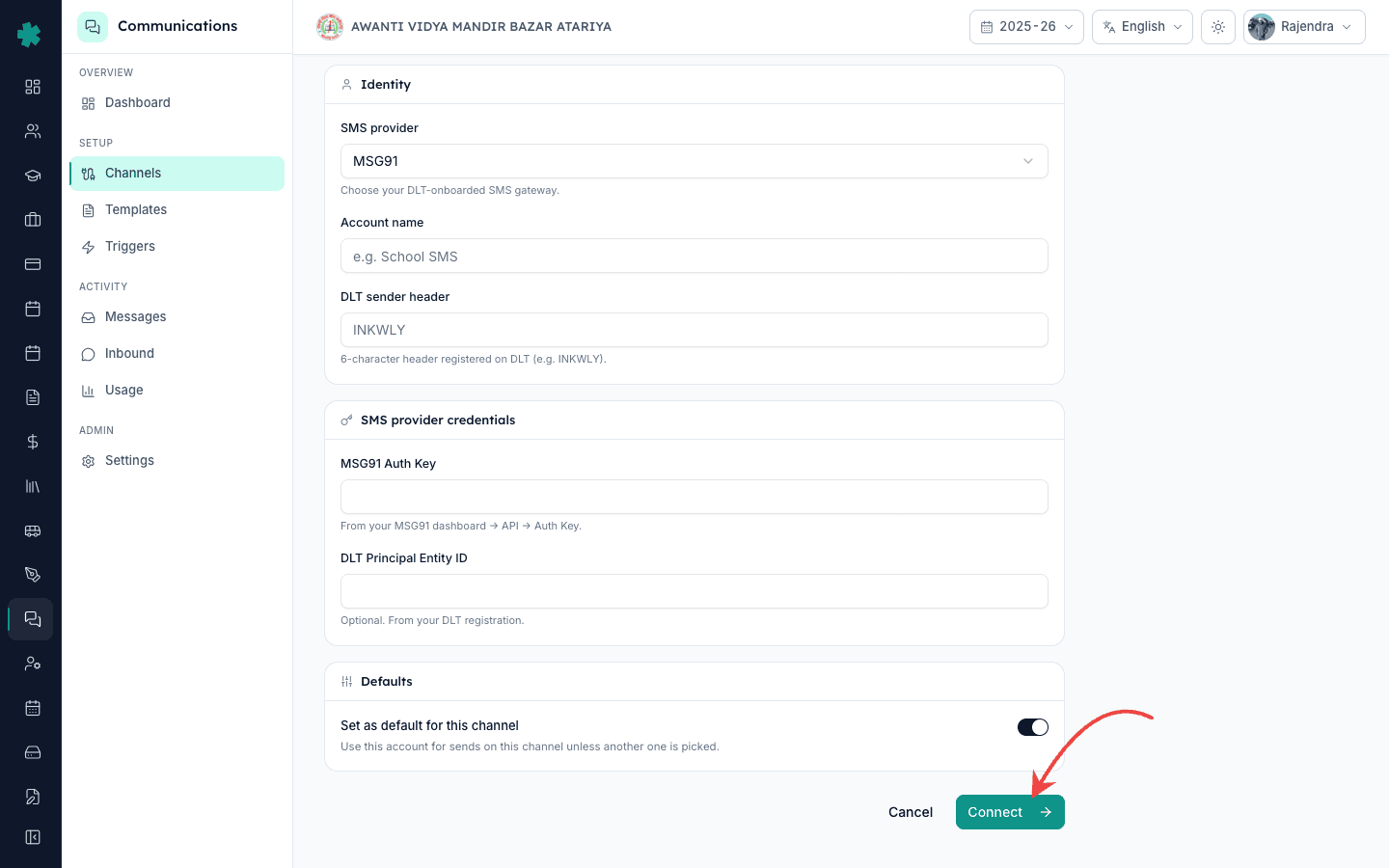
In the Defaults section, toggle Set as default for this channel on if this should be the primary SMS sender for the school (most single-branch schools leave it on). Click Connect. Inkwelly stores the credentials encrypted, creates the channel-account row with status PENDING, and opens the account detail page. Unlike WhatsApp, SMS does not need a webhook configuration in the provider dashboard — provider polling and message-status hooks are wired automatically.
7. Verify the connection
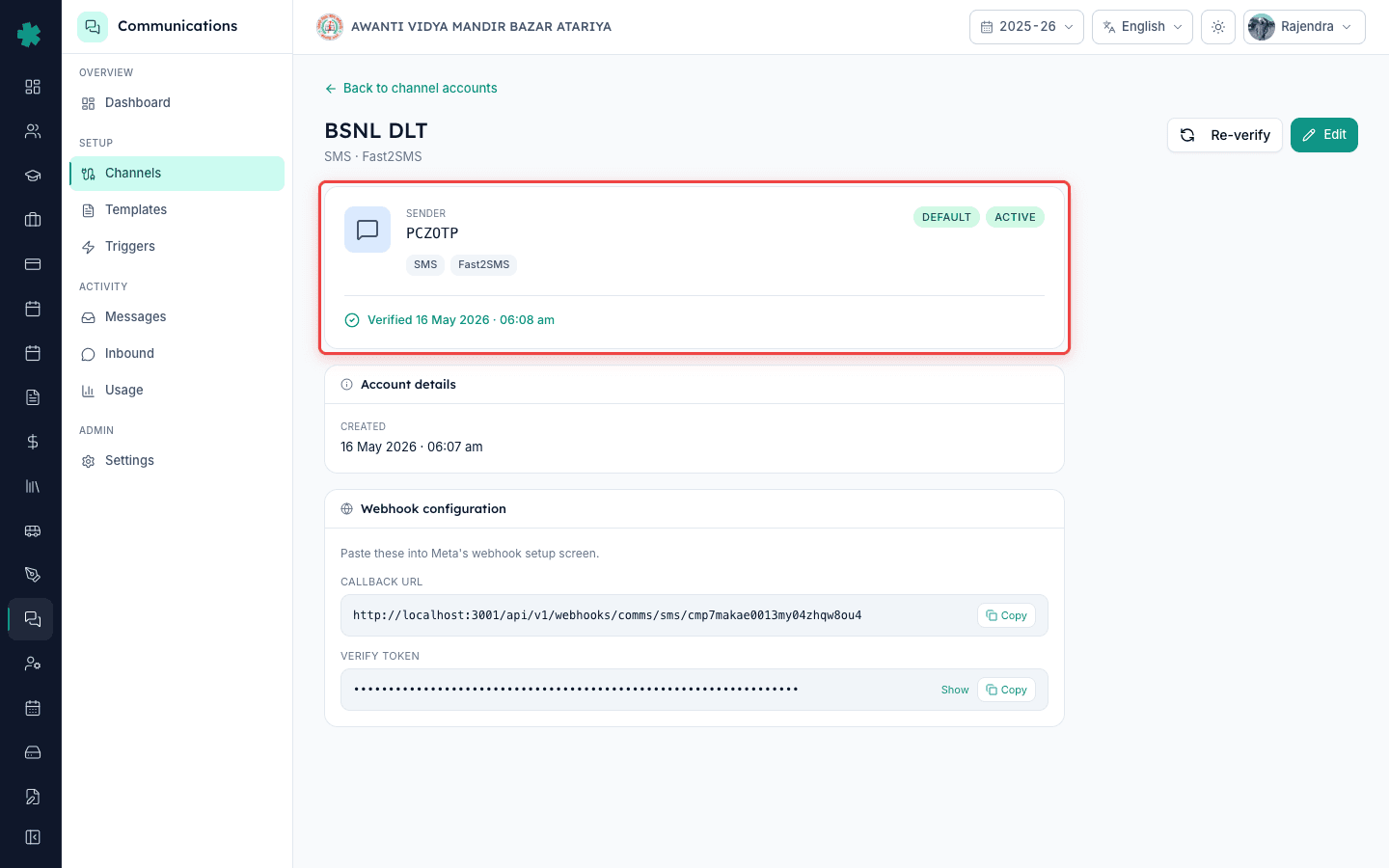
On the account detail page, click Verify. Inkwelly re-decrypts the credentials and pings the provider's identity endpoint to confirm the sender header is recognised on the provider side and your Auth Key / API Key is valid. Status pill flips from PENDING to ACTIVE with a fresh verifiedAt timestamp. Your school's SMS sender is now live — every Inkwelly trigger that lists SMS will dispatch through this account from the next event onward.
Now that SMS is live, the next two pages worth opening are Templates and Triggers. Inkwelly templates carry separate channel rows for WhatsApp and SMS, and each SMS variant needs a DLT template ID before it can dispatch — Templates page lets you paste that ID and mark the template as DLT-approved. Then open Triggers and turn SMS on for the events that justify a regulated fallback: Fee payment received, Invoice payment-link shared and Attendance marked absent are the three highest-value SMS triggers for a typical Indian school.
See Inkwelly's SMS fallback live alongside WhatsApp
20-minute walkthrough showing how Inkwelly switches automatically between WhatsApp and DLT-SMS for the same parent.
Frequently asked
6 questionsDo I need to register my SMS templates separately on DLT, or does Inkwelly do it for me?
Schools register their own DLT templates on the DLT operator portal — Inkwelly does not auto-submit. Once registered, paste the DLT template ID into the Inkwelly Templates page for each SMS variant. From that moment Inkwelly stamps the template ID on every send. SMS without a DLT template ID is blocked by Inkwelly to prevent provider-side rejection.
Which provider should I pick — MSG91 or Fast2SMS?
Pick MSG91 if your school also needs OTP SMS (admission portals, payment confirmations) on the same account. Pick Fast2SMS if you only need transactional parent alerts. Pricing is similar across both; the bigger factor is which gateway your DLT entity is already onboarded with — switching providers means re-onboarding the header on DLT.
What if my DLT Principal Entity ID is missing on MSG91 — will Inkwelly still send?
Yes. The Entity ID is optional on the Inkwelly form because MSG91 also accepts the sender header by itself. But supplying it lifts throughput on rate-limited routes and avoids occasional rejections during peak board-result hours. If you have it on file, paste it; if not, save without it and add it later via the channel-account edit screen.
Inkwelly me apna DLT SMS sender kaise add kare?
Inkwelly kholiye → Communications → Channels → Connect channel → SMS chuniye. MSG91 ya Fast2SMS chuniye, apna 6-character DLT header (jaise AVMBZA) daaliye, provider ka Auth Key ya API Key paste kijiye, Connect dabaiye. Phir Verify pe click kijiye. Status ACTIVE hote hi aapke school ke SMS Inkwelly se jaane lagenge.
Can I keep my current ERP's SMS account running while testing Inkwelly?
Yes — the DLT header is the only resource that needs to be uniquely owned by the school, and Inkwelly doesn't lock it. You can keep both systems pointing at the same MSG91 / Fast2SMS account during a parallel run, and switch over fully once Inkwelly is sending the volumes your school needs.
What does an SMS cost per send once it's connected?
Cost is set by the provider and varies by route (a typical transactional SMS to an Indian number is in the ₹0.15–₹0.25 range as of mid-2025). Inkwelly does not add a margin to send-time SMS cost — what MSG91 or Fast2SMS charges, your school pays. Track every month's spend in Communications → Usage.
You might also like
3 readsSources & references
- TRAI — Telecom Commercial Communications Customer Preference Regulations (TCCCPR), 2018 · accessed 18 May 2026
Mandates DLT registration of senders and templates for every commercial SMS sent in India — the regulation Inkwelly enforces on every SMS dispatch.
- MSG91 — DLT registration guide · accessed 18 May 2026
Documents how Indian schools onboard their Principal Entity, headers and templates on the DLT portals before connecting to Inkwelly.
See Inkwelly on your school
30-minute demo. We open your current ERP with you and load your data into Inkwelly on the call. Dated go-live plan by the end of it.