How to turn off a parent notification in Inkwelly
For principals who want to stop a specific Inkwelly notification from going to parents — a homework template that the headteacher decided is too noisy, an attendance alert that fires on a half-day, an admit-card notice the school sends on paper instead. By the end the trigger is off across every channel and zero messages dispatch for that event until you turn it back on.
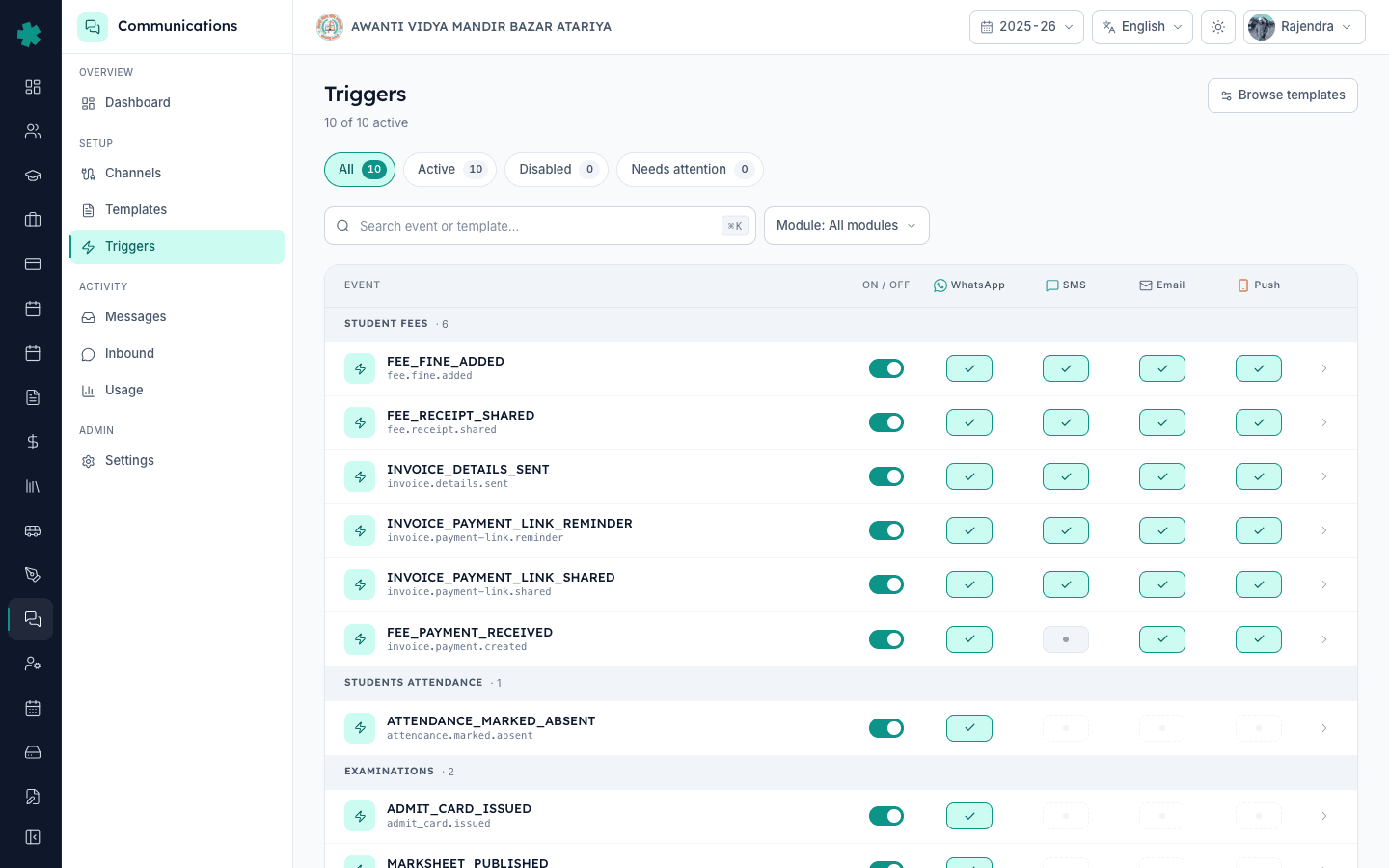
To turn off a parent notification in Inkwelly: open Communications → Triggers, find the event row you want to disable (for example Homework Assigned), flip the master ON/OFF toggle to OFF. The next time that event fires anywhere in Inkwelly, no message dispatches — zero parents are messaged, zero provider cost is incurred, no template body changes. Flip the same toggle back ON to resume.
Inkwelly ships ten parent-facing triggers grouped into four modules: Student Fees (6), Student Attendance (1), Examinations (2), and Homework (1). Every trigger has a master ON/OFF state plus per-channel toggles. Turning a trigger OFF stops dispatch entirely for that event — across WhatsApp, SMS, email and push at the same time. Schools often turn a trigger off temporarily during board exams (when noise needs to drop) or permanently when they prefer to handle that event manually (a phone call instead of a WhatsApp).
1. Open the Triggers page
In Inkwelly open Communications → Triggers. The page shows a matrix — events grouped by module on the left, channel columns (WhatsApp, SMS, Email, Push) on the right, and a master ON/OFF toggle in between. The summary at the top tells you how many triggers are currently active out of total — most schools see 10 of 10 active on day one. The filter bar lets you narrow by module (Student Fees, Attendance, Examinations, Homework) if your school runs many.
2. Find the event you want to disable
Scroll or filter to the event row you want to turn off. Each row shows the human-readable name (for example Attendance — Absent) and the underlying event key (for example attendance.marked.absent). The event key is what fires from inside Inkwelly when a teacher marks a student absent; turning off the row turns off every dispatch tied to that key, no matter how the action was triggered — from the web app, from the Flutter app, or from a CSV import.
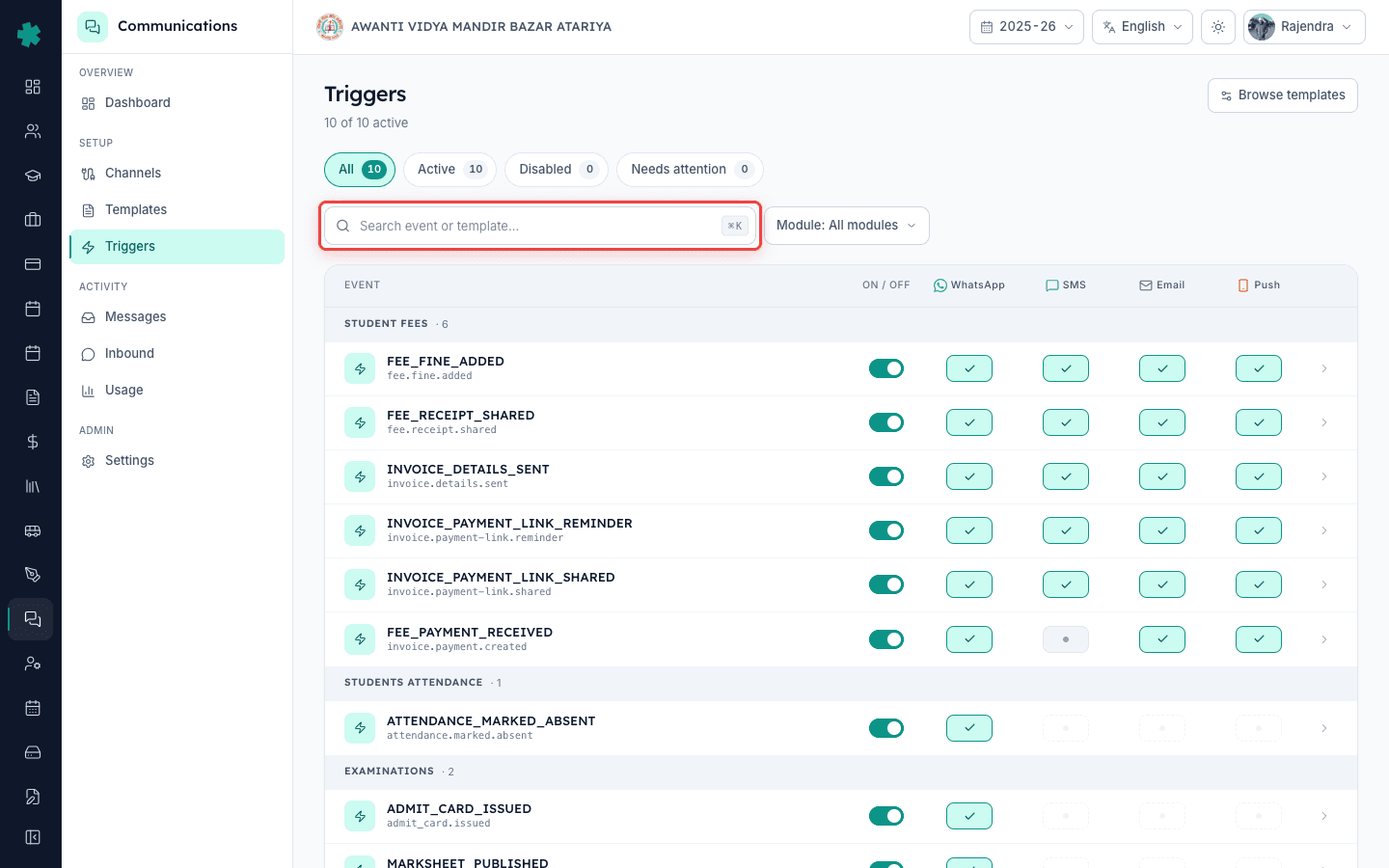
3. Flip the master ON/OFF toggle to OFF
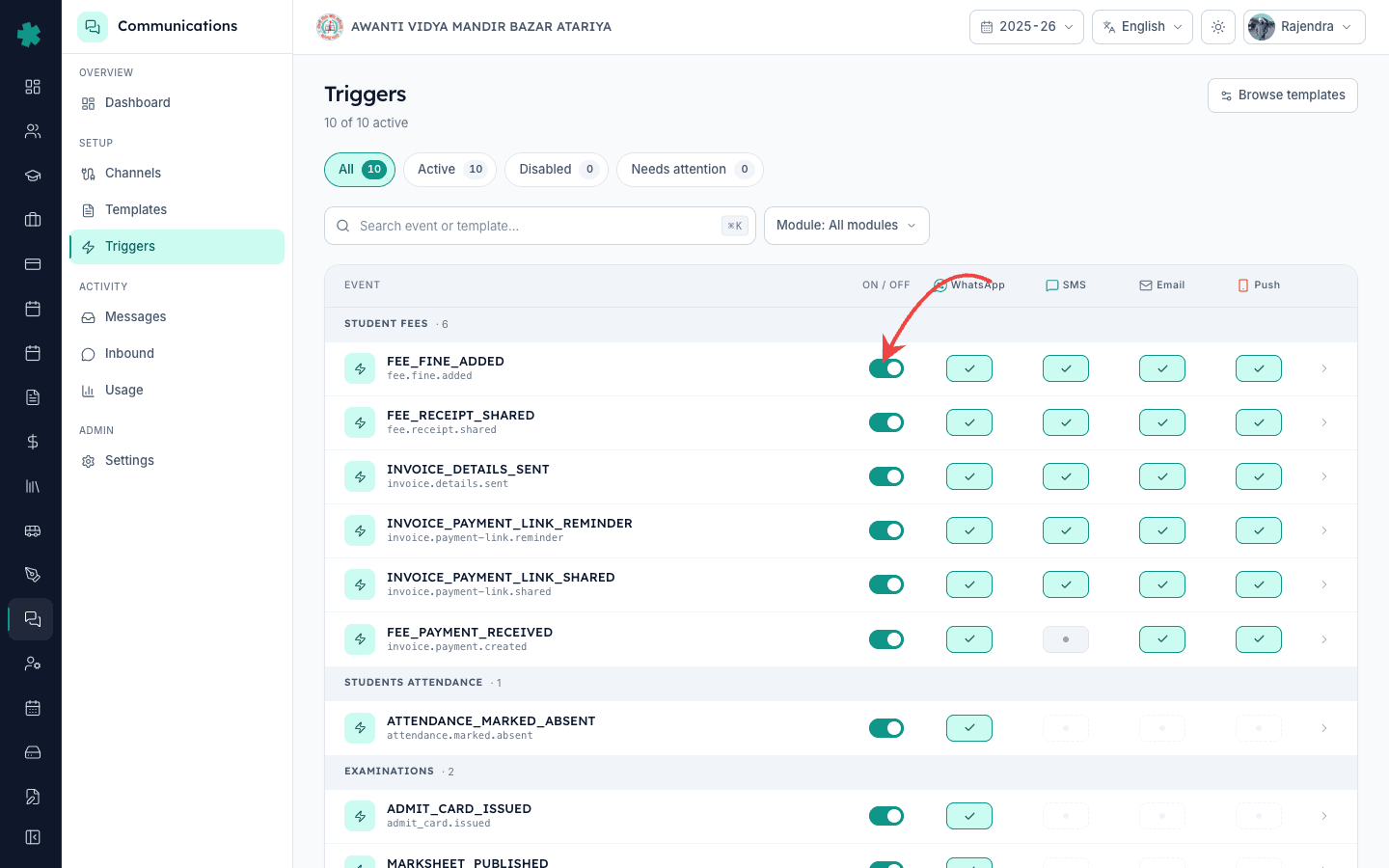
In the ON / OFF column for that row, click the toggle so it turns gray. Inkwelly stores the change instantly — there is no Save button on this page, every toggle persists the moment you click. The per-channel toggles (WhatsApp, SMS, Email, Push) grey out because they cannot fire while the master is OFF. The Communications dashboard's Templates & triggers card updates within seconds to show the new active count (for example 9 of 10 active).
4. (Optional) Add a short note about why you turned it off
Inkwelly does not currently expose a free-text note on each trigger, but it does stamp an audit row with the user who flipped the toggle and the timestamp. For schools that turn triggers off seasonally (board exams, school break, leadership transition), it helps to write the reason in a school-wide channel — staff WhatsApp group, internal note — so the next admin who walks the dashboard understands why a trigger looks disabled. The toggle itself takes care of the actual behavior.
5. Confirm the trigger is silenced
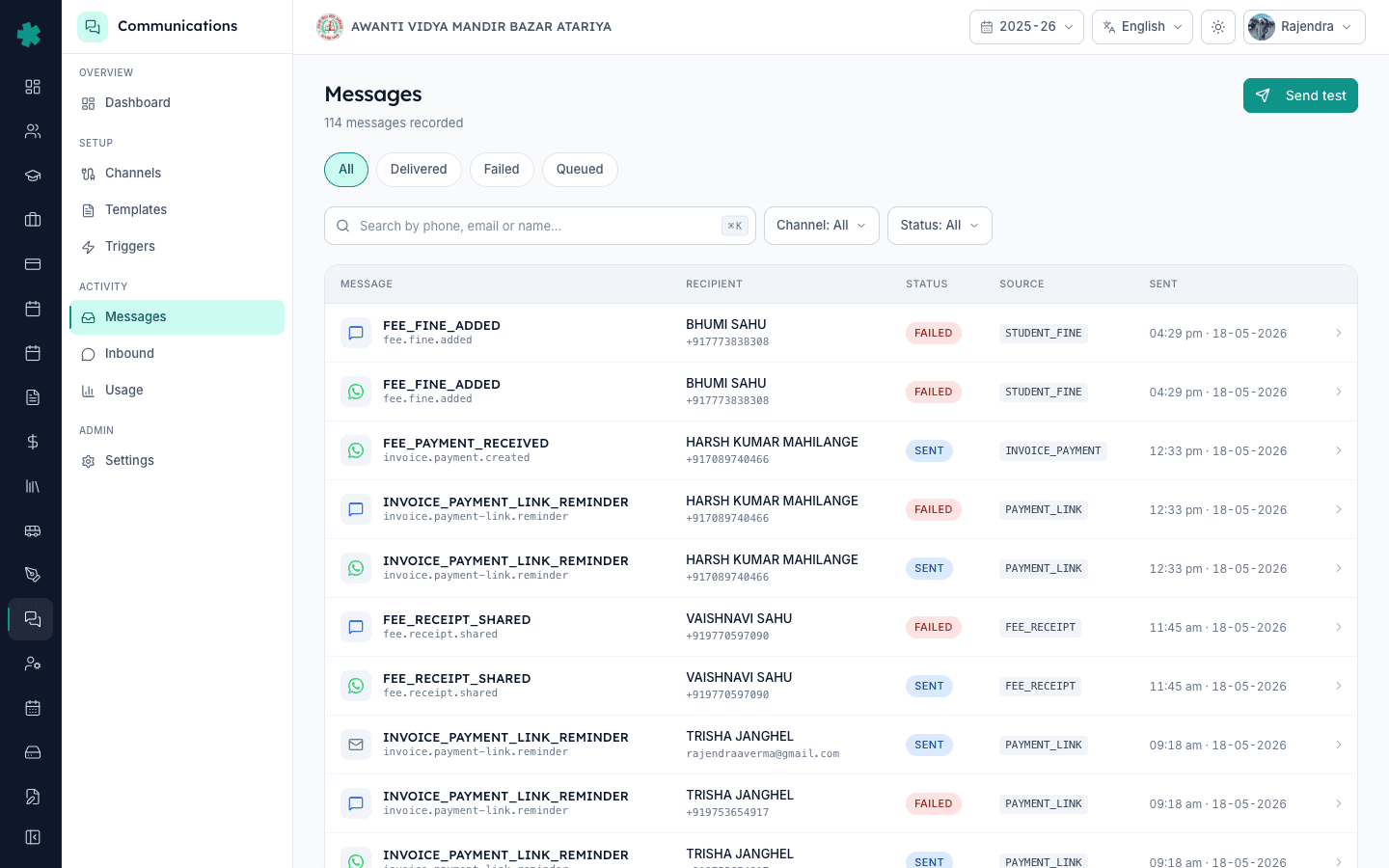
Fire the underlying event in the system (mark a student absent if you turned off Attendance Marked Absent, post a homework if you turned off Homework Assigned). Then open Communications → Messages. You should see zero outbound messages for that event with the recent timestamp. The Communications dashboard's Recent activity strip will also skip it. If you see messages still going out, refresh the Triggers page — sometimes a queued event from before the toggle is still in flight.
6. Flip it back ON when you are ready
When you want the notification active again, return to Communications → Triggers, find the row, and click the master toggle back to ON. Inkwelly resumes dispatch on the very next event — no recustomisation, no resubmission to Meta or DLT, no recompiling of message bodies. The per-channel toggles also reactivate to whatever state they were in before. This is a fully reversible flip with zero side effects on templates or provider configuration.
Turning a trigger off is the right move when the school decides parents do not need a notification for a specific event — not when you want the same event delivered through a different channel (for that, leave the master ON and toggle off only the unwanted channels per row, covered in the next LEARN guide). For schools that want a temporary silence — board-exam fortnight, school holiday — the cleanest pattern is to flip the master OFF on the day, dispatch as normal, and flip it back ON when the silence period ends.
See Inkwelly's trigger toggle live during a board-exam silence
20-minute walkthrough showing a CBSE school turning off non-essential triggers during the practical-exam fortnight and switching them back on a week later.
Frequently asked
6 questionsIf I turn off a trigger, do the templates and channel accounts get reset or lost?
No. Turning off a trigger only stops dispatch — the template body, the customisations, the Meta approvals, the DLT template IDs, the channel account credentials all stay exactly as they were. Flipping the trigger back ON resumes dispatch immediately with the same setup. Schools can toggle triggers freely during exam fortnights or holidays without any rebuild work.
Inkwelly me parent notification kaise band kare?
Communications → Triggers par jaaiye, jis event ko band karna hai uski row dhoondhiye (jaise Homework Assigned), aur ON/OFF toggle ko OFF par flip kar dijiye. Inkwelly turant change save kar deta hai — koi Save button nahi. Aage se us event par parents ko koi message nahi jata. Wapas ON karna ho to wahi toggle dobara click kar dijiye.
Will turning off a trigger affect templates I customised for that event?
No. Templates and triggers are separate concepts in Inkwelly. The template body — including any school customisations and Meta/DLT approvals — stays untouched when you flip a trigger off. The trigger merely controls whether the template gets dispatched on event firings. When you turn it back on, the same body resumes dispatch from the next event.
Can I turn off a trigger for one class but keep it on for others?
Not at the trigger level — Inkwelly’s triggers operate at the school level, not the class level. For per-class behaviour, the cleaner pattern is to leave the trigger on and use the per-channel toggles + per-parent preferences (preferredLanguage, optedOut) for finer routing. Class-segmented triggers are on the Inkwelly roadmap but not in the current release.
Does turning off a trigger reduce the school’s monthly Communications spend?
Yes — every dispatched message has a per-message provider cost (SMS, WhatsApp utility category), so disabling a trigger eliminates that line item from the next month’s usage. The reduction is visible in Communications → Usage as a drop in send count for that event. The largest savings come from disabling high-volume triggers like attendance-marked-absent on a 1,000-parent school.
Is there an audit trail of who turned a trigger off?
Yes. Inkwelly stamps the user, the timestamp and the previous state on a triggerToggledAt audit row each time a trigger is flipped. The audit row is visible to anyone with the Audit Logs permission and survives staff turnover. Useful when a principal returns from leave and wants to know which trigger the acting head flipped and when.
You might also like
3 readsSources & references
- TRAI — Telecom Commercial Communications Customer Preference Regulations (TCCCPR), 2018 · accessed 18 May 2026
Establishes that schools are responsible for consent and frequency of commercial messages — Inkwelly’s trigger-level OFF switch gives schools the granular control TRAI expects.
- Meta — WhatsApp Business Policy · accessed 18 May 2026
Defines Meta’s frequency-of-messages guidance — the Inkwelly trigger toggle gives schools the lever Meta recommends to control parent-message volume.
See Inkwelly on your school
30-minute demo. We open your current ERP with you and load your data into Inkwelly on the call. Dated go-live plan by the end of it.