How to send a test parent message in Inkwelly
A short, practical guide for school admins who want to verify a parent message template end-to-end before a fee-week or result-day broadcast. By the end of this page you will have sent one real dispatch through Inkwelly's Send a test message dialog and watched it show up in the Messages log with a live SENT or DELIVERED status.
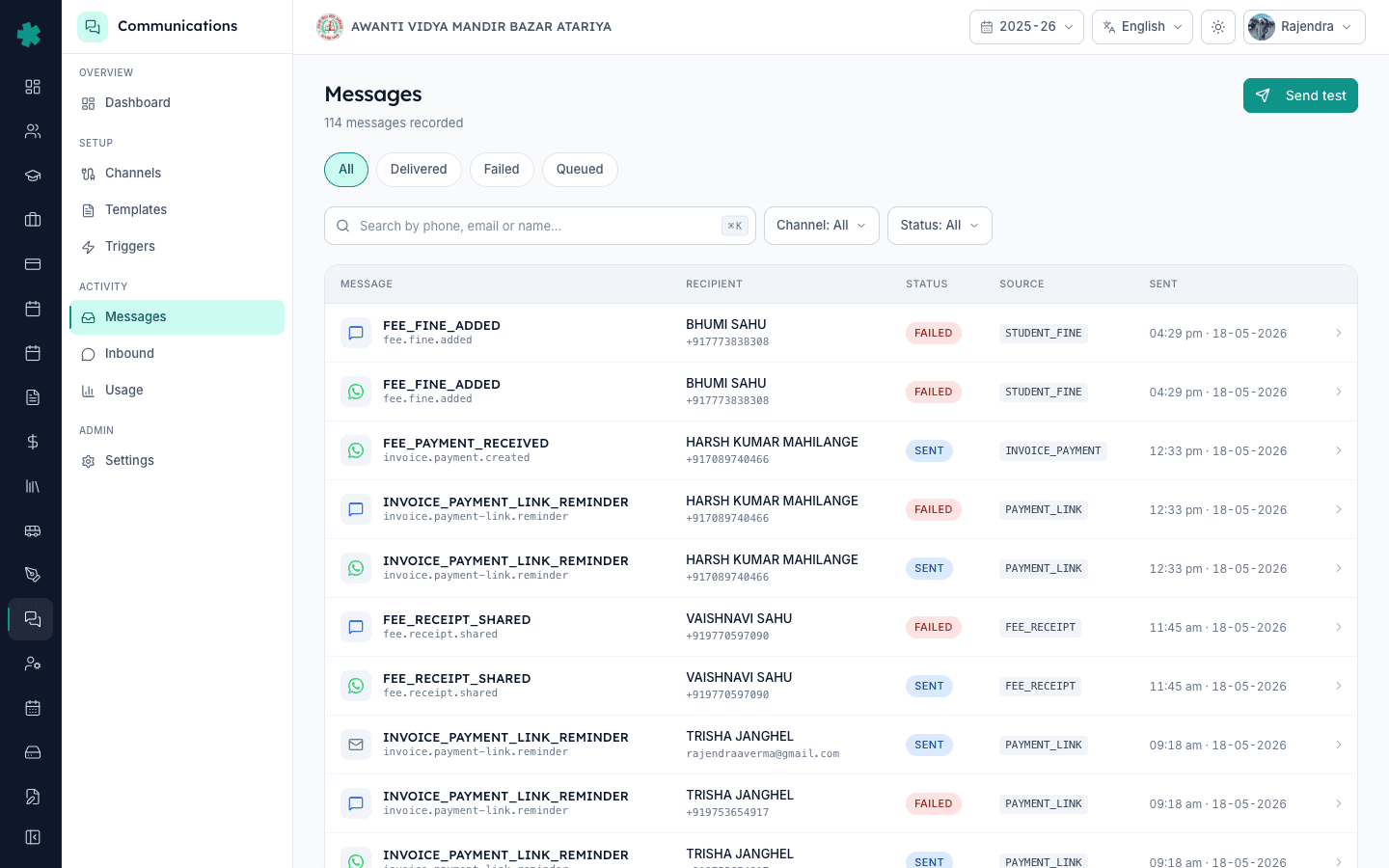
TL;DR — Open Communications, click Messages, then click the Send test button at the top right. Type a template code (for example FEE_PAYMENT_RECEIVED), paste a Student profile ID whose parent is your own number, pick the channel (WhatsApp, SMS, email or push), edit the Variables JSON, and click Send. Inkwelly dispatches a real send to that student's parent through your live provider, and the result appears in the Messages log with the usual SENT, DELIVERED or FAILED status.
A surprising number of fee-week disasters come from one template variable being misnamed — a JSON field called amountPaid in the template, but the producer was sending amount_paid, leaving parents with a Hi <name>, your payment of {amountPaid} was received message. That is the kind of bug a single test send catches before 600 parents see it. The Send a test message dialog renders the exact template the production code path will render, against a real Inkwelly student profile, through the real provider account — not a mock. A test that lands cleanly in your own pocket gives a 30-second confidence check that the school's name, fees, payment date and balance variables all resolve correctly. Costs are about Rs 0.10 to Rs 0.15 per WhatsApp utility message on India rates, so a five-send test is well under one rupee.
1. Open the Messages page
Log in as an admin. From the left sidebar, click Communications. Inside the Communications workspace, click Messages from the Activity group. The Messages page opens with the heading Messages and a count just below it (for example, 114 messages recorded). The page shows filter pills (All, Delivered, Failed, Queued), a search field, Channel and Status dropdowns, and a table of recent sends with columns MESSAGE, RECIPIENT, STATUS, SOURCE, SENT. This is your live message log.
2. Click the Send test button at the top right
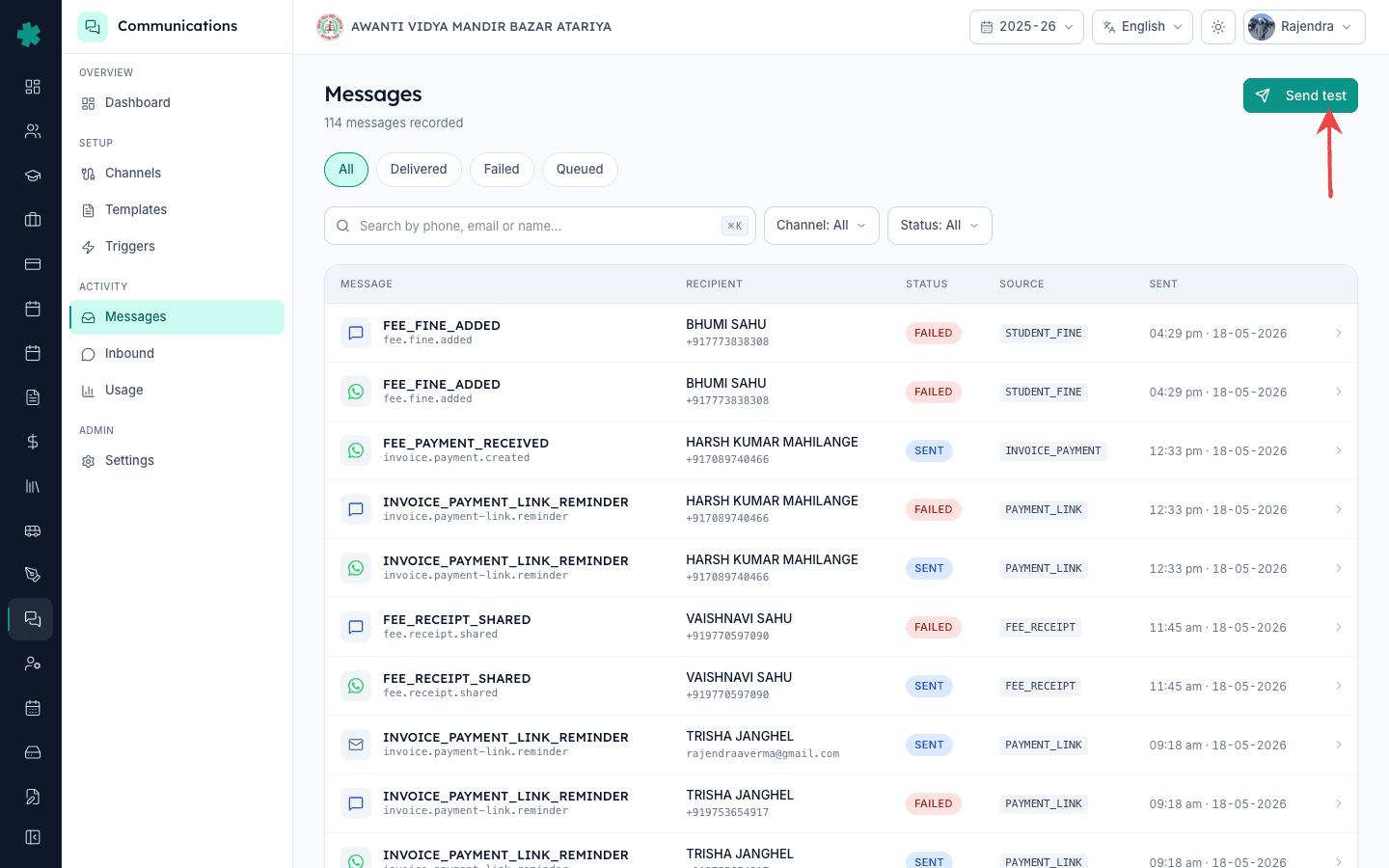
At the top right of the Messages page, click the Send test button (the one with a paper-plane icon, in the primary green colour). A modal dialog opens titled Send a test message with the sub-line Render a template against a real recipient. Sends record in the message log. Take a second to read that line — the word real is intentional. This is not a simulator. The dispatch goes through your school's connected WhatsApp, SMS or email account and counts against your monthly spend like any other send.
3. Type the template code
In the Template code field, type the exact uppercase code of the template you want to test — for example FEE_PAYMENT_RECEIVED, INVOICE_PAYMENT_LINK_REMINDER, FEE_FINE_ADDED, or HOMEWORK_PUBLISHED. These are the same codes that show up in the Source column on the Messages log when normal sends happen. If you misspell it, Inkwelly returns a No such template error before any cost is incurred, so a quick typo is recoverable.
4. Paste a Student profile ID
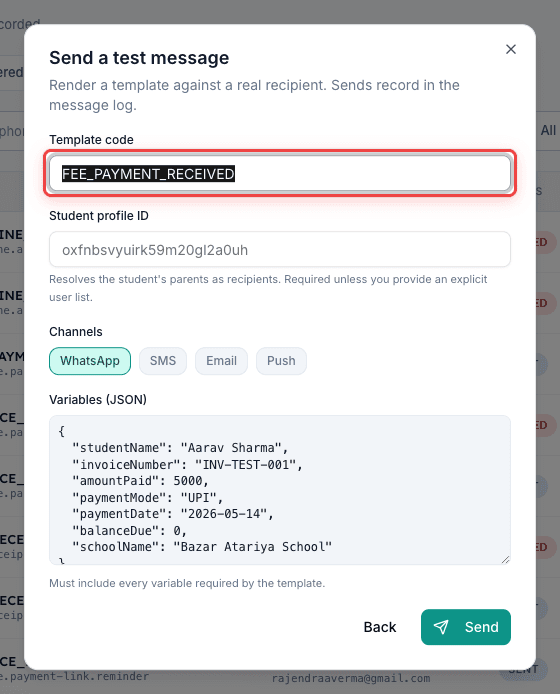
In the Student profile ID field, paste a real Inkwelly student profile id (the cuid string that looks like oxfnbsvyuirk59m20gl2a0uh). The description under this field reads Resolves the student's parents as recipients. Required unless you provide an explicit user list. Pick a student profile whose parent contact number is your own phone (or one office staff phone) so the dispatch lands in a pocket where you can verify the rendered content. Do not use a paying parent's number for a test.
5. Pick the channel
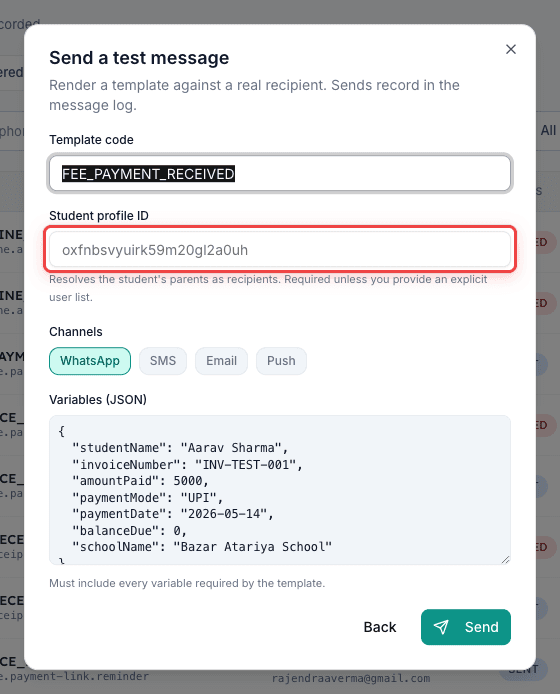
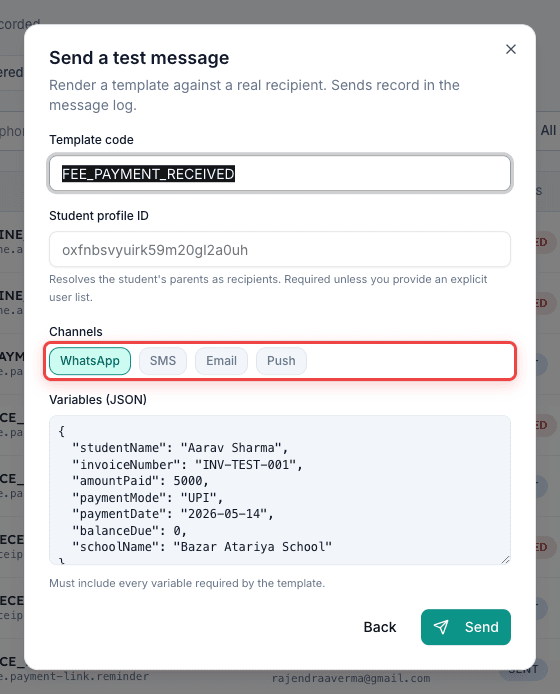
Under Channels, click one of the pills — WhatsApp, SMS, Email or Push. The pill turns green when active. Test the channel your school actually uses for that template. For a WhatsApp utility template, pick WhatsApp — SMS will not render the buttons. For an email-only digest template, pick Email. If your template is approved on more than one channel, run the test once per channel; each costs separately at the channel's per-message rate.
6. Fill in the Variables JSON
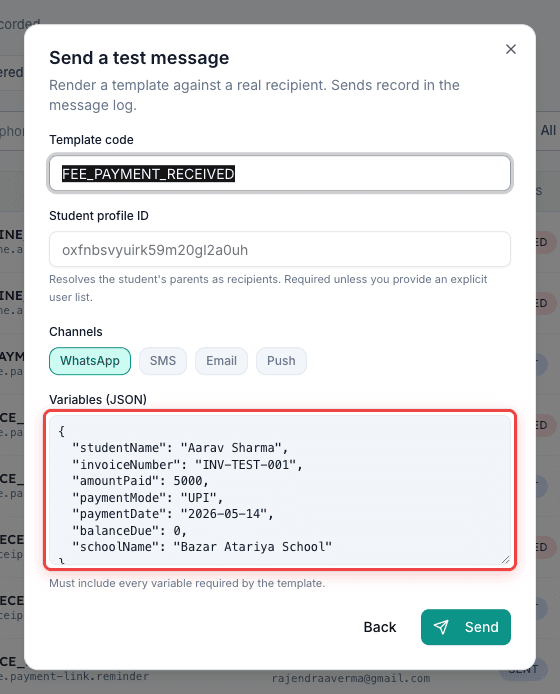
The Variables (JSON) field shows a small JSON object with the variables this template requires — for example studentName, invoiceNumber, amountPaid, paymentDate, balanceDue, schoolName. Edit the values to anything realistic but obviously testy, for example studentName: TEST PARENT, invoiceNumber: INV-TEST-001, amountPaid: 5000. The footnote below the field reads Must include every variable required by the template. Leave one out and Inkwelly returns a clear missing-variable error before sending.
7. Click Send and watch the Messages log
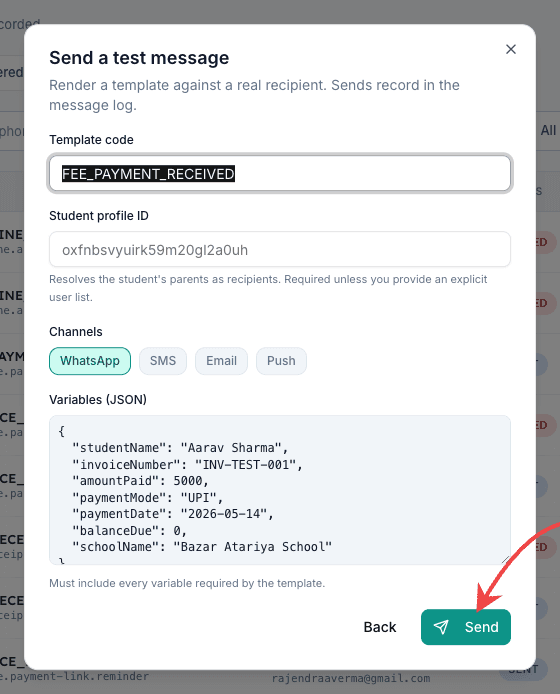
Click the Send button at the bottom right of the dialog. Inkwelly dispatches the message through your live provider account and the dialog closes. Refresh the Messages page or scroll to the top — your test send appears as the newest row, usually with status SENT first and updating to DELIVERED (and READ on WhatsApp) within seconds. Open the row to see the full render, the variables passed, the provider message id, and the timestamp. The Source column shows the trigger origin that produced this send.
Use this dialog before every new template goes live and after any template-text change. Build a habit of running a 3-message test set for every fee-week broadcast — one fee-due reminder, one payment-link reminder, one payment-received receipt — dispatched to your own phone. Total cost is under one rupee and catches 80 percent of the typos and variable-name mismatches that quietly embarrass schools in front of parents. If a test ever lands with garbled variables or wrong language, fix the template before sending to the actual class list.
See Inkwelly's Communications module live
Book a 20-minute demo and we will run a real test send on your own phone, walk through Meta-approved templates, DLT-routed SMS, the audit ledger and the monthly budget on a school account.
Frequently asked
6 questionsDoes a test send in Inkwelly cost the same as a real send?
Yes. Inkwelly's Send a test message dialog dispatches a real message through your connected WhatsApp, SMS or email provider — not a mock. You pay the channel's per-message rate, typically Rs 0.10 to Rs 0.85 in India depending on category (WhatsApp utility around Rs 0.12-0.16, DLT SMS around Rs 0.18-0.25, AWS SES email is sub-paisa, push is free). Use this sparingly during template setup.
Where do I find a Student profile ID to plug into the dialog?
Open the student's profile from the Students module — the ID is the cuid string in the URL after /students/ (it looks like oxfnbsvyuirk59m20gl2a0uh). You can also expose it from a Source column row on the Messages log by opening any existing message row and reading the linked student. Always pick a student whose parent contact is your own phone or an office staff phone.
Can I test a WhatsApp template that has not been approved by Meta yet?
No. WhatsApp only renders Meta-approved templates through the official business API. Inkwelly returns a clear unapproved-template error if you try to dispatch a draft template. For unapproved templates, finish the Meta approval flow first (see the LEARN page on getting a WhatsApp Business template approved by Meta), then test.
What happens if I leave a required variable out of the JSON?
The dialog refuses to dispatch and returns a clear missing-variable error pointing at the variable name. No cost is incurred. Add the missing field with any realistic value and click Send again. The footnote under the JSON field already warns you: Must include every variable required by the template.
Why is my test message showing FAILED in the log?
Open the failed row and read the provider error string at the bottom. The three most common failures on Indian schools are: number not registered on WhatsApp (use a different test phone), DLT header mismatch on SMS (the template was filed under a different header on your TRAI DLT account), and a missing or wrong variable that the provider rejected. Fix the cause and re-test.
Can teachers send test messages, or only admins?
Only Communications admins. The Send test button is gated behind admin permission — teachers do not see it on their Messages page. This protects spend, since test sends cost real money. Teachers continue to send their normal templated messages through the standard workflows without any new permission.
You might also like
3 readsSources & references
- TRAI TCCCPR 2018 - Telecom Commercial Communications Customer Preference Regulations · accessed 18 May 2026
DLT registration and header-template binding for Indian SMS sends, including test sends
- Meta WhatsApp Business pricing for India · accessed 18 May 2026
Per-conversation utility, authentication and marketing pricing applied to Indian school WhatsApp test sends
See Inkwelly on your school
30-minute demo. We open your current ERP with you and load your data into Inkwelly on the call. Dated go-live plan by the end of it.