How to reset a customised template to Inkwelly's default
For principals who customised a template, then changed their mind — maybe the new wording got rejected by Meta, maybe the principal who edited it left, maybe the school just wants the editorial default back. By the end your template is back on Inkwelly's tested default body, and the next send uses it from that moment on.
To reset a customised template in Inkwelly: open Communications → Templates, click the template that has the Customized badge, switch to the channel and language variant you want to revert, click Reset to default. Confirm in the dialog. Inkwelly removes the school fork and reattaches the editorial default — the next event that fires uses Inkwelly's tested body.
Reset is destructive in the sense that it removes your edited body — but Inkwelly never edits in-place. The system default lives separately from school customisations: every reset returns the school to a clean known-good copy that has Meta approval and DLT registration on file from Inkwelly's editorial library. There is no provider re-approval to wait for, no DLT re-registration to re-do, no parent rebrand to communicate. The next event that fires after reset uses the editorial default within seconds.
1. Open the Templates page
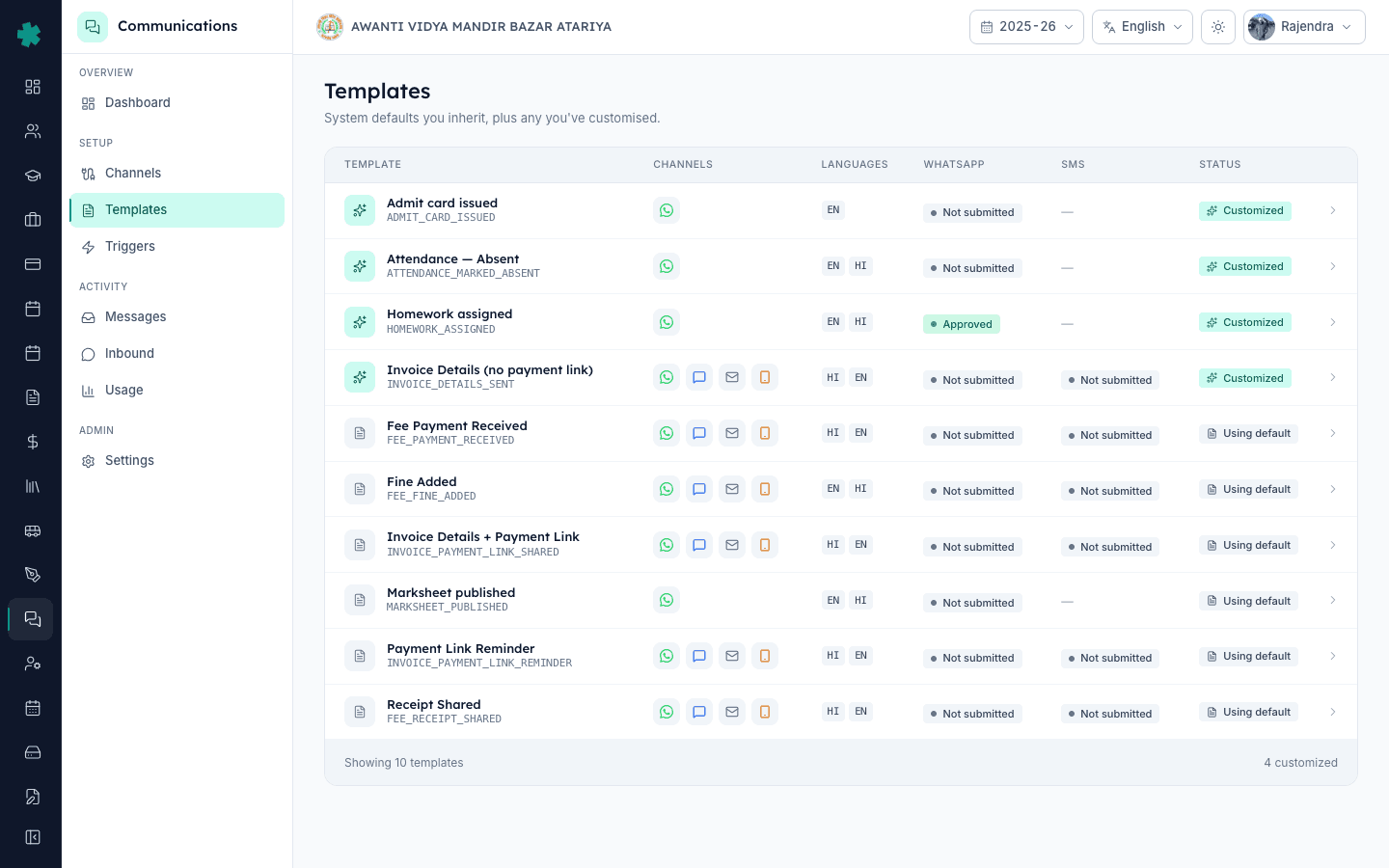
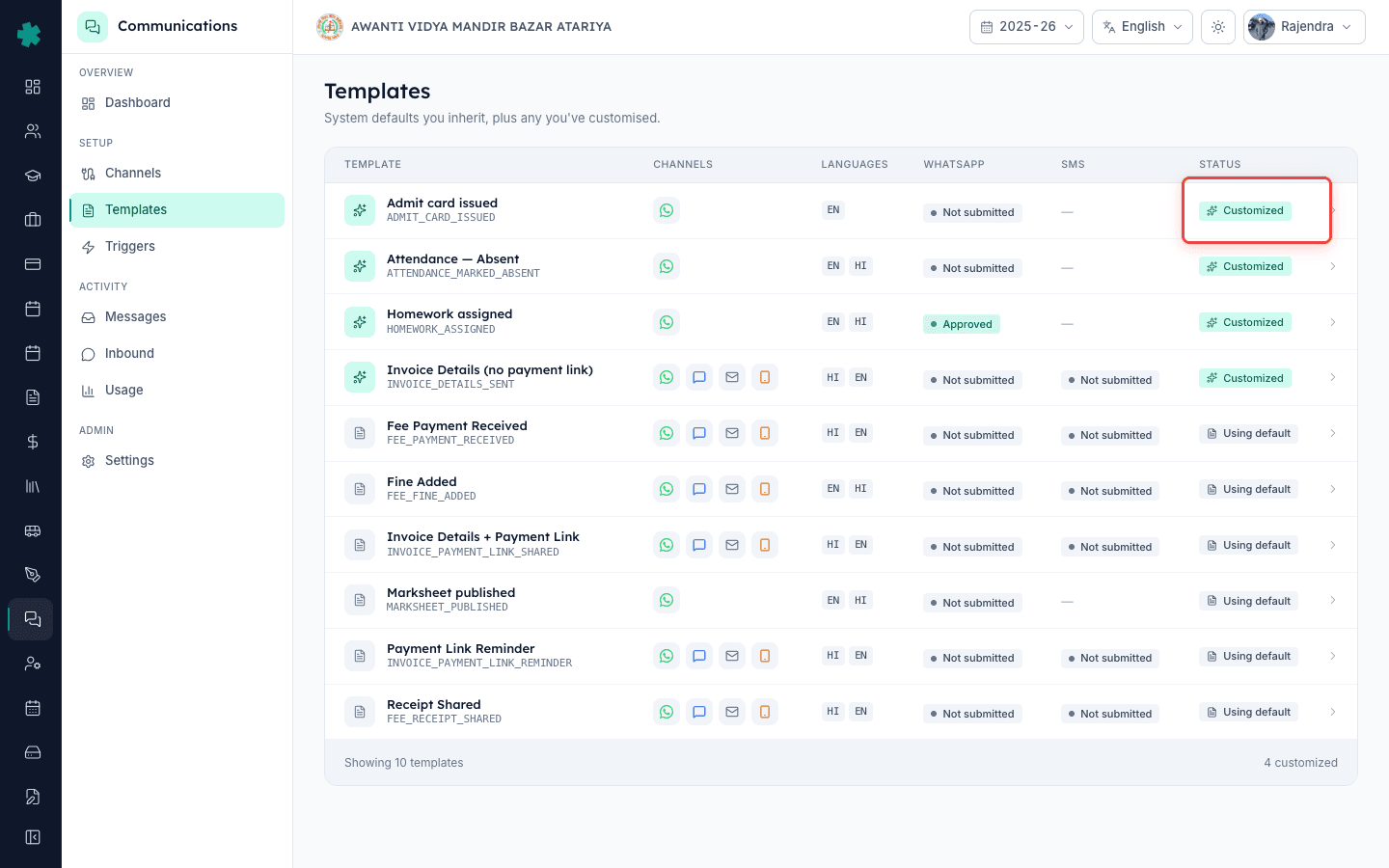
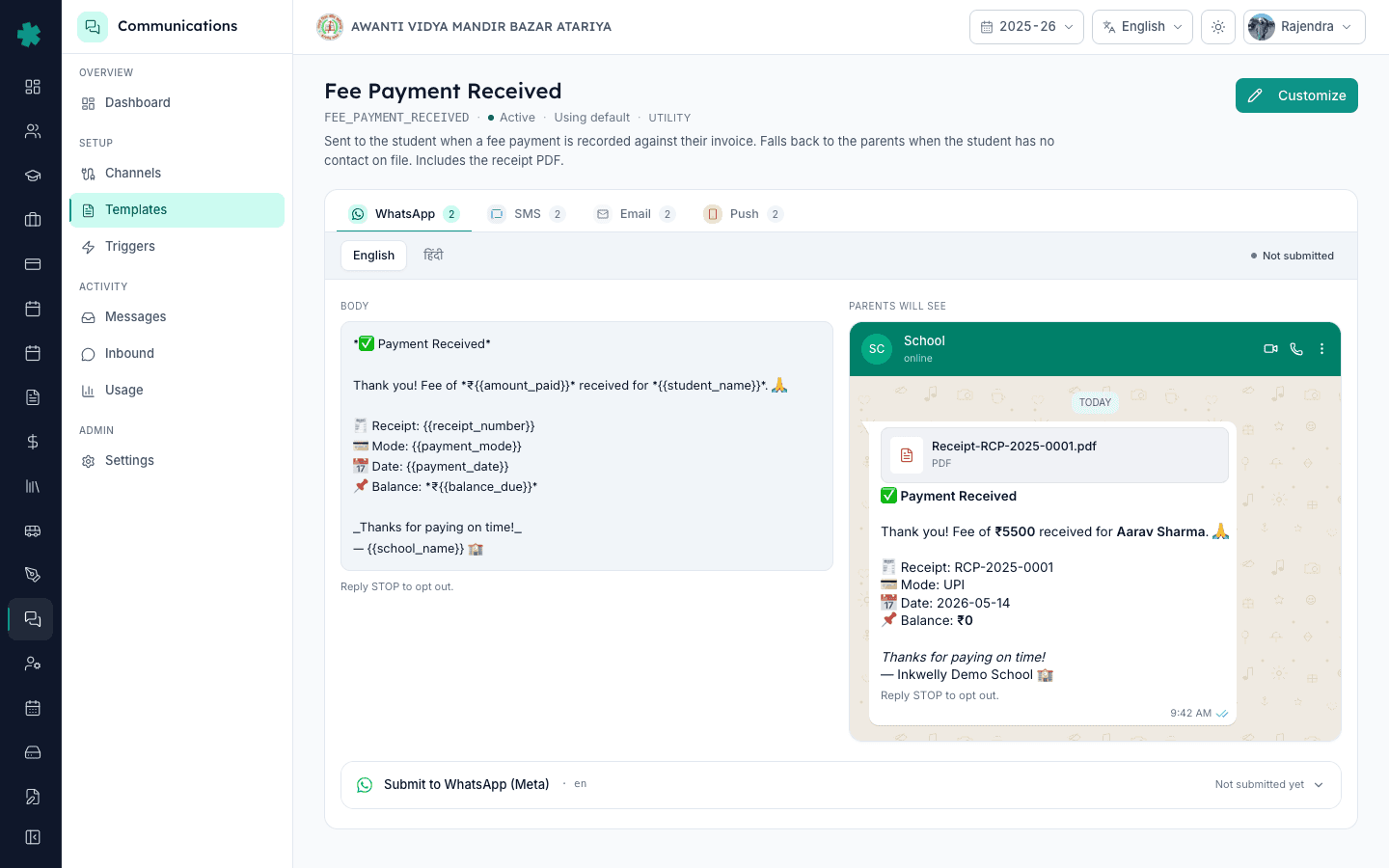
In Inkwelly open Communications → Templates. Templates currently using a school fork are marked with the teal Customized badge in the right-most column; templates on the editorial default show Using default. Scan the list to find the customised template you want to revert. Click the row to open the detail page.
2. Pick the channel and language variant to reset
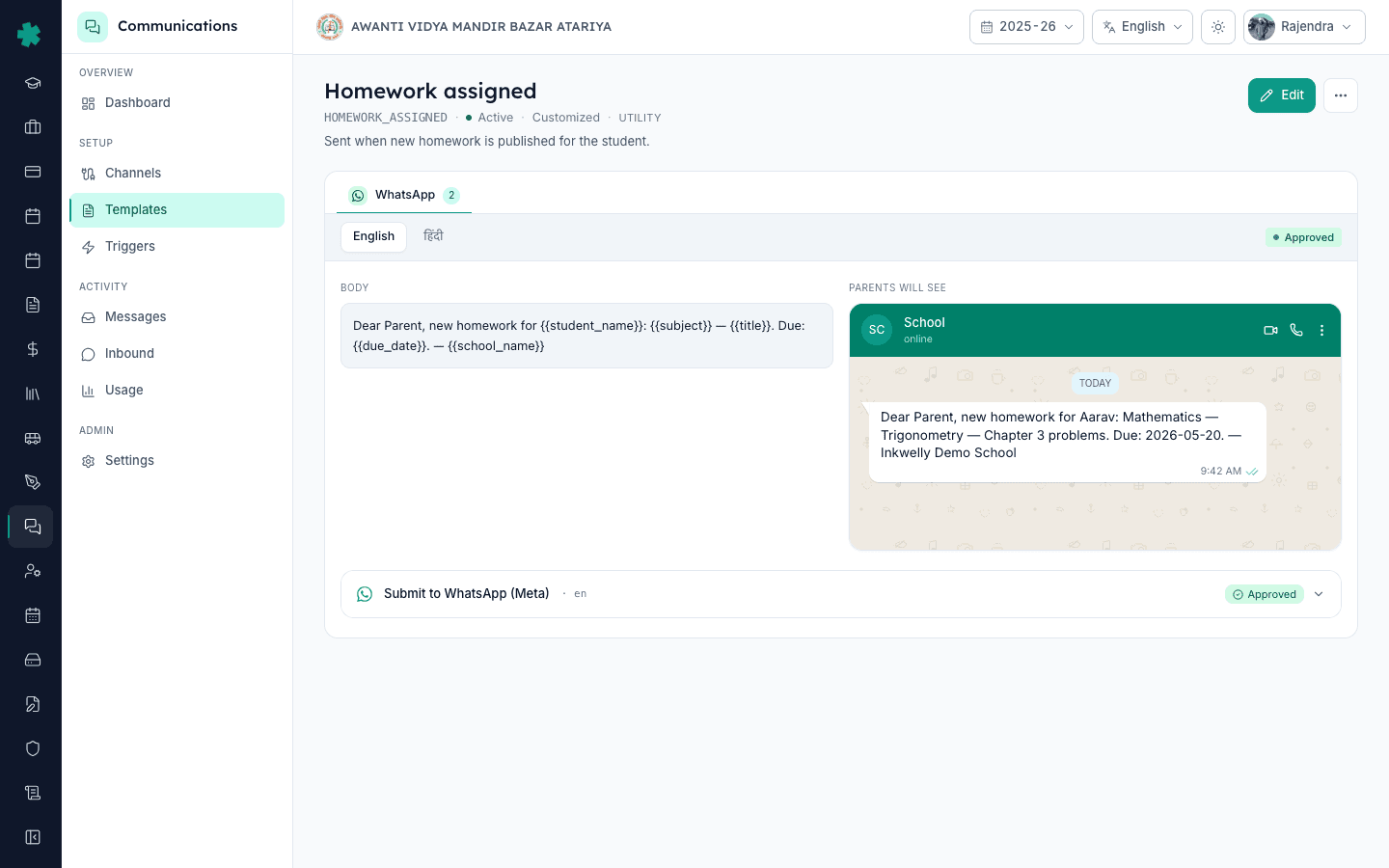
The template detail page has channel tabs (WhatsApp, SMS, Email, Push). Each channel can have customisation independent of the others — a school may have customised the WhatsApp body but left SMS untouched. Click the channel tab you want to revert. Inside that tab each language variant (EN, HI, more) is a separate row — reset is per language too. Identify the specific row that carries the Customized state.
3. Click Reset to default
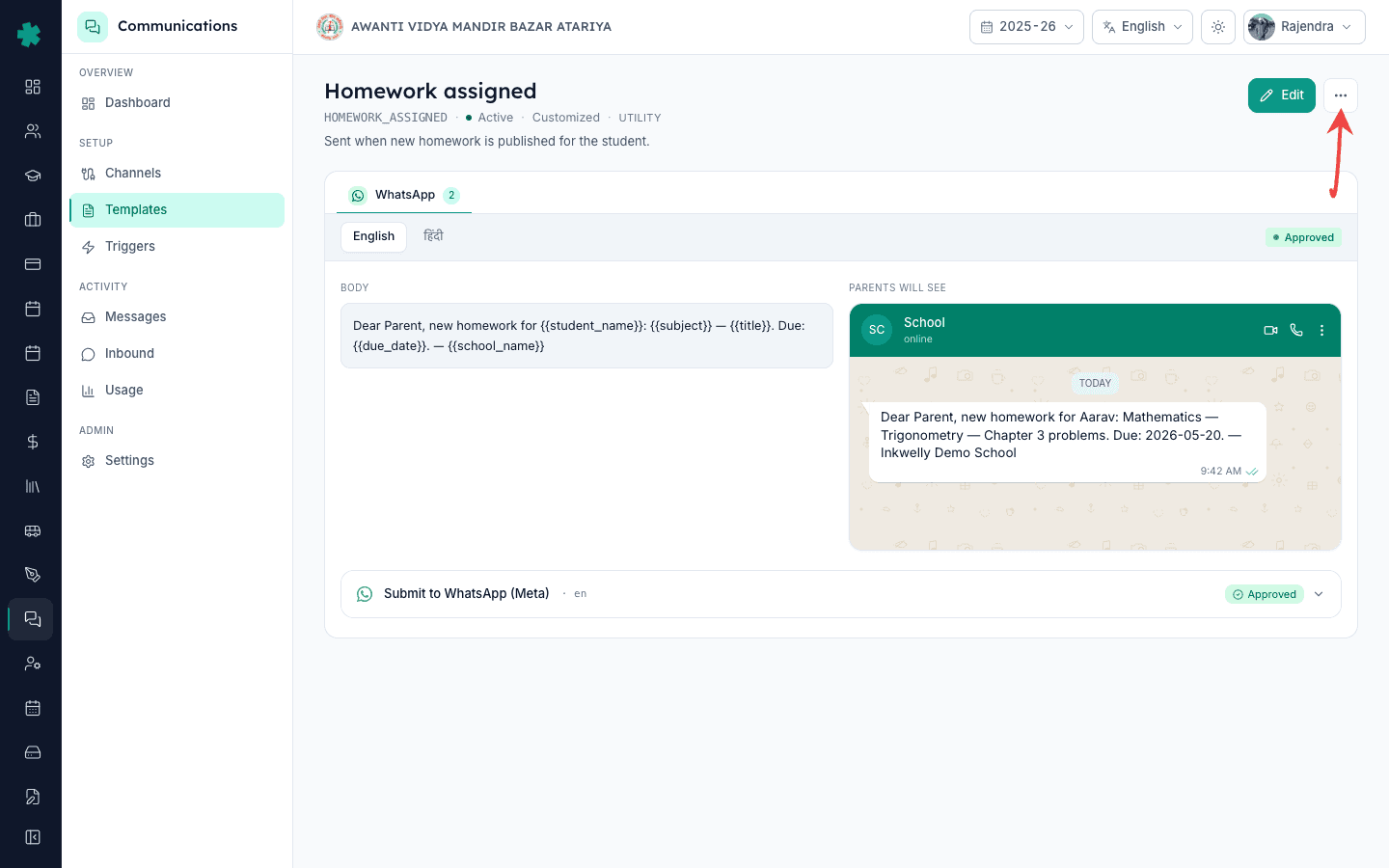
On the customised variant row, click Reset to default. Inkwelly opens a confirmation dialog showing the current customised body alongside what the editorial default looks like, side by side. This is the moment to compare — if the customised wording carries irreplaceable school context (a phone number, the principal's name in the signature), copy it out into a notes app before confirming, in case you want to re-apply it later.
4. Confirm the reset
Click Confirm reset. Inkwelly removes the school fork from the template-customisation table, leaves the system default attached, and stamps a resetAt audit row so the change is traceable. The status pill changes from Customized · Approved (or whatever state your fork was in) to Using default · Approved in a single transition. No interim Not submitted state because the default is already approved on Meta and registered on DLT.

5. Verify the editorial default is back live
On Communications → Templates the row shows Using default in the right-most column. Open the detail page once more — the body in that channel’s language variant should match Inkwelly’s editorial copy, the same content every other Inkwelly school sees by default. The Reset to default button is replaced by a Customise button, indicating the school is on the editorial track and can fork again at any time.
6. (Optional) Send a test to confirm parents see the default
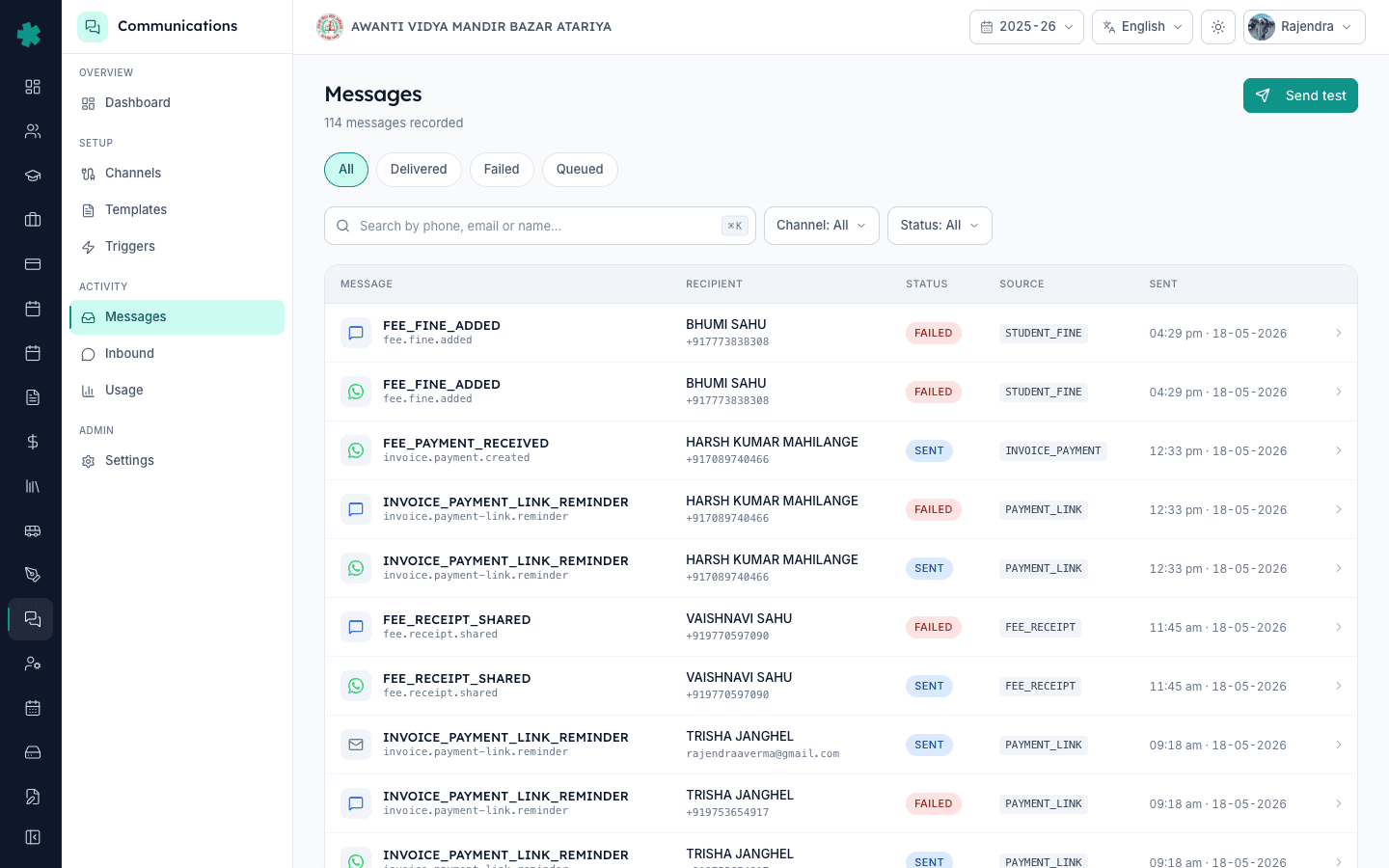
Go to Communications → Messages → Send test and trigger this template on your own phone or email. The body that lands should be Inkwelly’s editorial wording, not the customised one. If the test send is the customised wording, refresh the Templates page — the reset takes effect in the very next dispatch but a previously-queued message can still be in flight.
Reset is a no-regret operation — you can fork the template again at any time by clicking Customise and going through the editor a second time. Inkwelly does not store a customisation history, so the previous customised body is not auto-recoverable; if there is a chance you may want it back, copy it out before confirming the reset. For schools that customise heavily, the resetAt timestamp on the audit row helps trace who flipped which template when.
See Inkwelly’s template reset flow live
20-minute walkthrough showing a school undoing a fee-receipt customisation and falling back to the Meta-approved editorial default without any parent-facing break.
Frequently asked
6 questionsIf I reset a customised template, will I lose my school's wording forever?
Yes — Inkwelly does not retain a customisation history, so the school-specific body is not auto-recoverable after reset. If the wording carries irreplaceable context (a phone number, the principal's name in the signature), copy it out before confirming the reset. You can always re-apply it by clicking Customise again and pasting it back.
Do I have to re-submit anything to Meta or DLT after a reset?
No. The Inkwelly editorial default is already Meta-approved on every WhatsApp variant and DLT-registered on every SMS variant. Resetting reattaches the school to that pre-approved copy, so dispatch is instant — no provider round-trip, no waiting on operators. The next event that fires for any student in the school uses the editorial body.
Inkwelly me customised template ko default par kaise reset kare?
Communications → Templates kholiye, jis template par Customized badge hai uspe click kijiye. Channel tab (WhatsApp, SMS, ya Email) chuniye aur jis language variant ko revert karna hai uspe Reset to default click kijiye. Dialog me confirm dabaiye. Agla event Inkwelly ki editorial default body se jata hai — koi Meta ya DLT resubmission nahi.
Can I reset one language variant but keep the customisation on another?
Yes. Reset operates per channel per language. Schools that customised the English WhatsApp body but left the Hindi body on default can reset just the English row — the Hindi customisation stays. Similarly, schools can keep a customised WhatsApp body and reset only the SMS variant. The control is fine-grained.
Will parents see Inkwelly's wording or the customised wording during the moment of reset?
Reset is atomic on the channel-language row — the next event that fires after the confirmation click uses the editorial default. Messages already accepted by the provider before the reset continue to dispatch with the customised wording (you don’t catch them mid-flight). Communications → Messages clearly stamps which body was used on each historical send.
What happens to the audit trail after a reset?
Inkwelly stamps a resetAt timestamp and the user who clicked Reset on an internal audit row — you can see who flipped which template when. The previous customisation body itself is removed, but the audit fact of “this school customised, then reset on date X” is preserved. Useful when an admin team wants to understand template-history across staff turnover.
You might also like
3 readsSources & references
- Meta — WhatsApp Business Platform: Message Templates · accessed 18 May 2026
Documents Meta’s rule that an approved template stays approved as long as the body does not change — the reason Inkwelly’s reset to default does not require re-approval.
- TRAI — Telecom Commercial Communications Customer Preference Regulations (TCCCPR), 2018 · accessed 18 May 2026
Mandates DLT registration of every commercial SMS body — the reason Inkwelly’s pre-registered editorial defaults are dispatch-ready instantly on reset.
See Inkwelly on your school
30-minute demo. We open your current ERP with you and load your data into Inkwelly on the call. Dated go-live plan by the end of it.