How to issue and waive a fine for a student in Inkwelly
For front-office staff, class teachers and accountants who need to record a small disciplinary or recovery charge — a library overdue, a damaged textbook, a late pickup, a uniform breach — and reverse one if needed. By the end you will have a saved fine on a student profile in Inkwelly with a clear category, amount and reason, and you will know how to waive it fully or partially.
To issue a fine in Inkwelly: open the student fee profile, switch to the Fines tab, click + Add Fine, pick a category (Library, Late Attendance, Damage, Uniform, Discipline, Exam Misconduct or Custom), enter a title, amount and reason, then save. To waive a fine, open the kebab menu on the fine row, click Waive, enter a reason and choose full or partial waiver. The fine becomes a FINE-### entry that appears on the student's fee profile, the Fines tile on the dashboard and the Top fined students card.
A fine in Inkwelly is a small, named charge raised on a single student outside the normal fee structure. Library overdue charges sit at the top of Indian school fine ledgers — NCERT's School Library Guidelines (2019) recommend a nominal overdue fee of ₹1 to ₹5 per day, capped at the cost of the book. The Right to Education Act, 2009 bans physical punishment under Section 17 but explicitly allows reasonable monetary penalties when published in the school rules, so a properly raised fine with a category and reason is the compliant alternative to punishment. A 1,200-student day school typically raises 80 to 150 fines a year — Library, Late Attendance and Uniform make up around 70% of the volume, while Damage and Discipline carry larger ticket sizes.
1. Open the student fee profile
Open Inkwelly → Student Fee → Fee Profiles from the left sidebar. Search by admission number, name or class — for example YETIKA or Class 3 A. Click the row to open the profile. The profile header shows the student name, class, enrolment date, fee structure and a row of overview tiles for Payments, Receipts, Refunds, Cheques, Discounts, Scholarships, Credits, Waivers, Fines and Carry-forward dues.
2. Switch to the Fines tab
The profile shows a row of tabs near the top: Overview, Fee Structure, Invoices, Payments, Receipts, Refunds, Cheques, Discounts, Scholarships, Credit Balances, Waivers, Fines, Carried Forward Dues and Ledger. Click Fines. Inkwelly lists every fine raised on this student with a card per fine showing the title, category pill, raised date, amount, amount due and a status pill — Pending, Partially Paid, Paid, Waived or Cancelled.
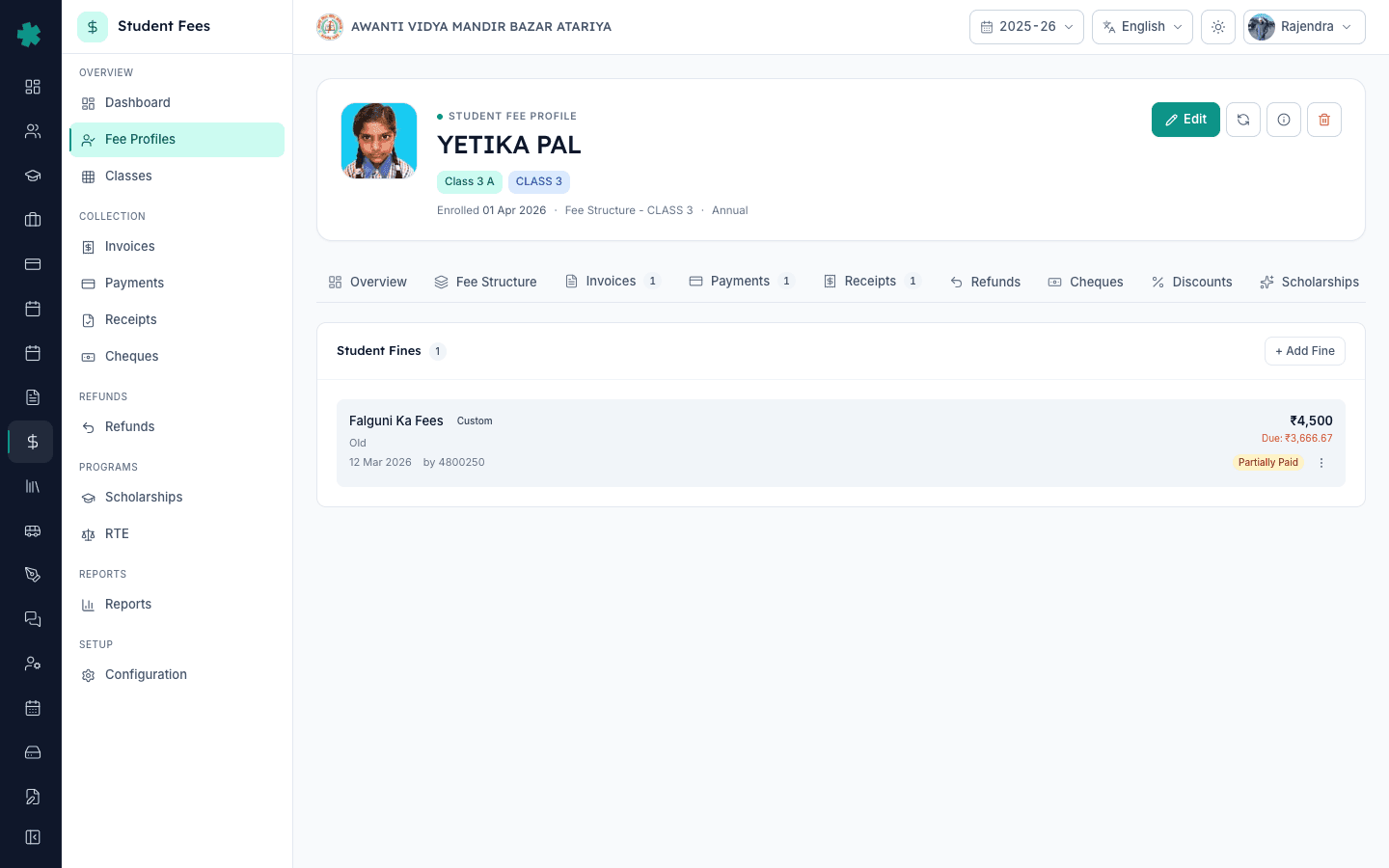
3. Click + Add Fine and pick a category
Click the + Add Fine button on the top right of the Fines tab. In the dialog, enter a short title that the parent will read on the invoice and receipt — for example Library overdue — Panchatantra or Late pickup — 12 Mar. Pick a category from the dropdown: Library, Late Attendance, Damage, Uniform, Discipline, Exam Misconduct or Custom. The category drives the Fines tile breakdown on the Student Fee dashboard, so picking it correctly matters for the principal's weekly review.
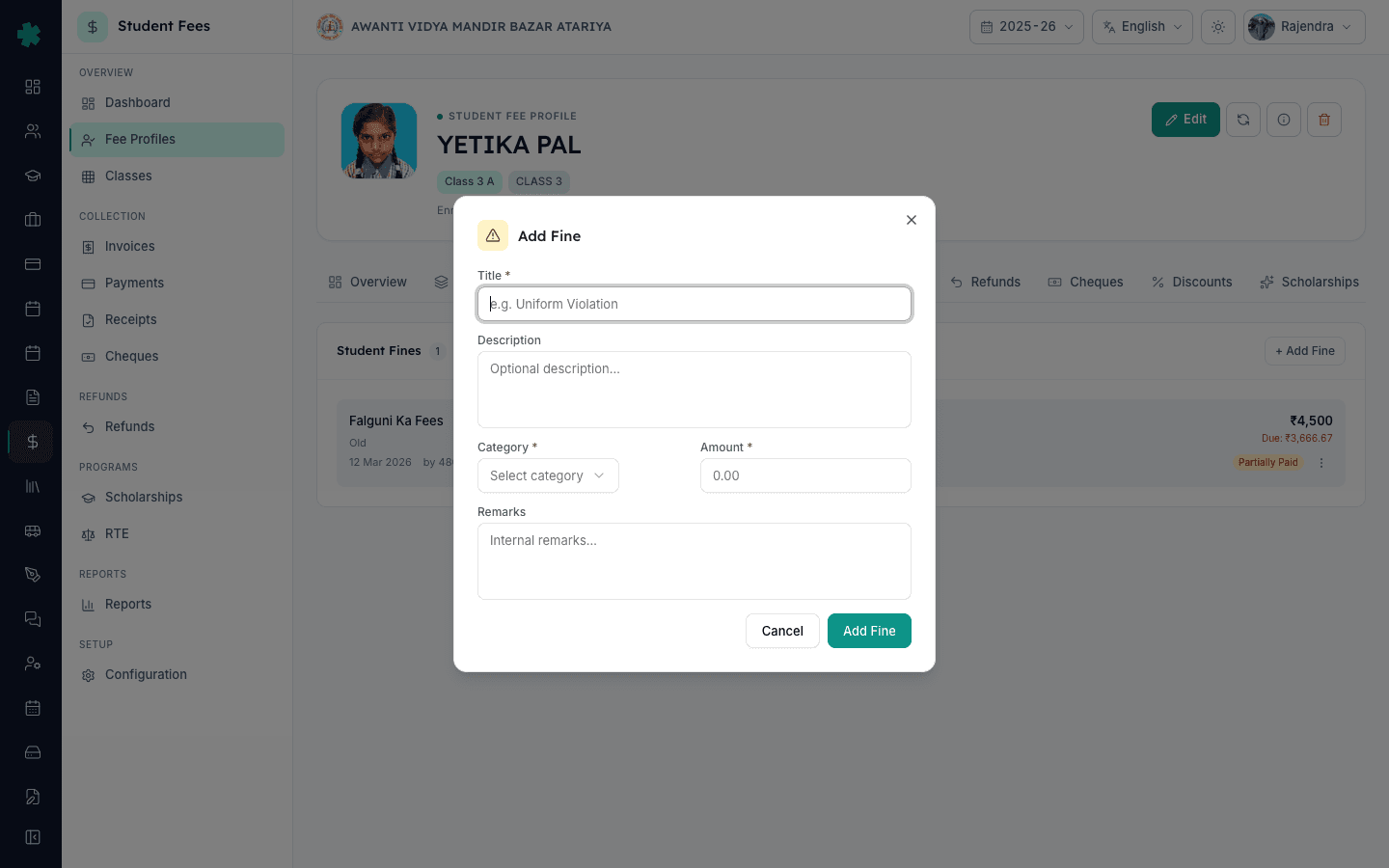
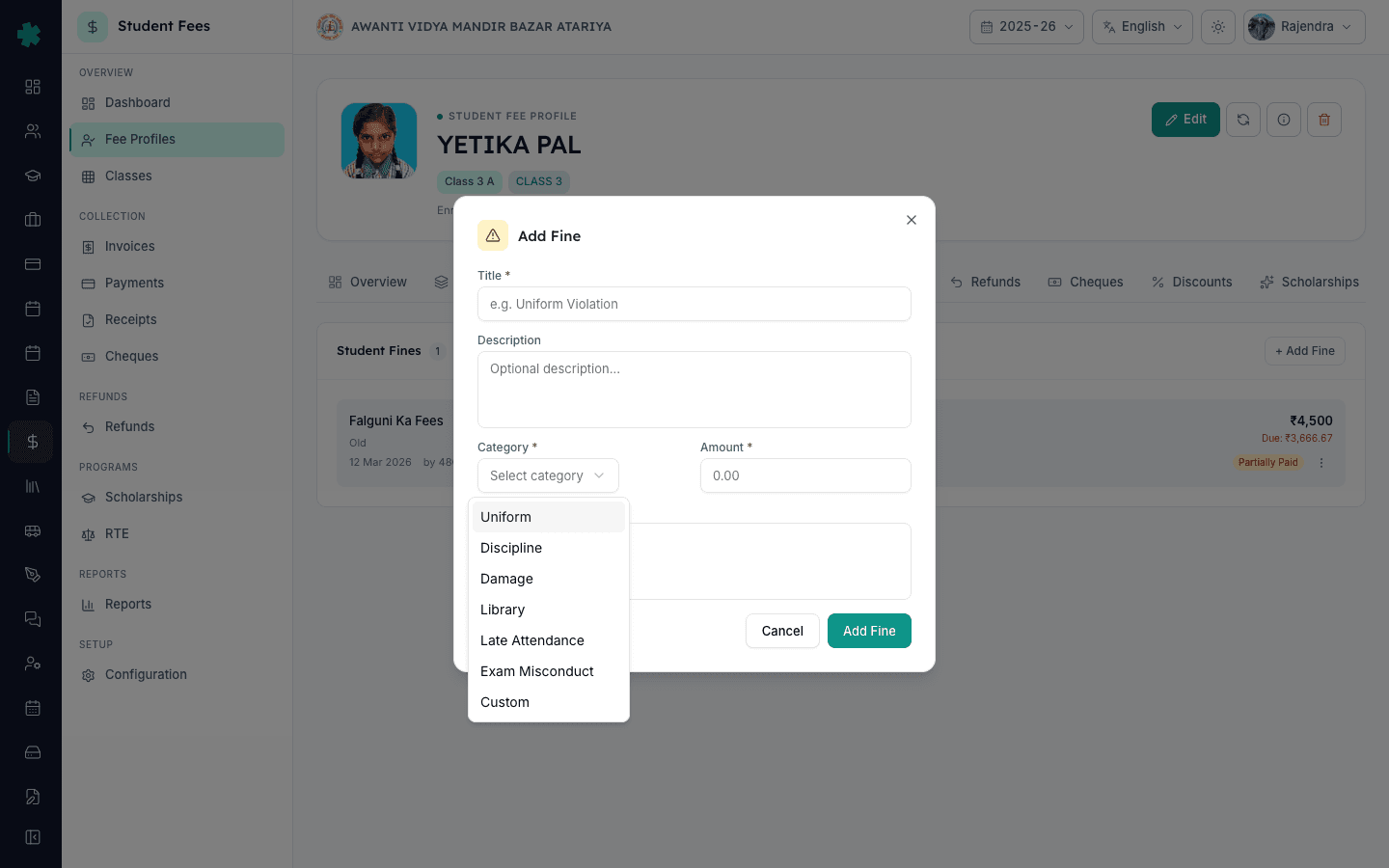
4. Enter the amount and the reason
Enter the rupee Amount — the rate your school has agreed for this category. Typical Tier-2 school settings: Library ₹2 per day with a cap at book cost, Late Pickup ₹50 per incident, Uniform breach ₹100 per incident, Damage at actual repair or replacement cost. Use the Description field to record the incident reason — the book number, the period, the item damaged. Fill the Remarks field if there is an internal note for the office that the parent should not see. Click Add Fine. Inkwelly saves the fine and the Fines tab now shows it on the list.
5. Verify the FINE invoice and dashboard counters
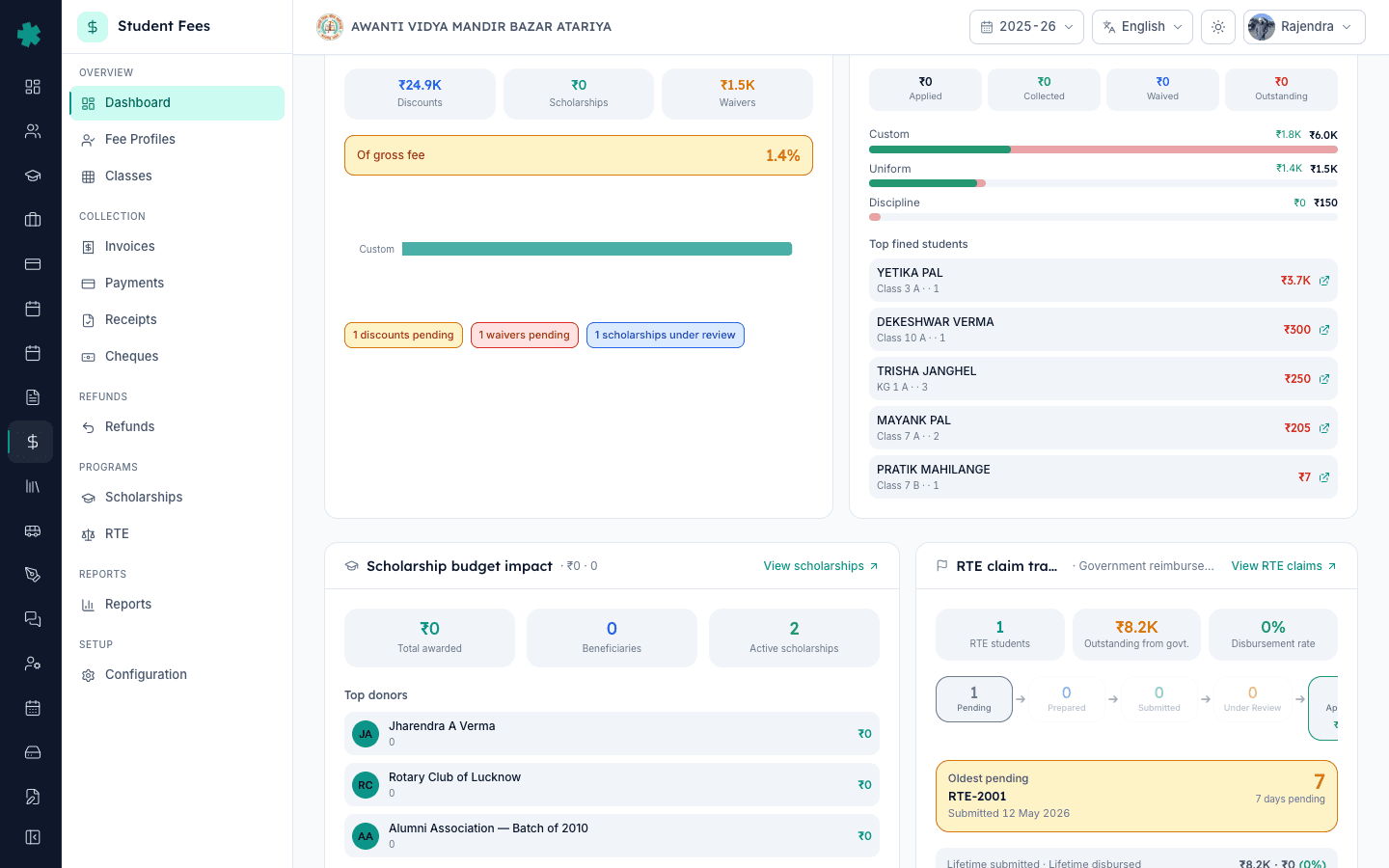
The saved fine creates a FINE-### entry — Inkwelly assigns the next sequential number. The student's Fine tile and net outstanding update immediately. Go back to Student Fee → Dashboard. The Fines & late fees card now shows the new amount under Applied and the category breakdown rises by your entry. The Top fined students card on the same dashboard ranks the student by total fines raised this session — useful for the principal's weekly disciplinary review.
6. Waive a fine from the kebab menu
For a wrongly raised fine, a goodwill gesture, or a partial settlement, open the Fines tab on the student profile, find the row, and click the three-dot kebab menu on the right. Click Waive. The Waive Fine dialog opens with the fine title, amount and outstanding. Leave the Partial Waiver toggle off to waive the full outstanding amount. Switch it on to waive only a portion — enter the Waived Amount in rupees. Write a clear Reason — for example Returned book on the same day; library staff confirmed or Principal approval — first offence. Click Waive.
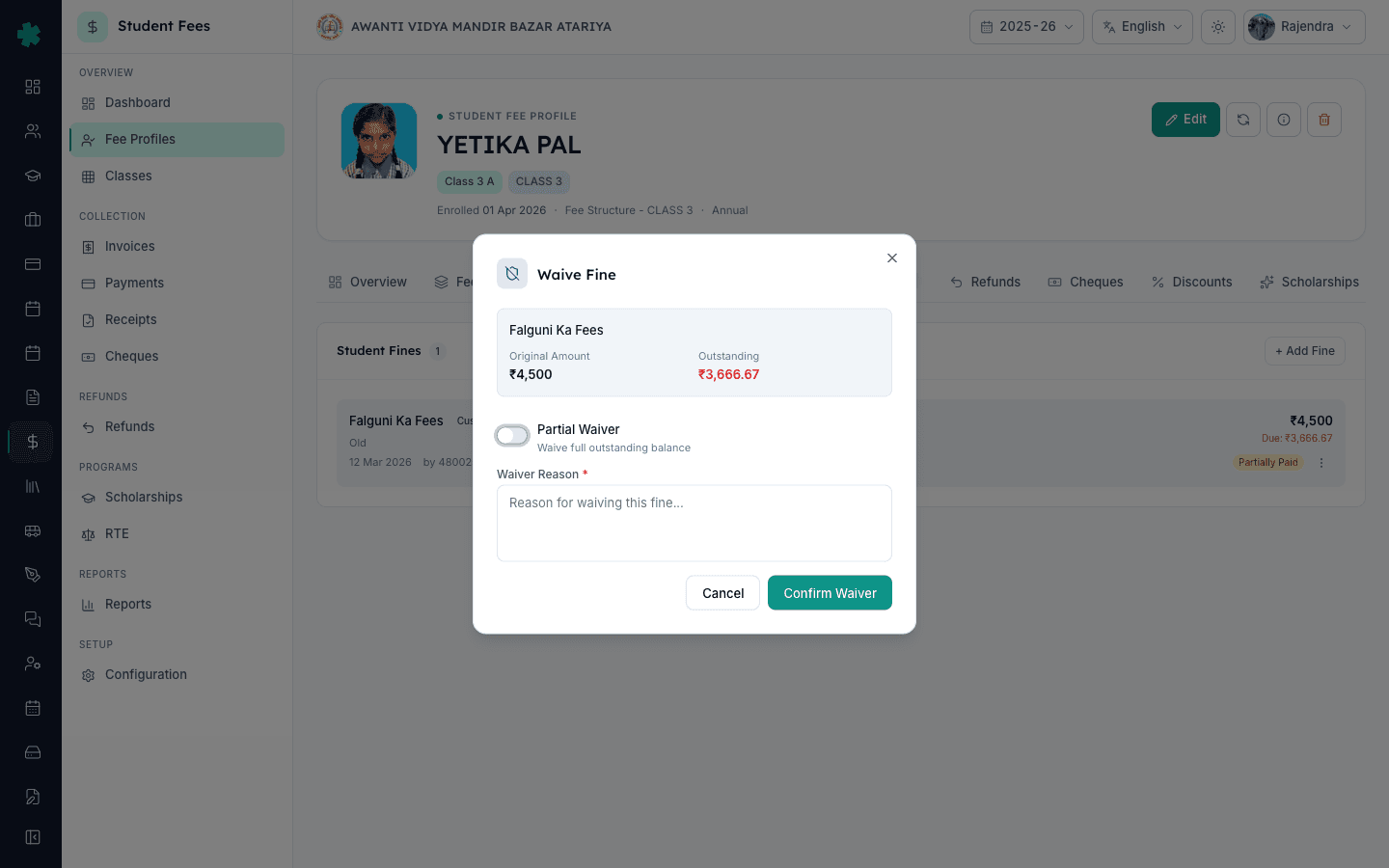
7. Confirm the waived status on the row
The fine row updates immediately. A fully waived fine shows a Waived pill and the amount is moved out of the Outstanding total on the profile. A partially waived fine continues to show as Partially Paid with a smaller outstanding and a Waived: ₹X chip below the title. The Waivers tab on the same profile records the waiver with the reason and the user who approved it. On the Student Fee dashboard, the Waived counter on the Fines & late fees card rises by the same amount — the audit chain is preserved even after a reversal.
Once fining is part of the office routine, tighten the recovery side. Use How to set up late fee rules to keep the parent-facing penalty consistent with the school circular. Make sure the structure on the invoice itself is right with How to create a fee structure for the academic session. Keep the category list aligned with how the principal reads the dashboard by reviewing How to define fee categories and fee heads. For one-off recoveries that hit cash flow, How to set up a refund policy with time-based slabs covers the reverse direction.
See Inkwelly Student Fees in action
Frequently asked
7 questionsHow much should an Indian school charge as a library overdue fine?
NCERT's School Library Guidelines (2019) recommend a nominal overdue fee of ₹1 to ₹5 per day per book, capped at the cost of the book. Most Tier-2 day schools settle on ₹2 per day with a cap of the book price. In Inkwelly, set Library as the category, enter the rupee amount in Add Fine, and record the book number in the Description so the parent can see what the fine is for on the invoice.
Is it legal to fine a student under the RTE Act and CBSE bye-laws?
Yes. The Right to Education Act, 2009 bans physical punishment under Section 17 but allows reasonable monetary penalties when they are published in the school rules — a clearly written disciplinary policy is the legal cover. CBSE Affiliation Bye-Laws expect every charge on a parent to be itemised, which is exactly what an Inkwelly FINE-### entry does. Keep the category, amount and reason on every fine and the school stays on the right side of NCPCR guidelines.
Can I waive a fine after the parent has already paid part of it?
Yes. Open the Fines tab on the student profile, click the kebab menu on the row, and click Waive. Switch the Partial Waiver toggle on and enter the rupee amount you want to waive — Inkwelly will not let you waive more than the outstanding. Add a clear reason such as `Goodwill — first offence, principal approval`. The row keeps its history; the dashboard Waived counter rises by the same amount, and the audit trail stays intact.
Student ko fine kaise lagaye Inkwelly me?
Student Fee → Fee Profiles kholiye, student search kijiye aur profile open kijiye. Fines tab par jaiye, top-right ka + Add Fine button dabaiye. Title bhariye (jaise Library overdue — Panchatantra), category chuniye (Library, Late Attendance, Damage, Uniform, Discipline, Exam Misconduct ya Custom), amount aur reason bhariye, phir Add Fine dabaiye. Fine FINE-### number ke saath save ho jayega aur dashboard ki Fines tile par count badh jayega.
Galat fine waive kaise kare?
Student profile ke Fines tab par jaiye, fine row ke kone me three-dot kebab menu kholiye, Waive par click kijiye. Full waiver chahiye to Partial toggle off rakhiye; partial chahiye to toggle on karke rupee amount bhariye. Reason field me saaf likhiye — kyon waive kar rahe hain, kisne approve kiya. Waive dabaiye. Row me Waived ka pill aa jayega aur dashboard ka Waived counter usi rupee se badh jayega.
What is the difference between a fine, a late fee and a waiver in Inkwelly?
A fine is a one-off charge raised manually on a single student for a specific incident — library overdue, breakage, uniform breach. A late fee is an automatic penalty that Inkwelly applies to an overdue invoice based on the late fee rule. A waiver is a recorded reversal of an existing fine or a portion of an invoice with a reason — it does not delete the original entry, so the audit trail stays clean.
Can a fine be cancelled or deleted instead of waived?
Yes, but only for fines that have not yet had any payment against them. Pending fines show a Cancel option in the kebab menu and disappear from the outstanding total. Once a parent has paid even partially against a fine, the row can only be waived, not cancelled — this is by design so the receipt history remains intact. Most schools prefer Waive over Cancel because the reason field gives the principal a complete audit trail.
You might also like
3 readsSources & references
- Right of Children to Free and Compulsory Education Act, 2009 — Section 17 (Prohibition of physical punishment and mental harassment) · accessed 19 May 2026
RTE Section 17 bans physical punishment and mental harassment of students, making properly recorded monetary fines under a published school policy the lawful alternative for disciplinary matters.
- CBSE Affiliation Bye-Laws — Chapter VII (Fees and Other Charges) · accessed 19 May 2026
CBSE bye-laws require every charge collected from parents — including fines — to be itemised, justified and published in the school rules, which Inkwelly enforces through the title, category and reason fields on every fine.
- NCPCR Guidelines on Eliminating Corporal Punishment (2017) · accessed 19 May 2026
NCPCR guidelines reinforce that disciplinary measures must be non-physical and recorded with reason, which a categorised fine with a reason field in Inkwelly directly satisfies.
See Inkwelly on your school
30-minute demo. We open your current ERP with you and load your data into Inkwelly on the call. Dated go-live plan by the end of it.