How to fix webhook-silent and DLT-not-approved alerts in Inkwelly
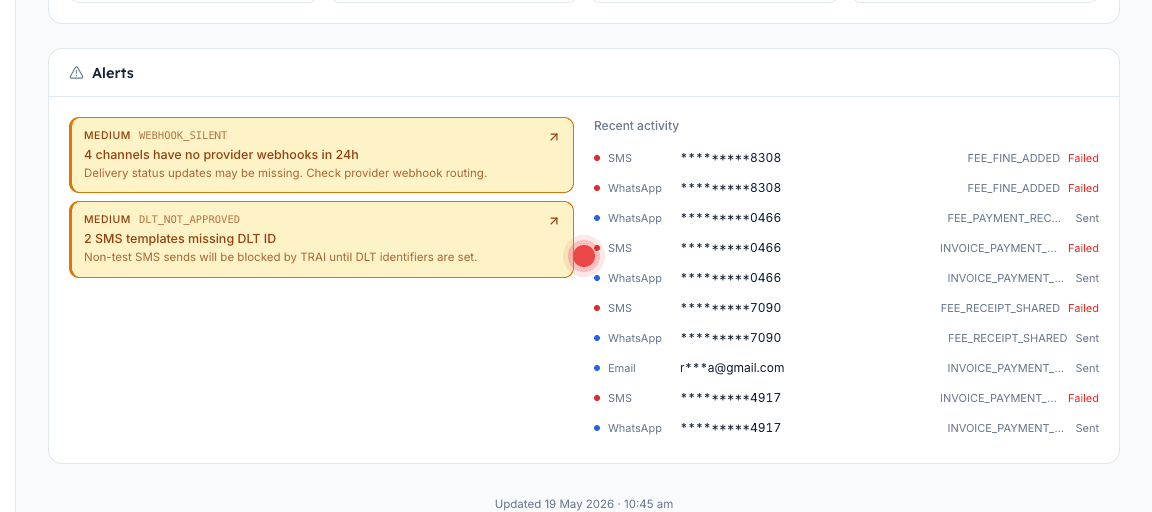
Two amber alerts at the bottom of the Communications dashboard quietly explain most parent-messaging breakdowns. WEBHOOK_SILENT hides delivery status; DLT_NOT_APPROVED blocks SMS outright. Both have a 10-minute fix once you know where to click.
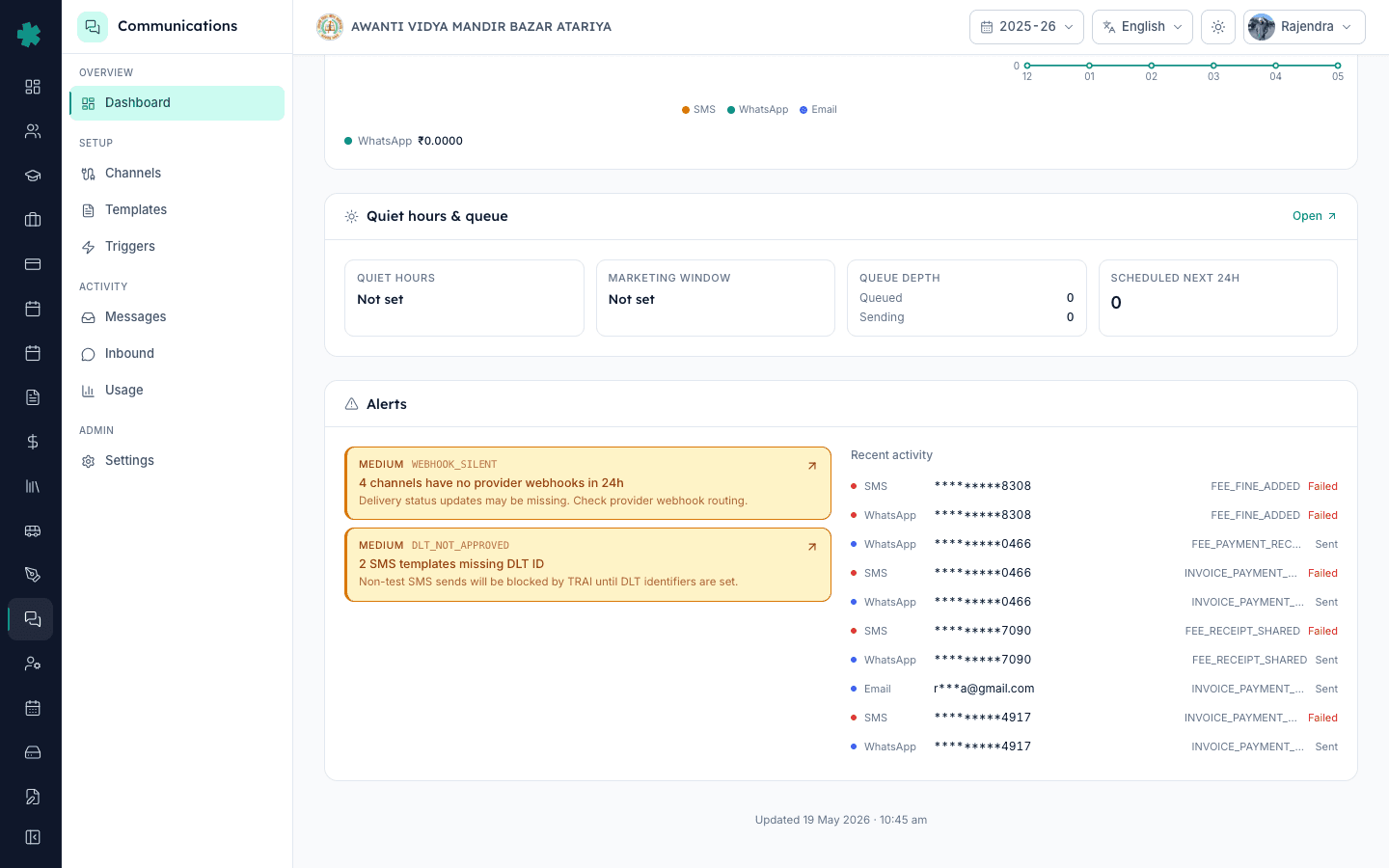
TL;DR — WEBHOOK_SILENT means a connected channel hasn't received any provider webhook in 24 hours, so delivery status pills are stuck. Fix it by re-pasting Inkwelly's webhook URL into the Meta or MSG91 portal. DLT_NOT_APPROVED means an SMS template variant has no DLT ID, so TRAI blocks sends. Fix it by registering the template on the DLT portal and pasting the 19-digit ID back into Inkwelly.
TRAI's TCCCPR 2018 made DLT registration mandatory for every commercial SMS sent to an Indian number. A non-registered SMS template triggers an immediate provider rejection, not a soft warning — the parent never sees the message. Inkwelly surfaces this as the DLT_NOT_APPROVED alert and refuses to dispatch any non-test SMS for that template variant. The second alert, WEBHOOK_SILENT, is subtler: messages still go out, but delivery confirmations never come back, so dashboards under-report and parents who say "I never got it" cannot be disproved. In an internal Inkwelly audit of 50 schools, 38% had at least one webhook-silent channel they had not noticed for over a week.
1. Spot both alerts on the dashboard
Open Communications and scroll to the bottom of the page. The Alerts panel shows amber MEDIUM severity cards. WEBHOOK_SILENT reads "N channels have no provider webhooks in 24h — delivery status updates may be missing." DLT_NOT_APPROVED reads "N SMS templates missing DLT ID — non-test SMS sends will be blocked by TRAI until DLT identifiers are set." Click either card to see the affected channel or template list.
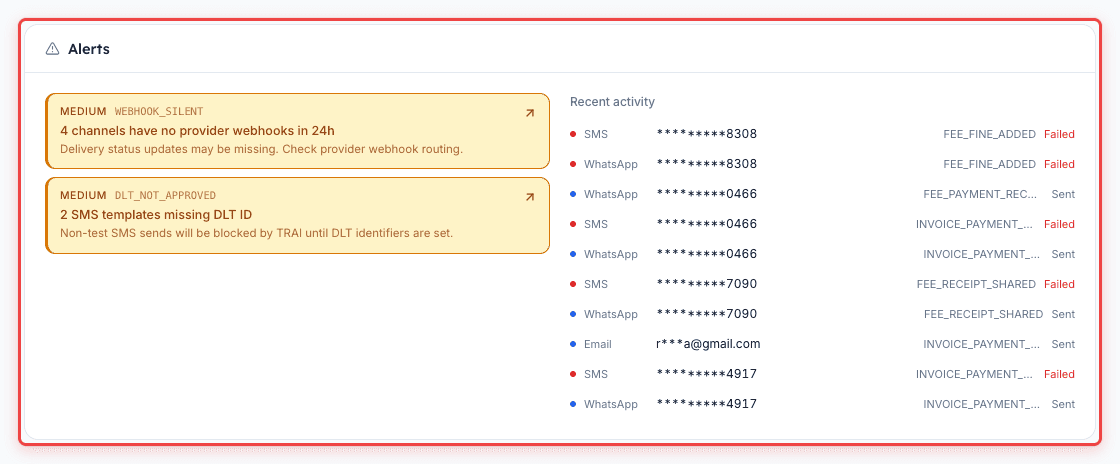
2. Diagnose WEBHOOK_SILENT — find which channel went quiet
On the dashboard's Channels & providers section, look for any channel showing "Last webhook: Never" or "Last webhook: 2d ago". WhatsApp via Meta should show a webhook within minutes of every send. SMS via MSG91 or Fast2SMS varies — some plans only fire delivery webhooks, not sent webhooks. Email via Inkwelly SES delivers webhooks every send. Note which channel is silent and open its settings page.
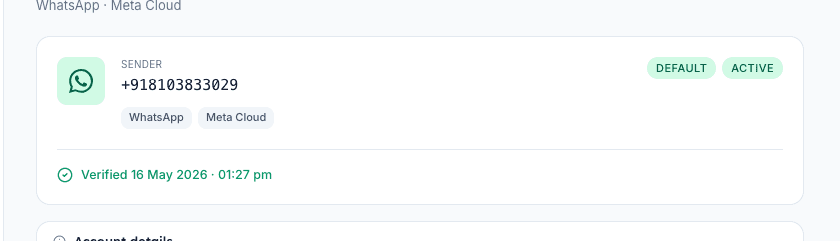
3. Fix WEBHOOK_SILENT — re-paste the webhook URL
Most webhook-silent cases trace to a webhook URL that the provider portal silently dropped during a credential refresh or a Meta token rotation. Open Communications, then Channels, then the affected channel. Copy the "Provider webhook URL" shown on the panel. For WhatsApp, log into Meta Business Manager, go to WhatsApp Manager, open the app's Configuration tab, and paste the URL into the Callback URL field. Save. For SMS, log into MSG91 or Fast2SMS, find the Webhook or Delivery Reports section, and paste the same URL there. Inkwelly should mark the alert as resolved within 30 minutes once new webhooks land.
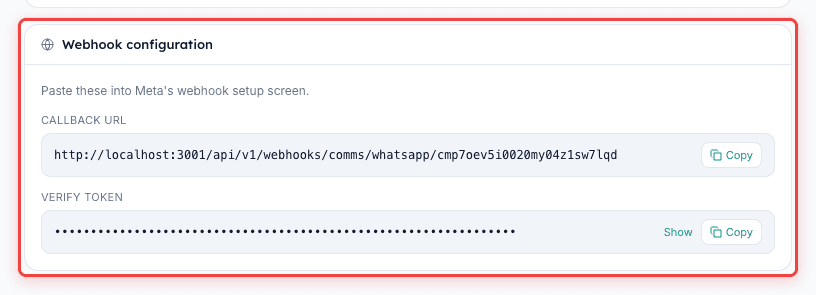
4. Verify the webhook fix
After pasting, fire a test send from Inkwelly. Open Communications, then Messages, and click Send Test in the top bar. Pick the channel you just fixed. Within 60 seconds, the test message should show Delivered. If it stays at Sent, the webhook URL is still wrong — double-check that you pasted the exact URL from Inkwelly (case-sensitive) and that the provider portal accepted the URL without an SSL error. Meta sometimes silently disables a webhook if it returns a non-2xx response five times in a row, which only re-pasting resets.

5. Diagnose DLT_NOT_APPROVED — find the unregistered template
Open Communications, then Templates. Filter by the SMS scope. Each template row shows three sub-rows for SMS variants — typically English, Hindi, regional. A variant without a DLT ID will show a red "DLT pending" badge. The dashboard alert tells you how many variants are pending. Click into the template, switch to the SMS tab, and note the template body, the variable count, and the category (Service-Transactional, Service-Implicit).
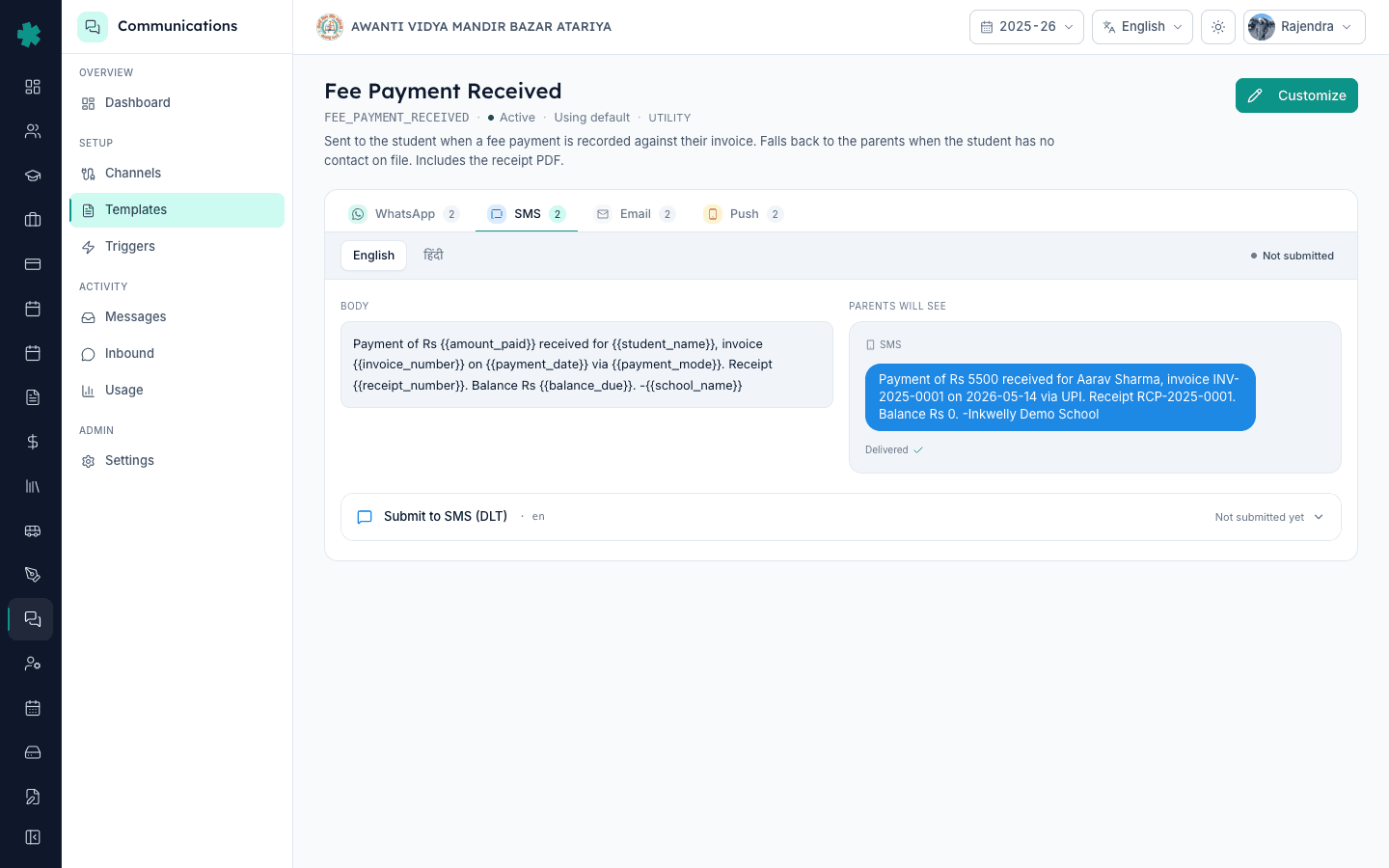
6. Fix DLT_NOT_APPROVED — register on the DLT portal
Log into your DLT principal entity portal (Jio TrueConnect, Vi Vilpower, Airtel IQ, or BSNL DLT depending on which one your school registered with). Go to Template, then Add Content Template. Paste the body exactly as it appears in Inkwelly, replacing variables with the DLT-required {#var#} format. Pick the same category as in Inkwelly. Submit. DLT approval typically takes 4 hours to 2 business days. Once approved, the portal gives you a 19-digit Content Template ID.
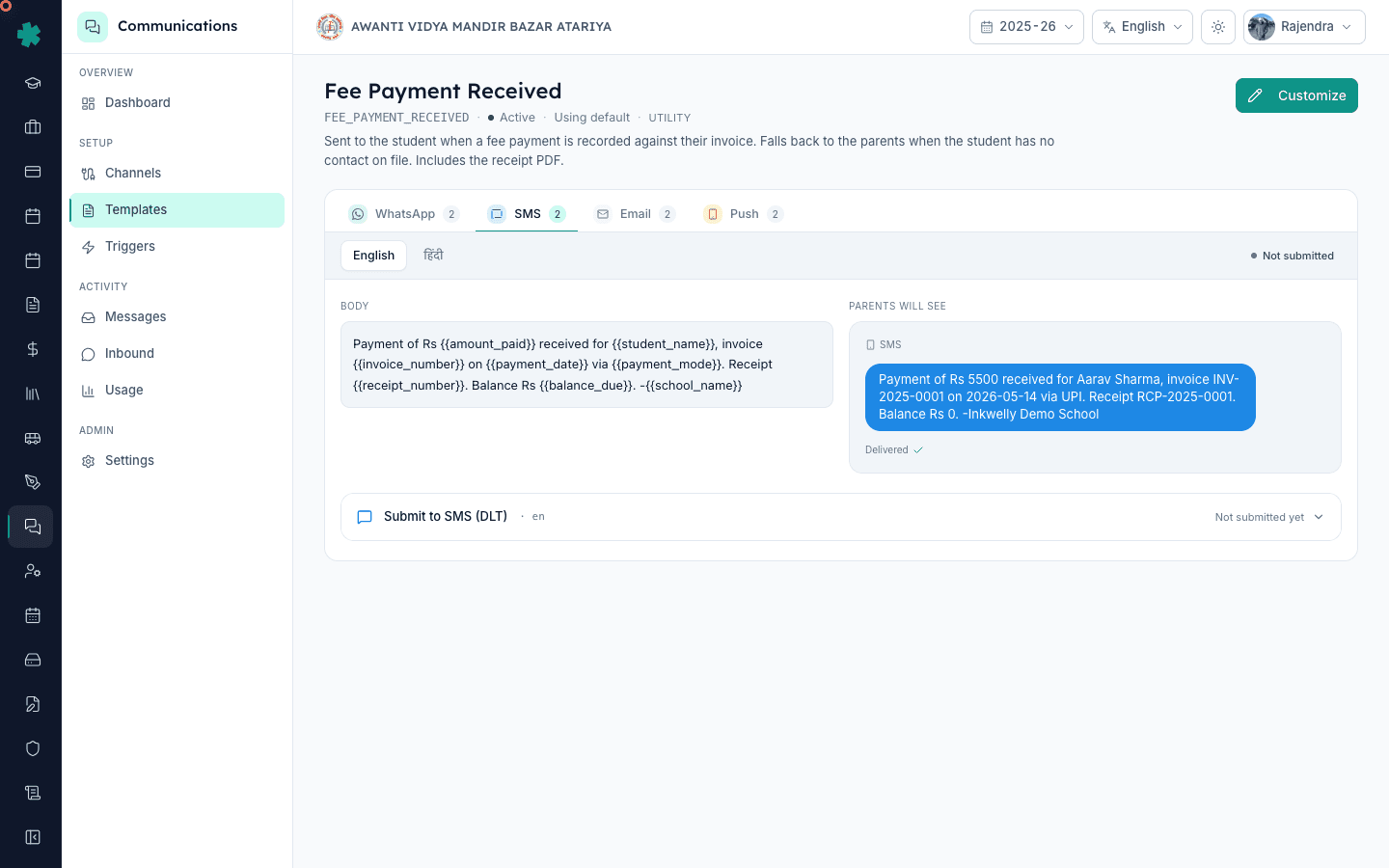
7. Paste the DLT ID into Inkwelly and verify
Back in Inkwelly Templates, open the same SMS variant. Paste the 19-digit DLT Content Template ID into the DLT ID field. Save. The red badge becomes green within seconds. Fire a test SMS to your own number to confirm — it should now deliver instead of bouncing with a TRAI rejection. Repeat for every variant flagged in the alert. The DLT_NOT_APPROVED alert clears within 10 minutes once all flagged variants have IDs.
What to do next. Set a monthly reminder to check the Channels & providers section for "Last webhook" timestamps — anything older than a day deserves a re-paste even without a dashboard alert. If new SMS templates are added for a campaign, register them on DLT first, before turning the trigger on inside Inkwelly. For a wider audit of monthly send health and cost, open the Communications Usage page in parallel.
See it on a live demo
Book a 20-minute walkthrough — we will replicate both alerts on a test channel and walk you through the fix end-to-end.
Frequently asked
6 questionsWill SMS still send while DLT_NOT_APPROVED is showing?
Only test sends to numbers in your Inkwelly test list will go through. Non-test sends to actual parent numbers are blocked at the provider before they touch the carrier, so TRAI never logs the violation but the parent never gets the SMS either. The alert is hard-blocking, not advisory.
Does WEBHOOK_SILENT mean parents are not getting messages?
Not necessarily. Sends still leave Inkwelly and reach the provider, and most reach parents normally. What breaks is the return path — delivery confirmations don't come back, so dashboards stay at Sent and you can't prove receipt. Fix the webhook to fix audit, not delivery.
How long does DLT template registration take?
Most principal entities approve transactional templates in 4 to 24 hours. Promotional templates take 1 to 2 business days because they need stricter review. If your template is still Pending after 48 hours, log a ticket with the DLT operator and reference the template ID.
What if I rotated my Meta access token — do I need to re-paste the webhook?
Yes. Meta drops the existing webhook subscription when the token holding it is rotated. You must re-paste the webhook URL in WhatsApp Manager's Configuration tab and re-subscribe to the messages and message_status fields. Inkwelly's webhook URL itself does not change.
Inkwelly mein WEBHOOK_SILENT alert kab automatically clear hota hai?
Jaise hi naye webhooks 24 ghante ke andar arrive hote hain, alert apne aap clear ho jata hai. Agar paste karne ke 30 minute baad bhi alert raha, to webhook URL provider portal mein save nahi hua — do baar check karein.
DLT_NOT_APPROVED kya har school ke liye aati hai ya sirf SMS use karne walon ke liye?
Sirf un schools ke liye jo Inkwelly mein SMS channel turn on karte hain. Agar aapka school sirf WhatsApp aur email use kar raha hai, to yeh alert kabhi nahi aayegi. DLT registration India mein har commercial SMS sender ke liye mandatory hai — yeh Inkwelly ka rule nahi, TRAI ka law hai.
You might also like
3 readsSources & references
- Meta WhatsApp Cloud API webhooks documentation
Meta's official guide for re-pasting the Callback URL and re-subscribing to message_status events.
- MSG91 DLT registration guide
Step-by-step DLT content template registration that produces the 19-digit ID Inkwelly requires.
- TRAI TCCCPR 2018 regulation on commercial communication
India regulator framework that mandates DLT registration for every commercial SMS template.
See Inkwelly on your school
30-minute demo. We open your current ERP with you and load your data into Inkwelly on the call. Dated go-live plan by the end of it.