How to download or print a fee receipt in Inkwelly
This guide is for school accountants, fee clerks, and office staff who hand a printed receipt to a parent at the counter or email a PDF copy to a parent who calls a week later. By the end you will know how to find any past receipt in Inkwelly, download the A4 PDF, or reprint it on the thermal counter printer — without re-entering anything.
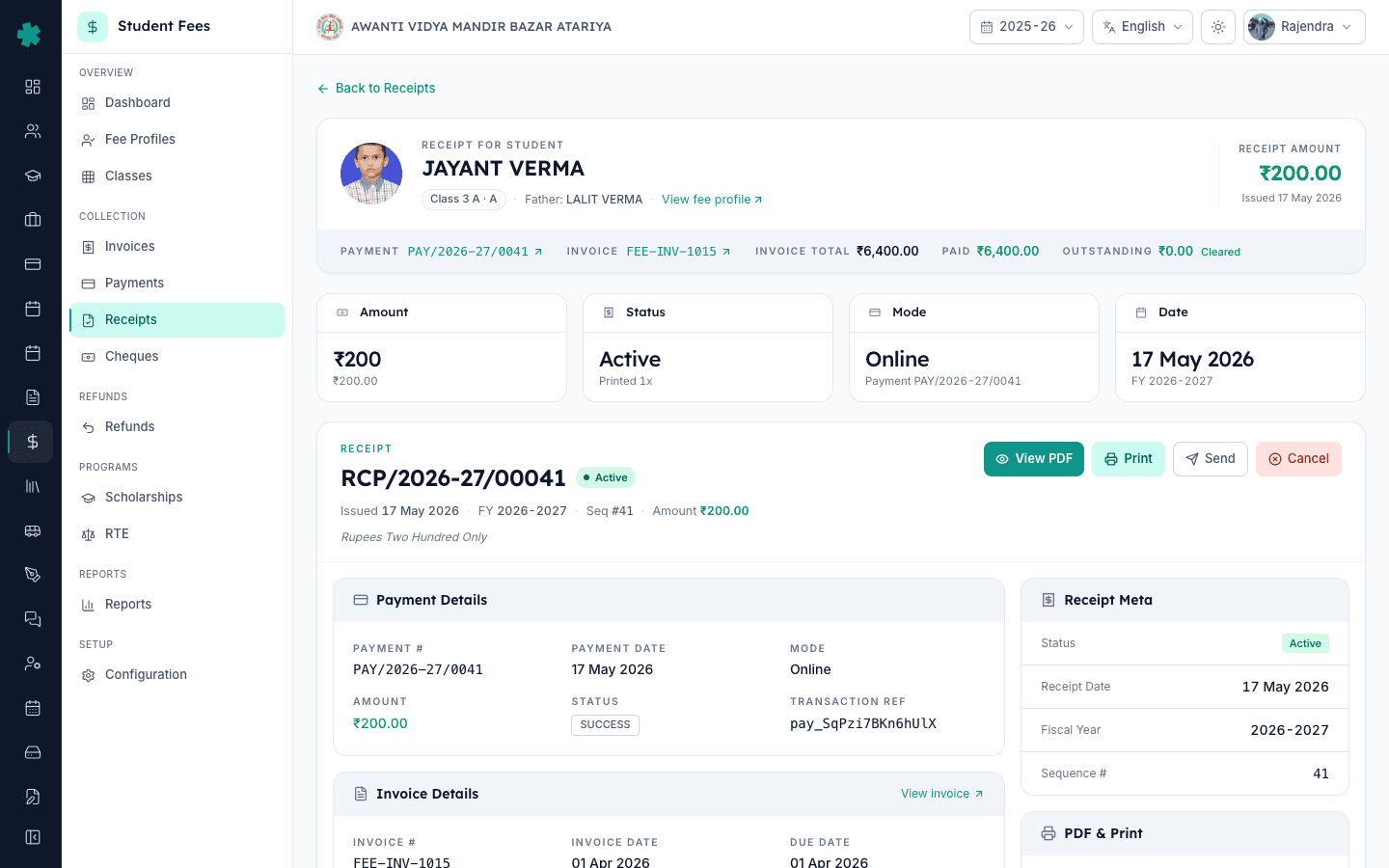
To download or print a fee receipt in Inkwelly: open Student Fee → Receipts, search by receipt number or student name, click the row to open the receipt detail page, then click View PDF to download the A4 receipt or Print to send it to the thermal counter printer. Inkwelly keeps a print-count and last-printed-at audit on every receipt, so duplicates are always traceable.
A fee receipt is the only paper proof a parent walks home with after paying at the school counter, and the same receipt is the document most parents ask for again three months later when filing income-tax returns or tuition-reimbursement claims with their employer. The Right of Children to Free and Compulsory Education Act, 2009 requires schools to issue a receipt for every fee collection (Section 13), and CBSE affiliation bye-laws require affiliated schools to maintain auditable financial records for at least eight years. Inkwelly stores every receipt forever, makes the search take under a second across years of history, and supports both A4 PDF reprints and 80mm or 58mm thermal slips from the same record — so the office never re-creates a duplicate by hand.
1. Open Receipts under Student Fee
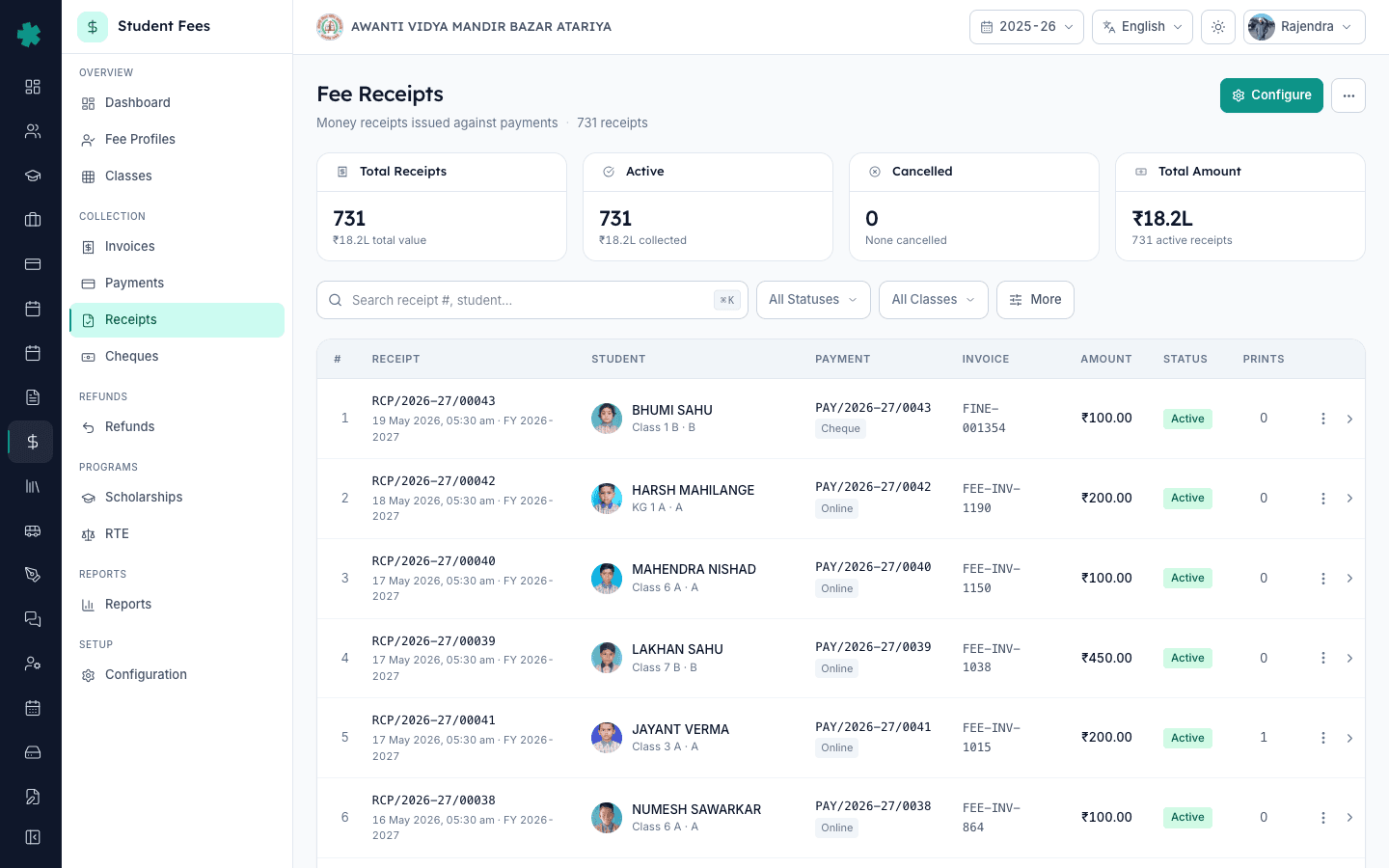
Open Inkwelly → Student Fee from the left sidebar, then click Receipts under the COLLECTION section. Inkwelly lists every receipt the school has ever issued, newest first, with the receipt number, receipt date, student name, payment mode, amount, and status (Active or Cancelled) per row. KPI tiles at the top show total receipts, total amount collected, active count, and cancelled count for the session you have open.
2. Search by receipt number, student name, or class
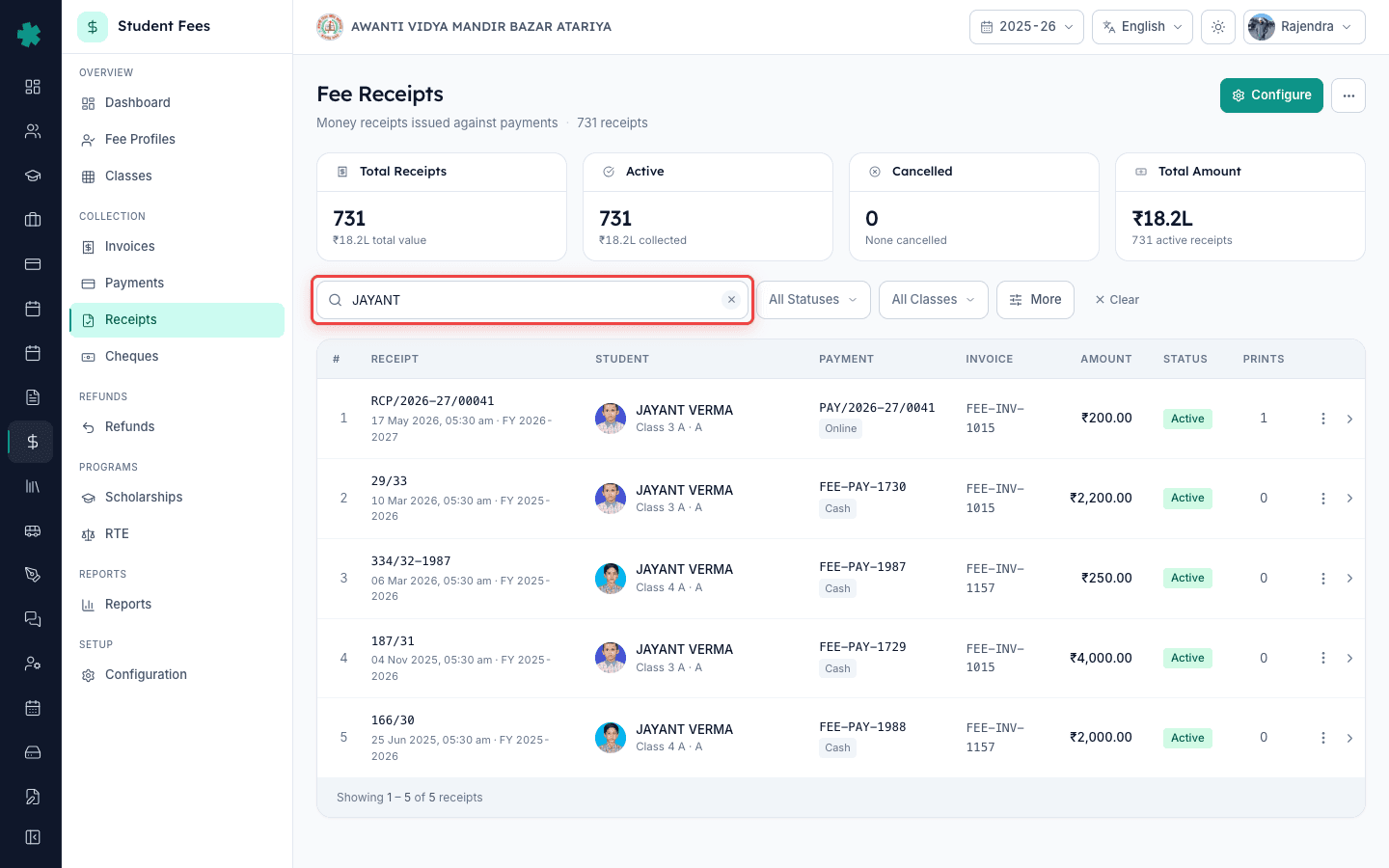
Use the search box at the top of the list — it accepts a receipt number like FR/2025-26/0142, a student name, or an admission number, and filters as you type. The class dropdown narrows the list to one class when a parent asks about a sibling. The date pickers narrow to a date range when an auditor asks for the entire month, and the status tabs (All, Active, Cancelled) help if a parent thinks their receipt was cancelled by mistake. Receipts from past sessions stay searchable for as long as the school keeps the data.
3. Open the receipt to see the full detail
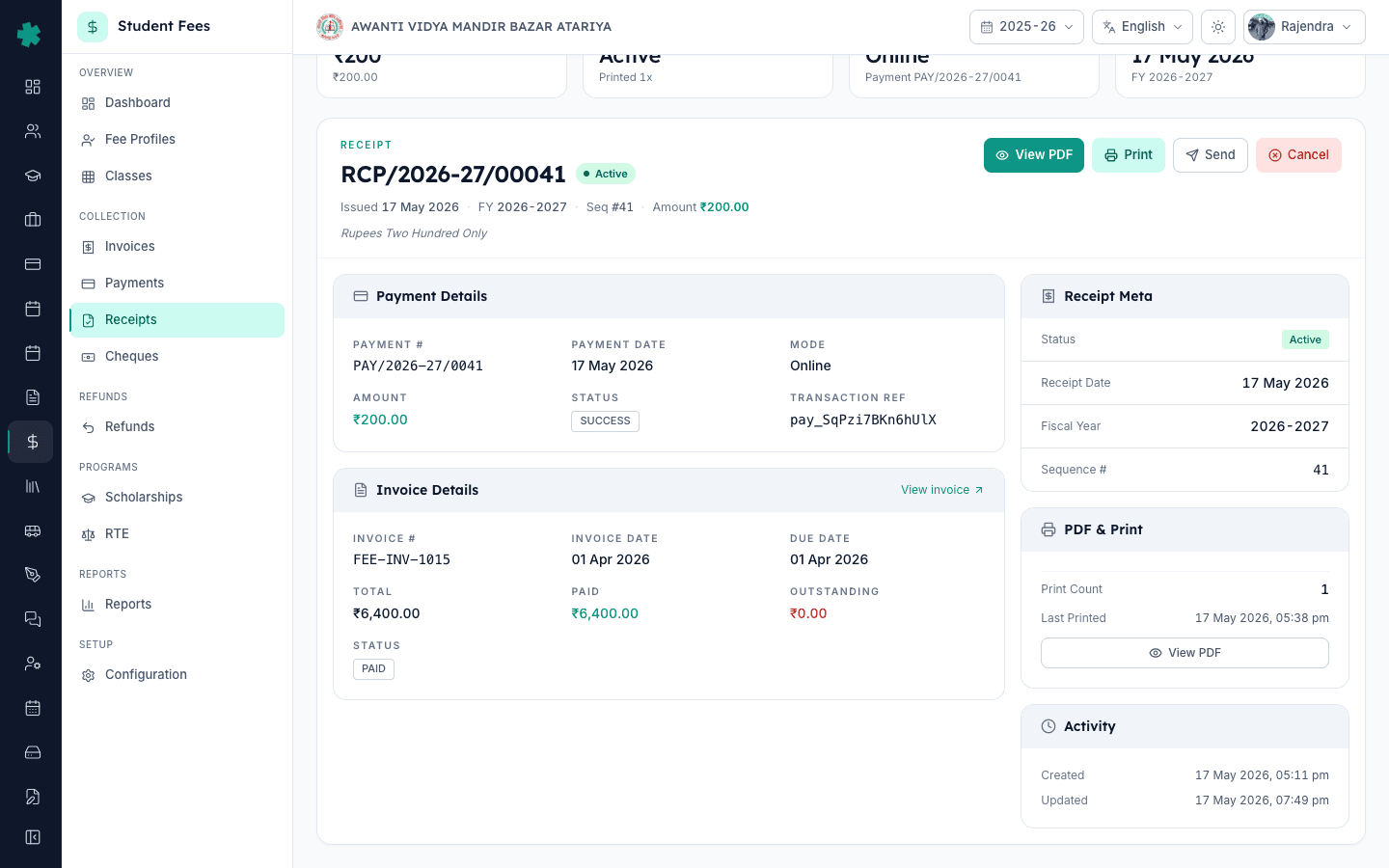
Click the row to open the receipt detail page. The top of the page shows the receipt number, status pill, amount in figures and words, and the issue date. The student identity card shows the student's photo, name, class and section, admission number, and the guardian Inkwelly has on file — so the cashier can confirm they have the right parent in front of them before handing the paper over. Payment Details and Invoice Details sit below in two cards, and the right column shows Receipt Meta, PDF & Print history, and the Activity log.
4. Click View PDF to download the A4 receipt
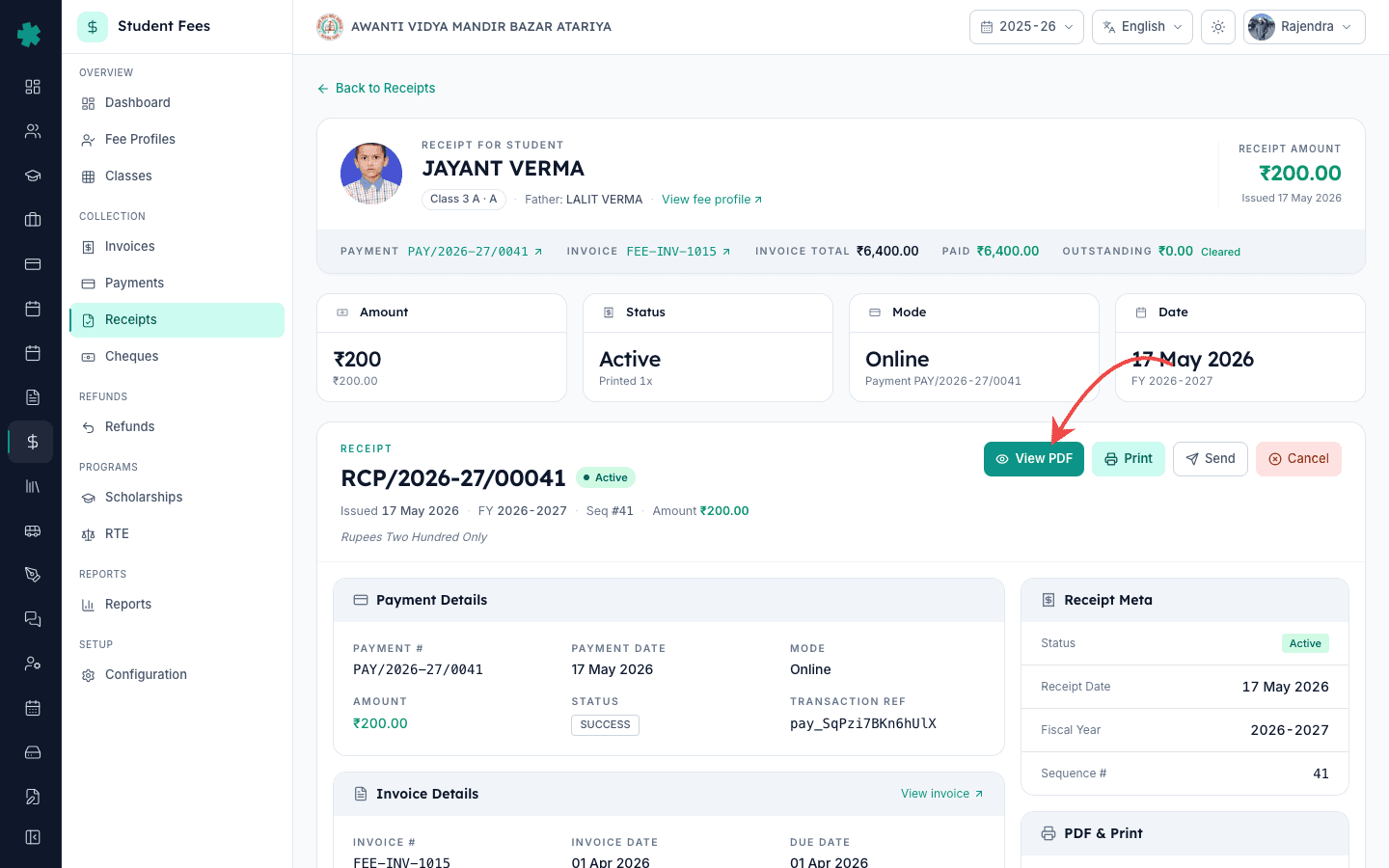
Click the View PDF button on the top-right of the receipt detail page. Inkwelly streams the A4 PDF in a new browser tab using the school's configured Receipt Template — your logo, address, GSTIN (if set), signature, footer terms, and the verification QR all render on the same page. The browser's built-in toolbar shows Download and Print icons; click Download to save the PDF (file name is the receipt number) and email or WhatsApp it to the parent. Each time the PDF opens, the server-side download is recorded against the receipt for auditing.
5. Click Print to send the receipt to the counter printer
Click the Print button next to View PDF. Inkwelly opens a Choose paper size dialog with three cards — Thermal 80mm (standard fee-counter printer like Olivetti PRT80 or Epson TM-T82), Thermal 58mm (compact handheld and budget printers), and A4 / Laser (the same PDF as View PDF, but offered as a fallback when no thermal printer is connected). The card you printed on last time shows a Last used pill so a single-printer school does not have to choose again.
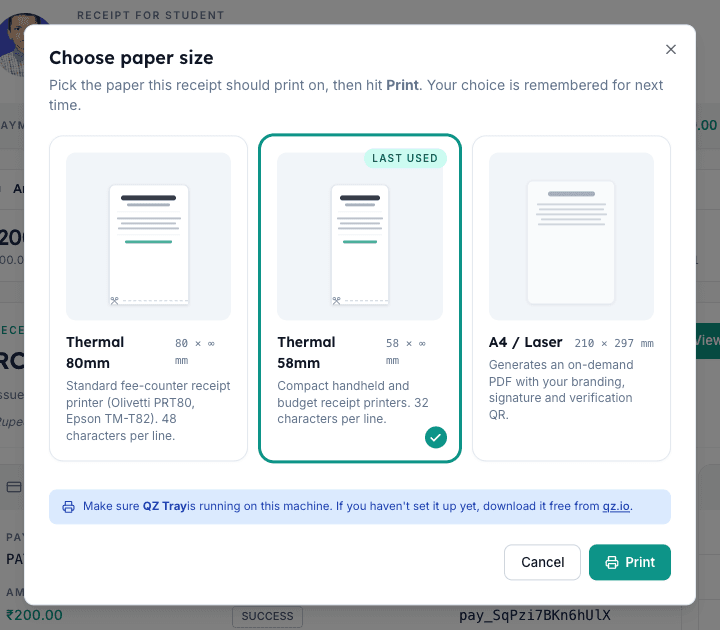
6. Pick the paper size and click Print
Click Thermal 80mm or Thermal 58mm based on the paper roll in the printer, then click Print at the bottom-right of the dialog. Inkwelly talks to QZ Tray running on the cashier's machine, sends the ESC/POS slip with your school header and footer, and auto-cuts the paper at the bottom. The slip lands on the counter in two to three seconds. A4 / Laser instead downloads a fresh PDF in a new tab, ready to send to a laser printer or save to disk.
7. Verify the printed-audit on the detail page
After a successful thermal print, Inkwelly bumps the Print Count on the receipt and updates Last Printed under PDF & Print on the right column. A green Sent to printer toast confirms the print succeeded; if QZ Tray is not running, Inkwelly shows a Couldn't reach QZ Tray message and tells the cashier to install it from qz.io. The audit trail means the principal can always trace how many copies of any receipt the office has handed out, which is the standard auditor question during the year-end book check.
Next steps — if the receipt template you see in the PDF is missing the logo, address, signature, or footer terms, finish the setup using How to customise the receipt template for A4 fee receipts in Inkwelly. If the office uses a thermal counter printer and the Print button shows a Couldn't reach QZ Tray error, follow How to set up thermal receipt printing in Inkwelly first. To resend a receipt to the parent by WhatsApp, SMS, or email without leaving the page, read How to send a receipt to a parent over WhatsApp, SMS or email in Inkwelly.
See Inkwelly Student Fees working in your office
Frequently asked
7 questionsCan I reprint an old fee receipt in Inkwelly six months later?
Yes. Inkwelly keeps every receipt on file forever, and the Receipts list under Student Fee stays searchable across sessions. Search by receipt number, student name, or admission number, open the detail page, and click View PDF for an A4 copy or Print for a thermal reprint. The Print Count on the receipt increments each time so the office knows how many duplicates have been handed out.
Why is the receipt PDF in Inkwelly showing without a logo or signature?
The receipt PDF uses the school's Receipt Template under Student Fee → Configuration → Receipt Template. If the logo, address, signatory image, or footer terms are blank in the template, the PDF prints without them. Open the Receipt Template page, upload the logo under Branding, fill Address & Contact, turn Show signature on under A4 / PDF Receipt, save changes, and reprint.
Can a parent verify a printed Inkwelly receipt is genuine?
Yes. Every Inkwelly receipt prints a verification QR at the top of the A4 PDF (and optionally on the thermal slip). Scanning the QR with any phone camera opens the verify-receipt page on your school's Inkwelly domain and shows the receipt number, student, amount, payment date, and status — so the parent or auditor can confirm the printed receipt has not been tampered with. The QR token rotates if the receipt is cancelled.
Inkwelly me fee receipt kaise download ya print kare?
Student Fee menu kholiye, sidebar me Receipts par click kijiye. Search box me receipt number ya student ka naam dijiye, sahi row par click karke detail page kholiye. Top-right par View PDF dabayiye A4 PDF download karne ke liye, ya Print dabayiye thermal counter printer par bhejne ke liye. Print dialog me Thermal 80mm ya 58mm chuniye aur Print dabayiye — 2-3 second me slip nikal jayegi.
Thermal print Inkwelly se kaise hota hai, separate driver chahiye kya?
Inkwelly thermal printing ke liye QZ Tray ka istemal karta hai — ek free desktop tool jo qz.io se download hota hai. QZ Tray ek baar install karne ke baad har Inkwelly receipt Print button se 80mm ya 58mm thermal printer (Olivetti PRT80, Epson TM-T82, etc.) par bhej sakte hain. Alag CUPS ya raw driver ki zarurat nahi — Inkwelly seedha ESC/POS commands bhejta hai.
Can I print 50 receipts in one go for a class collection drive?
Inkwelly today prints one receipt at a time from the receipt detail page — built for the counter workflow where a cashier hands a slip to one parent at a time. For end-of-month accounting, the Receipts list supports filtering by date or class and exporting the result to CSV for offline records. Bulk reprint on the counter printer is on the roadmap; for now, downloading the A4 PDFs and printing them through the office laser printer works for batch reprint needs.
Will a cancelled receipt still print in Inkwelly?
Inkwelly hides the Print and Send buttons on cancelled receipts so the office cannot accidentally hand a parent a slip for a payment that has been reversed. View PDF still works so an auditor can see the cancelled receipt with the cancellation reason, the cancelled-by user, and the cancelled-at timestamp printed on the PDF — but a fresh thermal print is blocked. To reissue, the office records a fresh payment, which generates a new active receipt.
You might also like
3 readsSources & references
- Right of Children to Free and Compulsory Education Act, 2009 — Section 13 (No capitation fee) · accessed 19 May 2026
The RTE Act prohibits collecting any fee outside the published structure and effectively requires schools to issue a documented receipt for every collection, making download and reprint of past receipts a legal record-keeping requirement.
- CBSE Affiliation Bye-Laws — Chapter VII, Financial Records · accessed 19 May 2026
CBSE bye-laws require affiliated schools to maintain auditable financial records, including issued fee receipts, for inspection during affiliation review and routine audits.
- Income-tax Act, 1961 — Section 80C (Children tuition fees deduction) · accessed 19 May 2026
Parents claim a tuition-fee deduction under Section 80C only against a school-issued receipt; quick reprint of past receipts directly affects the parent's tax filing and the school's customer-service workload around January and February.
See Inkwelly on your school
30-minute demo. We open your current ERP with you and load your data into Inkwelly on the call. Dated go-live plan by the end of it.