Decide what each class learns this session. In one screen, in any language.
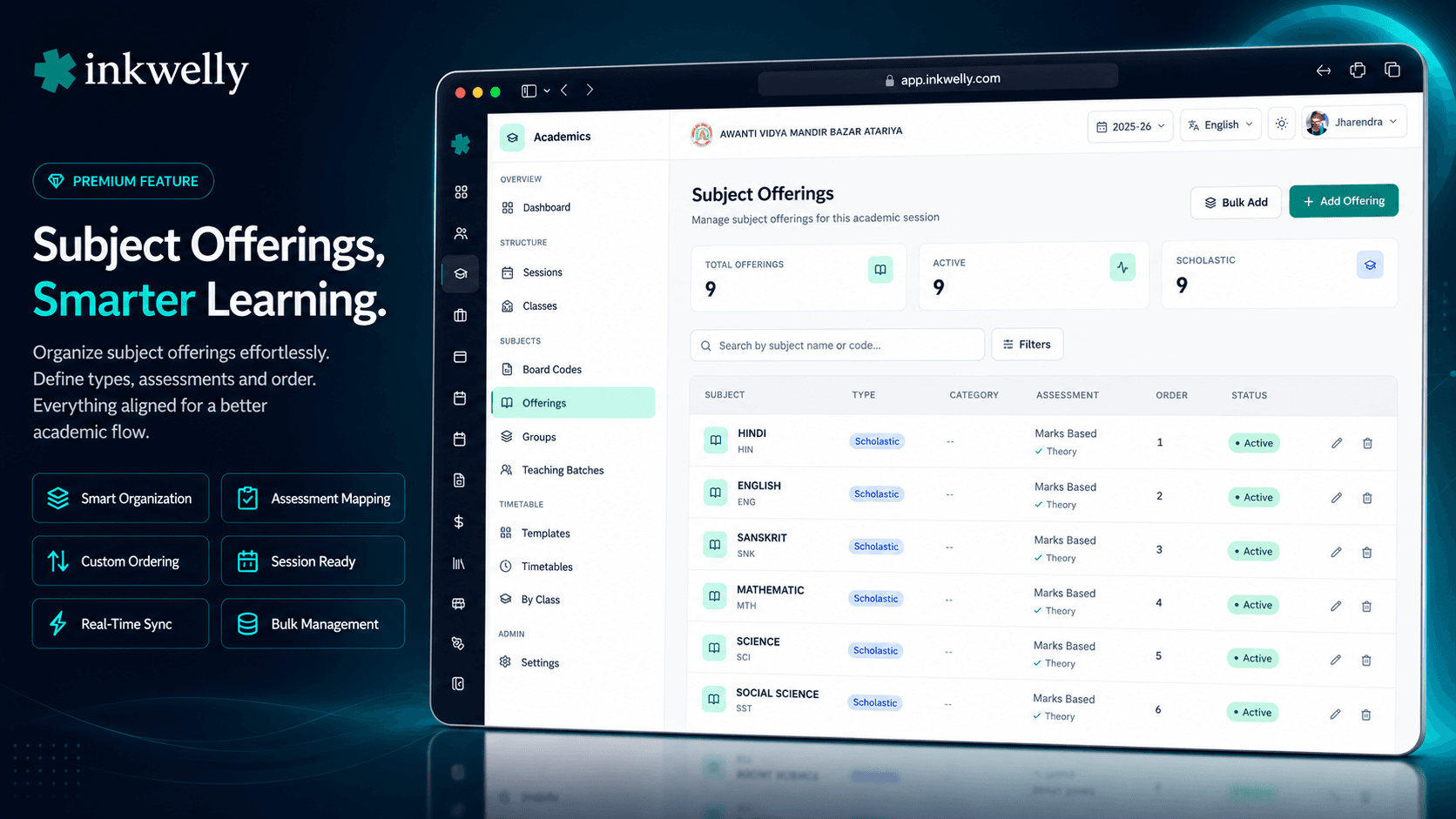
Pick which subjects every class will study this academic session, set display order on report cards, and feed teaching batches, marksheets and the timetable from one screen. Multilingual subject names, bulk add for 50+ subjects, and built for CBSE, ICSE and every State Board.
Why Indian schools need a session-wise subject offering screen
It is mid-March at a CBSE school in Lucknow. The new academic session starts in three weeks. The principal calls in the academic head and asks: which subjects is every class offering this year? The list from last year sits in a printed PDF on the office table. Class 9 added French two years ago — is it still running? Class 11 PCM has the new Applied Mathematics — is it on the report card or only as an additional subject? Three teachers want to know which sections they are teaching, the IT person needs to upload the subject list to the marksheet template, and the printer of the school diary is asking for the subject names by Friday.
The cost of getting this wrong is not abstract. If a subject is missing from the offering, the marksheet template will not include it and the teacher cannot enter marks. If display order is wrong, the report card shows English before Hindi for the Hindi-medium section — a parent complaint waiting to happen. If a co-scholastic subject is left active by mistake, every section gets it on the timetable. Fix it later and three downstream modules — exams, attendance, gradebook — drift out of sync. CBSE affiliation paperwork expects a subject list per class signed off before the session begins.
Inkwelly Subject Offerings is the one place every academic office decides what each class will study this session. Set up once at session start, override during the year if needed, and feed everything else — Teaching Batches, Subject Groups, the marksheet generator and the timetable — automatically.
How Subject Offerings actually works
At the start of every academic session, the academic head opens Academics → Subjects → Subject Offerings and sees the master subject catalogue your school has built up over the years. This catalogue lives at the organization level — once English, Hindi, Mathematics, Science, Sanskrit, Computer Applications and the rest are added, they are reusable across every school year and every branch in your trust.
For the new session, you tick the subjects you actually want to run. Class 11 Science PCM offers Physics, Chemistry, Mathematics, English Core, Physical Education and an optional sixth subject. Class 11 Commerce offers Accountancy, Business Studies, Economics, English Core, Mathematics or Informatics Practices. The same screen shows the assessment mode for each subject — Marks Based, Grade Based, Rubric Based, Portfolio, Descriptive, Competency Based, Qualitative, or Mixed — and the assessment structure flags (Theory, Practical, Internal) so the marksheet template generator can plan columns automatically.
Each offering carries a displayOrder so report cards always print in the order the school wants — most schools want languages first, then core academics, then co-scholastic. An isActive toggle lets you disable a subject mid-year without deleting any history. From there, every downstream module — Teaching Batches, Marks Entry, Exams, Marksheet, Timetable — reads from this screen. No second source of truth, no Excel sheet circulating in WhatsApp.
What gets configured for every offering
- Subject — chosen from the org-level catalogue (English, Hindi, Mathematics, Sanskrit, Computer Applications, Physical Education, Art, Music, and any custom subjects your school has added)
- Subject Type — SCHOLASTIC for academic subjects that affect the marksheet, CO_SCHOLASTIC for art, music, PE, work experience and other graded-not-counted subjects
- Subject Category — MATHEMATICS, SCIENCE, LANGUAGES, SOCIAL_STUDIES, COMPUTER, PHYSICAL_EDUCATION, ARTS, MUSIC and other CBSE/ICSE-aligned categories
- Assessment Mode — Marks Based, Grade Based (e.g., A1/A2 grading), Rubric Based, Portfolio, Descriptive, Competency Based (NEP 2020 ready), Qualitative or Mixed
- Assessment Structure — toggle Theory, Practical and Internal components separately so the marksheet generator builds the right columns
- Display Order — exact integer position on the report card, marksheet, timetable and student profile (most schools use 10, 20, 30 to leave room for inserts)
- Active toggle — flip a subject off mid-session without losing any historical marks, attendance or assignment records
- Multilingual name — every offering inherits the subject's
nameI18nfield with translations for en, hi, ta, te, mr, bn, gu, kn, ml, pa, or, as, sa rendered automatically on parent app and report card - Linked teaching batches — the offering screen shows how many teaching batches currently use this subject, with one click to drill in
- Audit trail — every enable, disable, display-order change and activation is recorded with timestamp and user, exportable for CBSE inspection
Bulk add the entire catalogue in three steps
Opening a new session does not need a thousand clicks. Open Bulk Add Subjects, multi-select 20–60 subjects with quick-select buttons ("All Scholastic", "All Co-Scholastic", "All Visible"), set a starting display order with auto-increment, and tick "set all as active". The system creates every offering atomically. Anything that already exists is skipped with a clear reason — no duplicates, no half-saved state. We have tested 100+ subjects in a single bulk add for K–12 IGCSE schools running 60+ subjects across primary and secondary.
Multilingual subject names, automatically
Every subject your school added carries a nameI18n field with translations for English, Hindi, Tamil, Telugu, Marathi, Bengali, Gujarati, Kannada, Malayalam, Punjabi, Odia, Assamese and Sanskrit. The offering screen, parent app, marksheet and report card all read the right language for the user — Hindi-medium parents see गणित, English-medium parents see Mathematics, the school office staff in Bahraich sees both. No second translation file to maintain, no "language pack" to install. One subject, every language, ready for the parent app.
Display order is sticky, everywhere
Decide once on the report card order — Hindi, English, Mathematics, Science, Social Studies, Sanskrit, Computer Applications, then co-scholastic — and that order propagates to the marksheet, the parent app subject list, the timetable grid, the gradebook, the marks entry screens for teachers, and the student profile. Changing it on the offering screen updates every consumer the next time they render. No five places to keep in sync. We use 10, 20, 30 as default increments so principals can slot in a new subject mid-year without renumbering everything.
Soft disable, never lose history
A subject mid-session change — Class 9 dropped Computer Applications, moved students to a Coding club instead — should not destroy three months of attendance, assignments and term marks. The Active toggle disables new marks entry and removes the subject from the new term's report card while preserving every historical record. Deletion is only allowed when zero teaching batches reference the offering — the API returns SUBJECT_OFFERING_HAS_BATCHES and forces you through the safe path. Audit trail captures who did what, when, with the previous value, ready for CBSE/ICSE inspection.
“Pehle Class 11 Commerce ke liye subjects manually 4 jagah type karte the — admission form, marksheet template, timetable, parent app. Ab session start hote hi ek baar Subject Offerings me daalte hain, baaki sab apne aap ho jata hai.”
Real-world scenarios from Indian schools
1. New CBSE affiliation, K–12 from scratch. A new branch opens in Pune in March 2026. The academic head adds 38 subjects to the org catalogue, opens Subject Offerings for the first session, bulk-adds all 38 with starting display order 10 and auto-increment, then turns off the four subjects that only Classes 6–8 will run. Total time: 22 minutes. CBSE affiliation paperwork prints from the marksheet generator the same evening.
2. Mid-year subject swap in Class 11 Commerce. Three students in Class 11 Commerce A want to drop Informatics Practices and move to Mathematics. The academic head leaves Informatics Practices active for the rest of the section but creates a new teaching batch of Mathematics for those three students. Subject offering stays untouched; the move shows up in the gradebook the next day.
3. Hindi-medium school running mixed Anglo + Hindi report cards. A Sanskrit + English + Hindi school in Bhopal sets display order: Hindi (10), English (20), Sanskrit (30), Mathematics (40), Science (50), Social Studies (60), Computer Applications (70), Art (80), PE (90), Work Experience (100). Parent app and report card pick up nameI18n and render in the right script per parent.
4. ICSE school adding a new optional subject mid-year. Class 9 wants to add Mass Media & Communication mid-September. The academic head creates the subject in the org catalogue, then enables it as an offering for Session 2026-27 only — last year's offerings stay untouched. Audit log captures the addition with the user and timestamp; CBSE/ICSE inspection has full provenance.
5. State Board school scaling from 1 branch to 4. A UP Board trust based in Bahraich opens 3 more branches across the district. The org catalogue is shared. Each branch principal opens Subject Offerings for their own school and ticks the subjects relevant to their student strength — branch 1 runs Sanskrit, branch 4 does not. Same catalogue, different per-school decisions, all auditable from the org dashboard.
Common operations covered
- Add a single offering when a new subject lands mid-session — example: Class 11 wants to add a Punjabi optional
- Bulk add 30+ offerings at session start with auto-incremented display order
- Reorder display via drag-and-drop or by typing the integer directly
- Toggle a subject active or inactive without losing historical attendance, marks or assignments
- Search by subject code or name — search works on Latin and Devanagari simultaneously
- Filter by Type (Scholastic vs Co-Scholastic) or Category (Mathematics, Science, Languages, etc.)
- Drill from any offering into the teaching batches currently using that subject
- Export the full subject offering list per session as PDF — used for CBSE/ICSE affiliation paperwork
- Copy offerings forward to next session in one click — Class 11 promotes to Class 12 with the same subjects offered
- Audit log per offering — every change tracked with user, timestamp, before/after value
See Subject Offerings on real CBSE and State Board data
30-minute walkthrough on a real Indian school session setup. We show you bulk add, multilingual rendering, and how it feeds the marksheet generator end to end.
Limits, safety and the small print
Maximum offerings per session. No hard cap, but production schools comfortably run 60+ offerings (large IGCSE K–12 with primary + secondary mixed). Beyond 100 offerings, the bulk-add wizard chunks the create into batches of 50 to avoid Postgres long transactions.
Subject is immutable after creation. Once a subject offering is created and any student or teaching batch references it, the subjectId cannot be changed — only displayOrder and isActive. To replace a subject, create a new offering and disable the old one. This protects mark history and audit integrity.
Deletion is blocked when teaching batches exist. The API returns SUBJECT_OFFERING_HAS_BATCHES (HTTP 400) if you try to delete an offering that any teaching batch is using. Disable instead — the offering disappears from new marksheets but historical data stays intact for parent-app, transcript and inspection use cases.
Duplicate prevention. A subject can only be offered once per session per school — SUBJECT_OFFERING_ALREADY_EXISTS (HTTP 409) blocks accidental duplicates. The Bulk Add wizard skips duplicates with a per-row reason so a 60-subject bulk import never half-fails.
Multilingual rendering uses nameI18n on the underlying subject. The offering itself does not store its own translations — by design. Update the subject name once at the org level and every school-level offering picks up the new name. Brand-protected names (English, CBSE, ICSE) stay in English script across all locales.
Permissions. Only roles with academics.subject_offerings.write can enable, disable or bulk-add. Teachers see offerings read-only on their teaching dashboard. The role is part of the Identity & Access Management module so a Principal can grant a temporary academic-head role to the new IT person without giving full school admin access.
Belongs to
1 moduleFrequently asked
8 questionsDo we have to set up subjects from scratch every academic session?
No. Subjects live at the organization level — once added, they are reusable across every school year and every branch in your trust. At session start you only tick which subjects each school is offering this year. Use the Bulk Add wizard to enable 20–60 subjects in one go with auto-incremented display order. Most schools complete the entire setup in under 30 minutes.
What happens to marks and attendance if we disable a subject mid-session?
Nothing is lost. The Active toggle disables new marks entry and removes the subject from the next term's report card while preserving every historical record — attendance, term marks, assignments, gradebook entries. Deletion is blocked when any teaching batch references the offering; the API returns SUBJECT_OFFERING_HAS_BATCHES and forces you through the safe Disable path. Audit log captures who disabled and when, ready for CBSE/ICSE inspection.
How does this work for CBSE Term 1 + Term 2 mark grading combinations?
The Assessment Mode field supports Marks Based, Grade Based, Rubric Based, Portfolio, Descriptive, Competency Based, Qualitative and Mixed — covering every CBSE pattern from Class 1 grade-only to Class 12 marks-with-grade. Assessment Structure flags (Theory / Practical / Internal) tell the marksheet generator which columns to print per term. CBSE Co-Scholastic activities use Type=CO_SCHOLASTIC with Mode=Grade Based or Descriptive.
Will the same subject show up in Hindi for one parent and English for another?
Yes. Every subject carries a nameI18n field with translations for en, hi, ta, te, mr, bn, gu, kn, ml, pa, or, as, sa. The parent app, report card, marksheet and student profile all render the right language per user. The same Mathematics offering displays as 'Mathematics' on an English-medium parent's app and 'गणित' on a Hindi-medium parent's app — no duplicate setup needed.
Can different branches of the same trust offer different subjects?
Yes. Subjects live at the organization level so the catalogue is shared across branches, but Subject Offerings are per-school per-session. A trust running CBSE in Lucknow and ICSE in Bahraich can run Sanskrit only at the Lucknow branch and Bengali only at a Kolkata branch — same catalogue, different decisions per school. Each branch's principal opens Subject Offerings for their own school and ticks the subjects relevant to that branch.
What's the difference between Subject Offerings and Subject Groups?
Subject Offerings says which subjects are running at all this session — Mathematics, Hindi, Physics, Painting and so on. Subject Groups says how students choose between them — Class 11 students must pick PCM or PCB, Class 9 students must pick exactly one second language from a pool of three. Both work together: you offer all the subjects first, then create Groups to govern student selection. See Subject Groups for the full elective and stream-management workflow.
How does Subject Offerings feed the marksheet and report card generator?
The marksheet generator reads the active offerings for the session, sorts them by displayOrder, and uses the Assessment Structure flags (Theory / Practical / Internal) to decide which columns to print. Subjects with Type=CO_SCHOLASTIC print on the second page with grade-only columns. Mid-session changes to displayOrder propagate the next time the marksheet renders — no second template to maintain. The same data feeds the timetable grid, the parent app subject list and the student transcript.
Is the subject offering data stored in India?
Yes. All Inkwelly data including subject offerings, marks, attendance and audit logs is stored on servers in Mumbai and is compliant with India's DPDP Act 2023. Backups are encrypted and retained for 30 days. CBSE and ICSE inspections can request and receive the per-session subject offering audit trail in PDF or CSV format directly from the system.
You might also like
2 readsSee Inkwelly on your school
30-minute demo. We open your current ERP with you and load your data into Inkwelly on the call. Dated go-live plan by the end of it.