Every student document — tracked, required, audited. Aadhaar, TC, RTE — never missing again.
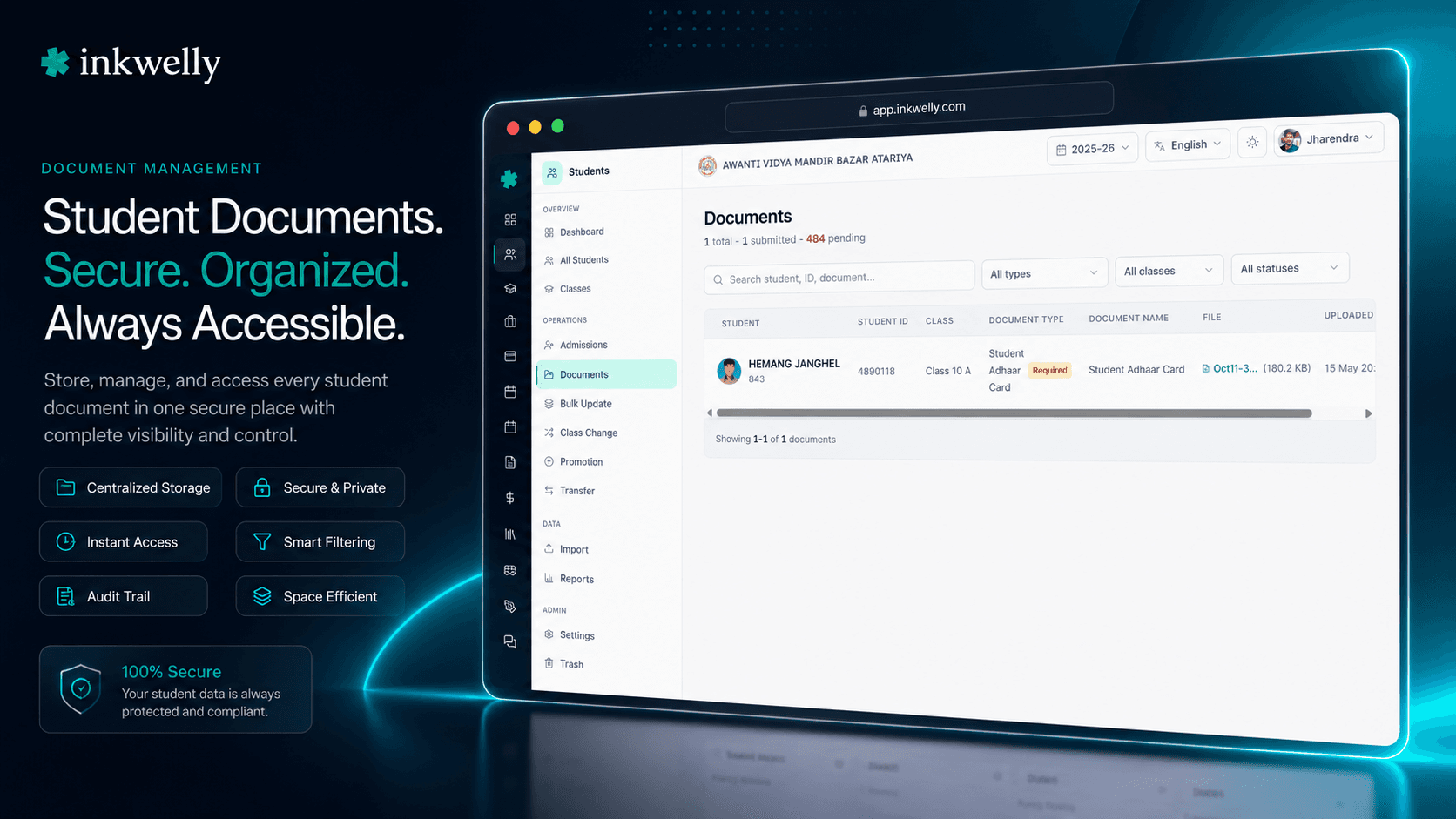
A complete document store inside every student profile, plus a school-wide compliance view across the whole session. Required documents per student show submitted vs missing at a glance. Class-level filters answer the audit question — who's missing what — in 5 seconds. Every upload, edit and delete is audit-logged.
Why Indian schools lose sleep over student documents
The CBSE renewal inspection arrives on a Tuesday morning. The inspector asks for Aadhaar copies of all 847 students enrolled in Class 1 to Class 8. The office assistant has them — somewhere. Some are scanned PDFs in Google Drive. Some are photographed on the principal's phone. Some are in a fat physical folder behind the front desk. Some are in WhatsApp messages from parents. Forty are missing entirely. The inspector gives the school 48 hours to produce a clean list of who has Aadhaar on file and who doesn't, broken down by class.
The office assistant works through the night. She opens 847 student profiles one by one in the school ERP, checks the photos tab, the documents tab, the notes tab. She maintains a parallel Excel sheet of who's missing what. By Friday morning the list is wrong by 30 students because three classes' Aadhaar copies were filed under the wrong document type. The inspector signs off, but the school's renewal is flagged for follow-up. The principal misses 9 hours of sleep over a problem that should have been a 5-second query.
We asked: what if every student document — Aadhaar, birth certificate, Transfer Certificate, EWS certificate, caste certificate, medical record — lived in one structured store, with a per-student required checklist, a class-level compliance dashboard, and an audit log of every upload? So we built Student Documents Management inside the Student Information module. Every CBSE inspector question — who's missing Aadhaar in Class 5 A? — becomes a filter, not an all-nighter.
How Inkwelly Student Documents works
Document storage exists at two levels in Inkwelly — one for the office staff who manage one student at a time, one for the principal or admin who needs to see the whole school's compliance status. Both views read from the same underlying records.
Per-student view — /students/<id>?tab=documents. Open any student's profile, click the Documents tab. The view splits into two sections: Required documents (every document type your organisation has marked as isMandatory: true — typically Aadhaar, birth certificate, TC from previous school, photo, parent ID proof) and Other documents (everything optional — caste certificate, EWS certificate, medical fitness, scholarship forms, character certificates from earlier schools). Required documents show a green ✓ if uploaded and a red ! if missing. The header counts both — 4 of 5 required documents submitted reads at a glance.
School-wide view — /students/documents. Open the Students module, click Documents. A single table lists every uploaded document across the entire academic session — student name, admission number, current class, document type, file name, file size, upload date. Filter by class (Class 5 A, Class 8 Science), by document type (Aadhaar, Birth Certificate), or by free-text student-name search. The header shows live stats — total documents on file, total submitted across required types, total students still pending. Pagination caps at 100 records per page so it stays fast even on a 2,000-student school. Click the external-link icon on any row to jump straight to that student's documents tab.
Upload flow. From either view, click Upload. The dialog asks for the document type (dropdown of your school's configured types, with mandatory ones flagged), an optional document name (defaults to file name), optional remarks, and the file itself. Files go through Inkwelly's MediaPicker — PDFs, JPEG, PNG, HEIC are accepted. The file is uploaded to your school's encrypted media store and linked to the student's document record. Click Save — the required checklist on the per-student view updates immediately. Edit lets you swap the file or change the type. Delete removes both the document record and the underlying media file (audit-logged).
What every student documents tab tracks
- Aadhaar number copy — the 12-digit photo-side scan, mandatory for every Indian school student under DigiLocker / NEP 2020 requirements.
- Birth Certificate — the corporation/panchayat-issued original used at admission to verify date of birth (matches the DOB on the student profile).
- Transfer Certificate (TC) — TC from the previous school, especially critical for class change admissions and CBSE / state-board affiliation audits.
- Caste Certificate — required for OBC, SC, ST and EWS students and all state scholarship applications via NSP and state portals like UP UPSDM, Maharashtra Mahadbt, Karnataka SSP.
- EWS / Income Certificate — for RTE 25% reservation admissions, scholarship claims, and fee waiver applications.
- Photo (passport size) — current academic-year photo used on ID cards, marksheets, the parent app and Bonafide Certificates.
- Parent ID Proof — Aadhaar / PAN / Voter ID of father and mother, increasingly requested by inspections and bank account opening for school fees.
- Migration Certificate / Character Certificate — for new admissions transferring across boards or states; usually mandatory for Class 9, 10, 11, 12 admissions.
- Medical Fitness Certificate — required by residential / hostel schools and many CBSE day schools at admission.
- Scholarship application forms — NSP, NMMSS, Pre-Matric / Post-Matric SC/ST/OBC scheme applications saved per student.
- Disability / divyangjan certificate — for inclusive education tracking and central / state benefits.
- APAAR ID / ABC ID enrollment record — the new NEP 2020 academic identifiers; copy of the issued ID kept on file.
- School-specific documents — your organisation can add any custom document type from
/students/settingsand mark it as required or optional.
Required vs Optional — never confuse the two
Every school has its own list of mandatory documents. CBSE day schools require Aadhaar, birth certificate, TC, photo. Residential boarding schools add medical fitness, parental consent, blood-group certificate. State-board schools collect caste certificate and migration certificate at admission. We don't hardcode a list — your organisation administrator configures it once at /students/settings, marks each type as isMandatory: true or false, and the per-student tab automatically renders the Required documents section with the right checklist.
Missing required documents are shown with a red ! icon and an inline Upload button — the office assistant knows exactly which child is missing what and can fix it in two clicks. Optional documents (caste certificate, scholarship forms, character certificates) live in the Other documents section below and don't trigger a missing-document warning.
Class-level compliance, in five seconds
The school-wide documents view at /students/documents was built for the inspection scenario. Open it, pick a class from the dropdown — Class 5 A — and the table reduces to that section's documents only. Pick a document type — Aadhaar number copy — and the table now shows the 41 students in Class 5 A who've uploaded Aadhaar, sorted alphabetically by student name. The header reads: 47 total students · 41 submitted · 6 pending.
Click on the pending count and switch to the Required documents tab in the per-student view to see each missing student. What used to be an all-nighter — opening 847 profiles, photographing folders, building Excel sheets — is now a 5-second query. CBSE inspections, ICSE re-affiliation visits, RTE compliance audits, state-board renewal — all the same workflow.
Configurable document types — for every Indian board
Indian boards don't agree on what's mandatory. CBSE wants Aadhaar + birth certificate. ICSE additionally wants character certificate from previous school. State boards add caste certificate and migration certificate. International schools (IB, IGCSE) want passport, visa, parent employment letter. Residential schools add medical fitness, blood-group certificate, vaccination record.
Inkwelly doesn't pick one list and force it on you. Your organisation administrator opens /students/settings, clicks Add document type, types the name (Migration Certificate, Vaccination Record, Cambridge Passport Copy), picks isMandatory: true / false, and the type is live across every student's documents tab from the next page load. The school-wide view's document-type filter dropdown picks it up automatically. Switching between CBSE, ICSE, IB, IGCSE, NIOS or state-board document lists is a settings change — never a developer ticket.
Files in one secure store — not WhatsApp, not Drive, not phones
Most Indian schools today store student documents across three or four places — a physical folder, the principal's WhatsApp, the office assistant's Google Drive, the IT teacher's pen drive. When the office assistant who set it up leaves, half the documents are unfindable. We don't tolerate that.
Every document upload goes through Inkwelly's encrypted MediaPicker into your school's media library — AES-256 at rest, TLS 1.3 in transit, hosted on Indian servers (Mumbai region). PDFs, JPEG, PNG, HEIC are all accepted. File metadata (name, size, MIME type) is stored alongside the document record. The view link opens the file in a new tab via signed URL. No file ever leaves your school's tenant. When a teacher leaves, you don't lose any documents — they were never on her laptop in the first place.
“CBSE inspection mein inspector ne Aadhaar list maanga. Pehle hum 800 students ki files dhundhte the. Ab `/students/documents` open kiya, Class filter pe Class 1-8 select kiya, Aadhaar document type filter kiya, list 5 second mein mil gaya. 23 students missing the — 2 din mein parents ko WhatsApp karke upload kara liya. Inspection clean ho gaya.”
When this matters in the school year
March – April: admission week. New admission means the office collects birth certificate, Aadhaar, TC from the previous school, parent ID proofs and photo for every new student. With Inkwelly's required-documents checklist visible during admission, the office assistant cannot mark an admission complete without uploading the mandatory set — closing the gap that produces inspection findings six months later.
May – June: RTE 25% reservation verification. The District Education Officer (DEO) shows up to verify EWS / income certificates of RTE-admitted students. Open /students/documents, filter by document type EWS Certificate, filter by class — every uploaded EWS proof shows up in one view, ready for inspection. Rejected applications get the ! flag back; you call the parent and re-upload.
July – August: CBSE / ICSE re-affiliation inspection. The inspector asks for Aadhaar coverage, birth certificate coverage, TC coverage across all classes. Three filter operations on the documents view answer all three questions. The pending count tells you exactly how many students you need to chase — not a rough estimate.
October: UDISE+ submission. UDISE+ requires per-student Aadhaar / APAAR / ABC ID coverage stats. The school-wide documents view's filter for each ID type produces the count in one click. School admin runs the report on Monday, finishes the UDISE+ submission by Tuesday, instead of the usual two-week scramble.
February – March: TC issuance & graduation. As students transfer out or graduate, the office issues TCs and Bonafide Certificates that reference the original birth certificate, caste certificate, character record. With the document store inside the student profile, the TC clerk pulls every reference document from one tab — not from three folders and a WhatsApp chat.
Common operations Indian school offices run on this
- Inspection-day Aadhaar coverage report — class filter + Aadhaar type filter, in 5 seconds.
- Missing-Aadhaar chase list — open the per-student view, scroll the Required documents section, identify the red ! rows, batch-WhatsApp parents to upload.
- RTE EWS certificate verification packet — class filter +
EWS Certificatedocument type filter for the DEO visit. - TC issuance prep — open the leaving student's documents tab, copy birth certificate + previous TC + character certificate references straight onto the new TC draft.
- State scholarship application packets — caste certificate + income certificate + photo per student, downloaded together for the NSP submission.
- APAAR / ABC ID backfill audit — document type filter for
APAAR IDandABC ID, list every student missing the new NEP 2020 identifiers. - UDISE+ submission readiness — pending counts per Aadhaar / APAAR coverage produced from the documents header stats.
- Onboarding new students mid-year — required-documents checklist on the new student's profile makes sure no document is forgotten under admission rush.
- Legal / parent dispute responses — when a parent raises a withdrawal dispute, the school admin pulls the audit log of who uploaded what and when, in seconds.
- Withdrawal / class change — required documents auto-shown on the leaving student's record so the office cannot close the withdrawal without copies on file.
- Inspection follow-up tracking — flagged students from the last inspection are filtered, chased, uploaded and marked as cleared from the same view.
See Documents Management on your school's data, live in 30 minutes
Bring 5 sample student folders — Aadhaar copy, birth certificate, TC, EWS, photo. We'll set up your document types during the demo and show how the per-student checklist + class compliance dashboard work on your real student list.
Limits, safety, and the small print
File size. Individual file uploads are capped at the standard MediaPicker limit (typically 10 MB per file — covers a high-resolution scanned PDF or photo of a certificate). Larger scans should be downsampled or split. The MediaPicker shows a clear error message when the limit is hit; it never silently truncates.
Supported formats. PDF, JPEG, PNG, HEIC, WEBP. Documents uploaded from a parent's iPhone (HEIC) and an office scanner (PDF) coexist without conversion friction. Inkwelly does not OCR uploaded files — the document record stores the file, not its text content. (OCR is on the roadmap for v2.)
Per-student record limits. No hard cap on documents per student — Aadhaar + birth certificate + TC + caste certificate + medical + photo + 6 scholarship forms is fine. The per-student tab paginates the Other documents section on long lists for performance.
Required vs optional changes. When a document type is changed from optional to required, students who already had it uploaded show ✓ in the new required slot — no migration. Students who don't will show ! the next time the tab loads. The reverse change (required → optional) moves the type out of the required checklist without touching the underlying records.
Multi-tenant isolation. Document records and underlying media files are scoped strictly per-school within multi-school organisations. A parent of two children in two different schools of the same trust will see their children's documents in two separate views — never co-mingled.
Audit log. Uploads, edits, deletes, and document-type changes are all written to the school audit log — user, timestamp, IP address, document type, file name, action verb. The audit log is exportable from the school admin panel and retained for the full lifecycle of the student.
Role-based access. Document upload, edit and delete are gated to school admin and office staff roles by default. Class teachers can view documents for their assigned section but cannot delete. Parents can view their own children's documents through the parent app but cannot delete or edit. All of this is configurable per role from the Identity & Access Management module — your school decides the policy.
Soft-delete is not the default for documents. Deleting a document permanently removes the record and the underlying media file. This is intentional — documents are personal data under the DPDP Act, and parents have the right to deletion. If you need a 'safety net' before permanent deletion, configure the role policy so that only one or two designated admins can delete, and require a confirmation step. (Soft-delete with restore window is on the roadmap as an opt-in setting for v2.)
Belongs to
1 moduleFrequently asked
8 questionsCan we configure our own document types — CBSE, ICSE, IB, state boards all want different lists?
Yes. The organisation administrator opens /students/settings, clicks Add document type, types the name (Migration Certificate, Vaccination Record, Cambridge Passport Copy), and picks Required or Optional. The type appears immediately in every student's Documents tab and in the school-wide filter dropdown. There's no hardcoded list — Inkwelly works for every Indian board and international school structure.
How does the school-wide compliance view help with a CBSE inspection?
Open /students/documents, pick the class filter (Class 1–8), pick the document type filter (Aadhaar number copy). The table reduces to those students' Aadhaar uploads in 5 seconds. The header counts total students vs submitted vs pending. Switch document type to Birth Certificate, repeat. What used to be an all-night exercise — opening 800 profiles, building Excel — is now three filter operations.
What file formats are accepted? Indian parents send scans in many formats.
PDF, JPEG, PNG, HEIC and WEBP are all accepted. Scanned PDFs from office scanners, JPEG photos from a parent's WhatsApp, HEIC from an iPhone all upload without conversion. Each file's size, name and MIME type is shown next to the document record. There's no silent format conversion — what you upload is what's stored.
Where are the actual files stored? Does student data leave India?
Files are stored in your school's encrypted media library, hosted on Indian servers in the Mumbai region — DPDP Act 2023 compliant. Encryption is AES-256 at rest and TLS 1.3 in transit. Files never leave the Inkwelly tenant; they're served via signed URLs that expire on demand. The compliance posture is the same as the rest of Inkwelly's data — no special handling needed for documents.
What happens to a student's documents when the student transfers out or graduates?
Documents stay attached to the student record for the full retention lifecycle defined by your school's policy. When you issue a Transfer Certificate, the underlying birth certificate / TC / character certificate references are read directly from the documents tab — no re-uploading. Once the student is permanently deleted (after the retention period), the documents and underlying files are deleted with the record.
Is there an audit log of who uploaded, edited, or deleted a document?
Yes. Every upload, edit, type change and delete writes to the school audit log — user, timestamp, IP address, document type, file name, action. The audit log is exportable from the school admin panel and is retained for the full student lifecycle. Particularly useful when a parent raises a dispute about a missing document or a document being deleted; you can show them exactly when it was uploaded and by whom.
Can class teachers see and upload documents for their section's students?
By default, class teachers can view documents for their assigned section but cannot delete (delete is gated to school admin and office staff). If you want class teachers to be able to upload too — useful when teachers collect missing documents during parent–teacher meetings — that's a per-role permission configurable from the Identity & Access Management module. Most schools enable upload for class teachers but keep delete admin-only.
Can parents see their child's documents through the parent app?
Yes. Parents see their own child's Documents tab in the parent app — both the required documents checklist (so they know exactly what's missing) and the optional documents on file. Parents cannot delete or edit; uploads from the parent side are routed through a school-approval workflow before they go live. This is configurable by role — schools that don't want parents to see documents can disable the parent-app view.
You might also like
2 readsSee Inkwelly on your school
30-minute demo. We open your current ERP with you and load your data into Inkwelly on the call. Dated go-live plan by the end of it.