Your school's admit card. Your school's design. Logo, header, photo, schedule, footer, signature — every element configurable.
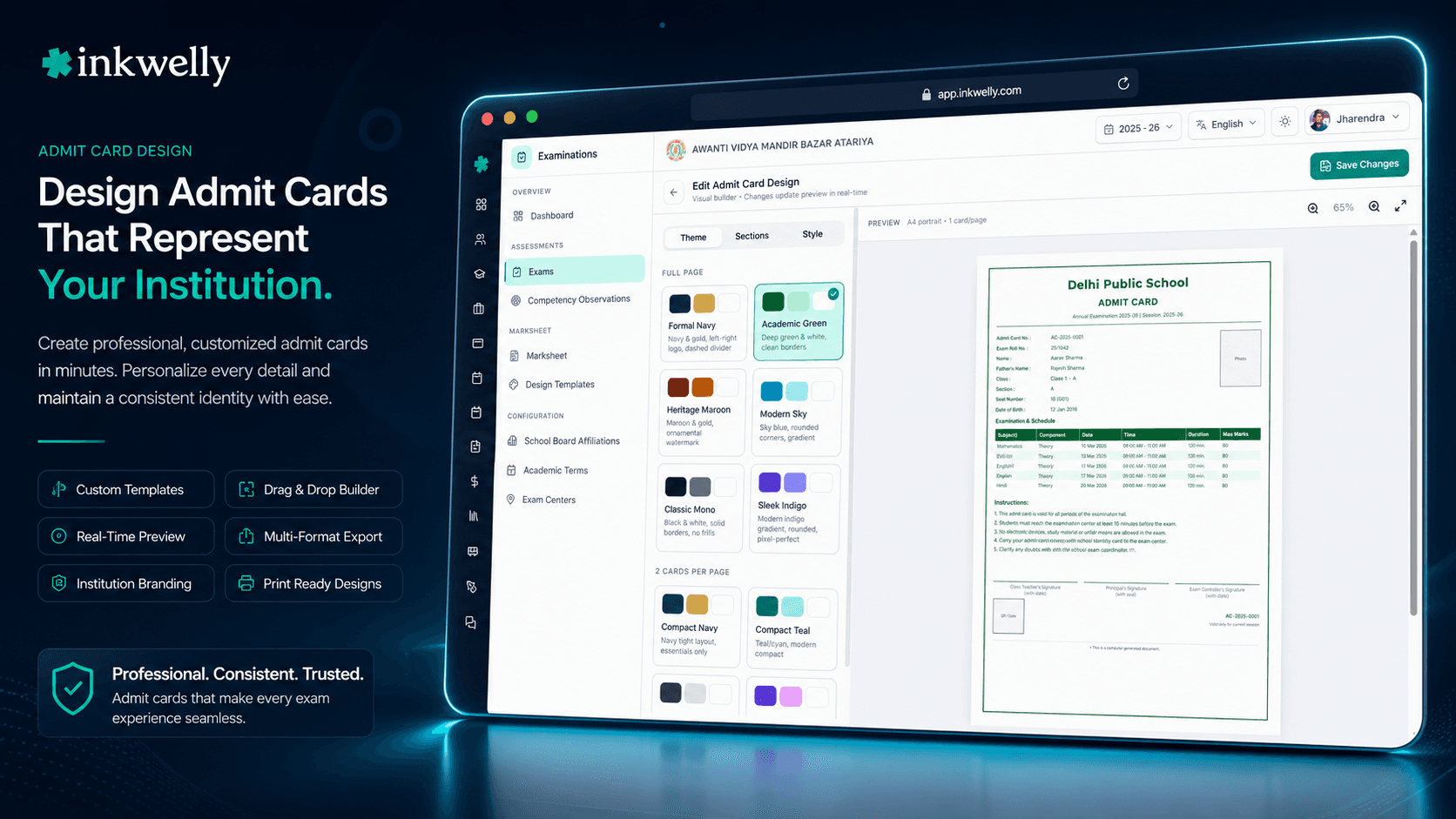
Configure the admit card template once per exam, see the live preview update as you type, and apply it to all 412 admit cards generated from this exam. Custom logo, school name override, student photo placement, exam schedule columns, footer text, signature lines and bilingual name rendering — all from one form.
How most Indian schools design their exam admit cards today
It is the Tuesday before the Class 10 pre-board in a CBSE school in Coimbatore. The exam coordinator opens the file admit_card_2025.docx from last year's drive folder and starts editing. The school logo at the top is half a centimetre too far left because the previous coordinator dragged it when she was preparing the dispatch. The school name still reads the old name from the year before the rebrand. The signature line says 'Mr. Ramachandran, Principal' but Mr. Ramachandran retired in May. The footer's note about the dress code is for last year's pre-board pattern, not the new CBSE circular. Half an hour into editing she realises the schedule table has the old subject codes; the new IT/AI elective is missing entirely.
The cost is not just the Tuesday afternoon. The Word file becomes the master template for every admit card the school issues for the next two years. Every mistake — the misaligned logo, the retired principal's name, the wrong dress code — propagates onto 1,200 admit cards across three exams before someone catches one. Parents notice. Trustees notice. The school's reputation, again, takes a small but real hit. The next coordinator, two years later, opens the same file and inherits all of last year's mistakes. The cycle repeats.
Inkwelly's Examinations module solves this by treating the admit card layout as structured configuration, not a Word file. The school designs the layout once — logo, header, photo placement, schedule columns, footer, signature — from a form with a live preview. Every admit card generated from this exam uses the configured layout. When something changes (a new principal, a rebrand, a new dress code), the school updates the form once and regenerates the affected admit cards. The Word file is gone; the configuration is the source of truth.
How admit card setting works in Inkwelly
The Admit Card Setting screen is a form-based single page with a live preview pane. The form is on the right; the preview on the left. As the coordinator changes a value in the form, the preview re-renders within milliseconds with the new value. The preview shows a real student's data (the first student in Class 10 A by default; selectable from a picker) so the layout is judged against actual content, not a Lorem-ipsum placeholder.
The form is divided into seven sections. First, the header — school logo upload (max 1 MB, recommended 800×240 pixels), school-name override (default reads from the school's master record), board affiliation tag, exam name. Second, the student information block — photo placement (top-right, top-left, center), photo size (small, medium, large), the data fields shown (name, roll number, class and section, parent name, contact number, date of birth) and the order. Third, the schedule table — columns visible (subject, component, date, day of week, time slot, duration, room, building), column order, header style (bold, underlined). Fourth, the QR code — placement (top-right, bottom-right), size, label text. Fifth, the footer text (rich-text editor with markdown support, supports bullet lists for instructions like 'arrive 30 minutes before the paper'). Sixth, the signature lines — number (1, 2 or 3), labels (e.g., 'Principal', 'Class Teacher', 'Exam Coordinator'). Seventh, language settings — primary script (English), secondary script (Hindi, Tamil, Marathi, Bengali, Kannada) for bilingual rendering of student name and school name.
Every field on the form has a sensible default that schools can use as-is. A school running their first admit card in Inkwelly can save the form with all defaults, and the generated card will look professional, with the correct school logo, photo placement, schedule, principal name and verification QR. The customisation comes in over time — the school adds the principal's signature image after the first run, the school adds a regional-language secondary script after a parent request, the school changes the footer text when the CBSE circular changes. Every change is captured in the audit log with the user, timestamp and the prior versus new value.
When the form is saved, the configuration is stored against the exam ID. All admit cards generated under that exam use the configured layout. The Admit Cards generation engine reads the layout configuration at generation time and renders the PDF accordingly. Changing the layout after admit cards have been generated requires a regeneration step — Inkwelly does not silently re-render existing cards. The coordinator clicks 'Regenerate all', the system invalidates existing cards, generates new ones with new admit-card numbers and new QR tokens, and pushes parent-app notifications.
What admit card setting actually configures
- School logo upload (max 1 MB; recommended 800×240 pixels) with placement (left, center, right) and sizing options
- School name override — useful for schools running an exam under a sub-brand or affiliated entity name
- Student photo placement (top-right, top-left, center) and size (small, medium, large) on the card
- Student information fields shown and order — name, roll, class, parent contact, date of birth
- Schedule table columns visible — subject, component, date, day, time slot, duration, room, building
- Schedule table header style — bold, underlined, coloured, or plain
- QR code placement (top-right or bottom-right) and size, with optional label text
- Rich-text footer with markdown support — instructions, dress code, do's and don'ts
- Signature lines — 1, 2 or 3 lines with custom labels (Principal, Class Teacher, Exam Coordinator)
- Bilingual rendering for student name and school name — English plus Hindi/Tamil/Marathi/Bengali/Kannada
- Live preview pane — every form change re-renders the card preview within milliseconds
- Configuration audit log — every change captured with user, timestamp, prior and new value
Logo upload — the small detail every school cares about most
The school logo on the admit card is the single most-noticed element in any school exam document. A pixelated logo, a logo cropped at the wrong proportion, a logo with the old school name written across it — each is the kind of detail a parent forwards to their WhatsApp group with a screenshot. Inkwelly's logo upload is built for the way real Indian schools handle their logos.
The upload accepts PNG, JPEG and SVG. Maximum 1 MB; recommended 800×240 pixels for landscape logos and 480×480 pixels for square logos. The uploader detects the aspect ratio and stores the logo at full resolution; it renders down to the card size on PDF generation, with anti-aliasing applied so the print is crisp at 300 DPI. The school can upload multiple logos and pick one per exam — useful for schools running events under different brand identities (the school's own name for the half-yearly, an affiliated coaching brand for a special pre-board). The logo is stored in Cloudflare R2 with a content-hashed URL; cache invalidation is automatic.
Photo placement — top-right by default, configurable per school's preference
Indian school admit cards have a standardised expectation for photo placement — most CBSE schools place the photo top-right with the student's name and roll number to its left. ICSE schools often place the photo top-center. State Board schools vary. Inkwelly's photo placement field accepts top-right, top-left and top-center, and the size accepts small (3×4 cm equivalent), medium (4×5 cm) and large (5×6 cm).
The photo source is the Student Information Module profilePhotoMediaId field. If a child's photo has not been uploaded yet, the card renders a placeholder with the student's initials in the school's brand color — the parent app shows the same placeholder. The school's compliance team can require photo upload as a hard prerequisite for admit card generation; in that case, a child without a photo cannot have a card generated, and the screen lists the affected children for the office to chase up before the exam.
Schedule table columns — every detail the parent reads before Friday morning
The schedule table on the admit card is the parent's reference document. It tells them which paper is on which day, at which time, in which room. Every Indian board has a slightly different convention — some include 'Day' as a separate column from 'Date', some include the building name when the school has multiple campuses, some require the duration in hours, some prefer the duration in minutes. Inkwelly's schedule table is column-configurable.
The configurable columns are subject, component (Theory / Practical / etc.), date (ISO date), day of the week, start time, end time, duration (hours or minutes), room and building. The school picks which columns to show, in what order, with what header style. The default for a CBSE school is subject, component, date, day, time, duration, room. The default for an ICSE school adds 'Building' for multi-campus schools. The drag-and-drop column reorder is the most-used customisation. The audit log captures the column configuration at the moment of save.
Bilingual rendering — English plus Hindi/Tamil/Marathi/Bengali/Kannada
A growing demand from Indian schools is bilingual admit cards — the student's name and the school's name rendered in both English and the school's regional script. A Hindi-medium school in UP wants the name in Devanagari next to the English version, so the Hindi-medium parent reads the name in their preferred script and the office has the English version for board-level uploads. A Tamil-medium school in Coimbatore wants Tamil; a Marathi-medium school in Mumbai wants Marathi.
Inkwelly's bilingual rendering reads the localised name fields from the Student Information Module (localizedFirstName, localizedMiddleName, localizedLastName) and the school's regional script. When configured, the admit card shows the student name in English on one line and in the regional script on the next, with the school name rendered the same way. The board affiliation tag and the exam schedule remain in English (because the invigilator's QR scan reads English). The bilingual configuration is one toggle per script — schools running multiple regional scripts (a school in Hyderabad with both Telugu and Hindi-medium sections) can configure differently per exam.
“Pichli baar admit card pe pichle Principal sir ka naam tha. Inkwelly ke naye admit card setting form mein ek baar update kiya, sab cards ek saath regenerate ho gaye. Word file ki samasya hi nahi rahi.”
Real-world scenarios for admit card setting
-
A new principal joins mid-session. The retired principal's name is on the school's default admit card layout. The new principal joins on Monday. The office opens the Admit Card Setting form, updates the principal name and signature image, clicks Save. The next exam's admit cards generate with the new name. The audit log captures the change with timestamp.
-
A rebrand of the school's name. The school changes its registered name from 'St. Mary's High School' to 'St. Mary's International School' after a board affiliation change. The office uploads the new logo, updates the school name, clicks 'Regenerate all admit cards'. The 412 admit cards are issued afresh with new names and tokens; parents receive notifications.
-
A regional script added for a Hindi-medium section. The school opens a Hindi-medium section for Class 1-3 in addition to the existing English-medium sections. The Hindi-medium parents request bilingual admit cards. The office enables the bilingual rendering toggle in the form, the preview shows the change, the regenerate action issues new cards. The English-medium section's cards remain English-only.
-
A specific instruction for the dress code on pre-board day. The school decides to require formal school uniform (no PE shoes, no team jerseys) for the Class 10 pre-board. The office adds a footer paragraph with the dress code under the form's footer rich-text section. The preview shows the new footer; the cards regenerate with it. The footer wraps to two lines on the smallest paper sizes.
-
A custom QR placement for a tighter card layout. The default QR position is top-right but a particular school's logo is so wide that the QR overlaps. The coordinator changes the QR placement to bottom-right via the configuration form, the preview updates, the cards generate with the QR at the bottom. The size of the QR is increased to match the new placement.
Common operations on this screen
- Configure logo — upload, position, size, multiple logos with picker
- Configure header — school name override, board tag, exam name
- Configure student information — photo placement, fields shown, order
- Configure schedule table — column visibility, column order, header style
- Configure footer — rich-text with markdown, instructions, dress code
- Configure signature lines — 1/2/3 lines with custom labels
- Configure language — primary English plus optional regional script
- Save as default — future exams inherit the configuration
- Regenerate affected cards — invalidate old, issue new with new tokens
- View configuration audit log — every change captured with user and timestamp
See the admit card layout designer running on your school's brand
Bring your school logo, your principal's signature image and your last year's admit card. We will configure the layout in 10 minutes and show you the new admit card live.
Limits, safety and the small print
The admit card layout configuration is per-exam by default. The 'Save as Default' option creates a school-wide default that new exams inherit. Per-exam overrides remain editable independently of the default. Changing the default does not silently update existing exams — each exam's configuration is its own row, and the regeneration of admit cards is an explicit action.
The rich-text footer accepts a constrained subset of markdown — bold, italic, bullet lists, line breaks, but no inline images, no HTML, no script tags. The constraint is a security choice; arbitrary HTML on a printed admit card is a vector for injection attacks. The footer is rendered server-side on PDF generation, with the markdown sanitised before render. Footer length is capped at 800 characters to prevent unbounded card sizes.
The logo upload is constrained to 1 MB and to PNG, JPEG or SVG. Larger files are rejected at upload time with a specific error. The uploader stores the file in Cloudflare R2 with a content-hashed URL; cache invalidation is automatic. Logos uploaded by one school are isolated to that school's tenant; cross-school logo access is blocked at the API layer. Logos that contain executable content (SVG with embedded scripts) are sanitised before storage; only static graphics elements survive.
Belongs to
1 moduleFrequently asked
7 questionsCan I have different admit card layouts for different exams?
Yes. The configuration is stored per exam by default. The school's default layout is inherited at exam creation but can be overridden per exam. The Class 1 unit test may use a simpler layout (no QR, no signature) while the Class 10 pre-board uses the full layout (logo, photo, QR, dual signatures, footer). Per-exam overrides are independent of the school default.
Does changing the layout regenerate existing admit cards automatically?
No. Changing the layout configuration does not silently re-render existing admit cards. The coordinator must explicitly click 'Regenerate all' to issue new cards. The regenerate action invalidates the old cards (their QR tokens fail verification) and issues new cards with new tokens. Parents receive notifications. The audit log captures the regeneration.
Can I include a custom watermark or background design?
Custom watermarks are supported via the optional 'Watermark Image' upload — a transparent PNG that renders at 10-15% opacity behind the card content. Background colors and gradients are supported via the form's 'Background' section. Custom CSS or HTML overlay is not supported — the layout is the structured configuration, not arbitrary HTML.
How does the bilingual rendering handle long student names?
The card layout reserves space for two lines of student name — one for English, one for the regional script. If a name exceeds the reserved width, the renderer applies a smaller font size automatically until the name fits. Names exceeding 100 characters in either script trigger a 'name too long' warning at generation time, and the coordinator is asked to verify the localised name field on the student record.
Can the layout designer preview a specific student's card?
Yes. The preview pane has a student picker that defaults to the first student in the first attached class. The coordinator can pick any student to preview their card with their actual data — photo, name, parent contact, schedule. This is useful for verifying that the layout works correctly for students with long names, missing photos or special characters.
Does Inkwelly support QR codes that work in offline scanners?
Yes. The QR data includes a base64-encoded snapshot of the card so an offline scanner can verify the card was issued by Inkwelly without a network connection. The full live verification (latest photo, current schedule) requires a network connection, but the offline snapshot is sufficient for invigilator-side identity verification at exam centers in poor-connectivity areas.
Can I export the layout configuration to share with another school?
Yes. The 'Export Configuration' option produces a JSON file with the entire layout configuration (excluding the logo, which is school-specific). Another school can import the JSON via 'Import Configuration', upload their own logo, and have a near-identical admit card layout in 60 seconds. This is useful for school chains running unified branding across multiple campuses.
You might also like
2 readsSee Inkwelly on your school
30-minute demo. We open your current ERP with you and load your data into Inkwelly on the call. Dated go-live plan by the end of it.