Every paper. Every room. Every batch. Allocations, time slots and overflow batches — one screen, no clipboard.
Allocate every component of every subject of every class to a specific room with a specific date, start time, end time and batch number. Inkwelly handles overflow batches automatically when room capacity is short, supports inter-school exam centers and rotates roll numbers within rooms to satisfy seating-plan rules.
How most Indian schools allocate exam rooms today
It is a Wednesday afternoon, three days before the Class 10 pre-board begins, in a CBSE school in Lucknow with 412 children sitting the paper. The exam coordinator is on her feet in front of a printed school map taped to the wall in the staff room, holding a clipboard with class-wise student lists, drawing arrows from rooms to subjects with a marker and erasing them when she realises Room 204 has only 32 seats but Class 10 A has 38 students. The PT teacher walks in to ask which room he should invigilate. The Hindi teacher who is also doubling as an invigilator wants to know where she should be at 8:30 AM on Friday. The principal asks for a printout of the seating plan for the trustees by Thursday morning. The clipboard is the only source of truth, and it is being held by one tired person.
The cost is not just the Wednesday afternoon. The Class 10 A overflow batch is decided on the spot — 6 children moved to Room 207, but no one writes it down, and on paper day Friday morning two of those children walk into Room 204 because the printed admit cards still show Room 204. The English Practical paper has 18 children with the same room as the Maths Theory paper at the same time slot — a mistake nobody catches until the invigilator stands in the doorway with two competing rosters. The board pre-board has been declared an inter-school event, and the visiting school's children show up Friday morning with admit cards that say a different building number. Everything that goes wrong on paper day is a downstream symptom of the clipboard.
Inkwelly's Examinations module fixes this by treating room allocation as structured data, not a clipboard. Every component of every subject of every class is allocated to a specific room with a specific date, a specific start and end time, a specific batch number and a specific maximum students per seat. Overflow batches are created automatically when room capacity is short. Inter-school centers are first-class entities with their own admit-card stamps. The clipboard becomes a screen, and the screen is the source of truth for everything downstream — admit cards, invigilation schedule, parent app date sheet.
How room allocation works in Inkwelly
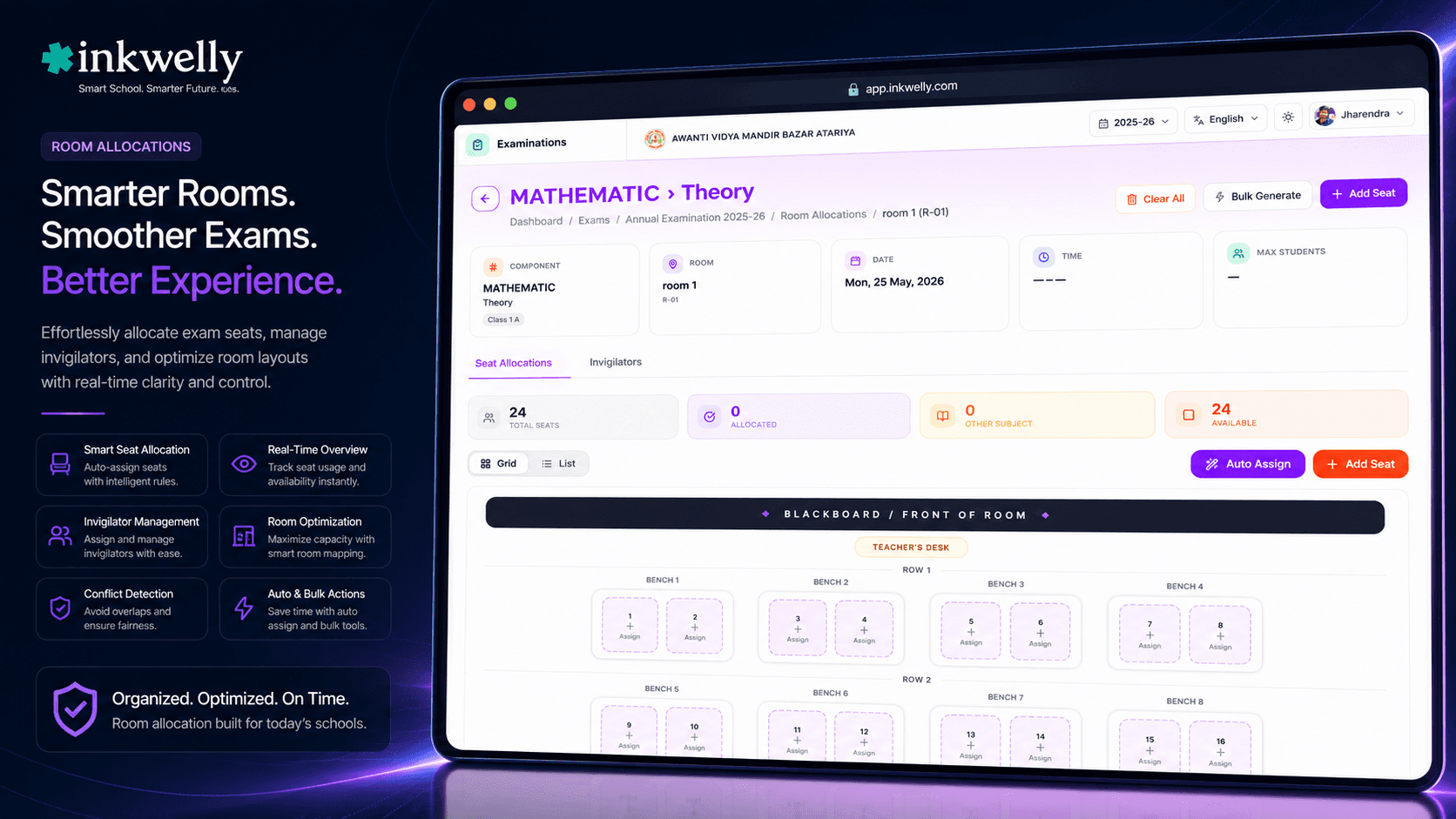
When the coordinator opens the Exam → Room Allocations screen, she sees a sortable table with one row per allocation. Each row shows the exam date (ISO date), the subject, the component (Theory / Practical / Internal / Oral / Project), the assigned room, the start time, the end time, the batch number and the maximum students per seat. The screen has a fuchsia/violet/purple gradient header and a primary 'New Allocation' button that opens a wizard — pick a date, pick a subject component, pick a room, pick a time slot, pick a max-students cap.
The wizard is the entry point but the table is the workhorse. Most allocations are bulk-created from a 'Generate Allocations' shortcut that takes the Class assignment attached classes, the Subject configuration component shapes and the available rooms, and produces a candidate allocation set the coordinator can review and edit. The candidate set respects room capacity — if Class 10 A has 38 children and the assigned room holds 32, the wizard automatically creates two batches with 32 and 6 children respectively, allocated to two different rooms or two different time slots. The coordinator overrides the candidate before saving; the saved allocations write to the audit log with the user, timestamp and the wizard input snapshot.
For every allocation, Inkwelly stores six data points that drive every downstream artifact. examDate is the ISO date of the paper. examSubjectComponentId links to the specific component of the specific subject. examRoomId links to a room in an exam center (a school may have many centers; a center may have many rooms; a room has a name, a building, a capacity, a wheelchair-accessible flag). startTime and endTime are the time window. batchNumber is the batch identifier (Batch A, Batch B, etc.) when overflow happens. maxStudents is the cap, which respects the room's physical capacity but can be reduced for distancing or invigilation reasons.
The table is filterable by date, by room, by subject and by class, and sortable by examDate, startTime and batchNumber. The most common filter is 'Friday Class 10 papers' — the coordinator pulls a filtered view, prints it, and hands it to the four invigilators with a one-line briefing. The Friday view is the seating plan; the printed PDF carries the school logo, the exam name, the date, the room number, the invigilator name and the student list per room with roll numbers.
What room allocation actually does
- Per-component allocation — every Theory, Practical, Internal, Oral and Project paper has its own room and time slot
- Auto-generate allocations from class + subject + room data — candidate set in seconds, coordinator overrides before save
- Overflow batches — when room capacity is short, the system auto-creates Batch A, Batch B, etc. with appropriate caps
- Per-room
maxStudentscap — respects physical capacity, reducible for invigilation or distancing reasons - Inter-school exam centers — visiting schools' children allocated to host school rooms with both school stamps on the admit card
- ISO
examDateper allocation — every paper has its own date, no 'common date' assumption - Sortable by
examDate,startTimeandbatchNumber— the Friday view is the seating plan - Filter by date, room, subject or class — most-used view is the per-day per-room seating plan
- Bulk create allocations for a whole exam in one wizard pass — 12 minutes for a 24-paper exam in our test schools
- Edit
startTimeandendTimeper allocation — useful when a paper is rescheduled by 30 minutes - Audit log on every write — user, timestamp, prior values and new values, exportable to PDF for the affiliation cell
- Print PDF — per-room seating plan with student list, roll numbers and invigilator name
Per-component allocation — not just per subject, per component
A real CBSE Class 10 Science paper has Theory (80) and Practical (20) on different days. The Theory is in a regular classroom; the Practical is in the Science Lab. The Theory has 38 children in 90 minutes; the Practical has 6 children at a time across multiple slots. Treating Science as 'one paper in one room at one time' would miss every detail that matters.
Inkwelly allocates per component, not per subject. Each examSubjectComponentId gets its own room, time and batch. The Theory allocation may be Friday 9 AM in Room 204 with 32 students; the Practical may be Friday 12 PM, Friday 2 PM and Friday 4 PM in the Science Lab with 8 students each. The same screen shows both. The seating plan PDF shows the right room for the right paper at the right time. The admit card carries the per-component schedule. There is no abstraction collapsed into a single row; every component is its own first-class allocation.
Auto-overflow batches — when capacity is short, the system splits the class
The most common reliability gain in school exam logistics is automatic overflow handling. A Class 10 A with 38 children and an assigned room with 32 seats is the textbook case. Inkwelly's wizard automatically computes the overflow — 32 in Batch A in Room 204 from 9 AM to 12 PM, and 6 in Batch B in Room 205 from 9 AM to 12 PM (same time slot, different room) or in Room 204 from 1 PM to 4 PM (same room, different time slot — only viable if no other paper is using the room that afternoon). The coordinator picks one of the proposed strategies; the system writes the batch numbers; the admit cards carry the right room and time per child.
For very large schools — senior secondary schools with 4-5 sections per Class 12 — the overflow strategy can be set per exam. 'Same room, different time slot' is the strategy when the school has limited rooms but flexible time. 'Same time, different room' is the strategy when the school has many rooms but a tight invigilation window. The coordinator picks once per exam; the wizard applies it across every overflow case.
Inter-school exam centers — when one school hosts another
For pre-board mock exams in CBSE schools, it is common for two or three nearby schools to host each other's children at one center to mimic the actual board exam experience. Inkwelly's exam center model supports this natively. A MarketingExamCenter (sorry, ExamCenter) row carries the school identity; rooms belong to centers; allocations point to rooms. When a visiting school's Class 10 sections are linked through the Class assignment feature with the visiting school's identity, the allocations to the host school's rooms carry both school IDs.
The admit card for a visiting student carries both the host school's name (where the paper is sat) and the visiting school's name (which issued the admission). The host school's invigilator gets a per-room student list with the visiting students marked separately. The marks entry workflow respects this — the visiting school's marks go back to the visiting school's Subjects screen, not the host's. The audit log captures both school IDs on every write.
Roll number rotation within rooms — the seating-plan rule that prevents copying
A basic rule of seating plans is that no two consecutive students from the same class should sit in adjacent seats. CBSE explicitly recommends this for the board exam, and many schools adopt it for the pre-board too. Doing this manually with 38 children in a 32-seat room is the kind of work that the office assistant gets wrong on the third try.
Inkwelly's seating-plan generator takes the room's seat layout (rows and columns), the student list with their roll numbers, and the no-adjacent-same-class rule, and produces a placement that satisfies the constraint. For inter-school centers, the rule is stronger — no two adjacent students from the same school. The generated PDF shows each seat with the student's roll number, name and class. The class teacher receives the PDF in advance for the morning briefing. There is no manual labour, no missed adjacency, no last-minute swap.
“Pichli baar Class 10 ka pre-board mein 6 bachhe galat room mein chale gaye the. Office mein 30 minute ki delay. Is baar Inkwelly mein har bachhe ke admit card pe room number sahi tha. Friday ko paper sahi waqt pe shuru hua.”
Real-world scenarios for room allocation
-
A senior secondary school with 18 sections in Class 11. The school runs the half-yearly across 14 working days, with 4-5 papers per day. Inkwelly's bulk wizard generates 252 allocations (18 sections × 14 subjects) in 12 minutes. The coordinator reviews, finds 4 candidate overflow cases, picks the 'same time, different room' strategy for three and the 'same room, different time' strategy for one. The save writes 252 audit log entries.
-
A Class 10 board pre-board hosted at a sister school. The school's own facility is being repaired; the principal arranges to host the pre-board at a sister CBSE school 4 km away. Inkwelly creates an
ExamCenterrow with the sister school's identity, links the rooms, and allocates the school's Class 10 sections to the sister school's rooms. The admit cards carry both schools' stamps and the sister school's address. -
A Practical paper with 8 students per slot across 6 slots. The Class 12 Biology Practical has 38 children and the Science Lab has 8 stations. Inkwelly creates 5 batches (Batch A through E) of 8 children each and one Batch F of 6 children, allocating each to a different time slot from 8 AM through 4 PM on the same day. The 6-batch sequence shows up cleanly on the per-day per-room view; the lab assistant has the 6 sequential rosters in hand.
-
A regional bandh shifts the paper by 24 hours. The Class 9 Hindi paper scheduled for Tuesday is shifted to Wednesday because of a regional bandh. The coordinator opens the allocation row, edits the
examDatefrom Tuesday to Wednesday, the audit log captures the change. The admit cards re-print automatically with the corrected date; the parent app and WhatsApp notify the affected parents. -
A wheelchair-accessible classroom for a child with mobility constraints. The Class 10 A has one child whose admission record carries a mobility constraint. The room assigned to Class 10 A's Friday paper is on the second floor. The coordinator opens the room data, sees the wheelchair-accessible flag is unchecked, and reassigns Class 10 A to a ground-floor room (Room 105) that is wheelchair-accessible. The system flags this child as a per-batch override on the seating plan PDF.
Common operations on this screen
- Create a new allocation — pick component, room, date, time, max students
- Bulk-generate allocations from class + subject + room data — review candidate set, override, save
- Edit an existing allocation — change date, time, room or batch number
- Split a class into overflow batches — same time / different room or same room / different time strategy
- Delete an allocation — audit-logged with reason; downstream admit cards re-print
- Print per-day per-room seating plan PDF — the morning briefing artifact for invigilators
- Print per-class date sheet PDF — the parent-facing artifact attached to admit cards
- Filter by date, room, subject or class — the Friday view, the Room 204 view, the Science Practical view
- Sort by
examDate,startTimeorbatchNumberfor the morning briefing - Resolve time slot conflicts — system blocks impossible allocations at save time
See exam room allocations running on your school's data
Bring your room layout and last term's class list. We will run the wizard live and show you the seating plan PDF generated for a Friday paper.
Limits, safety and the small print
Room allocations are governed by the exam lifecycle. Allocations can be edited freely while the exam is in DRAFT or SCHEDULED. Once IN_PROGRESS, edits require an audit-logged reason and trigger admit-card regeneration. Once a paper has been sat (the audit log records an examConducted flag from the invigilator's tap-in), the corresponding allocation becomes read-only with the locked seating plan archived for the affiliation cell.
The save-time validation checks for three classes of conflict. Student-level conflict — a child cannot be allocated to two rooms at the same time — is blocked outright. Room-level conflict — a room cannot host two different papers at the same time — is blocked outright. Capacity conflict — a room's maxStudents cap cannot be exceeded — is blocked at save with a 'create overflow batch' suggestion. The coordinator cannot create an impossible allocation by mistake.
For inter-school exam centers, both schools' identities are written to the allocation row and to every downstream artifact — admit card, seating plan PDF, marks entry roster. The visiting school's marks go back to the visiting school's Subjects workflow; the host school sees only invigilation data. Cross-school data isolation is enforced server-side; an invigilator at the host school cannot accidentally see the visiting school's marks. The audit log carries both school IDs on every cross-school write.
Belongs to
1 moduleFrequently asked
7 questionsHow does the wizard decide between same-time-different-room and same-room-different-time for overflow?
The wizard reads a per-exam configuration field. The default is 'same time, different room' because most schools have rooms but tight time windows. Schools with limited rooms but flexible time set 'same room, different time'. The coordinator can override per allocation; the override is logged.
Can I allocate a paper to multiple rooms simultaneously?
Yes. A subject component with overflow creates multiple allocation rows, each pointing to a different room with the same exam date and time. Batch A in Room 204, Batch B in Room 205, both at 9 AM on the same Friday is the canonical example. The seating plan PDF shows each room separately.
What happens when a paper is rescheduled?
The coordinator edits the `examDate` (and optionally `startTime` / `endTime`) on the allocation row. The audit log captures the change. Admit cards regenerate automatically; the parent app date sheet updates within the next revalidate window; the affected parents receive a WhatsApp notification with the new schedule.
Are wheelchair-accessible rooms supported?
Yes. Each room carries a `isWheelchairAccessible` flag. When the wizard generates allocations, it preferentially places classes containing children with mobility constraints in accessible rooms. The constraint comes from the [Student Information Module](/modules/student-information) accessibility flag, which respects DPDP-Act privacy.
How does the seating plan handle no-adjacent-same-class rules?
The seating plan generator solves a constraint-satisfaction problem using the room's seat grid (rows and columns) and the student list. For inter-school centers, the constraint extends to no-adjacent-same-school. The generator finds a satisfying placement or reports infeasibility with a specific message ('cannot place 38 students in a 32-seat room with no-adjacent-same-class — reduce class size or use overflow batch').
Can I print the seating plan as a single PDF for all rooms on a day?
Yes. The 'Print Day Plan' export creates a single PDF with one page per room, ordered by start time. The principal hands one PDF to each invigilator at the morning briefing; the coordinator keeps the master copy for the office. The PDF carries the school logo, the date, the exam name and the school's seating-plan rule statement.
Does Inkwelly support multiple exam centers for the same exam?
Yes. An exam can have multiple `ExamCenter` rows if the school is hosting at multiple sites. Each center has its own rooms, its own invigilation roster and its own admit-card stamp. The allocation table can be filtered by center; the per-center seating plan exports separately.
You might also like
2 readsSee Inkwelly on your school
30-minute demo. We open your current ERP with you and load your data into Inkwelly on the call. Dated go-live plan by the end of it.