How to view a student's fee ledger and full transaction breakdown
For school accountants, office staff and principals handling a parent dispute, a board audit, or a year-end statement request. By the end you will know how to pull up any student's complete fee history in Inkwelly — every charge, payment, refund, discount and fine in chronological order with a running balance — and export it for a parent or auditor.
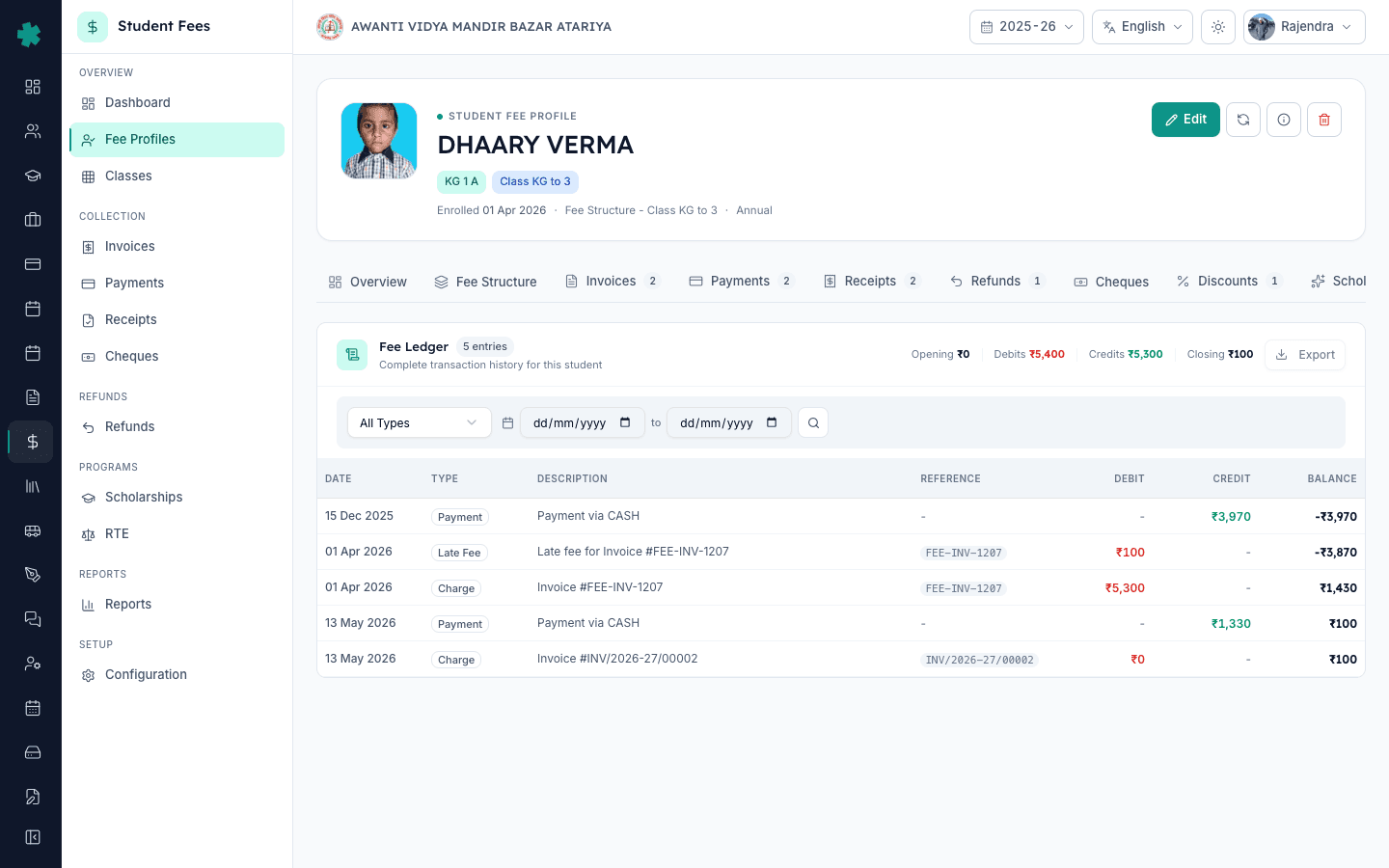
To view a student's fee ledger in Inkwelly: open Student Fee → Fee Profiles, click the student row, switch to the Ledger tab on the profile. Inkwelly shows every invoice, payment, refund, fine, discount and scholarship in date order with debit, credit and a running balance. Filter by type or date range, then click Export to download a PDF or CSV for the parent or auditor.
The Inkwelly fee ledger is the single chronological record of money for one student in one session. It pulls together rows from nine different surfaces — invoices, payments, receipts, refunds, cheques, discounts, scholarships, waivers and fines — into one chronologically sorted statement with a running balance after every line. A 1,200-student day school in a Tier-2 city handles 40 to 60 parent fee queries a month (Inkwelly internal data, 2026); two-thirds of those are resolved in under two minutes by opening this one screen and pointing at the row in question. The same screen doubles as the audit trail an Income Tax assessing officer or a CBSE inspection team will ask for, so a clean ledger is not optional — it is the legal record of what money the school took and what it owed back.
1. Open Fee Profiles and find the student
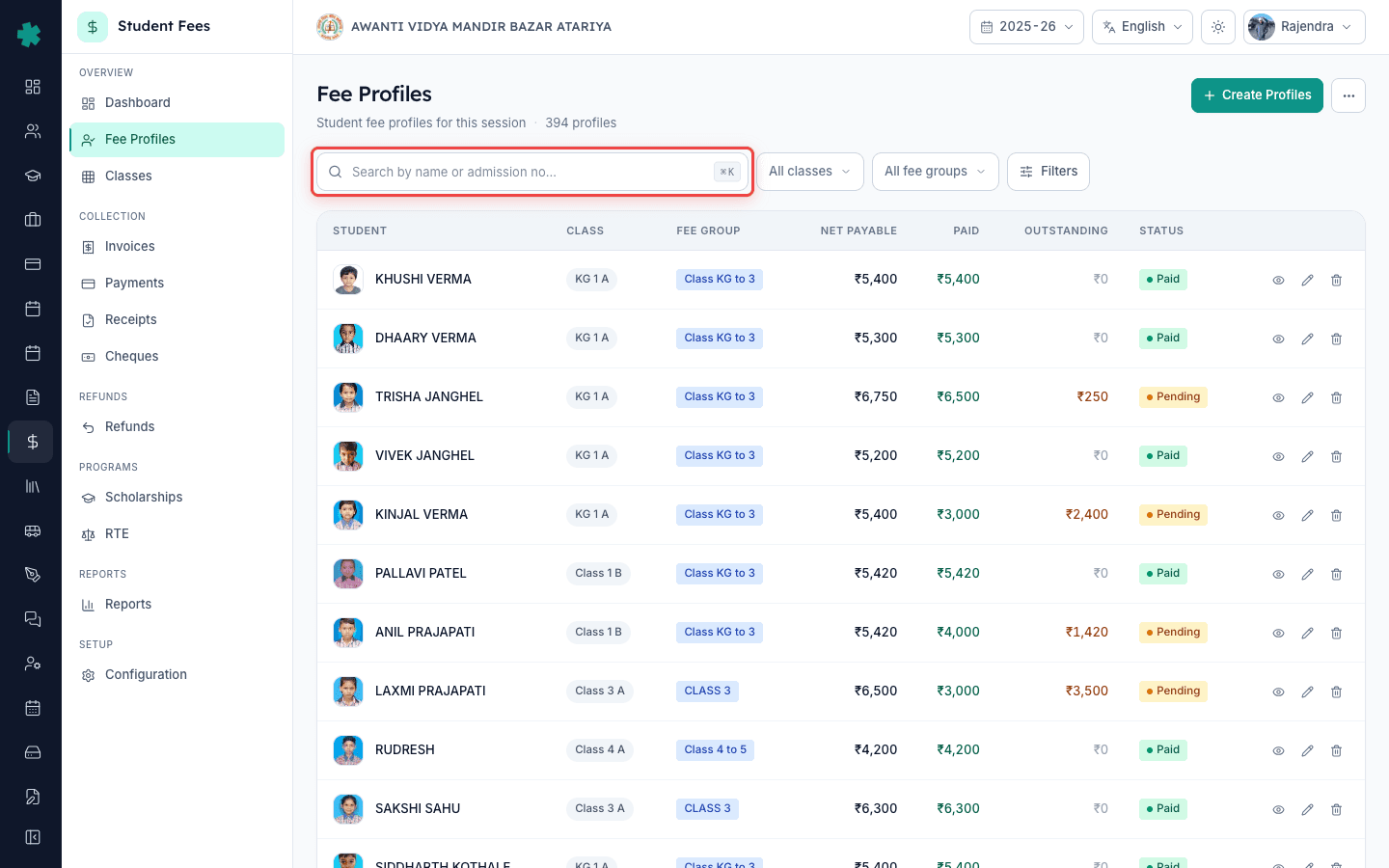
Open Inkwelly → Student Fees from the left sidebar, then click Fee Profiles under OVERVIEW. The list shows every fee profile in the active session — name, class, fee group, net payable, paid, outstanding and status. Use the search bar to find the student by name or admission number. Inkwelly returns matches as you type. Click the row to open the student's fee profile.
2. Switch to the Ledger tab
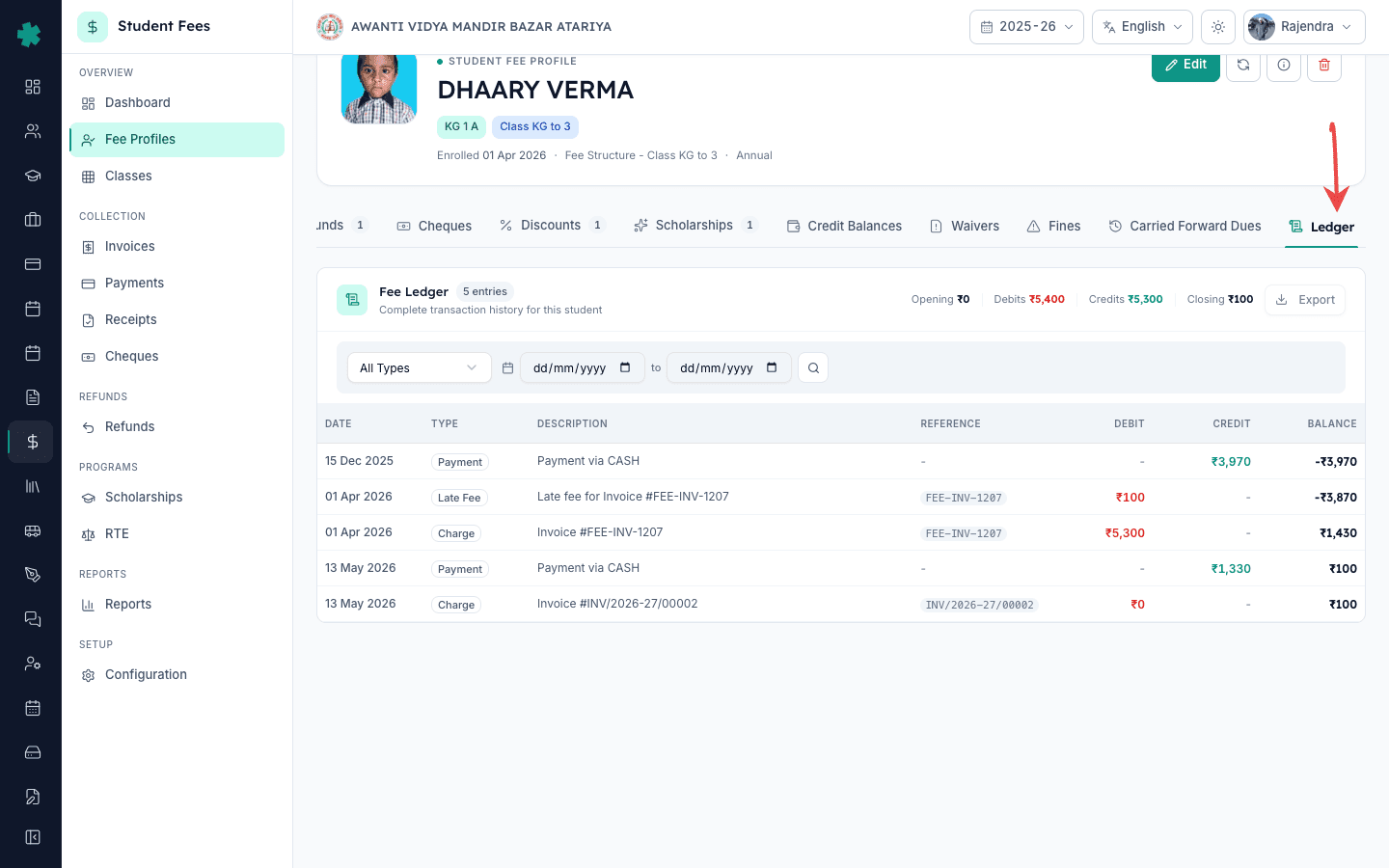
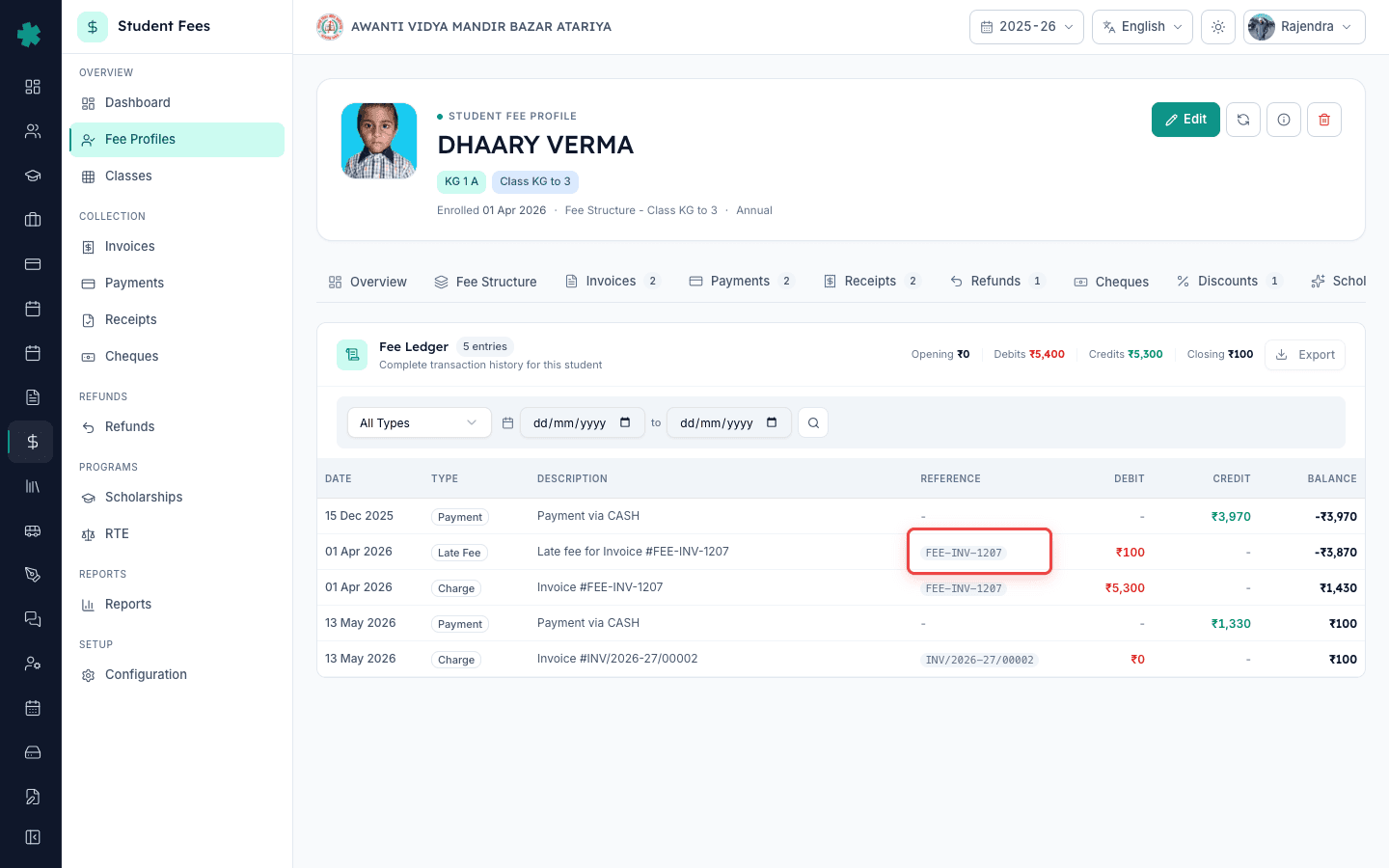
On the fee profile, look at the tab row near the top — Overview, Fee Structure, Invoices, Payments, Receipts, Refunds, Cheques, Discounts, Scholarships, Credit Balances, Waivers, Fines, Carried Forward Dues and Ledger. Click Ledger. Inkwelly pulls the full transaction history for this student and renders it in one chronological table. The badge next to the Ledger heading shows how many entries the student has — five for a fresh KG-1 admission, often forty or fifty by Class 10.
3. Read the running balance summary
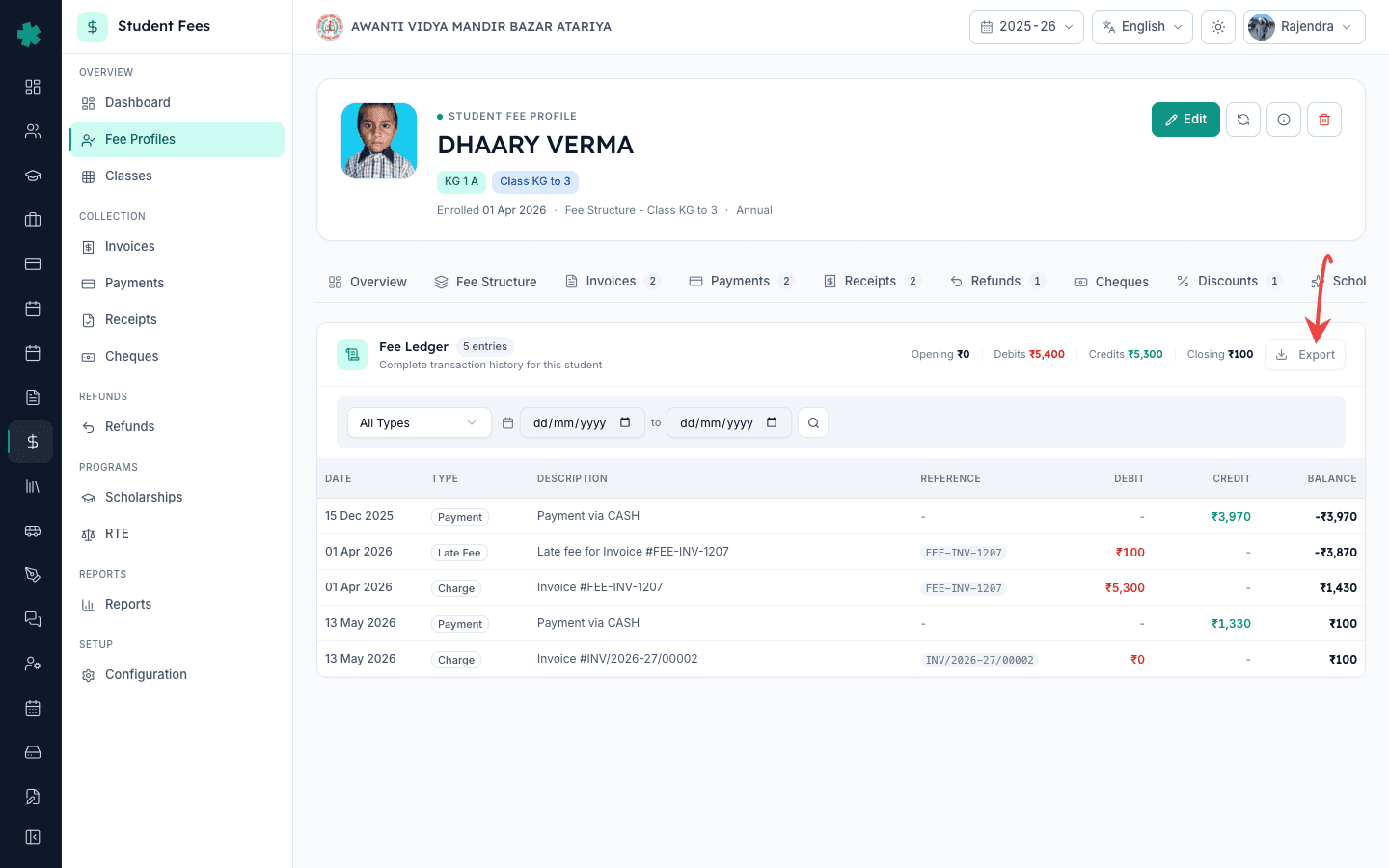
The top of the Ledger card shows four numbers — Opening, Debits, Credits and Closing. Opening is what the student owed at the start of the session (carry-forward dues, if any). Debits add up every invoice, late fee and fine. Credits add up every payment, discount, scholarship and waiver. Closing is what is still owed today; a positive Closing means money is due, a negative Closing means the school holds a credit balance for the parent. These four numbers reconcile the entire table below them, so any dispute should be checked against them first.
4. Filter by type or date range
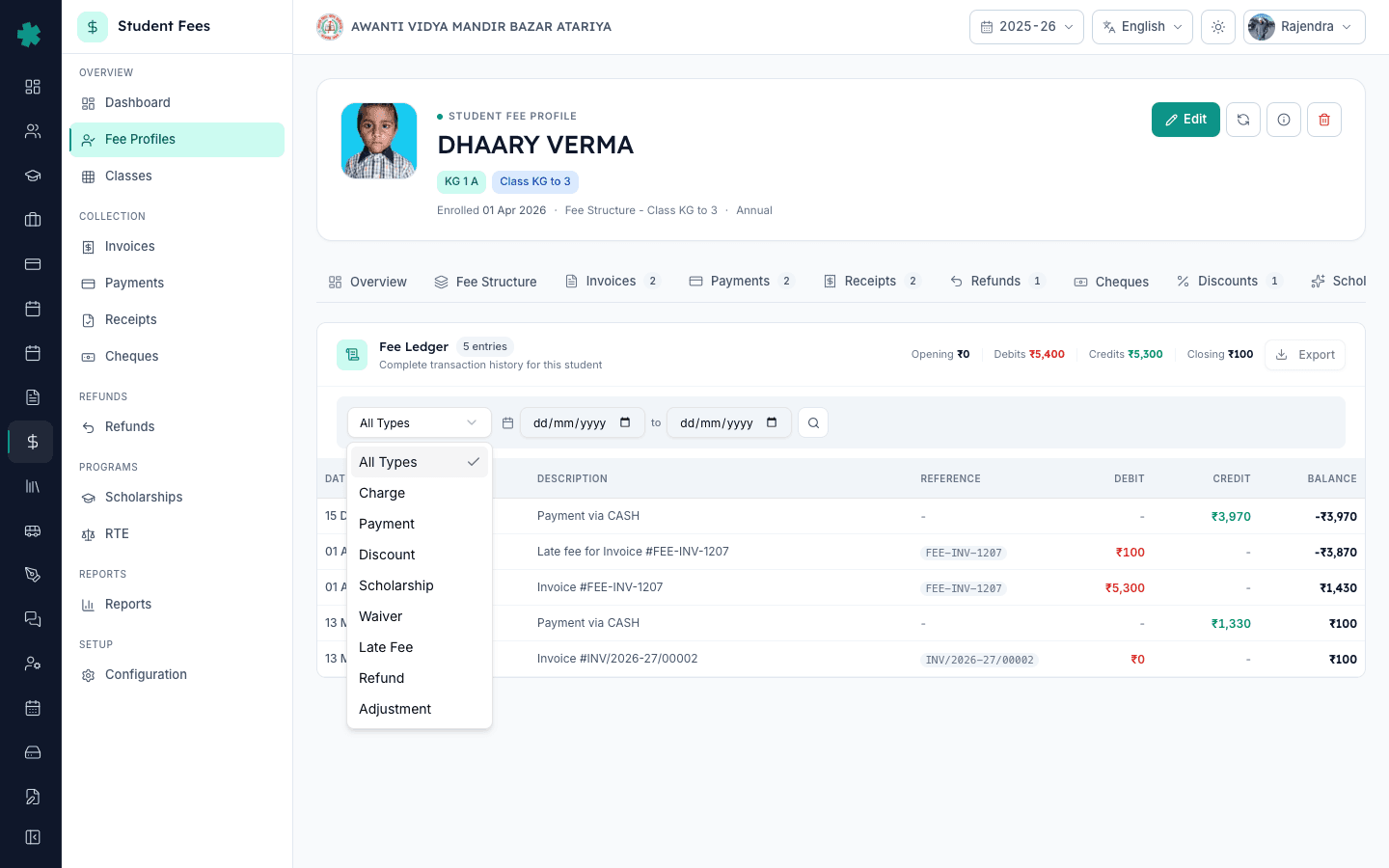
The filter row above the table has a type dropdown (All Types, Charge, Payment, Discount, Scholarship, Waiver, Late Fee, Refund, Adjustment), a from-date picker, a to-date picker and a free-text search. To answer a parent's question like "why is there a late fee on April's invoice", set the type to Late Fee. To pull a single-term statement, set the date range to the term's start and end. To verify a specific receipt, paste the receipt number into search. The table updates in place — the four summary numbers do not change because they always reflect the session-wide totals.
5. Click a row reference to open the source document
Every line in the ledger links back to the document it came from. Click an invoice number under Reference to open the full invoice with its line items and payment summary. Click a payment row to open the receipt — useful when a parent asks for a copy. Click a refund row to open the refund detail with its policy slab and disbursement status. The ledger is the index; the linked documents are the proof, and both stay synced — every action you take on the source document (cancel a receipt, reverse a payment, bounce a cheque) shows up as a new line on the ledger within seconds.
6. Export the statement for the parent or auditor
Click Export on the top right of the Ledger card. Inkwelly downloads the filtered view as a PDF with the school header, student details, the four summary numbers and the chronological table — share it with the parent on WhatsApp or email, or print it for a counter handover. The CSV export is the format auditors and accountants prefer for reconciliation with Tally or BUSY; one row per ledger line, no merged cells, with reference IDs that match the source documents one-to-one.
To generate a fresh invoice from the same profile, follow How to generate a single invoice for one student. To collect a payment against a pending invoice, read How to collect a cash, UPI, card or bank-transfer fee payment at the counter. To reverse a wrongly entered payment that is showing on the ledger, read How to reverse a fee payment. To bring last session's outstanding into this session's ledger, read How to carry forward unpaid dues from the previous session.
See Inkwelly Student Fees in action
Frequently asked
6 questionsHow does the fee ledger differ from the Invoices or Payments tab on the student profile?
The Invoices tab lists only invoices, the Payments tab lists only payments. The Ledger is the merged chronological view of every money event — invoices, payments, refunds, discounts, scholarships, waivers, late fees, fines and adjustments — with a running balance after each line. Use the Ledger when you need one statement that explains how the student's outstanding moved from one number to another.
What does the Opening balance on the Ledger represent?
Opening is the amount the student owed at the very start of this academic session. For a newly admitted student it is zero. For a continuing student it is whatever was carried forward from the previous session — usually unpaid dues from last year that the school chose to roll over rather than write off. Carry-forward is set up under Carried Forward Dues on the same profile.
A parent disputes their balance. How do I resolve it from the Ledger?
Open the student's Ledger, point the parent at the four summary numbers — Opening, Debits, Credits, Closing — then walk down the table row by row. Every line shows date, type, description, reference, debit, credit and running balance. Click the reference number to open the source invoice or receipt as proof. Two minutes on this screen resolves most fee disputes without ever opening Excel.
Student ka full ledger kaise dekhe Inkwelly me?
Student Fees → Fee Profiles kholiye, student ko search karke uska profile open kijiye. Profile ke tabs me Ledger tab par click kijiye. Inkwelly ek hi screen me saare invoices, payments, refunds, fines, discounts aur scholarships chronological order me dikha dega, har row ke saath running balance. All Types dropdown se type ya date range filter kijiye.
Parent ko poora fee statement WhatsApp pe kaise bheje?
Student ke Ledger tab par jaiye, agar parent sirf ek term ka statement maang raha hai to date range set kijiye (jaise 1 April se 30 June). Phir top-right ke Export button par click kijiye — PDF download ho jayega school header aur student details ke saath. Wo PDF Communications → Send to Parent se ya seedha WhatsApp pe forward kar dijiye.
Can I export the ledger for an Income Tax or CBSE audit?
Yes. The CSV export is one row per ledger line with reference IDs that link back to invoices, receipts, refunds and adjustments. Auditors typically reconcile this CSV against the school's Tally or BUSY ledgers — the structure is intentionally flat with no merged cells. For a board inspection, the PDF export carries the school header and is acceptable as an official statement.
You might also like
3 readsSources & references
- CBSE Affiliation Bye-Laws — Chapter VII (Maintenance of Records and Accounts) · accessed 19 May 2026
CBSE bye-laws require affiliated schools to maintain a chronological record of every fee charged and collected per student, available on request for inspection.
- Income Tax Act, 1961 — Section 44AA (Maintenance of accounts by persons carrying on profession or business) · accessed 19 May 2026
Section 44AA mandates schools and educational trusts to maintain a per-student ledger that auditors can reconstruct on demand; a chronological fee ledger fulfils this requirement.
- Companies Act, 2013 — Section 128 (Books of account to be kept by company) · accessed 19 May 2026
Section 128 requires every company-run school to maintain books of account that explain its transactions and financial position; a per-student fee ledger is the operational form of this record.
See Inkwelly on your school
30-minute demo. We open your current ERP with you and load your data into Inkwelly on the call. Dated go-live plan by the end of it.