How to set quiet hours for parent notifications in Inkwelly
For principals who want to stop the 10pm homework ping and the 6am attendance buzz from waking parents up, but still let fee-payment receipts and admission-result alerts dispatch the moment the event fires. By the end of this guide your school has a defined daily window outside which non-urgent dispatches queue silently and fire when the window ends.
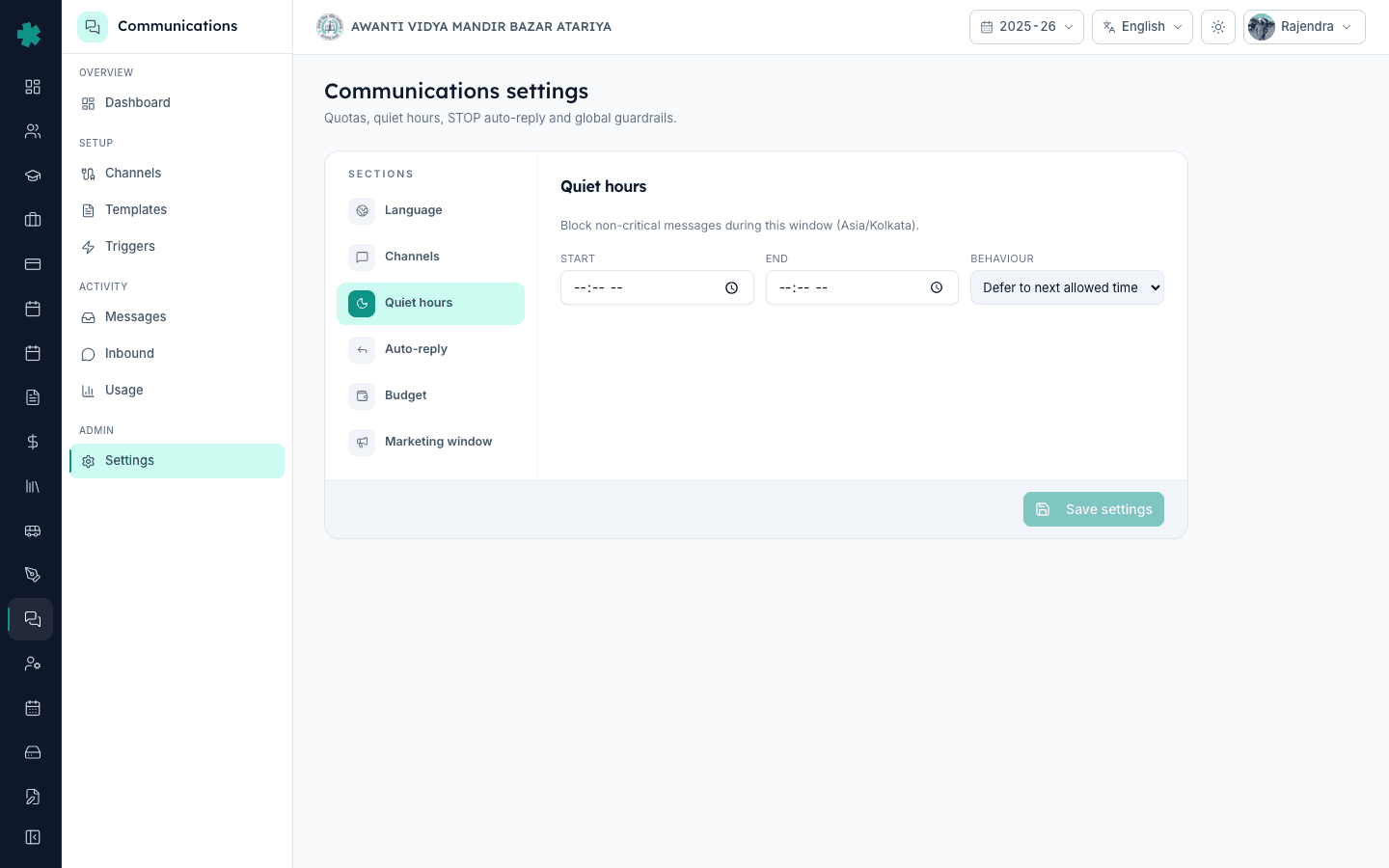
To set quiet hours in Inkwelly: open Communications and then Settings, scroll to the Quiet hours section, set the start time (when silence begins, e.g. 9pm) and the end time (when dispatch resumes, e.g. 7am), and click Save settings. Non-urgent notifications that the system tries to send inside the window are queued and released at the end time. Urgent triggers like fee payment receipts and payment link receipts still go through immediately because they are time-sensitive for parents.
Quiet hours is a global dispatch guardrail, not a per-trigger toggle. Once set, Inkwelly evaluates every queued message at dispatch time: if the school clock is inside the quiet window and the trigger is marked non-urgent, the message holds in a queued state until the window closes. About 70% of parent complaints about ERP noise in Indian schools trace back to messages that arrived between 9pm and 7am, exactly the window quiet hours is built to silence. The urgent allow-list is small and deliberate: fee receipts, payment-link receipts and similar money-trail events still fire so parents have the immediate paper trail they expect.
1. Open Communications and then Settings
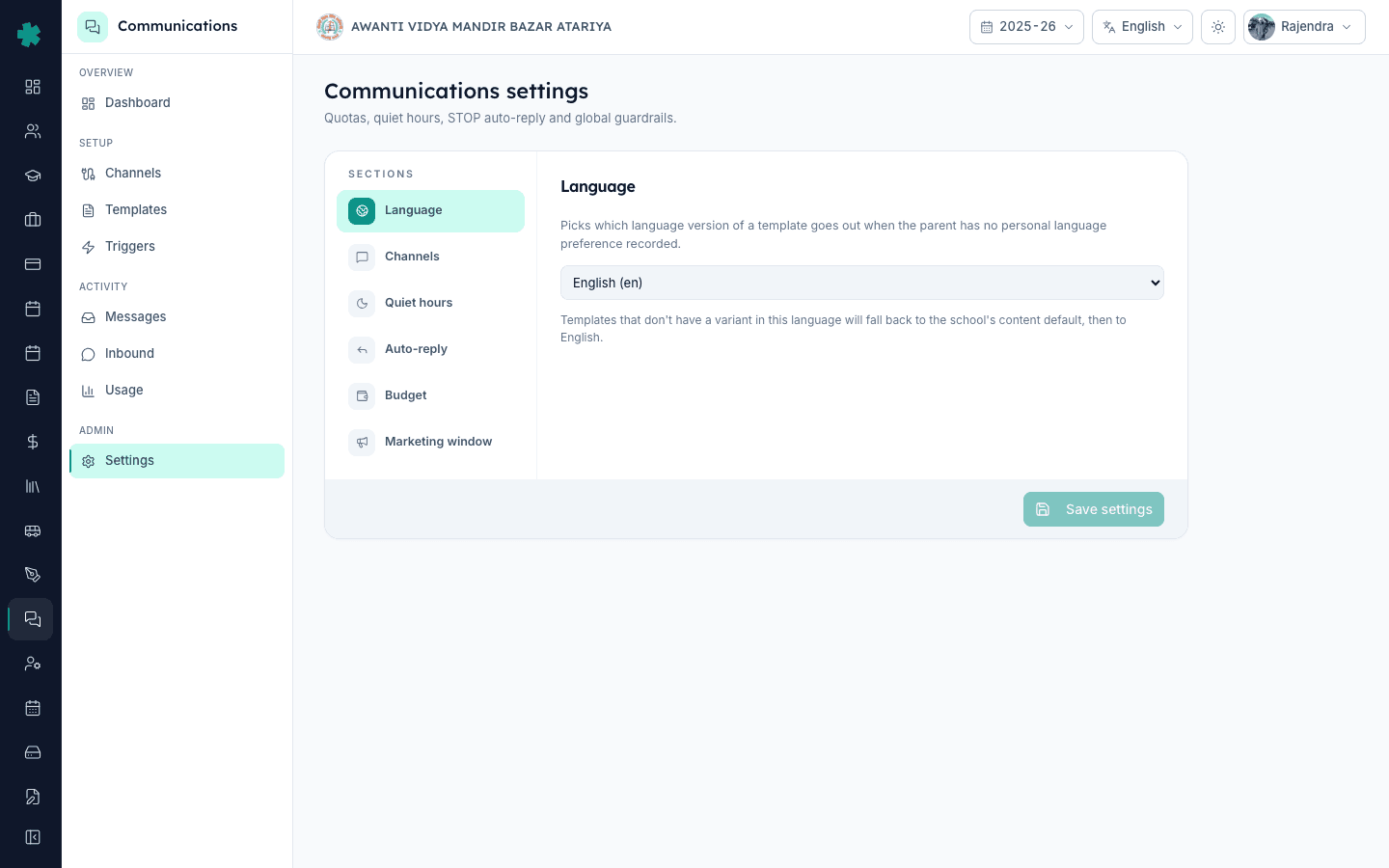
In Inkwelly open Communications and then Settings. The left sidebar lists six sections: Language, Channels, Quiet hours, Auto-reply, Budget, Marketing window. Each section is school-wide; nothing on this page is per-trigger or per-parent. The Save settings button at the bottom commits whichever section you have changed; you can adjust more than one section in a single visit and save once.
2. Click the Quiet hours section
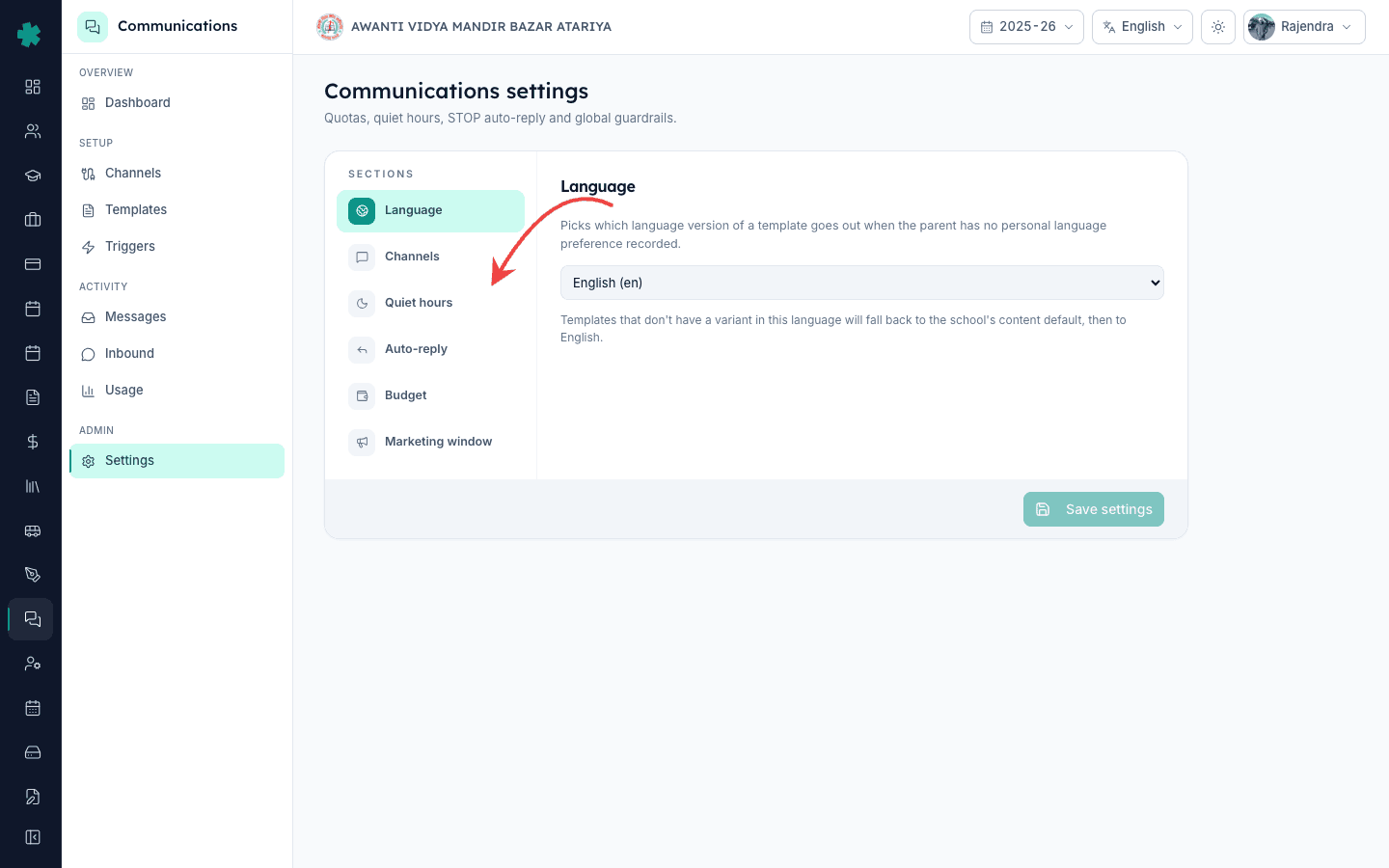
Click Quiet hours in the SECTIONS list. The right-hand panel reveals two time inputs: a start time (when silence begins) and an end time (when dispatch resumes). Inkwelly uses the school's configured timezone for both inputs, so a Tier-2 CBSE school in Lucknow sees IST and a residential school in Dehradun sees the same. No UTC conversion the admin needs to do mentally.
3. Set the start time
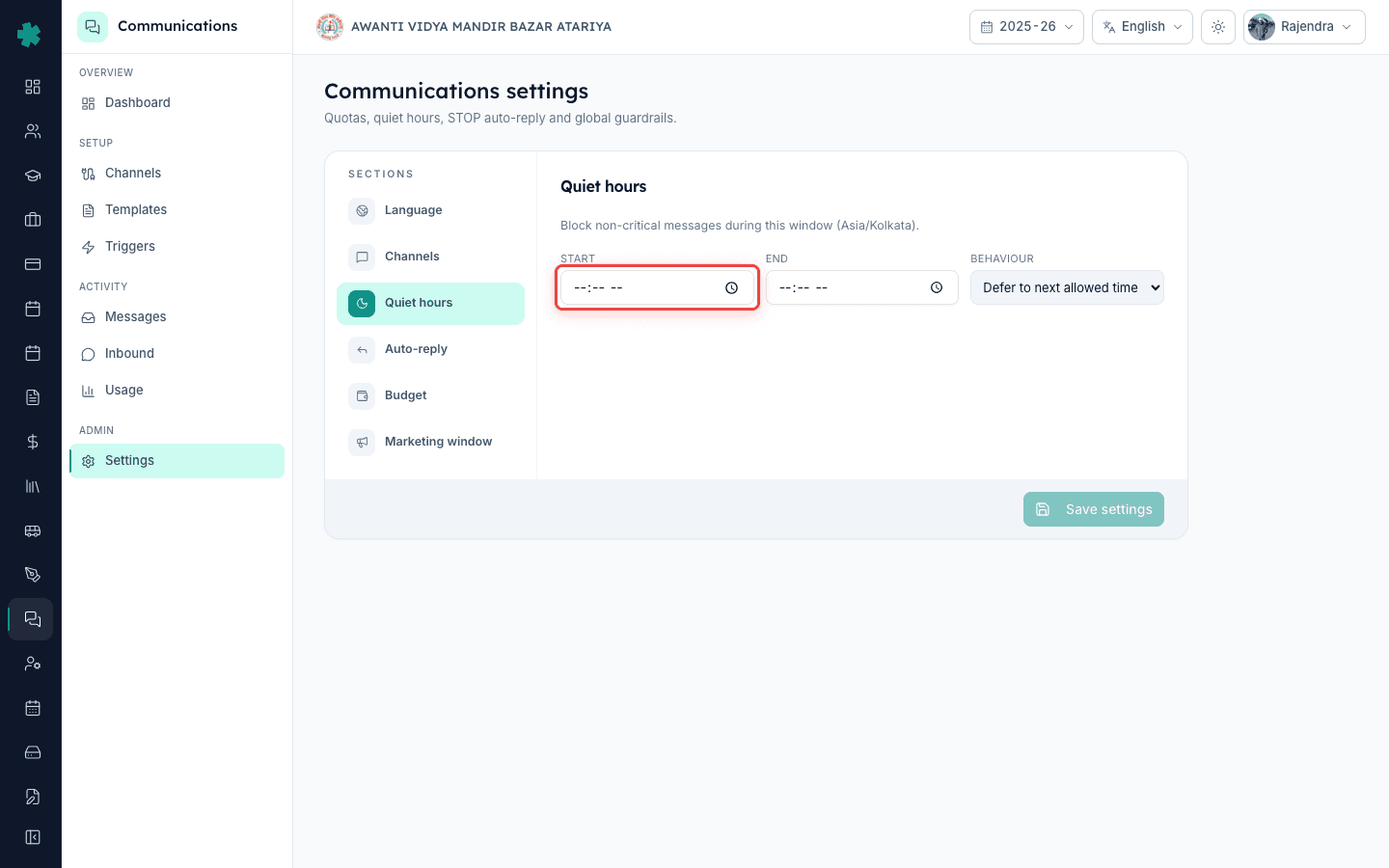
Pick the start time, the moment after which non-urgent messages stop dispatching. The common Indian school choice is 9pm, sometimes 8:30pm for primary-heavy schools where younger children sleep earlier. Day schools rarely go later than 10pm. The picker accepts both 24-hour and 12-hour inputs; Inkwelly stores it in 24-hour internally so the audit trail stays unambiguous.
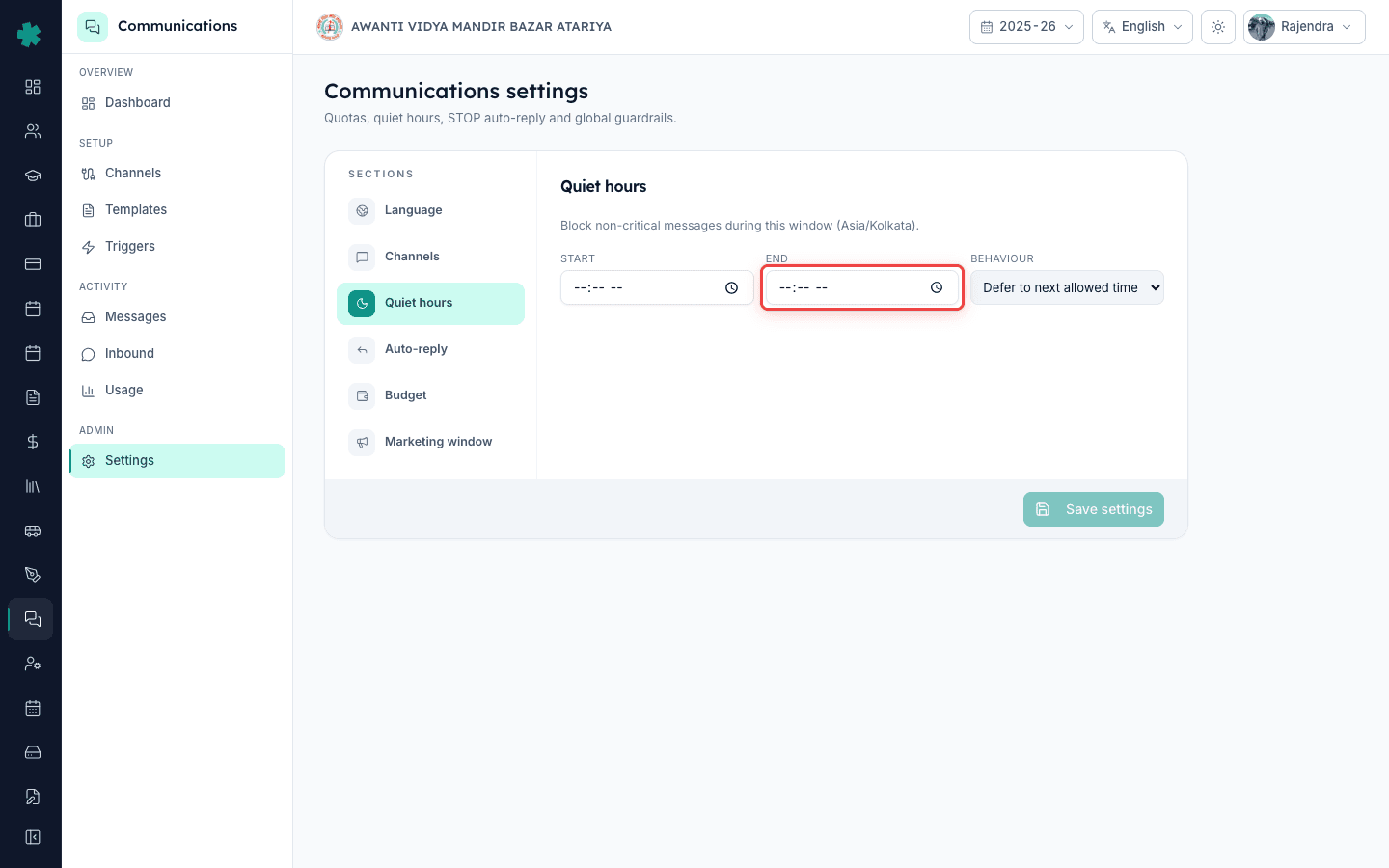
4. Set the end time
Pick the end time, the moment after which non-urgent messages resume dispatching. Most schools use 7am because morning attendance, late-pickup notes and early bus updates need to land before the school day starts. Residential schools occasionally go to 6am to catch parents before they leave for work. The window wraps midnight automatically: a 9pm start and 7am end means silence covers 9pm to 7am the next morning, not 7am earlier the same day.
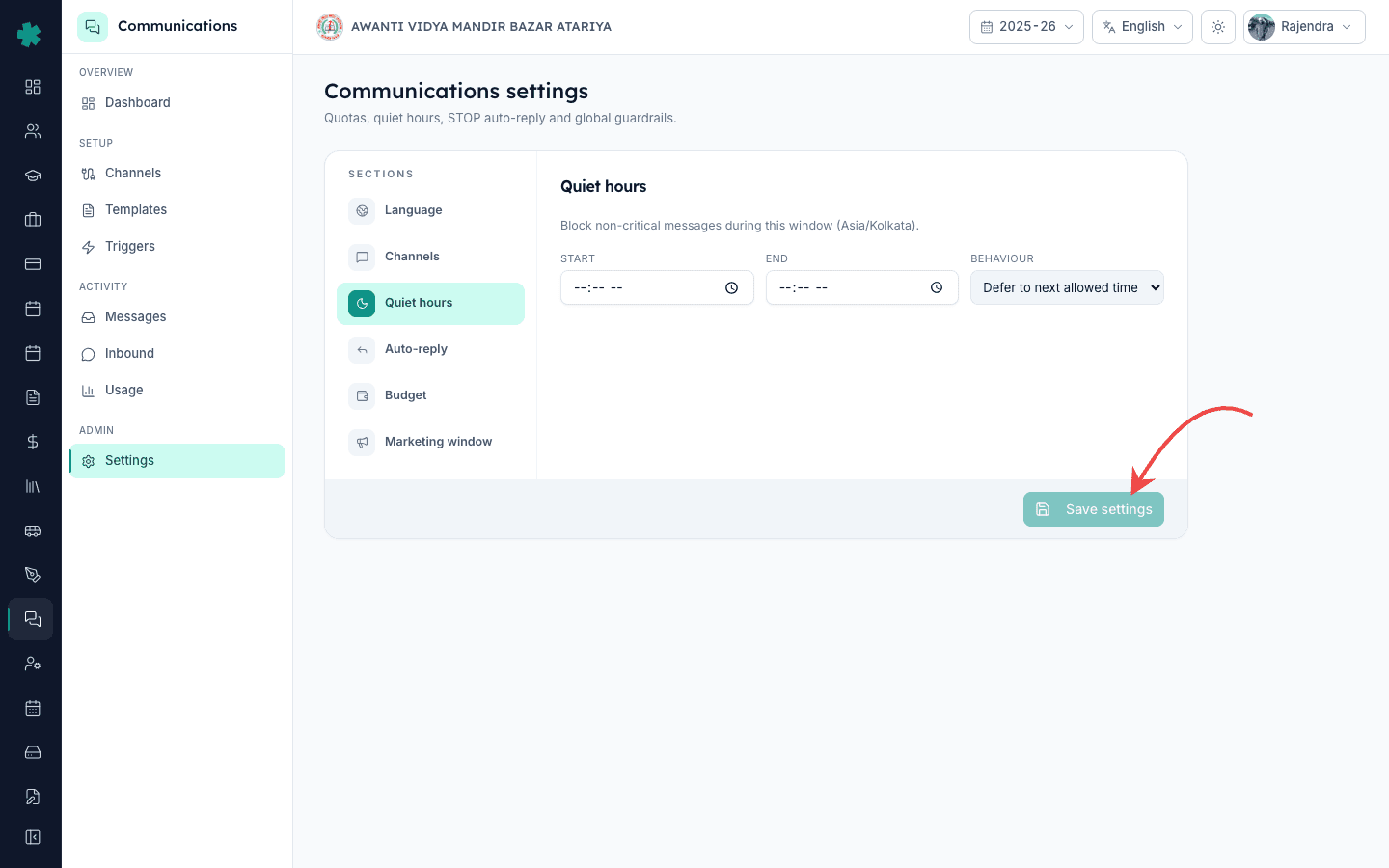
5. Click Save settings
Click Save settings at the bottom of the page. Inkwelly persists the new window immediately and applies it to every dispatch from the next minute on. The page does not require a reload; the next time a non-urgent trigger fires inside the new window, the system queues the message instead of sending. Communications and then Messages will show those queued messages with a held_for_quiet_hours status until the window closes.
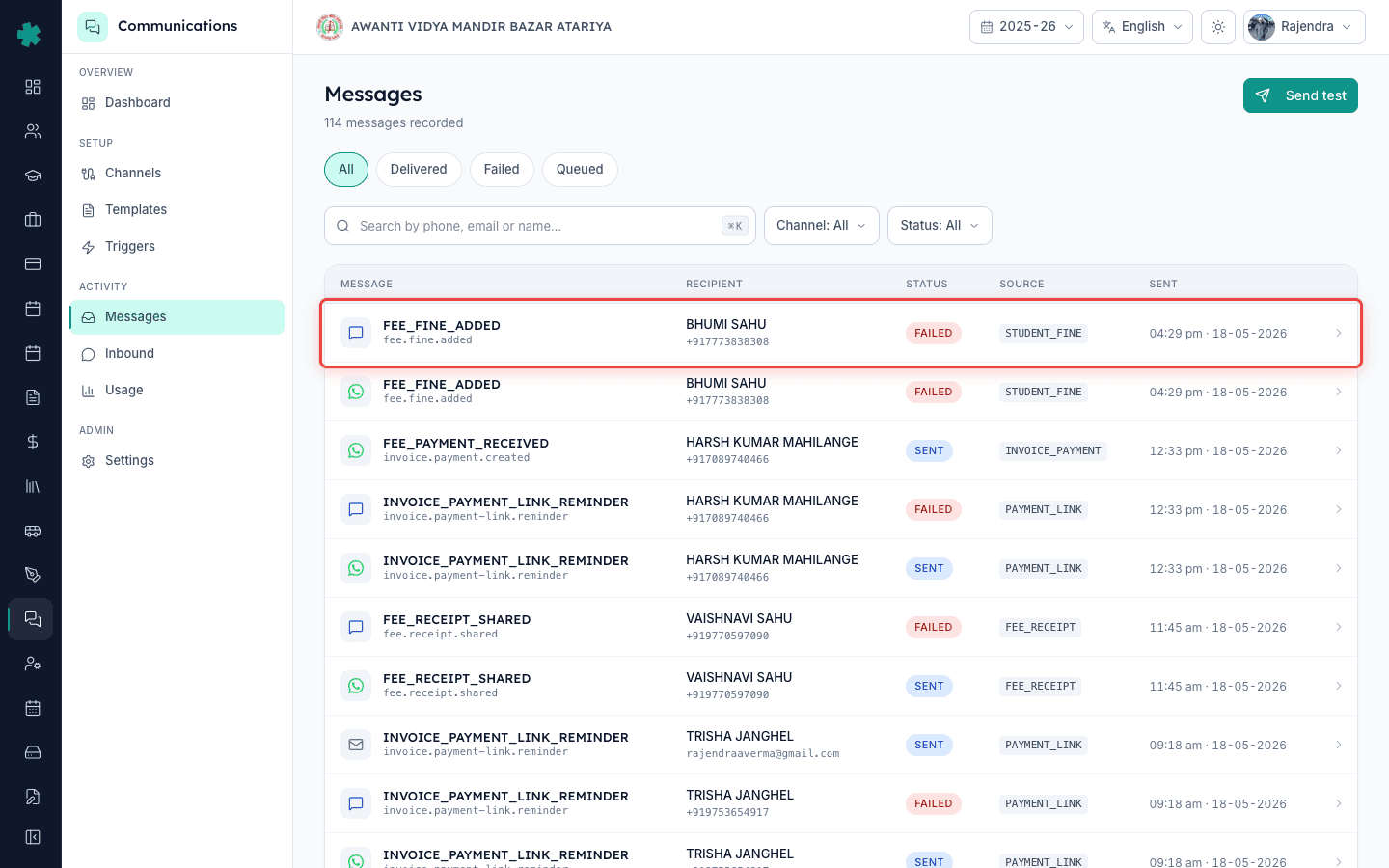
6. Spot the held messages in Messages
Open Communications and then Messages a few minutes after firing a non-urgent event inside the window, for example marking a student absent at 10pm. You should see one row per recipient with status held_for_quiet_hours and the scheduled release time matching the end of your quiet window. When the clock crosses the end time, Inkwelly releases the batch and the rows flip to delivered or sent. No teacher action is needed; the queue drains automatically.
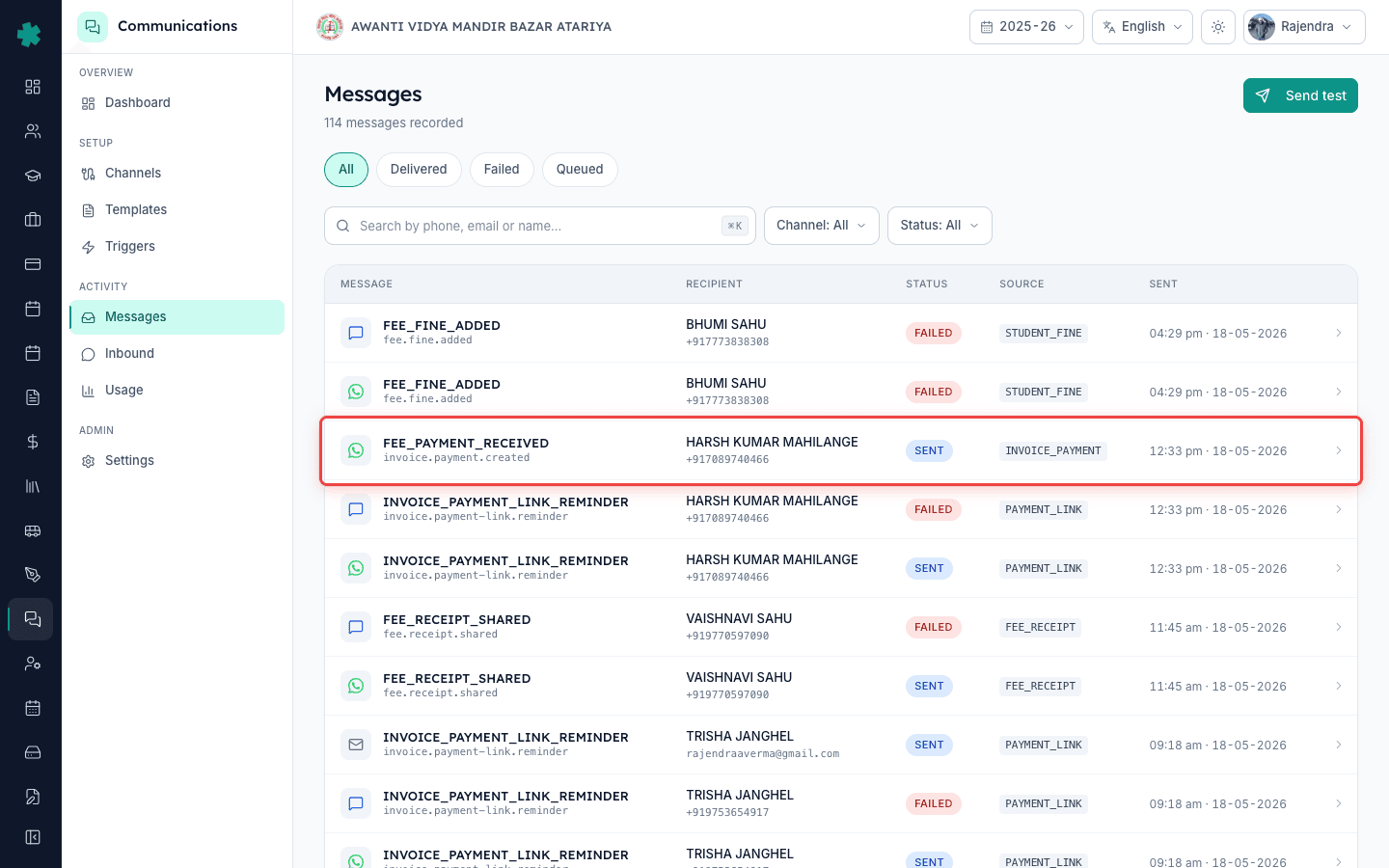
7. Verify urgent triggers still go through
At the same time, fire a fee-payment receipt or share a payment link inside the quiet window. These messages should dispatch immediately; the Messages row shows delivered or sent with timestamps inside the quiet hours. The urgent allow-list is intentional: parents expect the fee paper trail in real time and silencing it leads to support tickets the next day. If you ever want to extend the urgent allow-list, contact Inkwelly support; it is not a self-serve toggle today.
Quiet hours is one of three guardrails most schools set up in the first week: quiet hours stops parents getting woken at night, per-channel toggles stop the cost from one expensive channel running away, and the budget guardrail caps the monthly spend. None of them override each other. A non-urgent message will sit in the queue if it hits quiet hours, and then be subject to the per-channel toggle and budget check when it tries to dispatch at the end of the window. Setting quiet hours first is the cleanest order; most parent complaints disappear in the first month after this single change.
See Inkwelly quiet hours and the related guardrails in one live walkthrough
20-minute walkthrough of a Tier-2 CBSE school setting up quiet hours, per-channel toggles and the monthly budget cap together, and the parent complaint drop in the next month.
Frequently asked
6 questionsWhat counts as urgent in Inkwelly quiet hours?
Inkwelly treats fee-payment receipts, payment-link receipts, and similar money-trail events as urgent. They dispatch immediately even inside the quiet window because parents expect the paper trail in real time. Everything else (homework assigned, attendance marked, marksheet published, admit card issued) is non-urgent and queues until the window closes. The urgent allow-list is fixed today and not a self-serve toggle.
What happens to a message that fires at 11pm if my quiet window is 9pm to 7am?
For non-urgent triggers, the message is queued with a held_for_quiet_hours status and released the moment your clock crosses 7am. Inkwelly does not drop it; the recipient list, template body and channel state are all preserved. For urgent triggers like fee receipts, the message dispatches immediately at 11pm regardless of the quiet window.
Do quiet hours apply per channel or all channels at once?
Quiet hours apply to every channel (WhatsApp, SMS, Email and Push) for non-urgent triggers. The window is a single school-wide setting; it is not per-channel. If you want to silence one channel for one event but keep the other channels dispatching, use per-trigger channel toggles on the Triggers page instead. The two settings work independently.
Can quiet hours differ by day of the week or by class?
Not yet. Inkwelly quiet hours is a single daily window applied to every day of the week and every class in the school. Day-of-week and per-class quiet hours are on the roadmap; for now most schools pick a single window that works for the majority and accept the trade-off, since the alternative is no quiet hours at all and louder parent complaints.
If I change quiet hours mid-month, does it affect messages already queued?
Yes. Messages already held for the old window are re-evaluated against the new window. If the new window still covers their queued time, they stay held until the new end time. If the new window no longer covers them, they release at the next scheduler tick. The audit row records both the old and new window so the change is traceable in Communications Audit Logs.
Inkwelly quiet hours setup kaise kare?
Communications me jaaiye, Settings open kijiye, Quiet hours section open kijiye, start time (jaise 9pm) aur end time (jaise 7am) set kijiye aur Save settings click kar dijiye. Non-urgent notifications quiet window me queue hote hain aur end time par release ho jaate hain. Fee receipt aur payment link receipt jaise urgent messages turant chale jaate hain.
You might also like
3 readsSources & references
- TRAI TCCCPR 2018 · accessed 18 May 2026
TRAI expects senders to respect time-of-day silence windows. Inkwelly quiet hours gives schools the school-level lever to comply.
- Meta WhatsApp Business Policy · accessed 18 May 2026
Meta WhatsApp Business policy aligns with Inkwelly queue-and-release pattern inside quiet hours rather than dropping the message.
See Inkwelly on your school
30-minute demo. We open your current ERP with you and load your data into Inkwelly on the call. Dated go-live plan by the end of it.