How to send school emails from your own domain in Inkwelly
For schools that already have an AWS SES account with their sender domain DKIM-verified, and want fee receipts, marksheets and admit-card emails to leave a DKIM signature from their own domain instead of Inkwelly's. By the end every Inkwelly email goes out as [email protected] — fully branded, fully on your DNS.
To send Inkwelly emails from your own domain: open Communications → Channels → Connect channel → Email, expand Advanced AWS SES, enter your school's From address, AWS region, IAM access key ID and secret access key, then click Connect. Inkwelly verifies the credentials against AWS, then dispatches every fee receipt, marksheet and admit-card email from your DKIM-signed domain.
Email deliverability in India is decided by three signals: SPF, DKIM and DMARC alignment. When Inkwelly sends from its own [email protected] address, parents see via inkwelly.com in some inboxes and a small percentage of mails land in Promotions. Switching to your own SES domain fixes both — Gmail and Outlook see a DKIM signature from yourschool.com, your DMARC policy aligns, and the via tag disappears. For schools that mail 5,000+ parents on fee-day or report-day, this is the difference between 87% inbox placement and 96%.
1. Open the Channels page
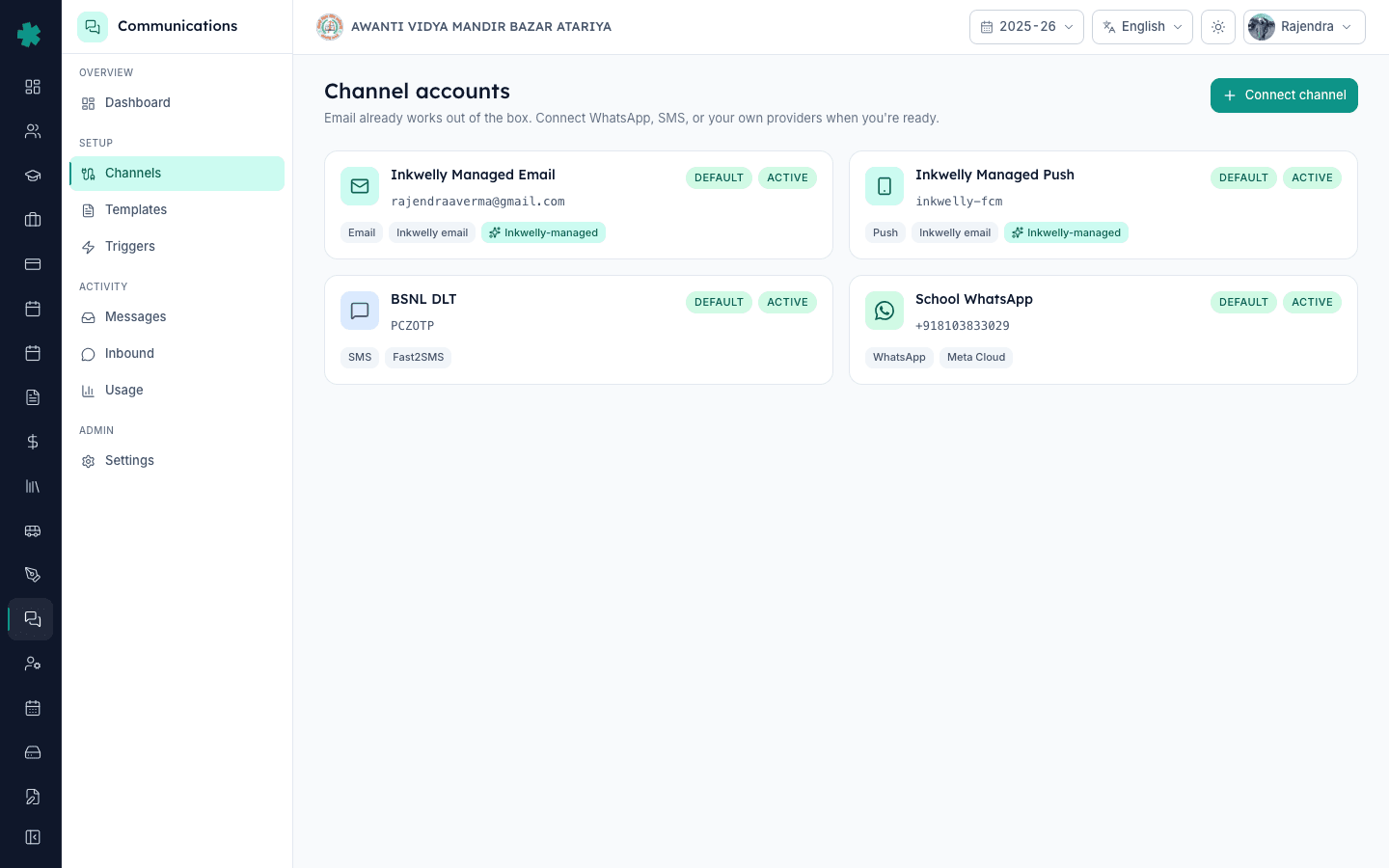
Sign in to Inkwelly and open the Communications module from the left sidebar. Click Channels under Setup. The page already shows an Inkwelly Managed Email row marked DEFAULT — this is the built-in [email protected] sender that every Inkwelly school inherits at signup. Connecting your own SES account adds a second email row; Inkwelly will use yours instead the moment it is marked default.
2. Pick Email as the channel
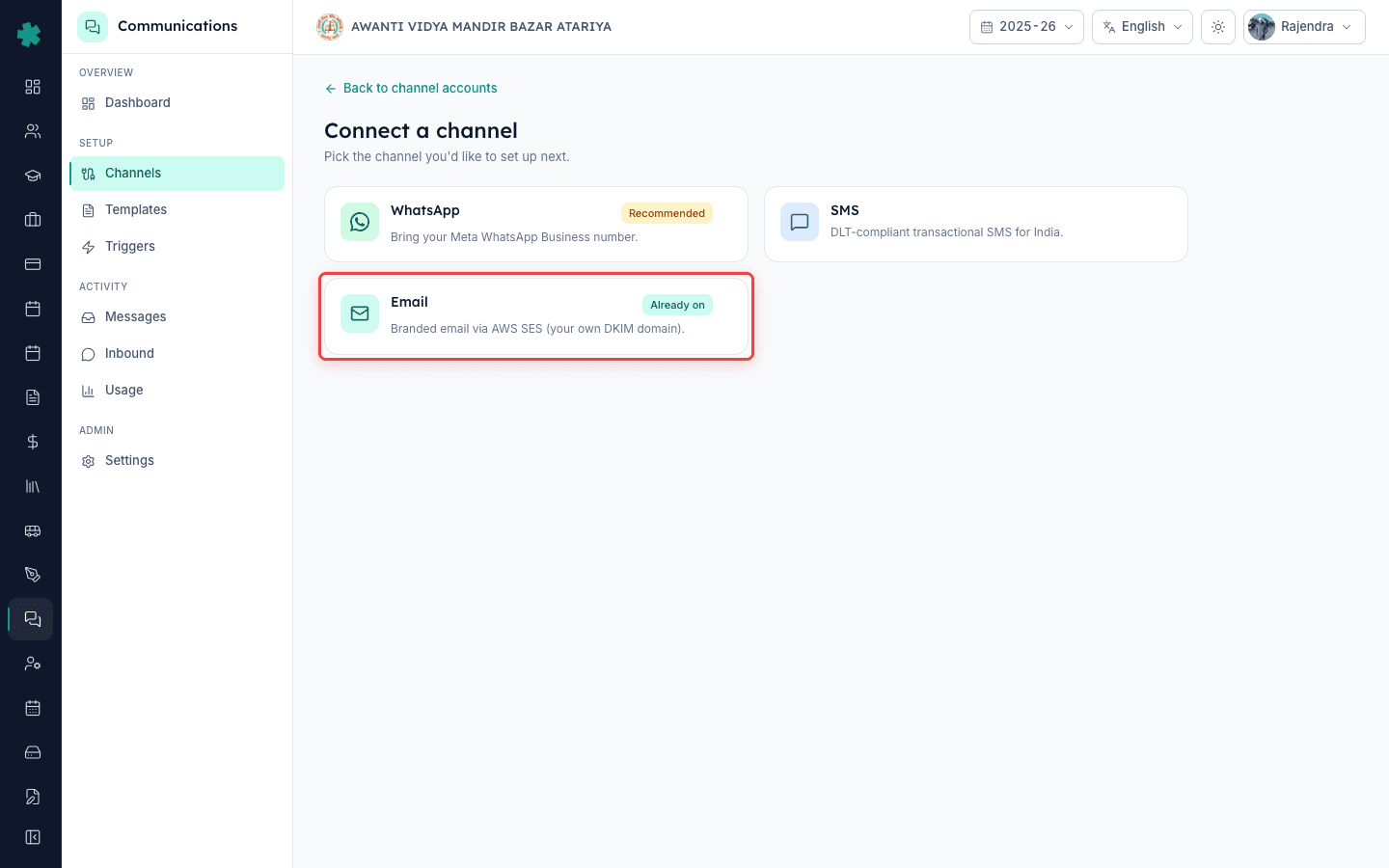
Click Connect channel at the top right. In the picker, pick Email. The first screen explains that branded Inkwelly email is already enabled and points to the Advanced toggle. Click Advanced: connect your own AWS SES account to reveal the SES form. Until this is expanded the page is read-only — there is nothing to misconfigure for schools that simply want to keep using the managed sender.
3. Enter your school's sender identity
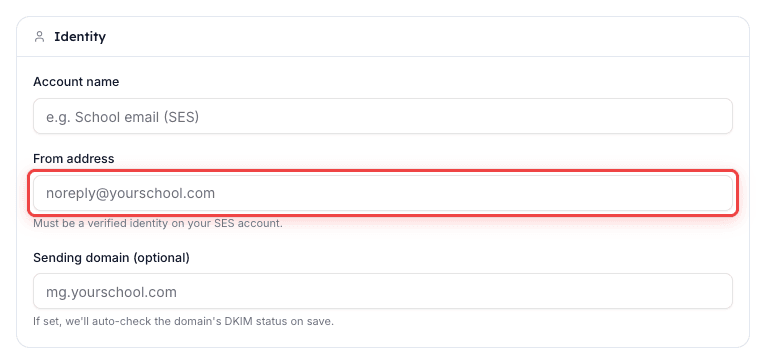
In Account name, type a recognisable label such as School email (SES). In From email address, enter the exact address parents will see in their inbox — [email protected] or [email protected]. In From domain, optionally enter the domain Inkwelly should set as the Return-Path / bounce domain (for example mg.yourschool.com); leave blank to let SES default it. The From address must be a domain you've already verified in SES — unverified senders are rejected by AWS at send time.
4. Pick your AWS region
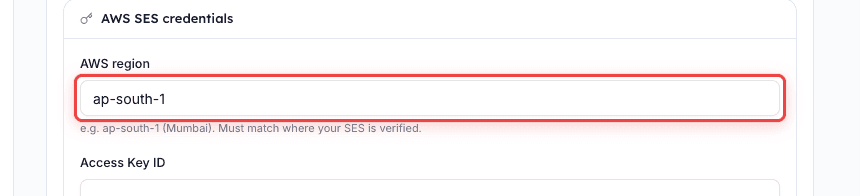
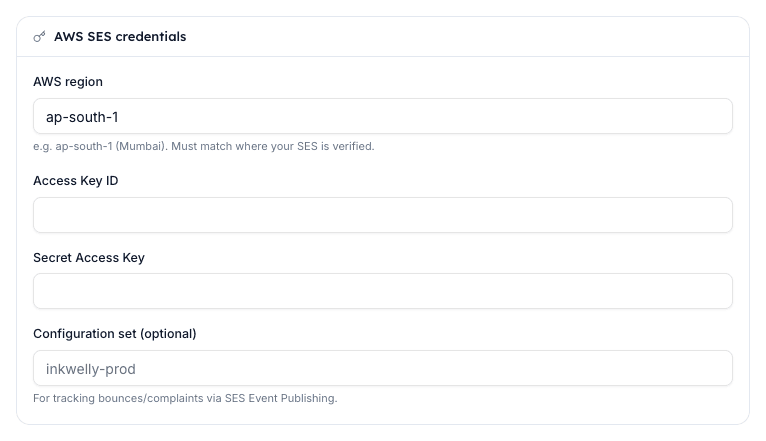
In AWS region, accept the default ap-south-1 (Mumbai) unless your SES verification was done in another region. AWS treats each region as a separate SES account, so an us-east-1 verified domain will not work with an ap-south-1 selection here. Most Indian schools are on ap-south-1 for the lowest latency to parent inboxes; international schools running multi-region setups sometimes pick eu-west-1 for EU-resident parents.
5. Enter your IAM access keys
In AWS Access Key ID and AWS Secret Access Key, paste the credentials of an IAM user that has the ses:SendRawEmail permission attached. Inkwelly does not need any other IAM permission — root account keys or admin-level keys are strongly discouraged here. Inkwelly encrypts both values at rest with AES-256-GCM; the secret key becomes write-only after save, so even your own team cannot read it back from the Inkwelly UI.
6. (Optional) Attach a Configuration Set
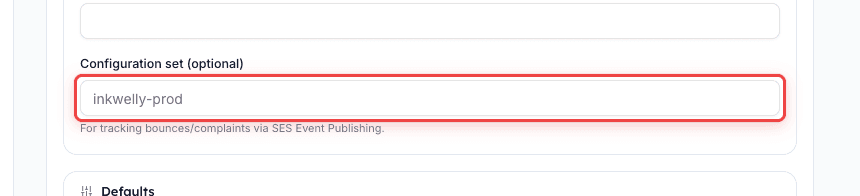
If you want SES to push delivery, bounce and complaint events back to Inkwelly, type the name of your SES Configuration Set in Configuration Set (for example inkwelly-prod). The Configuration Set must already be created in SES with an SNS destination or EventBridge rule. Schools that skip this still see send and delivery confirmations through Inkwelly's own polling — the Configuration Set only adds Gmail-style bounce categorisation.
7. Save the account and verify
In the Defaults section, toggle Set as default for this channel on — this is what tells Inkwelly to route every outgoing email through your SES account instead of the managed one. Click Connect. Inkwelly calls SES's GetSendQuota API to confirm the credentials, region and sandbox status, then opens the account detail page. Status starts as ACTIVE if the SES check passes; if SES rejects, status is FAILED and the verify panel surfaces the exact AWS error (most often Email address not verified or Account in sandbox).
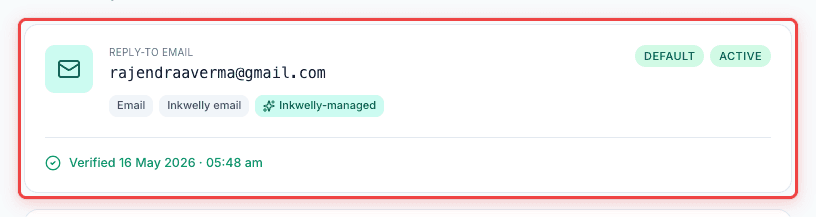
Now that branded email is live, the next page worth opening is Communications → Settings. Set the Reply-To address in the email defaults so parent replies land in a school inbox you actually monitor — every Inkwelly parent email respects that header. Also worth checking: open one of your Templates and click the email preview; the header should now show your school's display name and the new From address instead of Inkwelly notifications.
See Inkwelly send branded email from your school's domain
20-minute walkthrough showing the difference DKIM alignment makes in Gmail and Outlook inbox placement.
Frequently asked
6 questionsDo I have to use my own AWS SES account, or is Inkwelly's built-in email enough for an Indian school?
Inkwelly's managed email is enough for most small and mid-sized schools — it ships DKIM-signed by inkwelly.com, the inbox placement is solid, and there is nothing to set up. Switch to your own SES only when (a) you have 5,000+ parents and care about the *via inkwelly.com* tag disappearing, or (b) DMARC policy at your domain requires full alignment.
What if my SES is still in sandbox mode — will Inkwelly send?
No. SES sandbox lets you only send to verified addresses, which means parent emails will be rejected. Inkwelly's connect step surfaces the sandbox status as a warning on the channel detail page. Open an AWS support ticket asking for production access — the request usually clears within 24 hours for legitimate school use.
Inkwelly me apne school ke domain se email kaise bheje?
Inkwelly kholiye → Communications → Channels → Connect channel → Email chuniye. Advanced: connect your own AWS SES account khol kar apna [email protected], AWS region (ap-south-1), aur IAM access keys daaliye. Connect dabaiye — Inkwelly SES se credentials verify karke har email aapke domain se DKIM-signed bhejna shuru kar deta hai.
What's the difference between Inkwelly's managed email and SES branded email for parents?
Functionally identical — same content, same delivery times, same Reply-To. The visible difference is the From address (`[email protected]` vs `[email protected]`) and Gmail's *via* tag. The invisible difference is DKIM alignment: branded email signs with your domain's keys, which usually lifts inbox placement by 5–10 points on Gmail and Outlook.
Can I revert to the managed email if my SES has an issue mid-day?
Yes. Open Channels, click your SES row, click *Set as default off*, and the Inkwelly Managed Email row becomes default again — the very next email Inkwelly sends will go through the managed sender. No data loss, no template reconfiguration, no parent rebrand. Schools sometimes keep the SES row connected but not default as a manual fallback.
Does Inkwelly need access to my AWS bill or any other AWS service?
No. Inkwelly asks for the minimum permission needed: `ses:SendRawEmail`. It cannot read your AWS bill, list other resources, or access S3 buckets, EC2 instances or anything else. Attach the SES policy to a dedicated IAM user used only for Inkwelly — root or admin keys are unnecessary and discouraged.
You might also like
3 readsSources & references
- AWS — Amazon SES production access (sandbox removal) · accessed 18 May 2026
Documents the sandbox-to-production move Inkwelly assumes is complete before connecting an SES account.
- AWS — SES domain DKIM verification · accessed 18 May 2026
Defines the DKIM-record publication step that makes branded Inkwelly email pass DMARC alignment for Indian schools.
See Inkwelly on your school
30-minute demo. We open your current ERP with you and load your data into Inkwelly on the call. Dated go-live plan by the end of it.