How to record a fee waiver for a student in Inkwelly
For school accountants and principals writing off part of a student's outstanding fees on hardship, medical or board-decision grounds. By the end you will have a waiver request saved against the student's fee profile, approved or rejected with remarks, and the rupee amount reflected on the breakdown — with a full audit trail.
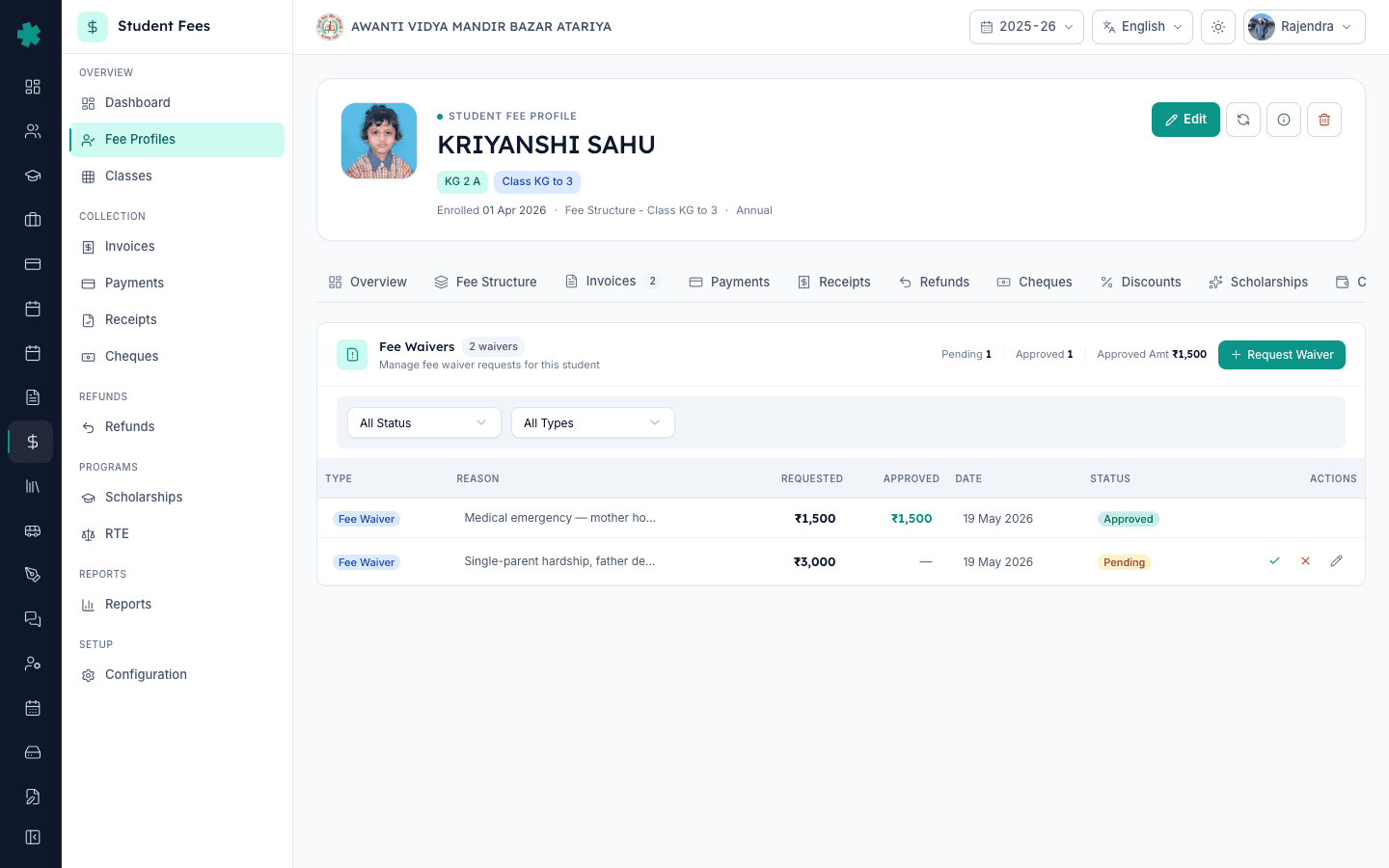
To record a fee waiver in Inkwelly: open the student's fee profile, click the Waivers tab, click Request Waiver, pick Fee Waiver or Late Fee Waiver, type the amount to write off, write a clear reason (single-parent hardship, medical emergency, board decision), add optional remarks, and submit. The request sits as Pending until the principal or committee opens the same row and clicks Approve with the final approved amount, or Reject with a reason. Approved waivers reduce the student's outstanding immediately and stay on the audit trail.
A fee waiver is the right tool for a small, named set of cases — not a hidden discount. The Right of Children to Free and Compulsory Education Act, 2009 and the National Commission for Protection of Child Rights (NCPCR) school-fee guidance both expect any concession beyond the published structure to be documented, capped and uniformly applied. In practice, a 1,200-student CBSE or state-board school in a Tier-2 city processes 8 to 15 waiver cases a session — death of an earning parent, sudden medical crisis, retrenchment, or a board-level decision on a specific student cohort. Inkwelly keeps waivers separate from discounts and scholarships so the auditor and the management committee can both see exactly which student got what relief, why, and who signed off.
1. Open the student's fee profile
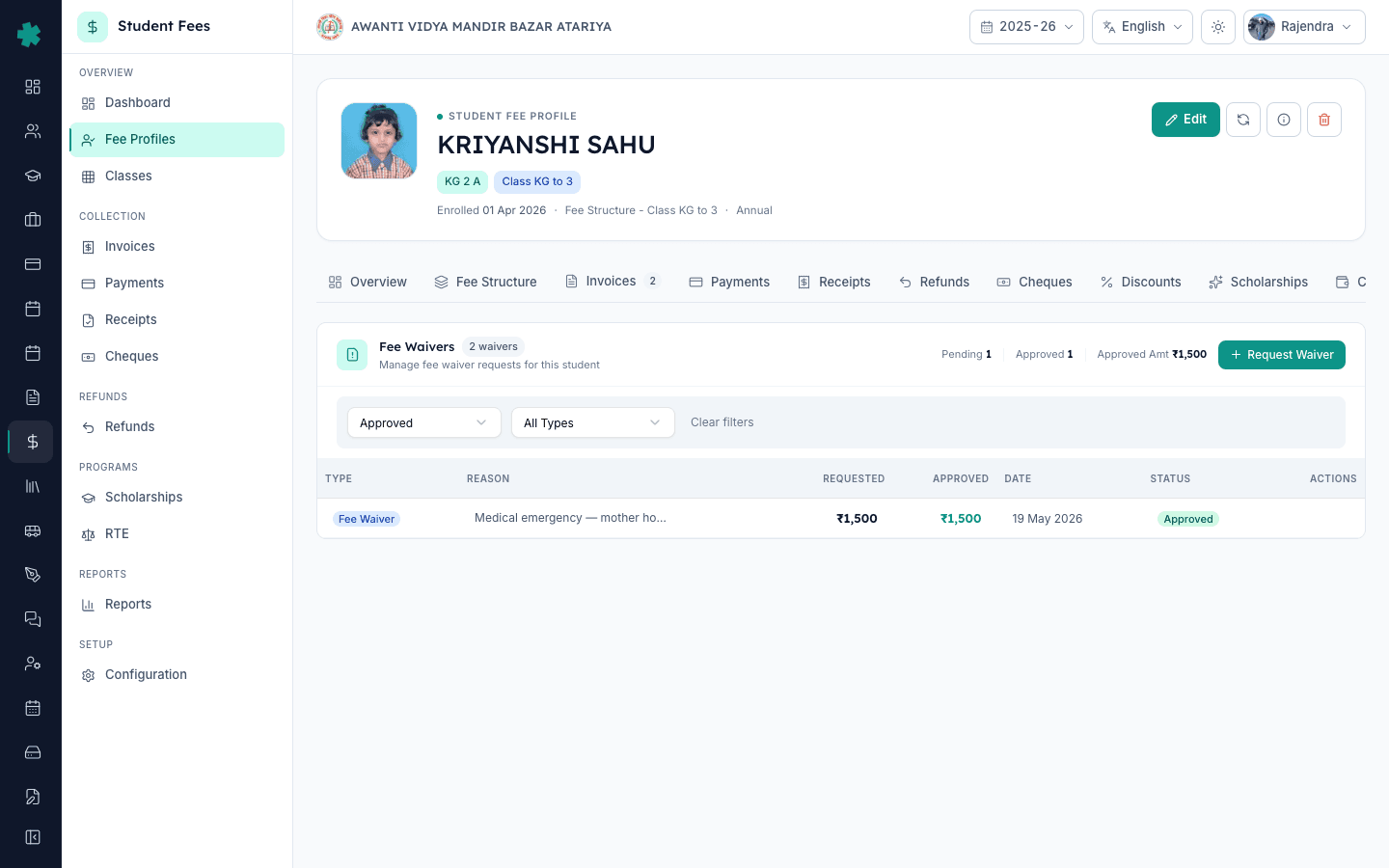
Open Inkwelly → Student Fee → Fee Profiles from the left sidebar. Search the student by name, admission number or class. Click the row to open the fee profile detail page. The header shows the student's name, class, and the right-side breakdown card with Base fee, Late fee, Net payable, Paid and Outstanding. Tabs at the top of the detail include Overview, Fee Structure, Invoices, Payments, Receipts, Refunds, Cheques, Discounts and Scholarships.
2. Click the Waivers tab
From the profile, click Waivers in the left sidebar of the profile section (or the Waivers tile on the Overview). The Waivers card opens with a summary header showing Pending, Approved and the total Approved Amount for that student, followed by a status and waiver-type filter bar. If no waivers exist yet, the empty state shows a centred Request Waiver button. If at least one waiver exists, the table lists every row with Type, Reason, Requested, Approved, Date, Status and Actions.
3. Click Request Waiver and pick the waiver type
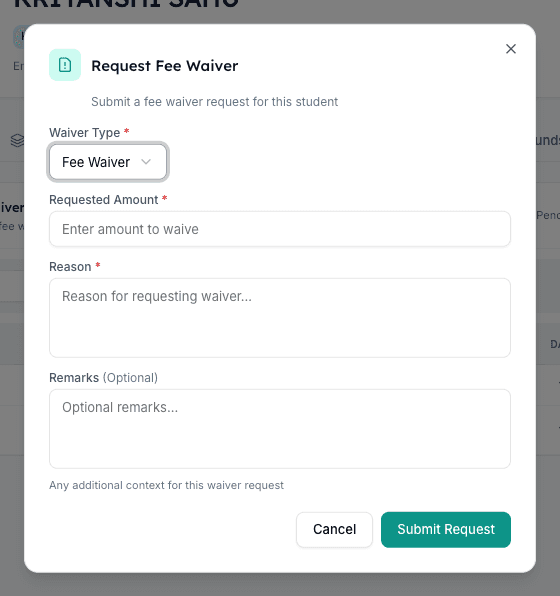
Click Request Waiver on the top right. The dialog opens with a Waiver Type select. Pick Fee Waiver for the regular tuition or transport amount, or Late Fee Waiver when the parent paid on time but a late-fee charge slipped onto the invoice (for example, bank holiday on the due date, or a confirmed UPI failure). Inkwelly keeps these two types separate so the principal can decide tuition relief and late-fee relief on different policies.
4. Enter the amount and write a clear reason
In the Requested Amount field, type the rupee amount the office wants to write off — for example, 8,000 against an outstanding of 12,000. In the Reason field, write a clear, audit-friendly sentence: "Single-parent hardship, father deceased March 2026, mother on contractual income", or "Medical emergency, mother hospitalised April 2026, hospital bill on file", or "Board decision dated 12 April 2026, retain student for Class 10". Use the Remarks field for optional context, such as the supporting document reference number kept in the office file. Click Submit Request.
5. The waiver lands as Pending on the Waivers list
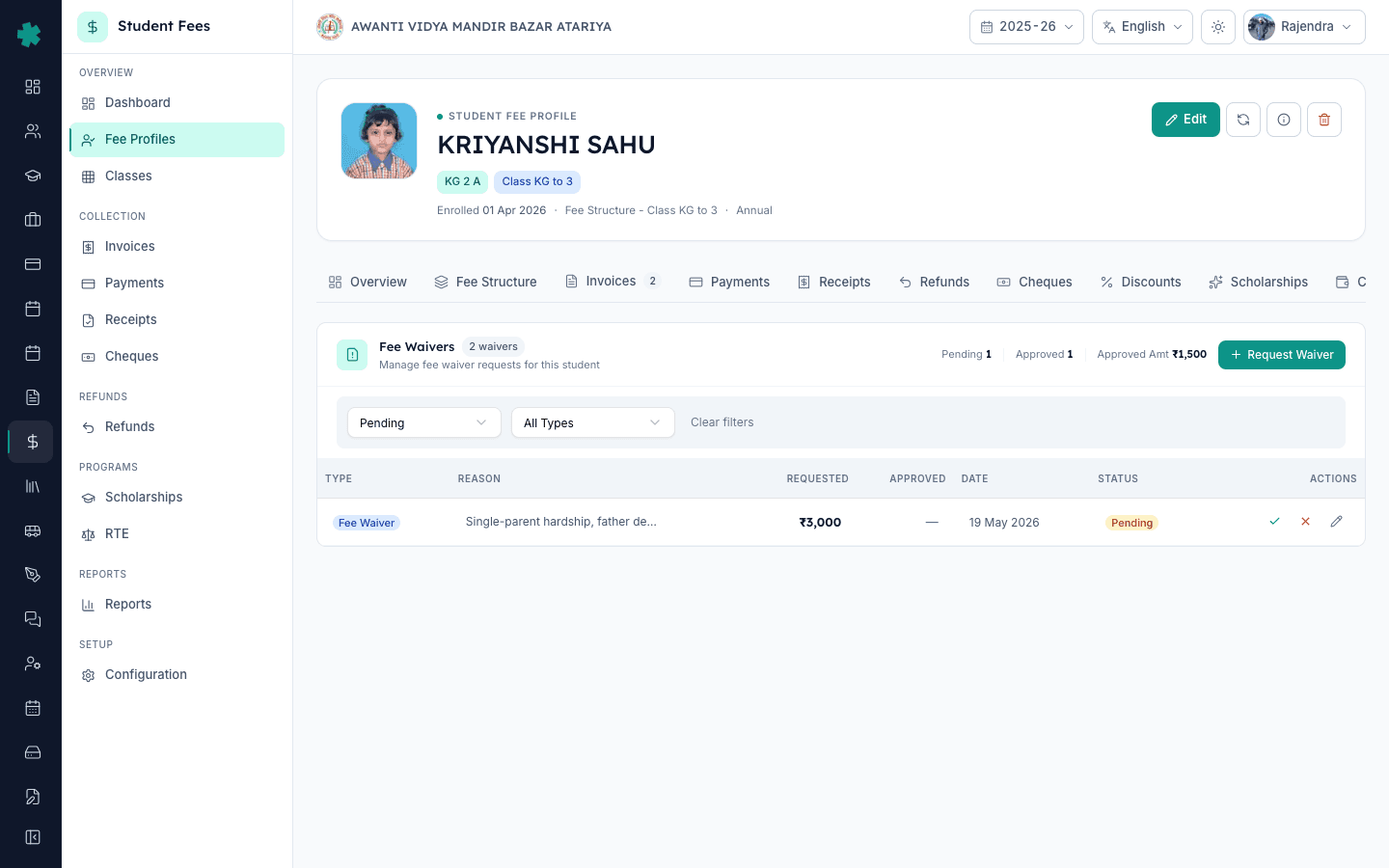
The dialog closes and the new row appears on the Waivers table with a Pending pill, the requested amount in tabular figures, the date, and a small pencil icon for edits. At this stage the breakdown on the right side of the profile is unchanged — Inkwelly does not touch the outstanding amount until the approval is recorded. The summary header also bumps Pending by one. The same office admin can still edit the request from the pencil icon until it is approved or rejected.
6. Principal or committee approves with the final amount
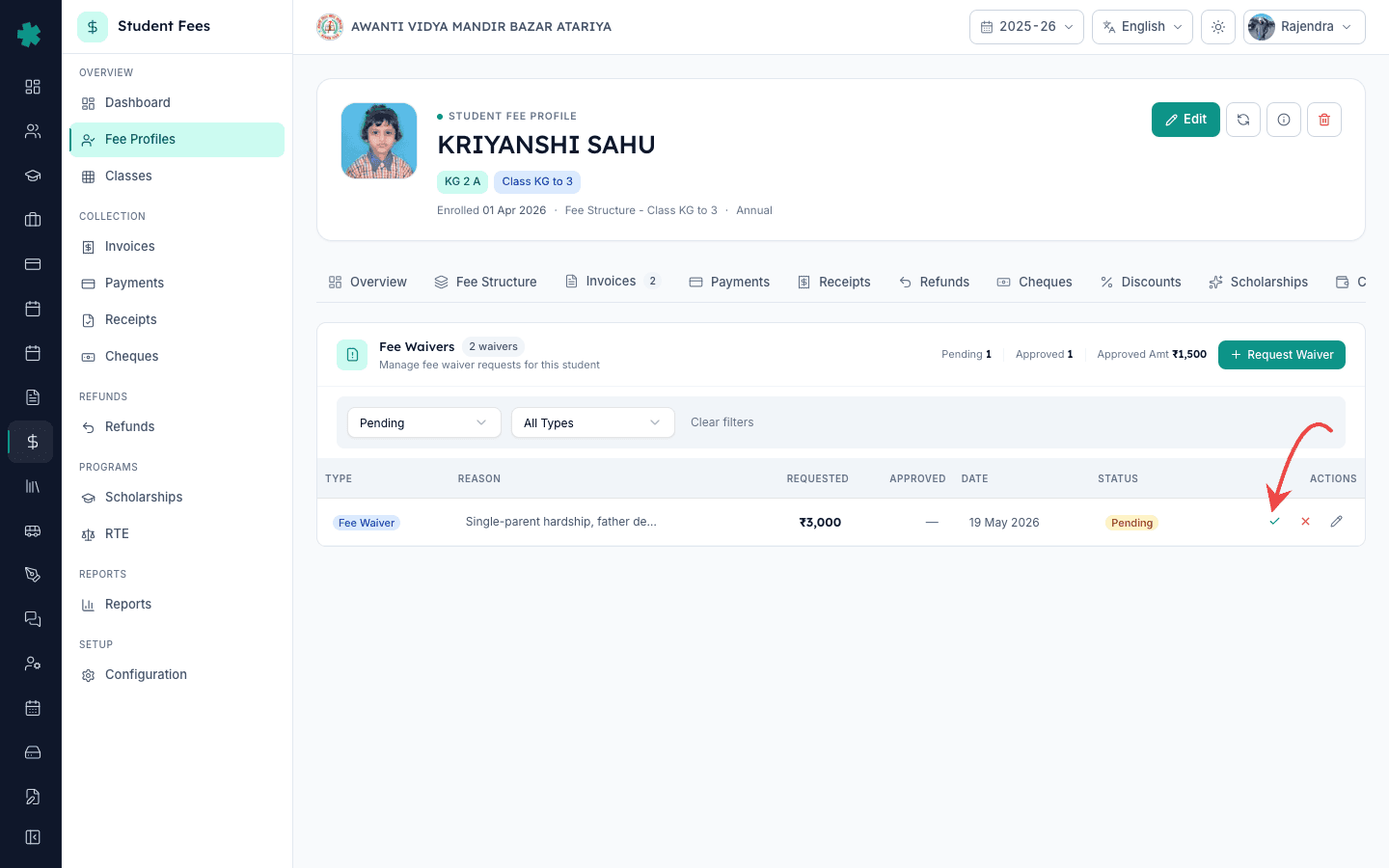
When the principal or accounts head sits down to clear pending waivers, they open the same Waivers tab and click the green tick on the Pending row. The Approve Waiver dialog shows the type, requested amount and reason in a Waiver Details card so the approver has full context without scrolling. In Approved Amount, type the final amount sanctioned — the field is capped at the requested amount, so the approver can write off less but never more than what was asked. Add Approval Remarks (for example, "Approved for Class 10 retention, condition: tuition only, not transport") and click Approve Waiver.
7. Or reject the request with a reason
If the case does not qualify under the school's waiver policy, click the red cross on the Pending row instead. The Reject Waiver dialog asks for a rejection reason — a short note the office can show the parent if asked. Click Reject. The row moves to Rejected status on the same Waivers list, the request stays on the audit trail forever, and the outstanding amount on the profile is not changed. Rejections are as much a record as approvals — they prove that the school did not silently waive fees off the books.
8. Confirm the approved waiver on the fee breakdown
For an approved waiver, the row shows the Approved amount in green and an Approved or Auto Approved status pill. On the right side of the profile the Outstanding line is lower by the approved amount, and the Waivers tile on the Overview shows the running total. Click the Recalculate icon next to Edit on the profile header if you do not see the reduction immediately — Inkwelly recomputes the breakdown and the waiver lands on the Net payable line. Approved waivers cannot be edited or deleted; they can only be balanced by a new fine or a reverse entry, which keeps the books and the audit trail honest.
Next step — keep the three concession tools distinct. Use How to apply a discount to a student's fees in Inkwelly for ad-hoc concessions outside the rule engine, and How to award and approve a scholarship for a student in Inkwelly for merit or need-based awards funded by donors. To see how the rule-based concessions interact with case-by-case waivers, set up How to set up sibling discount rules in Inkwelly and How to set up staff-ward discount rules in Inkwelly. For students under the Right to Education Act, the reimbursement flow lives in How to mark RTE-eligible students and prepare a reimbursement claim in Inkwelly.
See Inkwelly Student Fees in action
Frequently asked
7 questionsWhat's the difference between a fee waiver, a discount and a scholarship in Inkwelly?
A waiver is a one-off, policy-backed write-off of dues that the student already owes — used for hardship, medical or board-decision cases, and recorded with reason and approver. A discount is a percentage or rupee reduction on the regular fee structure, applied through a rule (sibling, staff-ward, early-payment) so every eligible student gets it automatically. A scholarship is a merit or need-based award, usually funded by a donor or trust, that covers a defined amount or percentage. Inkwelly keeps the three on separate tabs so each one has its own audit trail and its own approval workflow.
Who can approve a fee waiver in Inkwelly?
By default, only sign-ins with the principal, accounts head or trust admin role can click Approve on a Pending waiver — the office admin who raised it cannot self-approve. The approver's name and timestamp are stored on the row and shown on the Recent Activity audit trail. For larger waivers, schools commonly route the request to a committee through the Forwarded status before final approval, so the management committee minute matches the Inkwelly record.
Can I cancel a fee waiver after it has been approved in Inkwelly?
No. Once a waiver is approved, Inkwelly does not delete or roll it back — that would break the audit trail every Indian school's auditor and the National Commission for Protection of Child Rights expect. If a waiver was approved by mistake or the basis changed, the right pattern is to issue an offsetting fine or recovery entry on the same student's profile with a clear reason (for example, "Waiver reversed, supporting document not received within 30 days"). The original waiver row stays on the list, the new fine balances it, and the books reconcile.
What does the Pending and Forwarded status mean on a waiver in Inkwelly?
Pending means the request has been raised by the office and is waiting for the principal or accounts head to open the Approve or Reject dialog. Forwarded means the request has been escalated to a higher authority — typically a trust committee for cases above the principal's own approval limit — and is waiting for that committee's decision. Both statuses show the same green tick and red cross actions to whichever role is authorised at that level.
Fee waiver aur discount mein farq kya hai?
Waiver ek ek baar ka, hardship ya medical case par diya jaane wala write-off hota hai jo Inkwelly ke Waivers tab par save hota hai aur principal approve karta hai. Discount ek rule hota hai — jaise sibling, staff-ward ya early-payment discount — jo har eligible student ko apne aap lag jata hai jab fee profile recalculate hoti hai. Waiver ek case-by-case decision hai jiska poora audit trail Inkwelly me rehta hai; discount ek policy hai jo bina case-by-case approval ke chalti rehti hai.
Waiver approve kaun karta hai aur kab apply hota hai?
Office admin Waivers tab se Request Waiver dabakar request raise karta hai aur Pending status me row save ho jata hai. Principal ya accounts head usi row par green tick dabakar Approve Waiver dialog kholta hai, Approved Amount likhta hai (requested se zyada nahi kar sakte), remarks add karta hai aur Approve dabata hai. Approve hote hi student ke fee profile par Outstanding amount turant kam ho jata hai aur Recent Activity me approver ka naam aur waqt record ho jata hai.
What kinds of cases does a fee waiver typically cover in Indian schools?
The common pattern across CBSE, ICSE and state-board schools is four categories: financial hardship (single parent, retrenchment, sudden loss of household income), medical emergency for the student or an earning parent, board or government decision (a specific cohort retained, a circular on a class), and trust-funded community gestures (for example, a full tuition waiver for the fourth child of a family). NCPCR guidance expects each category to be written into the school's published fee policy, with a per-case approval limit and a paper trail. Inkwelly stores all four under the same Waivers tab but lets you write the category into the Reason and Remarks field.
You might also like
3 readsSources & references
- Right of Children to Free and Compulsory Education Act, 2009 — Section 13 (No capitation fee) · accessed 19 May 2026
The RTE Act prohibits collecting fees beyond the published structure, so any waiver a school records must be tied to a documented reason, an approver and a clean audit trail to remain compliant.
- CBSE Affiliation Bye-Laws — Chapter VII, Fee Structure · accessed 19 May 2026
CBSE bye-laws require affiliated schools to publish their fee structure including any concessions, and to apply them uniformly with management-committee approval, which maps directly onto Inkwelly's waiver request and approve workflow.
- National Commission for Protection of Child Rights — School Fee Guidance Note · accessed 19 May 2026
NCPCR guidance expects every concession beyond the published fee structure — including hardship and medical waivers — to be documented in writing, capped per case, and uniformly applied across similar cases.
See Inkwelly on your school
30-minute demo. We open your current ERP with you and load your data into Inkwelly on the call. Dated go-live plan by the end of it.