How to auto-handle parent STOP replies in Inkwelly
A practical guide for school admins who want clean, TRAI-aligned opt-out handling on parent WhatsApp and SMS. By the end you will have one master toggle switched on in Inkwelly so STOP replies are auto-acknowledged, recorded as HANDLED on the Inbound page, and ready for your auditor to inspect any time.
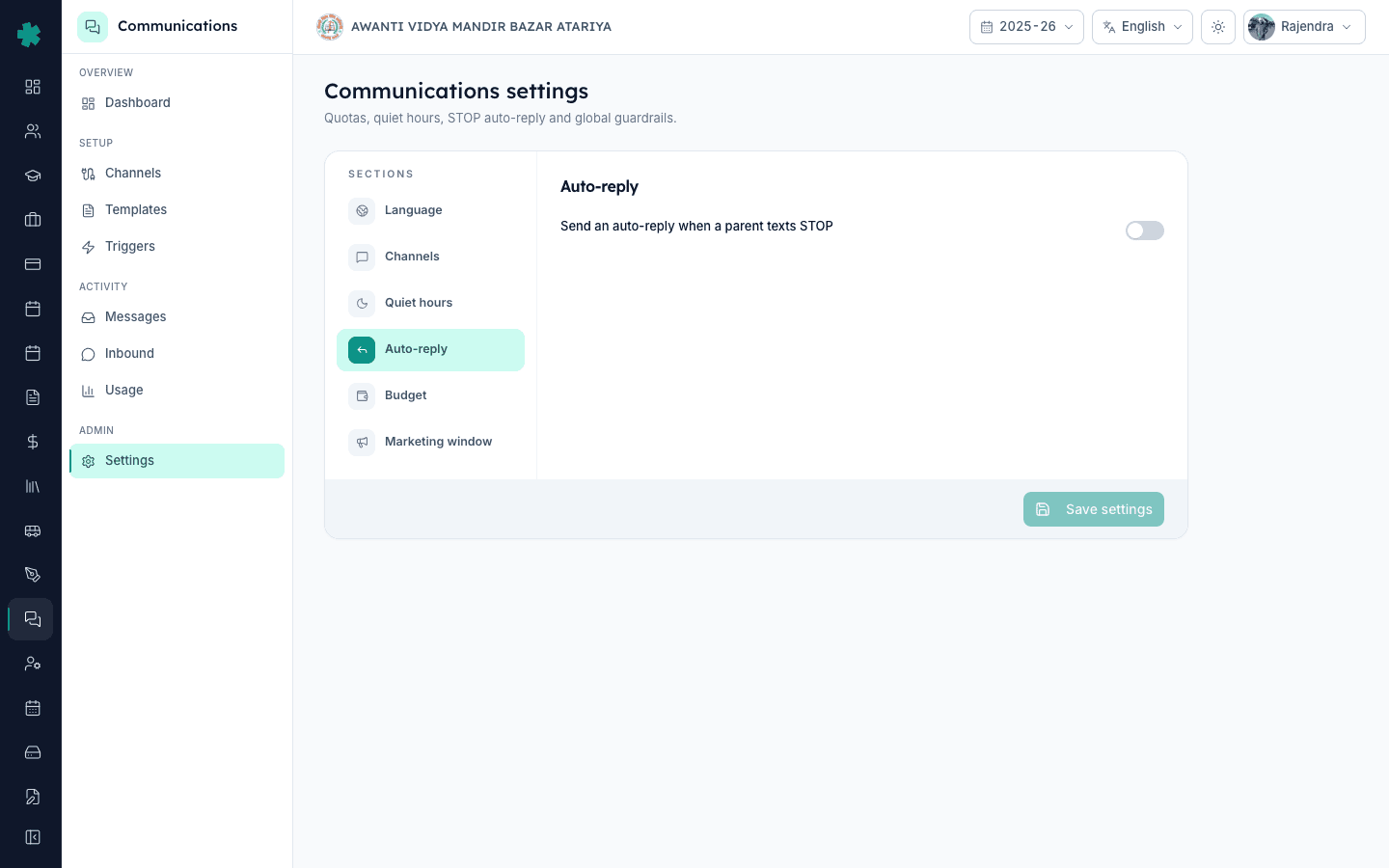
TL;DR — Open Communications, go to Settings, click the Auto-reply section, and switch on Send an auto-reply when a parent texts STOP. Click Save settings. From this moment, every STOP reply on your school's WhatsApp or SMS number gets an auto-acknowledgement and is logged on the Inbound page with the HANDLED tag.
Across Indian schools that send 8,000 plus parent messages a month, roughly 1.2 to 1.8 percent of recipients will reply STOP within the first quarter — mostly parents whose children have left the school, a second guardian's number that nobody asked for, or older grandparent contacts who never wanted updates. Under TRAI's TCCCPR 2018 framework, a school that keeps sending after a documented STOP request is liable for operator-level penalties and can have its DLT header suspended. Manual handling breaks within the first 200 messages. Inkwelly's Auto-reply removes the human bottleneck so a parent who texts STOP at 9pm Sunday is acknowledged within seconds and shows up on the Inbound page as HANDLED before the office even opens on Monday.
1. Open Communications settings
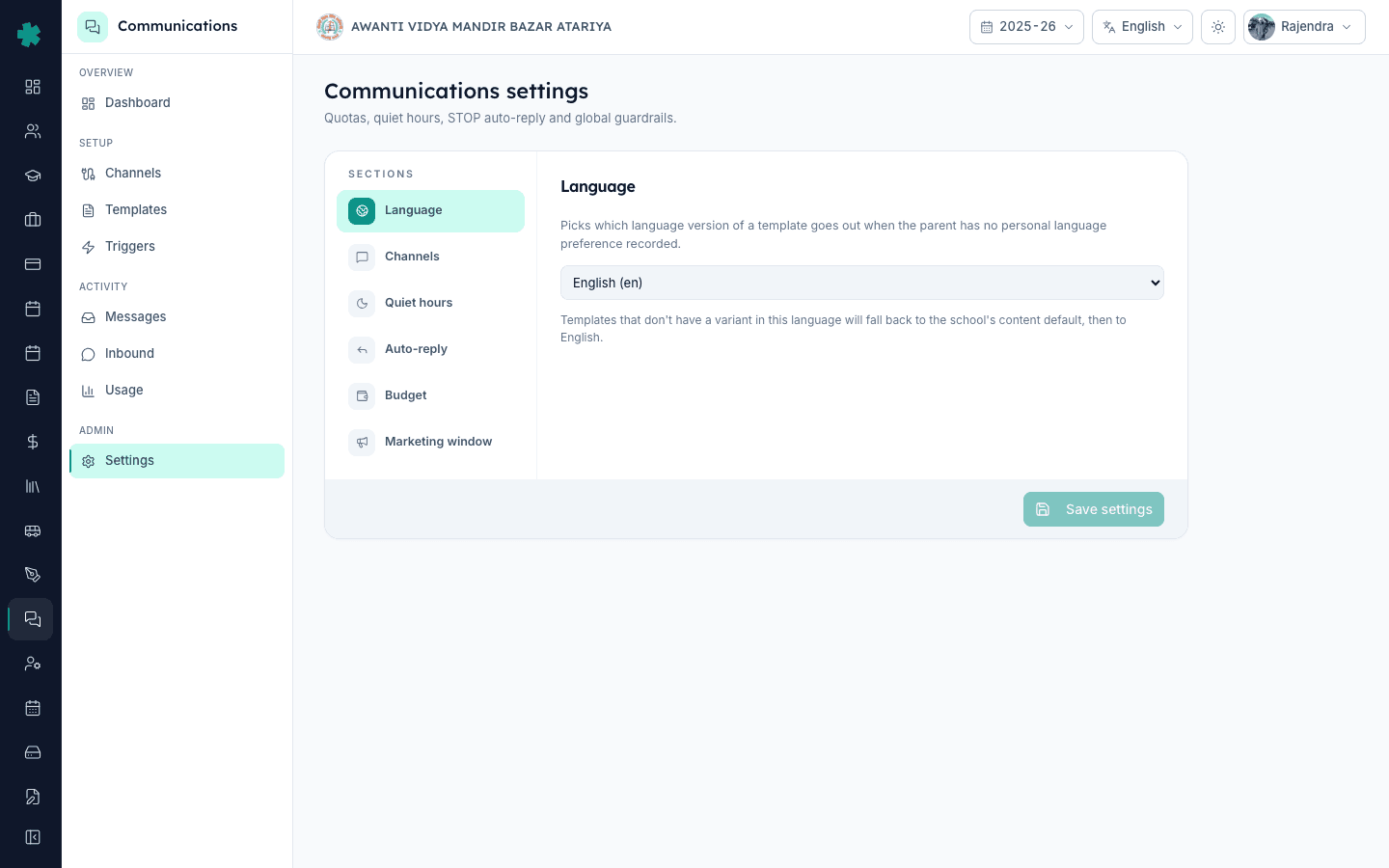
Log in as a Communications admin. From the left sidebar click Communications. Inside the Communications workspace, scroll the side menu to the Admin group and click Settings. The Communications settings page opens with a header that reads Quotas, quiet hours, STOP auto-reply and global guardrails. On the right is a Sections column listing Language, Channels, Quiet hours, Auto-reply, Budget and Marketing window. This is the same page where you configure quiet hours and the monthly budget.
2. Click the Auto-reply section
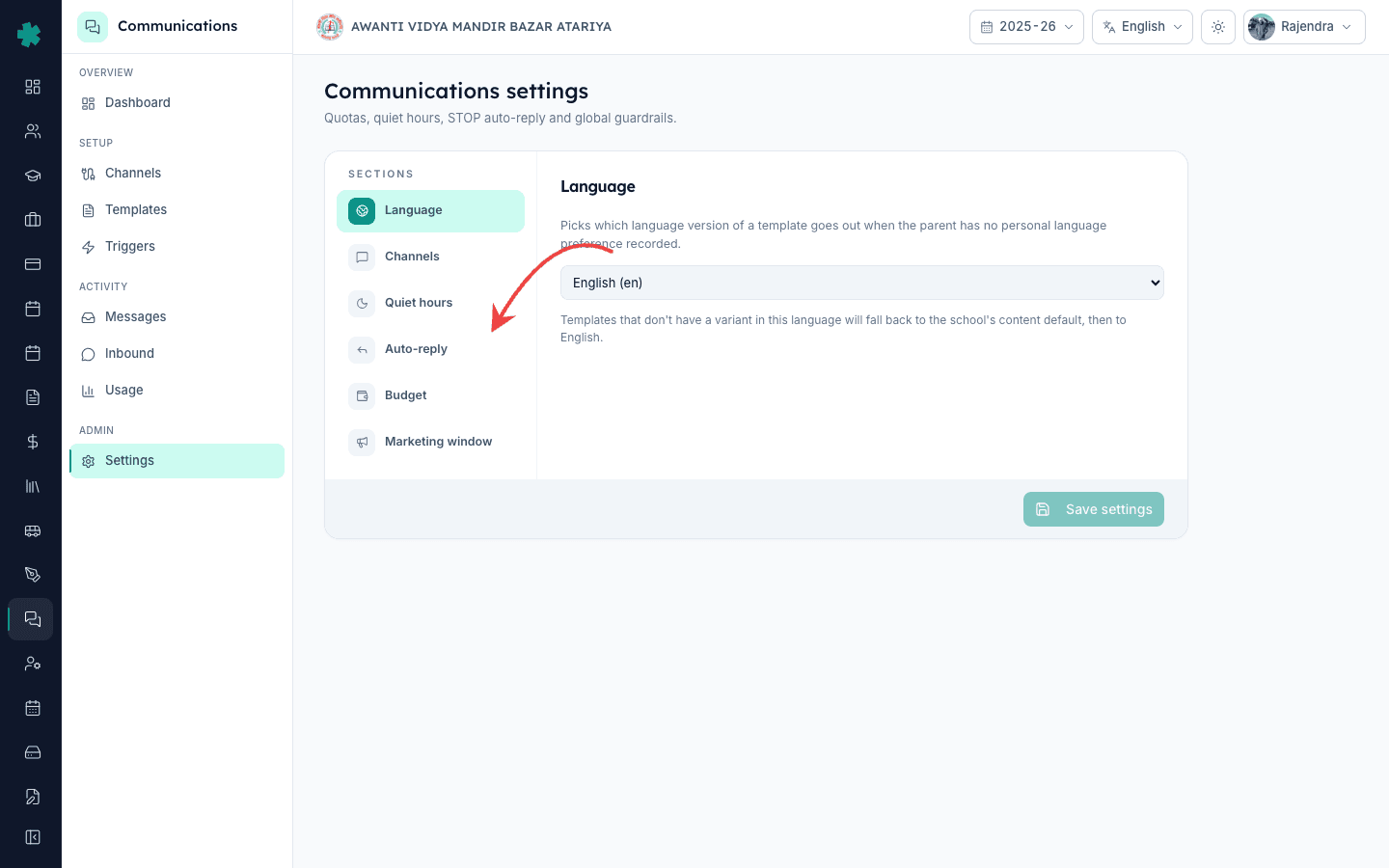
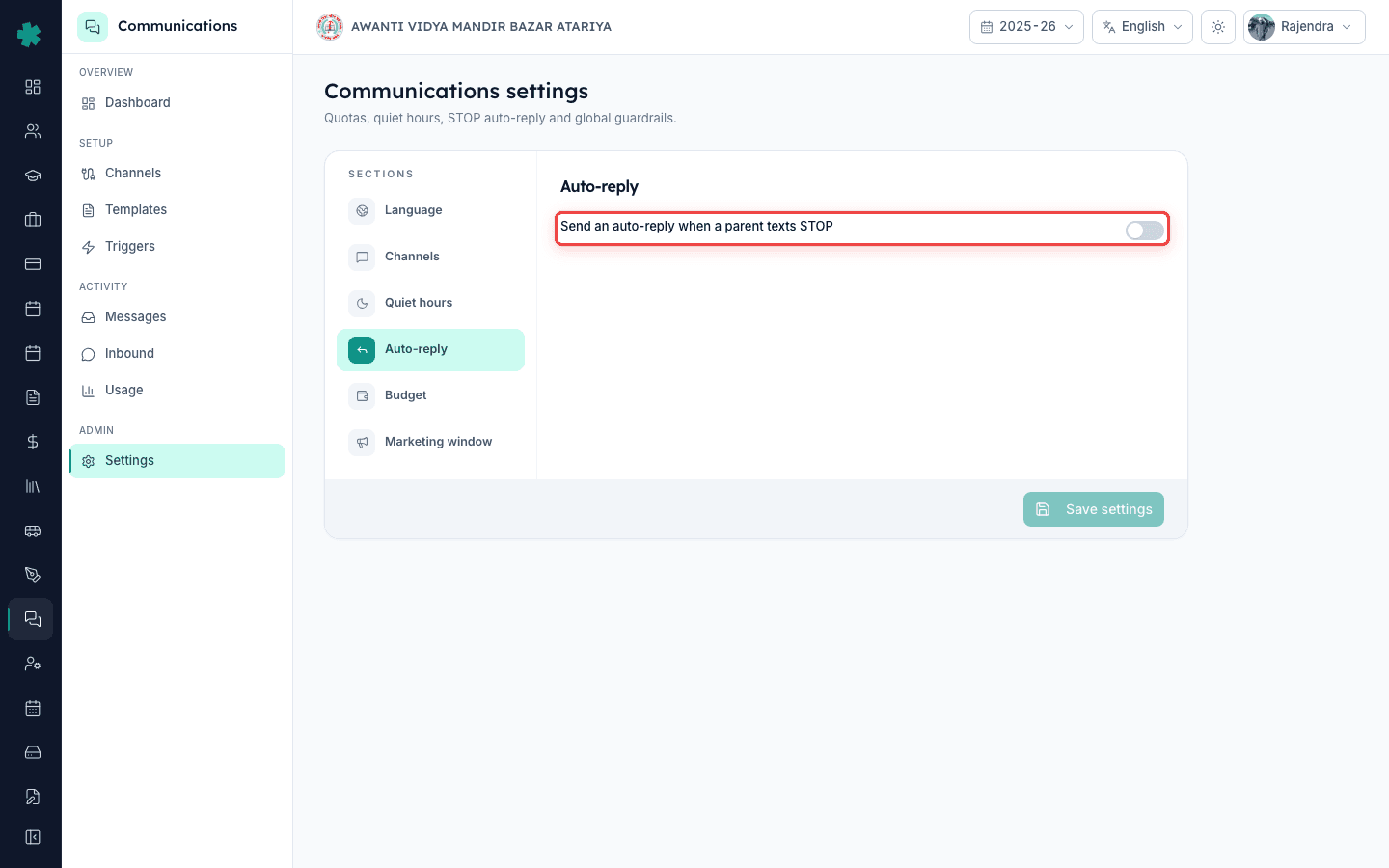
In the Sections column on the right, click Auto-reply. The active section highlights in green and the right pane swaps to show the Auto-reply panel. The panel has a clean heading Auto-reply and a single row of content underneath. There are no sub-tabs, no template tables, no keyword editors — just one purposeful control. Take a second to read what the row says before you flip the toggle.
3. Read the row label carefully
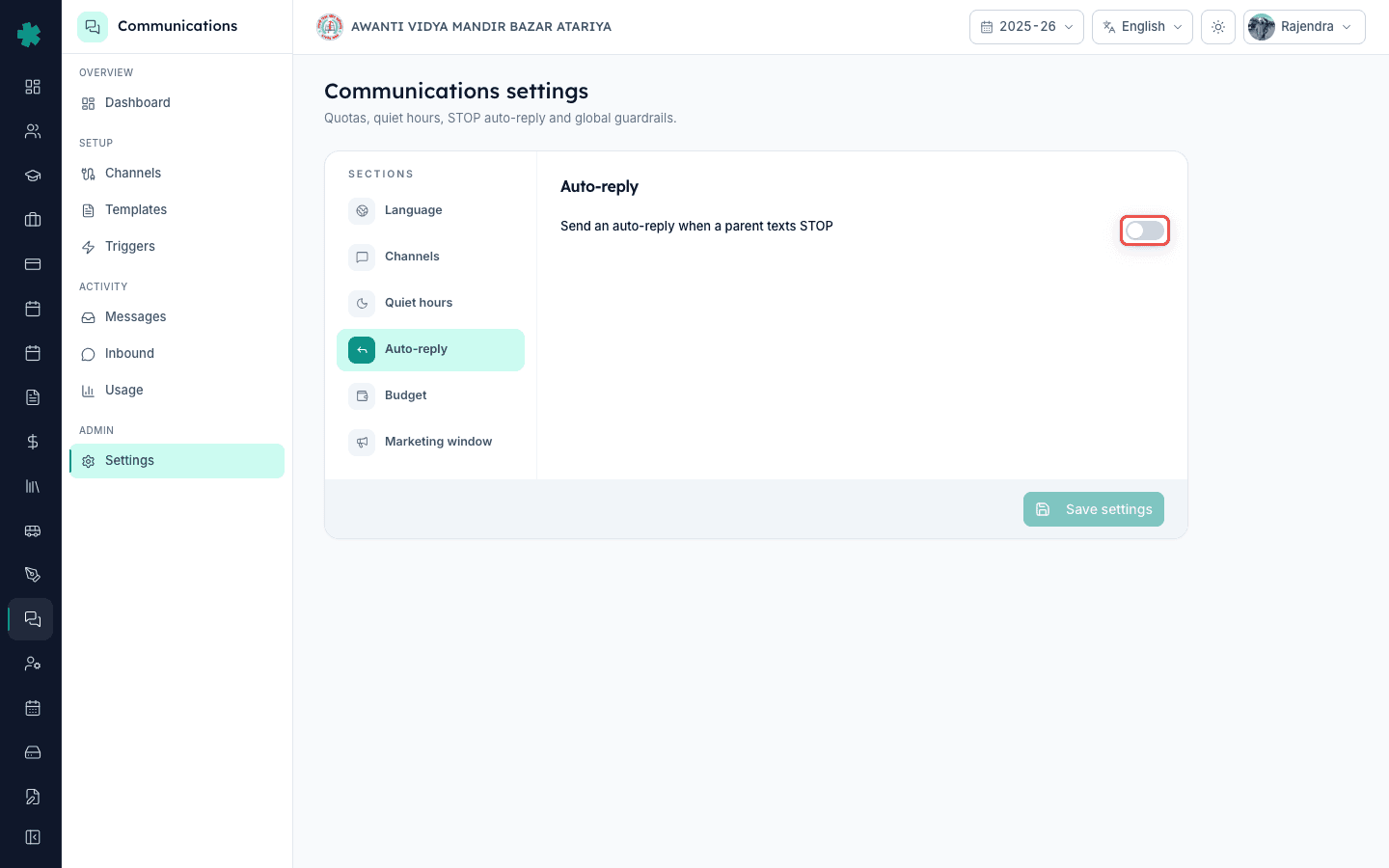
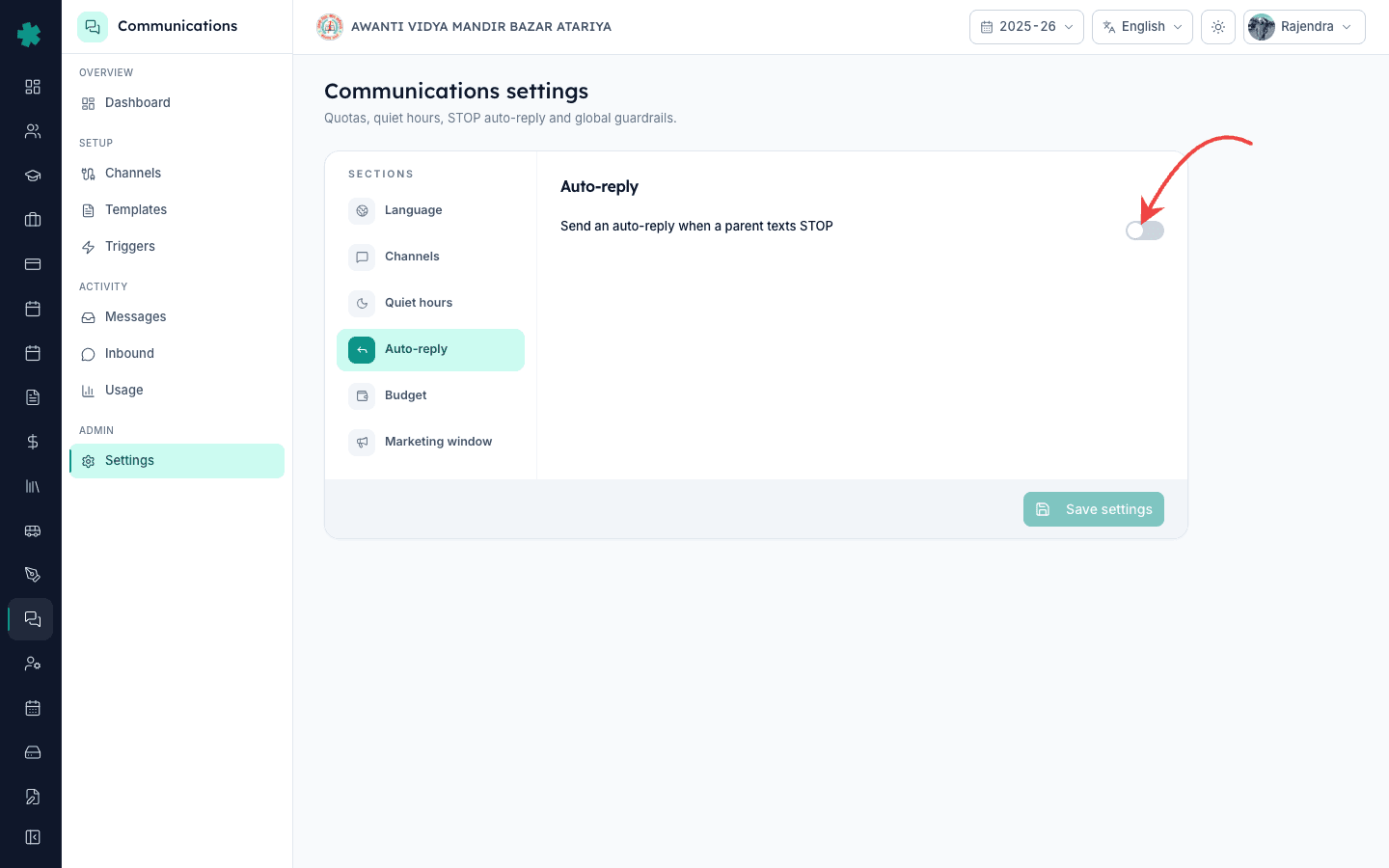
The row reads Send an auto-reply when a parent texts STOP with a toggle switch on the right. That is the entire setting. Inkwelly handles the keyword set, the acknowledgement copy and the parent-status update internally. Your job is to consciously turn this on with admin authority, so an auditor or operator (Jio, Airtel, Vi, BSNL) can see a clear decision in the audit ledger rather than a fuzzy default.
4. Flip the toggle to on
Click the toggle. It moves from grey (off) to green (on). The page is now in the new state but the change is not stored yet. Important: keep this toggle on year-round. Switching it off only when you suspect a parent triggered STOP by mistake is the wrong fix — instead, re-add that one parent's number to your normal list from the Inbound page. The auto-reply is a TRAI-safety feature, not a per-campaign control.
5. Save the setting
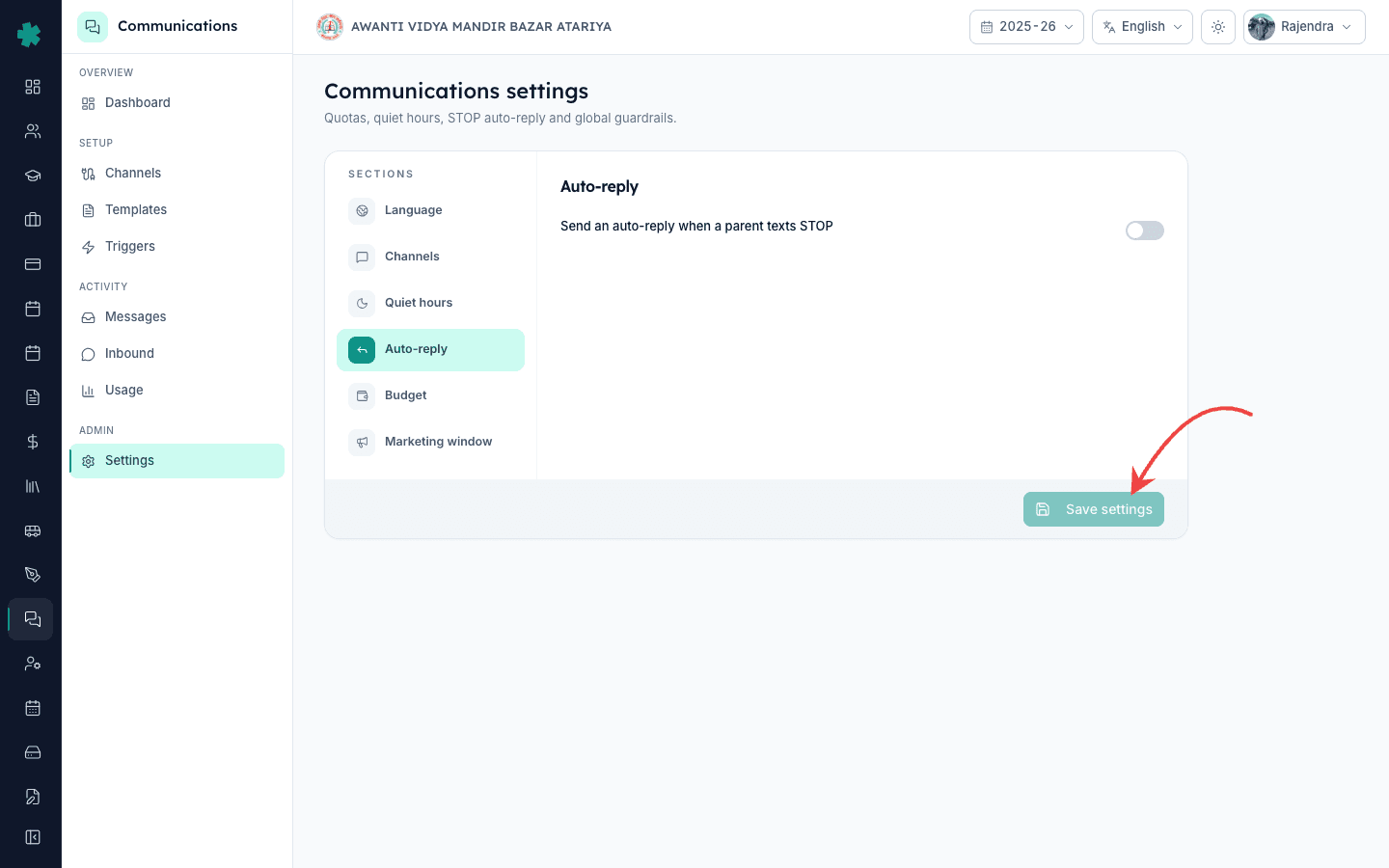
Click the Save settings button at the bottom right of the page. Inkwelly stores your choice and confirms the save. From this exact moment, every STOP reply your school receives on WhatsApp or SMS gets the auto-acknowledgement. Replies that landed before you flipped the toggle are not retroactively handled — open the Inbound page and clear those manually with your office staff once.
6. Test with one staff number
Ask one office staff member to text STOP from their personal phone to the school's WhatsApp number, and again to your SMS sender ID. Within a few seconds they should receive a polite acknowledgement message back. The send count and exact wording follow your active WhatsApp Business template inventory — if you want to customise the wording, raise a template-edit request with the Inkwelly team rather than editing template prose in the settings page.
7. Confirm the Inbound page shows HANDLED
From the Communications sidebar click Inbound. The Inbound messages page opens with filter pills at the top — All, Pending, Replies, STOP — and a search field. Click the STOP pill. Your test replies should appear, each row showing the phone number, a red STOP tag, a green HANDLED tag, the message body STOP, and the timestamp. That is the audit trail your operator and auditor will look at. If a reply ever appears here without HANDLED, escalate it to Inkwelly support — it should not happen with the toggle on.
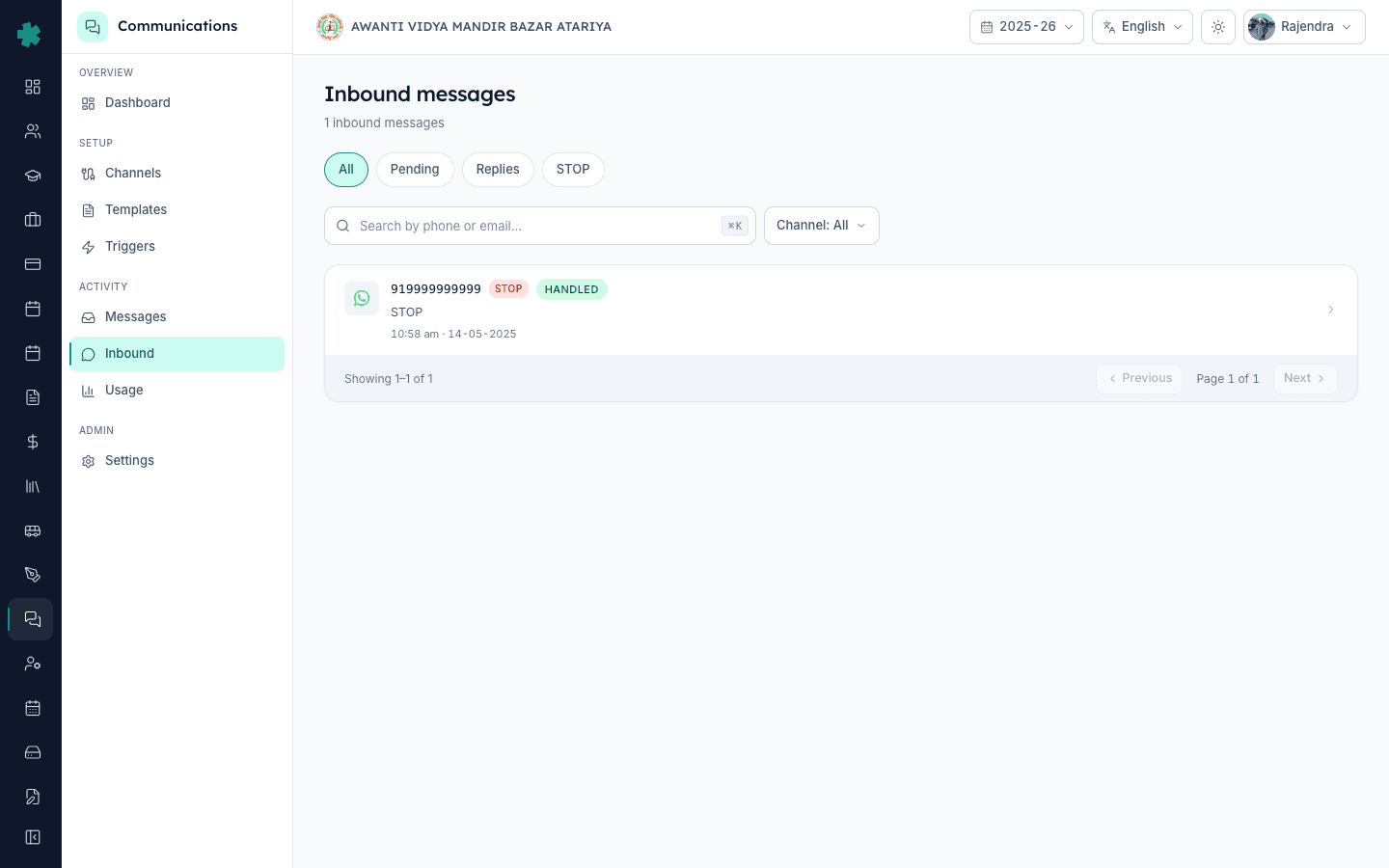
Now make the Inbound page part of your weekly office routine. Open it once a week and scan the STOP, Pending and Replies tabs. STOP entries should all be HANDLED — they are. The other tabs are where a parent has asked a real question that nobody at school replied to yet. Forward those to the right teacher or admin from inside Inkwelly. If you run multiple campuses on the same Inkwelly tenant, switch on Auto-reply separately for each campus from each school's own Settings page. Pair this with the monthly Communications budget and quiet hours and you have the full TRAI-safe operating envelope live.
See Inkwelly's TRAI-aligned Communications module live
Book a 20-minute demo. We will show STOP handling, DLT-routed SMS, WhatsApp template management, the Inbound audit trail and the monthly budget on a real school.
Frequently asked
6 questionsIs STOP handling mandatory for Indian schools?
Yes. Under TRAI's TCCCPR 2018 framework, every sender of commercial communication — including schools using DLT-registered SMS or a WhatsApp Business sender — must honour opt-out requests promptly. Failure can trigger operator-level penalties and DLT header suspension. Inkwelly's Auto-reply gives you a one-click TRAI-safe posture and a defensible audit log on the Inbound page.
Where in Inkwelly do I see who replied STOP?
Open Communications, then Inbound. The Inbound messages page has filter pills at the top — All, Pending, Replies, STOP. Click STOP and you see every parent reply that contained the STOP keyword set, each row showing phone number, a red STOP tag, a green HANDLED tag, the message body and timestamp. That single page is your operator-and-auditor view.
Can I edit the auto-acknowledgement wording from the settings page?
Not from the toggle itself. The Auto-reply section is a single master switch. The acknowledgement copy follows your active WhatsApp Business template inventory in your Inkwelly tenant, in the parent's preferred language where available. If your school needs custom wording, raise a template-edit request with Inkwelly and we will route it through Meta's template approval queue.
What happens to a parent who replied STOP by mistake and now wants updates again?
Open Communications, Inbound, filter by STOP, locate the row, and use the Inkwelly inbox controls to re-link or restore the parent from their student profile. Inkwelly logs every status change in the audit ledger with the admin user who did it. Do not switch the master toggle off for one mistaken STOP — that breaks compliance for every other parent.
Inkwelly me parent STOP reply auto-handle kaise hota hai?
Communications, Settings, Auto-reply section me ek single toggle hai — Send an auto-reply when a parent texts STOP. Use on kar ke Save settings dabaayein. Uske baad jab bhi koi parent WhatsApp ya SMS par STOP likhe, Inkwelly turant acknowledgement bhej deta hai aur Inbound page par HANDLED tag ke saath log kar deta hai — TRAI TCCCPR 2018 ke liye ready.
Will urgent fee reminders still reach parents who replied STOP?
Inkwelly classifies fee, payment-link and admission notifications as transactional — the same TCCCPR carve-out the operators recognise. Marketing, newsletters and routine homework are paused for the opted-out parent. Treat the carve-out as a tool of last resort — if a parent has clearly asked you to stop, do not abuse the transactional channel to push non-essential content.
You might also like
3 readsSources & references
- TRAI TCCCPR 2018 - Telecom Commercial Communications Customer Preference Regulations · accessed 18 May 2026
Mandatory opt-out handling, transactional carve-out, and DLT header suspension consequences for non-compliance
- Meta WhatsApp Business Messaging Policy · accessed 18 May 2026
Quality rating and template-suspension penalties when senders ignore opt-out signals on WhatsApp
See Inkwelly on your school
30-minute demo. We open your current ERP with you and load your data into Inkwelly on the call. Dated go-live plan by the end of it.