How to assign a fee structure to a single student in Inkwelly
For school accountants and office staff who need to move one student onto a different fee plan — hostel-to-day switch, board change mid-session, or a sibling-rule exception — without touching the rest of the class. By the end you will have the student billing from the correct fee structure with all invoices recalculated.
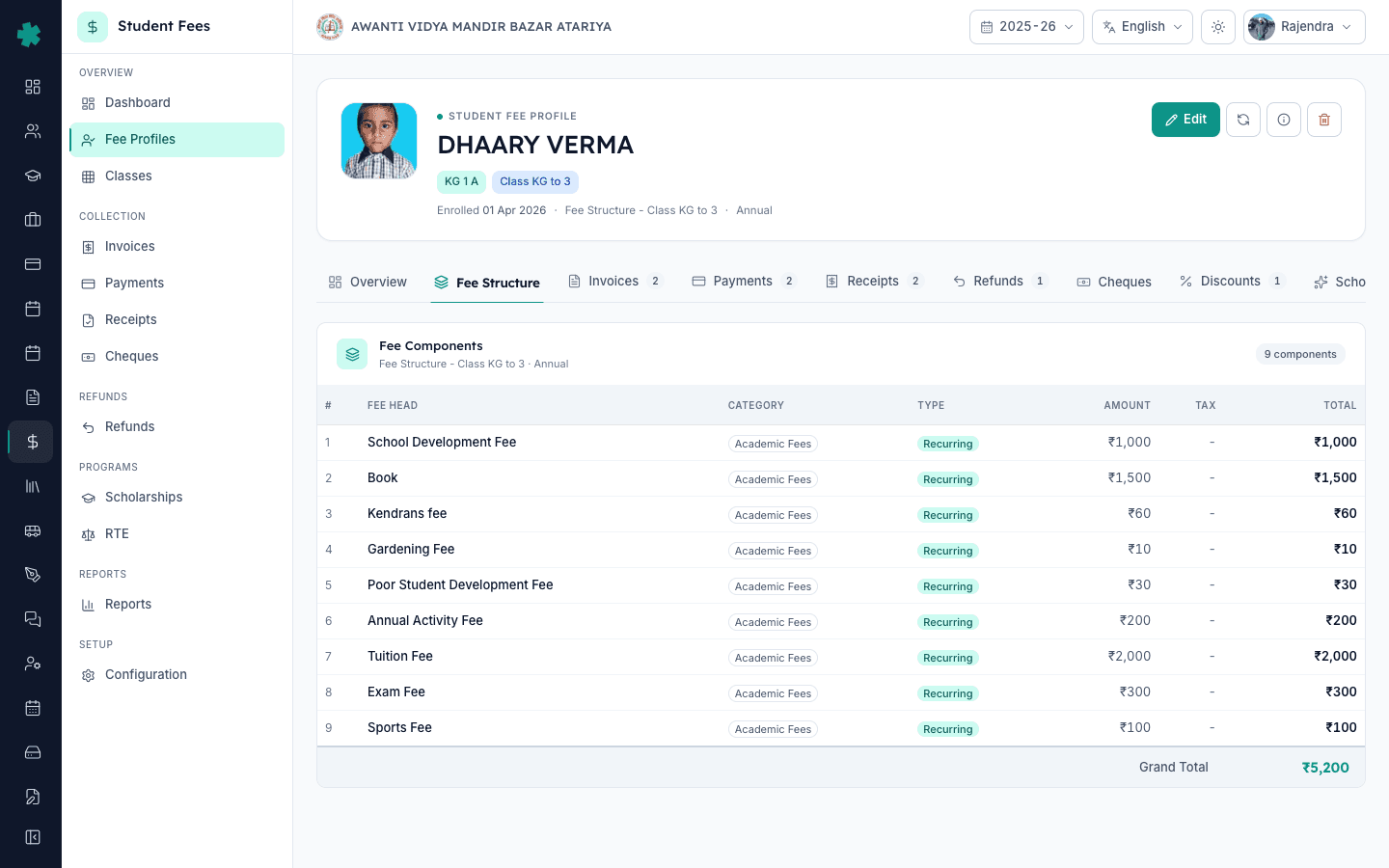
To assign a different fee structure to one student in Inkwelly: open Student Fee → Fee Profiles, search the student, open the profile, check the current plan on the Fee Structure tab, click Edit on the profile header, pick a different Fee Group that points to the new structure, click Update, then click Recalculate. Inkwelly switches that student to the new plan, refreshes the breakdown, and leaves every other student in the class untouched.
Per-student fee overrides are common in Indian schools. A 1,200-student CBSE day school typically handles 30 to 60 mid-session changes a year: a Class 8 student joining the hostel cohort, a board-change applicant moving from State Board to CBSE in October, a sibling-discount cohort that the class default does not cover, or an RTE student whose fees must follow the 25 percent reservation rule under the Right to Education Act 2009. The Inkwelly fee profile carries each student's fee group as a per-student field, so changing it for one student never touches anyone else.
1. Open the Fee Profiles list
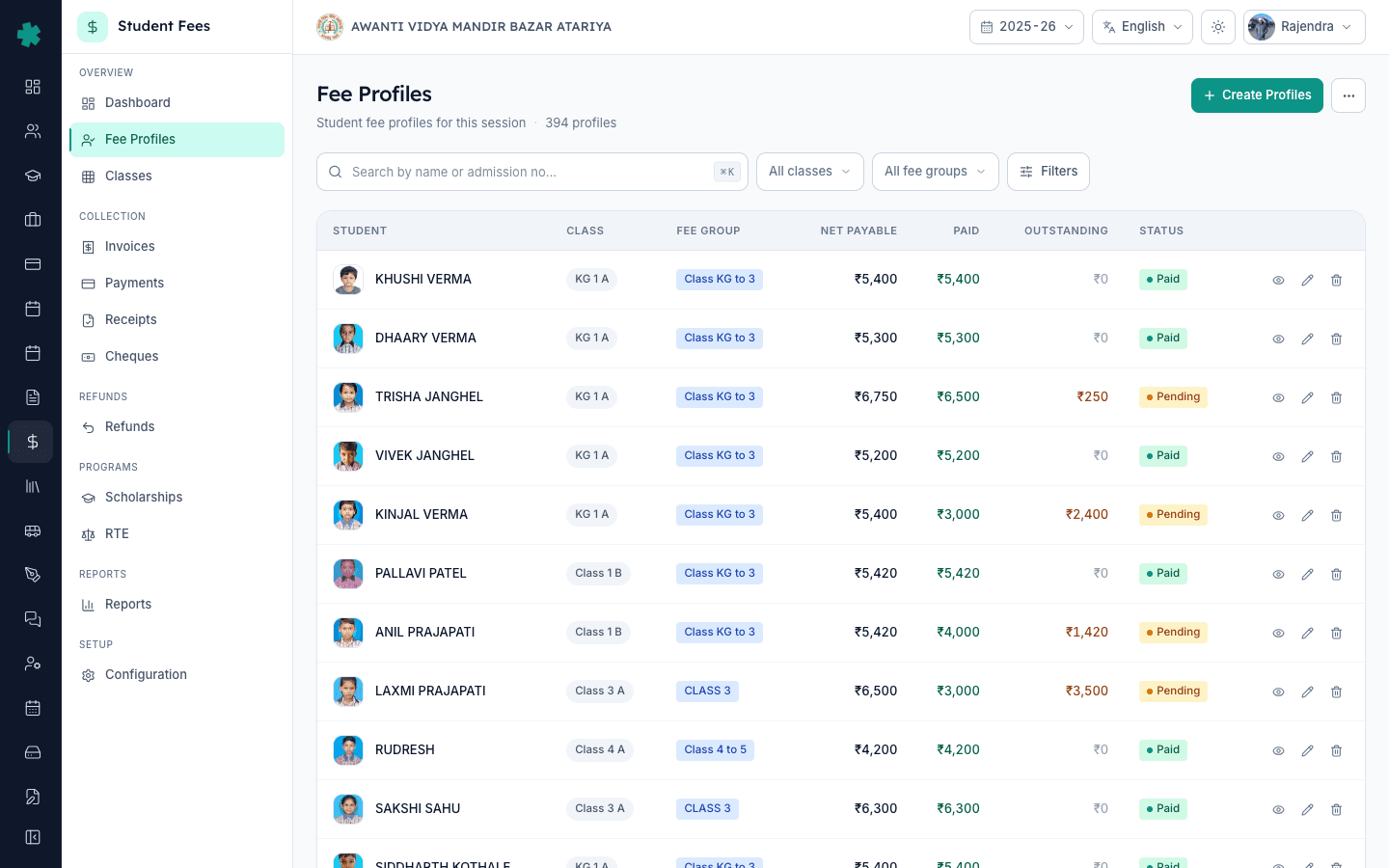
Open Inkwelly → Student Fee. In the left sidebar under OVERVIEW, click Fee Profiles. The Fee Profiles page lists every student in the current academic session with their current fee group, class, outstanding balance, and last-paid date. The top filter bar has a search box plus class and status filters, so even a school with 2,000 students reaches the right profile in under five seconds.
2. Search the student and open the profile
Type the student's admission number, first name, or last name into the search box at the top of the Fee Profiles list. Inkwelly narrows the table as you type. Click the student's row to open the fee profile detail page. The profile header shows the name, admission number, class chip, and the current fee group as a blue pill — that pill tells you which fee group is billing this student right now.
3. Open the Fee Structure tab to see the current plan
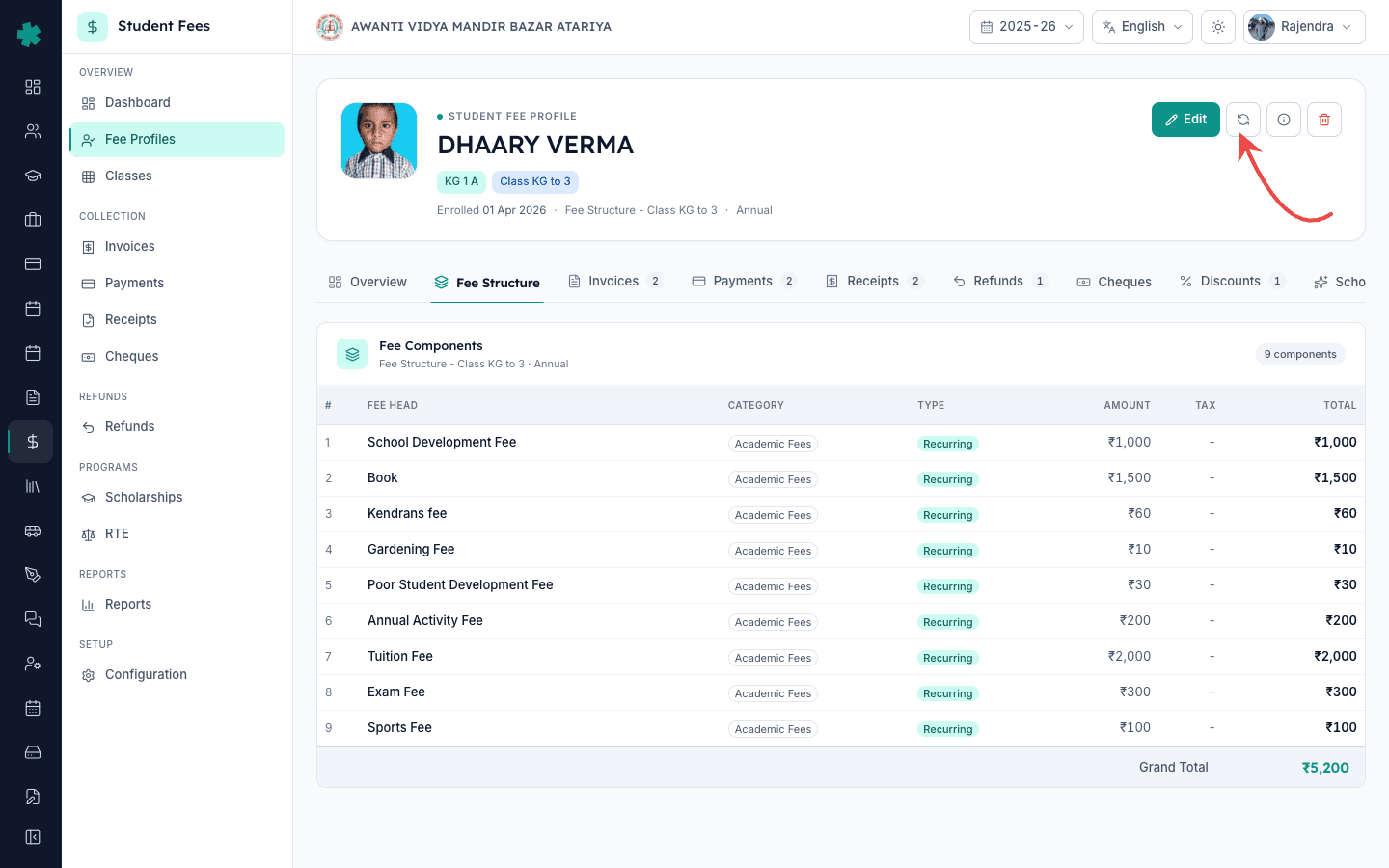
On the profile detail page, click the Fee Structure tab in the second-row navigation. Inkwelly shows the Fee Components table for the structure this student is currently on — every fee head with its amount, tax, and total, plus the grand total. Read this carefully so you know exactly what changes. If the student is in the wrong plan you will see it here: the structure name and total amount at the top of the table will not match what the principal approved.
4. Click Edit on the profile header
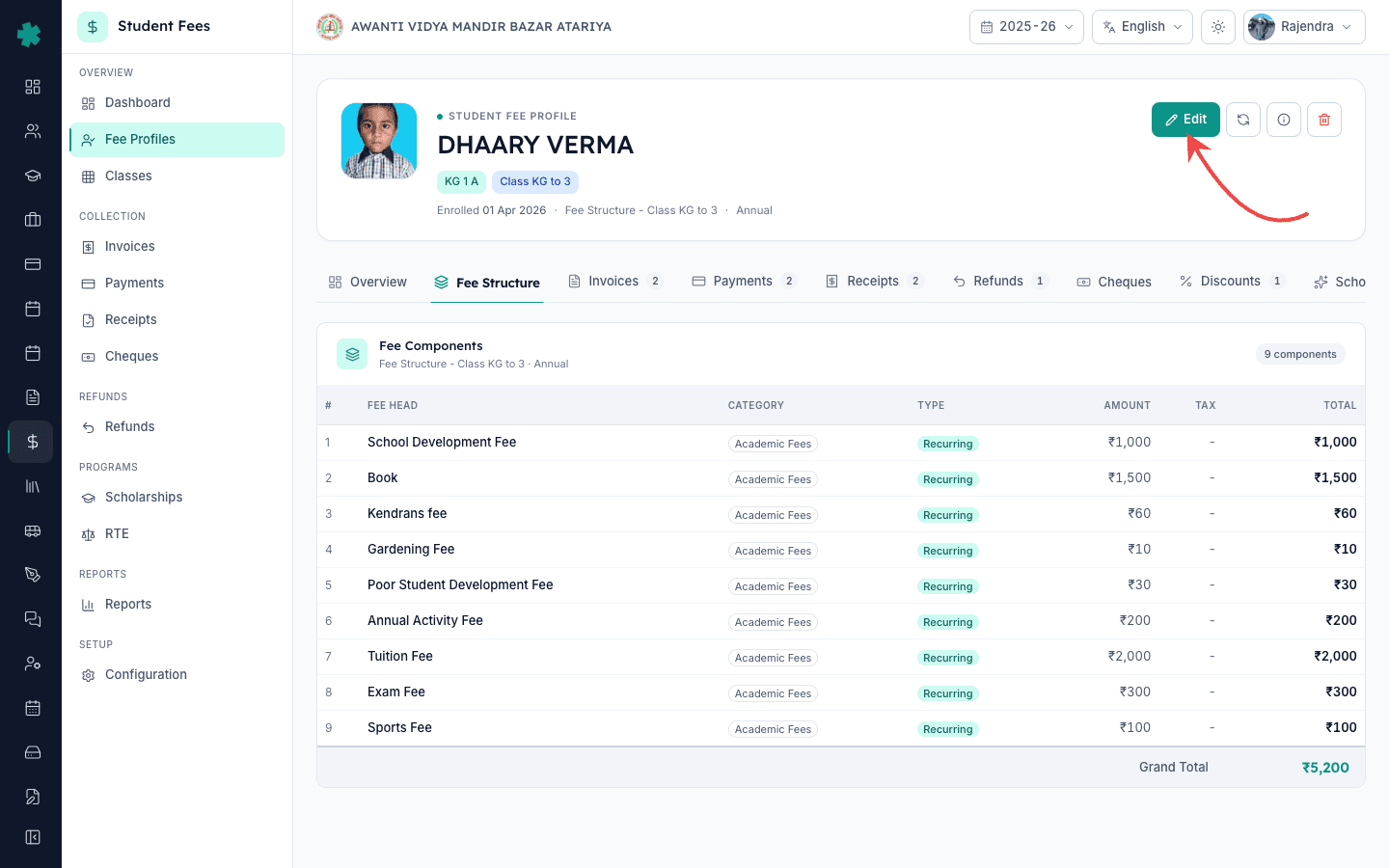
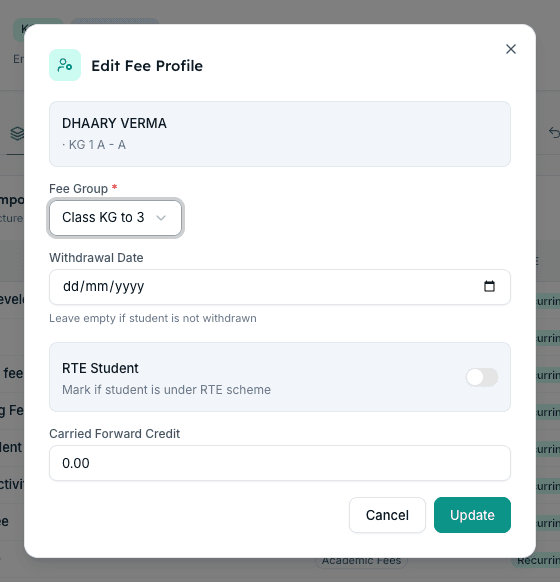
In the top right of the profile header, click the blue Edit button next to the student's name. Inkwelly opens the Edit Fee Profile dialog with the student's identity card at the top — name, admission number, class — followed by a Fee Group dropdown, an optional Withdrawal Date picker, an RTE Student switch, and a Carried Forward Credit field. The Fee Group dropdown is where the override happens, because every fee group in Inkwelly points at exactly one fee structure.
5. Pick a different Fee Group and click Update
Click the Fee Group dropdown. Inkwelly lists every active fee group in this session along with the fee structure each one bills from — Primary, Hostel, RTE, Sibling Cohort, and so on. Pick the group whose fee structure matches what you want this student to pay. Leave the other fields untouched unless you also need to mark the student as RTE or record a carry-forward credit. Click Update. Inkwelly shows a success toast and updates the blue Fee Group pill on the profile header immediately.
6. Click Recalculate to refresh invoices and balances
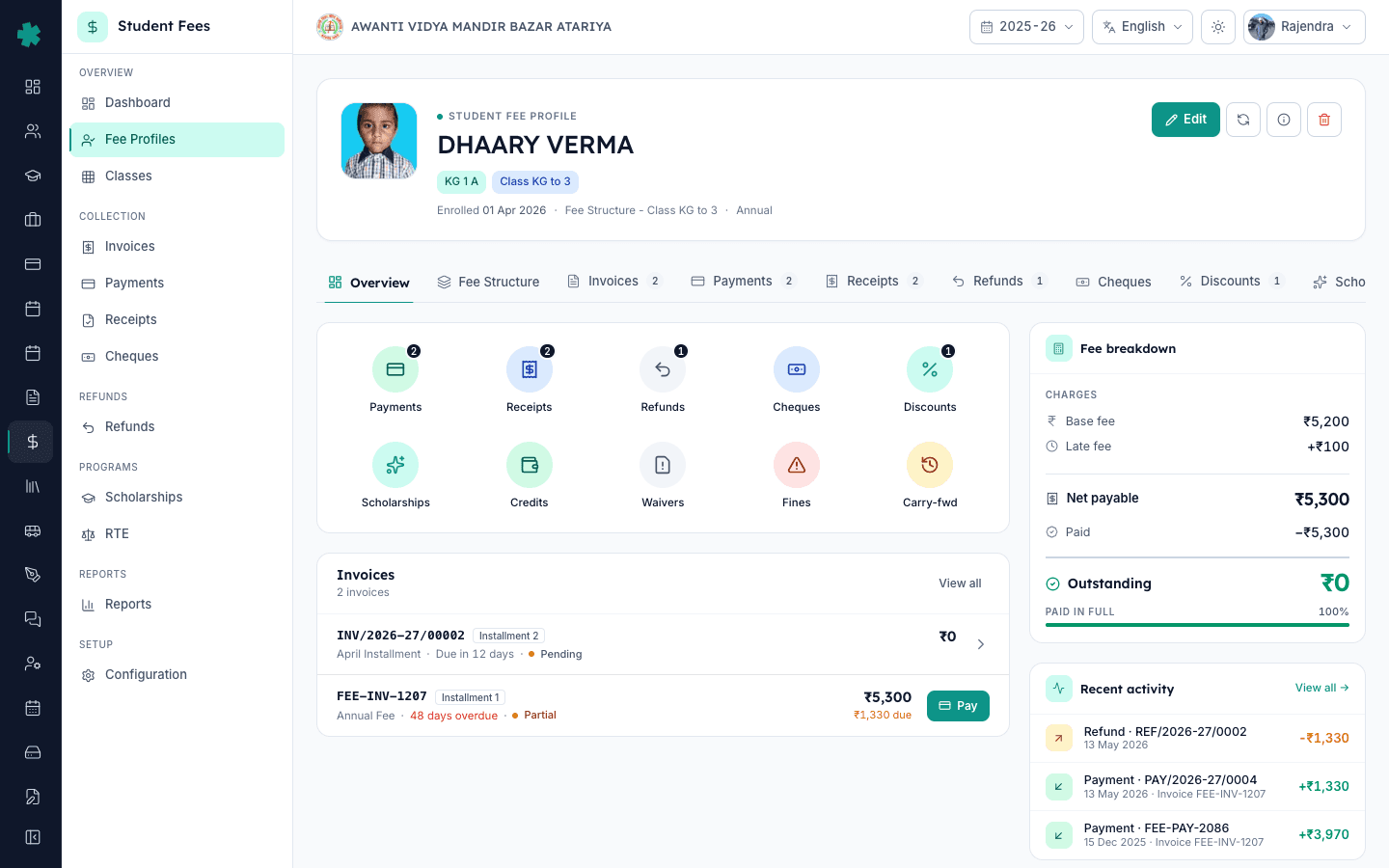
Back on the profile header, click the circular refresh icon next to Edit — that is Recalculate. Inkwelly opens a confirmation card showing what will change: pending invoices will be rebuilt against the new fee structure, paid invoices stay locked, and the outstanding balance will refresh. Click Recalculate. The Fee Structure tab now shows the new plan, the Invoices tab shows fresh installments at the new amounts, and the breakdown on the right column of the profile reflects the change.
What to try next. If the override is permanent because the student moved cohorts (day to hostel, State Board to CBSE), update the admission record so future sessions inherit the right group automatically. If you do this often, consider creating dedicated fee groups for each exception cohort — sibling, scholarship, hostel, board-change — and reassign one student at a time as needed. For students on the RTE 25 percent reservation, mark the RTE Student switch in the same Edit dialog so reimbursement claims tag them clearly.
See Inkwelly Student Fee in action
Book a 15-minute walkthrough — watch a per-student override flow on a real school account.
Frequently asked
6 questionsHow do I change the fee structure for just one student in Inkwelly?
Open Student Fee → Fee Profiles, find the student, click their row, and click Edit on the profile header. Pick a different Fee Group from the dropdown — every fee group in Inkwelly points at exactly one fee structure, so changing the group changes the structure for that student only. Click Update and then click Recalculate. Every other student in the class stays on their original plan.
What is the difference between assigning a fee structure to a class and assigning it to a single student?
Class assignment happens via fee groups mapped to classes — every student in that class inherits the group's fee structure automatically. Single-student assignment overrides the class default for one profile by changing the Fee Group field on that profile. The class mapping stays untouched; only that one student moves to the new plan.
Will old invoices be rewritten when I switch a student's fee structure?
No. Paid invoices stay locked with their original amounts so receipts and ledgers remain accurate. Pending invoices are rebuilt at the new fee structure's amounts when you click Recalculate. If you want to rewrite already-paid invoices because of a refund or correction, cancel and reissue them through the refund flow instead of relying on the structure switch.
Ek student ka fee structure kaise change kare Inkwelly me?
Student Fee → Fee Profiles me jaiye, student ka naam ya admission number search kijiye, profile open kijiye, aur top-right me Edit dabaiye. Edit dialog me Fee Group dropdown se naya group chuniye (har fee group ek fee structure se juda hota hai). Update dabaiye, phir Edit ke pass wala refresh icon (Recalculate) click kijiye. Sirf is student ka plan change hoga — class ke baki students apne hi plan par rahenge.
Class ka default fee structure override kaise kare ek student ke liye?
Class default Inkwelly me class-to-fee-group mapping se aata hai. Ek student ke liye usse override karne ke liye Fee Profiles → student profile open kijiye, Edit dabaiye, aur Fee Group dropdown se alag group chuniye. Yeh sirf us profile par lagega, class mapping waisi ki waisi rahegi. Update aur Recalculate dabakar invoices refresh kar lijiye.
When should I override the fee structure for one student instead of changing the class default?
Override at the student level when the change is only for one or two students — a hostel switch, a board change mid-session, a sibling-rule exception, or an RTE seat under the 25 percent reservation. Change the class default only when every student in that class should move to a new plan, like a new fee approval taking effect for the whole grade.
You might also like
3 readsSources & references
- CBSE Affiliation Bye-Laws 2018 — Chapter II (Fee structure and stage-wise fee guidance) · accessed 19 May 2026
CBSE Bye-Laws require schools to publish a fixed fee structure approved by the management committee; per-student overrides must be recorded with reasons for board audits.
- Right of Children to Free and Compulsory Education Act, 2009 — Section 12(1)(c) · accessed 19 May 2026
RTE Act mandates 25 percent reservation for disadvantaged children with state-funded reimbursement, requiring per-student fee structure differentiation for RTE seats.
- Council for the Indian School Certificate Examinations — Affiliation Manual, Section on Fee Policy · accessed 19 May 2026
CISCE notifications require ICSE and ISC affiliated schools to maintain documented per-student fee records, including any deviations from the published class fee.
See Inkwelly on your school
30-minute demo. We open your current ERP with you and load your data into Inkwelly on the call. Dated go-live plan by the end of it.