Any employee report, in 30 seconds. Pick fields. Filter scope. Export.
A reports workshop built into the Employee Information module — pick the fields you want, filter the staff you care about, choose a row-level list or a summary breakdown, run it. Save it as a template for next May. Export CSV in one click. Designed for the lists Indian schools file every month — Form 16 issuance, EPFO ECR, ESIC additions, department-wise headcount, joining and exit reconciliation, statutory compliance audits.
Why every Indian school office needs a real employee reports tool
Last week of May. The school accountant has 12 days to issue Form 16 to every employee who drew salary in FY 2024-25. He needs a clean list — employee name, PAN, joining date, gross salary paid, TDS deducted, ESI/PF eligibility — sorted by department, exported in the format the Form 16 generation tool expects. He opens last year's Excel sheet, copies rows, manually deletes employees who left, manually adds employees who joined this year, looks up PAN numbers from a separate sheet, fixes a typo in someone's name. Three hours later, the list is ready. Two days later, he finds out three retired teachers were missed and one PAN was wrong on the Form 16 already sent to the bank.
This is not the accountant's failure. It is the system's failure. Indian schools file twenty-plus statutory and management lists for staff every quarter — the Form 16 / Form 16A generation list every May, the EPFO ECR upload by the 15th of every month, ESIC monthly contribution by the 21st, the new-joiners EPFO Form 11 each onboarding, the leavers' EPFO Form 19/10C/10D each separation, the school inspection HR roster, the CBSE board affiliation teaching-staff list, the salary slip mailing list every payday, the department headcount for management review. Every list gets built the same way: somebody opens Excel, somebody types, somebody scrolls.
We asked: what if your accountant or HR head could pick the fields they want, filter the staff they care about, and have the list appear in 30 seconds — printed, exported, or saved as a template for next May? So we built it. Inkwelly's Employee Reports lets the office staff or principal compose a custom list or a summary breakdown in three clicks. Once. Use it again every month. Hand it off to the next accountant when this one moves to a different school.
How Employee Reports works
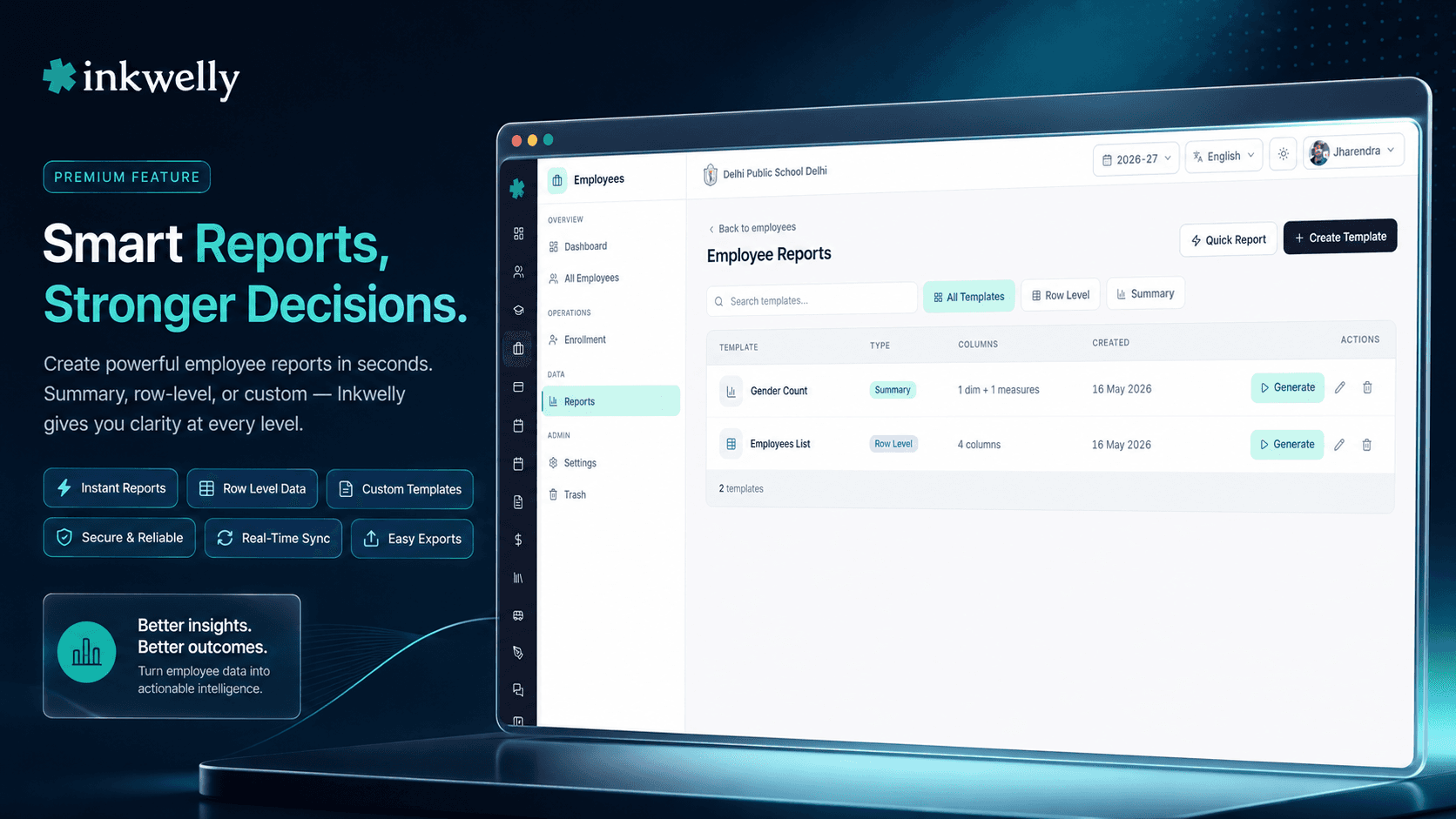
Open Employees → Reports. The page lists every report template your school has saved — sortable, name-searchable, type-filterable. Two buttons sit in the header: Quick Report for an ad-hoc list you don't want to save, + Create Template for a list you'll re-run every payday or every quarter.
Step 1 — Pick the fields. A field selector opens with every employee field grouped into Basic (employee number, name, DOB, photo), Contact (email, mobile, alternate mobile), Demographic (gender, blood group, religion, nationality, mother tongue, caste category), Identity (Aadhaar, PAN, PF number, ESI number, UAN), Academic (department, employee number per session, joining date, leaving date, status, session, remarks), Address — Permanent and Current (5 fields each), Emergency Contact (3 fields), Marital (status, spouse name, spouse occupation), Cross-session (first joining date, last leaving date, total sessions attended, employment duration), Work History, and Status. Tick the columns you want.
Step 2 — Filter the scope. Pick the academic session (one or many — useful for year-over-year reports), pick department (Mathematics, Science, Administration, Transport, Support — whichever your school has configured). Filter by status (Active / Suspended / Resigned / Terminated / Retired / Inactive). Need only employees joining after April 1, 2025 — the new-joiners batch for EPFO Form 11? Date-range filter on joining date does it. Filters compose automatically.
Step 3 — Choose row-level or summary. A row-level report lists every employee matching your filter, one row per person. A summary report aggregates them — Total, Male | Female | Other | Total, General | OBC | SC | ST | Other | Total, Hindu | Muslim | Sikh | Christian | Buddhist | Jain | Other | Total, Active | Suspended | Resigned | Terminated | Retired | Inactive | Total, A+ | A- | B+ | B- | O+ | O- | AB+ | AB- | Total. Group rows by department, by status, or by joining year. Pick the breakdown your audience needs.
Step 4 — Save or export. Click Save Template to keep it for next month. Click Download CSV to ship it to the accountant or the EPFO portal right now. A template you save today is the template the next accountant runs in five years.
Every employee field your reports can include
- Basic (8 fields): Employee ID, employee number, first/middle/last/full name, date of birth, profile photo flag.
- Contact (3 fields): Email, mobile, alternate mobile — the contact list every salary-slip mail-out and emergency notification needs.
- Demographic (6 fields): Gender, blood group, religion, nationality, mother tongue, caste category — every dimension HR diversity and board affiliation paperwork asks for.
- Identity — Statutory (5 fields): Aadhaar number, PAN number, PF number, ESI number, UAN number — the five identifiers the EPFO Member Portal, ESIC Portal, TRACES, and CBSE affiliation portal all expect.
- Academic per session (8 fields): Department ID, department name, employee number per session, joining date, leaving date, academic status, session name, academic remarks — the payroll-relevant fields for every academic year.
- Cross-session (5 fields): First joining date (across all sessions), last leaving date, total sessions attended, full session history, employment duration — the data that goes onto a Service Period Certificate.
- Address (10 fields): Permanent address (line 1, city, state, pin code, country) and current address (5 mirror fields) — separate for HRA / EPFO Form 11 / ESIC Form 1 paperwork.
- Emergency contact (3 fields): Name, mobile, relationship — the contact your medical room and HR call when something goes wrong.
- Marital (3 fields): Marital status, spouse name, spouse occupation — fields that appear on Form 16 nominee declarations and ESIC dependant entries.
- Work history (3 fields): Last work action, last work action date, last work reason — the audit trail for promotions, demotions, transfers, suspensions and reinstatements.
- Status (2 fields): Active flag, academic status — the two filters that drive every payroll run, EPFO ECR submission, and CBSE inspection roster.
- Multi-language fields: Names, spouse name, address fields, occupation — display the English value or the Hindi/regional script value, whichever locale your audience needs.
- Computed fields: Age (computed from DOB on report-run date), full name (joined from first/middle/last), employment duration (computed from first joining date to today).
Two report modes — pick the right one for the audience
Indian schools need two very different things from an employee reports tool. Sometimes you need every employee listed — name, department, PAN, UAN, joining date — for the Form 16 issuance run, the salary slip mailing list, the EPFO ECR upload. That is a row-level report. One row per employee, every column you picked, sorted and grouped how you asked.
Other times you need numbers — how many staff per department, how many resigned this quarter, how many missing PAN by department. That is a summary report. Department on the rows, the breakdown you chose on the columns, totals at the bottom. The CBSE annual return teaching-staff count, the management board's gender-ratio review, the audit committee's PF compliance question — all summary reports. Inkwelly handles both. Same field selector. Same filter system. Same template engine. The mode is the only switch.
Templates for the routine, Quick Report for the one-off
Not every list needs to be saved. The principal walks in and asks for the staff born in October — for a small celebration during teachers' day. You don't need a template for that. Click Quick Report, tick name + department + DOB, filter to October, run, download the CSV, close the tab. Inkwelly forgets the report. The principal gets the list in 30 seconds.
The Form 16 issuance list, the EPFO ECR upload, the ESIC monthly contribution list, the new-joiners Form 11 batch — those run every payday, every month, every quarter, by every accountant who passes through your school. Save them as templates. Give the template a clear name (Form 16 Issuance — Annual), a short description (May 31 deadline, all employees who drew salary in the FY), and never re-build that list again. New accountant joins in July? Click the template, run, export — they are productive on day one.
Filters that compose — session, department, status, every dimension
Most school ERPs that ship an employee reports tool only let you filter by one thing. Inkwelly composes them. Pick 2024-25 + 2025-26 in the session multi-select. Pick Mathematics + Science + Computer Science in the department multi-select. The report scope is automatically the intersection: staff in those three departments across those two sessions. Twenty seconds.
Need only Active employees (excluding resigned, retired, terminated, on leave)? Add the status filter. Need only employees who joined after April 1, 2025 — the EPFO Form 11 batch? Add the joining-date range filter. Need employees missing PAN — the TDS compliance audit list? Add the field-completion filter on PAN. Filters compose automatically — every filter narrows the scope further, every change updates the live grid below so you see your report before you save it. The same filter system powers both row-level and summary reports — learn it once, use it everywhere.
Seven summary breakdowns Indian school HR actually asks for
The summary mode has seven ready-made measures, picked from the questions Indian school HR teams and government departments routinely ask:
- Total Count — employees per department, employees per filter scope, total active vs total separated.
- Gender breakdown — Male | Female | Other | Total. CBSE board affiliation paperwork and management diversity reviews ask for this every year.
- Caste category breakdown — General | OBC | SC | ST | Other | Total. Critical for state-aided schools tracking reservation hires and central government affiliated schools' annual returns.
- Religion breakdown — Hindu | Muslim | Sikh | Christian | Buddhist | Jain | Other | Total. Required by minority-status schools for board affiliation paperwork.
- Status breakdown — Active | Suspended | Resigned | Terminated | Retired | Inactive | Total. The single report that drives both the EPFO ECR submission and the salary slip mailing list every month.
- Blood group breakdown — A+ | A- | B+ | B- | O+ | O- | AB+ | AB- | Total. The medical room's emergency response list and the school bus first-aid kit attendance.
- Field completion —
Field Filled | Field Empty | Total. Audit PAN coverage, UAN coverage, ESI coverage, Aadhaar coverage, profile-photo coverage, emergency-contact coverage. Find the statutory gaps before the EPFO inspector or the auditor does.
Reports in English or your regional script — same template
Indian state boards and several government portals require staff records in both English and the regional script. The Service Period Certificate in Devanagari for a UP Board school, the Salary Acknowledgement Receipt in Tamil for a Tamil Nadu Matric school, the appointment letter in Bengali for a West Bengal school. Most school ERPs make you pick one language at the system level. Inkwelly does not.
Reports inherit the language preference of the user running them. The accountant opens the same template in English and gets Rajendra A Verma. The HR clerk opens the same template with locale set to Hindi and gets राजेन्द्र अ वर्मा. The CSV export carries the locale-correct value. Multi-language fields (employee names, spouse names, addresses, emergency-contact names) are stored once in the Employee Information module and shown correctly in every report that includes them. No double maintenance, no two parallel lists, no wrong-script appointment letter going out to a Hindi-medium teacher.
“Form 16 ka time aata hai aur main 3-4 din pareshaan rehta tha — Excel mein PAN, joining date, salary milana, departments separate karna. Ab Inkwelly mein template hai — May ke 25 ko Run karta hoon, sab ek CSV mein, Form 16 tool mein paste, kaam khatam. Sab employees ko time pe Form 16 mil jaata hai.”
Real-world reports your office runs every month
Five routine school-office reports that traditionally take 1 to 3 hours each in Excel:
1. Form 16 issuance list (annual, by 31 May) — every employee who drew salary in the previous financial year, with employee number, name, PAN, joining date, leaving date if applicable, department. Built once as a template, run every May in 30 seconds, exported to CSV, fed into the payroll Form 16 generation. Without templates: 2 to 3 hours of Excel work every May 25th, plus another hour if the accountant misses an employee and has to redo the run.
2. EPFO ECR upload list (monthly, by 15th) — every active employee with UAN, PF number, gross wages, EPF wages, EPS wages, EDLI wages for the month — in the exact column order the EPFO Member Portal accepts. Inkwelly's row-level report with the right field selection produces it directly. Run by the 12th, upload by the 15th, no penalty notices.
3. ESIC monthly contribution list (monthly, by 21st) — every employee earning under the ESI wage ceiling, with ESI number, gross salary, ESI wages. Filter by salary-range threshold, pick ESI-relevant fields, export, upload to the ESIC portal. The list that took 90 minutes in Excel takes 90 seconds.
4. New-joiners Form 11 batch (per onboarding cycle) — every employee who joined since the last EPFO submission, with name, DOB, gender, joining date, basic salary, PAN, Aadhaar. The HR clerk runs this template after every joining month, exports CSV, generates Form 11 in batch instead of one-by-one. EPFO compliance from day one of the new joining.
5. Department-wise headcount (monthly, for management review) — Department on rows, Active / Resigned / Retired counts on columns, totals row. Used by the principal in the monthly review meeting to spot understaffed departments and pending exit interviews. Run, export PDF, walk into the meeting.
Common employee reports Indian schools generate every month
- Form 16 issuance list — annual, by 31 May, every employee who drew salary in the FY with PAN and TDS-eligible fields.
- EPFO ECR upload list — monthly, by the 15th, with UAN, PF number, EPF wages, EPS wages, EDLI wages.
- ESIC monthly contribution list — monthly, by the 21st, employees under ESI wage ceiling with ESI number and gross salary.
- Form 11 new-joiner batch — after every onboarding cycle, names + DOB + joining date + PAN + Aadhaar.
- Form 19 / 10C / 10D leaver list — after every separation, names + leaving date + reason for the EPFO claim batch.
- Salary slip mailing list — monthly, every active employee with email and department for the salary slip auto-mail run.
- Department-wise headcount — monthly, Active vs Resigned vs Retired by department for management review.
- TDS Form 24Q list — quarterly, every employee with PAN whose salary crossed the TDS threshold.
- Probation period ending list — monthly, employees whose probation ends in the next 30 days for confirmation review.
- Statutory document compliance audit — employees with missing PAN, UAN, ESI number, Aadhaar, or profile photo — the gaps an EPFO inspection or audit will find.
- Service Period Certificate batch — employees retiring or resigning this month, with first joining date and total employment duration.
- CBSE board affiliation teaching-staff list — annual, every teaching employee with qualification and department for the affiliation submission.
- Birthday / anniversary list by month — staff celebrations and management birthday cards.
- Year-over-year staff trend — active vs separated vs new-joinings across multiple sessions for HR planning.
See Employee Reports on your school's data, live in 30 minutes
Bring 5 staff lists your office currently builds in Excel. We will set up your school's departments during the demo, build all 5 as Inkwelly templates, and hand them back to you in CSV — running on your real staff.
Limits, safety, and the small print
Per-row limit per report run. A single row-level report is capped at the row count your school plan allows — 5,000 employees for the standard plan, 25,000 for the multi-school trust plan. Even the largest schools we work with rarely exceed 500 employees — so you stay comfortably inside the limit. For a multi-school trust running an annual all-staff list across 10 schools, segment the run by school.
CSV-first export. Every report exports to CSV by default — universal compatibility with Excel, Google Sheets, the EPFO Member Portal, the ESIC Portal, the TRACES portal, the CBSE affiliation portal, and every government department portal that accepts file uploads. PDF export is available per-template via the page-orientation setting (portrait or landscape) — useful for printed appointment letters, salary slip-mailing covers, and management review packs.
Filters do not edit data. Reports are read-only. Filtering to a department and selecting fields never modifies an employee record. To bulk-edit fields across the same scope, use the Employee Information module's bulk-edit — the field selector and filter UI is identical, so once you know reports, you already know the bulk editor.
Salary, payslip and statutory wages are NOT in this module. Inkwelly keeps payroll-amount data inside the Payroll module where it belongs — with its own permission rules, audit log, and salary-revision history. Employee Reports lists employees and their identifiers (PAN, UAN, ESI number, joining date) so you can compose the reference lists Indian payroll work needs. Salary numbers are pulled from Payroll at the point of use.
Per-template audit log. Every report run writes to the audit log — user, timestamp, template ID (or 'ad-hoc'), filter parameters, row count of the result, CSV-export flag. The audit log is exportable from the school admin panel. If a CSV with employee personal data ends up where it shouldn't, you trace it to the user, the timestamp, and the exact filter that produced it.
Role-based access. Reports respect Inkwelly's Identity & Access Management permissions. Department heads see staff in their own department only; HR sees the whole school; principals see everything; accountants see only the salary-relevant fields. Aadhaar, PAN, UAN and bank-account fields can be hidden from non-admin roles via per-field permission rules. Bulk download permission is separately gateable — a department head can run a report on screen but cannot export the CSV unless the role allows it.
Multi-tenant isolation. Like every Inkwelly module, reports operate strictly on your school's staff data. Multi-school trusts run reports per-school independently — no cross-tenant access, no risk of pulling another school's employee list by accident.
Belongs to
1 moduleFrequently asked
7 questionsDoes the report cover salary, payslip, or TDS amounts?
No — deliberately. Salary numbers, payslip line-items, salary-revision history and TDS calculations live inside the Inkwelly Payroll module with their own permissions and audit. Employee Reports gives you the reference lists Indian payroll needs — employee names, PAN, UAN, ESI number, joining date, department, status — so you can run Form 16, Form 24Q, EPFO ECR, ESIC contribution, and TDS workflows. Salary numbers are pulled from Payroll at the point of generation, not duplicated into a reports CSV.
Can a department head run reports for their own staff only?
Yes. Reports inherit the same role and department scope from Identity & Access Management as the rest of Inkwelly. A Mathematics department head running the same template as the principal sees only Mathematics-department staff. The principal sees the whole school. The same template, the same filters, the same CSV format — the only thing that changes is the row scope. Configurable per role from the school IAM settings.
Can I run a report across multiple academic sessions?
Yes. The session filter is multi-select. Pick 2024-25 and 2025-26 together to compare year-over-year hiring and exits, or pick a single session for the current report. Cross-session fields like first joining date, total sessions attended, and employment duration give you the data needed for Service Period Certificates and gratuity calculations.
Does the report support Hindi or regional scripts?
Yes. Reports inherit the locale preference of the user running them. Employee names, spouse names, addresses and occupations stored as multi-language values in Employee Information display in the user's preferred locale — English, Hindi, Tamil, Bengali, Marathi or any locale your school has enabled. CSV export carries the locale-correct value, so a Hindi-medium teacher gets a Devanagari appointment letter and an English-medium teacher gets an English one — from the same template.
Can I find employees with missing PAN, UAN or other statutory IDs?
Yes. Use the field-completion summary measure. It produces a 'Field Filled | Field Empty | Total' breakdown for any field you pick — PAN, UAN, ESI number, Aadhaar, profile photo, emergency contact mobile. Run it across all departments to find your statutory gaps before the next EPFO inspection or audit. Combine with the gender breakdown to see, for example, how many female teachers in the Science department are missing UAN.
Can I export the report as a PDF for printing?
CSV is the default — best for Excel, Google Sheets, and government portal uploads (EPFO, ESIC, TRACES, CBSE). PDF export is available per template via the page-orientation setting (portrait or landscape). Useful for printed appointment letters, salary slip mailing covers, and the monthly management review pack. The PDF includes your school letterhead and the running session name on every page.
Are report runs audit-logged?
Yes — every report run writes to the audit log with user, timestamp, template ID (or 'ad-hoc' if Quick Report), filter parameters, the row count of the result, and a CSV-export flag if the user downloaded the file. The audit log is exportable from the school admin panel. Combined with role-based access, per-field permission rules, and bulk-download gating, this gives you full traceability of who saw which staff personal data and when.
You might also like
2 readsSee Inkwelly on your school
30-minute demo. We open your current ERP with you and load your data into Inkwelly on the call. Dated go-live plan by the end of it.