हर employee document — tracked, required, audited. Aadhaar, PAN, POCSO — कभी missing नहीं।
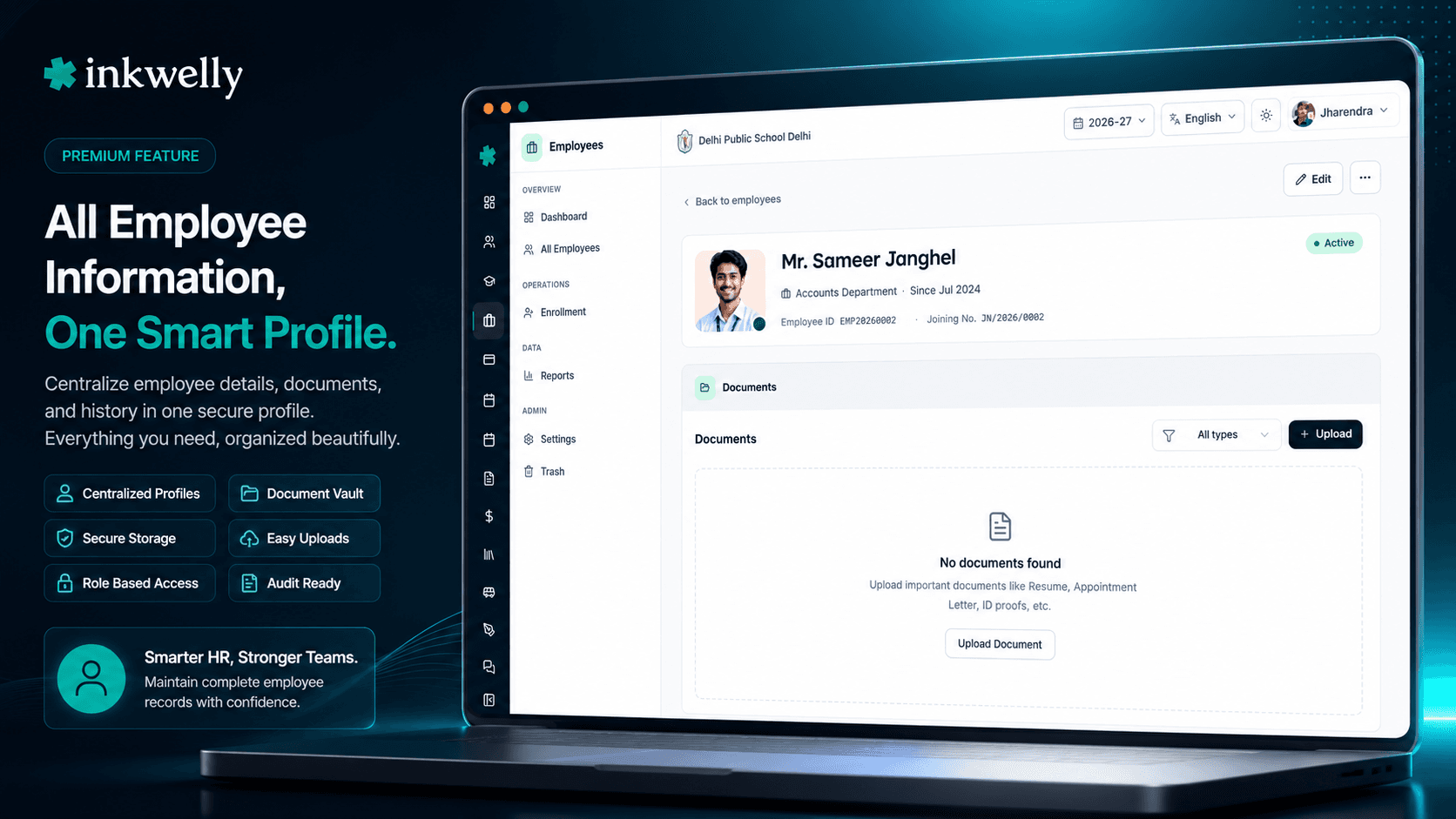
हर employee profile के अंदर एक complete document store, और पूरे school का coverage dashboard — per-type bars, department × document-type heatmap और recent-uploads feed के साथ। POCSO के तहत police verification, B.Ed / CTET, Form 16 के लिए PAN, EPF के लिए Aadhaar — हर compliance audit का जवाब filter से, folder से नहीं।
Indian schools चुपचाप employee document audits क्यों fail कर देते हैं
July में CBSE affiliation review team आती है। Reviewer 67 teaching और non-teaching staff की POCSO Act 2012 के तहत police verification certificates माँगता है। HR clerk steel almirah खोलती है। 43 verifications अंदर हैं — कुछ original, कुछ xerox, कुछ teacher के appointment letter के अंदर मुड़ी हुई। 14 missing हैं। 10 किसी को मिल ही नहीं रहीं। Reviewer gap note करता है और चेतावनी देता है: 7 दिन में बाकी produce करो, वरना affiliation renewal रुक जाएगा।
Agle mahine EPFO inspection का auditor आता है। Salary roll के हर employee का Aadhaar copy, PAN card और bank passbook चाहिए। Accountant 'Salary Docs - 2025' नाम के Google Drive folder में maintain करता है। 8 employees ने PAN copy दिया ही नहीं। 3 ने paper पर कोई और bank account दिया था जबकि school दूसरे account पर salary डाल रहा है। May में Form 16 generation ने उन 3 के गलत PAN pull किए — TDS quarterly statement Form 24Q गलत file हुआ। Auditor flag कर देता है।
हमने सोचा: क्या हो अगर हर employee document — Aadhaar, PAN, B.Ed degree, CTET / TET certificate, police verification, appointment letter, पिछले school का experience letter, bank cancelled cheque, medical fitness, EPF nomination — हर employee के profile के अंदर एक structured store में रहे, साथ में एक school-wide coverage dashboard जो exactly बताए कि कौन-से documents missing हैं, department और document type के हिसाब से broken down, हर HR clerk के upload पर refresh होए? तो हमने Employee Documents Management बनाया, Employee Information module के अंदर। Dashboard के same coverage bars और heatmap हर audit का जवाब देते हैं — POCSO, EPFO, CBSE, ICSE, state board — 5 second में, 5 दिन में नहीं।
Inkwelly Employee Documents कैसे काम करता है
Inkwelly में document storage दो levels पर है — एक हर employee के profile के अंदर HR clerk के लिए जो एक staff member के साथ काम करता है, एक coverage dashboard principal या admin के लिए जिसे पूरे school की compliance picture चाहिए। दोनों views same underlying records से पढ़ते हैं।
Per-employee tab — /employees/<id> → Documents. किसी भी employee का profile खोलें, Documents tab पर click करें। View 2- या 3-column document cards का grid render करता है, upload date से sortable (newest first)। हर card पे: document type badge (Aadhaar / PAN / B.Ed / Police Verification / Appointment Letter), document name, upload date, optional description, internal note (remarks field, italicised), और one-click Download button जो file को new tab में signed URL से खोलता है। Top पर Filter dropdown एक single document type पर narrow करता है — useful जब employee के 6 documents हों पर CTET application packet के लिए केवल B.Ed-related देखना हो। Pagination 20 cards per page; 30+ documents वाले long-tenured employee पर HR clerk cleanly page through करता है।
Coverage dashboard — /employees overview cards. Employees module dashboard खोलें। Documents card तीन चीज़ दिखाता है: (1) Coverage by type — per document type horizontal-bar list, worst-coverage-first sorted; हर row reads <typeName> [Required badge if mandatory] — <collected>/<total> — <percentage>% colour-coded progress bar (red <60%, amber 60–89%, green ≥90%) के साथ। (2) Coverage heatmap — department × document-type grid जिसमें हर cell us department में us document के percentage employees दिखाता है, colour-coded (green ≥90%, amber ≥50%, red <50%)। (3) Recent uploads — last 5 employeeName · documentTypeName · employeeIdShort · X minutes ago rows ताकि principal देख सके क्या flow हो रहा है। Same coverage data POCSO inspections, EPFO audits, CBSE affiliation reviews और salary-statutory checks का जवाब देता है।
Upload flow. Per-employee Documents tab से Upload click करें। Dialog पूछता है document type (आपके school के configured employee document types का dropdown, mandatory वाले flagged), document name (required), optional description, optional remarks (card पर italics में दिखने वाला internal note), और file। Files Inkwelly के MediaPicker से जाती हैं — PDFs, JPEG, PNG, HEIC, WEBP accepted हैं। File school के encrypted media store पर upload होकर employee के document record से link हो जाती है। Save — grid refresh होती है, dashboard के coverage bars next page load पे re-compute होते हैं। Edit से file swap या type change। Delete confirmation माँगता है, record + underlying media file दोनों remove करता है, और audit log पर action लिखता है।
हर employee documents tab में क्या track होता है
- Aadhaar number copy — 12-digit identity proof; EPF / UAN, ESIC और salary bank-account opening के लिए required।
- PAN card copy — TDS threshold से ऊपर कमा रहे हर employee के लिए mandatory; missing PAN TDS higher 20% slab पर force करता है और Form 16 generation break करता है।
- Bank passbook / cancelled cheque — salary credit का source of truth; on file salary-account number mismatch silent salary failures कारण बनते हैं।
- Highest qualification certificate — graduation, post-graduation, B.Ed, M.Ed, M.Phil, Ph.D — CBSE / ICSE / state-board affiliation reviews पर teacher qualification compliance prove करने के लिए reference।
- Teaching certifications — CTET, State TET (UP-TET, MP-TET, RTET, KTET, etc.), B.Ed, D.El.Ed; RTE Act 2009 norms के तहत teacher eligibility के लिए required।
- Experience certificates — पिछले schools / colleges / employers से; graduation pay scale और seniority calculations के लिए चाहिए।
- Police verification under POCSO — हर staff member के लिए mandatory — teaching, non-teaching, transport, hostel — POCSO Act 2012 के तहत; CBSE / state board reviews में सबसे ज्यादा पूछा जाने वाला document।
- Appointment letter — joining पर school का अपना letter; service term, designation, salary, leave entitlement के लिए reference।
- ID proofs (secondary) — Voter ID, Driving License, Passport — HR के verification redundancy और school transport के driver / conductor records के लिए।
- Medical fitness certificate — residential / hostel schools और कई CBSE day schools joining और periodic intervals पर चाहिए।
- Photo (passport size) — current academic-year photo जो ID cards, payslips, parent-facing teacher pages और CBSE staff lists पर use होती है।
- EPF nomination form / UAN documents — Form 11, Form 2 nominations, UAN allotment letter — EPFO inspections और member-portal correspondence के लिए reference।
- Custom document types — आपका organisation administrator
/employees/settingsसे कोई भी document type add कर सकता है और required या optional mark कर सकता है — hostel-warden background letter, lab-assistant safety certification, transport conductor licence, anything।
Document type filter — अभी जो चाहिए बस वही narrow करें
Senior teacher का profile long tenure पे 25–40 documents carry करता है — graduation degree, B.Ed, multiple CTET attempts, training certificates, prior-school experience letters, multiple police verification renewals, salary-revision proofs। Sab एक wall में दिखाना overwhelming है। Grid view top पर single-select document type filter support करता है — Police Verification pick करें, grid सिर्फ verification certificates तक reduce हो जाता है (latest ऊपर)। B.Ed pick करें, degree और supporting letters दिखते हैं। All types — full grid वापस।
यह inspections में सबसे ज्यादा use होने वाला affordance है। CBSE reviewer सारे teachers के B.Ed degrees देखना चाहता है — HR clerk हर profile को B.Ed पर filter करता है और inspector पढ़ता है। POCSO check — हर staff member के लिए Police Verification filter। Filter upload-dialog default भी drive करता है — अगर आपने Aadhaar पर filter किया है, Upload click पर document type Aadhaar pre-fill होता है।
Coverage by type — worst-first sorted, audit-ready
Employees dashboard का Documents card per document type एक सबसे useful number surface करता है: kitne percentage employees ने वो document upload किया है। List worst-coverage-first sorted है — fail हो रहा document type top पर है, नीचे नहीं दबा हुआ। हर row reads: <Document Type Name> [Required] — <collected>/<total> — <%> colour-coded bar के साथ (red < 60%, amber 60–89%, green ≥ 90%)। एक नज़र principal को बताती है कि इस hafte कौन-सा compliance area chase करना है।
Required-or-not badge हर row पे triage के लिए matter करता है। अगर Police Verification 71% पर है और required — POCSO compliance के लिए top priority। अगर Hostel Warden Letter 71% पर है और optional — next quarter में deal करें। Required badge आपके administrator के सेट किए isMandatory flag से आता है। By default top 8 types दिखते हैं; बाकी paginate या dedicated documents view से accessible।
Department × document type heatmap — exactly जानें कौन-सा department lag कर रहा है
एक single coverage percentage छुपा देता है कि gap actually कहाँ है। 80% Aadhaar coverage का मतलब हो सकता है: Teaching Department 95% (great), Transport Department 40% (terrible — bus drivers और conductors का Aadhaar miss है)। Dashboard heatmap grid render करता है — departments बाईं ओर, document types ऊपर — हर cell us department में us document के percentage दिखाता है, colour-coded green ≥ 90%, amber ≥ 50%, red < 50%, em-dash जब कुछ on file न हो।
Heatmap principal का diagnostic है। CBSE B.Ed coverage पूछता है — Teaching cell 92% पढ़ती है, fine। POCSO police verification पूछता है — Transport cell 38%, Hostel cell 71% पढ़ती है। आपको exactly पता चल जाता है कि किस HOD को office में बुलाना है, names के साथ, inspector flag करने से पहले। हर row पे ऊपर 5 document types render होते हैं; heatmap tooltips department × type × percent hover पर दिखाते हैं।
Recent uploads feed — हमेशा जानें क्या flow हो रहा है
Dashboard के Documents card का तीसरा panel last 5 document uploads दिखाता है — <Employee Name> · <Document Type> · <Employee ID> · <relative time> — जैसे Meera Sharma · Police Verification · EMP001114 · 12m ago. Relative timestamp page reload के साथ update होता है (m / h / d ago)। यह principal के लिए passive monitor है: अगर 14 staff को इस hafte police verification upload करने का कहा है, recent-uploads feed trickle दिखाता है। अगर quiet है, आप जानते हैं कि कोई upload नहीं कर रहा और reminder send करना है।
Feed intentionally compact है — 5 rows, no clutter। किसी row पर click करके सीधे उस employee के documents tab पर jump करें। Per-type bars और heatmap के साथ mil कर, dashboard HR compliance का operational nerve centre है — static report नहीं। Configurable document types और Required flag दोनों administrator settings हैं; once configured, dashboard reality reflect करता है बिना किसी manual reporting काम के।
“POCSO inspection se 1 hafta pehle dashboard kholi — Police Verification 71% par tha, Transport department 38% par. Maine driver-conductor list pull ki, sabko WhatsApp kiya, 5 din mein 11 verifications upload ho gayi. Inspection ke din coverage 96% par tha. Inspector ne sirf 2 minute mein heatmap dekha aur sign-off de diya.”
School year में यह कब काम आता है
April – June: new joiner onboarding. Indian school में हर new appointment एक small document storm है — Aadhaar, PAN, bank cancelled cheque, qualification certificates, B.Ed / CTET / TET (अगर teaching), पिछले school का experience letter, 2 passport-size photos, EPF nomination Form 11, ESIC details (अगर applicable), police verification (separately initiated), medical fitness। Inkwelly का per-employee Documents tab joining-day checklist है — HR clerk हर एक को upload करता है जैसे employee hand over करता है, dashboard के coverage bars increment होते हैं, और 7th दिन employee का profile fully document-compliant होता है।
July – September: CBSE / ICSE affiliation review. Reviewer हर staff member की teacher-qualification proof, police verification, appointment letters और experience certificates माँगता है। Dashboard के Coverage by Type bars headline numbers देते हैं; heatmap बतातe है कौन-सा department drag कर रहा है। आप deficient files हर profile से pull करते हैं, chase करते हैं, और reviewer के वापस आने से पहले re-upload करते हैं।
October – November: EPFO compliance audit. EPFO inspector हर salaried employee के Aadhaar, PAN, UAN allotment, EPF Form 11 और bank-passbook copies चाहता है। Dashboard के Required-flagged document types exactly यही set हैं; उनके coverage percentages audit का जवाब हैं।
December – January: Form 16 / Form 24Q TDS prep. TDS Section 192 quarterly statement Form 24Q on file employee PANs से file होता है; अगर PAN file गलत है, TDS गलत PAN पर जाता है और February में TRACES पर correction में वक्त जाता है। Inkwelly PAN-on-file को Required type के रूप में enforce करता है; HR missing employee के खिलाफ Form 16 generate नहीं करता।
Continuous: POCSO Act 2012 compliance. Police verification certificates expire होते हैं (typically 3 years) और renewal चाहिए। Dashboard को Police Verification पर filter करें, coverage drop sort करें, और proactively renewal chase करें — next CBSE review का wait किए बिना। School transport drivers और hostel wardens सबसे ज्यादा scrutinise होने वाले cohort हैं — heatmap के Transport और Hostel cells वो rows हैं जिन्हें आप हर quarter watch करते हैं।
Year-end: exit / full-and-final settlement. जब employee छोड़ता है, office relieving letter, experience letter, Form 16 final, EPF transfer documents और next employer के लिए Bonafide issue करता है। हर reference document — original appointment letter, सारे uploaded police verification cycles, हर B.Ed / qualification proof — सीधे documents tab से read होता है। 5-साल पुराने appointment letter के लिए steel almirah खंगालना नहीं।
Indian school HR offices इस पर ये common operations करते हैं
- POCSO compliance pull — dashboard heatmap पर
Police Verificationfilter; लाल cells chase करें। - CBSE / ICSE affiliation B.Ed audit — हर teacher के profile पर
B.Edfilter; reviewer के लिए packet produce। - EPFO inspection prep — dashboard के Required-flagged types से Aadhaar + PAN + UAN coverage।
- Form 16 generation prerequisite — December close से पहले PAN coverage 100%; per-type bar से missing rows chase।
- TDS Form 24Q quarterly accuracy — PAN-on-file payroll में use हो रहे PAN से match करता है — audit-log बताता है last update कब हुआ।
- RTE Act 2009 teacher qualification check — graduation + B.Ed + TET / CTET coverage को dashboard पर single triple filter के रूप में।
- Joining-day checklist — per-employee Documents tab HR onboarding tracker है — side spreadsheet नहीं।
- Driver / conductor licence audit — transport department heatmap row; next state inspection से पहले missing licences chase।
- Hostel warden background check — dashboard की Hostel department row + custom 'Background Verification' type।
- Exit / F&F prep — leaving employee का documents tab relieving letter, Form 16 final, gratuity calculation के हर reference relieving-clerk को देता है।
- Police verification renewal tracker — हर employee के
Police Verificationdocuments को upload date से sort करें; 3 साल से ज्यादा पुराने वाले renewal flag। - Custom-type compliance — lab-assistant safety certification, librarian qualification, sports-coach certification — हर एक अपने document type के रूप में dashboard coverage line के साथ।
अपने school के data पर Employee Documents Management देखें, live 30 minutes में
5 sample employee folders ले आइए — Aadhaar, PAN, B.Ed, police verification, appointment letter। हम demo के दौरान आपके employee document types set up करेंगे और दिखाएँगे कैसे per-employee tab + dashboard coverage + department heatmap आपके real staff list पर काम करते हैं।
Limits, safety और small print
File size. Individual file uploads MediaPicker की standard limit पर capped हैं (typically 10 MB per file — एक high-resolution scanned PDF, degree certificate या passport-size photo cover करता है)। बड़े scans को downsample या split करना चाहिए। Limit hit होने पर MediaPicker clear error message दिखाता है; silent truncation कभी नहीं।
Supported formats. PDF, JPEG, PNG, HEIC, WEBP। Office scanners की scanned PDFs और HR clerk के iPhone की HEIC photos बिना conversion friction coexist करती हैं। Inkwelly uploaded files OCR नहीं करता — document record file store करता है, text content नहीं। (OCR v2 roadmap पर है।)
Per-employee record limits. Documents per employee पर कोई hard cap नहीं — 20-year-tenure principal 35–40 documents के साथ (multiple police verification renewals, salary-revision letters, training certificates, multiple ID proofs) fully supported। Grid 20 cards per page paginate करता है; document-type filter long lists से fast cut करता है।
Required vs optional changes. जब document type optional से required बदले, जिन employees ने already upload किया था वो collected रहते हैं; dashboard की coverage bar next page load पे update होती है। जिन्होंने नहीं किया Required gap में shift होते हैं। Reverse change (required → optional) data keep करता है; सिर्फ dashboard का Required badge disappear होता है।
Multi-tenant isolation. Document records और underlying media files multi-school organisations के अंदर strictly per-school scoped हैं। Same trust के schools में move हो रहे employees के documents explicitly copy या reference होते हैं — कभी silently shared नहीं। Audit log हर cross-school document access दिखाता है।
Audit log. Uploads, edits, deletes और document-type changes सब school audit log पर लिखे जाते हैं — user, timestamp, IP address, document type, file name, action verb। Audit log school admin panel से exportable है और employee के full lifecycle + exit के बाद school का defined retention period तक retained।
Role-based access. Document upload, edit और delete by default school admin और HR roles पर gated हैं। Department heads अपनी reporting line के employees के documents view कर सकते हैं पर delete नहीं। Employee portal से self-service uploads HR-approval workflow से जाते हैं live होने से पहले। यह सब Identity & Access Management module से configurable है — आपका school policy decide करता है।
Soft-delete default नहीं है. Document delete करने से record और underlying media file permanently remove होती है। यह intentional है — employee documents DPDP Act के तहत personal data हैं, और individuals के पास right to deletion है। अगर permanent deletion से पहले 'safety net' चाहिए, role policy configure करें कि सिर्फ़ 1-2 designated admins delete कर सकें और confirmation step required हो। Audit log हर delete को sufficient detail के साथ retrospective review के लिए capture करता है। (Soft-delete with restore window v2 roadmap पर है, opt-in setting के रूप में।)
किस मॉड्यूल का हिस्सा
1 moduleअक्सर पूछे गए सवाल
8 सवालक्या हम अपने employee document types configure कर सकते हैं? अलग-अलग staff cohorts — teaching, transport, hostel, lab — को अलग documents चाहिए।
हाँ। Organisation administrator /employees/settings खोलता है, Add document type click करता है, name type करता है (Police Verification, Hostel Warden Background Check, Transport Driver Licence, Lab Safety Certification, Cambridge Examiner Letter), और Required या Optional pick करता है। Type हर employee के Documents tab, upload-dialog dropdown और dashboard के coverage bars में तुरंत appear हो जाता है। कोई hardcoded list नहीं — Inkwelly CBSE, ICSE, IB, IGCSE, NIOS और हर state-board school के लिए fit है।
School-wide coverage dashboard CBSE affiliation review में कैसे help करता है?
Employees module dashboard खोलें। Documents card का Coverage by Type list worst-first sorted है — अगर Police Verification 71% पर है top पर लाल bar के साथ दिखता है। Department heatmap बताता है कौन-सा cohort drag कर रहा है — जैसे Transport 38% पर। आप missing employees हर profile से pull करते हैं, WhatsApp करते हैं, और 3–7 दिन में coverage 90%+ पहुँचता है। Dashboard audit-prep tool बन जाता है, static report नहीं।
क्या यह POCSO Act 2012 के तहत required Police Verification certificate track करता है?
हाँ। Indian schools के लिए Police Verification सबसे common Required-flagged document type है। Dashboard इसे किसी भी document type की तरह treat करता है — coverage bar, department heatmap row, recent-uploads feed entry। Verification certificate file employee के profile से store होती है; renewals (typically हर 3 साल) same type के additional documents के रूप में upload होते हैं, और per-employee tab में most recent date बताता है last refresh कब हुआ।
Form 16 / Form 24Q TDS reporting के लिए PAN copies का क्या?
ज़्यादातर Indian schools में PAN by default Required document type के रूप में configured है। [Employee Payroll](/modules/employee-payroll) में Form 16 generation employee profile से PAN read करता है, जो इस feature के तहत uploaded PAN से populate होता है। अगर PAN missing है, Form 16 generation employee को flag कर देता है — quarterly Form 24Q TRACES पर file होने से पहले gap fix होना force होता है। PAN field bulk update employees view से भी editable है।
Actual files कहाँ store होती हैं? क्या employee data India से बाहर जाता है?
Files आपके school की encrypted media library में store होती हैं, Indian servers (Mumbai region) पर hosted — DPDP Act 2023 compliant। Encryption AES-256 at rest और TLS 1.3 in transit। Files Inkwelly tenant से कभी बाहर नहीं जातीं; signed URLs से serve होती हैं जो on-demand expire होती हैं। Compliance posture बाकी Inkwelly data जैसा है — documents के लिए कोई special handling नहीं। PAN, Aadhaar और police verification जैसे sensitive records के लिए critical।
क्या teachers / employees अपने documents देख और download कर सकते हैं?
हाँ। Employee portal /e/<profileId> employee का अपना Documents tab expose करता है। वे files view और download कर सकते हैं, पर delete या edit नहीं — वो HR / school admin roles पर gated हैं। कुछ schools parents-of-employees view enable करते हैं (live-in residential staff के लिए) — Identity & Access Management से per role configurable। Self-service uploads (जैसे teacher का latest CTET certificate upload) HR-approval workflow से जाते हैं master profile पर appear होने से पहले।
क्या कोई audit log है — किसने कौन-सा document upload, edit, या delete किया?
हाँ। हर upload, edit, type change और delete school audit log पर user, timestamp, IP address, document type, file name, action के साथ लिखे जाते हैं। Audit log school admin panel से exportable है और employee के full lifecycle + school का defined post-exit retention period तक retained। खासकर जब employee delivered document पर dispute करे, या school specific date के लिए POCSO compliance retrospectively prove करना चाहे तो useful।
Employee exit करे तो उसके documents का क्या होता है?
Documents school के full retention period तक employee record से attached रहते हैं — typically 3 से 7 साल board / labour-law requirements के मुताबिक। Exit / F&F के दौरान documents tab relieving letter, experience certificate, final Form 16, EPF transfer letter और next employer जो service-record extracts माँगे उसके लिए source of truth है। Retention period खत्म होने पर documents और underlying files record के साथ delete हो जाते हैं। School admin DPDP Act deletion requests on demand भी fulfil कर सकतe है।
आपको ये भी पसंद आ सकता है
2 लेखInkwelly आपके स्कूल पर — खुद देखें
30 मिनट का डेमो। आपके मौजूदा ERP को आपके साथ खोलकर, कॉल पर ही आपका डेटा Inkwelly में लोड करते हैं। कॉल ख़त्म होते-होते एक तय तारीख़ का गो-लाइव प्लान आपके हाथ में।